1
4.3
Library Commands
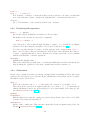
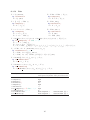
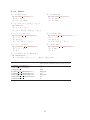
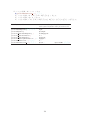
Most library commands are best executed from the navigator may also be invoked from the ML top
loop (see Section 4.4). In this section we will describe the usual navigator operation and mention
the corresponding commands.
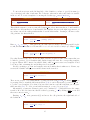
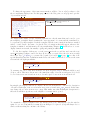
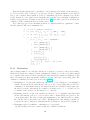
Many commands are initiated by clicking the left mouse button on one of the predefined menu
buttons in the navigator’s command zone. Often this will pop up a template containing one or
several slots into which the user has to enter text or terms. When issuing commands, pressing
certain key sequences will have the following effects.
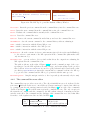
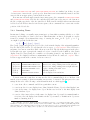
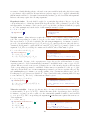
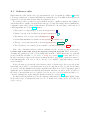
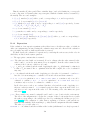
• The return key | closes a slot and moves to the next empty slot. If all slots have been filled,
it highlights the completed command. Pressing | again then executes the command.
• The tabulator key | !| usually cancels a command.
• The space key spc moves the cursor back into the navigation zone but leaves the template
open. This is helpful for moving objects or link objects in different theories.
• As spc is used for the above action, blanks are inserted into a text slot by pressing hS- spc i.
• hC- i is used to undo an operation (on a fairly fine level)
hC-+i is used to redo an undone operation.
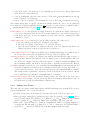
• Pressing the left mouse button left usually sets the point to that location. Pressing left
while over a menu command button executes the corresponding command.
• Pressing the middle mouse button middle usually raises the display form of a term or the
code object containing the definition of an ML function. Within the navigation zone, it opens
the corresponding object.
• Pressing the right mouse button middle raises the abstraction of an object, if there is one.
These bindings are also valid in many other editing contexts.
4.3.1
Browsing the Library
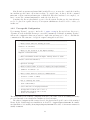
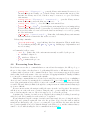
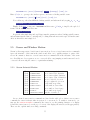
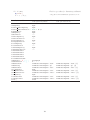
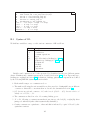
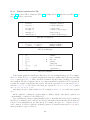
To browse the library, a user may move a navigation pointer through the current directory by using
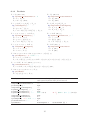
arrow keys, the mouse, or clicking on one of the arrow buttons ↑↑↑↑, ↓↓↓↓, . . . , ↑, ↓. To move into
a directory or to open an object for editing, one uses the right arrow key (or middle-clicks on it
with the mouse), to move out of a directory, one moves the navigation pointer to the left. There
are also emacs like key bindings to substitute for the arrow keys and buttons for changing the
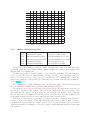
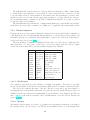
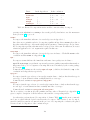
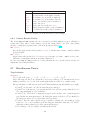
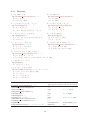
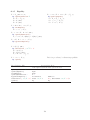
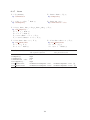
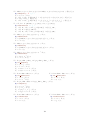
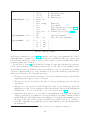
number of visible objects, or screen size. Table 4.1 lists all the key bindings and buttons for moving
through the navigator window and manipulating its size. Users may customize these bindings in
their mykeys.macro file (see Chapter 3.2.2).
4.3.1.1
Viewing and Editing Objects
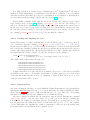
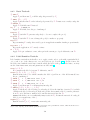
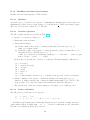
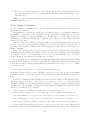
In order to view or edit an object, one moves the navigation pointer to it and then opens it using
the right arrow (or middle ). If the object is not already being viewed, this will pop up a new
window and open the appropriate editor: a proof editor (Chapter 6.2) is used on theorem objects,
while the term editor (Chapter 5) is used for all other objects.
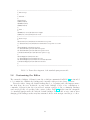
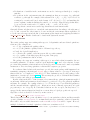
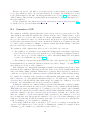
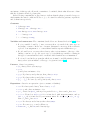
Abstractions and display forms of an abstract term can also be opened when an instance of the
term is visible in a term editor. In this case one may click on the term with middle to view the
display form and right to view the abstraction. Alternatively one may position the term cursor
at the term and type hC-Xidf or hC-Xiab, respectively. Chapter 5.7 gives a detailed description of
these term editor utilities.
37