1
Modeling Pipe Supports
Creating Pipe Support Drawing
9.
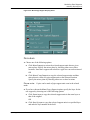
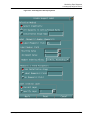
Choose the Starting Serial Number option to generate an installation drawing
for pipe support units having the specified label number. If Ending Serial
Number is also chosen, they together are the starting and ending number of a
range, and the installation drawing of the pipe supports whose label number is
in this range is to be generated. This option is active only if Installation Stage
Name is chosen. Enter the label number in the field.
10. Choose
the Ending Serial Number option to generate installation drawing for
pipe support units whose label number is in the specified range. This option is
active only if the Starting Serial Number option is chosen. Enter the ending
number in the field. They together are the starting and ending number of the
range. For example, if the value entered for Starting Serial Number option is
10 and the value entered for Ending Serial Number is 20, then only those
supports whose label number is between 10 and 20 inclusively are selected for
the drawing generation.
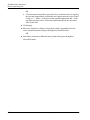
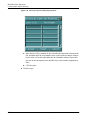
11. Choose Support Drawing Parameters
to specify the drawing parameter
options. Click the Options... button, the Support Drawing Parameters property
sheet appears. For details, see “Support Drawing Parameters Property Sheet.”
on page 3-92.
12. Choose Support Drawing Output
to specify the output destinations and other
hardcopy options. Click the Options... button, the Support Drawing Output
Options property sheet appears. For details, see “Support Drawing Output
Options Property Sheet” on page 3-94.
13. Choose Process Drawings Continuously Without Break
to indicate that if
there are more selected supports than the number of drawing forms in the active
drawing, all the selected supports are processed continuously with no break.
If this option is chosen, then once all the drawing forms in the active drawing
are filled up, the graphics data in the active drawing are sent to the printer or
plotter device or stored in the specified diskfile as needed, the active drawing is
deleted, a new drawing is activated from the same form part drawing and it
continues to process the remaining selected supports. Once all the drawing
forms in the active drawing are filled up, by default this option prompts you to
type ok before activating the next drawing and continue the processing of the
remaining selected supports.
14. Click Apply.
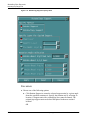
Options on the Support Drawing Generation
Property Sheet
Given below are details of the options on the Support Drawing Generation
property sheet.
Pipe Supports User Guide and Menu Reference
3-91