1
Updating Information
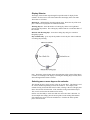
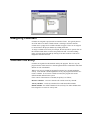
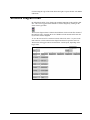
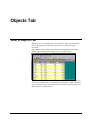
Data Entry Tables
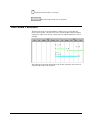
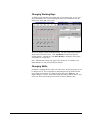
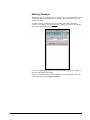
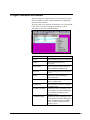
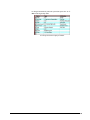
Data can be entered or edited by selecting the appropriate dataset and choosing
Update mode. All records are maintained in order based on the key identifier field
in the dataset, which must be unique.
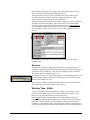
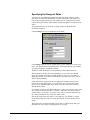
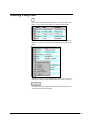
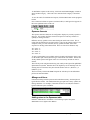
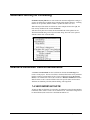
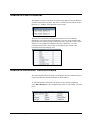
Fields which are not displayed can be added by clicking the mouse in the
background space to the right of the data table and selecting from the field name
popup. Only those fields not already displayed are included in the popup list. Each
selected field is added to the end of the table.
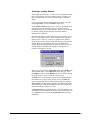
Changing the Table Layout
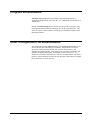
If a View has been saved in the current dataset, table fields can be moved or resized.
Use View Save As... to name a View. To move a table field column, position the
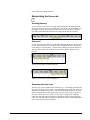
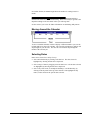
cursor at the top of the field heading. When the cursor changes to an open palm,
click and drag the column to its new position and let go of the mouse.
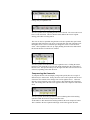
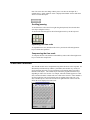
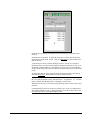
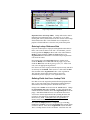
To size the columns, position the cursor at the right edge of the field heading. When
the cursor changes to a pointing finger, click and drag until the column is the desired
size. If the column is sized all the way down to its opposite edge, (zero width) the
column will disappear. Selecting AutoResize from the View menu will
automatically size each column to the size allowed by the field definition.
Deleting Records
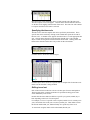
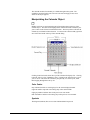
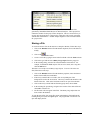
Records may be deleted by selecting the row or rows (click or Shift-click on the row
line number) and selecting Delete from the Edit menu. The Del key on the keyboard
can also be used.
Saving the Data
When the entering or editing of information is completed in the selected dataset and
it is a local database, select Save from the File menu. If the server version is being
used, the server will automatically save the record.
AMS REALTIME 5.2 Addendum
Updating Information • 67