1
User Guide
© UVI.net
> DO NOT USE THIS PRODUCT UNTIL YOU HAVE
READ THE FOLLOWING LICENSE AGREEMENT.
BY USING THIS PRODUCT (OR AUTHORIZING
ANY OTHER PERSON TO DO SO) YOU ACCEPT
THIS AGREEMENT.
Sounds & Software License Agreement
NOTE :
COPYRIGHT LAWS HAVE RECENTLY BEEN STRENGTHENED. IT IS IN
YOUR BEST INTEREST TO READ AND FOLLOW THIS AGREEMENT.
3. Ownership.
As between you and UVI, ownership of, and title to, the enclosed digitally
recorded sounds (including any copies) will be held by UVI. Copies are provided to you only to enable you to exercise your rights under the license.
Only this license is purchased by you.
4. Term.
This Agreement is effective from the date you open this package, and will
remain in full force until termination. This Agreement will terminate if you break
any of the terms or conditions of this Agreement. Upon termination you agree
to destroy and return to UVI all copies of this product and accompanying
documentation.
5. Restrictions.
This copy of the Sounds & Software (the Product) are licensed to you as the
end user. Please read this Agreement carefully.
Except as expressly authorized in this Agreement, you may not rent, sell, lease,
sublicense, distribute, transfer, copy, reproduce, display, modify or time share
the enclosed product or documentation.
You cannot transfer ownership of these Sounds and Software they contain.
You cannot re-sell or copy the Product.
THE SOUNDS IN THIS INSTRUMENT ARE GUARANTEED TO BE 100%
COPYRIGHT CLEAN
LICENSE AND PROTECTION
© UVI.net.
1. License Grant.
All rights reserved. All trademarks are the property of their respective holders.
UVI, brand (UVI) grants to you, subject to the following terms and conditions,
a non-exclusive, nontransferable right to use each authorized copy of the
enclosed Product.
The enclosed product is the property of UVI and is licensed to you only for
use as part of a musical performance, live or recorded. This license expressly
forbids resale or other distribution of the sounds and software included in
the Product or their derivatives, either as they exist on disc, reformatted for
use in another digital sampler, or mixed, combined, filtered, resynthesized
or otherwise edited, for use as sounds, multisounds, samples, multisamples,
wavetables, programs or patches in a sampler, microchip or any hardware or
software sample playback device.
You cannot sell the Product content or give it away for use by others in
their sampling or sample playback devices. In the event UVI terminates this
Agreement due to your breach, you agree to return the original and all other
copies of the software and documentation to UVI.
UVI reserves all rights not expressly granted to you.
2. Protection of Software.
You agree to take all reasonable steps to protect this product and any accompanying documentation from unauthorized copying or use. You agree not to
modify the enclosed product to circumvent any method or means adopted or
implemented by UVI to protect against or discourage the unlicensed use of
copying of the enclosed Product.
UVI.net is registered trademarks of Univers Sons, SA
TABLE OF CONTENTS
Thanks for purchasing !
4
Installation Mac / PC
5
About CS-M
6
CS-M : User Interface�
7
CS-M : Presets & Layer List
10
About Energy
11
Energy : User Interface
12
Energy : Presets List
14
About FMX-1
15
FMX-1 : User Interface
16
FMX-1 : Presets List
18
About Kroma
19
Kroma : User Interface
20
Kroma : Presets List
22
About Synthox
23
Synthox : User Interface
24
Synthox : Presets & Layer List
27
About U-1250
28
U-1250 : User Interface
29
U-1250 : Presets List
30
Credits�� 31
Thanks for Purchasing
Iconic Synth Collection
Take 6 vintage synthesizers, carefully restore them, create a massive array of
presets and deeply multi-sample them, professionally process and master the
sounds, infuse them into the industry proven UVI Engine--giving you endless
sound shaping options, then wrap the results in immaculately prepared GUIs
and you’ve got UVI Vintage Legends.
Instantly call up inspiration from the Yamaha CS-70M, CS-40M and CS-20M,
the crazy Italian Elka Synthex, the Rhodes Chroma, the king of FM Yamaha
DX1, the rare DK Synergy, and rediscover the classic K250.
At UVI we’ve been producing sound for over 20 years and designing our own
software for over 12. We’ve found that virtual instruments with a foundation in
sampling have a more defined character and distinct sound quality than those
based on digital modeling. The trouble with sample-based instruments is that
they’re typically lacking in expression and flexibility; one sample, one sound.
UVI hybrid instruments are more flexible than a conventional ROMpler and
more authentic than a simulation, giving you the best of both worlds. Vintage
Legends integrates over 30,000 samples from classic synths into the acclaimed
UVI Engine, giving you the distinct character of hardware with the added control, convenience and power of a modern digital instrument.
In fact we think Vintage Legends sounds better than the hardware that inspired
it. Taking these classic tones into new sonic territory, the UVI Engine delivers
massive unison spreads, abundant polyphony, thick modeled filters, drive,
reverbs, modulation, FX and much, much more. Needless to say our instruments will never need to be serviced or go out of tune (unless you want them
to) and they’re far easier to lug around than hardware!
Vintage Legends comes packed with over 800 presets expertly crafted by our
sound design team, giving you a huge library of unique sounds and textures
not available anywhere else.
We’ve worked hard to develop the highest quality
sounds and tools, and wish you the best musical
experience. Enjoy! The UVI Team
* Yamaha, Elka, ARP, Rhodes, Kurzweil, D.K, CS70M, CS40M, CS20M, DX1, Synthex, Chroma,
K250, K1000 and Synergy are trademarks of their respective owners and are not affiliated,
endorsed, connected or sponsored in any way to this manual or any of our affiliate websites ; therefore do not be confused between UVI and these brands.
iLok Required
To be able to load sounds from this product, you’ll need an iLok key
as well as an iLok.com account.
And if you experience any
problem our support is here
to help : [email protected].
4
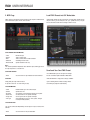
This is the official free player to load and use the all the UVI sounds & instruments
available today. Stay tuned at www.uvi.net to get the last infos.
> Features in Version 2:
•
New single mode for loading next generation of UVI sounds and instruments
• Compatible with the UVI scripted instruments
• Powerful Arpeggiator, extremely flexible and complete
• Easy to use Search Engine to find quickly what you’re looking for
• Universal compatibility Mac / PC
• Operate in full 64 bits on Mac / PC
• Manage instruments and loops in the same interface
• Smart integrated browser
• Convenient mixing environment with meters, mute, solo, volume, pan...
• Unlimited parts
• Up to 64 MIDI channels
• Disk streaming per part
• Multiple separate outputs
• MIDI learn
• Expert mode
• Cross-platform Multis & all host compatible
• Unlimited FX
• Complete professional effects arsenal, with easy editing
(delay, reverb, phaser, chorus, EQ, filter, drive, distortion, compressor...)
• Excellent sounding convolution reverb
• Direct sync to host : tempo & transport
• State-of-the-art real-time time-stretch algorithm
• Real-time sync to the beat: loops are always in time
• Latch mode
• Sample/Slice Start for loops and phrases
• Drag & Drop MIDI & Audio
• Import REX files, Apple Loops, AIFF, WAV and more...
• Expandable with all UVI sounds and instruments
• Direct connection to the UVI.net RSS feed
MachFive 3 by MOTU > Universal & Creative Sampler
If you want to go deeper on the editing
and get access to the best time stretch,
granular and other synth engine, note
that the incredible MOTU MachFive 3
is the big brother of UVI Workstation.
Check out www.motu.com
for more infos about MachFive 3
INSTALLING THE UFS FILE
UFS files are UVI’s monolithic instrument files. All
required samples, presets, scripts, FX and impulse
responses are contained within an instruments UFS file,
making for easy installation and file management.
Follow the procedures outlined below in order to install
Vintage Legends and load in either UVI Workstation 2 or
MOTU MachFive 3.
Stand Alone
Audio Units / RTAS
VST / MAS
... using UVI Workstation 2 or MOTU MachFive 3
Minimum System Requirements
Stand Alone
VST
RTAS
... using UVI Workstation 2 or MOTU MachFive 3
Minimum System Requirements
- MacIntel processors
- 4 GB of RAM
- 22 GB of hardisk space
- MAC OS X 10.6 or higher
- Hard Drive: when using Streaming, faster drive will allow more voices to play
- UVI Workstation 2 or MOTU MachFive 3 installed
- Core duo or faster
- 4 GB of RAM
- 22 GB of hardisk space
- Windows XP SP2 or higher version, Windows Vista
- Hard Drive: when using Streaming, faster drive will allow more voices to play
- UVI Workstation 2 or MOTU MachFive 3 installed
How to install the UFS file
How to install the UFS file
Copy the UFS file in this location :
[your startup disk]/Library/Application Support/UVISoundBanks
You can also drop an alias of this file in this location, provided they have the
same name. (not My soundpack.ufs alias for instance)
Copy the UFS file in this location :
C:\Program Files\UVISoundBanks.
You can also drop a shortcut to this file in this location, provided they have the
same name. (not Shortcut to My soundpack.ufs for instance)
CS-M
Energy
FMX1
Kroma
Synthox
U1250
UFS file size : 2.25 GB
Nb of presets : 128
Nb of samples : 6729
UFS file size : 1.9 GB
Nb of presets : 80
Nb of samples : 1471
UFS file size : 9.7 GB
Nb of presets : 202
Nb of samples : 12782
UFS file size : 2.1 GB
Nb of presets : 134
Nb of samples : 2869
UFS file size : 2 GB
Nb of presets : 128
Nb of samples : 2598
UFS file size : 3.9 GB
Nb of presets : 155
Nb of samples : 5600
5
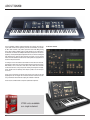
ABOUT CS-M
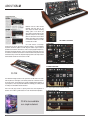
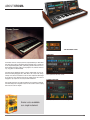
Between 1979 and 1984, Yamaha
designed and built some of the
most unique and distinct sounding
analog synths in the world. (the
most famous of which being the well
regarded CS-80) At UVI we actually
prefer the sound of the lesser known
siblings of the family, we’re speaking
of 3 marvelous models: the CS-70M,
CS-40M, and CS-20M.
UVI CS-M features a dual-layer
architecture and instant preset/layer switching making it an extraordinarily
responsive instrument capable of a wide range of sounds. Layers include all
possible base waveforms and noises as well as expertly programmed presets,
all made on the original machines. In fact, we’ve gone to great lengths to ensure
the authentic sound and natural texture of these machines was preserved and
translated clearly in CS-M. We sampled everything, down to the unique Unison
and Ensemble sounds from the massive CS-70M.
THE THREE CS-M PAGES
1. EDIT PAGE
Sound generation and effect controls for Layers A and B
2. MODULATION PAGE
CS-70M
The wonderful vintage aesthetic of this synthesizer can be taken even further
with help from the UVI Engine; CS-M comes packed with a wealth of features
to help you enrich and customize your sounds including double arpeggios, a
step sequencer, LFOs and precision modeled FX, allowing you to freely tread
in territory the old hardware couldn’t dream of.
From thick and gritty textures to pulsing warm tones and everywhere in
between, UVI CS-M is a grande ode to one of our most beloved inspirations.
LFO, Step Sequencer and modulation routings
3. ARPGEGIATOR PAGE
CS-M is also avaiblable
as a single instrument.
Dual arpeggiators
6
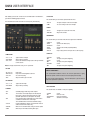
CS-M USER INTERFACE
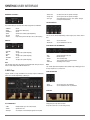
CS-M loads sounds and waveforms in two layers (A and B), you can edit each
with all available controls. CS-M includes 128 presets which can be accessed
instantly from any page.
MAIN section
AMPLITUDE
• A / D / S / R
• NO VEL
• VEL > ATK
Volume envelope
When on, all sounds will be played at maximum volume
Convert low velocities to long attacks and high velocities to short attacks
FILTER
• EDIT/MOD/ARP
• MUTE A/B • VOLUME/PAN
• OCTAVE
• MASTER
• PRESET
Switch from EDIT page to MOD page to ARP page
Mute Layer A or B
Control volume and pan for layer A or B
Octave transpose of the current layer
Global volume control
Select one of the global presets by using the arrows or the conventional preset list
EDIT Selection
• TYPE
• CUT OFF / RES
• EG DEPTH
• VELOCITY
•A/D/S/R
Select from LPF, BPF, HPF and no filter
Low pass filter, cut off and resonance
Depth of the ADSR applied to the filter.
Second LPF filter mapped to velocity
Filter envelope
STEREO
You can choose to edit only the layer A, only the layer B, or both layers at the
same time.
• 1st selection line
This slot allows you to select one of the category: Ensemble, Raw Poly, Raw
Solo, Unison, Waves, Waves Noises, Waves Unison Xtra CS20M Sounds &
Xtra CS20m Waves.
• 2nd selection line
• OFF
• ALT
• UNI
• COLOR • SPREAD
• TUNE Standard playing mode using mono samples
This emulates the multiple output from old samplers
Each voice is panned sequencially from left to right
(SPREAD parameter sets the depth of the stereo)
Using sound layering manipulation, this feature allows a dramatic extension of the stereo image
To be combined with COLOR and SPREAD settings
Playing neighboring samples, this parameter shifts the color of the sound in a unique way
Works in ALT and UNI mode, setting the stereo spread
Works only in UNI mode, detuning both layers
This slot allows you to change the sound from selected category
1. EDIT page
PITCH
• TUNE • DEPTH
• TIME
• MODE
Tune the selected layer in semitones/cents
Note: you can double click on the knob to enter
the desired value.
Set the depth of the portamento
Set the glide time
Switch from Poly to Mono mode
7
CS-M USER INTERFACE
• EG Depth
• Attack Time
• Decay Time
• LFO Type
MODWHEEL
Set the depth of the envelope assigned to LFO speed
Set Attack time the LFO speed’s envelope
Set Decay time the LFO speed’s envelope
Select Waveform of the LFO : Sine, Square, Triangle
or Sample & Hold (random)
LFO DESTINATION
This section allows you to choose what will be assigned to the modwheel.
• VIBRATO
• RATE
• TREMOLO
• RATE • FILTER • DEPTH
On/Off
Speed of the vibrato (free)
On/Off
Speed of the tremolo (tempo dependent)
On/Off
Depth setting from the low pass filter cut off frequency
EFFECTS
The LFO can be routed independently to either layers pitch, volume, drive
or filter.
• Knob
• Button A/B
Set the level of the
Set the destination of the LFO
STEP MODULATOR PARAMETERS
• PHASER
• MIX
• DELAY • MIX
• REVERB • MIX On/Off
To adjust the Dry/Wet weighting
On/Off
To adjust the Dry/Wet weighting
On/Off
To adjust the Dry/Wet weighting
Note: You can add as many FX as you want in the UVI Workstation, and you
can even edit the sounds deeper within MOTU MachFive 3.1.
• RES
• STEP
• DELAY
• RISE
• SMOOTH
Speed resolution of the step
Number of steps
Time to activate step
Time to activate with a smooth transition
Smoothing the level value
Note: The ‘Smooth’ parameter interpolates values between steps, allowing you
to use the Step Sequencer as a custom LFO.
STEP DESTINATION
2. MOD page
CS-M includes a freely controllable LFO and Step Sequence modulators which
can be routed independently to both layers.
• Knob
• Button A/B
Set the level of the step modulator
Set the destination of the step modulator
STEP EDIT
Simply draw your steps with the mouse.
A step with a value of «0» is like having no step.
LFO PARAMETERS
• SYNC
• SPEED
8
Enable/Disable Sync LFO to Host Tempo
Speed of the LFO
CS-M USER INTERFACE
3. ARP page
Load CS-M into UVI Workstation
CS-M includes two arpeggiators which can be routed to each layer independently (DUAL MODE), or the first to both layers (MONO MODE).. Arpeggiators
are always synced to the UVI Workstation or MachFive 3 master tempo.
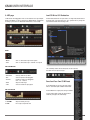
In Multi mode, double-click on a part name or, in Single mode, double-click on
the preset name ( you can also press the «eye» symbol on the UI), and you will
see the browser below when selecting CS-M.
MODE
• MONO
• DUAL
ARP 1 is connected to Layer A and Layer B
ARP 1 is connected to Layer 1 and ARP 2 to Layer B
ARP PARAMETERS
The ‘CS-M.M5p’ contains all data and presets for the instrument;
this allows for instant preset changes.
• ARP MODE
• RES
• OCTAVE
• GATE
• STEP
Select up, down or up & down
Select the speed of the Arpeggiator
Extend the range of the Arpeggiator
from + 3 to - 3 octaves
Adjust the note length
Select the number of steps played
ARP STEP EDITOR
Save/Load Your Own CS-M Preset
In UVI Workstation you can save your own settings
with the ‘Save Mutli’ option available in Multi-mode.
In MOTU MachFive 3 single preset saving is available.
If you’re working within a DAW, all settings will be
saved with your project file automatically.
1
2
1 - COLUMN
2 - LINK
Adjust the velocity of a step
Link a step to the previous one
9
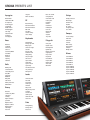
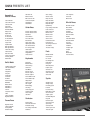
CS-M PResets & Layer list
Layer content
Arpeggios
AR-Art Peggios
AR-Cool Session
AR-Gumball Acrobatics
AR-Kieseritzky G
AR-Play 3 Notes
AR-Primitive
AR-Spatial Story
AR-Tanjarre Dream
AR-Tease Analog
AR-Xanalog Beat
AR-Xperimental Valley
Bells
BL-A Very Small One
BL-Baby Bell
BL-Bella Noisa
BL-Ensembells
BL-Guiz Mode
BL-Tremolos
Brassy
BR-Eve Angelis
BR-French Horn Like
BR-K Brass Orch
BR-Lazer Brass
BR-Majestic OBrass
BR-Power Brass
BR-Sea Fluid
Bass
BS-Alley Shakedown
BS-Burnt Popcorn
BS-Chinese Fretless
BS-Crate Duster
BS-Grain Bass Lead
BS-Intoxic
BS-Jo B Jo Bass
BS-L0c0m0t1v8r
BS-Magus Electrus
BS-Multi Polarity
BS-Music and Nights
BS-TB Progress
BS-TrenZ Diana
BS-Underground
BS-Yeti Bass
BS-Zapp Nostalgia
Play Chords
CH-Accelerator
CH-Analog Crunch
CH-Decade Inversion
10
CH-Evolu Chord Wheel
CH-Nate FF1087
CH-Parallel Predators
CH-Relaxing Wheel
CH-Starlight
FX-Drone
FD-Dayvan Indian
FD-Glissandi
FD-Haunted Flat
FD-Kaufman Synchronus
FD-LoFi CoalRider
FD-Move Away
FD-Noise Dunes
FD-Rue of Terra
FD-Sweep Machine
FD-Talking Tex
Keyboards
KB-CS Analog Piano 1
KB-CS Analog Piano 2
KB-CS Analog Piano 3
KB-Dirty Organ
KB-Fantasiatic
KB-HarpsYanalog
KB-Key Tooma
KB-Majestic Keys
KB-Molecular
KB-Nick Wheel Organ
KB-Orgalogic
KB-Organ 20M
KB-Pluck Road
KB-Seq Clavistan
KB-Short Piano
KB-Soft Pluck
Lead LD-Cajolead
LD-Creamy Synth
LD-CSolo 70M
LD-CSweep Lead
LD-First Lead
LD-Funky Cucumber
LD-Fusion Lead
LD-Mono AL
LD-NoiSolo
LD-Short Cop X
LD-Strange LFO
LD-Wha Wheel Solo
LD-Xtatic Motion
Noisy
Ensemble
Waves Noises
NS-ColdnQuiet
NS-Guiznoiso
NS-Noise Melody
NS-Noisonic Pad
NS-Ominousea
CSweep 70M
Full Ensemble
Lina Strings 1
Lina Strings 2
Machine String
Softy Brassy
Noise BP Raw
Noise BP Reso
Noise Flat Raw
Noise Flat Reso 1
Noise Flat Reso 2
Noise HP Raw
Noise HP Reso
Noise Unison Raw
Noise Unison Reso 1
Noise Unison Reso 2
Sub Noise Unison
Pads
PD-86 Skies Full Wheel
PD-Analog Pure
PD-Creamy Flutter
PD-Dark Volute
PD-Du ALmosphere
PD-Granular Soft
PD-Hall of Grain
PD-Hornalog Pad
PD-Hybrid Choir
PD-Little Planet
PD-Orchestranalog
PD-Step Walking
PD-Urban Bed
Polysynth
PL-Big Power One
PL-Full Ens Synth
PL-Laughing Factory
PL-PolyGrain
PL-Portamanteau
PL-Raining Pluck
PL-Submarine Scream
PL-Tekno Idea
Strings Like
ST-Bi Spectral Strings
ST-Ensemble Machine
ST-In a Box
ST-Lina Star
ST-Mutronic Strings
ST-My Eminent
ST-Noisycato
ST-Pizzanalog
ST-Soloist
Sweeps
SW-Classic Jarr
SW-Inverted
SW-Moment of Clarity
SW-Monowheelist
SW-Original Sweep
Raw Poly
Bright Pad
Elec Piano
French Hornalog
Grain Soft 1
Grain Soft 2
OBrass
Power Wave
Short Piano
Raw Solo
Bass Lead
CSolo 70M
Double Seq
Laser
Pluck
Power Grain
Seq Clav
Solo Soft
Unison
Bass Lead 1
Bass Lead 2
Dirty Organ
Orchestral Brass
Polyson
Power UNI
Resophonic
Soft Pad
Thing Long
Waves
Saw
Sine
Sine-Saw
Square PWM 1
Square PWM 2
Square PWM 3
Square-Saw PWM 1
Square-Saw PWM 2
Square-Saw-Sine PWM 1
Square-Saw-Sine PWM 2
Waves Unison
Sine-Saw Uni
Sine-Square Uni
Square-Saw Uni
Square-Saw-Sine Uni
CS20M Sounds
Big One
Big Two
Gizmono
Funky Bass
Technoid
PortHardmento
Noisonic
Lazer
Organic
SeqOrgan
Fifth Avenue
Pianoise
CS20M Waves
Sine
Triangle
Saw
Square PWM 0
Square PWM 2
Square PWM 4
Square PWM 6
Square PWM 8
Noise
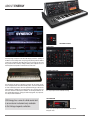
ABOUT ENERGY
THE ENERGY PAGES
1. EDIT PAGE
The DK Synergy is easily one of the most odd vintage synthesizers. Sporting 32
oscillators of sine or triangle wave, the Synergy was primarily known for additive
synthesis but is capable of some FM synthesis as well. Synergy was one of the
first synthesizers with a memory cartridge, allowing some expansion to the 24
internal patches but required an external device to write them.
Sound generation and effect controls
2. MODULATION PAGE
The DK Synergy was and is a nightmare to program—but the sounds are fantastic, used by electronic virtuosos like Wendy Carlos. So we were determined
to create a full library of patches from this keyboard and bring you a dose of this
classic odd-ball. In addition to the included patches you can design your own
from basic waveforms offered by the hardware. The UVI Engine allows for further customization of Energy—giving you a built-in arpeggiator, step sequencer,
LFO and precision-modeled FX.
UVI Energy has a one-of-a-kind sound and
is an exclusive instrument only available
in the Vintage Legends collection.
LFO, Step Sequencer and modulation routings
THE ENERGIZER
Crank up the grit and power of your sound with our exclusive
‘Energizer’ effect.
11
ENERGY USER INTERFACE
After loading a preset into the UVI Workstation or MachFive 3, you’ll find the
following graphic interface for each of the Energy presets.
The included features allow for quick and intuitive sound sculpting.
1. EDIT Page
STEREO
• OFF
• ALT
• UNI • COLOR • SPREAD
• TUNE Standard playing mode using mono samples
This emulates the multiple output from old samplers
Each voice is panned sequentially from left to right
(SPREAD parameter sets the depth of the stereo)
Using sound layering manipulation, this feature allows a dramatic extension of the stereo image
To be combined with COLOR and SPREAD settings
Playing neighboring samples, this parameter shifts the color of the sound in a unique way
Works in ALT and UNI mode, setting the stereo spread
Works only in UNI mode, detuning both layers
> MODWHEEL
This section allows you to choose what will be assigned to the modwheel.
• VIBRATO • RATE • TREMOLO
• RATE • FILTER • DEPTH ARP ON/OFF
Some Energy presets use an internal arpeggiator that you can desactivate thanks to this button. Don’t forget that you can use the full-featured UVI
Workstation arpeggiators in any preset !
AMPLITUDE
• A / D / S / R
• VEL SENSE
• VEL > ATK
Volume envelope.
Adjust velocity sensitivity.
Convert low velocities to long attacks and high velocities to short attacks
Note: the longest attack will be set by the «A» parameter.
Filter mode.
Set cut-off frequency.
Adjust resonance (Q) of the filter.
Depth of the ADSR applied to the filter
Typical filter envelope.
Adjust velocity sensitivity
Adjust Drive amount.
PITCH
• MODE
• DEPTH
• TIME
Switch from Poly to Mono mode.
Set the depth of the portamento in Poly mode.
Set the glide time of both mode
SUB OSC
• Select OSC
• Volume
12
> EFFECTS
• PHASER • MIX • DELAY • MIX • REVERB • MIX On/Off
To adjust the Dry/Wet weighting
On/Off
To adjust the Dry/Wet weighting
On/Off
To adjust the Dry/Wet weighting
2. MOD Page
Energy features a complete LFO and intuitive Step Sequencer modulator that
can be connected to pitch, volume, drive and filter.
FILTER
• HP / BP / HP
• CUT OFF • RES
• ENV DEPTH
• A / D / S / R
• VEL SENSE
• DRIVE
On/Off
Speed of the vibrato (free)
On/Off
Speed of the tremolo (tempo dependent)
On/Off
Depth setting from the low pass filter cut off frequency
Clean or Dirty sub oscillator
Adjust sub oscillator volume
ENERGY USER INTERFACE
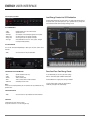
Low Frequency Oscillator
Load Energy Presets into UVI Workstation
In Multi mode, double-click on a part name or, in Single mode, double-click on
the preset name ( you can also press the «eye» symbol on the UI), and you will
see the browser below when selecting an Energy Preset.
LFO PARAMETERS
• SYNC
• SPEED
• EG Depth
• Attack Time
• Decay Time
• LFO Type
Enable/Disable Sync LFO to Host Tempo
Speed of the LFO
Set the depth of the envelope assigned to LFO speed
Set Attack time the LFO speed’s envelope
Set Decay time the LFO speed’s envelope
Select Waveform of the LFO : Sine, Square, Triangle
or Sample & Hold (random)
LFO DESTINATION
LFO can be connected independantly to both layers for pitch, volume, drive
and filter.
• Knob
Set the level of the LFO per destination
Step Sequencer
STEP MODULATOR PARAMETERS
Save/Load Your Own Energy Preset
• RES
• STEP
• DELAY
• RISE
• SMOOTH
In UVI Workstation you can save your own settings
with the ‘Save Mutli’ option available in Multi-mode.
Speed resolution of the step
Number of steps
Time to activate step
Time to activate with a smooth transition
Smoothing the level value
Note :
Thanks to the smooth paramater you can transform the Seq modulator as very
powerfull LFO.
In MOTU MachFive 3 single preset saving is available.
If you’re working within a DAW, all settings will be
saved with your project file automatically.
STEP DESTINATION
• Knob
Set the level of the step modulator to volume and filter.
STEP EDIT
Simply draw your steps with the mouse.
A step with a value of «0» is like having no step.
13
ENERGY PResets list
Arpeggios
Balladisiac
Clarpsic Analog
Columbo
Crazy Arp Wheel
Noisy Eighty
Seventy Nine Chords
Slow Motion
Speed Motion
Square Mode
Bass
BasSolid
Dark Side Bass
Dirt Clav
Distronic
Harsh Square
Nu Motor Bass
Powering
Spectro Bass
Zapp Land
Bells
Anabell
Delicanalog Bell
DK Bells
Organic Bells
Pizzi Bells
Space Music Box
Strange Bell
Superbe LL
Synth Balafon
Xylosonic
FX
Big Temple
Crazy Take Off
Drunk Robot
EneR2D2
FX Tchkok
Tension
Keys
Acoustic Like
Basikeys
Broken Piano
Church Engine
Clavinergy
14
Decarpsychord
DK Roussel
Dramatic Org
Electric DK Piano
Ham Organic
Hybrid Harp
Innocent Keys
Road me Softy
Speaker Road
Suitcasing
Vinyl Pluck
Wurlynergy
Leads
Art Monica
Beauty Lead
BP Solead
Dubstep Lead
Polead Brassy
Short Seq Lead
Skrillergy
Square Me
Misc
Brass 5th Wheel
Cheap Orchestra
Dream Pluck
Hybrid Power Brass
Kingston Vibes
Orgestra
Poly Dirty
Poly Stepped
Stack Fifth
Stepped Stack
Tangerine Brass
Top Corn
Pads
Acoustic Pad
DK Fantasy
Gospel Stack
Ominous Syn
Reflexions
Simply Beauty
Sweep Energy
Thin Brass Pad
Typical DK Pad
ABOUT FMX1
Back in 1985 Japanese super-synth
designer Yamaha set out to fashion
their biggest and baddest FM synth
ever. And they succeeded. The DX1
was constructed in an extremely
limited run of 100 units, utilizing
only top-of-the-line components.
The sound these machines made
was unlike anything else, almost
more organic than digital.
Our sound designers spent a great deal of time exploring all the sonic fields this
machine could traverse, and have packed it with presets ranging from utility to
the most creative textures and ambiences. Even more, the base waveforms of
the unit were carefully captured allowing you to create your own patches from
scratch.
THE TWO FMX1 PAGES
1. EDIT PAGE
In addition to an exhaustive sample
set, FMX1 includes arpeggios, a step
sequencer, LFOs and precision modeled FX to help sculpt your sounds to fit
the mix perfectly; we even included a
true FM synthesis module to further
FMize your presets!
All of this packed with a wealth of
features exclusive to the UVI Engine.
Pure FM sounds, slamming bass tones
and rich atmospheres awai, UVI FMX1
puts the legacy of a fantastic Eighties
super-synth squarely within reach.
Sound generation and effect controls
2. MODULATION PAGE
LFO, Step Sequencer and modulation routings
FMX1 is also avaiblable
as a single instrument.
15
FMX1 USER INTERFACE
After loading a preset into the UVI Workstation or MachFive 3, you’ll find the
following graphic interface for each of the FMX1 presets. The included features
allow for quick and intuitive sound sculpting.
1. EDIT Page
EG FILTER
• A / D / S / R
• VEL SENSE
FIlter envelope
Adjust velocity sensitivity
FILTER
• HP / BP / HP
Filter modes
• ENV DEPTH
• CUT OFF • RES
Depth of the ADSR applied to the filter
Set cut-off frequency
Adjust resonance (Q) of the filter
PITCH
• MODE
• DEPTH
• TIME
Switch from Poly to Mono mode
Set the depth of the portamento in Poly mode
Set the glide time of both mode
STEREO
ARP ON/OFF
Some FMX-1 presets use an internal arpeggiator that you can desactivate
thanks to this button. Don’t forget that you can use the internal ultra complete
UVI Workstation arpeggiators in any preset !
FMIZER
FMX1 combine deep sampling and a smart true FM oscillator : FMizer.
• OFF
• ALT
• UNI • COLOR • SPREAD :
• TUNE : Standard playing mode using mono samples
This emulates the multiple output from old samplers
Each voice is panned sequentially from left to right
(SPREAD parameter sets the depth of the stereo)
Using sound layering manipulation, this feature allows a dramatic extension of the stereo image
To be combined with COLOR and SPREAD settings
Playing neighboring samples, this parameter shifts the color of the sound in a unique way
Works in ALT and UNI mode, setting the stereo spread
Works only in UNI mode, detuning both layers
> MODWHEEL
This section allows you to choose what will be assigned to the modwheel.
• VIBRATO • VBRT • TREMOLO
• TRML • FILTER • FLTR • FMIZER
• LEVEL
• PITCH
• VEL
To adjust the amount of «harmonicity»
To adjust the level of the FMizer
To transpose the FMizer by semi-tone
Adjust velocity sensitivity to FMizer
Note:
FMizer oscillator is also connected to the Filter Env and the Modwheel in a
musical way. Just play with it !
EG AMPLITUDE
• A / D / S / R
• VEL SENSE
16
Volume envelope
Adjust velocity sensitivity
On/Off
Speed of the vibrato (free)
On/Off
Speed of the tremolo (tempo dependent)
On/Off
Depth setting from the low pass filter cut off frequency
> EFFECTS
• DRIVE
• DRVE
• CRUSHER
• CRSH
• PHASER • PHSR
• DELAY • DLY • REVERB • RVRB On/Off
Adjust Drive amount.
On/Off
Adjust Crusher amount.
On/Off
To adjust the Dry/Wet weighting
On/Off
To adjust the Dry/Wet weighting
On/Off
To adjust the Dry/Wet weighting
FMX1 USER INTERFACE
2. MOD Page
Load FMX1 Presets into UVI Workstation
FMX-1 features a complete LFO and an intuitive Step Sequencer modulator that
can be connected to pitch, volume, drive and filter.
In Multi mode, double-click on a part name or, in Single mode, double-click on
the preset name ( you can also press the «eye» symbol on the UI), and you
will see the browser below when selecting an FMX-1 Preset.
STEP SEQUENCER PARAMETERS
• STEP
• DELAY
• RISE
• SMOOTH
• RESOLUTION
Number of steps
Time to activate step
Time to activate with a smooth transition
Smoothing the level value
Speed resolution of the step
Note :
The ‘Smooth’ parameter interpolates values between steps, allowing you to use
the Step Sequencer as a custom LFO.
STEP MOD ROUTING
• Knob
Set the level of the step modulator to volume and filter.
Save/Load Your Own FMX1 Preset
In UVI Workstation you can save your own settings
with the ‘Save Mutli’ option available in Multi-mode.
STEP EDIT
In MOTU MachFive 3 single preset saving is available.
Simply draw your steps with the mouse.
A step with a value of «0» is like having no step.
If you’re working within a DAW, all settings will be
saved with your project file automatically.
LFO PARAMETERS
• SYNC
• SPEED
• EG Depth
• Attack Time
• Decay Time
• LFO Type
Enable/Disable Sync LFO to Host Tempo
Speed of the LFO
Set the depth of the envelope assigned to LFO speed
Set Attack time the LFO speed’s envelope
Set Decay time the LFO speed’s envelope
Select Waveform of the LFO : Sine, Square, Triangle
or Sample & Hold (random)
LFO DESTINATION
LFO can be connected independently on both layers for pitch, volume, drive
and filter.
• Knob
Set the level of the LFO per destination
17
FMX1 PResets list
Arpeggios
Fretted
A Muse Eye
Chord Actuator
Chord Last Word
Chord Power G
Chord Proximity Array
Ethno Synth
FM Game
Inter Nate Arp
Linear Processes
Magical Toys
Metal Zag
Mysterious Mallet
Plastecine Vein
Pure FM Arp
The Crush
Two Balaphonic
World Is Wheel
Classic FM Fret
Digital Guitar
Edgital Guitar
FM Strat Soft
GuitaBrass
Hybrid Fretted
Nylon Stage
Plastic Harp
Square Harp
Stringed BX
Bass
Bassploitation Wheel
Classic DX Bass
FM Sub
FMized Bass
Funky Bossy
Harsh Bass
Hybrid F Crunch
Imagibassion
Jaco Fretless
Round Bass
X-Funky Trash
Bells
Bellet
ChristFMas
Flexi Bell
Glassolo
Glocken Dream
Heaven Gosp
Little Bell
Multi Bells
Music Crusher Box
Music Vox
New Wave Tube
Organic FM Bells
Tubulars
18
FX
Amber Consequence
Burning Up
Electromagnetic Drone
Lazer Cave
LynXience
Off The Wall
SFX Scream
Shoot In Space
Space F Two
Thunder Pad
UFmO
VCS Madness
WOPR Jam
Xcape from Hell
Keys
Clavinet A
DX1 Clavinet Full
DX1 Full Tines
Electric Organ
Electric Piano 1
Electric Piano 2
EP Metal Bell
FunkHybrid
Gospel FM
Hybrid Tines
Medium Tines
Mellow Electric
Multi Keys
Old Upright
Pipe Organ Bright
Pipe Organ Dark
Reggae FM
Rockin Organ
Supertramp
Tines Dark
Toy Piano
Wurly Tines
Xborgan Bubbles
Zombi Dancer EP
Lead
80s Brass Lead
Hybrid CS80 Solo
Liquid Mosquitos
Mono LFO
Organizer FM
Pure FM Solo
So Sexy Brassy
Solomono
Sweepy Leader
Truncated Transmission
Uneven Surfaces
Z Bastion Lead
Mallet
Acoustic Mallet
DX1 Vibes
Ethnic Flavour
FMarimba
Noisy Blocks
Syn Mallet Vox
Tubuvibes
Tune Percs
Vibe Vibes
Misc.:
Almost Seventies
Brasspsichord
Digital X
Dream Poly Short
Dstep Power Syn
FM Typical Synth
Keys Rockin
Pop Corn Wheel BPF
Powanaloger
Raw Short Synth
Scritti Chyme
Sonic One O One
Space Edit
THE Gomono
Orchestral
Analog Strings
Bright Strings
Dirty Brass
DX1 Pure Brass
FM Section
FrenchM Horns
Harpsichord
High FM Strings
Horn Section 2 way
Iconic Brass
Majestic CS80 Brass
Mid Strings B
Motional Strings
Noisy Brass
Plastic Brass
Pure FM Brass
Subtle 5th Brass
Syn Brass
That 80s Brass
Wha Wheel Brass
Pads
Bad Ass Pad
Blue Big Bang
Dream Pad
Fifth Dimension
FM Analog Synth
FoMinous
Grand Openning
Hemispherical Gates
Hybrid Pad
Interference
Mohair Pad
Natiproton Decelerator
Ominous Section
Pictures
Portatmosphere
ProFet Marvel
Quasi Gomo
Saint El DX1
Slow Attack
Solar Fields
Sun Rise
Sweep Saxtone
Turning Dust to Vipers
Vox Purity
Xtra 4OP
Analog Bass
BellissimaX
Celeste
Clavi Four
Dyno My FM
Eighty One Bells
EML Impression
Ethno Choo
Fat Analog Bass
FM CPiano
FM4 Piano
Full OrPgan
Fuzz Mania
Gost Sine
Hand Drums
Heavy Bass
Lead Synthox
Metal Pad
Nitro Bells
Noisy Beauty
Pad Chemist
Perc Organ
Pianotic
Space Cathedral
Sweep Fiesta
Synth Aero
That Clavinet
Ultra Cheap Organ
V Church
Wave 2 Lead
Wave 4 Lead
Wave 5 Bass
X4 Analogic
Z Voices
ABOUT KROMA
THE TWO KROMA PAGES
1. EDIT PAGE
The Rhodes Chroma is a unique specimen, easily identified by it’s vibrant looks
and sound. One of the first microprocessor-based analog synths, Chroma was
the last keyboard designed by ARP, a pioneering synthesizer house of the 70’s,
before Rhodes later began selling it in early eighties. The sound of Chroma is
very, very good—rich and immediate.
UVI Kroma comes loaded with dozens of presets programmed on a fully restored unit including Arpeggios, Bass, Bells, Brass, FX, Leads, Pads, Strings,
Sweeps. Even the basic waveforms of the unit were sampled to allow design
of new patches. Take complete control of this veritable classic with a built in
arpeggiator, step sequencer, LFOs and precision modeled FX.
Sound generation and effect controls
2. MODULATION PAGE
From elegant and brassy to analog atmosphere and everywhere in-between,
UVI Kroma brings back a forgotten classic with an arsenal of sound sculpting
tools exclusive to the UVI Engine.
LFO, Step Sequencer and modulation routings
Kroma is also avaiblable
as a single instrument.
19
KROMA USER INTERFACE
After loading a preset into the UVI Workstation or MachFive 3, you’ll find the
following graphic interface for each of the Kroma presets. The included features
allow for quick and intuitive sound sculpting.
1. EDIT Page
STEREO
• OFF
• ALT
• UNI • COLOR • SPREAD
• TUNE Standard playing mode using mono samples
This emulates the multiple output from old samplers
Each voice is panned sequentially from left to right
(SPREAD parameter sets the depth of the stereo)
Using sound layering manipulation, this feature allows a dramatic extension of the stereo image
To be combined with COLOR and SPREAD settings
Playing neighboring samples, this parameter shifts the color of the sound in a unique way
Works in ALT and UNI mode, setting the stereo spread.
Works only in UNI mode, detuning both layers
> MODWHEEL
This section allows you to choose what will be assigned to the modwheel.
• VIBRATO • RATE • TREMOLO
• RATE • FILTER • DEPTH ARP ON/OFF
Some Kroma presets use an internal arpeggiator that you can desactivate thanks to this button. Don’t forget that you can use the full-featured UVI
Workstation arpeggiators in any preset !
AMPLITUDE
• A / D / S / R
• VEL SENSE
• VEL > ATK
Volume envelope
Adjust velocity sensitivity
Convert low velocities to long attacks and high velocities to short attacks
On/Off
Speed of the vibrato (free)
On/Off
Speed of the tremolo (tempo dependent)
On/Off
Depth setting from the low pass filter cut off frequency
> EFFECTS
• DRIVE
• DRIVE
• PHASER • MIX • DELAY • MIX • REVERB • MIX On/Off
Adjust Drive amount.
To adjust the Dry/Wet weighting
On/Off
To adjust the Dry/Wet weighting
On/Off
To adjust the Dry/Wet weighting
Note: the longest attack will be set by the «A» parameter.
2. MOD Page
FILTER
Kroma features a complete LFO and an intuitive Step Sequencer modulator that
can be connected to pitch, volume, drive and filter.
• HP / BP / HP
• CUT OFF • RES
• ENV DEPTH
• A / D / S / R
• VEL SENSE
Filter mode
Set cut-off frequency
Adjust resonance (Q) of the filter
Depth of the ADSR applied to the filter
Filter envelope
Adjust velocity sensitivity
PITCH
• DEPTH
• TIME
• MODE
Set the depth of the portamento in Poly mode.
Set the glide time of both mode
Switch from Poly to Mono mode
NOISE OSC
• Noise Type
Select Pink of White noise
• Noise Osc Screen Adjust Noise volume
20
KROMA USER INTERFACE
Load Kroma Presets into UVI Workstation
LFO
In Multi mode, double-click on a part name or, in Single mode, double-click on
the preset name ( you can also press the «eye» symbol on the UI), and you will
see the browser below when selecting an Energy Preset.
LFO PARAMETERS
• SYNC
• SPEED
• EG Depth
• Attack Time
• Decay Time
• LFO Type
Enable/Disable Sync LFO to Host Tempo
Speed of the LFO
Set the depth of the envelope assigned to LFO speed
Set Attack time the LFO speed’s envelope
Set Decay time the LFO speed’s envelope
Select Waveform of the LFO : Sine, Square, Triangle
or Sample & Hold (random)
LFO DESTINATION
LFO can be connected independently on both layers for pitch, volume, drive
and filter.
• Knob
Set the level of the LFO per destination
Step Sequencer
Save/Load Your Own Kroma Preset
STEP MODULATOR PARAMETERS
• RES
• STEP
• DELAY
• RISE
• SMOOTH
Speed resolution of the step
Number of steps
Time to activate step
Time to activate with a smooth transition
Smoothing the level value
In UVI Workstation you can save your own settings
with the ‘Save Mutli’ option available in Multi-mode.
In MOTU MachFive 3 single preset saving is available.
If you’re working within a DAW, all settings will be
saved with your project file automatically.
Note :
The ‘Smooth’ parameter interpolates values between steps, allowing you to use
the Step Sequencer as a custom LFO
STEP DESTINATION
• Knob
Set the level of the step modulator to volume and filter.
STEP EDIT
Simply draw your steps with the mouse.
A step with a value of «0» is like having no step.
21
KROMA PResets list
Arpeggios
Bronski Bass
Chord Wheel Me
FX Sequence
Instant Reggae
Jacky Nalog
Korda Chrome
Kromarpeggio 1
Saw Sage
Sequence Man
Technauto
Trashpegiator
Bass
Bassmati
Crytpon B
Daft Funky
Jam on It
Lazer Harp Wheel
Lead Bass
Mr Basso
Obassma
Squaring
Standard
Bells
Bell My Doo
Christmas Bells
Cristanalog Clear
Harp Bell
Jingle Bell
Metabellic
Noisy Bell
Soft Palace
Wendy Dark Tube
Wonder Bell
Brassy
Brassizer
Chroma Poly Brass
Cool Brass
Crawling
Hybrid Trumpets
LyncHorn
Majestic Horns
Mayhem of Brass
Mercury Brass
Stabnalogic
Toto Feel
22
Vangelo
Warm Soft Brass
FX
Beast Who Fly
KromaX FX Menu 1
KromaX FX Menu 2
Mini THX
Plan Nine
Snakes Talking
Stress Lodge
Keyboards
AKromardion
Analog Toy Piano
Baby Organ
Caroussel Organ
Clavinex
Electric Piano
FunKroma Clav
Harpsynalog
Jazzy KrOrgan
Soft Church
Space Piano
SweePiano
Synth Clavecin
Synth Harp
Too Filtered Piano
Very Soft Keys
Wursynthzer
Leads
Chromatic Solo
Fifth Solo
Funky Man
Guitar Sync
HP Wave
Nasty Lead
Noisy Brassy Lead
Scarlead
Scream Solo
Slowlo Synth
Solid Saw Lead
Tube Solo
Pads
Analog Beauty
Analog Choir 1
Arctic Pad
Brass me Tender
Changosphere
Chrominous Pad
Dreamy One
Evolupad
Ionized
Padamento
Philadelphia
Pure Pad
Roady Pad
Silencio
Superbe
Tiny Voice
Polysynth
Cindy Soft
Eighties Stab
EmoPolytional
Hybrid Poly
Massive Polysynth
Organopolis
Poly Culture
Polysound
PortaGrainto
Prophet Fifth
Radom Filter
Short Stab
Wheel Me
Strings
Analog Orchestra
BrasStrings
Eminent Like
Equinox
HP Strings
Imaginary Stacc
Just Soline
Sweeps
Fest du Sweep
Fifth Floor
Galactica
Inverted
Multi Sweep
Road Sweep
Sweeper
Windy Carlos
Waves
Saw PWM 00
Saw PWM 03
Saw PWM 05
Saw PWM 08
Saw PWM 10
Square PWM 01
Square PWM 03
Square PWM 05
Square PWM 08
Square PWM 10
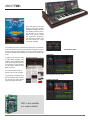
ABOUT Synthox
Considered by some to be the best
analog synthesizer ever designed,
the Synthex comes to us from the
Italian manufacturer Elka. The
Synthex was made famous by Jean
Michel Jarre on his ‘Rendez vous’
EP which features a ripping Lazer
Harp sound. Due to the oscillator
design and lush filters this synth
packs a distinctly thick and raw
sound. The Synthex has become
increasingly rare with time and finding working units can be a tedious and expensive task; UVI Synthox brings
you the best of this instrument in the form of a convenient and extraordinary
sounding soft synth.
UVI Synthox features a dual-layer architecture and instant preset/layer switching making it an extraordinarily responsive and capable instrument. Layers
include all possible base waveforms and noises from the hardware as well
as expertly programmed presets. We’ve gone to great lengths to ensure the
authentic sound and natural texture of these machines was preserved and
translated clearly in our instruments. We sampled everything, including the raw
waveforms with different configurations of the Chorus section.
Take this classic to the next
level with the UVI Engine;
Synthex comes packed with
a wealth of features to enrich
and further customize your
sounds, including double
arpeggios, a step sequencer,
LFOs and precision modeled
FX—allowing you to explore
territory the old hardware
couldn’t dream of.
THE THREE SYNTHOX PAGES
1. EDIT PAGE
Sound generation and effect controls for Layers A and B
2. MODULATION PAGE
From thick and sizzling textures to funky analog tones and everywhere
in-between, UVI Synthox has a distinct and addictive sound.
LFO, Step Sequencer and modulation routings
3. ARPGEGIATOR PAGE
Synthox is also avaiblable
as a single instrument.
Dual arpeggiators
23
Synthox� USER INTERFACE
Synthox loads sounds and waveforms in two layers (A and B), you can edit
each with all available controls. Synthox includes 128 presets which can be
accessed instantly from any page.
MAIN section
AMPLITUDE
• A / D / S / R
• NO VEL
• VEL > ATK
Volume envelope
When on, all sounds will be played at maximum volume.
Convert low velocities to long attacks and high velocities to short attacks
FILTER
• EDIT/MOD/ARP
• MUTE A/B • VOLUME/PAN
• OCTAVE
• MASTER
• PRESET
Switch from EDIT page to MOD page to ARP page
Mute Layer A or B
Control volume and pan for layer A or B
Octave transpose of the current layer
Global volume control
Select one of the global presets by using the arrows or the conventional preset list
VOICE CONTROLS / EDIT
• TYPE
• CUT OFF / RES
• EG DEPTH
• VELOCITY
•A/D/S/R
Select from LPF, BPF, HPF and no filter
Low pass filter, cut off and resonance
Depth of the ADSR applied to the filter
Second LPF filter mapped to velocity
Filter envelope
STEREO
You can choose to edit only the layer A, only the layer B, or both layers at the
same time.
• 1st selection line
This slot allows you to select one of the category below: Keys, Organ-Flute,
Polysynth, Seq-Lead, Waves Noise, Waves Osc, Waves Osc Chorus A &
Waves Osc Chorus B.
• 2nd selection line
This slot allows you to change the sound from selected category.
1. EDIT Page
• OFF • ALT
• UNI • COLOR • SPREAD
• TUNE Standard playing mode using mono samples
This emulates the multiple output from old samplers
Each voice is panned sequentially from left to right
(SPREAD parameter sets the depth of the stereo)
Using sound layering manipulation, this feature allows a dramatic extension of the stereo image
To be combined with COLOR and SPREAD settings
Playing neighboring samples, this parameter shifts the color of the sound in a unique way
Works in ALT and UNI mode, setting the stereo spread.
Works only in UNI mode, detuning both layers
PITCH
• TUNE • DEPTH
• TIME
• MODE
24
Tune the selected layer in semitones/cents
Note: you can double click on the knob to enter
the desired value.
Set the depth of the portamento
Set the glide time
Switch from Poly to Mono mode
Synthox USER INTERFACE
MODWHEEL CONTROLS
• Attack Time
• Decay Time
• LFO Type
Set Attack time the LFO speed’s envelope
Set Decay time the LFO speed’s envelope
Select Waveform of the LFO : Sine, Square, Triangle
or Sample & Hold (random)
LFO DESTINATION
This section allows you to choose what will be assigned to the modwheel.
• VIBRATO • RATE • TREMOLO
• RATE • FILTER • DEPTH On/Off
Speed of the vibrato (free)
On/Off
Speed of the tremolo (tempo dependent)
On/Off
Depth setting from the low pass filter cut off frequency
EFFECTS
The LFO can be routed independently to either layers pitch, volume, drive or
filter.
• Knob
• Button A/B
Set the level of the
Set the destination of the LFO
STEP MODULATOR PARAMETERS
• PHASER • MIX • DELAY • MIX • REVERB • MIX On/Off
To adjust the Dry/Wet weighting
On/Off
To adjust the Dry/Wet weighting
On/Off
To adjust the Dry/Wet weighting
Note:
You can add as many FX as you want in the UVI Workstation, and you can even
edit the sounds deeper within MOTU MachFive 3.1.
2. MOD Page
• RES
• STEP
• DELAY
• RISE
• SMOOTH
Speed resolution of the step
Number of steps
Time to activate step
Time to activate with a smooth transition
Smoothing the level value
Note:
The ‘Smooth’ parameter interpolates values between steps, allowing you to use
the Step Sequencer as a custom LFO.
STEP DESTINATION
Synthox includes a freely controllable LFO and Step Sequence modulators
which can be routed independently to both layers
• Knob
• Button A/B
Set the level of the step modulator
Set the destination of the step modulator
STEP EDIT
LFO PARAMETERS
• SYNC
• SPEED
• EG Depth
Enable/Disable Sync LFO to Host Tempo
Speed of the LFO
Set the depth of the envelope assigned to LFO speed
Simply draw your steps with the mouse.
A step with a value of «0» is like having no step.
25
Synthox� USER INTERFACE
3. ARP Page
Load Syntox into UVI Workstation
Synthox includes two arpeggiators which can be routed to each layer independently (DUAL MODE), or the first to both layers (MONO MODE). Arpeggiators
are always synced to the UVI Workstation or MachFive 3 master tempo.
In Multi mode, double-click on a part name or, in Single mode, double-click on
the preset name ( you can also press the «eye» symbol on the UI), and you will
see the browser below when selecting Synthox.
MODE
• DUAL ON
• DUAL OFF
ARP 1 is connected to Layer A and Layer B
ARP 1 is connected to Layer 1 and ARP 2 to Layer B
ARP PARAMETERS
The ‘Synthox.M5p’ contains all data and presets for the instrument; this allows
for instant preset changes.
• ARP MODE
• RES
• OCTAVE
• GATE
• STEP
Select up, down or up & down
Select the speed of the Arpeggiator
Extend the range of the Arpeggiator
from + 3 to - 3 octaves
Adjust the note length
Select the number of steps played
ARP STEP EDITOR
If you’re working within a DAW, all settings will be
saved with your project file automatically.
2
26
In UVI Workstation you can save your own settings
with the ‘Save Mutli’ option available in Multi-mode.
In MOTU MachFive 3 single preset saving is available.
1
1 - COLUMN
2 - LINK
Save/Load Your Own Synthox Preset
Adjust the velocity of a step
Link a step to the previous one
Synthox PResets & Layer list
Layer content
Arpeggios
AR-Analog Heart
AR-Back in Time
AR-JMJ Double Arp
AR-Pop Cornox
AR-Rythm and Arp
AR-Space Caroussel
AR-Synthoxerone
AR-Universe Sound
AR-Wonderland
AR-Z Plane Airlines
AR-Zamundsens Axel
Bells
BL-BellKa
BL-Brush Bells
BL-Happy New Year
BL-Little Porta
BL-Paper Bell
Brassy
BR-B11 Wah brass
BR-B17 Brass I
BR-B18 Brass II
BR-B19 Brass III
BR-Brasspeggios
BR-Grace Brass
BR-Velvet Aurora
Bass
BS-Funky Sub
BS-Kev Bassic
BS-One Finger Analog
BS-Ring Modus
BS-Skream Lexx
BS-Synthoxico
BS-TB Inspiration
BS-Ultra Funk
BS-Weird One
BS-Wheel Control
BS-Wheelex
BS-Whistle Sub
BS-ZanziBass
Play Chords
CH-Chain Lightning
CH-Circuit Jumper
CH-Determination
CH-Jack Sail Air
CH-Lunar Scarab
CH-Omni Step
CH-Union Jacking
CH-Use your Wheel
CH-Variator
CH-Vulcan Trampoline
FXs
FX-Framheim Wind
FX-Park Six More
FX-Terra Novox
FX-The Bomb
Keyboards
KB-B15 Tremolo piano
KB-B23 Church organ
KB-B24 Reed organ
KB-B25 Electric organ
KB-B30 Metallic piano
KB-B31 Pianet
KB-B32 Funky Clav
KB-B33 Clavichord I
KB-B34 Clavichord II
KB-B35 Clavinet
KB-B36 Electric Piano I
KB-B37 Electric Piano 2
KB-B38 Chimes
KB-B39 Vibes
KB-Dream Hes Beck
KB-Dulce Organ
KB-Keys and Sweep
KB-Organisation
KB-PhonKB
KB-PianoOSc
KB-Road Cruiser
Leads
LD-B12 Fat Sound
LD-B13 Metallic
LD-B14 Pan flutes
LD-B41 Sweep 2
LD-B43 Landing
LD-B46 Ring mod
LD-B49 Whistle
LD-Chorusolo
LD-Dstep Polead
LD-Pure Sawtooth
LD-The Court Jet
LD-Therem Whistle
LD-Ultra Solo
LD-Water Drop Lead
Pads
PD-Air Dream Keys
PD-AL Jarre High
PD-B16 Chorale
PD-B26 High pass swp
PD-BarbapaPad
PD-Deep Orbit
PD-Evolugate Wonder
PD-Glacier Veins
PD-Glycosidic Bond
PD-Lost Music Box
PD-Porta Sweep
on Wheel
PD-Robotic Love
PD-Smooth One
PD-StePad Plaza
PD-Sweet Place
PD-Teal Voices
PD-Tender Threads
PD-Zen and Beauty
Polysynth
PL-B10 Chunky synth
PL-B40 Sweep 1
PL-B44 Wash of sound
PL-B45 Fast decay
PL-B46 Ring mod Harp
PL-B47 Phased sweep
PL-B48 Bass pluck
PL-Complextro Figures
PL-Grain Poly
PL-Onyx Wheel Me
PL-Trance Evolwheel
PL-Tri Repeater
Strings
ST-B20 Double basses
ST-B21 Cellos
ST-B22 Violins
ST-B28 Filtered chorus
ST-B29 Filtered strings
ST-Dual Layer Strings
ST-Space O Tron
Sweeps
SW-B42 Take-off
SW-Moelleux
SW-Quality Sweep
SW-Sun Glasses
SW-Ultra Sweep
Keys
Seq-Lead
Clavichord1
Clavichord2
Clavinet
EPiano1
EPiano2
FunkyClav
MetallicPiano
Pianet
TremoloPiano
Vibes
BassPluck2
FastDecay
FatSound
Landing
Metallic
RingMod1
RingMod2
Sweep1
Sweep2
Organ-Flute
Chimes
ChurchOrgan
ElectronicOrgan
PanFlutes
ReedOrgan
Whistle
Pad-Chorused
Cellos
Chorale
DoubleBass
FilteredChorus
FilteredStrings
HiPassSweep
PhasedSweep
Violins
Polysynth
BassPluck1
Brass1
Brass2
Brass3
ChunkySynth
FilteredBrass
TakeOff 1
TakeOff 2
WahBrass
WashOfSound
Waves Noise
PinkNoise
WhiteNoise
Waves Osc
PWM-2
PWM-4
PWM+2
PWM+4
Sawtooth
Square
Triangle
Wvs Osc Chorus A
CH1-PWM-2
CH1-PWM-4
CH1-PWM+2
CH1-PWM+4
CH1-Saw
CH1-Square
CH1-Triangle
Wvs Osc Chorus A
PWM-2
PWM-4
PWM+2
PWM+4
Saw
Square
Tri
Note:
All the BXX named presets are inspired from the
original factory presets supplied with the beast.
27
ABOUT U1250
The first keyboard to deliver sampled waveforms via oscillator, the K250 was
a joint effort carried out with legendary musician Stevie Wonder, the founder
of ARP—Alan Pearlman, and prolific synthesizer artisan Bob Moog among
others. Able to produce brilliant acoustic sounds without the use of disk drives,
the K250 was the world’s first ROMpler and boasted an impressive 24 voices of
polyphony. A beastly 88 weighted-keyboard instrument, the K250 was designed
with performance in mind and later joined by the K1000—a 76-key version
which came with additional sounds but was relatively difficult to program due to
restrictive front-panel controls.
In making the U1250 we decided to tackle both the K250 and the K1000 serie,
programming a wide range of sounds including Acoustic and Electric Pianos,
Bells, Mallets, Drums, Percussion, Guitar, Bass, Pads, Wind, Brass and other
Orchestral instruments, many of the patches evoking classic Eighties nostalgia.
These sounds were then tediously multi-sample to produce the rich library of
the U1250.
These classic sounds from the late 80’s and early 90’s are given new life and
playability with the UVI Engine. We’ve included a number of controls that offer
easy customization and enhanced sculpting not available in hardware.
These features combined offer a deep and unparalleled experience.
28
U1250 is also avaiblable
as a single instrument
U1250 User Interface
U1250� USER INTERFACE
After loading a preset from U1250 into the UVI Workstation 2 or MachFive 3,
you’ll find the following graphic interface.
The included features allow to tweak the sounds quickly and intuitively.
> PITCH ENV
This section allows you to simulate a portamento like effect.
• DEPTH
• TIME
To adjust the depth of the Pitch envelope
To set the timing of the Pitch envelope
> DRIVE
• On/Off
• AMOUNT
To bypass or activate the Drive effect
Adjust Drive amount
> MODWHEEL
This section allows you to choose what will be assigned to the modwheel.
• VIBRATO • RATE • TREMOLO
• RATE • FILTER • DEPTH > EFFECTS
> AMPLITUDE
• A / D / S / R
• VEL SENSE
• VEL > ATK
Typical volume envelope
Adjust velocity sensitivity
Convert low velocities to long attacks and high velocities to short attacks
Note: the longest attack will be set by the «A» parameter.
> FILTER
• HP / BP / HP
• ENV DEPTH
• CUT OFF • RES
Typical filter envelope
Adjust velocity sensitivity
> STEREO
• OFF
• ALT
• UNI • COLOR • SPREAD
• TUNE • PHASER • MIX • DELAY • MIX • REVERB • MIX On/Off
To adjust the Dry/Wet weighting
On/Off
To adjust the Dry/Wet weighting
On/Off
To adjust the Dry/Wet weighting
ABOUT SPARKVERB™
Filter mode
Depth of the ADSR applied to the filter
Set cut-off frequency
Adjust resonance (Q) of the filter
> FILTER ENV
• A / D / S / R
• VEL SENSE
On/Off
Speed of the vibrato (free)
On/Off
Speed of the tremolo (tempo dependent)
On/Off
Depth setting from the low pass filter cut off frequency
The reverberation included in U1250 is the new UVI SparkVerb™, a highly
advanced synthetic reverb that focuses on sound quality and musicality.
By using U1250 whithin MachFive 3 and UVI Workstation 2 you’ll be able to
edit all the SparkVerb™ parameters.
> BIT CRUSHER
This section affects the loaded U-1250 preset globally.
Standard playing mode using mono samples
This emulates the multiple output from old samplers
Each voice is panned sequencially from left to right
(SPREAD parameter sets the depth of the stereo)
Using sound layering manipulation, this feature allows a dramatic extension of the stereo image
To be combined with COLOR and SPREAD settings
Playing neighbouring samples, this parameter shifts the color of the sound in a unique way
Works in ALT and UNI mode, setting the stereo spread
Works only in UNI mode, detuning both layers
• POWER
• BIT • FREQUENCY • DRIVE On/Off
from 0 to 24 bit
from 0 to 48 000 Hz
add drive to the output
29
U1250 PResets list
Acoustic &
Electric Pianos
Classic Electric
Classic EP Phased
Concert Piano
Dyno Tines
Electric Dream
HarPiano Ballad
Honky Tonk
Hybrid Tines
K Tines Full
K Tines Hard
K Tines Mellow
K Tines Soft
Large Piano
Liquid EPiano
New Age Grand 1
New Age Grand 2
Piano and Strings
Power Grand
Rock 250 Piano
Synth Cheap Piano
Two Fifty Grand
WurlEPiano`
Bell & Mallet
Caribean Steel Drums
Chill Out Marimbas
Columbells
Delay Bells
Dirty One
Dream Bell
Jezza Bell
K-alimba
Kristmas Bells
Marimbell
Metal Chimes
Road Bells 1
Road Bells 2
So Pure
Suspense Chord
Vibes
Voices and Bells
Zigomatic Mallet
Drums-Percs
Big Rock Drums
Collins Gated Kit
Factory Metal
Granular Impact
30
Jedi Atam Air
Metal C Works
Mix Drum Perc Kit
Orchesral Timpani
Standard Kit
Tribal Mood
Guitar-Bass
Acoustic Guitar Simple
Acoustic Guitar Stereo
Aqua Bass
Crunch Mutes
Dist Lead Guitar
Electric Bass
Huge Stack Guitar
Hybrid Synth Guitar
Jazz Acoustic Bass
K12 Strings Guitar
Obassession
Obese Guitar Wall
Slapped Bass
Y Bass Guitar
Keyboards
Alien Keys
Barbarie Flute
Chinese Keys
Claroussel
DulciMother
Electric Church
Electric Organ A
Electric Organ B
Full DrawBar Leslie
Full DrawBar Stop
Harpsichord
Jaguar Organ
Jazz Organ
Klavinetology
Sine Keys
Smart Polysynth
Smoothy Organ
Street Organ
Ultra Klav
Orchestra
Action Strings
Dimension Orchestra
Emotional Strings
Fast Strings Ensemble
Flarimbas
Glass Strings
Glassic Choirs
Harp Classical
Harp Glissando
Harp GlissandUp
Harp New Age
Hybrid Harp
Large Strings Ensemble
Little Orchestra
Mallet Orchestra
New K Choir 1
New K Choir 2
Old K Choir 1
Old K Choir 2
Pianovoxchestack
PizzOrchestal
Soft Strings Orchestra
The K Brass
Tristesse Strings
Pads
Bowed PiADno
Cloud Voices
Ess K Pad
Fat Analog Pad
Filter Wheel
Flutty Pad
Ghostmosphere
Lauper Synth
Ominous Full
Ominous K Dark
Slow Distorsion
Smart Pad
Synths
Amanda Lead
Analog Strings
FX Falling Synth
K Sawlo
Lets Get Funky
Mallet Brass Synth
One Two Lead
Organic Synth
Oscillator Mayhem
PolySaw
Power K Synth
Sinus Porta Pad
Space Keys
Starship Drone
Techno Synth Sax
That 90s Synth
TOP Forty 80s
Voice OLo
Wave Lead
Wind & Brass
Bar Horn Section
Brass Band
Classical Flute
Full Brass
Full Horn Solo
Horn Ensemble
Klarinet
Little Room Band
Reed Ensemble
Sexy Sax
Tower Brass
Trombone
Trumpet High
Trumpet
Uboe
World Flute
Yon Soft Horns
CREDITS & THanks
Produced by UVI
Recording / Editing / Sound Design
Damien Vallet
Emmanuel Usai
Kevin Guilhaumou
Alain J Etchart
Nathaniel Reeves
Scripting & Software
Olivier Tristan
Remy Muller
Graphic Design
Nathaniel Reeves
Anthony Hak
Special Thanks
Jean-Bernard Emond for the Kurzweil K250 and DK Synergy
Eric Inglebert for the Chroma Polaris & Elka Synthex
Christian Braut for the Yamaha DX1
Manu @ Masterwave for everything else !
* Yamaha, Elka, ARP, Rhodes, Kurzweil, D.K, CS70M, CS40M, CS20M, DX1, Synthex, Chroma,
K250, K1000 and Synergy are trademarks of their respective owners and are not affiliated,
endorsed, connected or sponsored in any way to this manual or any of our affiliate websites ; therefore do not be confused between UVI and these brands.