1
Mac:
OSX 10.3.9 and later contains a built-in virtual MIDI cable
called IAC. We do not recommend using this feature, as it
causes problems when used with some audio applications.
Instead, we recommend using a program called Midi Pipe
(http://homepage.mac.com/nicowald/SubtleSoft). Please follow
these instructions for using Drumagog with MIDI Pipe.
1. Download and install MIDI Pipe.
2. Launch Midi Pipe, and then drag an input and output from the
left window to the right window. The right window should now
have only two lines listed: "MIDI In" and MIDI Out". Make sure
they are in that order (IN first, then OUT).
3. Double-click on "MIDI In" in the right window, and set the
input to "Midi Pipe Input 1".
4. Double-click on "MIDI Out" in the right window and set the
output to "Midi Pipe Output 1".
5. Important: Leave MIDI Pipe open - don't close it.
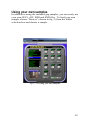
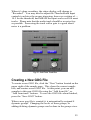
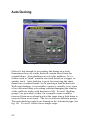
6. Enable MIDI output on Drumagog’s advanced tab.
7. On Drumagog’s MIDI port drop-down box, choose the MIDI
Pipe port. NOTE: Midi Pipe labels its ports backwards, so
choose “MIDI Pipe Input” in this box.
8. Choose a MIDI note and channel.
9. On your virtual instrument (for example BFD), choose the
MIDI Pipe port (again, they are backwards, so choose “MIDI
Pipe Output”). Also choose the same note and channel number
as you selected in Drumagog.
10. In Pro Tools, click on Setup, then MIDI, then Input Devices
and make sure “Midi Pipe Output 1” is checked.
Drumagog will output MIDI from your selected MIDI interface.
Note: Drumagog will also continue to output its internal samples
the normal way, even when MIDI is enabled. You may wish to
turn down this output using the Output control on the Main tab.
70