1
Network Console User Guide
1. About the Network Console
If you manage a significant number of RemotelyAnywhere and/or LogMeIn installations, then the Network
Console presents a number of considerable advantages for you.
You probably know that one of the foremost advantages RemotelyAnywhere and LogMeIn offer the user is that
special client software is not required to access a remote machine. Once RemotelyAnywhere or LogMeIn are
installed you can simply open a web browser from anywhere and access your remote machine.
But what if you need access to several machines? What if you want to push installations across your network?
What if you want to copy specific configuration settings to many machines at one time? This is where the Network
Console comes into its own.
This guide takes you through the various features of the Network Console with the detailed information you’ll
need to get the most out of this advanced network management tool.
2. Downloading and Installing the Network Console
You can download the Network Console from the LogMeIn website, here.
To install, download and run the installer.
Please note that the Network Console also works with LogMeIn.
3. Licensing
The Network Console is a licensed product, meaning you have to obtain your own license to use it. You can obtain a
license by either purchasing one or getting a 30-day trial license.
Trial License
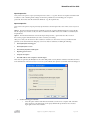
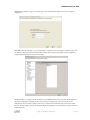
Fill out our registration form and install the product. When you run the product for the first time the following will
occur: after the installation it will connect to our server and download a trial license. If your registration is
successful, the Network Console will receive the license and install it as a background service. If you don’t have a
valid license it will prompt you to enter it at startup.
Purchasing a License
You can buy your license from one of our RemotelyAnywhere resellers. You can find contact information for our
resellers in this documentation or on the RemotelyAnywhere website. After you receive your license, copy and paste
it into the license dialog box.
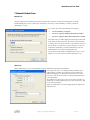
Changing and Entering the License
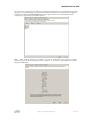
Network Console will not start until you enter a valid license. If you already have a valid license and you want to
change it (for example, you have a trial version, and you’ve purchased the product), you can copy and paste the
new license by choosing “License” under the “Help” menu.
Copyright © 2007 LogMeIn, Inc. All rights reserved.
Page 2 of 28