1
Network Console User Guide
4. Network Console Features Guide
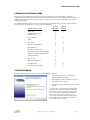
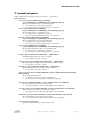
Important Note for LogMeIn IT Reach users: Not all of the Network Console’s functionality is available for
LogMeIn IT Reach. Please review the table below to see which features apply to RemotelyAnywhere, and which to
LogMeIn IT Reach. The specific features that apply to a particular product are also indicated next to the chapter
headings of this guide.
For detailed instructions on how to use the Network Console with LogMeIn IT Reach, please see the “Using the
Network Console with LogMeIn™” section at the end of this guide.ï
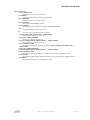
Remotely
LogMeIn
Network Console Feature
Anywhere
IT Reach
Remote Control
√
√
√
√
Telnet
√
File Transfer
√
Open RemotelyAnywhere
√
Quick Start
Network & Subnet Scans
Quick Connect
√
√
√
√
Open LogMeIn
√
Open My Computers Page
Remote Install/Uninstall and Upgrade
√
√
Enterprise & Replicate Configuration
√
Certificate Manager
√
Wake on LAN
√
MSI File Configuration
√
Host Monitoring
√
√
Command Line Arguments
√
√
5. Quick Start Wizard
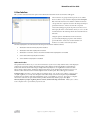
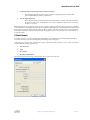
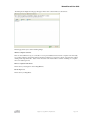
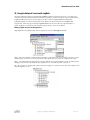
The Wizard prompts you to select one of the following three options:
1.
Find computers on your network that have
RemotelyAnywhere installed.
2.
Add LogMeIn accounts and all the computers
that belong to that account.
3.
Import a list of your computers into the Network
Console.
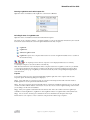
To perform any of these functions, simply click to
select the option you want and follow the Wizard
instructions. After you’ve performed one function,
you can return to the beginning of the Wizard to
select another. Please also note that you can
perform any of the functions listed in the Wizard
from within the Network Console user interface
(See sections 7 and 16 below).
Copyright © 2007 LogMeIn, Inc. All rights reserved.
Page 3 of 28