1
IceWarp Server
6.
Outlook Sync User Guide
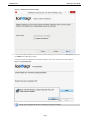
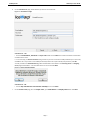
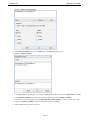
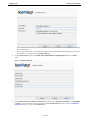
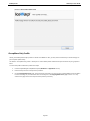
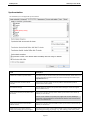
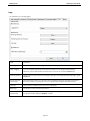
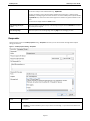
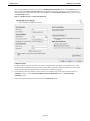
On the SmartDiscover page, decide whether you want to use this feature.
Figure 4 – SmartDiscover Page
SmartDiscover – YES
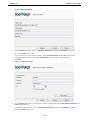
i. Fill in the Email address, Password and Profile name fields and click Next. The installer will obtain all information
needed from the server.
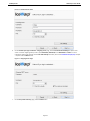
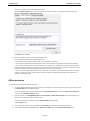
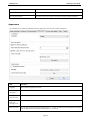
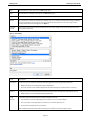
ii. In the next step, the License activation dialog is shown. If you have a license for IceWarp Outlook Sync on the server,
click Yes. If not or if you want to use IceWarp Outlook Sync within the scope of 30 day trial period first, click No.
You will proceed to the Outlook Profile page with its fields filled in. Also fields on the Incoming Server and Outgoing
Server pages will be filled in. Just check that values are correct and click Next.
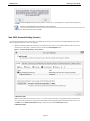
Figure 5 – License Activation Dialog
SmartDiscover – NO
i. Tick the Skip SmartDiscover and continue manually box and click Next.
7.
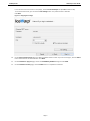
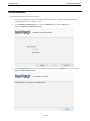
On the Outlook Profile page, fill in the Profile name, your Email address and Display name fields. Click Next.
Page 7