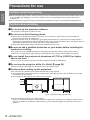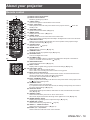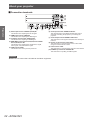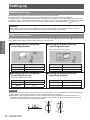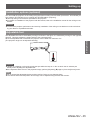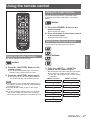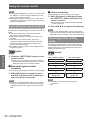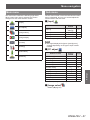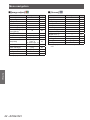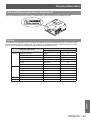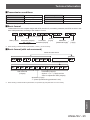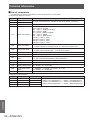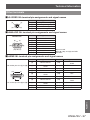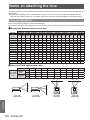
1
Operating Instructions Projector Operations LCD Projector Commercial Use Model No. PT-EX16KE PT-EX16KU The projection lens is sold separately. Thank you for purchasing this Panasonic product. ■■Before operating this product, please read the instructions carefully and save this manual for future use. ■■Before using your projector, be sure to read “Read this first!” ( pages 2 to 10). For information on using the product via a network, refer to “Operating Instructions–Network Operations”. ENGLISH KT2A Information Read Read thisthis first! first! WARNING: THIS APPARATUS MUST BE EARTHED. Important Information WARNING:To prevent damage which may result in fire or shock hazard, do not expose this appliance to rain or moisture. Machine Noise Information Ordinance 3. GSGV, January 18, 1991: The sound pressure level at the operator position is equal or less than 70 dB (A) according to ISO 7779. WARNING: 1. Remove the plug from the mains socket when this unit is not in use for a prolonged period of time. 2.To prevent electric shock, do not remove cover. No user serviceable parts inside. Refer servicing to qualified service personnel. 3.Do not remove the earthing pin on the mains plug. This apparatus is equipped with a three prong earthingtype mains plug. This plug will only fit an earthing-type mains socket. This is a safety feature. If you are unable to insert the plug into the mains socket, contact an electrician. Do not defeat the purpose of the earthing plug. WARNING: This is a class A product. In a domestic environment this product may cause radio interference in which case the user may be required to take adequate measures. CAUTION: To assure continued compliance, follow the attached installation instructions, which include using the provided power cord and shielded interface cables when connecting to computer or peripheral device. If you use serial port to connect PC for external control of projector, you must use optional RS-232C serial interface cable with ferrite core. Any unauthorized changes or modifications to this equipment will void the user’s authority to operate. EEE Yönetmeliğine Uygundur. EEE Complies with Directive of Turkey. WARNING: TURN OFF THE UV LAMP BEFORE OPENING THE LAMP COVER WARNING: TO REDUCE THE RISK OF FIRE OR ELECTRIC SHOCK, DONOT EXPOSE THIS PRODUCT TO RAIN OR MOISTURE. WARNING: RISK OF ELECTRIC SHOCK, DO NOT OPEN. The lightning flash with arrowhead symbol, within an equilateral triangle, is intended to alert the user to the presence of uninsulated “dangerous voltage” within the product’s enclosure that may be of sufficient magnitude to constitute a risk of electric shock to persons. The exclamation point within an equilateral triangle is intended to alert the user to the presence of important operating and maintenance (servicing) instructions in the literature accompanying the product. CAUTION (USA and Canada) CAUTION: This equipment is equipped with a three-pin grounding-type power plug. Do not remove the grounding pin on the power plug. This plug will only fit a grounding-type power outlet. This is a safety feature. If you are unable to insert the plug into the outlet, contact an electrician. Do not defeat the purpose of the grounding plug. 2 - ENGLISH Do not remove Read this first! Declaration of Conformity Model Number: PT-EX16KU/PT-EX16KE Trade Name: Panasonic Responsible Party: Panasonic Corporation of North America Address: One Panasonic Way, Secaucus, NJ 07094 Telephone number: (877)803-8492 E-mail: [email protected] This device complies with Part 15 of the FCC Rules. Operation is subject to the following two conditions: (1) This device may not cause harmful interference, and (2) this device must accept any interference received, including interference that may cause undesired operation. To assure continued compliance, follow the attached installation instructions and do not make any unauthorized modifications. Important Information FCC NOTICE (USA) CAUTION: This equipment has been tested and found to comply with the limits for a Class A digital device, pursuant to part 15 of the FCC Rules. These limits are designed to provide reasonable protection against harmful interference when the equipment is operated in a commercial environment. This equipment generates, uses, and can radiate radio frequency energy and, if not installed and used in accordance with the instruction manual, may cause harmful interference to radio communications. Operation of this equipment in a residential area is likely to cause harmful interference in which case the user will be required to correct the interference at his own expense. NOTIFICATION (Canada) This class A digital apparatus complies with Canadian ICES-003. WARNING (USA and Canada) zz Not for use in a computer room as defined in the Standard for the Protection of Electronic Computer/Data Processing Equipment, ANSI/NFPA 75. zz For permanently connected equipment, a readily accessible disconnect device shall be incorporated in the building installation wiring. zz For pluggable equipment, the socket-outlet shall be installed near the equipment and shall be easily accessible. NOTICE U.S.A. only: zz This product has a High Intensity Discharge (HID) lamp that contains mercury. Dispose may be regulated in your community due to environmental considerations. For disposal or recycling information, please visit Panasonic website: http://www.panasonic.com/environmental or call 1-888-769-0149. ENGLISH - 3 Read this first! IMPORTANT: THE MOULDED PLUG (U.K. only) Important Information FOR YOUR SAFETY, PLEASE READ THE FOLLOWING TEXT CAREFULLY. This appliance is supplied with a moulded three pin mains plug for your safety and convenience. A 13 amp fuse is fitted in this plug. Should the fuse need to be replaced, please ensure that the replacement fuse has a rating of 13 amps and that it is approved by ASTA or BSI to BS1362. or the BSI mark on the body of the fuse. Check for the ASTA mark If the plug contains a removable fuse cover, you must ensure that it is refitted when the fuse is replaced. If you lose the fuse cover, the plug must not be used until a replacement cover is obtained. A replacement fuse cover can be purchased from an Authorised Service Center. If the fitted moulded plug is unsuitable for the mains socket in your home, then the fuse should be removed and the plug cut off and disposed of safely. There is a danger of severe electrical shock if the cut off plug is inserted into any 13 amp socket. If a new plug is to be fitted, please observe the wiring code as shown below. If in any doubt, please consult a qualified electrician. WARNING: THIS APPLIANCE MUST BE EARTHED. IMPORTANT: The wires in this mains lead are coloured in accordance with the following code: Green - and - Yellow: Earth Blue: Neutral Brown: Live As the colours of the wire in the mains lead of this appliance may not correspond with the coloured markings identifying the terminals in your plug, proceed as follows. The wire which is coloured GREEN - AND - YELLOW must be connected to the terminal in the plug which is marked with the letter E or by the Earth symbol or coloured GREEN or GREEN AND - YELLOW. The wire which is coloured BLUE must be connected to the terminal in the plug which is marked with the letter N or coloured BLACK. The wire which is coloured BROWN must be connected to the terminal in the plug which is marked with the letter L or coloured RED. ASA L HE -8 13 A2 5 0V N BS 13 63 /A How to replace the fuse: Open the fuse compartment with a screwdriver and replace the fuse. 4 - ENGLISH WARNING: POWER The wall outlet or the circuit breaker shall be installed near the equipment and shall be easily accessible when problems occur. If the following problems occur, cut off the power supply immediately. Continued use of the projector in these conditions will result in fire or electric shock. zz If foreign objects or water get inside the projector, cut off the power supply. zz If the projector is dropped or the cabinet is broken, cut off the power supply. zz If you notice smoke, strange smells or noise coming from the projector, cut off the power supply. Please contact an Authorized Service Center for repairs, and do not attempt to repair the projector yourself. Important Information Read this first! During a thunderstorm, do not touch the projector or the cable. Electric shocks can result. Do not do anything that might damage the power cord or the power plug. If the power cord is used while damaged, electric shocks, short-circuits or fire will result. zz Do not damage the power cord, make any modifications to it, place it near any hot objects, bend it excessively, twist it, pull it, place heavy objects on top of it or wrap it into a bundle. Ask an Authorized Service Center to carry out any repairs to the power cord that might be necessary. Completely insert the power plug into the wall outlet and the power connector into the projector terminal. If the plug is not inserted correctly, electric shocks or overheating will result. zz Do not use plugs which are damaged or wall outlets which are coming loose from the wall. Do not use anything other than the provided power cord. Failure to observe this will result in fire or electric shocks. Clean the power plug regularly to prevent it from becoming covered in dust. Failure to observe this will cause a fire. zz If dust builds up on the power plug, the resulting humidity can damage the insulation. zz If not using the projector for an extended period of time, pull the power plug out from the wall outlet. Pull the power plug out from the wall outlet and wipe it with a dry cloth regularly. Do not handle the power plug with wet hands. Failure to observe this will result in electric shocks. Do not overload the wall outlet. If the power supply is overloaded (ex., by using too many adapters), overheating may occur and fire will result. ON USE/INSTALLATION Do not place the projector on soft materials such as carpets or sponge mats. Doing so will cause the projector to overheat, which can cause burns, fire or damage to the projector. Do not set up the projector in humid or dusty places or in places where the projector may come into contact with oily smoke or steam, ex. a bathroom. Using the projector under such conditions will result in fire, electric shocks or components deterioration. Components deterioration (such as ceiling mount brackets) may cause the projector which is mounted on the ceiling to fall down. Do not install this projector in a place which is not strong enough to take the full weight of the projector or on top of a surface which is sloped or unstable. Failure to observe this will cause projector to fall down or tip over the projector, and severe injury or damage could result. Do not place another projector or other heavy objects on top of the projector. Failure to observe this will cause the projector to become unbalanced and fall, which could result in damage or injury. The projector will be damaged or deformed. ENGLISH - 5 Read this first! Important Information WARNING: Do not cover the air inlet port or the air outlet port. Doing so will cause the projector to overheat, which can cause fire or damage to the projector. zz Do not place the projector in narrow, badly ventilated places such as closets or bookshelves. zz Do not place the projector on cloth or papers, as these materials could be drawn into the air inlet port. Do not place your hands or other objects close to the air outlet port. Doing so will cause burns or damage your hands or other objects. zz Heated air comes out of the air outlet port. Do not place your hands or face, or objects which cannot withstand heat close to this port. Do not look and place your skin into the lights emitted from the lens while the projector is being used. Doing so can cause burns or loss of sight. zz Strong light is emitted from the projector’s lens. Do not look or place your hands directly into this light. zz Be especially careful not to let young children look into the lens. In addition, turn off the power and disconnect the power plug when you are away from the projector. Never attempt to remodel or disassemble the projector. High voltages can cause fire or electric shocks. zz For any inspection, adjustment and repair work, please contact an Authorized Service Center. Do not project an image with the lens cover attached. Doing so can cause fire. Do not allow metal objects, flammable objects, or liquids to enter inside of the projector. Do not allow the projector to get wet. Doing so may cause short circuits or overheating, and result in fire, electric shock, or malfunction of the projector. zz Do not place containers of liquid or metal objects near the projector. zz If liquid enters inside of the projector, consult your dealer. zz Particular attention must be paid to children. Use the ceiling mount bracket specified by Panasonic. Defects in the ceiling mount bracket will result in falling accidents. zz Attach the supplied safety cable to the ceiling mount bracket to prevent the projector from falling down. Be sure to ask authorized personnel or your supplier when mounting the product to a ceiling. This requires an optional ceiling mount bracket. Product No.: ET-PKE16H (for high ceilings), ET-PKE16S (for low ceilings), ET-PKE16B (for projector) Installation work (such as ceiling mount bracket) should only be carried out by a qualified technician. If installation is not carried out and secured correctly it can cause injury or accidents, such as electric shocks. zz Do not use anything other than an authorized ceiling mount bracket. zz Be sure to use the provided accessory wire with an eye bolt as an extra safety measure to prevent the projector from falling down. (Install in a different location to the ceiling mount bracket.) zz When attaching or replacing a lens, consult the technical staff or service personnel at a specialist dealer for safety. Do not attempt to attach or replace the lens by yourself. 6 - ENGLISH WARNING: ACCESSORIES Do not use or handle the batteries improperly, and refer to the following. Failure to observe this will cause burns, batteries to leak, overheat, explode or catch fire. zz Do not use unspecified batteries. zz Use manganese or alkaline batteries but not rechargeable batteries. zz Do not disassemble dry cell batteries. zz Do not heat the batteries or place them into water or fire. zz Do not allow the + and - terminals of the batteries to come into contact with metallic objects such as necklaces or hairpins. zz Do not store batteries together with metallic objects. zz Store the batteries in a plastic bag and keep them away from metallic objects. zz Make sure the polarities (+ and -) are correct when inserting the batteries. zz Do not use a new battery together with an old battery or mix different types of batteries. zz Do not use batteries with the outer cover peeling away or removed. Important Information Read this first! Do not allow children to reach the batteries (AAA/R03/LR03). zz The battery can cause personal injury if swallowed. zz If swallowed, seek medical advice immediately. If the battery fluid leaks, do not touch it with bare hands, and take the following measures if necessary. zz Battery fluid on your skin or clothing could result in skin inflammation or injury. Rinse with clean water and seek medical advice immediately. zz Battery fluid coming in contact with your eyes could result in loss of sight. In this case, do not rub your eyes. Rinse with clean water and seek medical advice immediately. Do not disassemble the lamp unit. If the lamp breaks, it could cause injury. Lamp replacement The lamp has high internal pressure. If improperly handled, an explosion and severe injury or accidents will result. zz The lamp can easily explode if struck against hard objects or dropped. zz Before replacing the lamp, be sure to disconnect the power plug from the wall outlet. Electric shocks or explosions can result if this is not done. zz When replacing the lamp, turn the power off and allow it to cool for at least 60 minutes before handling it otherwise it can cause burns. Do not allow infants or pets to touch the remote control unit. zz Keep the remote control unit out of the reach of infants and pets after using it. Do not use the supplied power cord with devices other than this projector. zz Using the supplied power cord with devices other than this projector may cause short circuits or overheating, and result in electric shock or fire. Remove the depleted batteries from the remote control promptly. zz Leaving them in the unit may result in fluid leakage, overheating, or explosion of the batteries. ENGLISH - 7 Read this first! Important Information CAUTION: POWER When disconnecting the power cord, be sure to hold the power plug and power connector. If the power cord itself is pulled, the lead will become damaged, and fire, short-circuits or serious electric shocks will result. When not using the projector for an extended period of time, disconnect the power plug from the wall outlet and remove the batteries from the remote control. Disconnect the power plug from the wall outlet before carrying out any cleaning and replacing the unit. Electric shocks can result if this is not done. ON USE/INSTALLATION Do not put your weight on this projector. You could fall or the projector could break, and injury will result. zz Be especially careful not to let young children stand or sit on the projector. Do not place the projector in extremely hot locations. Doing so will cause the outer casing or internal components to deteriorate, or result in fire. zz Take particular care in locations exposed to direct sunlight or near stoves. Do not place your hands in the openings beside the optical lens, while shifting the lens. Failure to observe this could cause injury. Always disconnect all cables before moving the projector. Moving the projector with cables still attached can damage the cables, which will cause fire or electric shocks to occur. ACCESSORIES Do not use the old lamp unit. If used it could cause lamp explosion. If the lamp has broken, ventilate the room immediately. Do not touch or bring your face close to the broken pieces. Failure to observe this will cause the user to absorb the gas which was released when the lamp broke and which contains nearly the same amount of mercury as fluorescent lamps, and the broken pieces will cause injury. zz If you believe that you have absorbed the gas or that the gas has got into your eyes or mouth, seek medical advice immediately. zz Ask your dealer about replacing the lamp unit and check the inside of the projector. Do not reuse the air filter unit. Doing so may result in malfunctions. Do not clean the air filter unit with water. Doing so may result in malfunctions. zz Be careful not to wet the air filter unit. Ask your dealer about cleaning the inside the projector once a year. Continuous use while dust is accumulated inside the projector may result in fire. zz For cleaning fee, ask your dealer. 8 - ENGLISH Important Information Read this first! To remove the battery Remote Control Battery 1. Press the guide and lift the cover. 2. Remove the batteries. (ii) (i) Brazil Only Brasil Apenas Manuseio de baterias usadas BRASIL Após o uso, as pilhas e /ou baterias poderão ser entregues ao estabelecimento comercial ou rede de assistência técnica autorizada. Cobrir os terminais positivo (+) e negativo (-) com uma fita isolante adesiva, antes de depositar numa caixa destinada para o recolhimento. O contato entre partes metálicas pode causar vazamentos, gerar calor, romper a blindagem e produzir fogo. Não desmonte, não remova o invólucro, nem amasse a bateria. O gás liberado pela bateria pode irritar a garganta, danificar o lacre do invólucro ou o vazamento provocar calor, ruptura da blindagem e produzir fogo devido ao curto circuito dos terminais. Não incinere nem aqueça as baterias, elas não podem ficar expostas a temperaturas superiores a 100 °C (212 °F). O gás liberado pela bateria pode irritar a garganta, danificar o lacre do invólucro ou o vazamento provocar calor, ruptura da blindagem e produzir fogo devido ao curto circuito dos terminais provocado internamente. Evite o contato com o liquido que vazar das baterias. Caso isto ocorra, lave bem a parte afetada com bastante água. Caso haja irritação, consulte um médico. Remoção das baterias 1. Pressione a guia e levante a tampa. (i) 2. Remova as baterias. (ii) ENGLISH - 9 Read this first! Important Information Trademarks •HDMI, the HDMI logo and High-Definition Multimedia Interface are trademarks or registered trademarks of HDMI Licensing LLC. •Other names, company names or product names used in these operating instructions are the trademarks or registered trademarks of their respective holders. Please note that the operating instructions do not include the ® and TM symbols. Illustrations in these operating instructions •Note that illustrations of the projector and screens may differ from the ones you actually see. Page references •In these instructions, references to pages are indicated as: ( page 00). Term •In these instructions, the “Wireless/wired remote control unit” accessories are referred to as the “Remote control”. 10 - ENGLISH Features of the projector Quick steps For details, see the corresponding pages. High clarity and high contrast image Image quality of high clarity with 16 000 lumens and high contrast with 2 500:1. More flexible setup Allows installation of vertically 360° direction. Equipped with the electric lens shift function that enables vertical and horizontal positioning adjustment as well as test patterns. Also, you can use lights for the control panel and connection terminals. In addition, you can choose one from nine types of optional lenses. High reliability and maintainability Equipped with auto-switchable four lamps that enable continuous projecting when a lamp has been worn out. The air filter and smoke cut filter (optional) block dust and smoke and keep clear images and long life of the projector. 1. Set up your projector. ( page 24) 2. Connect with external devices. ( page 26) 3. Connect the power cord. ( page 31) 4. Power on. ( page 33) 5. Select the input signal. ( page 35) 6. Adjust the image. ( page 35) ENGLISH - 11 Contents Contents Be sure to read “Read this first!”. ( pages 2 to 10) Important Information Important Information Read this first!.................................................. 2 Precautions for use....................................... 14 Preparation Cautions when transporting........................................14 Cautions when installing.............................................14 Security........................................................................15 Disposal.......................................................................15 Cautions on use..........................................................15 Accessories.................................................................17 Optional accessories...................................................18 Preparation Getting Started About your projector..................................... 19 Remote control............................................................19 Projector body.............................................................20 Using the remote control ............................. 23 Basic Operation Inserting and removing the batteries..........................23 Setting remote control numbers.................................23 Using the remote control as a wired remote control....23 Getting Started Setting up........................................................ 24 Attaching the lens........................................................24 Projection method.......................................................24 Installation options (optional)......................................25 Adjustable feet.............................................................25 Settings Connections.................................................... 26 Before connecting to the projector.............................26 Connecting example: Computers...............................26 Connecting example: AV equipment..........................27 Tying up the cables using cable ties...........................28 Installing an input module (optional) ......... 29 Maintenance Installing an input module ..........................................29 List of compatible signals............................................30 Connection of signal to input module.........................30 Basic Operation Power management function......................................34 Projecting........................................................ 35 Selecting the input signal............................................35 Adjusting the image.....................................................35 Using the remote control.............................. 37 Using the shutter function...........................................37 Using the freeze function............................................37 Switching the input signal...........................................37 Correcting the keystone effect....................................38 Selecting picture quality mode....................................38 Adjusting picture quality..............................................39 Screen button..............................................................39 Displaying a timer for presentations...........................39 Checking the settings..................................................39 Settings Menu navigation............................................. 40 Navigating through menu............................................40 Main menu...................................................................41 Sub menu....................................................................41 [Input] menu.................................................... 44 [Input 1]........................................................................44 [Input 2]........................................................................44 [System].......................................................................45 [PC adjust] menu............................................ 46 [Auto PC adj.]..............................................................46 [Fine sync]...................................................................46 [Total dots]....................................................................46 [Position H]..................................................................46 [Position V]...................................................................47 [Current mode]............................................................47 [Clamp].........................................................................47 [Display area H]...........................................................47 [Display area V]...........................................................47 [Reset]..........................................................................48 [Mode free]...................................................................48 [Store]..........................................................................48 [Image select] menu...................................... 49 Adjusting the picture quality .......................................49 Appendix Powering on/off.............................................. 31 [Image adjust] menu...................................... 50 Connecting the power cord.........................................31 Power indicator ..........................................................32 Powering on the projector...........................................33 Making adjustments and selections...........................33 Powering off the projector...........................................34 Direct power off function.............................................34 [Contrast].....................................................................50 [Brightness]..................................................................50 [Color]..........................................................................50 [Tint].............................................................................50 [Color management]...................................................51 12 - ENGLISH [Language]...................................................................59 [Menu position]............................................................59 [Display].......................................................................59 [Background]...............................................................60 [Lamp select]...............................................................60 [Lamp power]...............................................................60 [Lamp interval].............................................................61 [Edge blending]...........................................................61 [Color matching]..........................................................62 [Advanced color matching].........................................63 [HDMI setup]................................................................65 [Logo]...........................................................................66 [Fan control].................................................................67 [Remote control]..........................................................67 [RC sensor]..................................................................67 [Power management]..................................................68 [Direct on].....................................................................68 [Security]......................................................................69 [Projector ID]................................................................70 [Shutter].......................................................................70 [Video delay control]....................................................71 [Closed caption]...........................................................72 Maintenance About indicator status................................... 77 If an indicator turns on.................................................77 Preparation [Network] menu.............................................. 76 Before maintaining/replacing the unit.........................83 Maintenance................................................................83 Replacing the parts.....................................................83 Troubleshooting............................................. 88 Appendix Technical Information.................................... 90 Adjusting screens of multiple screen images.............90 Label notifying registration of password.....................93 PJLink..........................................................................93 Serial terminal..............................................................94 Other terminals............................................................97 List of compatible signals...........................................99 Getting Started Maintenance/replacement............................ 83 Basic Operation [Setting] menu................................................ 59 Confirming the settings and usage state....................75 Specifications............................................... 102 Dimensions................................................... 104 Ceiling mount bracket safeguards............ 105 Notes on attaching the lens........................ 106 Settings [Normal].......................................................................55 [Full].............................................................................55 [Wide(16:9)].................................................................55 [Zoom]..........................................................................55 [True]............................................................................55 [Custom]......................................................................56 [Custom adj.]...............................................................56 [Digital zoom +]............................................................56 [Digital zoom -].............................................................57 [Keystone]....................................................................57 [Ceiling]........................................................................58 [Rear]...........................................................................58 [Reset]..........................................................................58 [Information] menu........................................ 75 Lens specifications....................................................106 Maintenance [Screen] menu................................................ 55 [Filter counter]..............................................................72 [P-timer].......................................................................73 [Test pattern]................................................................74 [Factory default]...........................................................74 Appendix [Color temp.]................................................................52 White balance ([Red]/[Green]/[Blue]).........................52 [Offset]..........................................................................52 [Auto picture control]...................................................52 [Advanced color]..........................................................52 [Sharpness].................................................................53 [Gamma]......................................................................53 [Noise reduction].........................................................53 [Progressive]................................................................53 [Reset]..........................................................................53 [Store]..........................................................................54 Important Information Contents ENGLISH - 13 Precautions Precautions for usefor use Important Information Cautions when transporting zzWhen transporting the projector, hold it securely by its carry handle and avoid excessive vibration and impacts by such handling as dragging it on the floor. Failure to do so may damage the internal parts and result in malfunctions. zzDo not transport the projector with the adjustable feet extended. Doing so may damage the adjustable feet. Cautions when installing ■■Do not set up the projector outdoors. The projector is designed for indoor use only. ■■Do not use in the following places. zzPlaces where vibration and impacts occur such as in a vehicle or vessel: Doing so may damage the internal parts and result in malfunctions. zzNear the exhaust of an air conditioner or near lights (studio lamps, etc.) where there are large swings in temperature (“Operating environment” ( page 103)): Doing so may shorten the life of the lamp or result in deformation of the outer case, which may in turn cause malfunctions. zzNear high-voltage power lines or near motors: Interference may occur. ■■Be sure to ask a qualified technician or your dealer before installing the product on a ceiling. If the product is to be installed hanging from the ceiling, purchase the optional ceiling mount bracket. Product No.: ET-PKE16H (for high ceilings), ET-PKE16S (for low ceilings), ET-PKE16B (for projector) ■■Do not install the projector at elevations of 2 700 m (8 858 ft) or higher above sea level. Failure to do so may shorten the life of the internal parts and result in malfunctions. ■■Do not use the projector while it is tilted ( page 24). Using the projector while tilted may shorten the life of the internal parts. ■■Cautions when setting up the projectors zzDo not block the ventilation ports (intake and exhaust) of the projector. zzAvoid heated and cooled air from the air conditioning system directly blow to the ventilation ports (intake and exhaust) of the projector. zzAvoid setting up the projector in a humid or dusty location. 1 m (39") 1 m (39") 1 m (39") 1 m (39") (over 1 m (39") for each top and side) zzDo not install the projector in a confined space. When it is necessary to install in a confined space, install an air conditioning or ventilation system for the space. If ventilation is insufficient, exhaust heat may accumulate and trigger the protection circuit of the projector. 14 - ENGLISH Security When using this product, implement appropriate security measures to prevent the following: zzPersonal information being leaked via this product zzUnauthorized operation of this product by a malicious third party zzInterference or stopping of this product by a malicious third party Take sufficient security measures. ( page 69) zzMake your PIN code as difficult to guess as possible. zzChange your PIN code periodically. zzPanasonic Corporation and its affiliate companies will never ask you directly for your PIN code. If you are asked directly, do not give your PIN code. zzBe sure to use a secure network with a firewall etc. zzSet a PIN code and set restrictions on the users who can log in. Important Information Precautions for use Disposal When disposing of the product, ask your local authority or dealer about the correct methods of disposal. The lamp contains mercury. When disposing of the used lamp unit, ask your nearest local authorities or dealer about proper disposal of the unit. Dispose of used batteries according to the instructions or your local disposal rule or guidelines. Cautions on use ■■To achieve a high picture quality zzYou achieve a high picture quality by drawing curtains or blinds over windows and turning off any lights near the screen to prevent outside light or light from indoor lamps from shining onto the screen. zzDepending on the conditions, the picture may wobble due to the heated air from the air exhaust port or heated or cooled air from the air conditioner. Take care to ensure that neither the exhaust from the projector or other equipment, nor air from any air conditioner blows on the front of the projector. zzThe projection lens is heated by the light from the luminous source, making the focus unstable in the period just after switching on. The focus will stabilize after 30 minutes elapsed with the image being projected. ■■Do not touch the surface of the projection lens with your bare hands. If the surface of the lens is contaminated by fingerprints or dirt, this will be magnified and projected onto the screen, degrading the picture. ■■LCD panel The LCD panel is precision-made. Note that in rare cases, pixels of high precision could be missing or always lit. This is not a malfunction. When a still image is projected for a long period, the image may burn in to the LCD panel. In this case, project the white screen from the test patterns ( page 74) for at least one hour. Note, however, that it may not always be possible to fully eradicate the burned-in image. ENGLISH - 15 Precautions for use Important Information ■■Optical components If you are using the projecting a high-temperature environment or an environment which is dusty or full of cigarette smoke etc., the replacement cycle for optical components such as the the LCD panel and polarizer may reduce to as little as a year. For more information, please consult your dealer. ■■Lamp The projector luminous source is a mercury lamp with high internal pressure. A high-pressure mercury lamp has the following characteristics. zzThe brightness of the lamp will decrease with usage time. zzAn impact, scratch, or deterioration with usage may cause the bulb burst loudly or reduce the service life. zzThe service life of the lamp varies greatly depending on the individual lamp and usage conditions. In particular, continuous use for periods of 24 hours or longer and frequent on/off switching of the power accelerate deterioration in the lamp and affect the lamp life. zzIn rare cases, the lamp burst shortly after starting the projection. zzThe risk of bursting increases when the lamp is used beyond its replacement cycle. Make sure to replace the lamp unit consistently. “When to replace the lamp unit” ( page 85) zzIf the lamp bursts, gas contained in the lamp is released in a form of smoke. zzIt is recommend that you store replacement lamp units for contingency. zzIt is recommended that you request a qualified technician to replace the lamp unit. Consult your dealer. <Software information regarding this product> © Panasonic Corporation 2011 This product incorporates the following software: the software which is developed independently by or for Panasonic Corporation. If you wish to ask any questions as to the software, please contact ([email protected]) by email. Pursuant to at the directive 2004/108/EC, article 9(2) Panasonic Testing Centre Panasonic Service Europe, a division of Panasonic Marketing Europe GmbH Winsbergring 15, 22525 Hamburg, F.R. Germany 16 - ENGLISH Accessories Make sure that the following accessories are provided with your projector. Accessory (product name) Number Wireless/wired remote control unit (6451049049) 1 AAA/R03/LR03 battery (for remote control unit) 2 Power cord for PT-EX16KE (6103580067 and 6103580074) 2 Power cord for PT-EX16KU (6103580043) 1 Computer cable (for D-sub) (6103580395) 1 CD-ROM (6103580487) 1 Operating Instructions–Basic Guide (6103567778) 1 Lens lock lever fixing bracket*1 (6103579818) Spacer*1 (9103016659) Lens attachment*1 (6103531335) 1 (set) 1 (set) 1 (set) Accessory (product name) Number PIN code label Important Information Precautions for use 1 Cable tie 3 Power cord holder, power cord cover (6103571133) Light-shielding plate-1*1 (6103379906) Light-shielding plate-2*1 (6103370064) Light-shielding plate-3*1 (6103370224) 1 (set) 1 (set) 1 (set) 1 (set) *1: Used when attaching the lens (optional). ( page 106) Attention zzAfter unpacking the projector, dispose of the power cord cap and packaging material in an appropriate manner. zzIf you lose any of the accessories, consult your dealer. zzThe product numbers of accessories and separately sold components are subject to change without notice. zzStore small parts in an appropriate manner, and keep them away from young children. ENGLISH - 17 Precautions for use Important Information ■■Contents of CD-ROM The following contents are stored on the supplied CD-ROM. Manual/list (PDF) Software zzOperating Instructions–Projector Operations zzOperating Instructions–Network Operations zzMulti Projector Monitoring & Control Software Operation Manual zzLogo Transfer Software Operation Manual zzReal Color Manager Pro Software Operation Manual zzList of compatible projector models –This is a list of projectors that are compatible with the software included in the CD-ROM, and their restrictions. zzMulti Projector Monitoring & Control Software (Windows) –This is software for monitoring and controlling multiple projectors connected via a LAN. zzLogo Transfer Software (Windows) –This is software to set the projector to project the user’s own company logo etc. on startup. zzReal Color Manager Pro Software (Windows) –This is software for performing color correction and gamma correction of the projected image. Optional accessories Optional accessories (product name) Product No. Ceiling mount bracket ET-PKE16H (for high ceilings), ET-PKE16S (for low ceilings), ET-PKE16B (for projector) Replacement lamp unit ET-LAE16 Replacement filter ET-RFE16 Smoke cut filter ET-SFE16 (unit), ET-SRE16 (filter) Input module ET-MD16SD1 Lens ET-ELW02, ET-ELW03, ET-ELW04, ET-ELW06, ET-ELS02, ET-ELS03, ET-ELM01, ET-ELT02, ET-ELT03 18 - ENGLISH About your projector About your projector Remote control (1) (1) Remote control signal emitters (2) Remote control indicator Flashes by pressing any buttons. (18) (5) (19) (6) (20) (7) (7) (21) (22) (8) (9) (10) (11) (12) (13) (14) (15) (23) (24) (16) (17) (25) (3) <LIGHT> button Press once to light the control buttons for ten seconds. (4) Power <ON> button and in the Starts projection when the main power switch on the projector is set to standby mode. (5) <SHUTTER> button Opens and closes the shutter. ( page 37) (6) <MENU> button Displays the menu screen. ( page 40) (7) ▲▼◀▶ button Move the cursor on the on-screen menu and control menus. Also move the image vertically and horizontally in the digital zoom mode or the real mode. (8) <LENS SHIFT> button Slides the lens vertically and horizontally to move the position of the projective image vertically and horizontally. ( page 35) (9) <FOCUS> button Adjusts the focus. ( page 36) (10) <ZOOM> button Adjusts the zoom of the lens. ( page 36) (11) <FREEZE> button Temporally freezes the projected image. ( page 37) (12) <D.ZOOM> button Turns on the digital zoom mode. (13) <P-TIMER> button Press the <P-TIMER> button to count the time elapsed from the press of the button or perform a countdown from the set time. ( page 39) (14) <KEYSTONE> button Corrects the keystone effect. ( page 38) (15) <INFO.> button Displays state of signals during projection and current settings. ( page 39) (16) <ON>/<OFF> switch Set to <ON> when using the remote control. Set to <OFF> when not using the remote control for a long period. (17) Wired remote control terminal When the remote control is used as a wired remote control, connect this terminal on the remote control to the <R/C JACK> terminal on the projector. The remote control requires batteries. ( page 23) (18) Power <STAND-BY> button Sets the projector to the standby mode when the main power switch on the projector is set and in the projecting mode. to (19) <SCREEN> button Selects the size of the projected image. If you press the button for at least five seconds, the settings of the [Screen] menu return to the factory default settings. ( page 39) (20) <AUTO PC> button Automatically adjusts synchronization, total number of dots, horizontal shift, and vertical shift. ( page 46) (21) <SELECT> button Selects item indicated by the cursor on the on-screen menu. Also used to expand and contract the image in the digital zoom mode. ( page 40) (22) <IMAGE ADJUST> button Displays the [Image adjust] menu to adjust the image. ( page 34) (23) <IMAGE SEL.> button Selects the mode from [Image select]. ( page 38) (24) <INPUT 1> - <INPUT 4> buttons Selects the input signal to project. ( page 37) (25) Number (<0> - <9>) buttons Used to enter PIN codes and remote control numbers. ENGLISH - 19 Preparation (2) (3) (4) About your projector Attention zzDo not drop the remote control. zzAvoid contact with liquids or moisture. zzDo not attempt to modify or disassemble the remote control. Preparation Note zzThe remote control can be used from any distance within about 5 m if pointed directly at the remote control sensor. The remote control is effective from angles of up to ±30° vertically and horizontally, but its range may be reduced. zzIf there are any obstacles between the remote control and the remote control sensor, the remote control may not operate properly. zzYou can control the projector by reflecting the signal off the screen, but the effective operating range will depend on the characteristics of the screen. zzIf the remote control sensor receives strong light such as fluorescent light, the remote control may not operate properly. Place the projector as far as possible from other light sources. Projector body (1) (2) (3) (10) (4) (5) (6) (7) (8) (9) (7) (12) (11) (15) (13)(14) (10) (11) (7) (1) Lens attachment cover (2) Air filter unit (3) Lens (optional) (4) Indicator ( page 77) (16) (7) (15) (15) (11) Lamp cover Houses the lamp unit. ( page 86) (12) AC input terminal Connect the supplied power cord. ( page 31) (5) Remote control sensor (top and front) (13) Main power switch Turns off/on the main power. (6) Connection terminals ( page 22) (14) Remote control sensor (rear) (7) Carry handle (15) Adjustable feet Adjust the projection angle. ( page 25) (8) Security slot This security slot is compatible with the Kensington security cables. (16) Air intake port (9) Control panel ( page 21) (10) Air exhaust port Attention zzKeep your hands and other objects away from the air exhaust port –Keep your hands and face away. –Do not insert your fingers. –Keep away heat-sensitive articles. Heated air from the air outlet port can cause burns, injuries, or deformations. 20 - ENGLISH (15) About your projector ■■Control panel (1) (8) (2) (3) (9) (4) (5) (10) (6) (7) (12) (1) Power <ON/STAND-BY> button Turns off/on the power when the main power switch on the . projector is set to (2) <SHUTTER> button Opens and closes the shutter. Adjusts the shielding of the projection light. ( page 37) (3) <ZOOM> button Adjusts the zoom of the lens. ( page 36) (4) <FOCUS> button Adjusts focus. ( page 36) (5) <MENU> button Displays the menu screen. ( page 40) (6) ▲▼◀▶ buttons Move the cursor on the on-screen menu and control menus. Also move the image vertically and horizontally in the digital zoom mode and the real mode. Preparation (11) (6) (7) <AUTO PC ADJ.> button Automatically adjusts synchronization, total number of dots, horizontal shift, and vertical shift. (8) <LIGHT> button Switches on/off the control panel and connection terminals by each press of this button. (9) <LENS SHIFT> button Slides the lens vertically and horizontally to move the position of the projective image vertically and horizontally. ( page 35) (10) <INPUT> button Selects the input signal to project. ( page 37) (11) <SELECT> button Selects item indicated by the cursor on the on-screen menu. Also used to expand and contract the image in the digital zoom mode. ( page 40) (12) <INFORMATION> button Displays state of signals during projection and current settings. ( page 39) ENGLISH - 21 About your projector ■■Connection terminals (5) (6) (7) (8) (9) (10) Preparation (1) (2) (3) (1) DVI-D input terminal <DIGITAL (DVI-D) IN> This terminal is for inputting the DVI-D signal. (2) HDMI input terminal <HDMI IN> This terminal is for inputting the HDMI signal. (3) Computer input terminal <ANALOG IN> This terminal is for inputting an RGB signal. (4) RGB 5BNC input terminal <R,G,B,H/V,V IN>/<VIDEO IN>/<Y,Pb/Cb,Pr/Cr IN> This terminal is for inputting the G,B,R,H/HV,V signal, video signal, and Y,Pb/Cb,Pr/Cr signal. (5) USB terminal <USB> This terminal is for use by service personnel. (4) (6) Serial input terminal <SERIAL PORT IN> This input terminal is compatible with RS-232C and for externally controlling the projector by connecting the projector. (7) Serial Output terminal <SERIAL PORT OUT> This terminal is for the signal connected to the serial input terminal. (8) Remote control terminal <R/C JACK> This terminal is for connecting the remote control when using it as a wired remote control. (9) LAN terminal <LAN> This terminal is for connecting the projector to the network. (10) S-VIDEO input terminal <S-VIDEO IN> This terminal is for inputting S-VIDEO signals. Attention zzMake sure to connect the LAN cable to the indoor equipment. 22 - ENGLISH Using the remote control Using the remote control Inserting and removing the batteries (i) (ii) 2) Insert the batteries and close the cover. zzInsert the side first. zzTo remove the batteries, follow the above procedure in reverse. Setting remote control numbers When you are using multiple projectors, you can set a remote control number to each projector to allow simultaneous control with a single remote control. After setting a remote control number of a given projector, specify that projector using the remote control number. ■■Setting method 1) While holding the <MENU> button, press the number (<0> - <9>) buttons (2 digits) to enter the desired remote control number. zzWhen you release the button, the remote control number will change to the new number. zzTo set the remote control number to 09, press <0>, <9> while holding down the <MENU> button. Note zzThe factory default setting is [All]. [All] supports all remote control numbers. zzSet the remote control number of the projector using [Remote control] from the [Setting] menu ( page 67). zzTo reset the remote control number (to set to [All]), simultaneously hold down the <MENU> button and the <0> button for at least five seconds. Using the remote control as a wired remote control Connect the <R/C JACK> terminal on the projector body to the wired remote control terminal on the remote control using the remote control cable (commercially available). zzMake sure that the batteries are inserted in the remote control. zzTo use the remote control wirelessly, disconnect the remote control cable from the projector and the remote control. When the remote control cable is connected, you cannot use the remote control wirelessly. ENGLISH - 23 Preparation 1) Open the cover. Setting Setting up up Attaching the lens Before putting the projector in position, attach the lens to the projector body. First, determine the correct lens for the environment in which you are going to use the projector. For lens product numbers and lens specifications suitable for the projector, consult your dealer. When attaching or replacing a lens, consult the technical staff or service personnel at a specialist dealer for safety. Do not attempt to attach or replace the lens by yourself. For details, refer to “Notes on attaching the lens” ( page 106). Caution When setting up the projector after installing a lens, always fit the lens cover to the lens. When carrying or holding the projector body, never hold the lens. Doing so may damage the projector. Projection method You can project images vertically and diagonally. You can select rear ( page 58) and ceiling ( page 58) from the menu. Select the projection method appropriate to the environment. Getting Started ■■Mounting on the ceiling and projecting forward ■■Setting on a desk/floor and projecting from rear (Using the translucent screen) Menu item Setting Menu item Setting [Ceiling] [On] [Ceiling] [Off] [Rear] [Off] [Rear] [On] ■■Mounting on the ceiling and projecting from rear ■■Setting on a desk/floor and projecting forward (Using the translucent screen) Menu item Setting Menu item Setting [Ceiling] [On] [Ceiling] [Off] [Rear] [On] [Rear] [Off] Attention zzTo get a high picture quality, set up the screen in a location that is, as far as possible, not directly affected by natural light or electric light. Draw the curtains or blinds and turn off the lights. zzWhen setting up the projector with tilt, do not use the projector at an inclination angle that exceeds ±10° vertically to the horizontal plane. Installing the projector at an inclination angle that exceeds this value may reduce the component life and result in malfunctions. 10° 10° 10° 10° 24 - ENGLISH 10° 10° Setting up Installation options (optional) You can install the projector on the ceiling using the optional ceiling mount bracket (Product No.: ET-PKE16H (for high ceilings), ET-PKE16S (for low ceilings) and ET-PKE16B (for projector)). zzUse only ceiling mount brackets specified for this projector. zzFor details on installation of the projector with the bracket, refer to the installation manual for the ceiling mount bracket. Attention zzTo ensure the projector performance and security, installation of the ceiling mount bracket must be carried out by your dealer or a qualified technician. Adjustable feet Getting Started The adjustable feet can be extended by turning it as shown in the figure. It is retracted by turning it in the opposite direction. This finely adjusts the height and tilt of the projected image. When the adjustable feet is extended, the projector can be tilted to a maximum of 3°. (The projection angle can be adjusted vertically.) Attention zzHeated air is blowing out from the air exhaust port while the lamp is on. Do not touch the air exhaust port directly when adjusting the adjustable feet. zzIf the keystone effect occurs in the projected image, perform [Keystone] ( page 57) from the [Screen] menu. Note zzDo not extend the adjustable feet beyond the red line. Doing so may damage them. zzThe vertical and horizontal position of the image can be adjusted using the lens shift function. ENGLISH - 25 Connections Connections Before connecting to the projector zzRead carefully the instruction manual of the device you intend to connect. zzTurn off the power switch of the device before connecting the cable. zzIf a connection cable is not supplied with the device and the optional cable is not available, prepare a connection cable to suit the device. zzVideo signals containing too much jitter may cause the images on the screen to randomly wobble. In this case, a time base corrector (TBC) must be connected. zzThe projector accepts the following signals: video signals, S-video signals, analog RGB signals (synchronous signals are TTL level), and digital signals. zzSome computer models are not compatible with the projector. zzWhen connecting a device to the projector using a long cable, it may not be possible to achieve a normal picture without a compensator. zzFor details of the video signals supported by the projector, refer to “List of compatible signals” ( page 99). Connecting example: Computers Computer Getting Started Serial cable (crossed) To <SERIAL PORT IN> terminal To serial port output BNC cable To <G,B,R,H/V,V IN> terminal To monitor output D-sub cable To monitor output To <ANALOG IN> terminal DVI/HDMI cable To monitor output To <HDMI IN> terminal DVI-D cable To monitor output To <DIGITAL (DVI-D) IN> terminal Note zzUse an HDMI High Speed cable that adheres to the HDMI standard. Use of a cable that does not adhere to the HDMI standard, may result in abnormal operation such as cut-out of the image, failure to project, etc. zzThe <HDMI IN> terminal can be connected with an external device with a DVI terminal using an HDMI/DVI conversion cable. With some devices, however, the image may not appear. ( page 65) zzWhen the <DIGITAL (DVI-D) IN> terminal is used, normal operation may not be possible with certain devices and the image may not appear. zzThe <DIGITAL (DVI-D) IN> terminal (in the digital signal input mode) is compatible only with single link signals. zzFor details of RGB signals from computers that the projector supports, refer to “List of compatible signals” ( page 99). zzIf you operate the projector using the computer with the resume feature (last memory), it may be required to reset the resume feature to operate the projector. zzThe <DIGITAL (DVI-D) IN> terminal (in the digital signal input mode) may require the EDID setting depending on the connected device. zzTo connect the projector with a computer over a wired LAN, refer to the “Operating Instructions–Network Operations” on the supplied CD-ROM. 26 - ENGLISH Connections Connecting example: AV equipment Video, S-video, DVD player, and HDMI video output devices S-video cable To <S-VIDEO IN> terminal To S-video output BNC cable To <Y,Pb/Cb,Pr/Cr IN> terminal To component video output To composite video output BNC cable To <VIDEO IN> terminal To HDMI output Getting Started HDMI cable To <HDMI IN> terminal DVI-D cable To AV HDCP To <DIGITAL (DVI-D) IN> DVI video output terminal Attention zzAlways use one of the following when connecting a VCR. –A VCR with built-in time base corrector (TBC) –A time base corrector (TBC) between the projector and the VCR zzIf burst signals are connected to nonstandard signals, the image may be distorted. In such a case, connect a time base corrector (TBC) between the projector and the device. Note zzUse an HDMI High Speed cable that adheres to the HDMI standard. Use of a cable that does not adhere to the HDMI standard, may result in abnormal operation such as cut-out of the image, failure to project, etc. zzThe <HDMI IN> terminal can be connected with an external device with a DVI terminal using an HDMI/DVI conversion cable. With some devices, however, the image may not appear. ( page 65) zzThe <DIGITAL (DVI-D) IN> terminal can be connected to HDMI and DVI-D compatible devices, but normal operation may not be possible with certain devices and the image may not appear. zzThe <DIGITAL (DVI-D) IN> terminal (in the digital signal input mode) is compatible only with single link signals. ENGLISH - 27 Connections Tying up the cables using cable ties Keep the cables tidy by fixing the cables connected to the terminals into the cable holders on the projector body. zzThe cable ties can be reused. (The tab can be loosened and released.) ■■Loosening the cable ties Cable holders (ii) (i) Tab Cable tie Getting Started 1) Pull the tab in the direction of arrow (i). 2) Pull the tab in the direction of arrow (ii). zzThe loop of the cable tie will widen. Attention zzThe following items are cautions when you use the cable tie. –Noises may occur for rare occasions. –Do not pull the cable forcibly. Doing so may cause disconnection. –It is recommended that you allow some slack when the cables are tied. Caution When connecting the projector to a computer or an external device, use the power cord supplied with the device and commercially available shielded cables. 28 - ENGLISH Installing an input module Installing an(optional) input module (optional) Installing an input module ■■Types of input module Purchase an input module (optional) matching the input signals of the system. Module name SD/HD-SDI input module Module number ET-MD16SD1 Compatible signal format BNC 2 Input system, BNC 1 Output system SMPTE259M-C standard: 480-60i (59.94 Hz*1), 576-50i (50 Hz) SMPTE260M standard: 1035-60i (60/59.94 Hz*1) SMPTE274M standard: 1080-24psf (48/47.95 Hz*1), 1080-24p (24/23.98 Hz*1), 1080-25psf (50 Hz), 1080-25p (25 Hz), 1080-30psf (60/59.94 Hz*1), 1080-30p (30/29.97 Hz*1), 1080-50i (50 Hz), 1080-60i (60/59.94 Hz*1) SMPTE296M standard: 720-60p (60/59.94 Hz*1), 720-50p (50 Hz) *1: V-sync frequency 60/59.94 Hz, 48/47.95 Hz, 24/23.98 Hz are automatically distinguished. Note zzThe preceding list shows the signal formats supported by the input modules. The signal formats supported by the projector differ depending on the model. For more information, please consult your dealer. ■■Installation procedure Disconnect the power before installing the input module. 1) Remove the slot cover. Slot cover 2) Insert the input module. zzFirmly insert the input module into the slot, ensuring that the socket of the connection terminal engages correctly with the plug within the projector body. Guide Socket Plug 3) Fix the input module in place using two screws. Attention zzBe sure to tighten the screws. Otherwise, the input module may fall off. zzAn improper installation may result in damage to the input module. ENGLISH - 29 Getting Started Input/output terminal Installing an input module (optional) ■■Using the input module Consult your dealer before using any of the optional input modules. When consulting your dealer, be sure to inform them of [Option control No.] of the projector. [Option control No.] is displayed in the [Information] menu. Language Input 16H Power management Ready 5Min Image select Key lock Image adjust PIN code lock Shutter management Protection Screen Off 180Min Effect Setting Information Off Release key All Remote control Code 08 Serial number Network Exit English Filter counter PC adjust Option control No. Back Move 13 Inform your dealer of this number. Next Getting Started List of compatible signals The following table specifies the types of signal compatible with the projector. Screen display Resolution mode D-480i D-576i D-1035i (dots) 720 (1 440) x 480 720 (1 440) x 576 1 920 x 1 035 1 920 x 1 080 1 920 x 1 080 1 280 x 720 1 280 x 720 1 920 x 1 080 1 920 x 1 080 1 920 x 1 080 1 920 x 1 080 1 920 x 1 080 1 920 x 1 080 D-1080i D-720p D-1080psf/24 D-1080psf/25 D-1080psf/30 D-1080p Scanning frequency Horizontal (kHz) 15.734 15.625 33.750 33.750 28.125 37.500 45.000 27.000 28.125 33.750 27.000 28.125 33.750 Dot clock Vertical (Hz) 59.940 50.000 60.000 60.000 50.000 50.000 60.000 48.000 50.000 60.000 24.000 25.000 30.000 Connection of signal to input module To monitor or projector compatible with HD-SDI or SD-SDI signals SDI IN 1 HD-SDI or SD-SDI signal Digital VCR for commercial use 30 - ENGLISH SDI IN 2 SDI OUT frequency (MHz) 27.000 27.000 74.250 74.250 74.250 74.250 74.250 74.250 74.250 74.250 74.250 74.250 74.250 Powering on/off Powering on/off Connecting the power cord ■■Installation ■■Removal 1) Insert the power cord holder in the holes provided above and below the AC input terminal. 1) Push the power cord holder to the left. zzPush the power cord holder to the left to allow insertion of the power cord. 2) Remove the power cord from the AC input terminal. (i) (ii) 3) Remove the power cord holder. 3) Connect the power cord to the AC input terminal. 4) Move the power cord holder to secure the power cord. ENGLISH - 31 Basic Operation 2) Attach the power cord cover to the cord in the direction of (i) and press it firmly in the direction of (ii). Powering on/off Power indicator The power indicator informs you of the power status. Check the status of the power indicator <POWER> and the standby indicator <STAND-BY> before operating the projector. Power indicator <POWER> Standby indicator <STAND-BY> Indicator status Power indicator <POWER> (green) Projector status Standby indicator <STAND-BY> (red) Off The main power is off. Off On The power is off (standby mode). On Off The projector is in the projection mode. Off Flashing The projector is preparing to turn off the power. After a short time, the power will turn off (in standby mode). Basic Operation Note zzWhen the projector is preparing to turn off the power (the power indicator <POWER> is off and the standby indicator <STAND-BY> is flashing), the internal fan switches on to cool the projector. zzWhen the projector is preparing to turn off the power, you cannot switch on the power by pressing the power <ON/STAND-BY> button on the control panel or the power <ON> button on the remote control. If the standby indicator <STAND-BY> is on, you can switch on the power. zzThe projector consumes electricity even in the standby mode (the standby indicator <STAND-BY> is on). 32 - ENGLISH Powering on/off Powering on the projector Control panel Remote control zzWhen [Display] ( page 59) of the [Setting] menu is set to [Off] or [Countdown off], projection will start as soon as the lamp comes on, regardless of [Logo select] ( page 66) setting. zzAfter turning on the power, notes on [Filter warning] and [Lamp replacement] may be displayed depending on the status of the projector. ( page 86) Making adjustments and selections Power <ON> button Before turning on the power, remove the lens cover. 1) Connect the power plug to the outlet. (AC 220 V - 240 V 50 Hz/60 Hz) 2) Press the < > side of the main power switch to turn on the power. zzAfter a moment, the standby indicator <STANDBY> will go on and the projector will enter the standby mode. 3) Press the <ON/STAND-BY> button on the control panel or the <ON> button on the remote control. zzAfter a moment, an image will be projected and the currently selected input signal and lamp status ( page 85) will be displayed for approximately four seconds. Note zzWhen [PIN code lock] ( page 69) has been set to [On] using [Security] in the [Setting] menu, enter your PIN code. zzThe projector will make a noise when the lamp comes on, but this is not a malfunction. zzDuring projection, the fan rotates, making a sound. The sound may change depending on the ambient temperature, and when the lamp is on, the sound may become loud. zzIf the lamp is switched off and immediately on again, the newly projected image may wobble for a few moments. This is due to the lamp characteristics and is not a malfunction. zzWhen [Direct on] ( page 68) of the [Setting] menu is set to [On], the power will come on as soon as you insert the power plug into the outlet or set the main power switch to the < > side. zzWhen [Display] ( page 59) of the [Setting] menu is set to [On] and [Logo] ( page 66) is set to [Off], the countdown will be displayed but the opening display will not be displayed. 4) Press the <FOCUS> button to adjust the focus of the image roughly. ( page 36) 5) Press the <INPUT 1> to <INPUT 4> buttons on the remote control or the <INPUT> button on the control panel to select the input terminal. ( page 37) 6) Adjust the projection angle. ( page 25) zzExtend the adjustable feet to adjust the projection angle. 7) Press the <LENS SHIFT> button to adjust the position of the image. ( page 35) 8) Press the <ZOOM> button to adjust the size of the image to fit the screen. ( page 36) 9) Press the <FOCUS> button again to adjust the focus. 10) Press the <ZOOM> button again to adjust the zoom and the size of the image to fit the screen. ENGLISH - 33 Basic Operation Power <ON/STAND-BY> button It is recommended that the images are projected continuously for at least 30 minutes before the focus is adjusted. Powering on/off Powering off the projector Control panel Power <ON/STAND-BY> button Remote control Power <STAND-BY> button 1) Press the power <ON/STAND-BY> button on the control panel or the power <STAND-BY> button on the remote control. Basic Operation zz[Power off ?] is displayed on the screen. zzThe screen display will disappear when any button other than the power <ON/STAND-BY> button on the control panel and the power <STAND-BY> button on the remote control is pressed or when approximately four seconds elapse. 2) Press again the power <ON/STANDBY> button on the control panel or the power <STAND-BY> button on the remote control. zzThe lamp goes off and the projection stops. zzThe power indicator <POWER> goes off while the cooling fan continues to rotate, and the standby indicator <STAND-BY> flashes. 3) When the standby indicator <STANDBY> comes on, press the < > side of the main power switch to turn off the power. Note zz Do not turn on the power immediately after turning it off. In the cooling state of the luminous lamp after the power is turned off, the lamp may not light up even when the power is turned on. In this case, wait for the standby indicator <STAND-BY> to turn red, and then turn on the power again. Turning on the power while the lamp is still hot may shorten the lamp life. zzWhen you turn off the power using the power <ON/ STAND-BY> button on the control panel or the power <STAND-BY> button on the remote control with the main power switch on the projector body turned on, the projector continues to consume electricity. For details on power consumption, refer to “Power consumption” ( page 102). zzCheck that key lock is off in the [Security] menu. ( page 69) zzIf you use the projector for longer than 24 hours, turn off the power every 24 hours and wait for one hour. This will increase the lamp life. 34 - ENGLISH Direct power off function You can disconnect the power cord, turn off the power by the power breaker switch, etc. without pressing the power <STAND-BY> button on the remote control or the main power switch on the projector. This is useful in cases where the switch is not easily accessible, such as when the projector is ceiling mounted. This function also provides safety if a power outage occurs or if the power cord is accidentally disconnected from the outlet immediately after turning off the power. Note zzWhen the lamp has been cooled by the direct power off function, it sometimes takes longer than usual for the lamp to light up again. Power management function The projector has a power management function. If no signal is detected for 30 seconds and no operation is performed on the projector, [No signal] and the timer appear on the screen and a countdown starts. If the countdown is completed without a signal being input or an operation on the projector, this function works to save power and extend the service life of the lamp. Note zzThe factory default setting is [Off]. For details, refer to [Power management] ( page 68). Projecting Projecting Check the external device connections ( page 26) and power cord connections ( page 31) and then turn on the power ( page 33) to start projection. Select the input signal and adjust the image. Selecting the input signal Select an input signal. The images selected using the <INPUT> button on the control panel or the <INPUT 1> to <INPUT 4> buttons on the remote control are projected. ( page 37) Attention zzImages may not be projected properly depending on the connected device, DVD, video tape, etc. to be played. zzThe <INPUT> button on the control panel cannot be used to select input signals. The input signal for each input terminal must be selected in advance using the [Input] menu. If you press the <INPUT> button without having correctly selected the input signal, the projector will not project the image correctly. Adjusting the image ■■Adjusting the position of the lens 1) Press the <LENS SHIFT> button on the remote control or the control panel. zz[Lens shift] is displayed on the screen for four seconds. 2) While the display appears, press ▲▼◀▶ to move the image horizontally and vertically. zzAs you move the image, there is a certain position at which the arrows pointing up, down, left and right turn red. This position is the center for the lens. zzAt positions of maximum shift, the arrows disappear. zzThe projector stores the setting made using the lens shift function when the power is turned off. zzWhen the position of the image is shifted, the image may become a little darker. * The figure below shows an example of when the standard lens is attached. Moves the image up approximately 50% of its height. 90° 90° Moves the image left approximately 10% of its width. 90° With the lens moved completely up With the lens moved completely to the left 90° Moves the image right approximately 10% of its width. With the lens moved completely to the right Moves the image down approximately 50% of its height. With the lens moved completely down ENGLISH - 35 Basic Operation Lens shift Projecting ■■Adjusting the focus and zoom 1) Press the <FOCUS> button and the <ZOOM> button on the remote control or the control panel. zz[Focus] and [Zoom] are displayed on the screen for four seconds. 2) While the display appears, press ▲▼ to adjust the focus and zoom. Note zzWhen [Display] is set to [Off], the adjustment screen will not appear. zzIt is recommended that the images are projected continuously for at least 30 minutes before the focus is adjusted. zzIf the keystone effect occurs, refer to “Correcting the keystone effect” ( page 38) for details. Basic Operation 36 - ENGLISH Using the remote control Using the remote control Using the freeze function You can temporarily freeze the projected image regardless of the state of playback in an external device. button 1) Press the <FREEZE> button on the remote control. zzThis freezes the image. 2) Press the button on the remote control or the control panel. zzReleases the frozen image. Switching the input signal Using the shutter function buttons You can fully block the projection light. button 1) Press the <SHUTTER> button on the remote control. zzThis blocks the projection light. The shutter indicator <SHUTTER> lights up in blue. 2) Press the <SHUTTER> button again. zzThis opens the shutter and restarts projection. The shutter indicator <SHUTTER> goes off. Note zzThe operations of the shutter differ depending on the settings. Perform the settings using [Shutter] in the [Setting] menu. zzThe <SHUTTER> button is also on the control panel. zzIf an error message appears when you press the <SHUTTER> button, the button lock is enabled. Check the [Shutter] setting from the [Setting] menu. 1) Press the <INPUT 1> - <INPUT 4> buttons on the remote control. zzEach press of the button changes input signal. zzThe <INPUT 3> button and the <INPUT 4> button are only enabled when an input module is inserted. <INPUT 1> button [RGB(PC analog)] <INPUT 2> button [RGB] [RGB(Scart)] [Y,Pb/Cb,Pr/Cr] [RGB(PC digital)] [Video] [RGB(AV HDCP)] [S-video] [HDMI] ENGLISH - 37 Basic Operation You can switch the input signal for projection. Using the remote control Note zzThe signal displayed for the <INPUT 3> button and the <INPUT 4> button changes depending on the type of input module inserted. zzPressing the <INPUT> button on the control panel changes the signal in the order of [Input 1], [Input 2], [Input 3], and [Input 4]. ■■Corner correction Corrects distortion at the corners of the image. 1) While [Keystone] is displayed, press the <SELECT> button and select the corner to correct. zzEach press of the button moves the selected corner clockwise. Correcting the keystone effect 2) Press ▲▼◀▶ to correct the distortion. You can correct the keystone effect that occurs when the projector is installed with tilt or when the screen is tilted. zzThe amount and range of the correction differ depending on the input signal. zzWith certain settings, the image may distort for a moment. zzTo achieve the corrected image, the signal undergoes digital compression before projection and lines and text may be altered slightly from those of the original image. zzFor details on the correction, refer to [Keystone] in the [Screen] menu. Note zzPressing the <KEYSTONE> button on the remote control for at least three seconds while [Keystone] is displayed returns the image to the uncorrected state. button Basic Operation 1) Press the <KEYSTONE> button on the remote control. zzEach press of the button switches the display between the standard keystone effect correction display and the corner correction display. ■■Standard keystone effect correction Selecting picture quality mode Pressing the <IMAGE SEL.> button on the remote control displays the menu for the currently selected [Image select], then each subsequent press of the button changes the mode. button <For computer input> [Standard] <For video input> [Standard] [Real] [Cinema] [Dynamic] [Dynamic] [Image 1] [Image 10] [Image 1] [Image 10] Corrects the keystone effect vertically and horizontally. 1) While [Keystone] is displayed, press ▲▼◀▶ of the direction in which you want to make the correction. Note zzPressing the <KEYSTONE> button on the remote control for at least three seconds while [Keystone] is displayed returns the image to the uncorrected state. 38 - ENGLISH Note zzFor details, refer to “[Image select] menu” ( page 49). Using the remote control Adjusting picture quality Pressing the <IMAGE ADJUST> button on the remote control displays the [Image adjust] menu. button 1) Press the <IMAGE ADJUST> button on the remote control. 2) Press ▲▼ to select an item, and press the <SELECT> button. Displaying a timer for presentations When you press the <P-TIMER> button on the remote control, the projector displays either a count of the time elapsed from the press of the button or a countdown. Pressing the <P-TIMER> button again stops the count and displays the elapsed time up to that point. Pressing the <P-TIMER> button again restarts the count. button zzThe adjustment menu is displayed. Note zzFor details, refer to “[Image adjust] menu” ( page 50). Screen button You can change the setting of the [Screen] menu. Note zzFor details, refer to [P-timer] ( page 73). zzPressing the button for at least three seconds resets the time. The count up is returned to “000:00” and the countdown is returned to the time set on the timer. Checking the settings You can check the status of signals and the lamp on the screen during projection. button button Pressing the <SCREEN> button on the remote control displays the currently selected [Screen] menu, then each subsequent press of the button changes the mode. <For computer input> [Normal] <For video input> [Normal] [Full] [Full] [Wide(16:9)] [Wide(16:9)] [Zoom] [Zoom] [True] [Custom] Pressing the <INFO.> button on the remote control displays the first page of the information. Pressing the <INFO.> button again displays the second page of the information. Pressing the <INFO.> button closes the information. Note zzFor details, refer to “[Information] menu” ( page 75). zzTo move from the information to another menu, press ▲▼ . zzThere is also the <INFORMATION> button on the control panel. [Custom] Note zzFor details, refer to “[Screen] menu” ( page 55). zzIf you press and hold the button for at least five seconds, the settings of the [Screen] menu will return to the factory default settings. ENGLISH - 39 Basic Operation 3) Press ▲▼ to select the item to adjust, and then press ◀▶ to change the setting. Menu navigation Menu navigation Navigating through menu ■■Operating procedure 1) Press the <MENU> button. zzThe menu is displayed. PT-EX16KE Language Menu position Input PC adjust English On Display Image select Background Black Lamp select Auto Image adjust Lamp power Screen Lamp interval Edge blending Setting Color matching Off HDMI setup Information Standard Logo Network Exit Fan control Standard Remote control Code 01 Move Next Exit zzSelect the item to adjust from [Input], [PC adjust], [Image select], [Image adjust], [Screen], [Setting], [Information], and [Network]. The currently selected item appears with an an orange cursor, and the sub menu of the selected item is displayed to the right-hand side. 3) Press the <SELECT> button. zzThe sub menu is displayed, and the items on the sub menu can be selected. zzAlternatively, press ▶ to access the sub menu. PT-EX16KE Language Menu position PC adjust English On Display Settings Image select Background Black Lamp select Auto Image adjust Lamp power Screen Lamp interval Edge blending Setting Color matching Off HDMI setup Information Standard Logo Network Exit Fan control Standard Remote control Code 01 Move Next Next 4) Press ▲▼ to select the sub menu item to change, then press the <SELECT> button and ◀▶ to change the settings or adjust the parameter values. zzFor some sub menus, a further menu (sub menu 2) containing advanced settings will be displayed. zzFor items where the setting can be changed or there is a bar scale, the menu screen disappears and, as illustrated below, an adjustment screen for the selected setting (individual adjustment screen) is displayed. Fine sync Exit Scroll 40 - ENGLISH Adjust (The guide menu of the sub menu is shown below.) Next 2) Press ▲▼ to select the main menu item. Input Note zzFor certain formats of signal input to the projector, it will not be possible to adjust some items or use some functions. The menu items that cannot be adjusted or used are grayed out, and cannot be selected. zzSome items can be adjusted without a signal input. zzIf no operation is performed for approximately four seconds or ten seconds, the adjustment screen is cleared automatically. The time until the adjustment screen is cleared varies depending on the screen. zzFor details on the sub menu items, refer to “Sub menu” ( pages 41 to 43). zzA guide menu is displayed below the menu. Buttons to be selected and executed are displayed. Back (1) (1) (2) (3) (4) (5) Back (2) Move (3) Next (4) Next (5) Press the <MENU> button to close the menu. Press ◀ to return to the main menu. Press ▲▼ to navigate among the items. Press ▶ to adjust or select an item. Press the <SELECT> button to execute an item. Menu navigation Sub menu The main menu contains the following eight items. When a main menu item is selected, the screen changes to a sub menu selection screen. [Input] [PC adjust] The sub menu screen of the item selected from main menu is displayed, and you can set and adjust the various items in the sub menu. ■■[Input] Sub menu item [Input 1] [Image select] [Image adjust] [Screen] [Setting] [Information] [Input 2] [Input 3] [Input 4] Page 44 44 — — *1: Differs depending on the input signal. Note zzThe signal displayed for [Input 3] and [Input 4] changes depending on the type of input module inserted. ■■[PC adjust] Sub menu item [Network] Factory default [RGB(PC analog)] [RGB] —*1 —*1 [Auto PC adj.] [Fine sync] [Total dots] [Position H] [Position V] [Current mode] [Clamp] [Display area H] [Display area V] [Reset] [Mode free] [Store] Factory default — —*1 —*1 —*1 —*1 —*1 —*1 —*1 —*1 — — — Page 46 46 46 46 47 47 47 47 47 48 48 48 *1: Differs depending on the input signal. ■■[Image select] Details ( page 49) ENGLISH - 41 Settings Main menu Menu navigation ■■[Image adjust] Sub menu item [Contrast] [Brightness] [Color]*1 [Tint]*1 [Color management] [Color temp.] White balance ([Red]/ [Green]/[Blue]) [Offset] [Auto picture control] [Advanced color] [Sharpness] [Gamma] [Noise reduction]*1 [Progressive]*1 [Reset] [Store] ■■[Screen] Factory default 32 32 32 32 — [Mid] Page 50 50 50 50 51 52 32 52 32 [L 1] [Auto] For computer input: 0 For video input: 15 8 [On] [On] — — 52 52 52 53 53 53 53 53 54 *1: Only displayed and selectable when video input is used. Settings 42 - ENGLISH Sub menu item [Normal] [Full] [Wide(16:9)] [Zoom] [True]*1 [Custom] [Custom adj.] [Digital zoom +]*1 [Digital zoom -]*1 [Keystone] [Ceiling] [Rear] [Reset] Factory default — — — — — — — — — — [Off] [Off] — Page 55 55 55 55 55 56 56 56 57 57 58 58 58 *1: Only displayed and selectable when computer input is used. Menu navigation ■■[Setting] [Lamp power] [Lamp interval] [Edge blending] [Color matching] [HDMI setup] [Logo] [Fan control] [Remote control] [RC sensor] [Power management] [Direct on] [Security] [Projector ID] [Shutter] [Video delay control] [Closed caption] [Filter counter] [P-timer] [Test pattern] [Factory default] Factory default [English] — [On] [Blue] [4-Lamps] (Auto) [Off] [Off] [Off] [Normal] — [Normal] [All] [Front & Back] [Off], [Timer] 30 minutes [Off] — [All] — [Off] [Off] — [Count up] — — Page 59 59 59 60 60 Details ( page 75) ■■[Network] Refer to “Operating Instructions–Network Operations”. Details ( page 76) 60 61 61 62 65 66 67 67 67 68 68 69 70 70 71 72 72 73 74 74 Settings Sub menu item [Language] [Menu position] [Display] [Background] [Lamp select] ■■[Information] ENGLISH - 43 [Input] menu [Input] menu Select [Input] from the main menu on the menu screen, and select the item from the sub menu. For operation of the menu screen, refer to “Navigating through menu” ( page 40). zzAfter selecting the item, press ▲▼◀▶ to make the setting. Remote control Control panel [Input 2] 1) Press ▲▼ to select [Input 2], and press the <SELECT> button. zzThe sub menu 2 is displayed. 2) Press ▲▼ to select an item, and press the <SELECT> button. [RGB] [Input 1] 1) Press ▲▼ to select [Input 1], and press the <SELECT> button. zzThe sub menu 2 is displayed. 2) Press ▲▼ to select an item, and press the <SELECT> button. [RGB(PC analog)] [RGB(Scart)] Select when inputting an analog signal from a computer to the <ANALOG IN> terminal. Select when inputting SCART signal to the <ANALOG IN> terminal. Settings [RGB(PC digital)] Select when inputting a digital signal from a computer to the <DIGITAL (DVI-D) IN> terminal. [RGB(AV HDCP)] Select when inputting an HDCPcompatible digital signal to the <DIGITAL (DVI-D) IN> terminal. [HDMI] Select when inputting an HDMIcompatible digital signal to the <HDMI IN> terminal. Note zzThe SCART21 pin terminal is a video output terminal provided in video players sold mainly in Europe. To view RGB output from this terminal on the projector, connect the SCART21 pin terminal of the video player to the <ANALOG IN> terminal of the projector using a dedicated cable. The RGB SCART signals to be played via the <ANALOG IN> terminal are limited to 480i and 576i RGB signals. Composite video signals cannot be played back. 44 - ENGLISH Select when inputting an analog signal from a computer to the <G,B,R,H/V,V IN> terminal. [Y,Pb/Cb,Pr/ Cr] Select when inputting a composite video signal to the <Y,Pb/Cb,Pr/Cr IN> terminal. [Video] Select when inputting a composite video signal to the <VIDEO IN> terminal. [S-video] Select when inputting an S-video signal to the <S-VIDEO IN> terminal. Note zzWhile some RGB signals are automatically recognized, unrecognized RGB signals are detected as “Y,Pb/Cb,Pr/Cr” and it is necessary to select [RGB] from the menu. [Input] menu ■■For component input [System] [System] is displayed below the sub menu. 1) Press ▲▼ to select [System] below the sub menu and press the <SELECT> button. zzThe sub menu 2 is displayed. 2) Press ▲▼ to select an item and press the <SELECT> button. zzPress the <SELECT> button or ◀ to return to the sub menu. [Auto] The projector automatically selects the scanning method of the input signal. Component video scanning methods When video is not being played ([480p], [576p], back correctly, select the correct [720p], [480i], scanning method from the menu. [576i], [1035i], [1080i], [1080p]) ■■For computer input [Auto] When there is no input signal compatible with the signal from a connected computer on the projector, the automatic PC adjustment function works and [Auto] is displayed on the system. If images are not being correctly projected, manually adjust the settings to suit your computer and register in [Store]. — There is no input signal from the computer. Check the connections. [Mode 1] [Mode 10] Select when inputting a digital signal from a computer to the <DIGITAL (DVI-D) IN> terminal. [Auto] The projector automatically selects the color system of the input signal. [PAL]/ [SECAM]/ [NTSC]/ [NTSC4.43]/ [PAL-M]/ [PAL-N] This is a list of supported color systems. The Japanese color system is NTSC. When the quality of the input signal is poor (irregular color, absence of color etc.), and the color system is not selected even when [Auto] is set, select [NTSC]. Settings ■■For video and S-video input ENGLISH - 45 [PC adjust] [PC adjust] menu menu Select [PC adjust] from the main menu on the menu screen, and select the item from the sub menu. For operation of the menu screen, refer to “Navigating through menu” ( page 40). zzAfter selecting the item, press ▲▼◀▶ to make the setting. Remote control Control panel [Fine sync] Adjusts the projector when there is flicker due to a tracking (synchronization) mismatch. 1) Press ▲▼ to select [Fine sync]. 2) Press the <SELECT> button. zzThe advanced menu is displayed. zzWhile the advanced menu is displayed, press ▲▼ to move backwards and forwards between menus. 3) While looking at the screen, press ◀▶ to adjust the setting. zzPress the <SELECT> button to return to the sub menu. [Auto PC adj.] Automatically adjusts synchronization, total number of dots, horizontal shift, and vertical shift. 1) Press ▲▼ to select [Auto PC adj.]. 2) Press the <SELECT> button. zzThis executes automatic adjustment. Settings Note zzYou can also use [Auto PC adj.] by pressing the <AUTO PC> button on the remote control. zzSome computers will be unable to adjust any of [Fine sync], [Total dots], [Position H] or [Position V]. In this case, adjust manually and register in [Store]. zzAfter registering the automatically adjusted settings, you can select that mode using [System] in the [Input] menu. zzThe automatic PC adjustment function does not work when any of [480p], [576p], [720p], [480i], [576i], [1035i], [1080i], or [1080p] have been selected using [System] in the [Input] menu. zzWith some computers and types of signal, it may not be possible to project the images correctly. Note zzThe adjustment value can be set from 0 to 31. zzFor some computers, it may not be possible to completely eliminate the screen flicker. [Total dots] Adjusts total number of dots in the horizontal interval. 1) Press ▲▼ to select [Total dots]. 2) Press the <SELECT> button. zzThe advanced menu is displayed. zzWhile the advanced menu is displayed, press ▲▼ to move backwards and forwards between menus. 3) While looking at the screen, press ◀▶ to adjust the setting. zzPress the <SELECT> button to return to the sub menu. [Position H] Adjusts the horizontal position of the screen. 1) Press ▲▼ to select [Position H]. 2) Press the <SELECT> button. zzThe advanced menu is displayed. zzWhile the advanced menu is displayed, press ▲▼ to move backwards and forwards between menus. 3) While looking at the screen, press ◀▶ to adjust the setting. zzPress the <SELECT> button to return to the sub menu. 46 - ENGLISH [PC adjust] menu [Display area H] Adjusts the vertical position of the screen. Adjusts the horizontal resolution. 1) Press ▲▼ to select [Position V]. 1) Press ▲▼ to select [Display area H]. 2) Press the <SELECT> button. 2) Press the <SELECT> button. 3) While looking at the screen, press ◀▶ to adjust the setting. 3) While looking at the screen, press ◀▶ to adjust the setting. zzThe advanced menu is displayed. zzWhile the advanced menu is displayed, press ▲▼ to move backwards and forwards between menus. zzPress the <SELECT> button to return to the sub menu. [Current mode] Displays the current values of H-sync frequency and V-sync frequency for the currently connected computer. 1) Press ▲▼ to select [Current mode]. 2) Press the <SELECT> button or ▶ . zzThe advanced menu is displayed. zzPress the <SELECT> button or ◀ to return to the sub menu. [Clamp] Adjusts the clamp position. Use this when a black line is visible in the projected image. 1) Press ▲▼ to select [Clamp]. 2) Press the <SELECT> button. zzThe advanced menu is displayed. zzWhile the advanced menu is displayed, press ▲▼ to move backwards and forwards between menus. 3) While looking at the screen, press ◀▶ to adjust the setting. zzThe advanced menu is displayed. zzWhile the advanced menu is displayed, press ▲▼ to move backwards and forwards between menus. zzPress the <SELECT> button to return to the sub menu. Note zzYou cannot adjust [Display area H] when any of [480p], [576p], [720p], [480i], [576i], [1035i], [1080i], or [1080p] have been selected using [System] in the [Input] menu. [Display area V] Adjusts vertical resolution. 1) Press ▲▼ to select [Display area V]. 2) Press the <SELECT> button. zzThe advanced menu is displayed. zzWhile the advanced menu is displayed, press ▲▼ to move backwards and forwards between menus. 3) While looking at the screen, press ◀▶ to adjust the setting. zzPress the <SELECT> button to return to the sub menu. Note zzYou cannot adjust [Display area V] when any of [480p], [576p], [720p], [480i], [576i], [1035i], [1080i], or [1080p] have been selected using [System] in the [Input] menu. zzPress the <SELECT> button to return to the sub menu. ENGLISH - 47 Settings [Position V] [PC adjust] menu [Reset] The setting returns to its value before adjustment . 1) Press ▲▼ to select [Reset]. 2) Press the <SELECT> button. 3) Select [Yes], and press the <SELECT> button. zzThe setting returns to the value before adjustment. zzSelect [No] and press the <SELECT> button to return to the sub menu. [Mode free] Deletes the values registered in [Store]. 1) Press ▲▼ to select [Mode free]. 2) Press the <SELECT> button or ▶ . zzThe registered content of each mode is displayed in the sub menu 2. 3) Press ▲▼ to select the mode to delete. 4) Press the <SELECT> button. 5) Select [Yes], and press the <SELECT> button. zzThe selected mode is deleted and the projector returns to the sub menu 2. zzSelect [No] and press the <SELECT> button to return to the sub menu 2. [Store] Settings Registers the adjusted values in [Store]. 1) Press ▲▼ to select [Store]. 2) Press the <SELECT> button or ▶ . zzThe registered content of each mode is displayed in the sub menu 2. 3) Press ▲▼ to select the mode to register. 4) Press the <SELECT> button. 5) Select [Yes], and press the <SELECT> button. zzThe selected mode is registered and the projector returns to the sub menu 2. zzSelect [No] and press the <SELECT> button to return to the sub menu 2. 48 - ENGLISH [Image select] menu [Image select] menu Select [Image select] from the main menu on the menu screen, and select the item from the sub menu. For operation of the menu screen, refer to “Navigating through menu” ( page 40). zzAfter selecting the item, press ▲▼◀▶ to make the setting. Remote control Control panel zzYou can also display sub menus using the <IMAGE SEL.> button on the remote control. Adjusting the picture quality Adjusts the picture quality of the projected image to suit the environment in which you are using the projector. ■■[Standard] Resets the [Image adjust] menu items to the factory default settings. ■■[Real] In this mode, intermediate settings are adjusted to be brighter, improving the view in bright locations. zzThis mode can only be selected for computer inputs. ■■[Cinema] Settings Emphasizes gradation, making this mode suitable for viewing movies. zzThis mode can only be selected for video or component inputs. ■■[Dynamic] Gives picture with stronger contrast than [Standard]. ■■[Image 1] - [Image 10] Calls up picture quality settings set manually using the [Image adjust] menu. zzImages can be registered with both computer inputs and video inputs. ENGLISH - 49 [Image adjust] [Image adjust] menu menu Select [Image adjust] from the main menu on the menu screen, and select the item from the sub menu. For operation of the menu screen, refer to “Navigating through menu” ( page 40). zzAfter selecting the item, press ▲▼◀▶ to make the setting. Remote control Control panel [Color] This setting can only be adjusted for video or component inputs. 1) Press ▲▼ to select [Color]. 2) Press the <SELECT> button. zzThe advanced menu is displayed. zzWhile the advanced menu is displayed, press ▲▼ to move backwards and forwards between menus. 3) While looking at the screen, press ◀▶ to adjust the setting. Operation zzYou can also display sub menus using the <IMAGE ADJUST> button on the remote control. [Contrast] 1) Press ▲▼ to select [Contrast]. 2) Press the <SELECT> button. zzThe advanced menu is displayed. zzWhile the advanced menu is displayed, press ▲▼ to move backwards and forwards between menus. 3) While looking at the screen, press ◀▶ to adjust the setting. Operation Adjustment Range Settings Press ▶ . Makes the contrast stronger. Maximum value 63 Press ◀ . Makes the contrast weaker. Minimum value 0 [Brightness] 1) Press ▲▼ to select [Brightness]. 2) Press the <SELECT> button. zzThe advanced menu is displayed. zzWhile the advanced menu is displayed, press ▲▼ to move backwards and forwards between menus. 3) While looking at the screen, press ◀▶ to adjust the setting. Operation Adjustment Range Press ▶ . The brightness increases. Maximum value 63 Press ◀ . The brightness decreases. Minimum value 0 50 - ENGLISH Adjustment Range Press ▶ . Makes the image darker. Maximum value 63 Press ◀ . Makes the image lighter. Minimum value 0 [Tint] This setting can only be adjusted for video or component inputs. 1) Press ▲▼ to select [Tint]. 2) Press the <SELECT> button. zzThe advanced menu is displayed. zzWhile the advanced menu is displayed, press ▲▼ to move backwards and forwards between menus. 3) While looking at the screen, press ◀▶ to adjust the setting. Operation Adjustment Range Press ▶ . Emphasizes green. Maximum value 63 Press ◀ . Emphasizes purple. Minimum value 0 [Image adjust] menu [Color management] Adjusts the color of the projected image as desired. 1) Press ▲▼ to select [Color management]. 2) Press the <SELECT> button. ■■Displaying the [COLOR SELECTION] menu 1) Press the <SELECT> button. zzThe image is paused and a colorless cursor appears in the center of the screen. 2) Press ▲▼◀▶ to move the cursor over the color to adjust, and press the <SELECT> button. 3) The cursor becomes that color and [COLOR SELECTION] menu is displayed. ■■Adjusting the color of the [COLOR SELECTION] menu 1) Press ▲▼◀▶ to move the cursor to the center of [COLOR], and press the <SELECT> button. 2) Press ▲▼◀▶ to move the cursor over the color to adjust. ■■[COLOR MANAGEMENT LIST] operations stored colors zRe-adjusting z 1) Press ▲▼ to select the color to readjust. 2) Press the <SELECT> button to return to the [COLOR SELECTION] menu. zzYou can re-adjust the color. stored colors zDeleting z 1) Press ▲▼ to select the color to delete. 2) Press ◀▶ to move the cursor onto the [DEL] checkbox. 3) Press the <SELECT> button. 4) Select [Yes], and press the <SELECT> button. zzThe registered color will be deleted. [ALL DEL] Deletes all stored items on the list. [MENU] Ends the display of [COLOR MANAGEMENT LIST], and returns to the [Image adjust] menu. Stores the adjustment. A new [COLOR M.] colorless cursor is displayed and you can continue to make adjustments. 3) After adjusting to the desired color, press the <SELECT> button. zzThe screen moves to [GAMMA] adjustment. Settings 4) Press ▲▼◀▶ to select the color to display after adjustment, then press the <SELECT> button. zzThe cursor moves to [LIST]. 5) Press the <SELECT> button with the cursor on [LIST]. zzThis registers the adjusted color. [LIST] Displays [COLOR MANAGEMENT LIST]. [COLOR M.] Cancels the adjustment and returns the cursor to the colorless state. [MENU] Ends the display of [COLOR MANAGEMENT LIST]. 6) [COLOR MANAGEMENT LIST] is displayed. zzYou can check whether the registered color has been stored. ENGLISH - 51 [Image adjust] menu [Color temp.] [Offset] 1) Press ▲▼ to select [Color temp.]. 1) Press ▲▼ to select [Offset]. 2) Press the <SELECT> button. 2) Press the <SELECT> button or ▶ . zzThe advanced menu is displayed. zzWhile the advanced menu is displayed, press ▲▼ to move backwards and forwards between menus. 3) While looking at the screen, press ◀▶ to adjust the setting. Operation Press ▶ . Press ◀ . Adjustment Range Makes the color temperature higher. [XLow]-[Low]Makes the color [Mid]-[High] temperature very low. Note zz[XLow] (emphasize red) - [High] (emphasize blue) zzNote that adjusting this item will also change the white balance setting. zz[Adj.] is displayed when you adjust the white balance (any of [Red], [Green], and [Blue]). White balance ([Red]/[Green]/ [Blue]) 1) Press ▲▼ to select [Red] (or [Green] or [Blue]). 2) Press the <SELECT> button. Settings zzThe advanced menu is displayed. zzWhile the advanced menu is displayed, press ▲▼ to move backwards and forwards between menus. 3) While looking at the screen, press ◀▶ to adjust the setting. Operation Adjustment Range Press ▶ . Weakens the color. Maximum value 63 Press ◀ . Deepens the color. Minimum value 0 52 - ENGLISH zzThe sub menu 2 is displayed. 3) Press ▲▼ to select [Red] (or [Green] or [Blue]). 4) Press the <SELECT> button. 5) While looking at the screen, press ◀▶ to adjust the setting. [Red] Minimum value 0 - maximum value 63 [Green] Minimum value 0 - maximum value 63 [Blue] Minimum value 0 - maximum value 63 [Auto picture control] Emphasizes the dark parts of the projected image. 1) Press ▲▼ to select [Auto picture control]. 2) Press the <SELECT> button. 3) Press ◀▶ to switch the setting. zzThe setting will change as follows each time you press the button. [Off] [L 1] [L 2] zzThe effect is strongest with [L 2]. [Advanced color] Sets the operation of the color control device that independently controls the quantity of yellow light. 1) Press ▲▼ to select [Advanced color]. 2) Press the <SELECT> button. 3) Press ◀▶ to switch the setting. zzThe setting will change as follows each time you press the button. [Off] [Auto] zzThe white balance may change depending on the image. [Image adjust] menu [Sharpness] [Noise reduction] 1) Press ▲▼ to select [Sharpness]. 2) Press the <SELECT> button. zzThe advanced menu is displayed. zzWhile the advanced menu is displayed, press ▲▼ to move backwards and forwards between menus. 3) While looking at the screen, press ◀▶ to adjust the setting. Adjustment Range Press ▶ . The sharpness increases. Maximum value 31 Press ◀ . The sharpness decreases. Minimum value 0 2) Press the <SELECT> button. 3) Press ◀▶ to switch the setting. zzThe setting will change as follows each time you press the button. [Off] [On] [Progressive] Can be set for video input signals of 480i, 576i, 1035i, and 1080i. 1) Press ▲▼ to select [Progressive]. [Gamma] 2) Press the <SELECT> button. 3) Press ◀▶ to switch the setting. 1) Press ▲▼ to select [Gamma]. zzThe setting will change as follows each time you press the button. 2) Press the <SELECT> button. zzThe advanced menu is displayed. zzWhile the advanced menu is displayed, press ▲▼ to move backwards and forwards between menus. 3) While looking at the screen, press ◀▶ to adjust the setting. Operation 1) Press ▲▼ to select [Noise reduction]. Adjustment Range Press ▶ . Brightens the intermediate gradations. Maximum value 15 Press ◀ . Darkens the intermediate gradations. Minimum value 0 [Off] [On] [Film] zzSet to [Off] when video with a lot of movement is affected by flickers or horizontal lines. zz[Film] enables playback of 3-2 pull down/2-2 pull down images on the projector without loss of picture quality in the images. zzWhen switching, the image will distort for a moment. [Reset] The setting returns to its value before adjustment. 1) Press ▲▼ to select [Reset]. 2) Press the <SELECT> button or ▶ . 3) Select [Yes], and press the <SELECT> button. zzThe setting returns to its value before adjustment. zzSelect [No] and press the <SELECT> button to return to the sub menu. ENGLISH - 53 Settings Operation Reduces noise when viewing old video or other images affected by noise. [Image adjust] menu [Store] 1) Press ▲▼ to select [Store]. 2) Press the <SELECT> button or ▶ . zzThe registered content of each mode is displayed in the sub menu 2. 3) Press ▲▼ to select the mode to register. zz[Image 1] - [Image 10] 4) Press the <SELECT> button. 5) Select [Yes], and press the <SELECT> button. zzThe selected mode is registered and the projector returns to the sub menu 2. zzSelect [No] and press the <SELECT> button to return to the sub menu 2. Note zzThe adjusted item is registered and stored in [Store]. zzWith [Store], you can store both computer inputs and video inputs. Settings 54 - ENGLISH [Screen] menu Select [Screen] from the main menu on the menu screen, and select the item from the sub menu. For operation of the menu screen, refer to “Navigating through menu” ( page 40). zzAfter selecting the item, press ▲▼◀▶ to make the setting. Remote control Control panel [Screen] menu [Zoom] Stores the aspect ratio and projects at full panel size. zzWhen there is no input signal, this item is grayed out and cannot be selected. zzIf the image is horizontally wider than the panel the right and left edges will be cropped. If vertically longer than the panel, the top and bottom edges will be cropped. 1) Press ▲▼ to select [Zoom]. 2) Press the <SELECT> button. [True] [Normal] Displays the maximum allowable size while retaining the aspect ratio of the input signal. 1) Press ▲▼ to select [Normal]. 2) Press the <SELECT> button. [Full] Displays the full screen size. zzWhen there is no input signal, this item is grayed out and cannot be selected. 1) Press ▲▼ to select [Full]. 2) Press the <SELECT> button. [Wide(16:9)] Displays in widescreen with aspect ratio of 16:9. zzWhen there is no input signal this item is grayed out and cannot be selected. 1) Press ▲▼ to select [Wide(16:9)]. 2) Press the <SELECT> button. Projects the image at the original size. zzThis mode can only be adjusted for computer inputs. zzWhen there is no input signal, this item is grayed out and cannot be selected. 1) Press ▲▼ to select [True]. 2) Press the <SELECT> button. ■■When the image size is less than the panel resolution*1 The image is projected in the center of the screen, and [True] is displayed at the top left of the screen. ■■When the image size is same as the panel resolution*1 [True] is displayed at the top left of the screen, but the image is subsequently projected in [Normal] mode. ■■When the image size is larger than the panel resolution*1 [True] is displayed at the top left of the screen, ( ) are displayed at the top, and bottom, left, and right of the screen. Press ▲▼◀▶ to move the image. zzThe arrow in the direction of movement is displayed in red. zzAt positions of maximum shift the arrows disappear. *1: The panel resolution of the projector is 1 024 x 768 dots. ENGLISH - 55 Settings zzYou can also display sub menus using the <SCREEN> button on the remote control. [Screen] menu [Custom] The image is projected using the values registered as [Store] in the [PC adjust] menu. zzWhen there is no input signal, [Custom] can be selected but the image will be projected in [Normal] mode. 1) Press ▲▼ to select [Custom]. 2) Press the <SELECT> button. [Custom adj.] Adjusts the horizontal and vertical scale and position. zzWhen there is no input signal, this item is grayed out and cannot be selected. zzIf the input signal is lost during adjustment, the adjustment value is stored and the [Aspect] adjustment screen is cleared. 1) Press ▲▼ to select [Custom adj.], and press ▶ . zzThe adjustment screen of the sub menu 2 is displayed. 2) Press ▲▼ to select an item, and press the <SELECT> button. 3) The advanced menu is displayed. zzTo adjust [H&V], press the <SELECT> button and adjust on the sub menu 2 screen. zzPress the <SELECT> button for [Common] and [Reset]. Select [Yes] and press the <SELECT> button. zzWhile the advanced menu is displayed, press ▲▼ to display menus other than [H&V], [Common] and [Reset] in order. Settings 4) Press ◀▶ to adjust the setting. zzPress the <SELECT> button to return to the sub menu. [Scale H] Adjusts the horizontal scale. [Scale V] Adjusts the vertical scale. [H&V] When adjusting the vertical and horizontal scale, select [On] to link the vertical and horizontal scales and preserve the aspect ratio of the image. zzAs you adjust the numerical value of [Scale H], the numerical value of [Scale V] changes accordingly. [Position H] Adjusts the horizontal shift. [Position V] Adjusts the vertical shift. [Common] Applies the adjusted content to all inputs. [Reset] Resets all the adjusted content. 56 - ENGLISH [Digital zoom +] 1) Press ▲▼ to select [Digital zoom +]. 2) Press the <SELECT> button or ▶ . zzThe menu screen is cleared and [Digital zoom +] is displayed. 3) Press the <SELECT> button. zzEach press of the button enlarges the image. zzPress ▲▼◀▶ to move the image. zzThe image move function only works when the image size is larger than the panel resolution*1 *1: The panel resolution of the projector is 1 024 x 768 dots. Note zzWhen there is no input signal, [Digital zoom +] is grayed out and cannot be selected. zzWhen [True] is selected, [Digital zoom +] cannot be selected. zzTo end the [Digital zoom +] operation, press any button other than the <D.ZOOM>, <SELECT>, and ▲▼◀▶ buttons. [Screen] menu [Digital zoom -] [Keystone] 1) Press ▲▼ to select [Digital zoom -]. 1) Press ▲▼ to select [Digital zoom -]. 2) Press the <SELECT> button or ▶ . 2) Press the <SELECT> button or ▶ . 3) Press the <SELECT> button. 3) Press ▲▼ to select an item. zzEach press of the button reduces the image. zzPress ▲▼◀▶ to move the image. zzThe image move function only works when the image size is larger than the panel resolution*1 *1: The panel resolution of the projector is 1 024 x 768 dots. Note zzWhen there is no input signal, [Digital zoom -] is grayed out and cannot be selected. zzWhen [True] is selected, [Digital zoom -] cannot be selected. zzWhen [Custom] is selected, you cannot set [Digital zoom -] to [Normal] or smaller. zzWhen [Store] registered in the [PC adjust] menu is selected in [System] of the [Input] menu, the image move function of [Digital zoom -] may not work correctly. zzWhen VGA, SVGA, SXGA, WXGA, or UXGA is selected in [System] of the [Input] menu and the upward [Keystone] adjustment is at the maximum value, [Digital zoom -] may not work correctly. zzTo end the [Digital zoom -] operation, press any button other than the <D.ZOOM>, <SELECT>, and ▲▼◀▶ buttons. zzThe adjustment screen of the sub menu 2 is displayed. ■■[Standard] Corrects the keystone effect vertically and horizontally. 1) Select [Standard], and press the <SELECT> button. zzThe menu screen is cleared and [Keystone] is displayed. Keystone zzPress ▲▼◀▶ to correct. ■■[Corner correction] Corrects distortion at the corners of the image. 1) Select [Corner correction], and press the <SELECT> button. zzThe screen to select the corner to correct is displayed. 2) Press the <SELECT> button to select the corner to correct. Keystone Keystone Settings zzThe menu screen is cleared and [Digital zoom -] is displayed. <SELECT> button Keystone Keystone 3) Press ▲▼◀▶ to correct the corner. ENGLISH - 57 [Screen] menu ■■[Corner pattern] Selects the corner pattern mode displayed during corner correction. 1) Select [Corner pattern], and press the <SELECT> button. zzThe setting screen is displayed. Displays the corner pattern in red. [White] Displays the corner pattern in white. [Blue] Displays the corner pattern in blue. [Off] Sets the projection method in accordance with the installation status of the projector. If the screen display has flipped, select [On]. 1) Press ▲▼ to select [Rear]. 2) Press the <SELECT> button. 2) Press ▲▼ to select an item. [Red] [Rear] Clears display of corner pattern. ■■[Store] 3) Press ▲▼ to select an item. [Off] [On] [Reset] The setting returns to its value before adjustment . 1) Press ▲▼ to select [Reset]. Stores the correction state. 1) Select [Store], and press the <SELECT> button. 2) Press ▲▼ to select an item, and press the <SELECT> button. [Store] The adjustment state remains in memory even after removing the power cord. [Reset] The adjustment state is reset when the power cord is removed. zzYou can register only one of [Standard] and [Corner correction]. [Ceiling] Settings Sets the projection method in accordance with the installation status of the projector. If the screen display is upside down, select [On]. zzThis setting is used when the projector is installed using the ceiling mount bracket (optional accessory). 1) Press ▲▼ to select [Ceiling]. 2) Press the <SELECT> button. 3) Press ▲▼ to select an item. [Off] 58 - ENGLISH [On] 2) Press the <SELECT> button. 3) Select [Yes], and press the <SELECT> button. zzThe setting returns to its value before adjustment. zzSelect [No] and press the <SELECT> button to return to the sub menu. [Setting] menu Remote control [Display] Sets the display of the on-screen menu. 1) Press ▲▼ to select [Display]. 2) Press the <SELECT> button. 3) Press ▲▼ to select an item. Control panel [Language] [Off] Switches the display language. 1) Press ▲▼ to select [Language]. 2) Press the <SELECT> button or ▶ . zzThe sub menu 2 is displayed. zzTen languages are available (English, German, French, Italian, Spanish, Portuguese, Russian, Chinese, Korean, and Japanese). 3) Press ▲▼ to select an item. [Menu position] Adjusts the display position of the on-screen menu. 1) Press ▲▼ to select [Menu position]. Makes the projector project immediately after the lamp comes on without displaying the countdown for [Countdown approximately 20 seconds. off] zzSelect when you want to project the image quickly and it is not important that the projected image is a little dark. 2) Press the <SELECT> button. zzArrows are displayed on the sub menu 2. Press ▲▼◀▶ to adjust the position. zzAt positions of maximum shift the arrows disappear. The following screen displays appear. zzMenu display zzDisplay of [Power off ?] when turning off the power zzTimer display when using the presentation timer zzDisplay of [Please wait ...] in [Auto PC adj.] zzTimer display when using power management zzArrows displayed when [Menu position] in [Setting] is selected zzError message displayed when a button is pressed that is not used for the current settings zz arrows displayed when the image size is larger than the panel resolution (1 024 x 768 dots) zzDisplay of [Corner pattern] [On] Shows all screen displays. zzSelect when you want to project the image after the projection screen has reached certain level of brightness. ENGLISH - 59 Settings Select [Setting] from the main menu on the menu screen, and select the item from the sub menu. For operation of the menu screen, refer to “Navigating through menu” ( page 40). zzAfter selecting the item, press ▲▼◀▶ to make the setting. [Setting] menu [Setting] menu [Background] Selects the background screen when there is no input signal. 1) Press ▲▼ to select [Background]. 2) Press the <SELECT> button. zz▲▼ are displayed over the sub menu 2. 3) Press ▲▼ to select an item. zzThe setting will change as follows each time you press the button. [Blue] [User]*1 [Black] *1: Available when the image is registered. zz[User] displays the image registered by the user. zz“Logo Transfer Software” is required to register the image. [Lamp select] Selects the lamp used for projection. 1) Press ▲▼ to select [Lamp select]. 2) Press the <SELECT> button or ▶ . zzThe sub menu 2 is displayed. 3) Press ▲▼ to select. zzPress ◀ to return to the sub menu. ■■[4-Lamps] Turns on four lamps. 1) Select [4-Lamps], and press the <SELECT> button. Note zzIf a lamp fails as a result of a fault or reaching the end of its service life, the lamp indicator <LAMP REPLACE> on the front of the projector body and the lamp indicator (<LAMP 1 REPLACE> - <LAMP 4 REPLACE>) on the projector body above the failed lamp will flash. An X mark will also appear as the lamp status at the top of the screen. zzWhen [4-Lamps] is selected and one lamp fails, two diagonally opposed lamps (not including the failed lamp) perform the projection. If a further lamp fails, the projection will continue with one lamp. zzWhen [2-Lamps] is selected and one lamp fails, two diagonally opposed lamps (not including the failed lamp) perform the projection. If a further lamp fails, the projection will continue with one lamp. zzIf all the lamps fail, the power will switch off. If the power is turned on without replacing the lamps after the duration exceeds 2 200 hours of usage for all lamps, the power automatically turns off after approximately ten minutes to prevent the malfunction of the projector. [Lamp power] Sets switching of lamp brightness. Using the eco mode is recommended if you want to reduce power consumption. 1) Press ▲▼ to select [Lamp power]. 2) Press the <SELECT> button. 3) Press ▲▼ to select an item. zzThe setting will change as follows each time you press the button. Settings 2) Select [Yes], and press the <SELECT> button. zzThe setting ends and the projector returns to the sub menu 2 screen. zzSelect [No] and press the <SELECT> button to return to the sub menu 2. ■■[2-Lamps] Turns on two lamps. 1) Select [2-Lamps], and press the <SELECT> button. 2) Select [Yes], and press the <SELECT> button. zzThe setting ends and the projector returns to the sub menu 2 screen. zzSelect [No] and press the <SELECT> button to return to the sub menu 2. [Auto] Automatically detects the lamp with the shortest total time, and prioritizes to turn it on. Turns on lamp 2 and lamp 3. Turns on lamp 1 and lamp 4. 60 - ENGLISH (Auto) (Standard) Sets the brightness automatically using a light-metering circuit. Operates in certain brightness. The air intake/exhaust decreases compared to , and the sound of (Eco mode 1) the fan becomes lower. The air intake/exhaust increases in comparison to , and the fan (Eco mode 2) becomes louder. [Setting] menu Sets the replacement cycle when [Lamp select] is set to [2-Lamps]. After the replacement cycle, the lamp for use is automatically changed. zzThe set time here is a guideline time. 1) Press ▲▼ to select [Lamp interval]. 2) Press the <SELECT> button. ■■To adjust the blending start position and blending width 1) Press ▲▼ to select the location ([Start]/[Width] of [Left]/[Right]/[Top]/ [Bottom]) to be corrected. [Start] Sets the blending start position. zzThe frame (green) moves as you change the numerical value. [Width] Adjusts the blending width. zzThe red line moves as you change the numerical value. 3) Press ▲▼ to select an item. [Off] [24 H]/ [200 H]/ [500 H]/ [1000 H]/ [2000 H] Does not change lamps. Changes lamps in the set intervals. zzWhen the set time is reached, the projector lights a lamp, giving priority to the lamp with the shortest total usage time. [Edge blending] Makes it less easy to see the join between screens when multiple screens are used. 1) Press ▲▼ to select [Edge blending]. 2) Press the <SELECT> button. zzDisplays [Edge blending] setting screen. 3) Press ▲▼ to select [Edge blending]. 4) Press the <SELECT> button. 5) Press ▲▼ to select [On]. zzWhen not performing [Edge blending], select [Off]. Items other than [Back] will be grayed out and cannot be selected. 6) Press the <SELECT> button. zzThe panel edge is displayed in green, changing to red when the setting value for the edge blending width is 1 or larger. 2) Press the <SELECT> button. 3) Press ▲▼ to change the value, and press ◀▶ to move between digits. zzThe numerical values can also be entered using the number (<0>-<9>) buttons of the remote control. zzPress the <SELECT> button to end the edit mode. 4) Press the <SELECT> button. Note zz[Left] and [Right] adjustable value: 0 - 512 zz[Top] and [Bottom] adjustable value: 0 - 384 ■■To adjust the black level Adjusts the black level in the image. 1) Press ▲▼ to select [Black level]. 2) Press the <SELECT> button. 3) Press ▲▼ to select an item. [All] [R]/[G]/[B] Changes with R/G/B. Adjusts each color. zzAdjustment value: ±127 Note zzEven when the [Edge blending] setting screen is displayed, if you press the <ZOOM> button, the <FOCUS> button, the <LENS SHIFT> button, or the <SHUTTER> button, the setting screen is cleared and the selected function is given priority. On completion of the function, the projector returns to the setting screen. zzThe join between screens may stand out with certain types of image. Reducing the value of [Contrast] in the [Image adjust] menu may make the join look more natural. ENGLISH - 61 Settings [Lamp interval] [Setting] menu ■■To display the test pattern 1) Press ▲▼ to select [Test pattern]. 2) Press the <SELECT> button. 3) Press ▲▼ to switch the setting. zzPress the <SELECT> button to end the edit mode. [Off] Clears display of test pattern. [On] Displays the test pattern. ■■Not to display the menus The settings screen and lines are cleared temporarily. 1) Press ▲▼ to select [Menu off]. 2) Press the <SELECT> button. zzPress any button to return to the setting screen. ■■To reset a value during adjustment The setting returns to its value before adjustment . 1) Press ▲▼ to select [Reset]. 2) Press the <SELECT> button. zzA screen for confirming whether to reset is displayed. 3) Select [Yes], and press the <SELECT> button. zzThe confirmation screen is displayed. 4) Select [Yes], and press the <SELECT> button. Settings ■■To return to the sub menu Returns projector to the sub menu. 1) Press ▲▼ to select [Back]. 2) Press the <SELECT> button. 62 - ENGLISH [Color matching] Makes it less easy to see different projector coloring when multiple screens are used. 1) Press ▲▼ to select [Color matching]. 2) Press the <SELECT> button. zzDisplays [Color matching] setting screen. 3) Press ▲▼ to select [Color matching]. 4) Press the <SELECT> button. 5) Press ▲▼ to select [On]. zzWhen not performing [Color matching], select [Off]. Items other than [Advanced color matching] will be grayed out and cannot be selected. 6) Press the <SELECT> button. ■■To adjust the color 1) Press ▲▼ to select the color to adjust. 2) Press the <SELECT> button. 3) Press ▲▼ to change the value, and press ◀▶ to move between digits. zzThe numerical values can also be entered using the number (<0>-<9>) buttons of the remote control. zzThe numerical value changes according to the value of [Color temp.] in the [Image adjust] menu. Color x y [Red] 0.000 - 1.000 0.000 - 1.000 [Green] 0.000 - 1.000 0.000 - 1.000 [Blue] 0.000 - 1.000 0.000 - 1.000 [White] 0.000 - 1.000 0.000 - 1.000 [Setting] menu 1) Press ▲▼ to select [Auto test pattern]. 2) Press the <SELECT> button. 3) Press ▲▼ to switch the setting. zzPress the <SELECT> button to end the edit mode. [Off] Clears display of test pattern. [On] Displays the test pattern. ■■To reset a value during adjustment The setting returns to its value before adjustment. The value returns to the standard value stored in [Store]. 1) Press ▲▼ to select [Reset]. 2) Press the <SELECT> button. zzA screen for confirming whether to reset is displayed. [Advanced color matching] More advanced settings than [Color matching] are possible. 1) Press ▲▼ to select [Color matching]. 2) Press the <SELECT> button. zzDisplays [Color matching] setting screen. 3) Press ▲▼ to select [Advanced color matching]. 4) Press the <SELECT> button. zzDisplays [Advanced color matching] setting screen. 5) Press ▲▼ to switch the setting. [Off] [On] [Off] When not in [Test pattern] or [Back] mode, this item is grayed out and cannot be selected. [On] Sets advanced color matching. 3) Select [Yes], and press the <SELECT> button. ■■To check the settings 4) Select [Yes], and press the <SELECT> button. 1) Press ▲▼ to select [Measured information]. ■■To register adjusted content you have changed 2) Press the <SELECT> button. zzThe confirmation screen is displayed. Registers values after adjustment. 1) Press ▲▼ to select [Store]. Displays the setting status of [Image adjust]. zzThe measured information can be exited by pressing any button. zzThe selected item is displayed as normal. Other items are grayed out. zzFor the item being adjusted, [Adj.] is displayed. 2) Press the <SELECT> button. [Dynamic] 3) Select [Yes], and press the <SELECT> button. [Standard] [Real/Cinema] ■■To return to the sub menu Returns projector to the sub menu. 1) Press ▲▼ to select [Back]. 2) Press the <SELECT> button. ENGLISH - 63 Settings ■■To display the test pattern [Setting] menu ■■To check [Measured] ■■To display the test pattern Displays data for R/G/B. 1) Press ▲▼ to select the color ([Red]/ [Green]/[Blue] in [Measured]) to be measured. 2) Press the <SELECT> button. 3) Press ▲▼ to change the value, and press ◀▶ to move between digits. zzThe numerical values can also be entered using the number (<0>-<9>) buttons of the remote control. Color x y L [Red] 0.000 - 1.000 0.000 - 1.000 0.000 - 1.000 [Green] 0.000 - 1.000 0.000 - 1.000 0.000 - 1.000 [Blue] 0.000 - 1.000 0.000 - 1.000 0.000 - 1.000 ■■To check [Target] 1) Press ▲▼ to select the color ([Red]/ [Green]/[Blue]/[Cyan]/[Magenta]/ [Yellow]/[White] in [Target]) to be adjusted. 2) Press the <SELECT> button. 3) Press ▲▼ to change the value, and press ◀▶ to move between digits. zzThe numerical values can also be entered using the number (<0>-<9>) buttons of the remote control. zzThe numerical value changes according to the value of [Color temp.] in the [Image adjust] menu. Settings Color x y g 1) Press ▲▼ to select [Auto test pattern]. 2) Press the <SELECT> button. 3) Press ▲▼ to switch the setting. zzPress the <SELECT> button to end the edit mode. [Off] Clears display of test pattern. [On] Displays the test pattern. ■■To temporarily clear the setting screen 1) Press ▲▼ to select [Menu off]. 2) Press the <SELECT> button. zzPress any button to return to the setting screen. ■■To perform [Factory default] setting When the currently selected [Measured] and [Target] are reset, the values are returned to the factory default settings. 1) Press ▲▼ to select [Factory default]. 2) Press the <SELECT> button. zzA screen for confirming whether to restore the default setting is displayed. 3) Select [Yes], and press the <SELECT> button. zzThe confirmation screen is displayed. 4) Select [Yes], and press the <SELECT> button. ■■To reset a value during adjustment [Red] 0.000 - 1.000 0.000 - 1.000 0.000 - 1.000 [Green] 0.000 - 1.000 0.000 - 1.000 0.000 - 1.000 [Blue] 0.000 - 1.000 0.000 - 1.000 0.000 - 1.000 [Cyan] 0.000 - 1.000 0.000 - 1.000 0.000 - 1.000 [Magenta] 0.000 - 1.000 0.000 - 1.000 0.000 - 1.000 2) Press the <SELECT> button. [Yellow] 0.000 - 1.000 0.000 - 1.000 0.000 - 1.000 [White] 0.000 - 1.000 0.000 - 1.000 0.000 - 1.000 3) Select [Yes], and press the <SELECT> button. 64 - ENGLISH The setting returns to its value before adjustment. 1) Press ▲▼ to select [Reset]. [Setting] menu ■■To register adjusted content you have changed Registers values after adjustment. 1) Press ▲▼ to select [Store]. 2) Press the <SELECT> button. 3) Select [Yes], and press the <SELECT> button. ■■To display the test pattern 1) Press ▲▼ to select [Test pattern]. 2) Press the <SELECT> button. zzDisplays the test pattern selection screen. 3) Press ▲▼ to select the test pattern to be displayed, and press the <SELECT> button. zzThe selection screen is cleared and the test pattern is displayed. zzPress any button to return to the setting screen. zzPress ▲▼ to select [Back], and press the <SELECT> button to return to the setting screen of [Advanced color matching]. [Measured] [Target] [HDMI setup] If the image cannot be correctly displayed when an external device is connected to the projector using HDMI, change the settings. 1) Press ▲▼ to select [HDMI setup]. 2) Press the <SELECT> button. zz▲▼ are displayed over the sub menu. 3) Press ▲▼ to switch the setting. [Normal] [Normal] [Enhanced] [Enhanced] Select when the output from the external device is “NORMAL*1”. Select when the output from the external device is “ENHANCED*1”. *1: The titles of the output settings differ depending on the device. For details, refer to the operating instructions of the external device. [Red]/[Green]/[Blue] [Red]/[Green]/[Blue]/[Cyan]/ [Magenta]/[Yellow]/[White] ■■To return to the sub menu Returns the projector to the sub menu. 1) Press ▲▼ to select [Back]. Settings 2) Press the <SELECT> button. ENGLISH - 65 [Setting] menu [Logo] Sets logo selection and the PIN code for logo selection. 1) Press ▲▼ to select [Logo]. 2) Press the <SELECT> button. zzThe sub menu 2 is displayed. 3) Press ▲▼ to switch the setting. ■■[Logo select] 1) Select [Logo select], and press the <SELECT> button. 2) Press ▲▼ to switch the setting. zzThe setting will change as follows each time you press the button. [Off] [Off] [User] [Default] *1 Clears logo from screen. [User]*1 Displays the image registered by the user. [Default] Displays in the factory default settings. *1: Available when the image is registered. zz“Logo Transfer Software” is required to register the image. ■■[Logo PIN code lock] Sets the system to make the setting and changing of the “logo” only by the administrator. Settings 1) Select [Logo PIN code lock], and press the <SELECT> button. zzThe PIN code input screen is displayed. 2) Press ▲▼◀▶ or the number (<0> <9>) buttons to enter your pin code. 3) Press ▲▼◀▶ to select [Set]. 4) Press the <SELECT> button. zzIf the PIN code is accepted, the projector returns to the sub menu 2. 5) Press ▲▼ to switch the setting. [Off] [On] [Off] The logo selection can be changed without the PIN code. [On] The PIN code is required to change the logo selection. 66 - ENGLISH Note zzThe entered PIN code is displayed with * mark on the screen. zzThe factory default setting for the logo PIN code is “4321”. zzTo re-enter a number, press ◀▶ to select the digit to re-enter, then use the ▲▼ or number (<0> <9>) buttons to re-select the number. zzMove the cursor to [Cancel] and press the <SELECT> button to return to the sub menu 2. zzIf [Logo PIN code] and the number are displayed in red, an error has occurred. Re-enter the number. ■■[Logo PIN code change] Changes the logo PIN code. 1) Select [Logo PIN code change], and press the <SELECT> button. zzThe PIN code input screen is displayed. 2) Press ▲▼◀▶ or the number (<0> <9>) buttons to enter your pin code. 3) Press ▲▼◀▶ to select [Set]. 4) Press the <SELECT> button. zzIf the PIN code is accepted, the new logo PIN code is displayed on the screen. 5) Press ▲▼◀▶ or the number (<0> <9>) buttons to set your new PIN code. 6) Press the <SELECT> button. 7) Select [Yes], and press the <SELECT> button. zzIf the PIN code is accepted, the projector returns to the sub menu 2. Note zzTo re-enter a number, press ◀▶ to select the digit to re-enter, then press ▲▼ or the number (<0> <9>) buttons to re-select the number. zzMove the cursor to [Cancel] and press the <SELECT> button to return to the sub menu 2. [Setting] menu [RC sensor] The projector controls the rotation of the fan automatically. You can make the rotation of the fan stronger depending on the ambient temperature or where the projector is installed (for example, when it is to be used at a high altitude). 1) Press ▲▼ to select [Fan control]. 2) Press the <SELECT> button. zz▲▼ are displayed over the sub menu 2. 3) Press ▲▼ to switch the setting. [Normal] [Normal] [Max] [Max] Controls the fan operation automatically. Forces the fan to work at maximum capacity. Then sound of the fan rotating will be louder than with [Normal]. [Remote control] Allows simultaneous control or individual control with a single remote control when multiple projectors are used side by side. 1) Press ▲▼ to select [Remote control]. 2) Press the <SELECT> button. zz▲▼ are displayed over the sub menu. 3) Press ▲▼ to select an item. zzThe factory default setting is [All]. [All] [Code 01] [Code 64] Makes projector accept input from remote control of any ID number. Sets ID numbers from 1 - 64. Enables and disables the remote control sensor on the projector body. 1) Press ▲▼ to select [RC sensor]. 2) Press the <SELECT> button. zzThe sub menu 2 is displayed. 3) Press ▲▼ to switch the setting. [All] Enables remote control sensors in three locations. Enables only remote control sensors [Front & Top] on front and top of the projector body. Enables only remote control sensors [Top & Back] on top and rear of the projector body. [Front & Back] Enables only remote control sensors on front and rear of the projector body. [Front] Enables only remote control sensor on front of the projector body. [Top] Enables only remote control sensor on top of the projector body. [Back] Enables only remote control sensor on rear of the projector body. Note zzIf the projector is installed in an upright position rather than on a ceiling bracket, fluorescent lighting may adversely affect the operation of the remote control when the remote control sensor on the top of the projector body is enabled. It is recommended that you disable the top remote control sensor (select any of [Front & Back], [Front], [Back]) when the projector is installed in the upright position. 4) Press the <SELECT> button. 5) Select [Yes], and press the <SELECT> button. zz[Remote control] will change. zzReturns projector to the sub menu. Note zzWhen the ID number of the projector is changed, the ID number of remote control must be matched to the ID number of the projector. zzIf a projector is set to [All] with multiple projectors in use, the projector cannot be controlled separately from the projectors with other ID numbers. ENGLISH - 67 Settings [Fan control] [Setting] menu [Power management] 1) Press ▲▼ to select [Power management]. 2) Press the <SELECT> button. zzThe sub menu 2 is displayed. 3) Press ▲▼ to switch the setting. [Off] [Ready] [Shut down] Settings [Timer] Cancels power management function. Turns off the lamps and starts cooling when the time set using [Timer] has elapsed. While lamp is being cooled, the standby indicator <STAND-BY>, and the power indicator <POWER> are flashing, you cannot operate the projector. When lamp cooling has finished, the power indicator <POWER> continues flashing and the standby indicator <STAND-BY> lights up instead of flashing, indicating that the projector is now in the power management mode. From this point, if a signal is input or operations are performed on the projector, the lamps will turn on and the projection will start. Turns off the lamps and starts cooling when the time set using [Timer] has elapsed. During lamp cooling, you cannot operate the projector. When lamp cooling has finished, the power will turn off. Sets times from 1 - 30 minutes. Note zzThe factory default setting is [Off]. zzThe power management function cannot be used when the freeze function ( page 37) or shutter function ( page 37) is in use. zzWhen the power management function is started, [P-timer] is reset. 68 - ENGLISH [Direct on] This is a function for automatically switching on the power of the projector when the power cord is connected, without requiring operations on the power <ON> button on the remote control or the power <ON/ STAND-BY> button on the control panel. 1) Press ▲▼ to select [Direct on]. 2) Press the <SELECT> button. zz▲▼ are displayed over the sub menu 2. 3) Press ▲▼ to switch the setting. [Off] [On] [Off] Enables normal operations to turn on/off the power. [On] Allows power to be turned on directly. Note zzBe sure to turn on/off the power using the correct operations. zzPressing the power <ON> button on the remote control or the power <ON/STAND-BY> button on the projector will not turn on the power until the lamp cooling has finished and the lamps are ready to be turned on again. [Setting] menu Locks projector operations using button locking and the PIN code. 1) Press ▲▼ to select [Security]. 2) Press the <SELECT> button. zzThe sub menu 2 is displayed. 3) Press ▲▼ to select an item. ■■[Key lock] Locks the control buttons to prevent mistaken operations of the projector. 1) Select [Key lock], and press the <SELECT> button. zz▲▼ are displayed over the sub menu 2. 2) Press ▲▼ to switch the setting. zzThe setting will change as follows each time you press the button. ■■[PIN code lock] Sets the PIN code to restrict projector operations to the administrator. 1) Select [PIN code lock], and press the <SELECT> button. zzThe PIN code input screen is displayed. 2) Press ▲▼◀▶ or the number (<0> <9>) buttons to enter the PIN code. 3) Press ▲▼◀▶ to select [Set]. 4) Press the <SELECT> button. zzIf the PIN code is accepted, the projector returns to the sub menu 2. 5) Press ▲▼ to switch the setting. [Off] Allows normal operation without the PIN code. [On 1] The PIN code is required to turn on the power of the projector. [On 2] The PIN code is requested the next time you turn on the power after a disconnection of the power cord. zzWhen the power is turned on/off using the button on the remote control or the control panel but without disconnecting the power cord, the projector operates normally without requesting the PIN code. Locks operations from the control panel. 3) Press the <SELECT> button. 4) Select [Yes], and press the <SELECT> button. Note zzThe factory default setting is off. zzIf you are unable to unlock, please consult your dealer. [On 2] [Off] Key lock is off. Locks operations from the remote control. [On 1] Note zzThe entered PIN code is displayed with * mark on the screen. zzThe factory default setting for the PIN code is “1234”. zzTo re-enter a number, press ◀▶ to select the digit to re-enter, then press ▲▼ or the number (<0> <9>) buttons to re-select the number. zzMove the cursor to [Cancel] and press the <SELECT> button to return to the sub menu 2. zzIf “PIN code” and the numbers are displayed in red, an error has occurred. Re-enter the number. ENGLISH - 69 Settings [Security] [Setting] menu ■■[PIN code change] Changes the logo PIN code. 1) Select [PIN code change], and press the <SELECT> button. zzThe PIN code input screen is displayed. 2) Press ▲▼◀▶ or the number (<0> <9>) buttons to enter the PIN code. 3) Press ▲▼◀▶ to select [Set]. 4) Press the <SELECT> button. zzIf the PIN code is accepted, the new logo PIN code is displayed on the screen. 5) Press ▲▼◀▶ or the number (<0> <9>) buttons to set your new PIN code. 6) Press the <SELECT> button. 7) Select [Yes], and press the <SELECT> button. [Shutter] Sets the shutter function. 1) Press ▲▼ to select [Shutter]. 2) Press the <SELECT> button. zzThe sub menu 2 is displayed. 3) Press ▲▼ to select an item. ■■[Protection] Locks the button to prevent shutter operations. 1) Select [Protection], and press the <SELECT> button. zz▲▼ are displayed over the sub menu 2. 2) Press ▲▼ to select an item. zzThe setting will change as follows each time you press the button. zzIf the PIN code is accepted, the projector returns to the sub menu 2. Note zzTo re-enter a number, press ◀▶ to select the digit to re-enter, then press ▲▼ or the number (<0> <9>) buttons to re-select the number. zzMove the cursor to [Cancel] and press the <SELECT> button to return to the sub menu 2. [Projector ID] Sets the projector ID (1 to 64) for the RS-232C serial communication. 1) Press ▲▼ to select [Projector ID]. Settings 2) Press the <SELECT> button. 3) Press ▲▼ to select an item. zzThe factory default setting is [ALL]. [ALL] Makes projector accept operations regardless of any ID number specified by the remote control or PC. 1 - 64 Sets ID numbers from 1 - 64 to the projector. 70 - ENGLISH Protection is off. Operation can be made from both remote control and projector. Locks operations from the remote control. Locks operations from the control panel. Locks operations from both the remote control and the control panel. [Setting] menu Sets special effects when shutter is opened and closed. 1) Select [Effect], and press the <SELECT> button. zz▲▼ are displayed over the sub menu 2. 2) Press ▲▼ to select an item. [Off] [L 1] [L 2] [Off] Turns off special effect. zzFactory default setting [L 1] Sets fade in and fade out when the shutter is opened and closed. [L 2] Sets slower fade in and fade out than L1. ■■[Release key] Sets the release button when shutter is closed. 1) Select [Release key], and press the <SELECT> button. zz▲▼ are displayed over the sub menu 2. 2) Press ▲▼ to select an item. [Any] [Any] [SHUTTER] [SHUTTER] The shutter function is canceled by pressing any button except the <MUTE> button on the remote control, and the function of the pressed button is executed. Only the <SHUTTER> button on the remote control or the control panel can be canceled. Note zzIf the power is turned on again after the power is turned off during the setting or the lamp is turned off with the [Management] setting, the shutter function is canceled. zzThe setting of the selected item is enabled. ■■[Management] Note zzWhen the management function is active, the lamp is turned off and the projector will begin a cooling operation. zzWhen cooling has finished, the power of the projector body is turned off and the standby indicator <STAND-BY> turns on. zzThe shutter indicator <SHUTTER> begins flashing in blue as the cooling operation begins. zzThe flashing continues after the cooling has finished and the standby indicator <STAND-BY> has turned on. zzThe flashing stops when the projector power is turned on again. zzThe power management function does not work when the image is blocked by the [Shutter]. zzThe factory default setting is “180 minutes”. zzYou cannot set the time while the function is off. [Video delay control] Sets when you want to speed up digital processing of the images being projected. 1) Press ▲▼ to select [Video delay control]. 2) Press the <SELECT> button. 3) Press ▲▼ to select an item. [Off] [Low] [High] [Mid] Note zzThe speed of digital processing increases through [Low], [Mid], and [High]. zzWhen each item is selected, the following items are grayed out and cannot be selected. [Low] zz[Keystone] of the [Screen] menu [Mid] zz[Progressive] and [Noise reduction] of the [Image adjust] menu [High] zz[Keystone] of the [Screen] menu zz[Progressive] and [Noise reduction] of the [Image adjust] menu Sets a time between closing of the shutter and the lamps turning off. 1) Select [Management], and press the <SELECT> button. zz▲▼ are displayed over the sub menu 2. 2) Press ▲▼ to select an item. zzYou can set times from 5 - 480 minutes. ENGLISH - 71 Settings ■■[Effect] [Setting] menu [Closed caption] Sets the color of the closed captions and selections. 1) Press ▲▼ to select [Closed caption]. 2) Press the <SELECT> button. zzThe sub menu 2 is displayed. 3) Press ▲▼ to select an item. [Closed caption] [Color] [Off], [CC1], [CC2], [CC3], [CC4] [Color]/[White] zzDisplays in original colors. Note zzThis function can only be used when the input signal is composite video or S-video. zzThe closed caption is not displayed when the menu screen is displayed. [Filter counter] 1) Press ▲▼ to select [Filter counter]. 2) Press the <SELECT> button. zzThe sub menu 2 is displayed. 3) Press ▲▼ to select an item. ■■[Filter counter] Displays usage time. zzThis is displayed in red if a blockage is detected or if the usage time exceeds the time set in [Filter counter timer]. Settings ■■[Filter counter remaining] The remaining time for the filter counter is displayed in units of 10%. zzThis is displayed in red when the remaining time is 10%. Note zzWhen the remaining time drops to 10% or below, is displayed, and when it reaches 0%, is displayed. 72 - ENGLISH ■■[Filter type] Selects the type of filter to be used. 1) Select [Filter type], and press the <SELECT> button. zz▲▼ are displayed over the sub menu 2. 2) Press ▲▼ to select an item. [Normal] When a normal filter is used [Special] When a smoke cut filter (optional) is used 3) Press the <SELECT> button. 4) Select [Yes], and press the <SELECT> button. Attention zzAlways use the projector with filter installed. zzSelect the filter type to be the same as the one you are using. ■■[Filter counter timer] Sets a time to display a notification that the filter has reached the end of its replacement cycle. 1) Select [Filter counter timer], and press the <SELECT> button. zz▲▼ are displayed over the sub menu 2. 2) Press ▲▼ to select an item. 3) Press the <SELECT> button. [Off] [1000 H] [2000 H] [5000 H] [4000 H] [3000 H] Note zzWhen [Off] is selected, blockages are detected automatically. zzWhen the smoke cut filter (optional) is used, the set time is selected from among [Off], [10 H], [15 H], and [20 H]. is displayed. zzWhen the set time is exceeded, [Setting] menu Resets the value of [Filter counter]. After replacing the filter, be sure to reset the counter. 1) Select [Filter counter reset], and press the <SELECT> button. zzA screen for confirming whether to reset is displayed. 2) Select [Yes], and press the <SELECT> button. zzThe confirmation screen is displayed. 3) Select [Yes], and press the <SELECT> button. Note zzReset only after replacing the filter. zzWhen reset, the display of [Filter warning] disappears. [P-timer] 1) Press ▲▼ to select [P-timer]. 2) Press the <SELECT> button. zzThe sub menu 2 is displayed. 3) Press ▲▼ to select an item. ■■[Count up] Elapsed time is counted from 00 min 00 sec. Elapsed time from 00 min 00 sec to 180 min 00 sec is displayed. ■■[Count down] Elapsed time is counted down from the set time. Set the time using [Timer]. ■■[Timer] Sets the [Count down] time. 1) Select [Timer], and press the <SELECT> button. zz▲▼ are displayed over the sub menu 2. ■■[Start] Starts the count-up or countdown. 1) Select [Start], and press the <SELECT> button. zzThe menu screen is cleared and the timer is displayed. ■■[Stop] Pauses the count-up or countdown. 1) Select [Stop], and press the <SELECT> button. zzThe stopped state of the timer is displayed for approximately three seconds, then the display returns to the menu screen. ■■[Restart] Restarts the count up or countdown that was paused using [Stop]. 1) Select [Restart], and press the <SELECT> button. zzThe menu screen is cleared and the timer is displayed. ■■[Reset] Resets the counted time during operation. 1) Select [Reset], and press the <SELECT> button. zzThe count up is returned to “000:00” and the countdown is returned to the time set on the timer. ■■[Exit] Exits the presentation timer during operation. 1) Select [Exit], and press the <SELECT> button. zzThe timer ends, and the screen display returns to the sub menu. Note zzYou can also use [P-timer] by pressing the <P-TIMER> button on the remote control. 2) Press ▲▼ to select an item. Note zzThe factory default setting is “10 minutes”. zzWhen [Count up] is selected, this item is grayed out and cannot be selected. ENGLISH - 73 Settings ■■[Filter counter reset] [Setting] menu [Test pattern] 1) Press ▲▼ to select [Test pattern]. 2) Press the <SELECT> button. zzThe sub menu 2 is displayed. 3) Press ▲▼ to select an item. 4) Press the <SELECT> button. zzThe test pattern and the test pattern name are displayed. zzWhile the test pattern name is displayed, press ▲▼ to go backwards and forwards between test patterns. [Color] [Gradation 1], [Gradation 2], [Gradation 3], [Gradation 4] [All white] [All black] [Cross] Note zzWhile the test pattern is displayed, press the <SELECT> button or the <MENU> button to return to the menu screen. zzEven while the test pattern is displayed, the zoom, focus, lens shift, shutter, and power off functions take priority. zzWhen the zoom, focus, or lens shift operation has finished, the projector returns to the test pattern. Settings 74 - ENGLISH [Factory default] Returns settings other than the following to the factory default settings. [Logo PIN code lock] [PIN code lock] [Filter counter] (All items) The logo registered using the “Logo Transfer Software” 1) Press ▲▼ to select [Factory default]. 2) Press the <SELECT> button. zzA screen for confirming whether to restore the default setting is displayed. 3) Select [Yes], and press the <SELECT> button. zzThe confirmation screen is displayed. 4) Select [Yes], and press the <SELECT> button. Note zzWhen you initialize the settings, all settings you have made are lost, and settings are restored to the factory default settings. [Information] menu Select [Information] from the main menu on the menu screen. For operation of the menu screen, refer to “Navigating through menu” ( page 40). zzPress ◀▶ to switch the items. Remote control Control panel [Information] menu ■■[Lamp 3] Displays the usage time and status of the lamp 3. ■■[Lamp 4] Displays the usage time and status of the lamp 4. ■■[Language] Displays the current language. ■■[Filter counter] Displays the actual usage time of the filter. ■■[Power management] Confirming the settings and usage state Displays state of signals during projection, and current settings. ■■[Input] Displays type of inputs and signals during projection. ■■[System] Displays the status of the input signal during projection. ■■[H-sync freq.] Displays H-sync frequency. ■■[V-sync freq.] Displays V-sync frequency. Displays the current [Power management] setting status. ■■[Key lock] Displays the current [Key lock] setting status. ■■[PIN code lock] Displays the current [PIN code lock] setting status. ■■[Shutter management] Displays the current [Shutter management] setting status. ■■[Remote control] Displays the current [Remote control] setting status. ■■[Serial number] Displays the serial number of the projector. ■■[Option control No.] For details, refer to “Using the input module” ( page 30). ■■[Screen] Displays the setting status of [Screen]. ■■[Lamp select] Displays the current [Lamp select] setting status. ■■[Lamp power] Displays the current [Lamp power] setting status. ■■[Lamp interval] Displays the setting value of the automatic replacement cycle of the lamp which is being used. ■■[Lamp 1] Displays the usage time and status of the lamp 1. ■■[Lamp 2] Displays the usage time and status of the lamp 2. ENGLISH - 75 Settings zzYou can also display sub menus using the <INFO.> button on the remote control. [Network] [Network] menumenu Select [Network] from the main menu on the menu screen, and select the item from the sub menu. For operation of the menu screen, refer to “Navigating through menu” ( page 40). zzAfter selecting the item, press ◀▶▲▼ to make the setting. Remote control Control panel Note zzSet when connecting the projector to a computer over a network. For details of PJLink and networks, refer to “Operating Instructions–Network Operations”. ■■Projector name Changes the projector name on the network. ■■Network setting Sets the network environment. ■■Network control Sets up the control method of the network. ■■Network status Displays the network status of the projector. ■■Network default setting Settings Returns the network settings to the factory default settings. 76 - ENGLISH About indicator status About indicator status If an indicator turns on If a problem occurs within the projector, it will be notified with the temperature indicator <WARNING TEMP.>, the filter indicator <WARNING FILTER>, the shutter indicator <SHUTTER>, and the lamp indicator <LAMP REPLACE>. Check the status of the indicators and take the following action. Attention zzMake sure to follow the procedures in “Powering off the projector” ( page 34) to control the power when implementing measures. zzIf multiple indicators have turned on or are flashing, check the status of each indicator and take the appropriate action. Note zzCheck the power status with the power indicator <POWER>. ( page 32) Power indicator <POWER> Standby indicator <STAND-BY> Temperature indicator <WARNING TEMP.> Filter indicator <WARNING FILTER> Shutter indicator <SHUTTER> Maintenance Lamp indicator <LAMP REPLACE> ENGLISH - 77 About indicator status ■■When operating correctly The status of the indicator is displayed with the following symbols. s: Off, l: On, H: Flashing, ■: On or Flashing Indicator <STAND- <WARNING <WARNING <LAMP <POWER> <SHUTTER> BY> TEMP.> FILTER> REPLACE> Green Blue Red Red Orange Orange s s s *1 s l s l s s*1 s s s Status of the projector The power plug has been removed from the outlet. ■ ■ ■ The projector is in the standby mode. Turns on when pressing the power <ON> button on the remote control or the power <ON/STAND-BY> button on the control panel. ■*1 s ■*1 The projector is operating normally. *1 *1 *1 s H*2 s*1 ■*1 ■*1 ■*1 The lamp is cooling down. The projector does not turn on when pressing the power <ON> button on the remote control or the power <ON/STAND-BY> button on the control panel until the standby indicator <STAND-BY> changes to on. H*2 l s*1 ■*1 s ■*1 The projector is in the power management mode. The lamp will turn on when controlling the projector, allowing the user to start operating it. H*2 H*2 s*1 ■*1 s ■*1 Power management mode is ON and the lamp is cooling down. l s s*1 ■*1 l ■*1 The shutter function has been turned on. Press any button on the remote control or the control panel to cancel the function. s l s ■*1 H*2 ■*1 The projector is in the shutter management mode. The lamp will turn on when controlling the projector, allowing the user to start operating it. s H*2 s ■*1 H*2 ■*1 Shutter management mode is on and the lamp is cooling down. *1: The indicator will turn on or flash under certain conditions, regardless of the status of other indicators. *2: The indicator will flash in approximately 1-second intervals. Maintenance 78 - ENGLISH About indicator status ■■When there is a problem with internal temperature The status of the indicator is displayed with the following symbols. s: Off, l: On, H: Flashing, ■: On or Flashing Indicator <STAND- <WARNING <WARNING <LAMP <POWER> <SHUTTER> BY> TEMP.> FILTER> REPLACE> Green Blue Red Red Orange Orange l s s H*3 l H*1 H*4 H*4 ■*2 ■*2 ■*2 ■*2 ■*2 ■*2 ■*2 If the temperature within the projector becomes too high, the temperature indicator <WARNING TEMP.> will start to flash slowly. ■*2 If the temperature within the projector becomes even higher, the temperature indicator <WARNING TEMP.> will flash faster, the power indicator <POWER> will turn off, and the projector will turn off automatically. The projector will not turn back on even when pressing the power <ON> button on the remote control or the power <ON/STAND-BY> button on the control panel. When the projector returns to the normal operating temperature, the standby indicator <STAND-BY> will change to on. The projector will turn back on when pressing the power <ON> button on the remote control or the power <ON/STAND-BY> button on the control panel. (The temperature indicator <WARNING TEMP.> will remain flashing.) Check the air filter. ■*2 The projector has cooled inside, and returned to operating temperature. Pressing the power <ON> button on the remote control or the power <ON/ STAND-BY> button on the control panel will make the temperature indicator <WARNING TEMP.> stop flashing and operate the projector. Check the air filter. The indicator will flash in approximately 2-second intervals. The indicator will turn on or flash under certain conditions, regardless of the status of other indicators. The indicator will flash in approximately 1-second intervals. The indicator will flash in approximately 0.5-second intervals. Maintenance *1: *2: *3: *4: s Status of the projector ENGLISH - 79 About indicator status ■■When there is a problem with internal power The status of the indicator is displayed with the following symbols. s: Off, l: On, H: Flashing, ■: On or Flashing Indicator Status of the projector <STAND- <WARNING <WARNING <LAMP <POWER> <SHUTTER> BY> TEMP.> FILTER> REPLACE> Green Blue Red Red Orange Orange H*1 l H*1 H*1 H*1 H*1 A problem has been detected within the projector. The projector will not turn back on even when pressing the power <ON> button on the remote control or the power <ON/STAND-BY> button on the control panel. Remove the power plug from the outlet, and plug it back in again. If the power turns off, or the indicator turns on or flashes again, remove the power plug from the outlet and contact your dealer to request an inspection and repair. Do not leave the projector plugged in with the indicator on or flashing. Doing so may cause a fire or electric shock. *1: The indicator will flash in approximately 0.5-second intervals. ■■When there is a problem with the air filter The status of the indicator is displayed with the following symbols. s: Off, l: On, H: Flashing, ■: On or Flashing Indicator <POWER> Green ■*1 <STAND- <WARNING <WARNING <LAMP <SHUTTER> BY> TEMP.> FILTER> REPLACE> Blue Red Red Orange Orange ■*1 ■*1 l ■*1 ■*1 Status of the projector The indicator notifies you when the time set with “[Filter counter timer]” ( page 72) has been reached. Replace the air filter. ( will be shown at the top right of the screen simultaneously.) Alternatively, the indicator notifies you when [Filter counter remaining] becomes 0%. Replace the air filter. ( will be shown at the top right of the screen simultaneously.*2) *1: The indicator will turn on or flash under certain conditions, regardless of the status of other indicators. *2: When [Display] ( page 59) is set to [On], the freeze function ( page 37) or shutter function ( page 37) will not be displayed on the screen during operation. Maintenance 80 - ENGLISH About indicator status ■■When there is a problem with the lamp The status of the indicator is displayed with the following symbols. s: Off, l: On, H: Flashing, ■: On or Flashing Indicator <STAND- <WARNING <WARNING <LAMP <POWER> <SHUTTER> BY> TEMP.> FILTER> REPLACE> Green Blue Red Red Orange Orange ■*1 ■*1 ■*1 ■*1 ■*1 ■*1 ■*1 ■*1 ■*1 ■*1 ■*1 ■*1 ■*1 ■*1 ■*1 Status of the projector H*2 Either of the lamps do not turn on. (The lamp is cooling down. After the standby indicator <STAND-BY> turns on again, press the power <ON> button on the remote control or the power<ON/STAND-BY> button on the control panel.) H*3 Either of the lamps do not turn on. (The lamp has cooled, and returned to operating temperature. Pressing the power <ON> button on the remote control or the power <ON/STAND-BY> button on the control panel will make the indicator stop flashing and operate the projector.) l The recommended time to replace the lamp has been reached. The will be displayed at the top right of the screen to notify the user of replacement. Replace the lamp unit as soon as possible. Replacing the lamp will cause the lamp indicator <LAMP REPLACE> to turn off. *1: The indicator will turn on or flash under certain conditions, regardless of the status of other indicators. *2: The indicator will flash in approximately 0.5-second intervals. *3: The indicator will flash in approximately 2-second intervals. Maintenance Note zzThe status of each lamp can be checked as the lamp indicators (<LAMP 1 REPLACE> to <LAMP 4 REPLACE>) at the top of the projector turn on or flash. ( page 85) ENGLISH - 81 About indicator status ■■When there is a problem with the shutter The status of the indicator is displayed with the following symbols. s: Off, l: On, H: Flashing, ■: On or Flashing Indicator <STAND- <WARNING <WARNING <LAMP <POWER> <SHUTTER> BY> TEMP.> FILTER> REPLACE> Green Blue Red Red Orange Orange Status of the projector ■*1 ■*1 ■*1 ■*1 H*2 ■*1 The shutter cannot be opened or closed. The lamp will turn off, cooling will begin and the projector will switch to the standby mode. The power will turn on and the projector will attempt to open the shutter automatically up to three times. After three failed attempts, the projector will switch to the standby mode after the lamp has cooled. s H*3 s s H*2 ■*1 There is a problem with opening or closing the shutter, and the lamp has turned off and is cooling down. s l s ■*1 H*2 ■*1 There is a problem with opening or closing the shutter, and projector will switch to the standby mode after the lamp has turned off and cooled down. *1: The indicator will turn on or flash under certain conditions, regardless of the status of other indicators. *2: The indicator will flash in approximately 0.5-second intervals. *3: The indicator will flash in approximately 1-second intervals. Note zzThe status of each lamp can be checked as the lamp indicators (<LAMP 1 REPLACE> to <LAMP 4 REPLACE>) at the top of the projector turn on or flash. ( page 85) Maintenance 82 - ENGLISH Maintenance/replacement Maintenance/replacement Before maintaining/replacing the unit zzWhen maintaining or replacing the unit, always turn off the power and remove the power plug from the outlet. ( pages 31, 34) zzWhen turning off the power, make sure to follow the procedures in “Powering off the projector” ( page 34). Maintenance ■■Outer case Wipe off dirt and dust with a soft, dry cloth. zzIf the dirt is persistent, soak the cloth with water and wring it thoroughly before wiping. Dry off the projector with a dry cloth. zzDo not use solvents such as benzene, thinner, rubbing alcohol, household cleaners, or chemical wipes. Using them may cause deterioration of the outer case. ■■Front surface of the lens Wipe off dirt and dust off the front surface of the lens with a soft, dry, and clean cloth. zzDo not use a cloth that is fluffy, dusty, or soaked with oil/water. zzDo not use excessive force when wiping the lens as it is fragile. Attention zzLenses are made of glass. Impacts or excessive force when wiping may scratch its surface. Please handle with care. zzNever use flammable solvents or air sprays on or around the projector. The temperature within the projector may be extremely hot due to the projection lamp operation. An explosion or fire may still occur even after turning off the projector. Other than flammable air spray, the internal parts may also become damaged due to cold air. Replacing the parts ■■Air filter The replacement filter ET-RFE16 is optional. To purchase the product, consult your dealer. ■■Replacement of the air filter 1) Pull out the air filter unit. Maintenance zzUse a Phillips screwdriver to turn the screws counterclockwise until they turn freely, and then remove the air filter unit. Screw ENGLISH - 83 Maintenance/replacement 2) Remove the holder. zzLoosen the three screws on the holder (A, B), slide the holder in the direction shown by the arrow in the image, and lift up to remove the holder. Holder B Screw Holder A 3) Remove the air filter. zzHook your fingers in the slot to lift up and remove the air filter. 4) Attach the new air filter. zzInserting the new air filter by slowly sliding it will make it easier to attach. zzThe side with the sponge must be the top. Attaching it with the wrong side up or forcing it to attach will cause the air to leak in. The air filter does not work fully and as a result, dust will get into the projector. 5) Attach the holder. zzPlace the holder (A, B) on top of the filter. zzSlide the holder so that its arrows line up with the arrows on the unit, and attach the holder. zzTighten the three holder screws. 6) Attach the air filter unit to the projector. zzPerform step 1) in the reverse order. 7) Reset the filter counter. zzTurn on the power and perform [Filter counter reset] in the [Setting] menu. Maintenance Attention zzMake sure to turn off the power before replacing the air filter. zzWhen attaching the unit, make sure that the projector is stable. Perform the replacement in a safe place where the projector will not be damaged even if you drop the air filter unit. zzWhen turning the projector on, make sure that the air filter unit is installed before using the projector. Failure to do so may cause damage. zzAir filters cannot be reused. zzThe air filter and unit cannot be washed in water. Make sure not to wet the air filter with water or any other liquid. Doing so may cause damage. zzAfter replacing the air filter, reset the filter counter. Otherwise, the power of the projector may be turned off for safety. zzAfter attaching the air filter unit, be sure to tighten the screws. If not, the air filter unit may drop off while projecting. 84 - ENGLISH Maintenance/replacement ■■Lamp unit The lamp unit is a consumable component. Check the lamp usage duration with “[Information] menu” ( page 75) and perform regular replacement. If the replacement message is displayed on the screen and the lamp indicators <LAMP 1 REPLACE> to <LAMP 4 REPLACE> turn on, replace the lamp units. It is recommended that you request a qualified technician to replace the lamp unit. Consult your dealer. Consult your dealer to purchase the part ET-LAE16 (serviceable part). Attention zzDo not replace the lamp unit until it has cooled down sufficiently. (Wait at least 60 minutes after use.) The inside of the cover is very hot and may cause burns. ■■Notes on the replacement of the lamp unit zzSince the luminous lamp is made of glass, it may burst if dropped or hit with a hard object. Please handle with care. zzA Phillips screwdriver is necessary when replacing the lamp unit. zzWhen replacing the lamp unit, be sure to hold it by the handle. zzThe lamp contains mercury. When disposing of the used lamp unit, ask your nearest local authorities or dealer about proper disposal of the unit. Attention zzUse only specified lamp units. zzThe product numbers of accessories and separately sold components are subject to change without notice. zzReplacement of all four lamps simultaneously is recommended to ensure a balance brightness and tint. ■■When to replace the lamp unit The lamp unit is a consumable component. Replace the lamp unit regularly, as its brightness gradually decreases over time. The estimated duration before replacement is 2 000 hours (when [Lamp power] is set to standard). However, this may be shortened depending on individual lamp characteristics, usage conditions, and the installation environment. Earlier replacement of lamp units is recommended for this reason. The duration exceeds 2 200 hours of usage for two lamps, the lamps will be switched to the other two lamps if they are available. After switching, if the duration exceeds 2 200 hours of usage for one of the two lamps and the lamp fails, only the other lamp will light. If the power is turned on without replacing the lamps after the duration exceeds 2 200 hours of usage for all lamps, the power automatically turns off after approximately ten minutes to prevent the malfunction of the projector. The lamp replacement instructions notify the replacement time, and the lamp status notifies which lamp to replace. Lamp indicator <LAMP REPLACE> Turns orange. Lamp indicators <LAMP 1 REPLACE> to <LAMP 4 REPLACE> Turns orange to notify which lamp to replace. ENGLISH - 85 Maintenance On-screen display Maintenance/replacement ■■Replacing the lamp unit Attention zzTurn off the UV lamp before opening the lamp cover. zzWhen the projector is mounted on the ceiling, do not put your face near the lamp unit. zzAttach the lamp unit securely. zzIf the lamp unit is not attached properly, remove it and then attach it again. Forcing the lamp unit in may break the connector. zzThe glass surface may be hot. When replacing the lamp unit, be sure to hold it by the handle. 1) Check which lamp to replace with the lamp status displayed on the screen, or the lamp indicators <LAMP 1 REPLACE> to <LAMP 4 REPLACE>. Lamp status Lamp indicators <LAMP 1 REPLACE> to <LAMP 4 REPLACE> 2) After following the procedures described in “Powering off the projector” ( page 34) and press the side of the main power switch to turn off the power, disconnect the power plug from the power outlet, and wait at least 60 minutes, and then check if the lamp unit has cooled down. 3) Use a Phillips screwdriver to turn the lamp cover fixing screw on top of the projector body until they turn freely, and then open the lamp cover. zzOpen the cover until it is at 90° to the projector. Lamp cover Screw Maintenance 86 - ENGLISH Maintenance/replacement 4) Use a Phillips screwdriver to turn the lamp unit fixing screws (two screws) until they turn freely, and then holding the handle, slowly pull out the lamp unit from the projector. Lamp unit Screw 5) Insert the new lamp unit taking note of its direction, and use a Phillips screwdriver to firmly tighten the lamp unit fixing screws (two screws). zzDo not smear the glass surface by touching it with your hand. 6) Close the lamp cover, and use a Phillips screwdriver to firmly tighten the lamp cover fixing screw. Note zzWhen replacing with the new lamp unit (Product No.: ET-LAE16), the projector resets the total usage time of the lamp unit automatically. zzAfter replacing the lamp unit, be sure to tighten the lamp cover fixing screw. If not, the lamp unit may drop off while projecting. TURN OFF THE UV LAMP BEFORE OPENING THE LAMP COVER To prevent glass fragments from scattering, hold the lamp unit vertically when replacing it. When the projector is attached to the ceiling, do not work directly under the lamp cover or put your face near it. Remove the lamp cover slowly. Maintenance LAMP NO. : ET-LAE16 ENGLISH - 87 Troubleshooting Troubleshooting Review the following points. For details, see the corresponding pages. Problem Points to be checked zzIs the power plug firmly inserted into the outlet? — zzIs the main power switch turned to 34 ? Power does not turn zzIs the power supplied from the outlet? on. zzHave the circuit breakers tripped? No picture appears. The picture is fuzzy. The color is pale/ The tint is grayish. The picture is dark. Maintenance The remote control does not work. — — zzIs the power indicator <POWER> turned off? 32 zzIs the temperature indicator <WARNING TEMP.> flashing? 77 zzIs the picture (output) device connected correctly? 26 zzIs the input selection set correctly? 37 zzIs the external device that is connected to the projector working properly? — zzIs the projector being used within the operating temperature range (5˚C (41˚F) to 40˚C (104˚F))? 103 zzIs the shutter closed? 37 zzIs the lens focus set correctly? 36 zzIs the projection distance appropriate? 106 zzIs the lens dirty? 83 zzIs the projector installed perpendicular to the screen? — zzIs there condensation on the lens? — zzAre [Color] and [Tint] adjusted correctly? 50 zzIs the device that is connected to the projector adjusted correctly? — zzIs the RGB cable damaged? — zzAre [Contrast] and [Brightness] adjusted correctly? 50 zzIs [Image select] adjusted correctly? 49 zzIs [Lamp select] set to [2-Lamps]? 60 zzIs [Lamp power] set to eco-mode? 60 zzIs it time for the lamp to be replaced? 85 zzAre the batteries flat? — zzAre the batteries inserted in the correct direction? 23 zzIs the remote control <ON>/<OFF> switch set to <ON>? 19 zzAre there any obstructions between the remote control and the projector's remote control sensor? 19 zzIs the remote control being used beyond its effective operating range? 19 zzAre other forms of light, such as fluorescent lights, affecting the projection? 19 zzIs the remote control cable connected to the projector or the remote control? 23 zzIs the remote control operation locked with [Key lock] in the [Setting] menu? 69 zzIs [RC sensor] set correctly in the [Setting] menu? 67 zzHas the remote control number been changed? 88 - ENGLISH page 23, 67 Troubleshooting Problem The control buttons of the projector do not work. The correct picture is not displayed. The picture from the computer is not displayed. [Auto PC adj.] does not work. There is no picture from HDMI compatible devices, or the picture is distorted. The power turns off by itself. Points to be checked page zzIs the projector operation locked with [Key lock] in the [Setting] menu? 69 zzIs [Input] selected correctly? 44 zzIs [Image adjust] adjusted correctly? 50 zzIs [Screen] selected correctly? 55 zzIs the lens shift in its maximum position? 35 zzIs there a problem with the video tape or other picture sources? — zzIs the projector receiving incompatible signals? 99 zzIs the cable too long? (Use a cable that is 10 m or shorter.) — zzIs [Input] selected correctly? 44 zzIs [PC adjust] adjusted correctly? 46 zzIs the external video output of the laptop computer set correctly? (Example: The external output settings may switch by pressing the Fn + F3 or Fn + F10 keys simultaneously. Refer to the user manual provided with your computer, as the method varies depending on the type of computer.) — zzIs the projector receiving incompatible signals? 99 zzIs an incompatible signal selected with [System]? 45 zzIs the HDMI cable firmly connected? 26, 27 zzTurn off/on the power of the projector and connected devices. — zzIs an incompatible signal connected? 101 zzIs [Shut down] set with [Power management] in the [Setting] menu? 68 zzIs the projector being used without replacing the air filter or performing [Filter counter reset] after is displayed in the top right of the screen? 73 The shutter function zzIs [Protection] in [Shutter] set correctly in the [Setting] menu? does not work. 70 Maintenance Attention zzIf problems persist even after checking the preceding points, consult your dealer. zzConsult your dealer if you have forgotten the logo password or password. ENGLISH - 89 Technical Information Technical Information Adjusting screens of multiple screen images [Edge blending] and [Color matching] allow images from multiple projectors to be overlapped seamlessly. ■■[Edge blending] 1) Check that the settings of [Screen] and [Image adjust] of each projector are the same. 2) Project images from each projector that you want to overlap. zzThe following is an example of how to overlap images from projector A and B. Image A Screen Image B Projector A Projector B 3) Select [Edge blending] in the [Setting] menu and display the setting screen. 4) Select [Edge blending] to turn it [On], and then press [Start] and [Width] to adjust the overlapping position and the amount of overlap (blending width) of images from projectors A and B respectively. zzThe following values are an example. zzSet [Width] to the same value for all projectors to be overlapped. Projector A: Set [Right] in [Width] to 100 Edge blending On Line (red): Moves with the [Width] value Frame (green): Projected image Start Left Width Start Right Width Start Top Width Start Bottom Width All All Black level Edge blending On Left Start Width Start Right On Test pattern Menu off Reset Exit Back Move Back Width Start Top Width Bottom Start Next Width All All Black level On Test pattern Menu off Reset Frame (green): Projected image Overlapping areas (shown with shadow) Exit Back Move Back Next Projector B: Set [Left] in [Width] to 100 Appendix 5) Where required, adjust [Focus] and [Zoom] for the image position from each projector. 90 - ENGLISH Technical Information 6) Then use [Lens shift] to overlap the shaded areas. zzThe red line will turn yellow if it is overlapped correctly. Edge blending Edge blending On Left On Left Start Start Width Width Start Right Start Right Width Width Start Top Start Top Width Width Start Bottom Start Bottom Width Width All Black level Test pattern All Black level On Test pattern All All On Menu off Menu off Reset Back Exit Move Reset Back Next Exit Line (yellow) Back Move Back Next Frame (green): Projected image 7) Turn [Test pattern] to [On] to display a 50% white test pattern. zzThe overlapping areas will be displayed brighter than other areas. 8) Adjust [Black level] so that there is no difference between the overlapping areas and other areas. zzTo adjust the overlapping areas, setting the [Contrast] value in the [Image adjust] menu is recommended. If the left and right colors do not match, proceed to the following step. ■■[Color matching] 9) Select [Color matching] in the [Setting] menu and display the setting screen. 10) Turn on color matching with [On] and adjust [Red]/[Green]/[Blue]/[White]. 11) Select [Advanced color matching] if more detailed settings are required, and display the setting screen. 12) Turn on advanced color matching with [On] and adjust each color with [Target]. zzSet the [Target] value to within the [Measured] value range. On Advanced color matching Measured Information Red Green Blue Example) Value for “[Red], x” “[Measured]=0.674”, so [Target] is set to a smaller value of “0.650”. White Target Red Green Blue Cyan Magenta Yellow White Auto test pattern Off Menu off Test pattern Default Exit Store Back Move Reset Back Next Appendix 13) If the colors do not match even after adjusting [Target], use a colorimeter to measure the chromaticity coordinates and luminance to make further adjustments. ENGLISH - 91 Technical Information colors with a colorimeter zAdjusting z 1) Turn [Advanced color matching] to [On]. 2) Select [Test pattern] and press the <SELECT> button. zzDisplays the test pattern selection screen. 3) Select [Red] (or [Green], [Blue]) from [Measured] and press the <SELECT> button. zzThe test pattern is displayed. Test pattern Measured Red Green Blue Target Red Green Blue Cyan Magenta Yellow White Exit 4) Measure the chromaticity coordinates (x, y) and luminance (Lx) using the colorimeter. 5) Select [Exit] and press the <SELECT> button. zzReturn to the advanced color matching setting screen. 6) Enter the value obtained in step 4). 7) Calculate the “L” value from the following formula and enter the value. Example) Calculate “L” for the measured red value. Luminance (Lx) of red Luminance of red + luminance of green + luminance of blue (Lx) 8) Adjust the [Target] value again. 9) Select [Store] to register the adjusted value. zzWhere required, adjust other projectors in the same way. Appendix 92 - ENGLISH Technical Information Label notifying registration of password Apply the supplied label to the projector in a visible location when the password is registered and valid. PJLink This projector complies with Class1 as defined by JBMIA (Japan Business Machine and Information System Industries Association) PJLink standards. This projector is compatible with all commands defined by PJLink Class1, and verifies that it complies with Class1 standards defined by PJLink. Projector input name Input name Parameters RGB (PC Analog) RGB 1 11 RGB (Scart) RGB 2 12 RGB (PC Digital) DIGITAL 1 31 RGB (AV HDCP) DIGITAL 2 32 HDMI DIGITAL 3 33 INPUT 1 AUX 1 46 Video VIDEO 1 21 Y,Pb/Cb,Pr/Cr VIDEO 2 22 RGB RGB 3 13 S-video VIDEO 5 25 INPUT 2 AUX 2 47 INPUT 3 INPUT 3 AUX 3 48 INPUT 4 INPUT 4 AUX 4 49 INPUT 2 Appendix INPUT 1 PJLink ENGLISH - 93 Technical Information ■■PJLink The PJLink subcommittee was established within the Data Projector Group in September 2003. The new PJLink interface specification for projectors was stipulated by the PJLink subcommittee as part of its first year of activities. PJLink is a unified standard for the control and management of projectors. The standard allows centralized management of projectors and operation with a controller, regardless of manufacturer. JBMIA aims to provide early systemization of monitoring and control of network projectors, which will become mainstream in the future, delivering greater convenience to the user and making projectors more widely used. Class1: standardization of the projector's basic control and monitoring functions. Basic projector control: power control, input selection, etc. Acquisition of each type of projector information and status: power status, input selection status, error status, lamp cumulative operating time, etc. JBMIA: Japan Business Machine and Information System Industries Association. Association that changed its name on April 1, 2002, from Japan Business Machine Makers Association (JBMA), which was established in 1960. PJLink is a registered trademark of JBMIA and pending trademark in some countries. PJLink URL: http://pjlink.jbmia.or.jp/english/ Serial terminal The projector <SERIAL PORT IN>/<SERIAL PORT OUT> connection terminals conform with RS-232C so that the projector can be connected to and controlled from a computer. ■■Connection <Connecting terminals on projector> Computer D-Sub 9-pin (male) D-Sub 9-pin (female) Transmission cable ■■Pin assignments and signal names D-Sub 9-pin (male) Outside view (1) (6) (5) (9) Appendix 94 - ENGLISH Pin No. Signal name (1) (2) (3) (4) (5) (6) (7) (8) (9) — RXD TXD — GND — — — — Details NC Received data Transmitted data NC Ground NC Technical Information ■■Transmission conditions Signal level Sync. method Baud rate Parity RS-232C-compliant Asynchronous 19 200 bps*1 None Character length Stop bit X parameter S parameter 8 bits 1 bit None None *1: Fixed to 9 600 bps when [AMX D. D.] is set to on. ■■Basic format Transmission from the computer begins with STX, then the ID, command, parameter, and ETX are sent in this order. Add parameters according to the details of control. Semicolon (1 byte) Colon 2 ID characters (2 bytes) (1 byte)*1 3 command ZZ, 1 to 64 characters (3 bytes) ID designate (2 bytes) Start (1 byte) Parameter End (undefined length)*1 (1 byte) *1: When sending commands without parameters, a colon (:) is not necessary. ■■Basic format (with sub command) Same as basic format Sub command (5 bytes) Parameter (6 bytes)*1 Symbol “+” or “-” (1 byte) and set value or adjustment value (5 bytes) Operation (1 byte)*1 “=” (Value specified using parameter is set) Appendix *1: When sending commands without parameters, the operation (E) and parameter are not necessary. ENGLISH - 95 Technical Information ■■List of commands The following list shows commands to control the projector via a computer. <Command for projector control> Command Control details PON Power on POF Power standby QPW Check power status Note (parameters) To check if the power is on, use the “Check power status” command. 000 = Standby 001 = Power on IIS Switch input signal VID = Input 2 - video SVD = Input 2 - S-video RG1 = Input 1 - RGB (PC analog) RG2 = Input 2 - RGB DVI = Input 2 - RGB (PC digital) HD1 = Input 1 - HDMI SCT = Input 1 - RGB (Scart) AU1,SD1 = Input 3 - SDI1 AU1,SD2 = Input 3 - SDI2 AU2,SD1 = Input 4 - SDI1 AU2,SD2 = Input 4 - SDI2 QSL Check used lamp 0 = 4-Lamps in use 1 = Lamps 1 and 4 for 2-Lamps in use 2 = Lamps 2 and 3 for 2-Lamps in use 3 = auto for 2-Lamps in use LPM Select used lamp 0 = 4-Lamps 1 = Lamps 1 and 4 for 2-Lamps 2 = Lamps 2 and 3 for 2-Lamps 3 = auto for 2-Lamps OLP QLP Set lamp power Check lamp power 0 = Normal 2 = Auto 3 = Eco mode 1 4 = Eco mode 2 0 = Normal 2 = Auto 3 = Eco mode 1 4 = Eco mode 2 Q$L Check lamp usage status 1 = Lamp 1 2 = Lamp 2 3 = Lamp 3 4 = Lamp 4 (when [Lamp power] is set to standard) OSH QSH VSE QSE QFI Shutter 0 = Finish 1 = Execute Check shutter status 0 = Finish 1 = Execute 0 = NORMAL 2 = WIDE 5 = TRUE 6 = FULL Change aspect ratio 40 = ZOOM 50 = CUSTOM Check aspect ratio 0 = NORMAL 2 = WIDE 5 = TRUE 6 = FULL 40 = ZOOM 50 = CUSTOM setting Check filter status 6 = Filter counter remaining (ratio), responded in values 000 to 100 (unit: %) <Command for lens control> Command Subcommand Control details Note (parameters) VXX LNSI2 Lens H shift + 00000 = Fine adjustment 1 +, + 00001 = Fine adjustment 1 -, VXX LNSI3 Lens V shift + 00100 = Fine adjustment 2 +, + 00101= Fine adjustment 2 -, VXX LNSI4 Lens focus + 00200 = Rough adjustment 1 +, + 00201 = Rough adjustment 1 VXX LNSI5 Lens zoom Appendix 96 - ENGLISH Technical Information Other terminals ■■<S-VIDEO IN> terminal pin assignments and signal names Outside view (4) (3) (2) (1) Pin No. Signal name (1) (2) (3) (4) GND (luminance signal) GND (color signal) Luminance signal Color signal ■■<ANALOG IN> terminal pin assignments and signal names Outside view (5) (1) (6) (10) (15) (11) Pin No. Signal name (1) (2) (3) (9) (12) (13) (14) (15) R G B +5 V DDC data HD/SYNC VD DDC clock (4) is not used. (5) to (8), (10), and (11) are GND terminals. ■■<HDMI IN> terminal pin assignments and signal names Odd number pins from (1) to (19) (19) (18) (1) (2) Even number pins from (2) to (18) Pin No. Signal name Pin No. Signal name (1) T.M.D.S data 2 + (11) T.M.D.S clock shield (2) (12) T.M.D.S clock - (13) (14) CEC — (15) SCL (6) T.M.D.S data 2 shield T.M.D.S data 2 T.M.D.S data 1 + T.M.D.S data 1 shield T.M.D.S data 1 - (16) (7) T.M.D.S data 0 + (17) SDA DDC/CEC GND (8) T.M.D.S data 0 shield T.M.D.S data 0 T.M.D.S clock + (18) +5 V (19) Hot plug detection (3) (4) (5) (9) (10) Appendix Outside view ENGLISH - 97 Technical Information ■■<DIGITAL (DVI-D) IN> terminal pin assignments and signal names Outside view Pin No. Signal name Pin No. Signal name (1) (2) (13) (14) – +5 V (15) GND (4) (5) (6) T.M.D.S data 2 T.M.D.S data 2 + T.M.D.S data 2/4 shield – – DDC clock (16) (17) (18) (7) DDC data (19) (8) (9) – T.M.D.S data 1 - (20) (21) (10) T.M.D.S data 1 + (22) Hot plug detection T.M.D.S data 0 T.M.D.S data 0 + T.M.D.S data 0/5 shield – – T.M.D.S clock shield (23) T.M.D.S clock + (24) T.M.D.S clock - (3) (1) (8) (9) (16) (17) (24) (11) (12) Appendix 98 - ENGLISH T.M.D.S data 1/3 shield – Technical Information List of compatible signals The following table specifies the types of signal compatible with the projector. ■■When the signal is analog VGA 1 VGA 2 VGA 3 VGA 4 VGA 5 VGA 6 VGA 7 MAC LC13 MAC 13 480p 576p 576i 480i SVGA 1 SVGA 2 SVGA 3 SVGA 4 SVGA 5 SVGA 6 SVGA 7 SVGA 8 SVGA 9 SVGA 10 SVGA 11 MAC 16 XGA 1 XGA 2 XGA 3 XGA 4 XGA 5 XGA 6 XGA 7 XGA 8 XGA 9 XGA 10 XGA 11 XGA 12 XGA 13 XGA 14 XGA 15 MAC 19 SXGA 1 SXGA 2 SXGA 3 SXGA 4 SXGA 5 SXGA 6 SXGA 7 SXGA 8 SXGA 9 SXGA 10 SXGA 11 SXGA 12 SXGA 13 SXGA 14 SXGA 15 SXGA 16 Resolution*1 (dots) 640 x 480 720 x 400 640 x 400 640 x 480 640 x 480 640 x 480 640 x 480 640 x 480 640 x 480 640 x 480 768 x 576 768 x 576i 640 x 480i 800 x 600 800 x 600 800 x 600 800 x 600 800 x 600 800 x 600 800 x 600 800 x 600 800 x 600 800 x 600 800 x 600 832 x 624 1 024 x 768 1 024 x 768 1 024 x 768 1 024 x 768 1 024 x 768 1 024 x 768 1 024 x 768 1 024 x 768 1 024 x 768i 1 024 x 768 1 024 x 768 1 024 x 768i 1 024 x 768 1 024 x 768 1 024 x 768 1 024 x 768 1 152 x 864 1 280 x 1 024 1 280 x 1 024 1 280 x 1 024 1 280 x 1 024 1 280 x 1 024 1 280 x 1 024 1 280 x 1 024 1 280 x 1 024 1 280 x 960 1 152 x 900 1 152 x 900 1 280 x 1 024i 1 280 x 1 024i 1 280 x 1 024 1 280 x 1 024 Scanning frequency Horizontal (kHz) Vertical (Hz) 31.470 31.470 31.470 37.860 37.860 37.500 43.269 34.970 35.000 31.470 31.250 15.625 15.734 35.156 37.880 46.875 53.674 48.080 37.900 34.500 38.000 38.600 32.700 38.000 49.720 48.360 68.677 60.023 56.476 60.310 48.500 44.000 63.480 36.000 62.040 61.000 35.522 46.900 47.000 58.030 60.240 64.200 62.500 63.900 63.340 63.740 71.690 81.130 63.980 79.976 60.000 61.200 71.400 50.000 50.000 63.370 76.970 59.880 70.090 70.090 74.380 72.810 75.000 85.000 66.600 66.670 59.880 50.000 50.000 60.000 56.250 60.320 75.000 85.060 72.190 61.030 55.380 60.510 60.310 51.090 60.510 74.550 60.000 84.997 75.030 70.070 74.920 60.020 54.580 79.350 87.170 77.070 75.700 86.960 58.200 58.300 72.000 75.080 70.400 58.600 60.000 59.980 60.010 67.190 76.107 60.020 75.025 60.000 65.200 75.600 86.000 94.000 60.010 72.000 Dot clock frequency (MHz) 25.149 28.322 25.175 31.500 31.500 31.500 36.000 31.330 30.240 25.200 29.500 14.750 12.273 36.000 40.000 49.500 56.250 50.000 40.020 36.432 40.128 38.600 32.700 40.128 57.283 65.000 94.504 78.750 75.000 79.252 65.179 59.129 83.410 47.300 84.375 81.000 44.900 63.030 61.664 74.745 80.010 94.560 108.000 107.350 108.180 109.497 117.004 135.008 108.000 135.000 108.000 92.000 105.100 80.000 80.000 111.520 130.080 ENGLISH - 99 Appendix Screen display mode Technical Information Screen display mode SXGA 17 SXGA 18 SXGA 19 SXGA 20 SXGA+ 1 SXGA+ 2 SXGA+ 3 SXGA+ 4 SXGA+ 5 SXGA+ 6 SXGA+ 7 MAC 21 MAC MAC WXGA 1 WXGA 2 WXGA 3 WXGA 4 WXGA 6 WXGA 7 WXGA 8 WXGA 9 WXGA 10 WXGA 11 WXGA 12 WXGA 17 WXGA 18 WXGA 19 WXGA 20 WXGA 21 WXGA 22 WUXGA 1*2 WUXGA 2 WSXGA+ 1 WXGA+ 1 WXGA+ 2 UXGA 1 UXGA 2*2 UXGA 3*2 UXGA 4*2 UXGA 5*2 720p 720p 1035i 1080i 1080p 1080psf/30 1080psf/25 1080psf/24 Resolution*1 (dots) 1 152 x 900 1 280 x 1 024i 1 280 x 1 024 1 280 x 1 024 1 400 x 1 050 1 400 x 1 050 1 400 x 1 050 1 400 x 1 050 1 400 x 1 050 1 400 x 1 050 1 400 x 1 050 1 152 x 870 1 280 x 960 1 280 x 1 024 1 366 x 768 1 360 x 768 1 376 x 768 1 360 x 768 1 280 x 768 1 280 x 768 1 280 x 768 1 280 x 800 1 280 x 800 1 280 x 800 1 280 x 800 1 280 x 800 1 280 x 800 1 280 x 800 1 280 x 800 1 280 x 800 1 280 x 800 1 920 x 1 200 1 920 x 1 200 1 680 x 1 050 1 440 x 900 1 440 x 900 1 600 x 1 200 1 600 x 1 200 1 600 x 1 200 1 600 x 1 200 1 600 x 1 200 1 280 x 720 1 280 x 720 1 920 x 1 035i 1 920 x 1 080i 1 920 x 1 080i 1 920 x 1 080 1 920 x 1 080 1 920 x 1 080 1 920 x 1 080 1 920 x 1 080 1 920 x 1 080 1 920 x 1 080 1 920 x 1 080 Scanning frequency Horizontal (kHz) Vertical (Hz) *1: The “i” after the resolution indicates an interlaced signal. *2: Not compatible with [True] in [Screen]. Appendix 100 - ENGLISH 61.850 46.430 63.790 91.146 63.970 65.350 65.120 64.030 62.500 64.744 65.317 68.680 75.000 80.000 48.360 47.700 48.360 56.160 47.776 60.289 68.633 49.600 41.200 49.702 63.980 58.289 60.044 62.790 71.553 55.993 57.675 74.556 74.038 65.290 55.935 74.918 75.000 81.250 87.500 93.750 106.250 45.000 37.500 33.750 33.750 28.125 33.750 28.125 27.000 67.500 56.250 33.750 28.125 27.000 66.000 86.700 60.180 85.024 60.190 60.120 59.900 60.010 58.600 59.948 59.978 75.060 75.080 75.080 60.000 60.000 60.000 72.000 59.870 74.893 84.837 60.050 50.000 59.810 60.020 69.975 71.995 74.928 84.879 69.991 72.004 59.885 59.950 59.954 59.887 60.000 60.000 65.000 70.000 75.000 85.000 60.000 50.000 60.000 60.000 50.000 30.000 25.000 24.000 60.000 50.000 60.000 50.000 48.000 Dot clock frequency (MHz) 94.500 78.745 108.190 157.500 107.990 122.850 122.430 108.160 108.000 101.000 121.750 100.000 126.000 135.200 86.670 86.670 86.670 100.190 79.500 102.250 117.500 79.360 68.557 83.500 108.000 98.858 102.795 106.492 122.498 94.964 97.817 193.250 154.000 146.250 106.500 161.850 162.000 175.500 189.000 202.500 229.500 74.250 74.250 74.250 74.250 74.250 74.250 74.250 74.250 148.500 148.500 74.250 74.250 74.250 Technical Information ■■When the signal is digital Screen display mode D-VGA D-480i*2 D-576i*2 D-480p D-576p D-SVGA D-XGA D-WXGA 1 D-WXGA 2 D-WXGA 3 D-WXGA 4 D-WXGA 5 D-WXGA 6 D-WXGA 7 D-WXGA 8 D-WXGA 9 D-WXGA 10 D-WXGA 11 D-WXGA 12 D-WXGA 17 D-WXGA 18 D-WXGA 19 D-WXGA 20 D-WXGA 21 D-WXGA 22 D-SXGA 1 D-SXGA 2 D-SXGA+ 1 D-SXGA+ 2 D-SXGA+ 3 D-SXGA+ 4 D-SXGA+ 5 D-SXGA+ 6 D-SXGA+ 7 D-UXGA D-WUXGA 2 D-WSXGA+ 1 D-WXGA+ 1 D-720p D-1035i D-1080i D-1080psf/30 D-1080psf/25 D-1080psf/24 D-1080p Resolution*1 (dots) 640 x 480 720 (1 440) x 480 720 (1 440) x 576 720 x 480 768 x 576 800 x 600 1 024 x 768 1 366 x 768 1 360 x 768 1 376 x 768 1 360 x 768 1 366 x 768 1 280 x 768 1 280 x 768 1 280 x 768 1 280 x 800 1 280 x 800 1 280 x 800 1 280 x 800 1 280 x 800 1 280 x 800 1 280 x 800 1 280 x 800 1 280 x 800 1 280 x 800 1 280 x 1 024 1 280 x 1 024 1 400 x 1 050 1 400 x 1 050 1 400 x 1 050 1 400 x 1 050 1 400 x 1 050 1 400 x 1 050 1 400 x 1 050 1 600 x 1 200 1 920 x 1 200 1 680 x 1 050 1 440 x 900 1 280 x 720 1 280 x 720 1 920 x 1 035i 1 920 x 1 080i 1 920 x 1 080i 1 920 x 1 080 1 920 x 1 080 1 920 x 1 080 1 920 x 1 080 1 920 x 1 080 1 920 x 1 080 1 920 x 1 080 1 920 x 1 080 Scanning frequency Horizontal (kHz) Vertical (Hz) 31.470 15.734 15.625 31.470 31.250 37.879 43.363 48.360 47.700 48.360 56.160 46.500 47.776 60.289 68.633 49.600 41.200 49.702 63.980 58.289 60.044 62.790 71.553 55.993 57.675 63.980 60.276 63.970 65.350 65.120 64.030 62.500 64.744 65.317 75.000 74.038 65.290 55.935 45.000 37.500 33.750 33.750 28.125 33.750 28.125 27.000 33.750 28.125 27.000 67.500 56.250 59.940 59.940 50.000 60.000 50.000 60.320 60.000 60.000 60.000 60.000 72.000 50.000 59.870 74.893 84.837 60.050 50.000 59.810 60.020 69.975 71.995 74.928 84.879 69.991 72.004 60.020 58.069 60.190 60.120 59.900 60.010 58.600 59.948 59.978 60.000 59.950 59.954 59.887 60.000 50.000 60.000 60.000 50.000 60.000 50.000 48.000 30.000 25.000 24.000 60.000 50.000 Dot clock frequency (MHz) 25.175 27.000 27.000 27.000 27.000 40.000 65.000 86.670 86.670 86.670 100.190 67.400 79.500 102.250 117.500 79.360 68.557 83.500 108.000 98.858 102.795 106.492 122.498 94.964 97.817 108.000 93.067 107.990 122.850 122.430 108.160 108.000 101.000 121.750 162.000 154.000 146.250 106.500 74.250 74.250 74.250 74.250 74.250 74.250 74.250 74.250 74.250 74.250 74.250 148.500 148.500 Note zzThe number of display dots is 1 024 x 768. zzA signal with a different resolution will be projected after converting the resolution to match the projector display. zzWhen interlaced signals are connected, there may be flickering in the projected image. zzThe projector is not compatible with signals with a dot clock frequency of 230 MHz or higher. ENGLISH - 101 Appendix *1: The “i” after the resolution indicates an interlaced signal. *2: Only compatible with signals using an HDMI cable connected to the <HDMI IN> terminal. Specifications Specifications The following table describes the specifications of the projector. Model No. Power supply PT-EX16KE/PT-EX16KU AC 220 V - 240 V 50 Hz/60 Hz 220 V - 240 V 11 A 1 850 W Power consumption When [Lamp power] in the [Setting] menu is set to eco-mode: 1 450 W Standby: 18 W Size 4.57 cm (1.8") (aspect ratio 4:3) Display system Three transparent LCD panels (RGB) LCD panel Drive system Polysilicon TFT active matrix system Number of pixels 786 432 pixels (1 024 x 768 dots) x 3 panels Luminous lamp 380 W NSHA UHM lamp x 4 Light output 16 000 lm (ANSI) (when [lamp select] is set to [4-Lamps] and [Lamp power] is set to standard) Image signals that can be projected Refer to “List of compatible signals” ( page 99). Color system Six standards (NTSC/NTSC4.43/PAL/PAL-N/PAL-M/SECAM) Screen size 1.02 m (40") – 15.24 m (600") Screen aspect ratio 4:3 Projection method Refer to “Projection method” ( page 24). Contrast ratio 2 500:1 (when setting [Lamp power] to auto, and [Advanced color] to [Auto]) DVI-D input terminal HDMI input terminal INPUT 1 1 set, DVI-D 24 p Digital signal TMDS (Transition Minimized Differential Signaling) 1 set, HDMI 19 pin (HDCP, Deep color compliant) 1 set (D-sub 15 p (female)) COMPUTER input terminal RGB signal 0.7 V [p-p] 75 Ω (G-SYNC: 1.0 V [p-p] 75 Ω) HD/SYNC TTL high impedance, automatic positive/negative polarity compatible VD, TTL high impedance, automatic positive/negative polarity compatible 1 set (BNC 5 p) Terminals INPUT 2 Analog RGB input terminal S-VIDEO input terminal RGB signal 0.7 V [p-p] 75 Ω (G-SYNC: 1.0 V [p-p] 75 Ω) HD/SYNC TTL high impedance, automatic positive/negative polarity compatible VIDEO signal 1.0 V [p-p] 75 Ω negative sync Y P B/CB PR/CR signal Y: 1.0 V [p-p] negative sync, PB/CB: 0.7 V [p-p] 75 Ω, PR/CR: 0.7 V [p-p] 75 Ω 1 set, Mini DIN 4 p Y 1.0 V [p-p], C 0.286 V [p-p] 75 Ω S1 signal compliant Serial input terminal D-Sub 9 p 1 set, RS-232C-compatible computer control USB terminal (used by service personnel) USB connector (1 set, series B) Wired remote control Mini jack LAN terminal 1 set, RJ-45 for network connection, PJLink compliant, 10Base-T/100Base-TX Appendix 102 - ENGLISH Specifications Model No. PT-EX16KE/PT-EX16KU Power cable length 3.0 m (118-1/8") Outer case Molded plastic Dimensions Width: 650 mm (25-5/8") Height: 349 mm (13-3/4") (feet fully retracted) Depth: 815 mm (32-1/8") (feet fully retracted, not including lens) Weight Approx. 46.5 kg (102.5 lbs.) Operating environment Operating environment temperature*1: 5°C (41°F) to 40°C (104°F) Operating environment humidity: 20% to 80% (no condensation) Remote control Power supply DC 3 V (AAA/R03/LR03 battery x 2) Operating range Approx. 5 m (196-7/8") (within 30º in each direction) Weight 102 g (3.6 ozs.) (including batteries) Dimensions Width: 48 mm (1-7/8") Height: 27 mm (1-1/8") Depth: 145 mm (5-3/4") *1: The operating environment temperature may differ depending on the type of air filter used and when using the projector at high elevations. Appendix zzThe product numbers of accessories and separately sold components are subject to change without notice. ENGLISH - 103 Dimensions Dimensions 349.0 (13-3/4") 3º 35.0 (1-3/8") <Unit: mm> 198.5 (7-13/16") 188.5 (7-13/32") 25.0 (31/32") 650.0 (25-19/32") 144.0 (5-21/32") 143.0 (5-5/8") 25.0 (31/32") 82.0 (3-7/32") 815.0 (32-3/32") 48.0 (1-7/8") 349.0 (13-3/4") 301.0 (11-27/32") 224.0 (8-13/16") * Actual dimension may differ depending on the product. Appendix 104 - ENGLISH Ceiling mount bracket safeguards Ceiling mount bracket safeguards zzInstallation work of the ceiling mount bracket should only be performed by a qualified technician. zzPanasonic takes no responsibility for any damage to the projector resulting from use of a ceiling mount bracket not manufactured by Panasonic or the inappropriate choice of location for installation, even if the warranty period of the projector has not expired. zzAn unused ceiling mount bracket must be removed promptly by a qualified technician. zzUse a torque driver or a hex torque driver when tightening the screws, and tighten them to a tightening torque within specified values. Do not use tools such as electric screwdrivers or impact screwdrivers. zzFor details, read the installation manual that comes with the ceiling mount bracket. zzThe product numbers of accessories and separately sold components are subject to change without notice. Product number: ET-PKE16H (for high ceilings) ET-PKE16S (for low ceilings) ET-PKE16B (for projector) Screw holes for adjustable feet (for use with ceiling mount bracket) Screw diameter: M10 Depth: 40 mm Screw holes for ceiling mount bracket Screw diameter: M8 Depth: 32 mm Screw fastening torque M10: 20 ± 1 N·m M8: 10 ± 0.5 N·m Appendix Bottom view ENGLISH - 105 Notes on attaching Notes on attaching the lens the lens The technical staff or service personnel must attach the lens according to the instruction manual supplied with the optional lens. zzUse the light-shielding plates, lens attachment, spacer, and lens lock lever fixing bracket supplied with the projector when attaching the lens. For details, refer to the instruction manual supplied with the optional lens. Lens specifications Refer to the following tables for the lens specifications. All measurements in the following tables are approximate. They may differ slightly from the actual measurements. ■■Projection distance and screen size Projection distance (m) Lens No. ET-ELW02 ET-ELW03 ET-ELW04 ET-ELW06 ET-ELS02 ET-ELS03 ET-ELT02 ET-ELT03 ET-ELM01 Screen size TELE WIDE FIXED TELE WIDE TELE WIDE TELE WIDE TELE WIDE TELE WIDE TELE WIDE TELE WIDE (m (")) 1.02 (40") 1.52 (60") 2.03 (80") 1.4 2.2 2.9 1.1 1.7 2.2 0.6 0.9 1.3 1.6 2.4 3.2 1.2 1.8 2.4 1.2 1.8 2.4 0.9 1.4 1.9 2.0 3.1 4.2 1.5 2.3 3.2 — — — — — — 5.1 7.6 10.1 3.7 5.5 7.3 7.6 11.2 14.8 5.3 7.7 10.2 3.7 5.5 7.3 2.9 4.3 5.6 2.54 (100") 3.7 2.8 1.6 4.1 3.1 3.1 2.4 5.3 4.0 7.1 5.2 12.5 9.0 18.4 12.7 9.1 7.0 3.05 (120") 4.4 3.4 1.9 4.9 3.7 3.7 2.9 6.4 4.8 8.6 6.3 15.0 10.8 22.0 15.1 10.9 8.4 3.81 (150") 5.6 4.3 2.4 6.2 4.7 4.7 3.6 8.0 6.1 10.7 7.9 18.7 13.4 27.5 18.8 13.6 10.5 4.57 (180") 5.08 (200") 6.35 (250") 6.7 7.5 9.3 5.1 5.7 7.2 2.9 3.3 4.1 7.4 8.3 10.4 5.7 6.3 7.9 5.6 6.2 7.8 4.3 4.8 6.0 9.6 10.7 13.5 7.4 8.2 10.3 12.9 14.4 18.0 9.5 10.6 13.3 22.4 24.9 31.0 16.1 17.8 22.2 32.9 36.5 45.5 22.5 24.9 31.1 16.3 18.1 22.6 12.6 14.0 17.5 7.62 (300") 11.2 8.6 4.9 12.5 9.5 9.4 7.3 16.2 12.4 21.6 16.0 37.2 26.6 54.6 37.2 27.1 20.9 8.89 (350") 13.1 10.1 5.8 14.6 11.1 11.0 8.5 18.9 14.5 25.3 18.7 43.4 31.0 63.6 43.4 31.5 24.4 10.16 (400") 15.0 11.5 6.6 16.7 12.7 12.6 9.7 21.7 16.6 28.9 21.4 49.5 35.4 72.6 49.5 36.0 27.9 90.7 12.70 (500") 18.8 14.4 8.3 20.9 15.9 15.8 12.1 27.1 20.8 36.2 26.8 61.9 44.2 61.8 45.0 34.8 15.24 (600") 22.5 17.3 9.9 25.1 19.2 18.9 14.6 32.6 25.0 43.4 32.2 74.2 53.0 108.8 74.1 54.0 41.8 ■■Lens shift and optical axis ratio Lens No. Vertical Lens shift/ (max.) optical axis Horizontal ratio (max.) ET-ELW02 ET-ELW03 ET-ELW04 ET-ELW06 ET-ELS02 ET-ELS03 ET-ELT02 ET-ELT03 ET-ELM01 H1 0 1 0 0 0 0 0 0 0 H2 10 1 10 10 10 10 10 10 10 W1 2 1 2 1 2 2 2 2 2 W2 3 1 3 1 3 3 3 3 3 W2 W1 W1 W2 H2 H1 H1 Lens shift (Uppermost) Appendix 106 - ENGLISH H2 Lens shift (Downmost) Lens shift (Leftmost) Lens shift (Rightmost) Notes on attaching the lens ■■Light-shielding plate for each lens Three types of light-shielding plates are supplied with the projector. Use the light-shielding plate that corresponds to the appropriate lens. Refer to the following table. Accessory (product name) Light-shielding plate-1 (6103379906) Lens Product No. ET-ELW03*1 Attention zzThe light-shielding plate-2 and light-shielding plate-3 should be separated to the upper and lower plates. Upper plate Light-shielding plate-2 (6103370064) ET-ELW04, ET-ELW06, ET-ELS02, ET-ELS03, ET-ELT03 Light-shielding plate-3 (6103370224) ET-ELW02, ET-ELW03*1, ET-ELT02, ET-ELM01 Lower plate Appendix *1: Use the light-shielding plate-1 and light-shielding plate-3 together. ENGLISH - 107 Information for Users on Collection and Disposal of Old Equipment and used Batteries These symbols on the products, packaging, and/or accompanying documents mean that used electrical and electronic products and batteries should not be mixed with general household waste. For proper treatment, recovery and recycling of old products and used batteries, please take them to applicable collection points, in accordance with your national legislation and the Directives 2002/96/EC and 2006/66/EC. By disposing of these products and batteries correctly, you will help to save valuable resources and prevent any potential negative effects on human health and the environment which could otherwise arise from inappropriate waste handling. For more information about collection and recycling of old products and batteries, please contact your local municipality, your waste disposal service or the point of sale where you purchased the items. Penalties may be applicable for incorrect disposal of this waste, in accordance with national legislation. For business users in the European Union If you wish to discard electrical and electronic equipment, please contact your dealer or supplier for further information. Information on Disposal in other Countries outside the European Union These symbols are only valid in the European Union. If you wish to discard these items, please contact your local authorities or dealer and ask for the correct method of disposal. Note for the battery symbol (bottom two symbol examples): This symbol might be used in combination with a chemical symbol. In this case it complies with the requirement set by the Directive for the chemical involved. Environment care information for users in China This symbol is only valid in China. ヱㄏㄔㄐㄏㄊチヤㄐㄓㄑㄐㄓㄕㄊㄐㄏ Web Site : http://panasonic.net/avc/projector/ © Panasonic Corporation 2011 (USA and Canada) Panasonic Solutions Company 3 Panasonic Way, Secaucus, NJ 07094 TEL: (877) 803 - 8492 Panasonic Canada Inc. 5770 Ambler Drive, Mississauga, Ontario L4W 2T3 TEL: (905) 624 - 5010 Y0811-0