1
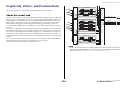
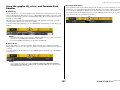
Graphic EQ, effects, and Premium Rack
3.
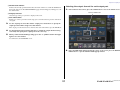
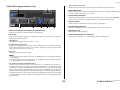
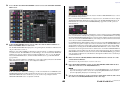
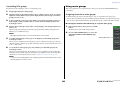
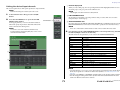
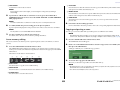
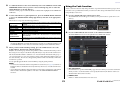
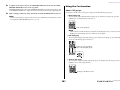
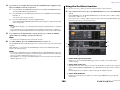
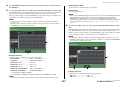
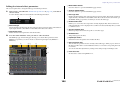
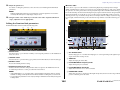
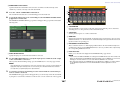
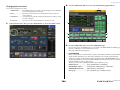
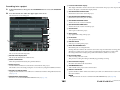
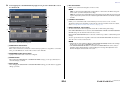
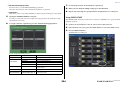
• If nothing is mounted:
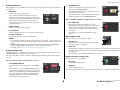
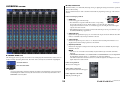
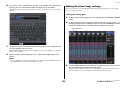
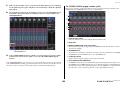
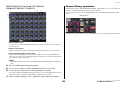
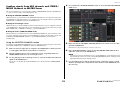
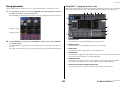
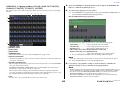
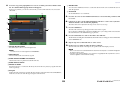
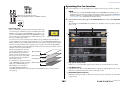
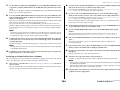
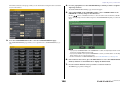
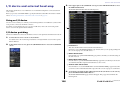
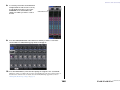
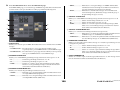
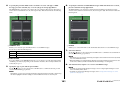
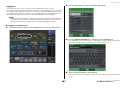
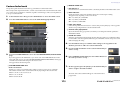
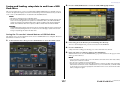
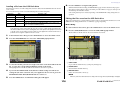
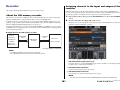
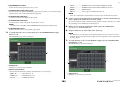
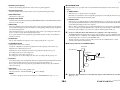
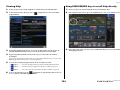
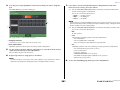
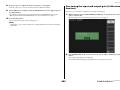
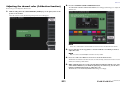
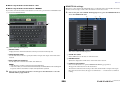
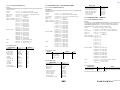
To mount a GEQ or effect in the rack, press the rack mount button for that rack.
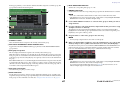
The RACK MOUNTER popup window will appear.
1
2
1
2
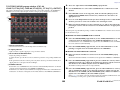
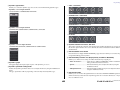
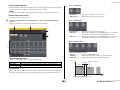
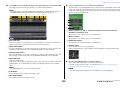
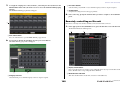
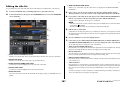
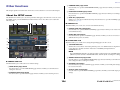
Press this area to open the RACK MOUNTER popup window, in which you can select the GEQ
or effect that will be mounted in the rack.
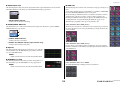
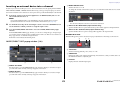
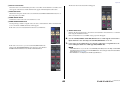
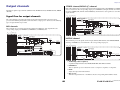
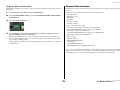
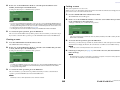
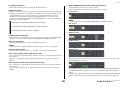
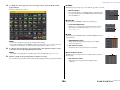
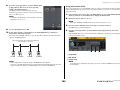
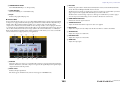
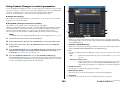
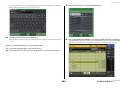
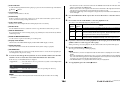
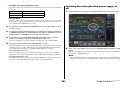
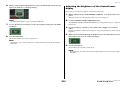
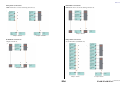
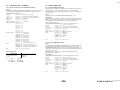
• If 31BandGEQ is mounted:
3 4
5
3 4
5
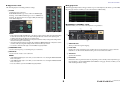
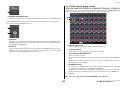
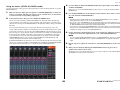
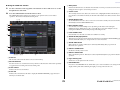
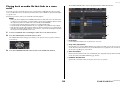
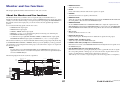
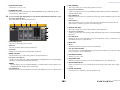
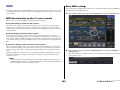
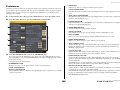
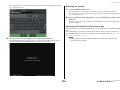
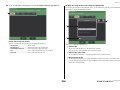
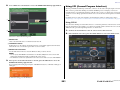
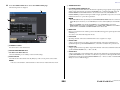
1 Rack number
This area indicates the settings for each band, GEQ on/off status, and input/output level. Press this
area to open the GEQ EDIT popup window, in which you can modify the GEQ settings.
This indicates the number of the selected rack.
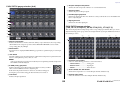
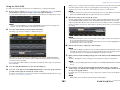
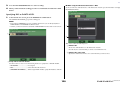
2 Virtual rack
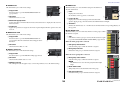
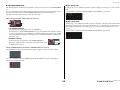
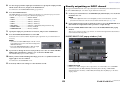
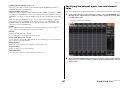
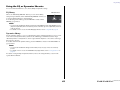
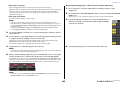
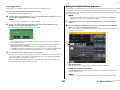
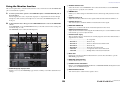
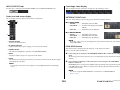
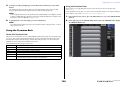
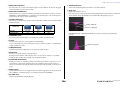
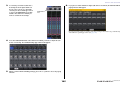
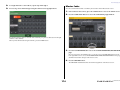
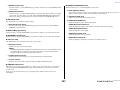
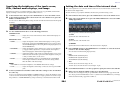
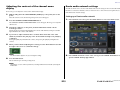
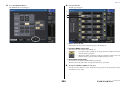
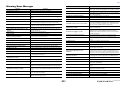
• If Flex15GEQ is mounted:
This area indicates the GEQ or effect selected via the MODULE SELECT buttons.
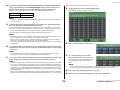
3 MODULE SELECT
Use these buttons to select the GEQ or effect that will be mounted in the rack. Each button has
the following function.
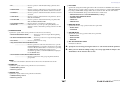
• BLANK button .......................... Removes the GEQ or effect currently mounted in the rack; the
rack will be empty.
• 31BandGEQ button.................. Mounts a 31BandGEQ in the rack.
• Flex15GEQ button.................... Mounts a Flex15GEQ in the rack.
• EFFECT button ......................... Mounts an effect in the rack.
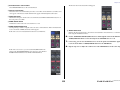
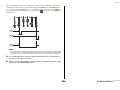
This area indicates the settings for each band, the GEQ on/off status, and the input and output
levels for A and B respectively. Press this area to open the GEQ EDIT popup window, in which
you can modify the GEQ settings for A and B.
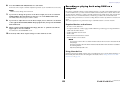
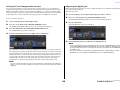
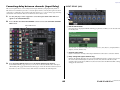
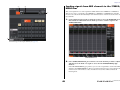
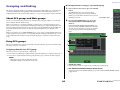
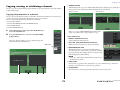
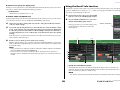
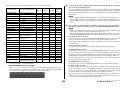
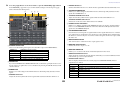
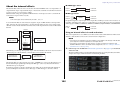
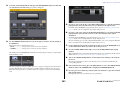
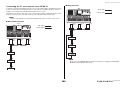
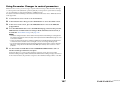
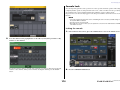
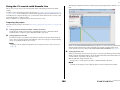
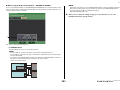
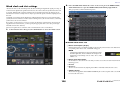
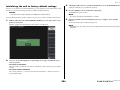
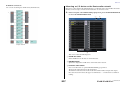
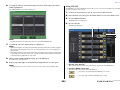
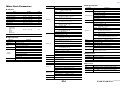
• If an effect is mounted (EFFECT rack only):
This area indicates the effect type, number of inputs and outputs, bypass on/off status, and the
input/output level. Press this area to open the EFFECT EDIT popup window, in which you can
modify the effect settings.
NOTE
Input/output patching will be defeated if you change the item mounted in a rack.
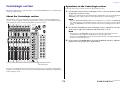
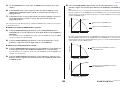
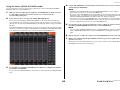
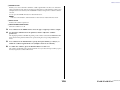
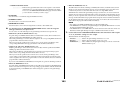
4 CANCEL button
Cancels the changes you made in the RACK MOUNTER popup window, and closes the window.
7
5 OK button
Applies the changes you made in the RACK MOUNTER popup window, and closes the window.
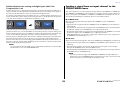
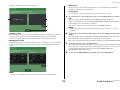
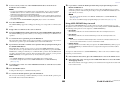
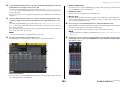
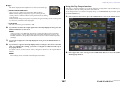
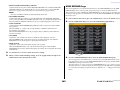
7 Link indicator
NOTE
Indicates that an odd-numbered rack and even-numbered rack of the 31BandGEQ, or A and B of
the Flex15GEQ are linked each other.
• Be aware that if you remove a GEQ or effect that was mounted in a rack and close the window,
all edits to the parameter settings for that GEQ or effect will be discarded. If you have not yet
closed the window, you can recover the parameter settings by mounting the same GEQ or effect
once again.
• You can also display the RACK MOUNTER popup window by pressing a vacant rack in the GEQ/
EFFECT field.
116
Reference Manual