1
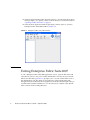
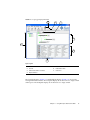
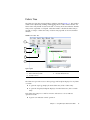
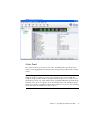
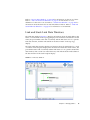
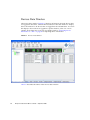
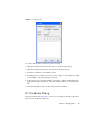
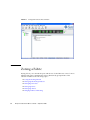
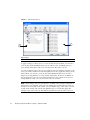
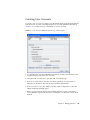
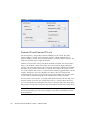
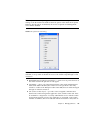
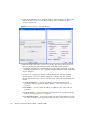
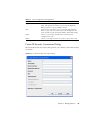
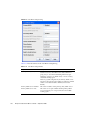
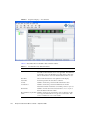
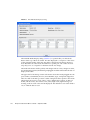
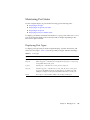
The Edit Zoning dialog has a Zone Sets tree on the left and a Port/Device (or
members) tree on the right. Both trees use display conventions similar to the fabric
tree for expanding and contracting zone sets, zones, and ports. An expanded port
shows the port Fibre Channel address; an expanded address shows the port world
wide name. You can select zone sets, zones, and ports in the following ways:
■
Click a zone, zone set, or port icon.
■
Right-click to select a zone set or zone, and open the corresponding popup
menu.
■
Press the Shift key while clicking several consecutive icons.
■
Press the Control key while clicking several non-consecutive icons.
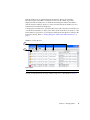
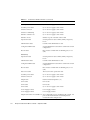
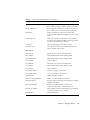
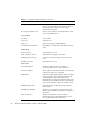
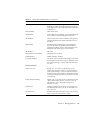
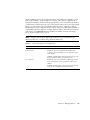
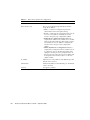
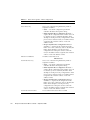
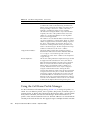
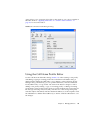
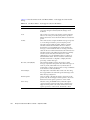
Using tool bar buttons, popup menus, or a drag-and-drop method, you can create
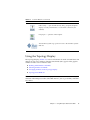
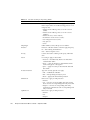
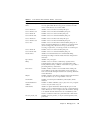
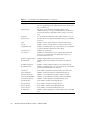
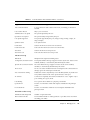
and manage zone sets and zones in the zoning database. TABLE 3-1 describes the
zoning tool bar operations.
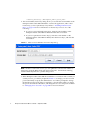
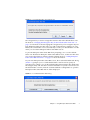
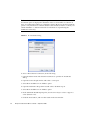
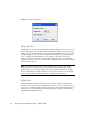
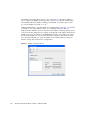
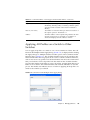
Use the Edit Zoning dialog to define zoning changes, and click the Apply button to
open the Save Zoning & Error Check dialog. Click the Perform Error Check button to
have Enterprise Fabric Suite 2007 check for zoning conflicts, such as empty zones,
aliases, or zone sets, and ACL zones with non-domain ID/port number membership.
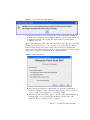
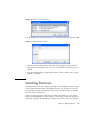
Click the Save Zoning button to open the Zone Set Activation dialog. Click the Yes
button to activate the zoneset after saving the changes, or click the No button to not
activate the zoneset after saving the changes. Click the Close button to close the Save
Zoning & Error Check dialog. On the Edit Zoning dialog, click the Close button to
close the Edit Zoning dialog.
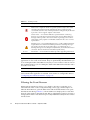
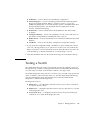
TABLE 3-1
Button/Icon
Edit Zoning Dialog Tool Bar Buttons and Icons
Description
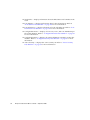
Create Zone Set button – create a new zone set
Create Zone button – create a new zone
Create Alias button – create another name for a set of objects
Add Member button – adds selected port/device to a zone
Chapter 3
Managing Fabric Zoning
63