1
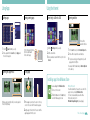
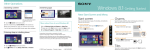
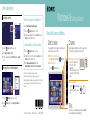
Using Apps Starting apps Using the Internet Viewing running apps Connecting to a Wireless LAN Opening websites Enter a URL or keyword in this box. 1 Click the Search charm (see cover). 2Enter a keyword in the Search box, click Apps, and then click the app icon. Point to the upper-left corner, then move downward. Click to switch apps. 1 Click the Settings charm (see cover). 2Click the network icon. 3Select your wireless network from the list, then click Connect. Opening the apps menu 1 On the Start screen, click the Internet Explorer tile. 2Enter a URL or keyword to search websites. 3To open a new tab, open the apps menu (see left page) and click the icon. You can also find the traditional style Internet Explorer on the desktop. Closing apps Installing apps from Windows Store You can add apps from Windows Store. 1 Connect to the Internet. 2Click the Store icon on the Start screen, and then find an app to install. When an app is open, right-click (on a touch pad, click the bottom-right area). 1 When an app is open, move the cursor to the top- Microsoft Account You will need a Microsoft account to use some of the apps or services, including Windows Store. On how to create and what you can do with a Microsoft account, refer to Windows Help and Support (see back page). center of the screen until the hand icon appears. 2Drag the app to the bottom of the screen until the app disappears from the screen. More on back page