1
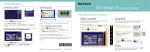
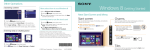
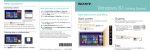
Other Operations Searching content Windows 8.1 Getting Started Switching apps New Start Screen and Menu You can select the search target from the list. 1 Tap the Search charm (see cover). 2 Enter a keyword (e.g. Control Panel) in the search box. 3 Tap your preferred icon, app, etc. from the search result. You can also search from within certain apps, when available. Entering sleep or shutting down Start screen Swipe in from the left edge. More about how to use Windows 8.1 Refer to Windows Help and Support or Help+Tips. 1 Swipe up on the Start screen to open the Apps screen. 2Tap Help and Support or Help+Tips in the app list. You can add shortcuts to apps, the desktop, and websites that you use the most. Touch operation Open the charms, then tap the With a keyboard Press the Start charm. Charms Search for apps and files, share content, play content on other devices or print, and set up your PC. Touch operation Swipe in from the right edge. (Windows) key. With a mouse/touch pad Screenshots in this guide are examples in English. Content in this guide is subject to change without notice. Windows and the Windows logo are either registered trademarks or trademarks of Microsoft Corporation in the United States and/or other countries. In the manual, the TM or (R) marks are not specified. Point to the upper-right corner, then move downward. With a keyboard Press the (Windows) key and the C key at the same time. Tiles 1 Tap the Settings charm (see cover). 2Tap Power, then tap Sleep, Shut down, or Restart. © 2013 Sony Corporation Printed in Japan 4-487-900-11(1) Tap a tile to start an app and personalize the Start screen by adding and rearranging tiles. Using Apps Opening the app list Using the Internet Viewing running apps Connecting to Wi-Fi® (Wireless LAN) Opening websites Enter a URL or keyword in this box. Touch operation Swipe up on the Start screen. With a mouse/touch pad Click the icon at the lower-left of the Start screen. The list of the apps installed on your VAIO computer is displayed. You can pin the apps to the Start screen for easy access. Opening the apps menu Touch operation Swipe in from the left edge until a small app icon appears, then drag the icon back towards the left edge. With a mouse/touch pad Point to the upper-left corner, then move downward. 1 Tap the Settings charm (see cover). 2Tap (the network icon). 3 Select your wireless network from the list, then tap Connect. 1 On the Start screen, tap the Internet Explorer tile. 2 Enter a URL or keyword to search websites. 3 To open a new tab, swipe up/down from the bottom/top edge to open the apps menu, then tap the icon. You can also find the traditional style Internet Explorer on the desktop. Closing apps Installing apps from Windows Store Add apps from Windows Store. 1 Connect to the Internet using either Wi-Fi or a LAN cable. 2 Tap the Store tile on the Start screen, then Touch operation Swipe up/down from the bottom/top edge. With a mouse/touch pad Right-click within an app. 1 When an app is open, point to the top-center of the screen. 2 Drag the app to the bottom of the screen until the app disappears from the screen. browse and install your favorite apps. Microsoft Account You will need a Microsoft account to use certain apps or services, including Windows Store. On how to create and what you can do with a Microsoft account, refer to Windows Help and Support (see back page). More on back page