1
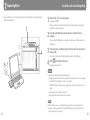
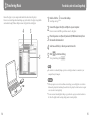
Importing Music For details, refer to SonicStage Help Import audio data to your computer using the SonicStage. The methods of importing songs of CD are described here. 3 1 Double-click 2 icon on the desktop. SonicStage starts up. When SonicStage is activated for the first time, the startup setting screen appears. Follow the on-screen instructions. Insert the audio CD that you want to import to hard drive of your computer. 4 3 You can obtain CD information (song name or artist name, etc.) while connected to the Internet. Place the pointer over [Music Source] at the top of the screen and click [Import a CD]. 4 The screen for importing is displayed, and the song list of the CD appears. Click at the right of the screen. Importing audio data starts. Hint SonicStage also offers the following additional features. –Importing audio files downloaded from the Internet and audio files stored on your computer, such as MP3, WMA*, ATRAC, or AAC*, etc., format files. * WMA/AAC format audio files that are copyright-protected cannot be played back on the player. –Importing only selected audio files from a CD. –Changing the audio formats and bit rates of audio files. Note 12 While SonicStage is in use (recording CDs, importing audio data or transferring data to the player), and the computer enters Sleep/Standby/Hibernate status, data may be lost and SonicStage may not restore properly. 13