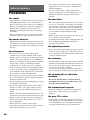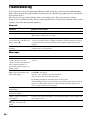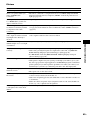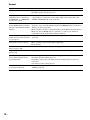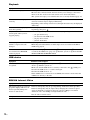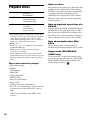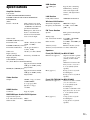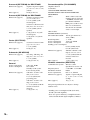
1
Controlling Your TV or
Other Components with
the Supplied Remote
z
z
FAVORITES
z
z
POP UP/MENU
(LIST)
a
z
C/X/x/c,
z
z
RETURN
z
z
HOME (MENU)
z
z
OPTIONS
(TOOLS)
z
z
FUNCTION
(PAGE –)
a
a
SOUND MODE
(PAGE +)
a
a
./>
z
a
NETFLIX
z
a
QRIOCITY
z
a
m/M
z
z
N
z
z
X
z
z
x
z
z
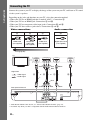
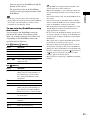
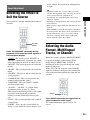
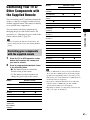
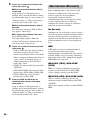
Press the TV or STB operation mode
button that matches the component
you want to control.
MUTING
z
z
VOL +/–
z
z
CH +/–
z
z
Press the appropriated buttons listed
in the following table.
DISPLAY
z
z
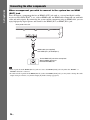
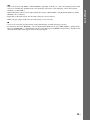
• When you replace the batteries of the remote, the
remote setting may be reset to the default (SONY)
setting.
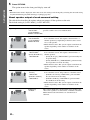
Controlling your components
with the supplied remote
• z: The button can be used with the
default setting of the remote.
• a: The button can be used when you
change the preset code of the remote.
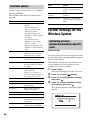
Button
Remote’s mode
TV
STB
AV "/1
z
z
Number buttons
z
z
z
z
ENTER
z
z
AUDIO
z
z
SUBTITLE (CC)
z
a
SLEEP (INPUT)
z
z
Color buttons
(YELLOW/
BLUE/RED/
GREEN)
z
a
Other Operations
STB
TOP MENU
(GUIDE)
You can control non-Sony components by
changing the preset code of the remote. For
operation, see “Changing the preset code of the
remote (Preset mode)” (page 52).
2
Remote’s mode
TV
You can control your TV and other components
such as a cable box or digital satellite receiver
with the supplied remote. The remote is initially
set to control Sony components.
1
Button
• In TV or STB mode, if you press any of the buttons
above, the TV or STB operation mode button lights
up. (However, depending on the code setting, some
buttons may not work, and the TV or STB operation
mode button may not light up.)
• If you press other than the buttons above when the
remote is in TV or STB mode, the TV or STB
operation mode button does not light up.
• Depending on the TV or component, you may not be
able to use some of the buttons.
51US