1
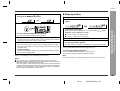
MINI COMPONENT SYSTEM
Thank you for purchasing this SHARP product.
To obtain the best performance from this product, please read this
manual carefully. It will guide you in operating your SHARP product.
CD-DP900E Mini Component System consisting of CD-DP900E (main
unit), CP-DP900H (front speakers), GBOXS0091AWM1 (centre
speaker) and GBOXS0092AWM1 (surround speakers).
MODEL
CD-DP900E
OPERATION MANUAL
If you require any advice or assistance regarding
your Sharp product, please visit our web-site
www.sharp.co.uk/support.
Customers without Internet access may telephone
08705 274277 during office hours (or (01) 676 0648
if telephoning from Ireland).
0101
CD-DP900E_FRONT
1
02.1.10, 9:13 AM
CD-DP900E
Special notes
NOTES FOR USERS IN THE U.K. AND IRELAND
The mains lead of this product is fitted with a non-rewireable (moulded)
plug incorporating a 3A fuse. Should the fuse need to be replaced, a BSI
or ASTA approved BS 1362 fuse marked or and of the same rating as
above, which is also indicated on the pin face of the plug must be used.
In the unlikely event of the socket outlet in your home not being compatible with the plug supplied, cut-off the mains plug and fit an appropriate
type.
- Special notes -
Important Instruction
Always refit the fuse cover after replacing the fuse. Never use the plug
without the fuse cover fitted.
DANGER:
The fuse from the cut-off plug should be removed and the cut-off plug
destroyed immediately and disposed of in a safe manner.
Under no circumstances should the cut-off plug be inserted elsewhere
into a 13A socket outlet as a serious electric shock may occur.
To fit an appropriate plug to the mains lead, follow the instructions below:
Ensure that neither the brown nor the blue wire is connected to the earth
terminal in your three pin plug.
Before replacing the plug cover, make sure that:
● If the new fitted plug contains a fuse, its value is the same as that
removed from the cut-off plug.
● The cord grip is clamped over the sheath of the mains lead and not
simply over the lead wires.
IF YOU HAVE ANY DOUBT, CONSULT A QUALIFIED ELECTRICIAN.
SERVICE INFORMATION
In the unlikely event of your equipment requiring repair, please contact
the dealer or supplier from whom it was purchased. Where this is not
possible, please visit our web-site www.sharp.co.uk/support.
Customers without internet access may telephone 08705 274277 during office hours (or (01) 676 0648 if telephoning from lreland).
Please note; all calls will be charged at local rate.
IMPORTANT:
The wires in the mains lead are coloured in accordance with the following
code:
Blue : Neutral
Brown : Live
Certain replacement parts and accessories may be obtained from our
main parts distributor.
As the colours of the wires in the mains lead of this product may not
correspond with the coloured markings identifying the terminals in your
plug, proceed as follows:
● The wire which is coloured blue must be connected to the plug terminal
which is marked N or coloured black.
● The wire which is coloured brown must be connected to the plug terminal which is marked L or coloured red.
In the unlikely event of this equipment requiring repair during the guarantee period, you will need to provide proof of the date of purchase to the
repairing company.
Please keep your invoice or receipt, which is supplied at the time of purchase.
WILLOW VALE ELECTRONICS LTD.
0121 766 5414
0012
2
02/1/10
CD-DP900E(UK)_1.fm
Contents
WARNINGS
When the ON/STAND-BY button is set at STAND-BY position, mains voltage is still
present inside the unit. When the ON/STAND-BY button is set at STAND-BY position, the unit may be brought into operation by the timer mode or remote control.
This unit contains no user serviceable parts. Never remove covers unless qualified
to do so. This unit contains dangerous voltages, always remove mains plug from
the socket before any service operation and when not in use for a long period.
To prevent fire or shock hazard, do not expose this appliance to dripping or splashing. No objects filled with liquids, such as vases, should be placed on the apparatus.
CD-DP900E
Page
General Information
Precautions . . . . . . . . . . . . . . . . . . . . . . . . . . . . . . . . . . . . . . . . . . . . . . . . . . . . . 4, 5
Accessories . . . . . . . . . . . . . . . . . . . . . . . . . . . . . . . . . . . . . . . . . . . . . . . . . . . . . . . 5
Controls and indicators . . . . . . . . . . . . . . . . . . . . . . . . . . . . . . . . . . . . . . . . . . 6 - 9
Preparation for Use
System connections . . . . . . . . . . . . . . . . . . . . . . . . . . . . . . . . . . . . . . . . . . . 10 - 13
Remote control . . . . . . . . . . . . . . . . . . . . . . . . . . . . . . . . . . . . . . . . . . . . . . . . . . . 13
Basic Operation
CD Playback
This product is classified as a CLASS 1 LASER product.
Use of controls, adjustments or performance of procedures other than those specified herein may result in hazardous radiation exposure.
Listening to a CD (CDs) . . . . . . . . . . . . . . . . . . . . . . . . . . . . . . . . . . . . . . . . . . 16, 17
Repeat play . . . . . . . . . . . . . . . . . . . . . . . . . . . . . . . . . . . . . . . . . . . . . . . . . . . . . . . 18
Random play . . . . . . . . . . . . . . . . . . . . . . . . . . . . . . . . . . . . . . . . . . . . . . . . . . . . . 18
Programmed play . . . . . . . . . . . . . . . . . . . . . . . . . . . . . . . . . . . . . . . . . . . . . . . . . 18
As the laser beam used in this compact disc player is harmful to the eyes, do not
attempt to disassemble the cabinet. Refer servicing to qualified personnel only.
Radio
Laser Diode Properties
Material: GaAIAs
Wavelength: 780 nm
Emission Duration: continuous
Laser Output: max. 0.6 mW
Tuning . . . . . . . . . . . . . . . . . . . . . . . . . . . . . . . . . . . . . . . . . . . . . . . . . . . . . . . . . . . 19
Memorising a station . . . . . . . . . . . . . . . . . . . . . . . . . . . . . . . . . . . . . . . . . . . . . . . 20
To recall a memorised station . . . . . . . . . . . . . . . . . . . . . . . . . . . . . . . . . . . . . . . 20
To scan the preset stations . . . . . . . . . . . . . . . . . . . . . . . . . . . . . . . . . . . . . . . . . 20
To erase entire preset memory . . . . . . . . . . . . . . . . . . . . . . . . . . . . . . . . . . . . . . . 20
Tape Playback
Listening to a cassette tape (TAPE 1 or TAPE 2) . . . . . . . . . . . . . . . . . . . . . . . . 21
Tape Recording
Recording from a CD (CDs) . . . . . . . . . . . . . . . . . . . . . . . . . . . . . . . . . . . . . . . . . 22
Recording from the radio . . . . . . . . . . . . . . . . . . . . . . . . . . . . . . . . . . . . . . . . . . . 23
Dubbing from tape to tape . . . . . . . . . . . . . . . . . . . . . . . . . . . . . . . . . . . . . . . . . . 23
Erasing recorded tapes . . . . . . . . . . . . . . . . . . . . . . . . . . . . . . . . . . . . . . . . . . . . . 23
Advanced Features
Enjoy the surround sound . . . . . . . . . . . . . . . . . . . . . . . . . . . . . . . . . . . . . . . 24, 25
Timer and sleep operation . . . . . . . . . . . . . . . . . . . . . . . . . . . . . . . . . . . . . . . 26, 27
Enhancing your system . . . . . . . . . . . . . . . . . . . . . . . . . . . . . . . . . . . . . . . . . . . . 28
NOTES
Recording and playback of any material may require consent, which SHARP is
unable to give. Please refer particularly to the provisions of the Copyright Act 1956,
the Dramatic and Musical Performers Protection Act 1958, the Performers Protection Acts 1963 and 1972 and to any subsequent statutory enactments and orders.
This equipment complies with the requirements of Directives 89/336/EEC and 73/
23/EEC as amended by 93/68/EEC.
References
Troubleshooting chart . . . . . . . . . . . . . . . . . . . . . . . . . . . . . . . . . . . . . . . . . . . 28, 29
Maintenance . . . . . . . . . . . . . . . . . . . . . . . . . . . . . . . . . . . . . . . . . . . . . . . . . . . . . . 30
Specifications . . . . . . . . . . . . . . . . . . . . . . . . . . . . . . . . . . . . . . . . . . . . . . . . . 30, 31
TERMS OF GUARANTEE . . . . . . . . . . . . . . . . . . . . . . . . . . . . . . . . . . . . Back cover
3
02/1/10
CD-DP900E(UK)_1.fm
- Special Notes / Contents -
CAUTION
Sound control . . . . . . . . . . . . . . . . . . . . . . . . . . . . . . . . . . . . . . . . . . . . . . . . . . . . 14
Setting the clock . . . . . . . . . . . . . . . . . . . . . . . . . . . . . . . . . . . . . . . . . . . . . . . . . . 15
Important Instruction
Manufactured under license from Dolby Laboratories.
"Dolby", "Pro Logic", and the double-D symbol are trademarks of Dolby Laboratories.
CD-DP900E
Precautions
General
Please ensure that the equipment is positioned in a well-ventilated area and
ensure that there is at least 10 cm (4") of free space along the sides and back.
There must also be a minimum of 20 cm (8") of free space on the top of the unit.
10 cm (4")
10 cm (4")
20 cm (8")
- Precautions -
General Information
10 cm (4")
The ventilation should not be impeded by covering
the ventilation openings with items, such as newspapers, tablecloths, curtains, etc.
Use the unit on a firm, level surface free from vibration.
Do not remove the outer cover, as this may result
in electric shock. Refer internal service to your local SHARP service facility.
Keep the unit away from direct sunlight, strong magnetic fields, excessive dust, humidity and electronic/
electrical equipment (home computers, facsimiles,
etc.) which generates electrical noise.
Do not place anything on top of the unit.
Do not expose the unit to moisture, to temperatures higher than 60°C (140°F) or to
extremely low temperatures.
If your system does not work properly, disconnect the AC power lead from the wall
socket. Plug the AC power lead back in, and then turn on your system.
In case of an electrical storm, unplug the unit for safety.
No naked flame sources, such as lighted candles, should be placed on the apparatus.
Attention should be drawn to the environmental aspects of battery disposal.
The apparatus is designed for use in moderate climate.
This unit should only be used within the range of 5°C - 35°C (41°F - 95°F).
Warning:
The voltage used must be the same as that specified on this unit. Using this product
with a higher voltage other than that which is specified is dangerous and may result in
a fire or other type of accident causing damage. SHARP will not be held responsible
for any damage resulting from use of this unit with a voltage other than that which is
specified.
Volume control
The sound level at a given volume setting depends on speaker efficiency, location,
and various other factors. It is advisable to avoid exposure to high volume levels, to
avoid this do not turn the volume on to full at switch on and listen to music at moderate levels.
Hold the AC power plug by the head when removing it
from the wall socket, as pulling the lead can damage internal wires.
4
02/1/10
CD-DP900E(UK)_1.fm
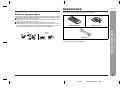
Accessories
Please confirm that the following accessories are included.
Remote control
1
AM loop aerial
YES
Correct
FM aerial
1
Note:
Only the above accessories are included.
1
5
02/1/10
CD-DP900E(UK)_1.fm
- Precautions / Accessories -
Compact discs are fairly resistant to damage, however mistracking can occur due to
an accumulation of dirt on the disc surface. Follow the guidelines below for maximum
enjoyment from your CD collection and player.
Do not write on either side of the disc, particularly the non-label side from which
signals are read. Do not mark this surface.
Keep your discs away from direct sunlight, heat, and excessive moisture.
Always hold the CDs by the edges. Fingerprints, dirt, or water on the CDs can
cause noise or mistracking. If a CD is dirty or does not play properly, clean it with a
soft, dry cloth, wiping straight out from the centre, along the radius.
General Information
Care of compact discs
NO
CD-DP900E
CD-DP900E
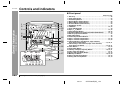
Controls and indicators
Front panel
Reference page
- Controls and indicators -
General Information
1
2
3
8
9
10
11
4
5
6
7
12
13
14
15
18
19
20 21
16
17
1. Disc Tray . . . . . . . . . . . . . . . . . . . . . . . . . . . . . . . . . . . . . . . . . . . . . . .16
2. Timer Set Indicator . . . . . . . . . . . . . . . . . . . . . . . . . . . . . . . . . . . . . .27
3. On/Stand-by Button . . . . . . . . . . . . . . . . . . . . . . . . . . . . . . . . . . . . . .13
4. Bypass Button (with Indicator) . . . . . . . . . . . . . . . . . . . . . . . . . . . . .24
5. Normal Button (with Indicator) . . . . . . . . . . . . . . . . . . . . . . . . . . . . .24
6. Phantom Button (with Indicator) . . . . . . . . . . . . . . . . . . . . . . . . . . .24
7. Headphone Socket . . . . . . . . . . . . . . . . . . . . . . . . . . . . . . . . . . . . . . .12
8. CD Button . . . . . . . . . . . . . . . . . . . . . . . . . . . . . . . . . . . . . . . . . . .16, 22
9. Tuner (Band) Button . . . . . . . . . . . . . . . . . . . . . . . . . . . . . . . . . . . . .19
10.Tape (1 2) Button . . . . . . . . . . . . . . . . . . . . . . . . . . . . . . . . . . .21, 23
11.Video/Auxiliary Button . . . . . . . . . . . . . . . . . . . . . . . . . . . . . . . .26, 28
12.Equaliser Mode Select/Extra Bass/Demo Mode Button . . . . . .13, 14
13.Disc Tray Open/Close Button . . . . . . . . . . . . . . . . . . . . . . . . . . . . . .16
14.Disc Skip Button . . . . . . . . . . . . . . . . . . . . . . . . . . . . . . . . . . . . . . . .16
15.Volume Up and Down Buttons . . . . . . . . . . . . . . . . . . . . . . . . . . . . .14
16.Tape 1 Cassette Compartment . . . . . . . . . . . . . . . . . . . . . . . . . .21, 23
17.Tape 2 Cassette Compartment . . . . . . . . . . . . . . . . . . . . . . . . . .21, 23
18.CD Track Down or Fast Reverse, Tape 2 Rewind,
Tuner Preset Down Button . . . . . . . . . . . . . . . . . . . . . . . . . .17, 20, 21
19.CD Track Up or Fast Forward, Tape 2 Fast Forward,
Tuner Preset Up Button . . . . . . . . . . . . . . . . . . . . . . . . . . . . .17, 20, 21
20.Clock Button . . . . . . . . . . . . . . . . . . . . . . . . . . . . . . . . . . . . . . . . .15, 26
21.Timer/Sleep Button . . . . . . . . . . . . . . . . . . . . . . . . . . . . . . . . . . .26, 27
22.CD Play or Repeat, Tape Play Button . . . . . . . . . . . . . . . . . .16, 18, 21
23.CD or Tape Stop Button . . . . . . . . . . . . . . . . . . . . . . . . . . . . . . .16, 21
24.Tuning and Time Down Button . . . . . . . . . . . . . . . . . . . . . . . . . .15, 19
25.Memory/Set Button . . . . . . . . . . . . . . . . . . . . . . . . . . . . . . . .15, 18, 20
26.Tape 2 Record Pause Button . . . . . . . . . . . . . . . . . . . . . . . . . . .22, 23
27.Tuning and Time Up Button . . . . . . . . . . . . . . . . . . . . . . . . . . . .15, 19
22 23 24 25 26 27
6
Description of remote control (See page 9.)
02/1/11
CD-DP900E(UK)_1.fm
CD-DP900E
2
3
4 5 6 7 8
11
12
13
14
9
10
Rear panel
Reference page
1. Cooling Fan
2. AC Power Lead . . . . . . . . . . . . . . . . . . . . . . . . . . . . . . . . . . . . . . 10, 12
3. Transport Screw . . . . . . . . . . . . . . . . . . . . . . . . . . . . . . . . . . . . . 10, 29
4. FM 75 Ohms Aerial Socket . . . . . . . . . . . . . . . . . . . . . . . . . . . . . . . . 10
5. AM Loop Aerial Socket . . . . . . . . . . . . . . . . . . . . . . . . . . . . . . . . . . . 10
6. Video/Auxiliary (Audio Signal) Input Sockets . . . . . . . . . . . . . . . . . 28
7. Front Speaker Terminals . . . . . . . . . . . . . . . . . . . . . . . . . . . . . . . 10, 11
8. Centre Speaker Terminals . . . . . . . . . . . . . . . . . . . . . . . . . . . . . 10, 11
9. Surround Speaker Terminals . . . . . . . . . . . . . . . . . . . . . . . . . . . 10, 11
3
1
4
5
6
Note:
This product is equipped with a cooling fan inside, which begins to run at a specified
volume level for better heat radiation.
2
7 8 9
7
02/1/11
CD-DP900E(UK)_1.fm
- Controls and indicators -
1
1. CD Pause Indicator
2. Extra Bass Indicator
3. Disc Number Indicators
4. Tape 2 Record Indicator
5. FM Stereo Mode Indicator
6. FM Stereo Receiving Indicator
7. Timer Play Indicator
8. Dolby Pro Logic Indicator
9. CD Play Indicator
10.CD Repeat Play Indicator
11.Sleep Indicator
12.Timer Recording Indicator
13.Tape Play Indicator
14.Memory Indicator
General Information
Display
CD-DP900E
Controls and indicators (continued)
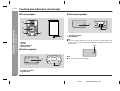
Front speaker
Surround speaker
1
1
- Controls and indicators -
General Information
2
3
2
3
4
1. Full-Range Speaker
2. Speaker Wire
Note:
1. Tweeter
2. Woofer
3. Bass Reflex Duct
4. Speaker Wire
When the surround speakers are hung on the wall, the speaker badge will be
turned. In this case, you can adjust the badge to face the proper direction by turning it by hand.
Badge
Centre speaker
Note:
1
The speaker grilles are not removable.
2
1. Full-Range Speaker
2. Speaker Wire
8
02/1/11
CD-DP900E(UK)_1.fm
CD-DP900E
Remote control
18
19
5
6
7
20
21
8
9
10
11
22
23
24
25
12
13
14
26
27
28
15
16
29
30
Buttons with " " mark in the illustration can be operated on the remote control
only.
Other buttons can be operated both on the main unit and the remote control.
17
9
02/1/11
CD-DP900E(UK)_1.fm
- Controls and indicators -
2
3
4
1. Remote Control Transmitter . . . . . . . . . . . . . . . . . . . . . . . . . . . . . . . . 13
2. Surround Level Up and Down Buttons . . . . . . . . . . . . . . . . . . . . . . 25
3. Centre Level Up and Down Buttons . . . . . . . . . . . . . . . . . . . . . . . . 25
4. Dolby Pro Logic Button . . . . . . . . . . . . . . . . . . . . . . . . . . . . . . . . . . . . 24
5. Balance Control Up and Down Buttons . . . . . . . . . . . . . . . . . . . . . 25
6. Test Tone Button . . . . . . . . . . . . . . . . . . . . . . . . . . . . . . . . . . . . . . . . 25
7. CD Pause Button . . . . . . . . . . . . . . . . . . . . . . . . . . . . . . . . . . . . . . . . 16
8. CD Memory Button . . . . . . . . . . . . . . . . . . . . . . . . . . . . . . . . . . . . . . . 18
9. CD Track Down or Fast Reverse Button . . . . . . . . . . . . . . . . . . . . . . . 17
10.CD Clear Button . . . . . . . . . . . . . . . . . . . . . . . . . . . . . . . . . . . . . . . . 18
11.Tape 1 Play Button . . . . . . . . . . . . . . . . . . . . . . . . . . . . . . . . . . . . . . . 21
12.Tape 1/Tape 2 Stop Button . . . . . . . . . . . . . . . . . . . . . . . . . . . . . . . . . 21
13.Equaliser Mode Select Button . . . . . . . . . . . . . . . . . . . . . . . . . . . . . . . 14
14.Tape 2 Record Pause Button . . . . . . . . . . . . . . . . . . . . . . . . . . . . 22, 23
15.CD Button . . . . . . . . . . . . . . . . . . . . . . . . . . . . . . . . . . . . . . . . . . . 16, 22
16.On/Stand-by Button . . . . . . . . . . . . . . . . . . . . . . . . . . . . . . . . . . . . . . . 13
17.Tuner (Band) Button . . . . . . . . . . . . . . . . . . . . . . . . . . . . . . . . . . . . . . 19
18.Tuner Preset Up and Down Buttons . . . . . . . . . . . . . . . . . . . . . . . . . . 20
19.CD Stop Button . . . . . . . . . . . . . . . . . . . . . . . . . . . . . . . . . . . . . . . . . . 16
20.CD Play or Repeat Button . . . . . . . . . . . . . . . . . . . . . . . . . . . . . . . 16, 18
21.CD Track Up or Fast Forward Button . . . . . . . . . . . . . . . . . . . . . . . . . . 17
22.CD Random Button . . . . . . . . . . . . . . . . . . . . . . . . . . . . . . . . . . . . . . 18
23.Tape 2 Play Button . . . . . . . . . . . . . . . . . . . . . . . . . . . . . . . . . . . . . . . 21
24.Disc Skip Button . . . . . . . . . . . . . . . . . . . . . . . . . . . . . . . . . . . . . . . . . 16
25.Tape 2 Fast Forward Button . . . . . . . . . . . . . . . . . . . . . . . . . . . . . . . . 21
26.Tape 2 Rewind Button . . . . . . . . . . . . . . . . . . . . . . . . . . . . . . . . . . . . . 21
27.Video/Auxiliary Button . . . . . . . . . . . . . . . . . . . . . . . . . . . . . . . . . . . . . 28
28.Tape (1 2) Button . . . . . . . . . . . . . . . . . . . . . . . . . . . . . . . . . . . . 21, 23
29.Volume Up and Down Buttons . . . . . . . . . . . . . . . . . . . . . . . . . . . . . . 14
30.Extra Bass Button . . . . . . . . . . . . . . . . . . . . . . . . . . . . . . . . . . . . . . . . 14
General Information
Reference page
1
CD-DP900E
System connections
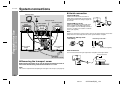
Aerial connection
AM loop aerial
Supplied FM aerial:
FM aerial
Connect the FM aerial wire to the FM 75
OHMS socket and position the FM aerial wire
in the direction where the strongest signal can
be received.
Transport screw
Surround speaker
(Left)
Centre speaker
Supplied AM loop aerial:
Connect the AM loop aerial to the AM LOOP
socket. Position the AM loop aerial for optimum reception. Place the AM loop aerial on a
shelf, etc., or attach it to a stand or a wall with
screws (not supplied).
Note:
- System connections -
Preparation for Use
Surround speaker
(Right)
Placing the aerial on the stereo system or near the AC power lead may cause noise
pickup. Place the aerial away from the stereo system for better reception.
Installing the AM loop aerial:
< Assembling >
Front speaker
(Right)
< Attaching to the wall >
Front speaker
(Left)
Wall
Screws (not supplied)
External FM aerial:
Use an external FM aerial if you require better reception. Consult your dealer.
External FM aerial
Wall socket
(AC 230-240 V, 50 Hz)
Removing the transport screw
Before turning the power on, be sure to remove the transport screw on
the back of the unit using a flat head screwdriver or a coin.
Note:
This screw is required when transporting the unit again. Please keep it (see page 29).
10
02/1/11
CD-DP900E(UK)_1.fm
CD-DP900E
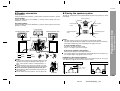
Speaker connection
Placing the speaker system
Front speakers
To enjoy the surround effect, we recommend that you place each speaker as shown
to the below.
Connect the black wire to the FRONT (-) terminal, and the red wire to the FRONT (+) terminal.
Centre speaker
Centre speaker
Connect the black wire to the CENTER (-) terminal, and the orange wire to the
CENTER (+) terminal.
Main unit
Surround speakers
TV
Front speaker
(Left)
Connect the black wire to the SURROUND (-) terminal, and the grey wire to the SURROUND (+) terminal.
Front speaker
(Right)
Surround speaker (Left)
Surround speaker
(Left)
Surround speaker
(Right)
Notes:
The front speakers and the centre speaker are magnetically shielded.
Therefore, they do not affect the display even you use them near the TV. However,
some colour variation may occur, depending on the type of TV used.
If colour variation occurs...
Turn off the TV (from the power switch).
After 15 - 30 minutes, turn the TV on again.
If the colour variation is still present...
Front speaker (Right)
Front speaker (Left)
Red
Grey
Black
Orange
If any kind of magnet or an electromagnet is placed too close to the TV and the system, irregular colours may appear on the TV screen.
Installation of the surround speakers:
If possible, mount the surround speakers on the wall. Install them 60 cm - 90 cm (23"
- 35") above the height of your ears when you are seated.
Caution:
Move the front speakers further away from the TV.
- System connections -
Surround speaker (Right)
Preparation for Use
Centre speaker
If you use other speakers with impedance lower than that
specified, the unit may be damaged. Front speakers: 6
ohms Centre speaker: 6 ohms Surround speakers: 12
ohms
Do not mistake the right and the left channels. The right
speaker is the one on the right side when you face the unit.
Do not let the bare speaker wires touch each other.
Do not allow any objects to fall into or to be placed in the
bass reflex ducts.
Do not stand or sit on the speakers. You may be injured.
Example: when installed on the wall
Example: when installed vertically
Wall
60 - 90 cm
(23" - 35")
Incorrect
11
02/1/10
CD-DP900E(UK)_1.fm
CD-DP900E
System connections (continued)
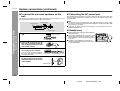
To mount the surround speakers on the
wall
The design of the surround speakers allows them to be hung on the wall. Be sure to
use the type and size of screw that is shown to the below.
5 mm (3/16")
Connecting the AC power lead
After checking all the connections have been made correctly, plug the AC power lead
of this unit into the wall socket. If you plug in the unit first, the unit will enter the demonstration mode.
Notes:
3.2 mm (1/8")
Min. 22 mm (7/8")
1
- System connections -
Preparation for Use
9 mm (3/8")
Make a hole in the wall using a
drill.
32 mm (1-1/4")
2
Drive a wall mount plug into the
hole using a hammer. Drive the
wall mount plug in until it is flush
with the wall surface.
3
Drive one screw into the wall
mount plug for each speaker.
Drive the screws, so there is about a 5
mm (3/16") space between the wall and
the head of the screw.
4
Wall surface
Headphones
8 - 9 mm (3/8")
The unit will start the tape initialisation when plugged in to the AC socket. During
this process, initialising sound will be heard and the unit cannot be turned on. Wait
until the process is finished.
Unplug the AC power lead from the wall socket if the unit will not be in use for a
prolonged period of time.
Before plugging in or unplugging the headphones,
reduce the volume.
Be sure your headphones have a 3.5 mm (1/8") diameter plug and are between 16 ohms and 50
ohms impedance. The recommended impedance
is 32 ohms.
Plugging in the headphones disconnects the
speakers automatically. Adjust the volume using
the VOLUME buttons.
Wall mounting screw
Mount the surround speaker on
the wall so that the screw head is
inserted into the slot on the surround speaker.
Wall surface
12
02/1/10
CD-DP900E(UK)_1.fm
Remote control
Demonstration mode
The first time the unit is plugged in, the unit will
enter the demonstration mode. You will see
words scroll.
To cancel the demonstration mode:
When the unit is in the power stand-by mode (demonstration mode), press the
EQUALIZER/X-BASS/DEMO button. The demonstration mode will be cancelled and
the display will disappear.
CD-DP900E
Battery installation
Use 2 "AA" size batteries (UM/SUM-3, R6, HP-7 or similar).
Batteries are not included.
1 Remove the battery cover.
2 Insert the batteries according to the direction indicated in the battery compartment.
When inserting or removing the batteries, push them towards the
battery terminals.
3 Replace the cover.
Note:
When the power is on, the EQUALIZER/X-BASS/DEMO button can be used to select
the extra bass mode.
Precautions for battery use:
Replace all old batteries with new ones at the same time.
Do not mix old and new batteries.
Remove the batteries if the unit is not to be used for long periods of time. This will
prevent potential damage due to battery leakage.
Caution:
Do not use rechargeable batteries (nickel-cadmium battery, etc.).
Installing the batteries incorrectly may cause the unit to malfunction.
Notes concerning use:
Replace the batteries if the operating distance is reduced or if the operation
becomes erratic.
Periodically clean the transmitter on the remote control and the sensor on the unit
with a soft cloth.
Exposing the sensor on the unit to strong light may interfere with operation.
Change the lighting or the direction of the unit.
Keep the remote control away from moisture, heat, shock, and vibrations.
To turn the power on
Press the ON/STAND-BY button to turn the power on.
To set the unit to stand-by mode:
Test of the remote control
Press the ON/STAND-BY button again.
Point the remote control directly at the remote
sensor on the unit.
Preparation for Use
When the unit is in the power stand-by mode, press the EQUALIZER/X-BASS/DEMO
button again.
- System connections / Remote control -
To return to the demonstration mode:
Remote sensor
The remote control can be used within the range shown:
0.2 m - 6 m
(8" - 20')
Press the ON/STAND-BY button. Does the power turn on? Now, you can enjoy the music.
13
02/1/11
CD-DP900E(UK)_1.fm
CD-DP900E
Sound control
Extra bass (X-BASS)/Pre-programmed
equaliser
(Main unit operation)
You can select the extra bass and pre-programmed equaliser modes with the same
button on the main unit.
Changing the mode:
- Sound control -
Basic Operation
When the EQUALIZER/X-BASS/DEMO button is pressed, the current mode setting
will be displayed. To change to a different mode, press the EQUALIZER/X-BASS/
DEMO button repeatedly until the desired sound mode appears.
X-BASS (X-BASS on)
Bass frequencies are emphasised.
FLAT (X-BASS off)
The sound is not modified.
POPS (X-BASS off)
Bass and treble are slightly emphasised.
ROCK (X-BASS off)
Bass and treble are emphasised.
CLASSIC (X-BASS off)
Treble is reduced a lot.
VOCAL (X-BASS off)
Vocals (midrange tones) are emphasised.
JAZZ (X-BASS off)
Treble is cut a little.
(Remote control operation)
To enter or cancel the extra bass mode:
When the power is first turned on, the unit will enter the extra bass mode which
emphasises the bass frequencies, and "X-BASS" will appear. To cancel the extra
bass mode, press the X-BASS button.
Volume control
Press the VOLUME ( or
) button to increase or decrease the volume.
Selecting a pre-programmed equaliser mode:
When the EQUALIZER MODE button is pressed, the current mode setting will be displayed. To change to a different mode, press the EQUALIZER MODE button repeatedly until the desired sound mode appears.
FLAT
POPS
JAZZ
ROCK
CLASSIC
VOCAL
Note:
0
1
2 ..... 29 30 MAXIMUM
If the EQUALIZER MODE button on the remote control is pressed in the extra bass
mode, it will be cancelled automatically.
14
02/1/10
CD-DP900E(UK)_1.fm
Setting the clock
CD-DP900E
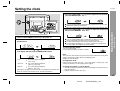
Press the TUNING/TIME ( or ) button to adjust the hour and then
press the MEMORY/SET button.
Press the TUNING/TIME ( or ) button to adjust the minutes and
then press the MEMORY/SET button.
In this example, the clock is set for the 24-hour (0:00) display.
1
2
Press the ON/STAND-BY button to turn the power on.
Press the CLOCK button and within 5 seconds, press the MEMORY/SET button.
Press the TUNING/TIME ( or ) button once to advance the time by 1
minute. Hold it down to change the time in 5-minute intervals.
The hour will not advance even if minutes advance from "59" to "00".
The clock begins counting from "0" seconds. (Seconds are not displayed.)
The time display will disappear after a few seconds.
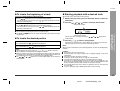
To confirm the time display:
3
Press the TUNING/TIME ( or ) button to select 24-hour or 12hour display and then press the MEMORY/SET button.
Press the CLOCK button.
The time display will appear for about 5 seconds.
- Setting the clock -
5
Press the TUNING/TIME ( or ) button once to advance the time by 1 hour.
Hold it down to advance continuously.
When the 12-hour display is selected, "AM" will change automatically to "PM".
Basic Operation
4
Note:
The "CLOCK" or time will flash at the push of the CLOCK button when the AC power
supply is restored after a power failure or unplugging the unit.
Readjust the clock as follows.
"0:00"
"AM 12:00"
"AM 0:00"
The 24-hour display will appear.
(0:00 - 23:59)
The 12-hour display will appear.
(AM 12:00 - PM 11:59)
The 12-hour display will appear.
(AM 0:00 - PM 11:59)
Note that this can only be set when the unit is first installed or it has been reset.
[Refer to "Clearing all the memory (reset)" on page 29 for details.]
To readjust the clock:
Perform "Setting the clock" from step 1. If the time display is flashing, step 3 (for
selecting the 24-hour or 12-hour display) will be skipped.
To change the 24-hour or 12-hour display:
1
2
Clear all the programmed contents. [Refer to "Clearing all the memory (reset)" on
page 29 for details.]
Perform "Setting the Clock" from step 1.
15
02/1/10
CD-DP900E(UK)_1.fm
CD-DP900E
Listening to a CD (CDs)
This system can also play audio CD-R and CD-RW discs, but cannot record.
Some audio CD-R and CD-RW discs may not be playable due to the state of disc or
the device that was used for recording.
5
Press the
OPEN/CLOSE button to close the disc tray.
CD Playback
- Listening to a CD (CDs) -
Total number of tracks on the CD
whose number is flashing
6
To select the CD you want to listen to first, press the DISC SKIP
button.
7
Press the
1
2
3
4
Press the ON/STAND-BY button to turn the power on.
Press the CD button.
Press the
OPEN/CLOSE button to open the disc tray.
Place the CD(s) on the disc tray, label side up.
When loading a third disc, press the DISC SKIP button to turn the
disc tray, then place the CD in the open position.
CDs can be placed on any open position on the disc tray.
Be sure to place 8 cm (3") CD(s) in the middle of the disc positions.
Total playing time of the CD whose
number is flashing
/ (
) button to start playback.
Playback will begin from track 1 on the disc you have selected to play. After
that disc finishes playing, the next disc will automatically start playback.
When the last track on the third disc has finished playing, the CD player will
stop automatically.
When there is no CD in one of the disc 1 - 3 positions, that position will be
skipped and the next CD will be played.
To interrupt playback:
Press the CD button on the remote control.
To resume playback from the same point, press the
button.
To stop playback:
Press the
(CD ) button.
To remove the CDs:
12 cm (5") 8 cm (3")
Whilst in the stop mode, press the OPEN/CLOSE button.
The disc tray will open. Remove the two discs. Then, press the DISC SKIP button to
rotate the disc tray and remove the remaining disc.
After use:
Press the ON/STAND-BY button to enter the power stand-by mode.
16
Sound control (See page 14.)
02/1/8
CD-DP900E(UK)_2.fm
CD-DP900E
To locate the beginning of a track
To move to the beginning of the next track:
Press the
/
button for less than 0.5 seconds during playback.
You can skip to any track by pressing the / button repeatedly until the desired track number appears.
To restart the track being played:
Starting playback with a desired track
You can play a disc starting with the desired track.
1
Whilst in the stop mode, press the DISC SKIP button to select the
desired disc.
2
Press the
/
or
/
button to select the desired track.
Selected disc number
Press the
/
button for less than 0.5 seconds during playback.
You can skip to any track by pressing the / button repeatedly until the desired track number appears.
You can locate the beginning of a track on a single disc only.
The
/
or
/
button on the remote control allows you to locate the beginning of a track.
To locate the desired portion
For audible fast forward:
Press and hold down the
/
/
button during playback.
Notes:
3
Normal playback will resume when the
/
or
/
button is released.
You can locate the desired portion on a single disc only.
When the end of the last track is reached during fast forward, "END" will appear on
the display and CD operation will be paused. When the beginning of the first track
is reached during fast reverse, the unit will enter the playback mode.
The
/
or
/
button on the remote control allows you to locate the
desired portion.
Press the
/
(
/
or
/
button on the
) button to start playback.
Playback of the selected track is started. When the end of last track of the disc
selected is reached, the next disc will be automatically started.
button during playback.
For audible fast reverse:
Press and hold down the
Selected track number
You can also select a track by pressing the
remote control.
Note:
When the DISC SKIP button is pressed during playback, the next disc will begin automatically.
Caution:
CD Playback
- Listening to a CD (CDs) -
Notes:
Do not place two CDs in one disc tray.
Do not play discs with special shapes (heart- or octagon-shaped). It may cause
malfunctions.
Do not push the disc tray whilst it is moving.
Do not turn the disc tray by hand. This may cause malfunctions.
If the power fails whilst the tray is open, wait until the power is restored.
If the disc tray is stopped forcibly, "ER-CD10" will appear on the display for 3 seconds and the unit will not function. If this occurs, press the ON/STAND-BY button
to enter the power stand-by mode and then turn the power on again.
If TV or radio interference occurs during CD operation, move the unit away from
the TV or radio.
If a disc is damaged, dirty, or loaded upside down, the disc will skip.
17
02/1/8
CD-DP900E(UK)_2.fm
CD-DP900E
Listening to a CD (CDs) (continued)
Repeat play
Programmed play
All tracks on up to 3 discs, or a programmed sequence can be continuously repeated.
You can choose up to 32 selections for playback in the order you like.
To repeat all tracks on up to 3 discs:
Press the
/
(
) button twice.
1
Whilst in the stop mode, press the
DISC SKIP button to select the desired disc.
2
Press the
/
or
/
select the desired track.
button to
To repeat a desired track:
CD Playback
- Listening to a CD (CDs) -
Perform steps 1 - 4 in the "Programmed play" section and then press the
button twice.
/
(
3
To cancel repeat play:
Press the / (
" " will go out.
You can also select a track by pressing the
remote control.
)
Selected disc number
Selected track number
/
or
/
button on the
Press the MEMORY/SET (MEMORY) button to save the track number.
) button again.
Random play
Playback order
The tracks on the disc(s) can be played in random order automatically.
Press the RANDOM button on the remote control to begin random play.
When the track is memorised, "MEMORY" will appear.
4
Repeat steps 1 - 3 for other tracks. Up to 32 tracks can be programmed.
If you make a mistake, the programmed tracks can be cleared by pressing the CLEAR button.
5
Press the
/
(
) button to start playback.
To clear the programmed selections:
Press the CLEAR button on the remote control whilst the
"MEMORY" indicator is lit.
Each time the button is pressed, one track will be cleared,
beginning with the last track programmed. When all the
tracks are cleared, "MEMORY" will disappear.
To cancel random play:
Press the
button.
Notes:
If you press the
/
button during random play, you can move to the track selected
next by the random operation. On the other hand, the
/
button does not allow you
to move to the previous track. The beginning of the track being played will be located.
In random play, the CD player will select and play tracks automatically. (You cannot
select the order of the tracks.)
Caution:
After performing repeat or random play, be sure to press the
wise, the disc(s) will play continuously.
(CD ) button. Other-
Adding tracks to the programme:
If a programme has been previously stored, the "MEMORY" indicator will be displayed. Then follow
steps 1 - 3 to add tracks. The new tracks will be stored after the last track of the original programme.
Notes:
Opening the disc tray automatically cancels the programmed sequence.
Even if you press the ON/STAND-BY button to enter the stand-by mode or change
the function from CD to another, the programmed selections will not be cleared.
During programme operation, random play is not possible.
18
02/1/8
CD-DP900E(UK)_2.fm
Listening to the radio
CD-DP900E
Tuning
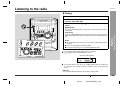
1
2
Press the ON/STAND-BY button to turn the power on.
3
Press the TUNING/TIME (
station.
Press the TUNER (BAND) button repeatedly to select the desired
frequency band (FM or AM).
or
) button to tune in to the desired
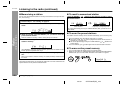
Manual tuning:
Press the TUNING/TIME button as many times as required to tune in to the desired station.
Notes:
When radio interference occurs, auto scan tuning may stop automatically at
that point.
Auto scan tuning will skip weak signal stations.
To stop the auto tuning, press the TUNING/TIME button again.
To receive an FM stereo transmission:
Radio
When the TUNING/TIME button is pressed for more than 0.5 seconds, scanning
will start automatically and the tuner will stop at the first receivable broadcast station.
- Listening to the radio -
Auto tuning:
Press the TUNER (BAND) button to display the "ST" indicator.
" " will appear when an FM broadcast is in stereo.
FM stereo mode indicator
FM stereo receiving indicator
If the FM reception is weak, press the TUNER (BAND) button to extinguish the
"ST" indicator. The reception changes to monaural, and the sound becomes
clearer.
After use:
Press the ON/STAND-BY button to enter the power stand-by mode.
Sound control (See page 14.)
02/1/8
CD-DP900E(UK)_2.fm
19
CD-DP900E
Listening to the radio (continued)
Memorising a station
To recall a memorised station
You can store 40 AM and FM stations in memory and recall them at the push of a button. (Preset tuning)
Radio
- Listening to the radio -
1
2
3
Press the MEMORY/SET button to enter the preset tuning saving
mode.
) button for less than 0.5 seconds to select
Within 30 seconds, press the PRESET (
preset channel number.
or
) button to select the
Preset channel
Frequency and frequency band
This can be operated by pressing the TUNER PRESET ( or ) button on the remote control.
To scan the preset stations
The stations saved in memory can be scanned automatically. (Preset memory scan)
1
Within 30 seconds, press the MEMORY/SET button to store that
station in memory.
2
If the "MEMORY" and preset number indicators go out before the station is memorised, repeat the operation from step 2.
5
or
Perform steps 1 - 3 in "Tuning" on page 19.
Store the stations in memory, in order, starting with preset channel 1.
4
Press the PRESET (
the desired station.
Repeat steps 1 - 4 to set other stations, or to change a preset station.
Press the PRESET ( or ) button for more than 0.5 seconds.
The preset number will flash and the programmed stations will be tuned in sequentially, for 5 seconds each.
This can be operated by pressing the TUNER PRESET ( or ) button on the
remote control.
Press the PRESET ( or ) button again when the desired station is located.
To erase entire preset memory
1
2
Press the ON/STAND-BY button to enter the stand-by mode.
Whilst pressing down the TUNER (BAND) button and the EQUALIZER/X-BASS/
DEMO button, press the ON/STAND-BY button until "TUNER CL" appears.
When a new station is stored in memory, the station previously memorised will
be erased.
Note:
The backup function protects the memorised stations for a few hours should there be
a power failure or the AC power lead disconnection.
20
Tuning (See page 19.)
02/1/8
CD-DP900E(UK)_2.fm
Listening to a cassette tape (TAPE 1 or TAPE 2)
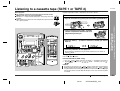
Playback is possible in TAPE 1 compartment as well as in TAPE 2.
1
2
Press the ON/STAND-BY button to turn the power on.
3
Load a cassette into the TAPE 1 or TAPE 2
cassette compartment with the side to be
played facing toward you.
TAPE 1
4
Press the TAPE (1
listen to.
5
Press the
TAPE 2
2) button to select the cassette you want to
/ button to start playback.
When playback is performed using the remote control, press the TAPE 1 or
TAPE 2 button.
To stop playback:
Press the
(TAPE ) button.
Fast forward/rewind: (TAPE 2 only)
1
2
Tape Playback
Open the cassette door by pushing the area marked " PUSH EJECT".
- Listening to a cassette tape (TAPE 1 or TAPE 2) -
Before playback:
For playback, use normal or low-noise tapes for the best sound.
(Metal or CrO tapes are not recommended.)
Do not use C-120 tapes or poor-quality tapes, as they may cause malfunctions.
Before loading a tape into the cassette compartment, tighten the slack
with a pen or a pencil.
CD-DP900E
Press the (TAPE ) button, then press the TAPE (1 2) button to select TAPE 2.
To advance the tape, press the
/
( ) button. To rewind it, press the
/
( ) button.
Caution:
To remove the cassette, press the (TAPE ) button, and then open the compartment.
Before changing from one tape operation to another, press the (TAPE ) button.
If a power failure occurs during tape operation, the tape head will remain engaged
with the tape and the cassette door will not open. In this case, wait until the power
is restored.
Sound control (See page 14.)
02/1/8
CD-DP900E(UK)_2.fm
21
CD-DP900E
Recording to a cassette tape
Before recording:
When recording important selections, make a preliminary test to ensure that the
desired material is properly recorded.
SHARP is not liable for damage or loss of your recording arising from malfunction
of this unit.
The volume and sound controls can be adjusted with no effect on the recorded
signal (Variable Sound Monitor).
For recording, use only normal tapes. Do not use metal or CrO tapes.
Recording can be operated in the TAPE 2 compartment. The TAPE 1 is for playback only.
Recording from a CD (CDs)
You can record 3 CDs continuously.
1
2
Press the ON/STAND-BY button to turn the power on.
Load a cassette into the TAPE 2 cassette compartment with the
side to be recorded on facing you.
3
4
5
- Recording to a cassette tape -
Tape Recording
Wind past the leader of the tape, on which recording cannot be performed.
Press the CD button and load the desired disc.
Press the DISC SKIP button to select the disc to be recorded first.
Press the REC PAUSE (
) button.
Recording will be paused.
6
Press the
/
(TAPE 2
) button to start recording.
CD playback will start approximately 7 seconds after the tape starts.
Recording is started from the selected CD. When the playback of the last disc
is finished or the end of the tape is reached, the CD and the cassette will stop
automatically.
To perform programmed recording:
1
2
3
Programme discs and tracks. (See page 18.)
Press the REC PAUSE ( ) button.
Press the / (TAPE 2 ) button.
To stop recording:
Press the (CD ) button.
The CD and tape will stop.
Notes:
22
When the end of the tape is reached whilst recording, the CD player will display
the track number which was being played at that time, and stop automatically. If
you want to restart recording from the beginning of the interrupted track, turn over
the tape, press the REC PAUSE ( ) button and then the
/ (TAPE 2 ) button. (If tracks have been stored in memory by programming, recording will restart
from the first track stored in memory.)
Whilst recording,
OPEN/CLOSE button is deactivated. It is recommended to
perform CD recording after closing the disc tray.
Programmed play (See page 18.)
02/1/8
CD-DP900E(UK)_2.fm
CD-DP900E
Recording from the radio
You can record from TAPE 1 to TAPE 2.
Tune in to the desired station. (See page 19.)
Load a cassette into the TAPE 2 cassette compartment with the
side to be recorded on facing you.
1
2
Wind past the leader of the tape, on which recording cannot be performed.
Press the REC PAUSE (
) button.
Recording will be paused.
4
Press the / (TAPE 2
start recording.
Load a prerecorded cassette into the
TAPE 1 cassette compartment. Insert
a blank tape into the TAPE 2 cassette
compartment.
It is recommended that the recording tape is
the same length as the master tape.
) button to
3
Press the TAPE (1
2) button until
"TAPE 1" appears on the display.
4
Press the REC PAUSE (
Tape Recording
3
Press the ON/STAND-BY button to turn the power on.
To interrupt recording:
Press the REC PAUSE ( ) button.
To resume recording, press the /
(TAPE 2
) button.
To stop recording:
Press the
) button.
Recording will be paused.
(TAPE ) button.
5
Note:
If you hear a whistling noise whilst recording an AM station, move the AM loop aerial.
Erase-prevention tab of cassette tapes:
When recording on a cassette tape, make
sure that the erase-prevention tabs are not removed. Cassettes have removable tabs that
prevent accidental recording or erasing.
Tab for side B
To protect the recorded sound, remove the tab
after recording. Cover the tab hole with adhesive tape to record on the tape without the tab.
Press the /
start dubbing.
(TAPE 2
) button to
To stop dubbing:
Side A
Tab for side A
- Recording to a cassette tape -
1
2
Dubbing from tape to tape
Press the (TAPE ) button.
TAPE 1 and TAPE 2 will simultaneously stop.
Erasing recorded tapes
1
2
3
4
Load the tape to be erased into the TAPE 2 cassette compartment with the side to
be erased facing toward you.
Press the TAPE (1 2) button until "TAPE 2" appears on the display.
Press the REC PAUSE ( ) button.
Press the / (TAPE 2 ) button to start erasing.
Note:
Make sure that the TAPE 1 is not in use.
Tuning (See page 19.)
02/1/8
CD-DP900E(UK)_2.fm
23
CD-DP900E
Enjoy the surround sound
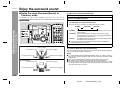
Dolby Pro Logic Surround (Normal or
Phantom) mode
By connecting this unit to other equipment (DVD player, VCR, etc.) with the
trademark and playing it, you can enjoy Dolby Pro Logic Surround sound.
To listen in the normal or phantom mode:
1
2
3
Connect the equipment you want to play (see page 28).
Press the VIDEO/AUX button.
Press the DOLBY PRO LOGIC button on the remote control to select the Dolby Pro Logic Surround mode.
Each time you press the button, the display will change as follows:
NORMAL:
- Enjoy the surround sound -
Advanced Features
NORMAL
PHANTOM
BYPASS
Sound will be output from the front left, front right, centre, and surround speakers.
Unlike the normal mode, no sound is output from the centre
speaker. The centre speaker signal is split equally and added to
the sound from the front speakers.
The Dolby Pro Logic Surround mode is cancelled. Sound will only
BYPASS:
be output from the front speakers.
You can select the desired surround mode by pressing the NORMAL or
PHANTOM button on the main unit.
PHANTOM:
4
Start playing the sound source.
Normal mode:
Centre speaker
Front speaker (Left)
Front speaker (Right)
To cancel the Dolby Pro Logic Surround mode:
Press the DOLBY PRO LOGIC button on the remote control until "BYPASS" appears,
or press the BYPASS button on the main unit.
Notes:
Surround speaker (Left)
Surround speaker (Right)
Phantom mode:
Front speaker (Left)
Surround speaker (Left)
Front speaker (Right)
If the EQUALIZER/X-BASS/DEMO(EQUALIZER MODE or X-BASS) button is
pressed in the normal or phantom mode, the unit is switched to the bypass mode
automatically.
When in the normal or phantom mode, the sound mode will be set to FLAT.
You cannot use the Dolby Pro Logic Surround feature with headphones.
The selected Dolby Pro Logic Surround mode is automatically stored in memory
and will be used the next time you activate Dolby Pro Logic. This mode is memorised until a new mode is selected.
Surround speaker (Right)
24
02/1/8
CD-DP900E(UK)_2.fm
CD-DP900E
2
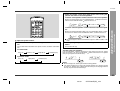
Adjust the speaker volume level whilst the test tone is being output from the centre or surround speakers.
To set the centre speaker volume to the level of the front speakers:
When in the normal mode, press the CENTER LEVEL button to increase the
volume and the CENTER LEVEL button to decrease it.
-10
-9 ... 0 ... +9
+10
-10
To adjust the speaker volume:
1
When in the normal or phantom mode, press the TEST TONE button.
3
The test tone will be heard from each speaker, in order, at about 2-second intervals.
In normal mode:
Left (L ch)
-9 ... 0 ... +9
+10
You can change the volume level within the range of +10dB to -10dB, in 1 dB
steps.
After adjusting the speaker volume level, press the TEST TONE
button.
The test tone will stop.
To balance the front speakers:
Centre (C ch)
Right (R ch)
Surround (S ch)
Press the BALANCE button to decrease the right speaker level (the left speaker
level will increase), and press the BALANCE button to decrease the left speaker
level (the right speaker level will increase).
- Enjoy the surround sound -
When in the normal or phantom mode, press the SURROUND LEVEL button
to increase the volume and the SURROUND LEVEL button to decrease it.
Advanced Features
To set the surround speaker volume to the level of the front speakers:
In phantom mode:
Left (L ch)
Right (R ch)
Surround (S ch)
1
15
1
15
Notes:
Be sure to adjust the sound at your favorite listening position.
The volume settings for the centre and surround speakers are stored in memory
for future use. However, after a power failure or leaving the unit unplugged for over
one day, they will return to initial settings.
25
02/1/8
CD-DP900E(UK)_2.fm
CD-DP900E
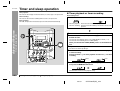
Timer and sleep operation
Timer playback:
The unit turns on and plays the desired source (CD, tuner, tape) at the preset time.
Timer playback or timer recording
Before setting timer:
Timer recording:
The unit turns on and starts recording from the tuner at the preset time.
1
Press the CLOCK button to check that the clock is on time.
2
For timer playback: Load a cassette or discs to be played.
For timer recording: Load a cassette for recording in the TAPE 2 cassette compartment.
1
2
Press the ON/STAND-BY button to turn the power on.
- Timer and sleep operation -
Advanced Features
Sleep operation:
The radio, compact disc and cassette tape can all be turned off automatically.
Press the CD, TUNER (BAND) or TAPE (1
desired function.
2) button to select the
To select the timer playback source: CD, TUNER (BAND) or TAPE (1
To select the timer recording source: TUNER (BAND).
When you selected the TUNER (BAND), tune in to the desired station.
3
Adjust the volume using the VOLUME buttons.
Do not turn the volume up too high.
4
Press the TIMER/SLEEP button repeatedly to select timer playback
or timer recording.
Display the white " " for timer playback and the red " " for timer
recording.
White
5
Setting the clock (See page 15.) /
Red
Press the TUNING/TIME ( or ) button to specify the hour to start,
then press the MEMORY/SET button.
The illustrations show the timer playback setting.
26
2).
Tuning (See page 19.)
02/1/9
CD-DP900E(UK)_3.fm
CD-DP900E
6
7
Press the TUNING/TIME ( or ) button to specify the minutes,
then press the MEMORY/SET button.
Sleep operation
1
2
Play back the desired sound source.
Press the TIMER/SLEEP button repeatedly until "SLEEP" is displayed.
The unit will enter the timer stand-by mode automatically.
To cancel the timer playback/timer recording:
Press the ON/STAND-BY button to turn the power on.
8
When the preset time is reached, playback or recording will start.
The volume will increase gradually until it reaches the volume you were listening
at before your system enters the timer stand-by mode.
9
In timer playback:
If you select CD or TAPE, the unit will enter the stand-by mode after the playback. If you select TUNER, it will enter the stand-by mode one hour after the timer playback starts.
or
) button.
(Maximum: 3 hours - Minimum: 1 minute)
3
4
3 hours - 5 minutes 5-minute intervals
5 minutes - 1 minute 1-minute intervals
Press the MEMORY/SET button.
Your system will enter the power stand-by mode automatically after the preset time has elapsed.
The volume will be turned down 1 minute before the sleep operation finishes.
To cancel the sleep operation:
Press the ON/STAND-BY button whilst the sleep timer is set.
In timer recording:
When the recording tape reaches its end, the timer recording will end, and the
unit will enter the stand-by mode.
To confirm the remaining sleep time:
Press the TIMER/SLEEP button whilst the sleep timer is set.
The remaining sleep time is displayed for about 5 seconds.
- Timer and sleep operation -
Whilst the sleep time is displayed, press the TUNING/TIME (
Advanced Features
To change the sleep time:
To reset or change the timer setting:
Perform "Timer playback or timer recording" from the beginning.
Note:
Once the sleep time is set, it will remain unchanged until a new time is entered.
Notes:
Once the time is set, the setting will be retained until a new time is entered.
When performing timer playback or recording using another unit connected to the
VIDEO/AUX sockets, select "VIDEO/AUX" in step 2.
At this time, only this unit will be turned on or enter the power stand-by mode automatically. It will enter the power stand-by mode when the end of the recording tape
is reached in timer recording or 1 hour after the playback starts in timer playback.
However, another unit will not be turned on or off.
27
02/1/9
CD-DP900E(UK)_3.fm
CD-DP900E
Enhancing your system
Troubleshooting chart
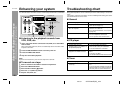
The connection lead is not included. Purchase a commercially available lead as shown below.
Many potential problems can be resolved by the owner without calling a service technician.
If something is wrong with this product, check the following before calling your authorised SHARP dealer or service centre.
VCR, DVD, etc.
General
- Enhancing your system / Troubleshooting chart -
Advanced Features/References
To the line
output sockets
White
Red
Red
White
Symptom
The clock is not on time.
When a button is pressed, the unit
does not respond.
AUX sockets.
When using video equipment, connect the audio output to this unit and the video
output to a television.
2
3
4
Press the ON/STAND-BY button to turn the power on.
Symptom
Playback does not start.
Playback stops in the middle or is
not performed properly.
Playback sounds are skipped, or
stopped in the middle of a track.
Play the connected equipment.
To prevent hum interference, place this unit away from a television.
To record on a tape
1 Insert a cassette in the TAPE 2 cassette compartment.
2 Press the VIDEO/AUX button.
3 Press the REC PAUSE ( ) button.
4 Press the / (TAPE 2 ) button.
5 Play the VCR, DVD, etc.
Is the volume level set to "0"?
Are the headphones connected?
Are the speaker wires disconnected?
CD player
Press the VIDEO/AUX button.
Note:
No sound is heard.
RCA lead
(not supplied)
Listening to the playback sounds from
VCR, DVD, etc.
1 Use a connection lead to connect the VCR, DVD, etc. to the VIDEO/
Possible cause
Did a power failure occur? Reset the
clock. (Refer to page 15.)
Set this unit to the power stand-by mode
and then turn it back on.
If the unit still malfunctions, reset it. (Refer
to page 29.)
Possible cause
Is the disc loaded upside down?
Does the disc satisfy the standards?
Is the disc distorted or scratched?
Is the unit located near excessive vibrations?
Is the disc very dirty?
Has condensation formed inside the unit?
Tuner
Symptom
Radio makes unusual noise consecutively.
Possible cause
Is the unit placed near the TV or computer?
Is the FM aerial or AM loop aerial placed
properly? Move the AC power lead or the
unit away from the aerial if located near.
28
02/1/9
CD-DP900E(UK)_3.fm
CD-DP900E
If trouble occurs
Symptom
Cannot record.
Cannot record tracks with proper
sound quality.
Cannot erase completely.
Sound skipping.
Cannot hear treble.
Sound fluctuation.
Cannot remove the tape.
Possible cause
Is the erase-prevention tab removed?
Is it a normal tape? (You cannot record on
a metal or CrO tape.)
Is there any slack?
Is the tape stretched?
Are the capstans, pinch rollers, or heads
dirty?
If a power failure occurs during playback,
the heads remain engaged with the tape.
Do not open the compartment forcibly.
Wait until electricity resumes.
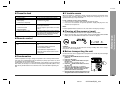
If such a problem occurs, do the following:
1 Set the unit to the stand-by mode and turn the power on again.
2 If the unit is not restored in the previous operation, unplug and plug in the unit,
and then turn the power on.
Note:
If neither operation above restores the unit, clear all the memory by resetting it.
Clearing all the memory (reset)
1
2
Press the ON/STAND-BY button to enter the power stand-by mode.
Whilst pressing down the CLOCK button and the EQUALIZER/X-BASS/DEMO
button, press the ON/STAND-BY button until "CLEAR AL" appears.
Remote control
Symptom
The remote control does not operate.
Possible cause
Is the AC power lead of the unit plugged
in?
Is the battery polarity respected?
Are the batteries dead?
Is the distance or angle incorrect?
Does the remote control sensor receive
strong light?
Condensation
Sudden temperature changes, storage or operation in an extremely humid environment may cause condensation inside the cabinet (CD pickup, tape heads, etc.) or on
the transmitter on the remote control.
Condensation can cause the unit to malfunction. If this happens, leave the power on
with no disc (or cassette) in the unit until normal playback is possible (about 1 hour).
Wipe off any condensation on the transmitter with a soft cloth before operating the
unit.
Caution:
This operation will erase all data stored in memory including clock, timer settings,
tuner preset, and CD programme.
Before transporting the unit
References
When this product is subjected to strong external interference (mechanical shock,
excessive static electricity, abnormal supply voltage due to lightning, etc.) or if it is
operated incorrectly, it may malfunction.
- Troubleshooting chart -
Cassette deck
On the back of this unit is equipped with a transport screw in order to prevent damage
during transportation.
1 Press the ON/STAND-BY button to turn the
power on.
2 Press the CD button.
3 Press the OPEN/CLOSE button to open
the disc tray.
Remove all CDs inserted in the unit.
4 Press the OPEN/CLOSE button to close
the disc tray.
Make sure that "NO DISC" is displayed.
5 Press the ON/STAND-BY button to enter the
stand-by mode, and then unplug the AC
power lead from the wall socket.
6 Insert the transport screw into the back of the unit
and tighten it with a flat head screwdriver or a coin.
29
02/1/9
CD-DP900E(UK)_3.fm
CD-DP900E
Maintenance
Specifications
Cleaning the tape-handling parts
As part of our policy of continuous improvement, SHARP reserves the right to make
design and specification changes for product improvement without prior notice. The
performance specification figures indicated are nominal values of production units.
There may be some deviations from these values in individual units.
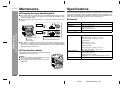
Dirty heads, capstans or pinch rollers can cause poor sound and tape jams. Clean
these parts with a cotton swab moistened with commercial head/pinch roller
cleaner or isopropyl alcohol.
When cleaning the heads, pinch rollers, etc., unplug the unit which contains high
voltages.
A
TAPE 1
D
E
B
C
B
C
References
- Maintenance / Specifications -
TAPE 2
General
Power source
Power consumption
Dimensions
AC 230-240 V, 50 Hz
116 W
Width: 270 mm (10-5/8")
Height: 330 mm (13")
Depth: 355 mm (13-15/16")
Weight
7.2 kg (15.9 lbs.)
Amplifier
Front speakers:
RMS: 80 W (40 W + 40 W) (10 % T.H.D.)
RMS: 64 W (32 W + 32 W) (0.9 % T.H.D.)
Centre speaker:
Output power
Playback head
Capstan
Pinch roller
Erase head
Recording/Playback head
RMS: 20 W (10 % T.H.D.)
RMS: 16 W (0.9 % T.H.D.)
After long use, the deck's heads and capstans may become magnetised, causing
poor sound. Demagnetise these parts once every 30 hours of playing/recording
time by using a commercial tape head demagnetiser. Read the demagnetiser's
instructions carefully before use.
Cleaning the cabinet
Output terminals
Centre speaker: 6 ohms
Surround speakers: 12 ohms
Periodically wipe the cabinet with a soft cloth and a diluted
soap solution, then with a dry cloth.
Caution:
Do not use chemicals for cleaning (petrol, paint thinner,
etc.). It may damage the cabinet finish.
Do not apply oil to the inside of the unit. It may cause
malfunctions.
Surround speakers:
RMS: 20 W (10 W + 10 W) (10 % T.H.D.)
RMS: 16 W (8 W + 8 W) (0.9 % T.H.D.)
Front speakers: 6 ohms
Input terminals
Headphones: 16 - 50 ohms (recommended: 32 ohms)
Video/Auxiliary (audio signal): 500 mV/47 kohms
30
02/1/9
CD-DP900E(UK)_3.fm
CD-DP900E
CD player
Centre speaker
Type
Signal readout
D/A converter
Frequency response
3-disc multi-play compact disc player
Non-contact, 3-beam semiconductor laser pickup
1-bit D/A converter
20 - 20,000 Hz
Type
Maximum input power
Rated input power
Impedance
10 cm (4") full-range speaker
40 W
20 W
6 ohms
Dynamic range
90 dB (1 kHz)
Dimensions
Width: 260 mm (10-1/4")
Height: 140 mm (5-1/2")
Depth: 169 mm (6-5/8")
0.9 kg (2.0 lbs.)
Weight
FM: 87.5 - 108 MHz
AM: 522 - 1,620 kHz
Cassette deck
Frequency response
50 - 14,000 Hz (Normal tape)
Signal/noise ratio
55 dB (TAPE 1, playback)
50 dB (TAPE 2, recording/playback)
Wow and flutter
0.3 % (WRMS)
Front speaker
Type
Surround speaker
10 cm (4") full-range speaker
Type
Maximum input power 20 W
Rated input power
Impedance
Dimensions
Weight
10 W
12 ohms
Width: 210 mm (8-1/4")
Height: 130 mm (5-1/8")
Depth: 154 mm (6-1/16")
0.7 kg (1.5 lbs.)/each
2-way type speaker system
5 cm (2") Tweeter
13 cm (5-1/8") Woofer
Maximum input power 80 W
40 W
Rated input power
6 ohms
Impedance
Width: 220 mm (8-11/16")
Dimensions
Height: 330 mm (13")
Depth: 194 mm (7-5/8")
2.8 kg (6.2 lbs.)/each
Weight
- Specifications -
Frequency range
References
Tuner
31
02/1/9
CD-DP900E(UK)_3.fm
TERMS OF GUARANTEE
Sharp Electronics (UK) Ltd. (“Sharp”) guarantees to provide for the repair, or at its option the replacement, of this product subject to the conditions listed below:1. This guarantee shall only apply to faults which are due to inferior workmanship or materials. It does
not cover faults or damage caused by accident, misuse, fair wear and tear, neglect, tampering with
the product, or repair other than by a Service Facility appointed by Sharp.
2. As this product is intended for private domestic use only, the guarantee will not apply if the product
is used in the course of a business, trade or profession.
3. To benefit from this guarantee, any fault which occurs must be notified to Sharp, or its appointed
Service Facility within one year from the date this product was purchased. Proof of purchase must
be provided.
4. The guarantee does not cover carriage costs, jewelled styli, audio tapes, compact discs or batteries.
5. In the unlikely event of this product requiring repair, please contact the supplier from whom it was
purchased. Where this is not possible, please contact the Sharp Customer Information Centre on
the telephone number given below.
6. No person has any authority to vary the terms or conditions of this guarantee.
7. This guarantee is offered as an additional benefit to your statutory rights, and does not affect these
rights in any way.
If you have any difficulty operating this product, or would like information on other Sharp products,
please telephone the Sharp Customer Information Centre on the number given below.
Sharp Customer Information Centre - Telephone 08705 274277
(or (01) 676 0648 if telephoning from Ireland)
0201
SHARP ELECTRONICS (U.K.) LTD.
Sharp House, Thorp Road, Newton Heath, Manchester, M40 5BE
SHARP CORPORATION
CD-DP900E_BACK
1
9906
02.1.11, 8:33 AM
TINSE0456AWZZ
A0201.HK