1
IP060S
Quick start guide
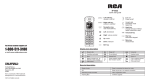
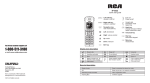
Left soft key :
End call
Power on/off
Right soft key :
Accept calls
Handsfree mode
Select line
access to call list
access to calendar
Navigation key :
main menu/OK key
Hash key :
Left:
method
phonebook
(upper/lower case)
Right:
Voicemail key
Up:
Star key :
change input
volume control
Down:
lock/unlock
keypad
(long press)
BLF key
Mute key :
redial
Intercom
mute/unmute
Display icon description
Missed calls
Ringer off
Voicemail
Handsfree activated
Do not disturb
Headset mode
Mute
Keypad lock
Alarm on
Battery charge level : ok
Batteries need charging
Good reception
quality
Bad reception
quality
Call in progress
(green)
Call on hold (red)
Call ended (red)
Call forward
302
Handset registration
•
From base : make a long press on
•
From handset : press
key until led is flashing in blue.
•
Select base on which you want to register the handset and press
•
If requested, enter base code (7227 by default) and press
.
register automatically to the base.
.
otherwise handset will
Intercom
•
Press
the call.
Language selection
and select the desired handset from the list and press
key to launch
•
•
Making a call
•
•
•
Putting a call on hold
.
Do not Disturb
3-party conference
•
•
•
•
Once in line with 1st caller, press 2nd Call softkey, then select the type of call
and press
.
• Dial 2nd party number or select handset and press
.
• Then press Conf soft key to establish the conference.
Note: you may be asked to select the line to use for the second call.
Press
to open main menu. Select Services Call Forward.
Select the line for which you want to set call forward.
Then select the type of call forward.
Set the status to enabled/disabled, fill in destination number and press
Voicemail
Handset web interface
.
Call transfer
Attended transfer :
• Once in line with 1st caller, press 2nd Call softkey, then select the type of call and press
• Dial the second phone number or select handset.
When the call is answered, select Transfer from call options list to complete
the transfer.
Blind transfer:
• Once in line with 1st caller, press Transfer softkey
• Dial the destination telephone number and press Transfer soft key.
•
Press
Select Services DND.
Select the line for which you want to set DND feature.
Select Activate and press
.
• Press
to access voicemail.
OR
• Go to Menu Voicemail to check number of messages. Press Call softkey to
retrieve your messages.
Call forward
•
•
•
•
.
Access phonebook :
• Press
.
• Select the Directory type.
• Select a contact and press Options soft key to select an operation.
Add new entry :
• Press
.
• Select the Directory type.
• Press Options soft key and select Add.
• Enter first name, last name and numbers.
• Press Save softkey
Handset mode: press
.
Headset mode: press
.
Handsfree mode: press
twice.
Answering a waiting call : select Accept or Reject softkey.
Select Hold with navigator and press
.
To retrieve the call, select Unhold with navigator and press
Press
.
Highlight a record.
Press
to make the call, you may select the line by long pressing
Phonebook
Accepting a call
•
•
Language.
Redial
• Pre-dialing : enter the phone number and press
.
• Direct dialing : press
. Enter the phone number.
• Handsfree : enter the phone number and press
twice.
• Headset : connect the headset to the phone, enter phone number and press
.
Note : to place a call from a specific line, make a long press on and use navigator
to select the desired line and press
.
•
•
•
•
Press
to open main menu. Select Settings
Select the desired language and press
.
.
•
•
•
Press
to access main menu.
Select Status Network Status. Check IP address.
Open a web browser on your computer. Enter http:// and the IP address in the address
bar and confirm. Default login is "userx"/7227, where "x" is your handset number.