1
3
Enjoy
Start disc playback
A Press OPEN/CLOSE ç to open the disc tray.
HTS3548
DVD HOME THEATER SYSTEM
Playback other supported
devices
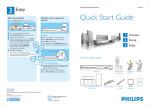
Quick Start Guide
USB
B
C
D
E
Place a disc with the disc label facing up.
Press OPEN/CLOSE ç to close the disc tray.
Playback starts automatically.
If the disc menu appears on the TV, use
keys or the numeric keypad to select an option in
the menu and press OK to start playback.
A
B
C
D
z To enjoy the powerful surround sound
from the speakers, press SURROUND
on the remote control to turn on the
multi-channel surround mode.
1
2
3
USB device
Insert your USB device to the USB socket.
Press DISC/USB to switch to ‘USB’ mode.
Press u to start playback.
To stop playback, press DISC/USB to switch to
‘DISC’ mode. You can unplug your USB device now.
Connect
Set up
Enjoy
-
F Press to stop playback.
What’s in the box?
Note When you press u button, playback
resumes from where it last stopped. To start playback
from the beginning, you have to press
.
Other portable audio player
A Use the supplied MP3 LINE-IN cable to connect the
headphone output socket on your portable audio
player to MP3 LINE-IN socket.
Main Unit
Remote Control
and 2 batteries
B Press PLAY on your portable audio player.
C Press MP3 LINE-IN to listen to the playback.
Composite
video cable
User
Manual
Need help?
User Manual
See the user manual that came with your Philips DVD Home Theatre System.
1 center, 2 front, 2 rear speakers
and subwoofer
Online
Go to www.philips.com/support
Power cables
2007 C Koninklijke Philips N.V.
All rights reserved.
www.philips.com
MP3 LINE-IN cable
FM wire
antenna
AM/MW
loop antenna
1
A
Connect
Placement
C
Proper speakers system placement is important to
ensure optimum sound performance.
D
Connect the speakers and
subwoofer
Connect the various coloured plugs from the speakers
and subwoofer to the same coloured sockets at the rear
of the main unit.
A
Connect the radio antennas
Keep the antennas away from the electronic devices to
prevent unwanted interference.
Finding the viewing channel
A Press 2 (STANDBY ON) on the main unit to turn
it on.
B Turn on the TV. Use the TVs remote control to
FM antenna
select the correct viewing channel.
A
STANDBY-ON
FRON
T
LEFT
REAR
LEFT
2
Set up
SUBWOOFER
CENT
ER
SUB
REAR
RIGHT
Main Unit (rear)
FRON
T
RIGHT
FRONT CENTRE
WO
OFE
R
FRONT
RIGHT
FRONT
LEFT
REAR
RIGHT
REAR
LEFT
Note To search for the correct viewing channel,
press the Channel Down button on the TVs remote
control repeatedly (or AV, SELECT, ° button) until
you see the Video In channel.
B
A Place the center speaker above or close to the TV.
B Place the subwoofer on the floor, at least one meter
AM/MW antenna
away from the TV.
A Connect the FM antenna to the inner pin of the
C Place the front speakers at equal distances from the
B
FM 75 jack. For optimum reception, extend the
wire and fix its end to the wall.
TV.
B Unfold the AM/MW loop antenna and fix the claw
D Place the rear speakers at the back or beside the
A Press SETUP.
into the slot. Push the tabs and insert the wires into
the AM/MW jacks.
listening position.
Select the display language on the
screen
The { General Setup Page } appears.
C Connect the power cable from the main unit to the
B
AC power outlet.
Connect the main unit to TV
Television
( rear)
VIDEO IN
(CVBS)
Main Unit (rear)
SPEAKERS
AM/
MW
E
General Setup Page
Disc Lock
Display Dim
Program
OSD Language
Screen Saver
Sleep
DivX(R) VOD Code
Connect audio output from TV
(optional)
To hear the TV audio through this home theater system,
use a red and white audio cables (not supplied) to
connect the AUDIO IN-TV jacks on the main unit to the
AUDIO OUT jacks on your TV.
VIDEO IN
(CVBS)
Television
( rear)
B Press
C Use
to select { OSD Language } and press
.
D Press SETUP to exit.
DOCK
CVBS
Melayu
Русский
ไทย
keys to select a language option in the
menu and press OK to confirm.
AUDIO
OUT
VIDEO OUT
AUDIO OUT
Pr
Y
Main Unit (rear)
Pb
S-VIDEO
English
SETUP
AUDIO
OUT
AUDIO IN
COAXIAL
There are various setup options (Audio Setup, Video
Setup, Preference Setup) available on this Home Theater
System. Refer to the user manual for more information.
z Connect a composite video cable (supplied) from the
CVBS jack on the main unit to the VIDEO IN jack on
your TV.
Note It is important to connect the main unit
directly to your TV.
Note The language set here is only for the menus
that are shown on the TV while operating this Home
Theater system, not for the DVD disc menu.
Main Unit (rear)
Note Press TV on the remote control to get the
sound output from the speakers system when watching
the TV programs.