1
basic_e_opx_6.fm Page 1 Thursday, December 12, 2002 10:44 AM
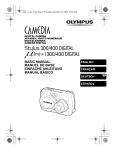
DIGITAL CAMERA
APPAREIL PHOTO NUMÉRIQUE
DIGITALKAMERA
CÁMERA DIGITAL
BASIC MANUAL
MANUEL DE BASE
EINFACHE ANLEITUNG
MANUAL BÁSICO
ENGLISH
FRANÇAIS
DEUTSCH
ESPAÑOL
basic_e_opx_6.fm Page 2 Thursday, December 12, 2002 10:44 AM
CONTENTS/TABLE DES MATIÉRES/INHALT/CONTENIDO
ENGLISH . . . . . . . . . . . . . . . . . . . . . . . . . . . . . . . . . . . . . . 2
FRANÇAIS. . . . . . . . . . . . . . . . . . . . . . . . . . . . . . . . . . . . 46
DEUTSCH . . . . . . . . . . . . . . . . . . . . . . . . . . . . . . . . . . . . 90
ESPAÑOL . . . . . . . . . . . . . . . . . . . . . . . . . . . . . . . . . . . 134
CONTENTS
GETTING STARTED . . . . . . . . . . . . . . . . . . . . . . . . . . . . 4
MENU FUNCTIONS . . . . . . . . . . . . . . . . . . . . . . . . . . . . 17
SHOOTING BASICS . . . . . . . . . . . . . . . . . . . . . . . . . . . 24
En
SELECTING A RECORD MODE . . . . . . . . . . . . . . . . . . 31
PLAYBACK . . . . . . . . . . . . . . . . . . . . . . . . . . . . . . . . . . 32
PRINT SETTINGS . . . . . . . . . . . . . . . . . . . . . . . . . . . . . 37
DOWNLOADING PICTURES TO A COMPUTER . . . . . 38
ERROR CODES . . . . . . . . . . . . . . . . . . . . . . . . . . . . . . . 40
SPECIFICATIONS . . . . . . . . . . . . . . . . . . . . . . . . . . . . . 41
These instructions are only for quick reference. For more details
on the functions described here, refer to the “Reference Manual”
on CD-ROM.
This basic manual contains guidelines for using Olympus Stylus 300/400
DIGITAL (µ [mju:] 300/400 DIGITAL). Except where otherwise specified, the
explanations in the manual apply to both models.
2 En
basic_e_opx_6.fm Page 3 Thursday, December 12, 2002 10:44 AM
Before using your camera, read this manual carefully to ensure correct use.
We recommend that you take test shots to get accustomed to your camera before
taking important photographs.
J These instructions are only a basic manual. For more details on the functions described
here, refer to the Reference Manual on the CD-ROM. For connection to the PC or
installation of provided software, refer to the Software Installation Guide included in the
CD-ROM package.
J
J
For customers in North and South America
For customers in USA
Declaration of Conformity
Model Number
: Stylus 300 DIGITAL, Stylus 400 DIGITAL
RM-2 (Remote control)
Trade Name
: OLYMPUS
Responsible Party
: Olympus America Inc.
Address
: 2 Corporate Center Drive, Melville, New York
11747-3157 U.S.A.
Telephone Number : 631-844-5000
En
Tested To Comply With FCC Standards
FOR HOME OR OFFICE USE
This device complies with Part 15 of the FCC rules. Operation is subject to
the following two conditions:
(1) This device may not cause harmful interference.
(2) This device must accept any interference received, including
interference that may cause undesired operation.
For customers in Canada
This Class B digital apparatus meets all requirements of the Canadian
Interference-Causing Equipment Regulations.
For customers in Europe
“CE” mark indicates that this product complies with the European
requirements for safety, health, environment and customer protection.
“CE” mark cameras are intended for sales in Europe.
Trademarks
•
•
•
•
IBM is a registered trademark of International Business Machines Corporation.
Microsoft and Windows are registered trademarks of Microsoft Corporation.
Macintosh is a trademark of Apple Computer Inc.
All other company and product names are registered trademarks and/or
trademarks of their respective owners.
• The standards for camera file systems referred to in this manual are the “Design
Rule for Camera File System/DCF” standards stipulated by the Japan Electronics
and Information Technology Industries Association (JEITA).
En 3
basic_e_opx_6.fm Page 4 Thursday, December 12, 2002 10:44 AM
GETTING STARTED
J NAMES OF PARTS
Lens barrier
Turns the camera on
and off in the shooting
mode.
Shutter button
Flash
Self-timer/
Remote control
lamp
En
Remote
control
receiver
Card cover
Connector cover
4 En
Lens
Extends automatically
when you open the lens
barrier.
VIDEO OUT
jack
USB connector
DC-IN jack
cover
DC-IN jack (4.8V)
basic_e_opx_6.fm Page 5 Thursday, December 12, 2002 10:44 AM
Arrow pad
The arrow pad is used as arrow keys, as well as function buttons. The
, and
marks indicate which arrow key to press.
,
,
Shooting mode button
Macro button
Flash mode button
Self-timer button
Zoom button (W/T
)
En
Monitor
Strap eyelet
OK/Menu button
(
)
Monitor button
(QUICK VIEW
Playback button (
)
)
Tripod socket
Battery compartment cover
Viewfinder
Orange lamp
Green lamp
AF target mark
En 5
basic_e_opx_6.fm Page 6 Thursday, December 12, 2002 10:44 AM
J MONITOR INDICATIONS
Shooting mode
1
2
3
4
5
6
7
8
9
10
1
2
11
12
13
11
13
5
6
14
14
15
SHQ
15
9
16
16
Still picture
Movie
Items
En
Indications
1
Shooting mode
,
,
2
Battery check
3
Green lamp
4
Flash stand-by/
Camera movement warning/ Flash
charge
5
Macro mode
6
Flash mode
,
7
Sequential shooting
,
8
Self-timer
Remote control
9
Record mode
,
,
,
,
(Lights)
(Blinks)
,
SHQ, HQ, SQ1, SQ2
10 Resolution
2272 × 1704, 2048 × 1536, etc.
11 Exposure compensation
-2.0 – +2.0
12 Metering
13 White balance
14 AF target mark
,
[
15 Memory gauge
16 Number of storable still pictures
Seconds remaining
]
,
16
16''
6 En
,
,
,
,
,
basic_e_opx_6.fm Page 7 Thursday, December 12, 2002 10:44 AM
Playback mode
Screens with the information display set to ON are shown below.
2
4
1
2048 1536
5
6
7
8
3
4
5
6
7
8
9
10
9
10
1
Still picture
Movie
Items
Indications
1
Battery check
2
Print reservation, Number of prints
3
Movie
4
Protect
5
Record mode
SHQ, HQ, SQ1, SQ2
6
Resolution
2272 × 1704, 2048 × 1536, etc.
7
Exposure compensation
-2.0 – +2.0
8
White balance
AUTO,
9
Date and time
’03.05.17 15:30
10 File number (still picture)
Playing time/Total recording time
(movie)
,
En
×10
,
,
,
FILE: 100-0030
0"/20"
En 7
basic_e_opx_6.fm Page 8 Thursday, December 12, 2002 10:44 AM
Memory gauge
The memory gauge lights up when you take a picture or record a movie. While
the gauge is lit, the camera is storing the picture or the movie on the card. The
memory gauge indication changes as shown below depending on the
shooting status.
When the whole memory gauge is lit, wait a few moments until the lit area goes
off before taking the next shot.
When taking still pictures
Shoot
Shoot
Shoot
Wait
Before shooting
(Gauge is off)
One picture
taken
(Lit)
More than two
taken
(Lit)
En
No more pictures can be taken
(Fully lit)
Wait until the gauge returns to the
status on the left to take the next shot.
When recording movies
If you continue shooting
Shoot
Wait
Before
shooting
(Gauge is off)
During shooting (Lit)
• Shooting is not possible until the lit area goes off completely.
• Movie recording ends automatically when the whole memory gauge
is lit.
Battery check
If the remaining battery power is low, the battery check indication on the
monitor changes as follows when the camera is turned on or while the camera
is in use.
No indication
Lights (Green)
Pictures can be
taken.*
Lights (Red)
Remaining power level: low
Recharge as soon as
possible especially for
extended use.
Green and orange lamps on right
of viewfinder blink
Remaining power level:
exhausted
Replace with a charged battery.
* Energy consumption varies greatly depending on the camera’s operational
status. The camera may turn off without displaying the low battery warning.
Recharge as soon as possible.
8 En
basic_e_opx_6.fm Page 9 Thursday, December 12, 2002 10:44 AM
Weatherproof feature
The camera is weatherproof and is not damaged by water spray from any
direction. However, it cannot be used underwater. Observe the following
precautions when using the camera.
Olympus will not assume any responsibility for malfunction of the camera
caused by water getting inside as a result of misuse by the user.
• Do not wash the camera
with water.
• Do not drop the camera
into water.
• Do not take pictures
underwater.
En
• The camera loses its waterproof capability if the battery compartment
cover, connector cover or DC-IN jack cover is open. Make sure that all
the covers are closed before using the camera.
• Wipe any water off the camera before changing the battery or card.
• Keep the lens out of the water when taking pictures. (The camera may
not focus correctly.)
• If the camera gets splashed, wipe the water off as soon as possible with
a dry cloth. Salt water spray or droplets can cause damage to the camera
if the camera is not wiped dry as soon as possible.
• Do not apply excessive force to or attempt to peel off the rubber packing
of the battery compartment cover, connector cover or DC-IN jack cover.
• If the rubber packing becomes worn or damaged, contact your nearest
Olympus service center. (A charge is made for replacement of parts.)
• If the rubber packing of the battery compartment cover, connector cover
or DC-IN jack cover contains dirt or sand, wipe it off before closing the
cover, otherwise water may get inside the camera.
• The rechargeable battery and other camera accessories are not
weatherproof. Care should be taken when using the accessories.
En 9
basic_e_opx_6.fm Page 10 Thursday, December 12, 2002 10:44 AM
J ATTACHING THE STRAP
En
1
Thread the short end of the
strap through the strap eyelet.
2
Thread the long end of the strap
through the loop that has
already gone through the eyelet.
3
Pull the strap tight, making
sure that it is securely fastened
and does not come loose.
Strap eyelet
J CHARGING THE BATTERY
This camera uses an Olympus lithium ion battery (LI-10B). The battery is
dedicated to this camera and other batteries do not work. The battery is not
fully charged when the camera is purchased. Fully charge the battery on the
specified charger (LI-10C) before first use. For details, read the charger’s
instructions (provided).
About the battery
Make sure that the + and – terminals of the battery
shown in the illustration on the right are correctly
oriented when loading the battery into the charger.
Charge indicator
When charge
indicator
changes from
red to green,
the battery is
fully charged.
Connector terminals
Lithium ion battery
To the AC input connector
Lithium ion battery
Charger
AC cable
AC wall outlet
10 En
basic_e_opx_6.fm Page 11 Thursday, December 12, 2002 10:44 AM
J LOADING THE BATTERY
Important
• Be sure to reset the date and time after changing the battery.
1
Make sure that:
• The monitor is off.
• The lens barrier is closed.
• The lamp on the right of the viewfinder is off.
2
Slide the battery compartment
cover in the direction of
(the
direction indicated by the
mark on the cover), and lift it up in
the direction of
.
3
Insert the battery in the direction
shown in the illustration.
4
Close the battery compartment
cover so that it pushes the battery
down inside
. While pressing the
mark, slide the cover in the
direction of
.
• If the battery compartment cover seems
hard to close, do not force it. With the
battery compartment cover shut, press the
in the direction shown in the illustration.
Battery compartment cover
Connector terminals
En
mark firmly and push
En 11
basic_e_opx_6.fm Page 12 Thursday, December 12, 2002 10:44 AM
J INSERTING A CARD
“Card” in this manual refers to the xD-Picture Card. The camera uses the card
to record pictures.
1
Make sure that:
• The monitor is off.
• The lens barrier is closed.
• The lamp on the right of the viewfinder is off.
En
2
Open the connector cover while
pressing the
mark in the
illustration.
3
Open the card cover by
pulling the card cover
catch towards you.
4
Face the card the correct
way and insert it into the card
slot.
Connector cover
Card cover
Card cover catch
• Insert the card while keeping it straight.
• Inserting the card the wrong way or at an
angle could damage the contact area or
cause the card to jam.
• If the card is not inserted all the way,
data may not be written to the card.
5
12 En
Close the card cover.
Index area side
basic_e_opx_6.fm Page 13 Thursday, December 12, 2002 10:44 AM
6
Close the connector cover.
• Press the
mark in the illustration when
closing the connector cover.
Note
Do not close the connector cover without
first closing the card cover.
Removing the card
1
Open the connector cover and
the card cover.
2
Push the card all the way in to
unlock it, then let it return slowly.
• The card is ejected a short way and then
stops.
Note
En
Releasing your finger quickly after pushing
the card all the way in may cause it to eject
forcefully out of the slot.
3
Note
Hold the card straight and pull it
out.
• Do not press on the card with hard or pointed items such as ballpoint
pens.
En 13
basic_e_opx_6.fm Page 14 Thursday, December 12, 2002 10:44 AM
J TURNING THE POWER ON/OFF
When shooting pictures
Power on:
Open the lens barrier.
The camera turns on in the shooting
mode. The lens extends and the
subject is displayed on the monitor.
If the lens does not extend when the
lens barrier is opened, there is a
possibility that the barrier is not fully
open. Open the lens barrier fully
until you feel it click.
When using the camera for the first time or after the camera has been
left for about 1 hour with the battery removed, the date and time are
reset. In this event, “SET DATE & TIME” appears on the monitor
when the camera is turned on.
Press
to turn off the monitor. The camera is still on.
Power off:
Close the lens barrier slightly until it almost touches the
lens barrel.
The lens barrier stops just before it touches the lens and the
lens retracts. Wait until the lens is fully retracted before closing
the lens barrier completely.
The camera turns off. (The monitor also turns off.)
En
Note
14 En
• Do not push the lens barrier forcefully against the lens as this may
damage the lens or cause it to malfunction.
basic_e_opx_6.fm Page 15 Thursday, December 12, 2002 10:44 AM
When playing back pictures
Power on:
Press
with the lens barrier closed.
The camera turns on in the playback mode. The monitor turns
on and the last picture taken is displayed.
Power off:
Press
.
The monitor and the camera turn off.
Note
• Never open the card cover, remove the card or the battery, or
connect or disconnect the AC adapter while the camera is turned on.
Doing so could destroy all data on the card. Destroyed data cannot
be restored. When changing the card, be sure to turn the camera off
before opening the card cover.
En
J SELECTING A LANGUAGE
1
Arrow pad (
)
Open the lens barrier fully.
• The lens extends and the monitor turns on.
2
Press
.
• The top menu is displayed.
3
Press
on the arrow pad to
select MODE MENU.
4
5
6
7
8
Press
to select the SETUP tab, then press
Press
to select
Press
to select a language, then press
Press
, then press
.
.
.
again to exit the menu.
Close the lens barrier to turn the camera off.
En 15
basic_e_opx_6.fm Page 16 Thursday, December 12, 2002 10:44 AM
J SETTING THE DATE AND TIME
1
Open the lens barrier fully.
• The lens extends and the monitor turns on.
2
Press
.
• The top menu is displayed.
3
4
5
Press
on the arrow pad to select MODE MENU.
Press
to select the SETUP tab, then press
Press
to select
, then press
.
.
• The green frame moves to the selected item.
6
En
Press
to select one of the following date formats: YM-D (Year/Month/Day), M-D-Y (Month/Day/Year), D-M-Y
(Day/Month/Year). Then press
.
• Move to the year setting.
• The following steps show the procedure used when the date and time
settings are set to Y-M-D.
7
Press
to set the year, then press
month setting.
• To move back to the previous setting, press
• The first two digits of the year are fixed.
8
to move to the
.
Repeat this procedure until the date and time are
completely set.
• The camera only displays the time in 24-hour time system (“2 p.m.”
would be “14:00”).
9
Press
.
• For a more accurate setting, press
when the time hits 00
seconds. The clock starts when you press the button.
10 Close the lens barrier to turn the camera off
Note
16 En
• The date and time settings will be canceled if the camera is left
without batteries for approximately one day.
basic_e_opx_6.fm Page 17 Thursday, December 12, 2002 10:44 AM
MENU FUNCTIONS
J USING THE MENUS AND TABS
When you turn on the camera and press
, the top menu is displayed
on the monitor. The functions of this camera are set from the menus. This
chapter explains how the menus work, using the shooting mode screens.
Arrow pad (
)
Press
.
The top menu is displayed.
En
MODE MENU
WB
Select a menu using the
arrow pad.
Shortcut Menus
MODE MENU
• Take you directly to the setting
screens.
• Display operational buttons at the
bottom of the screen.
• Categorizes the settings into
tabs.
• Displays the tabs of each menu.
Select the desired tab on the left
of the screen by pressing
.
to select
+
Tab
0.0
CANCEL
SELECt
.
GO
SEt CARD CAMERA
If you press
ESP/
ESP
DRIVE
DIGItAL ZOOM
OFF
PANORAMA
2 IN 1
En 17
basic_e_opx_6.fm Page 18 Thursday, December 12, 2002 10:44 AM
How to use the menus
1 Press
2 Press
to display
the top menu. Press
.
then press
CAMERA tab
SEt CARD CAMERA
Top menu
to select a tab,
.
MODE MENU
WB
ESP/
ESP
DRIVE
DIGItAL ZOOM
OFF
PANORAMA
2 IN 1
En
Press
to
return to the
tab selection
screen.
Arrow pad (
)
SEt CARD CAM
CARD tab
CARD%SEtUP
SEtUP CARD CAM
SETUP tab
ALL RESEt
ON
REC VIEW
PIXEL MAPPING
18 En
ON
ENGLISH
ON
basic_e_opx_6.fm Page 19 Thursday, December 12, 2002 10:44 AM
3 Press
4 Press
SEt CARD CAMERA
to select an
item, then press
.
ESP/
to select a
setting. Press
to complete setting.
Press
again to
exit the menu and return
to shooting.
ESP
DRIVE
DEZItAL ZOOM
OFF
PANORAMA
2 IN 1
ESP/
ESP
SEt CARD CAMERA
SEt CARD CAMERA
En
DRIVE
DIGItAL ZOOM
OFF
PANORAMA
2 IN 1
DRIVE
DIGItAL ZOOM
OFF
PANORAMA
ON
2 IN 1
or
To return to select an
item, press
or
.
SEt CARD CAMERA
The green frame
moves to the
selected item.
ESP/
ESP/
DRIVE
DIGItAL ZOOM
OFF
PANORAMA
ON
2 IN 1
Note
• Not all items can be selected depending on the camera mode and
settings.
• Pressing the shutter button with a menu other than the menus in
SETUP tab open allows you to take pictures using the settings
currently selected.
• If you want to save the settings after the camera is turned off, set
ALL RESET to OFF.
En 19
basic_e_opx_6.fm Page 20 Thursday, December 12, 2002 10:44 AM
Shortcut menus
Shooting mode
Adjusts the brightness of the picture.
Sets the image quality and resolution.
Still picture : SHQ, HQ, SQ1, SQ2
Movie
: HQ, SQ
En
Sets the appropriate white balance according to the light source.
Playback mode
Runs through all saved pictures one after another as slide show.
MOVIE PLAY
MOVIE
PLAYBACK
INDEX
Plays back movies.
Creates an index picture of a movie in 9 frames.
INFO
Displays all the shooting information on the monitor.
ERASE
Erases the selected still picture or movie.
20 En
basic_e_opx_6.fm Page 21 Thursday, December 12, 2002 10:44 AM
Mode menus
The MODE MENU is divided into tabs. Press
display the associated menu items.
to select a tab and
These instructions are only for quick reference. For more details
on the functions described here, refer to the “Reference Manual”
on CD-ROM.
CAMERA tab
CARD tab
SETUP tab
SEt CARD CAMERA
Shooting mode
ESP/
ESP
DRIVE
DIGItAL ZOOM
OFF
En
PANORAMA
2 IN 1
CAMERA tab
ESP/
DRIVE
DIGITAL ZOOM
PANORAMA
2 IN 1
CARD tab
CARD SETUP
Selects the metering method from ESP or SPOT (
).
Selects the shooting mode from
(single-frame
shooting) or
(sequential shooting).
Extends the maximum optical zoom, making possible
up to approx. 5x zoom.
Allows panorama pictures to be taken with Olympus
CAMEDIA-brand cards.
Combines two still pictures taken in succession and
stores them as a single picture.
Formats a card.
SETUP tab
ALL RESET
Selects whether to keep the current camera settings
when you turn off the power.
Selects a language for on-screen display.
Turns the beep sound (used for warnings, etc.) on
and off.
En 21
basic_e_opx_6.fm Page 22 Thursday, December 12, 2002 10:44 AM
REC VIEW
PIXEL MAPPING
VIDEO OUT
Selects whether to display pictures on the monitor
while saving them to a card.
Checks the CCD and image processing functions for
errors.
Adjusts the brightness of the monitor.
Sets the date and time.
Selects NTSC or PAL according to your TV’s video
signal type. TV video signal types differ depending on
the region.
PLAY tab
EDIT tab
En
CARD tab
SETUP tab
SEt CARD EDIt PLAY
Playback mode
PLAY tab
Protects pictures from accidental erasure.
Rotates pictures 90 degrees clockwise or
counterclockwise.
Stores print reservation information on the card.
EDIT tab
BLACK&WHITE
SEPIA
Creates a black and white picture and saves it as a
new picture.
Creates a sepia-toned picture and saves it as a new
picture.
Makes the file size smaller and saves it as a new
picture.
CARD tab
CARD SETUP
22 En
Erases all image data stored on the card or formats
the card.
basic_e_opx_6.fm Page 23 Thursday, December 12, 2002 10:44 AM
SETUP tab
ALL RESET
VIDEO OUT
Selects whether to keep the current camera settings
when you turn off the power.
Selects a language for on-screen display.
Turns the beep sound (used for warnings, etc.) on
and off.
Adjusts the brightness of the monitor.
Sets the date and time.
Selects NTSC or PAL according to your TV’s video
signal type.TV video signal types differ depending on
the region.
Selects the number of frames in the index display.
En
En 23
basic_e_opx_6.fm Page 24 Thursday, December 12, 2002 10:44 AM
SHOOTING BASICS
J SHOOTING MODES
This camera has 7 shooting modes to choose from depending on the
shooting conditions and the effect you want to achieve.
1
Open the lens barrier fully.
• The lens extends and the monitor turns on.
2
Press
(
).
• The screen for selecting the shooting
mode (virtual dial) is displayed.
PROGRAM AUtO
En
SELECt
GO
Virtual dial screen
3
Select the mode best suited to your
purpose from the following.
• Press
4
Press
to select the mode.
.
• The virtual dial screen will disappear. It will disappear after a while
even if the
button is not pressed.
PROGRAM AUTO (Factory default setting)
Used for regular photography. The camera automatically makes the settings
for natural color balance. Other functions, such as the flash mode and
metering, can be adjusted manually.
PORTRAIT
Suitable for taking a portrait-style shot of a person. Importance is placed on
reproducing skin texture. The camera automatically sets the optimal shooting
conditions.
LANDSCAPE + PORTRAIT
Suitable for taking photos of both your subject and the landscape. The
camera automatically sets the optimal shooting conditions.
24 En
basic_e_opx_6.fm Page 25 Thursday, December 12, 2002 10:44 AM
LANDSCAPE
Suitable for taking photos of landscapes and other outdoor scenes. The
camera automatically sets the optimal shooting conditions.
NIGHT SCENE
Suitable for shooting pictures in the evening or at night. The camera sets a
slower shutter speed than is used in normal shooting. If you take a picture of
a street at night in any other mode, the lack of brightness will result in a dark
picture with only dots of light showing. In this mode, the true appearance of
the street is captured. The camera automatically sets the optimal shooting
conditions.
SELF PORTRAIT
Enables you to take a picture of yourself while holding the camera. Point the
lens towards yourself and the focus will be locked on you. The camera
automatically sets the optimal shooting conditions. The zoom is fixed in the
Wide position and cannot be changed.
En
MOVIE
Lets you record movies. The camera maintains the correct exposure even if
your subject moves. You cannot record movies with sound.
J TAKING STILL PICTURES
You can take still pictures using either the monitor or the viewfinder. Both
methods are easy as all you have to do is to press the shutter button.
Taking still pictures using the monitor
1
Open the lens barrier fully.
• Slide the lens barrier fully open until it clicks.
• The lens extends and the monitor turns on.
2
Position the AF target mark on the subject while looking at
the image on the monitor. Decide the composition of the
picture.
3
Press the shutter button gently (halfway) to adjust the
focus.
• When the focus and exposure are locked, the green lamp lights.
• If the orange lamp lights, the flash fires automatically.
En 25
basic_e_opx_6.fm Page 26 Thursday, December 12, 2002 10:44 AM
4
Press the shutter button all the way (fully).
• The camera takes the picture, and a beep sounds.
• When the green lamp stops blinking, you can take the next picture.
• The orange lamp blinks while the picture is stored on the card.
Taking still pictures using the view finder
1
Open the lens barrier fully.
• The lens extends and the monitor turns on. Press
monitor off.
to turn the
2
Position the AF target mark in the viewfinder on the
subject.
3
Take the picture by following the same procedure as for
shooting using the monitor.
En
Note
• Never open the card cover, remove the battery or disconnect the AC
adapter while the orange lamp is blinking. Doing so could destroy
stored pictures and prevent storage of the pictures you have just
taken.
J IF CORRECT FOCUS CANNOT BE
OBTAINED (FOCUS LOCK)
When the subject you want to focus on is not in the center of the frame and
you cannot position the AF target mark on it, you can focus the camera on
another point at roughly the same distance (focus lock) and take the picture
as explained below.
1
Open the lens barrier fully.
• The lens extends and the monitor turns on.
2
Position the AF target mark on the
subject you want to focus on.
• When shooting a hard-to-focus subject,
point the camera at an object about the
same distance away as the subject.
AF target mark
Monitor
26 En
basic_e_opx_6.fm Page 27 Thursday, December 12, 2002 10:44 AM
3
Press the shutter button halfway until the green lamp
lights.
• The focus, exposure, and white balance are locked.
• When the green lamp blinks, the focus is not locked. Release your
finger from the shutter button, re-position your subject and press the
shutter button halfway again.
4
5
Keeping the shutter button
pressed halfway, recompose
your shot.
Green
lamp
Press the shutter button fully.
J RECORDING MOVIES
1
En
Open the lens barrier fully.
• The lens extends and the monitor turns on.
2
3
Press
Press
(
) to display the virtual dial screen.
to select
, then press
.
• Movie recording is set and the camera returns to the shooting mode.
• The
mark and the total recordable time depending on the card
memory capacity are displayed on the monitor.
4
Decide the composition while looking at the image on the
monitor.
• The optical zoom can be used to enlarge the subject.
5
Press the shutter button halfway.
• The focus and white balance are locked.
6
Press the shutter button fully to start recording.
• The orange lamp on the right of the viewfinder lights.
• During movie recording,
lights red and the time you can shoot is displayed.
7
Press the shutter button again to stop recording.
• The orange lamp blinks while the movie is stored on the card.
• When the remaining recording time has been used up, recording stops
automatically.
En 27
basic_e_opx_6.fm Page 28 Thursday, December 12, 2002 10:44 AM
Note
• The magnification of the optical zoom cannot be changed during
movie recording. The zoom is fixed in the Wide position. To use the
zoom, set “DIGITAL ZOOM” to “ON”.
• During movie recording, the flash is disabled.
• It takes longer to store movies than still pictures.
• The seconds remaining varies depending on the record mode and
the amount of space available on the card.
• You cannot record movies with sound.
J ZOOMING IN ON A SUBJECT (OPTICAL
ZOOM)
Telephoto and wide-angle shooting are possible at 3x magnification (the
optical zoom limit, equivalent to 35 mm - 105 mm on a 35 mm camera). By
combining the optical zoom with the digital zoom, zoom magnification can be
increased to a maximum of approximately 15x.
En Magnification of the digital zoom
When SQ2 (640 × 480) is selected: up to 5×
Other record modes: up to 4×
1
Open the lens barrier fully.
• The lens extends and the monitor turns on.
2
Press the zoom button.
• Press the zoom button toward W to zoom out.
• Press the zoom button toward T to zoom in.
3
Take the picture.
• Pictures taken with the digital zoom may appear grainy.
Note
J USING THE FLASH
1
Open the lens barrier fully.
• The lens extends and the monitor turns on.
28 En
basic_e_opx_6.fm Page 29 Thursday, December 12, 2002 10:44 AM
2
Press
(
) to set flash mode.
• The current flash setting is displayed.
• Each time you press
, the flash mode changes in the following
sequence:
“AUTO” – “
Red-eye reduction” – “ Fill-in flash” – “
Flash off”.
3
Press the shutter button halfway.
• When the flash is ready to fire, the orange lamp lights steady.
4
Press the shutter button fully to take the picture.
Auto-flash (No indication)
The flash fires automatically in low light or backlight conditions.
Red-eye reduction flash (
)
The red-eye reduction flash mode reduces this phenomenon by emitting preflashes before firing the regular flash.
Fill-in flash (
En
)
The flash always fires every time the shutter button is released.
Flash off (
)
The flash does not fire even in low light conditions.
J USING THE SELF-TIMER/REMOTE
CONTROL
Self-timer
: This function is useful for taking pictures with yourself
included in the photograph.
Remote control : Shooting is possible using the remote control device (sold
separately in some regions). This is useful when you want
to take a picture with yourself in it or a night scene, without
touching the camera.
1
Mount the camera on a tripod or place it on a stable, flat
surface.
2
Open the lens barrier fully.
• The lens extends and the monitor turns on.
3
Press
(
) to set the self-timer mode (
control mode ( ).
) or remote
• The setting changes between
is pressed.
each time
/
OFF,
and
En 29
basic_e_opx_6.fm Page 30 Thursday, December 12, 2002 10:44 AM
4
Take the picture.
• When using the remote control device, point it at the remote control
receiver on the camera and then press the shutter button on the
device.
Self-timer
: The self-timer/remote control lamp lights for about
10 seconds, then starts blinking. After blinking for
about 2 seconds, the picture is taken.
Remote control : The self-timer/remote control lamp blinks for about 2
seconds before taking the picture.
J MACRO MODE SHOOTING
The macro mode allows you to shoot at a distance of 20 cm to 50 cm (0.7 ft.
to 1.6 ft.) from your subject.
Regular photographs can be taken, but the camera may take time to focus on
distant subjects.
En
1
Open the lens barrier fully.
• The lens extends and the monitor turns on.
2
Press
(
) to set macro mode.
• The setting changes between ON and OFF each time
is pressed.
When the macro mode is selected,
is displayed on the monitor.
3
Note
30 En
Take the picture.
• If you are close to a subject, the picture in the viewfinder is different
from the area that the camera actually records. For macro mode
shooting, we recommend using the monitor.
basic_e_opx_6.fm Page 31 Thursday, December 12, 2002 10:44 AM
SELECTING A RECORD MODE
Choose the best record mode for your purposes (printing, editing on a PC,
website editing, etc.).
Record
mode
SHQ
HQ
SQ1/SQ2
Description
Quality
File size
• A high quality mode.
• Fewer images can be saved to a card.
• Takes longer to store the images.
Clearer
Larger
Uses
• Good for printing.
• Can be enlarged to A4 (210mm ×
297mm / 8.3'' × 11.7'') size.
• Good for processing on a PC.
• Factory default setting.
Uses
• Good for editing on a PC or printing in
postcard size.
• The resolutions are smaller than in
SHQ or HQ.
• A standard quality mode.
• More images can be saved to a card.
Uses
• Attaching images to e-mail or simply
viewing them on a PC.
1
2
In the shooting mode top menu, press
Press
En
Normal
Smaller
to select
.
to select the desired record mode.
• For still pictures, you can choose from SHQ, HQ, SQ1 and SQ2.
• For movies, you can choose HQ or SQ.
3
If you choose SQ2 for still pictures, press
to display
the screen for selecting the resolution. Press
to
choose a resolution.
4
Press
.
• Press
again to exit the menu.
En 31
basic_e_opx_6.fm Page 32 Thursday, December 12, 2002 10:44 AM
PLAYBACK
J PLAYING BACK STILL PICTURES
1
Press
.
• The monitor turns on and displays the last picture taken. (Single-frame
playback)
2
Use the arrow pad to play back other pictures.
Jumps to the picture 10 frames back. (
Displays the previous
picture. (
)
En
Displays the next
picture. (
)
Jumps to the picture 10 frames ahead. (
3
Press
)
)
to cancel playback.
• The monitor and camera turn off.
QUICK VIEW (Double-click playback)
This function lets you play back pictures while the camera is in the shooting
mode. This is useful when you want to check shooting results and resume
shooting quickly.
Functions available in normal playback mode are also available in QUICK
VIEW.
1
Press
twice quickly (double-click) while in the
shooting mode.
• The camera immediately enters the playback mode and displays the
last picture taken. (Single-frame playback)
2
Press the shutter button halfway to return to the shooting
mode.
• The camera returns to shooting mode, and is ready to take pictures.
32 En
basic_e_opx_6.fm Page 33 Thursday, December 12, 2002 10:44 AM
Close-up playback
Pictures displayed on the monitor can be enlarged in steps up to 4 times the
original size. This function is useful when you want to check the details of a
picture.
1
Use the arrow pad to display the still picture you want to
enlarge.
• You cannot enlarge pictures with
2
.
Press the zoom button toward T.
• To return the picture to the original size (1×), press the zoom button
toward W.
Index display
This function lets you show several pictures at the same time on the monitor.
It is useful for quickly finding the picture you want to view. The number of
pictures shown can be 4, 9 or 16.
1
En
In the single-frame playback mode, press the zoom button
toward W.
• Use the arrow pad to select the picture.
• To return to single-frame playback, press the zoom button toward T.
J PLAYING BACK MOVIES
1
Press
.
• The monitor turns on.
2
3
Use the arrow pad to display the picture with
Press
.
.
• The top menu is displayed.
4
5
Press
to select MOVIE PLAY.
Press
to select MOVIE PLAYBACK, then press
.
• The movie is played back. When playback ends, the display
automatically returns to the beginning of the movie.
En 33
basic_e_opx_6.fm Page 34 Thursday, December 12, 2002 10:44 AM
• Press
again after playback ends to display the MOVIE
PLAYBACK menu.
PLAYBACK : Plays back the entire movie again.
FRAME BY FRAME :
Plays back the movie manually one frame at a time.
EXIT
: Leaves the movie playback mode.
Press
to select from PLAYBACK, FRAME BY FRAME or EXIT,
then press
.
When FRAME BY FRAME is selected
: Displays the first frame of the movie.
: Displays the last frame of the movie.
: Displays the next frame. The movie can be played continuously by
holding the button down.
: Displays the previous frame. The movie can be played
continuously in reverse by holding the button down.
En
: Displays the MOVIE PLAYBACK menu.
J PROTECTING PICTURES
You are recommended to protect important pictures to avoid accidentally
erasing them.
1
Press
.
• The monitor turns on.
2
3
Use the arrow pad to display the picture you want to protect.
Press
.
• The top menu is displayed.
4
In the top menu, select MODE MENU
press
.
5
Press
to select ON, then press
PLAY
, and
.
• To cancel protection, select OFF.
6
Press
to exit the menu.
• The Protect icon
Note
34 En
appears on the screen.
• Protected pictures cannot be erased by the single-frame/all-frame
erase function, but they are all erased by formatting.
basic_e_opx_6.fm Page 35 Thursday, December 12, 2002 10:44 AM
J ERASING PICTURES
This function enables you to erase recorded pictures. This can be done either
one frame at a time or to all the pictures on the card at once.
Note
• Once erased, pictures cannot be restored. Check each picture
before erasing to avoid accidentally erasing pictures you want to
keep.
Single-frame erase
1
Press
.
• The monitor turns on.
2
Use the arrow pad to display the picture you want to
erase.
3
Press
.
En
• The top menu is displayed.
4
5
Press
Press
to select
.
to select YES, then press
.
• The picture is erased and the menu is closed.
All-frame erase
1
In the playback mode top menu, select MODE MENU
CARD
CARD SETUP, and press
.
2
3
Press
to select
Press
to select YES, then press
ALL ERASE, then press
.
.
• All the pictures are erased.
J FORMATTING (CARD SETUP)
This function lets you format a card. Formatting prepares cards to receive
data. Before using non-Olympus cards or cards which have been formatted
on a PC, you must format them with this camera.
Note
• All existing data, including protected data, is erased when the card
is formatted. Once erased, pictures cannot be restored, so make
sure that you do not erase important image data. Download
important image data to a PC before formatting the card.
En 35
basic_e_opx_6.fm Page 36 Thursday, December 12, 2002 10:44 AM
1
In the top menu, select MODE MENU
SETUP, and press
.
CARD
CARD
• Shooting mode
The
FORMAT screen is displayed.
• Playback mode
The CARD SETUP screen is displayed.
2
If the
FORMAT screen is displayed, press
select YES.
to
If the CARD SETUP screen is displayed, press
to
select
FORMAT, then press
. When the
FORMAT screen appears, press
to select YES.
3
En
Press
.
• The BUSY bar is displayed and the card is formatted.
J PLAYBACK ON A TV
Use the Video cable provided with the camera to play back recorded images
on your TV.
1
Make sure that the camera and the TV are turned off.
Connect the Video cable to the VIDEO OUT jack on the
camera and the video input terminal on the TV.
2
3
Turn the TV on and switch to the video input mode.
Note
36 En
Press
.
• You are recommended to use the optional AC adapter when using
the camera with a TV.
• Make sure that the camera’s video output signal type is the same as
the TV’s video signal type.
basic_e_opx_6.fm Page 37 Thursday, December 12, 2002 10:44 AM
PRINT SETTINGS
By specifying the desired number of prints of each picture on the card and
whether or not the date and time are to be printed, you can print out the
desired pictures according to the print reservation data with a DPOFcompatible printer or at a DPOF photo lab.
What is DPOF?
DPOF is short for Digital Print Order Format. DPOF is a format used to record
automatic print information from cameras.
By storing the print reservation data on the card, the pictures can be printed
easily by a DPOF-compatible photo lab or on a personal DPOF-compatible
printer.
All-frame reservation
Use this feature to print all the pictures stored on the card. You can specify
the desired number of prints and whether or not the date and time are to be
printed.
En
Single-frame reservation
Use this feature to print only selected pictures. Display the frame to be printed
and select the desired number of prints.
Resetting the print reservation data
This function allows you to reset all the print reservation data for pictures
stored on the card.
For more details, refer to the “Reference Manual” on CD-ROM.
En 37
basic_e_opx_6.fm Page 38 Thursday, December 12, 2002 10:44 AM
DOWNLOADING PICTURES TO A COMPUTER
By connecting the camera to a computer with the provided USB cable,
images on a card can be transferred to the computer. Some OS’s (operating
systems) may need a special setup before connecting to the camera for the
first time. Follow the chart below. For details of the procedures in the chart,
refer to the “Reference Manual” on the software CD. Also refer to the
“Software Installation Guide” included in the CD-ROM package.
Identifying the OS
Windows 98/
98 SE (Second
Edition)
En
Windows Me/2000/XP
Mac OS 9.0 - 9.1/
OSX
* For OS 8.6, see below.
Installing the USB
driver for Windows 98
Connecting the camera to the computer using the provided USB cable
Confirming the computer recognizes the camera
Downloading image files
Disconnecting the USB cable
* Even if your computer has a USB connector, data transfer may not
function correctly if you are using one of the operating systems listed
below or if you have an add-on USB connector (extension card, etc.).
• Windows 95/NT 4.0
• Windows 98/98 SE upgrade from Windows 95
• Mac OS 8.6 or lower (except Mac OS 8.6 equipped with USB MASS
Storage Support 1.3.5 installed at the factory)
• Data transfer is not guaranteed on a home-built PC system or PCs with no
factory installed OS.
Note
38 En
• You can view images using: graphics applications that support the
JPEG file format (Paint Shop Pro, Photoshop, etc.); Internet
browsers (Netscape Communicator, Microsoft Internet Explorer,
etc.); CAMEDIA Master software; or other software. For details on
using commercial graphics applications, refer to their instruction
manuals.
basic_e_opx_6.fm Page 39 Thursday, December 12, 2002 10:44 AM
• QuickTime is needed for playing back movies. QuickTime is
included on the provided software CD.
• If you want to process images, make sure to download them to your
computer first. Depending on the software, image files may be
destroyed if the images are processed (rotated, etc.) while they are
on the card.
J FOR OTHER OS USERS
Users running other OS cannot use the provided USB cable to connect the
camera directly to a computer.
Windows 95
Windows NT
Mac OS before OS 9
You can download images directly to your computer using an optional floppy
disk adapter or PC card adapter.
Does your computer have a USB interface?
Is there a port marked
on your computer?
No
Yes
Yes
No
Is your OS one of
the following?
• Windows 98
• Windows 2000
• Windows Me
• Windows XP
• Mac OS 9/X
Connect the camera directly to
your computer using the
provided USB
cable.
En
Use the optional USB reader/
writer.
*Certain card readers may not
be compatible with Mac OS X.
Check the Olympus website for
the most up-to-date compatibility
information.
Does your computer have a built-in PC card slot?
No
Yes
Use the optional PC card adapter.
*Not supported by Windows NT4.0 or lower.
Consult your nearest Olympus representative.
For more details, refer to the “Reference Manual” on CD-ROM.
For connection to the PC, refer to the “Software Installation Guide”
included in the CD-ROM package.
En 39
basic_e_opx_6.fm Page 40 Thursday, December 12, 2002 10:44 AM
ERROR CODES
Monitor
indication
NO CARD
CARD ERROR
WRITEPROTECT
En
CARD FULL
NO PICTURE
PICTURE ERROR
CARD%SEtUP
POWER%OFF
Possible cause
Corrective action
The card is not
inserted, or it cannot
be recognized.
Insert a card or insert a different card.
Wipe the gold contacts with a
commercially available cleaning
paper and insert the card again. If the
problem persists, format the card. If
the card cannot be formatted, it
cannot be used.
Use a different card.
Insert a new card.
There is a problem with
the card.
Writing to the card is
prohibited.
Read-only has been set using a
computer. Use the computer again
to cancel the read-only setting.
The card is full. No
more pictures can be
taken or no more
information such as
print reservation can
be recorded.
There are no pictures
on the card.
Replace the card or erase
unwanted pictures. Before erasing,
download important images to a
PC.
There is a problem with
the selected picture
and it cannot be
displayed.
The card is not
formatted.
Use image processing software to
view the picture on a PC. If that
cannot be done, the image file is
damaged.
Format the card.
The card cover is
open.
Close the card cover.
The date and time are
not set.
Set the date and time.
The card contains no pictures.
Record pictures.
FORMAt
SELECt
GO
CARD COVER
OPEN
Y/M/D
40 En
basic_e_opx_6.fm Page 41 Thursday, December 12, 2002 10:44 AM
SPECIFICATIONS
Product type
: Digital camera (for shooting and displaying)
Recording system
Still picture
Movie
: Digital recording, JPEG (in accordance with Design
rule for Camera File system (DCF)), Exif 2.2, Digital
Print Order Format (DPOF), PRINT Image Matching II
: QuickTime Motion JPEG support
Memory
: xD-Picture Card (16 – 256MB)
No. of storable
pictures
(when a 16 MB
Card is used)
:
Resolution
2272 × 1704
2048 × 1536
Record mode/
No. of storable pictures
Stylus/µ[mju:]
400 DIGITAL
SHQ
5
HQ
16
SQ1
20
1600 × 1200
24
1280 × 960
38
1024 × 768
640 × 480
SQ2
58
Stylus/µ[mju:]
300 DIGITAL
—
—
SHQ
6
HQ
20
SQ1
En
24
38
SQ2
99
58
99
Record mode
Resolution
(Frames/sec)
Memory capacity
in sec. per movie
HQ
320 × 240
(15 frames/sec)
16
SQ
160 × 120
(15 frames/sec)
70
No. of effective pixels
Stylus/µ[mju:]
300 DIGITAL
: 3,200,000 pixels
Stylus/µ[mju:]
400 DIGITAL
: 4,000,000 pixels
Image pickup device
Stylus/µ[mju:]
300 DIGITAL
: 1/2.5'' CCD solid-state image pickup, 3,340,000
pixels (gross)
En 41
basic_e_opx_6.fm Page 42 Thursday, December 12, 2002 10:44 AM
Stylus/µ[mju:]
400 DIGITAL
Lens
: 1/2.5'' CCD solid-state image pickup, 4,230,000
pixels (gross)
: Olympus lens 5.8 mm to 17.4 mm (equivalent to 35
mm to 105 mm lens on 35 mm camera), F3.1 to F5.2
Photometric system : Digital ESP metering, Spot metering
Shutter speed
: 1/2 to 1/1000 sec. (max. 4 sec. in Night scene mode)
Shooting range
: 0.5 m (1.6 ft.) to
0.2 m (0.7 ft.) to
(normal)
(macro mode)
Viewfinder
: Optical real image viewfinder
Monitor
: 1.5'' TFT color LCD display, 134,000pixels
Outer connector
: DC-IN jack, USB connector (mini-B), VIDEO OUT
jack
Automatic calendar : 2000 – 2099
system
En
Weatherproof
feature
: Equivalent to IEC Standard publication 529 IPX4
(under OLYMPUS test conditions)
Operating environment
Temperature
Humidity
: 0 to 40°C (32°F to 104°F) (operation)
-20 to 60°C (-4°F to 140°F) (storage)
: 30% to 90% (operation)/10% to 90% (storage)
Power supply
: Specified lithium ion rechargeable battery or AC
adapter
Dimensions
: 99 mm (W) × 56 mm (H) × 33.5 mm (D)
(3.9'' × 2.2'' × 1.3'')
(excluding protrusions)
Weight
: 165 g (0.4 lb.) (without battery or card)
SPECIFICATIONS ARE SUBJECT TO CHANGE WITHOUT ANY NOTICE
OR OBLIGATION ON THE PART OF THE MANUFACTURER.
42 En
basic_e_opx_6.fm Page 43 Thursday, December 12, 2002 10:44 AM
MEMO
En
En 43
basic_opx_f_6.fm Page 44 Thursday, December 12, 2002 3:12 PM
TABLE DES MATIÈRES
GUIDE RAPIDE DE DÉMARRAGE . . . . . . . . . . . . . . . . 46
FONCTIONS DU MENU . . . . . . . . . . . . . . . . . . . . . . . . . 59
PRISE DE VUES – INSTRUCTIONS DE BASE . . . . . . 66
SÉLECTION MODE D’ENREGISTREMENT . . . . . . . . . 73
AFFICHAGE . . . . . . . . . . . . . . . . . . . . . . . . . . . . . . . . . . 74
RÉGLAGES D’IMPRESSION. . . . . . . . . . . . . . . . . . . . . 79
TRANSFERT DES PHOTOS VERS UN ORDINATEUR. . . . 80
CODES D’ERREUR . . . . . . . . . . . . . . . . . . . . . . . . . . . . 82
CARACTÉRISTIQUES . . . . . . . . . . . . . . . . . . . . . . . . . . 84
Ces instructions sont uniquement destinées à une prise en main
rapide. Vous trouverez un descriptif plus détaillé des fonctions
dans le “Manuel de référence” sur le CD-ROM.
Fr
Ce manuel de référence contient les instructions pour l’utilisation de l’appareil
Olympus Stylus 300/400 DIGITAL (µ [mju:] 300/400 DIGITAL). Sauf
indication différente, les explications du manuel concernent les deux
modèles.
44 Fr
basic_opx_f_6.fm Page 45 Thursday, December 12, 2002 3:12 PM
Lisez soigneusement ce manuel avant d’utiliser votre appareil photo afin de garantir un
usage correct.
Nous vous conseillons d’effectuer quelques prises de vue d’essai pour vous familiariser
avec votre appareil avant de prendre des photographies importantes.
J Ce manuel contient uniquement des instructions de base. Vous trouverez un descriptif
plus détaillé des fonctions dans le Manuel de référence sur le CD-ROM. Pour le
raccordement à un ordinateur ou l’installation du logiciel fourni, reportez-vous au Guide
d’installation du logiciel sur le CD-ROM.
J
J
Pour les utilisateurs en Amérique du Nord et du Sud
Pour les utilisateurs aux États-Unis
Déclaration de conformité
Numéro de modèle
: Stylus 300 DIGITAL, Stylus 400 DIGITAL
RM-2 (Télécommande)
Marque
: OLYMPUS
Organisme responsable : Olympus America Inc.
Adresse
: 2 Corporate Center Drive, Melville, New York
11747-3157 U.S.A.
Numéro de téléphone : 1-631-844-5000
Testé pour être en conformité avec la réglementation FCC
POUR L’UTILISATION A LA MAISON OU AU BUREAU
Cet appareil est conforme aux normes de la Section 15 des directives FCC.
Son utilisation est soumise aux deux conditions suivantes:
(1) Cet appareil ne doit pas causer de brouillage radioélectrique.
(2) Cet appareil doit pouvoir résister à toutes les interférences, y compris
celles susceptibles d’entraver son bon fonctionnement.
Fr
Pour les utilisateurs au Canada
Cet appareil numérique de la catégorie B est conforme à la législation
canadienne sur les appareils générateurs de parasites.
Pour les utilisateurs en Europe
Le label “CE” indique que ce produit est conforme aux normes
européennes en matière de sécurité, de santé, d’environnement et
de protection du consommateur. Les appareils photo comportant le
label “CE” sont destinés à être vendus en Europe.
Marques déposées
• IBM est une marque déposée de la société International Business Machines
Corporation.
• Microsoft et Windows sont des marques déposées de la société Microsoft
Corporation.
• Macintosh est une marque de Apple Computer Inc.
• Tous les autres noms de sociétés et appellations de produits sont des marques,
déposées ou non, des propriétaires respectifs.
• Les normes pour les systèmes de fichiers d’appareil photo indiquées dans ce
manuel sont les normes “Design Rule for Camera File System/DCF” stipulées par
l’association JEITA (Japan Electronics and Information Technology Industries
Association).
Fr 45
basic_opx_f_6.fm Page 46 Thursday, December 12, 2002 3:12 PM
GUIDE RAPIDE DE DÉMARRAGE
J NOMENCLATURE DES PIÈCES
Capot de protection
d’objectif
Permet d’activer ou
désactiver le mode de prise
de vues de l’appareil.
Déclencheur
Flash
Voyant du
retardateur/de la
télécommande
Fr
Récepteur de Objectif
télécommande Se met en place
automatiquement lorsque
vous ouvrez le capot de
protection d’objectif.
Couvercle du
logement de
carte
Couvercle de
connecteur
46 Fr
Prise de sortie
VIDEO (VIDEO
OUT)
Connecteur USB
Couvercle
de la prise
d’entrée CC
(DC-IN)
Prise d’entrée CC
(DC-IN 4,8 V)
basic_opx_f_6.fm Page 47 Thursday, December 12, 2002 3:12 PM
Molette de défilement (
)
Les touches fléchées font également office de touches de fonction. Les symboles
,
,
et
indiquent la touche fléchée sur laquelle il faut appuyer.
Touche Mode de prise de vues
Touche Gros Plan
Touche Mode flash
Touche du retardateur
Touche du zoom (W/T
)
Écran
ACL
Fr
Œillet de courroie
Touche OK/Menu
(
)
Touche de l’écran ACL
(QUICK VIEW
)
Touche d’affichage (
)
Embase filetée de trépied
Couvercle du compartiment de la batterie
Viseur
Voyant orange
Voyant vert
Repères de mise au point automatique
Fr 47
basic_opx_f_6.fm Page 48 Thursday, December 12, 2002 3:12 PM
J INDICATIONS CONCERNANT L’ÉCRAN ACL
Mode prise de vue
1
2
3
4
5
6
7
8
9
10
1
2
11
12
13
11
13
5
6
14
14
15
SHQ
Vue fixe
15
9
16
Éléments
Fr
1
Mode prise de vue
2
Contrôle de la batterie
3
Voyant vert
4
Flash en attente/
Avertissement de bougé
Chargement du flash
16
Vidéo
Indications
,
,
,
,
,
,
(Allumé)
(Clignote)
5
Mode gros plan
6
Mode de flash
,
7
Prise de vue séquentielle
,
8
Retardateur
Télécommande
9
Mode d’enregistrement
,
SHQ, HQ, SQ1, SQ2
10 Résolution
2272 × 1704, 2048 × 1536, etc.
11 Compensation d’exposition
-2.0 – +2.0
12 Mesure
13 Balance des blancs
14 Repères de mise au point
automatique
,
[
15 Bloc mémoire
16 Nombre de vues fixes
enregistrables
Secondes restantes
48 Fr
,
]
,
16
16"
,
,
,
,
basic_opx_f_6.fm Page 49 Thursday, December 12, 2002 3:12 PM
Mode affichage
Les écrans avec l’affichage d’informations réglé sur ON sont montrés cidessous.
2
4
1
2048 1536
5
6
7
8
3
4
5
6
7
8
9
10
9
10
1
Vue fixe
Vidéo
Éléments
1
Contrôle de la batterie
2
Réservation d’impression, nombre
de copies
3
Vidéo
Indications
,
×10
Fr
4
Protection
5
Mode d’enregistrement
6
Résolution
2272 × 1704, 2048 × 1536, etc.
7
Compensation d’exposition
-2.0 – +2.0
8
Balance des blancs
AUTO,
9
Date et heure
’03.05.17 15:30
10 Numéro de fichier (vue fixe)
Durée de lecture/durée
d’enregistrement totale (vidéo)
SHQ, HQ, SQ1, SQ2
,
,
,
FILE: 100-0030
0"/20"
Fr 49
basic_opx_f_6.fm Page 50 Thursday, December 12, 2002 3:12 PM
Bloc mémoire
Le bloc mémoire d’image s’allume lorsque vous effectuez une prise de vue
ou enregistrez une vidéo. L’appareil photo enregistre les photos ou la vidéo
sur la carte tant que le bloc est allumé. Le bloc change d’aspect en fonction
de l’état de prise de vue, comme l’indique l’illustration ci-dessous.
Lorsque le bloc de mémoire d’image est allumé, attendez quelques instants
qu’il s’éteigne avant de prendre la photo suivante.
Prise de vue fixe
Prise de vue
Prise de vue
Prise de vue
Attente
Avant la prise de Une photo est prise Plusieurs photos sont Aucune autre photo ne peut être
vue
(Allumé)
prises
prise
(Le bloc mémoire
(Allumé)
(complètement allumé)
d’image est
Attendez que le bloc mémoire
éteint)
reprenne l’aspect à gauche pour
prendre la photo suivante.
Fr
Enregistrement de vidéos
Si vous continuez d’enregistrer
Prise de vue
Attente
Avant la prise de vue Pendant la prise de vue (Allumé)
• Vous ne pouvez rien faire tant que le bloc n’est pas complètement éteint.
(Le bloc mémoire
d’image est éteint) • L’enregistrement vidéo s’arrête automatiquement lorsque le bloc
mémoire est entièrement allumé.
Contrôle de la batterie
Si la batterie est presque déchargée, le voyant de contrôle sur l’écran ACL
prend l’aspect indiqué ci-dessous lorsque l’appareil est mis en marche ou
pendant son utilisation.
Aucune indication
Allumé (vert)
Vous pouvez
prendre des
photos.*
Allumé (rouge)
Énergie restante : faible
Rechargez le plus rapidement
possible, notamment pour un
usage prolongé.
Le voyant vert et le voyant
orange à droite du viseur
clignotent.
Énergie restante : épuisée
Remplacez la batterie par une
batterie chargée.
* La consommation d’énergie varie considérablement en fonction du mode
d’utilisation de l’appareil. Il peut s’éteindre soudainement sans signaler que
la batterie est presque déchargée. Rechargez le plus rapidement possible.
50 Fr
basic_opx_f_6.fm Page 51 Thursday, December 12, 2002 3:12 PM
Imperméabilité
L’appareil photo est imperméable et ne craint pas les projections d’eau,
quelle que soit leur direction. Il ne peut cependant pas être utilisé sous l’eau.
Observez les précautions suivantes lorsque vous utilisez l’appareil photo.
Olympus décline toute responsabilité en cas de défaillance de l’appareil suite
à une infiltration d’eau ou de fausse manipulation par l’utilisateur.
• Ne lavez pas l’appareil
photo à l’eau.
• Ne trempez pas l’appareil
photo dans l’eau.
• Ne faites pas de photos
sous-marines.
• L’appareil n’est plus imperméable si le couvercle du compartiment de la
batterie, le couvercle du connecteur ou le couvercle de la prise DC-IN est
ouvert. Assurez-vous que tous les couvercles sont fermés avant
d’utiliser l’appareil photo.
• Essuyez l’appareil photo pour éliminer toute trace d’eau avant de
remplacer la batterie ou la carte.
• Tenez l’objectif hors de l’eau lorsque vous prenez des photos (la mise au
point risque de ne pas s’effectuer correctement).
• Si l’appareil photo est éclaboussé, essuyez-le plus vite possible avec un
chiffon sec. Des projections ou des gouttes d’eau salée peuvent
endommager l’appareil s’il n’est pas essuyé rapidement.
• Ne forcez pas pour retirer ou essayer de retirer la protection en
caoutchouc du couvercle du compartiment de la batterie, du connecteur
ou de la prise d’entrée CC.
• Si la protection en caoutchouc est usée ou endommagée, adressezvous au centre S.A.V. Olympus le plus proche (le remplacement des
pièces sera facturé).
• Si la protection en caoutchouc du couvercle du compartiment de la
batterie, du connecteur ou de la prise d’entrée CC contient de la
poussière ou du sable, essuyez-la avant de fermer le couvercle sinon de
l’eau risque de pénétrer dans l’appareil photo.
• La batterie et les autres accessoires de l’appareil photo ne sont pas
étanches. Soyez prudent lorsque vous utilisez les accessoires.
Fr
Fr 51
basic_opx_f_6.fm Page 52 Thursday, December 12, 2002 3:12 PM
J FIXATION DE LA COURROIE
1
Passez l’extrémité courte de la
courroie dans l’œillet de courroie.
2
Passez l’extrémité longue de la
courroie dans la boucle qui est
déjà passée par l’œillet.
3
Tirez fermement sur la courroie,
puis vérifiez qu’elle est solidement
attachée et qu’elle ne peut pas se
détacher.
Œillet de courroie
J CHARGE DE LA BATTERIE
Fr
Cet appareil photo emploie une batterie Olympus aux ions de lithium (LI10B). Cette batterie est exclusivement conçue pour cet appareil et les autres
batteries ne fonctionnent pas. La batterie n’est pas entièrement chargée au
moment de l’achat de l’appareil. Chargez entièrement la batterie sur le
chargeur indiqué (LI-10C) avant la première utilisation. Reportez-vous aux
instructions fournies avec le chargeur pour plus d’informations.
À propos de la batterie
Vérifiez que les bornes + et – de la batterie illustrée
dans la figure à droite sont bien orientées lorsque vous
insérez la batterie dans son chargeur.
Indicateur de charge
La batterie est
complètement
chargée lorsque
l’indicateur de
charge passe du
rouge au vert.
Bornes du connìecteur
Batterie Ion
Vers le connecteur
d’entrée secteur
Batterie Ion
Chargeur
Câble cordon secteur
Prise secteur
52 Fr
basic_opx_f_6.fm Page 53 Thursday, December 12, 2002 3:12 PM
J MISE EN PLACE DE LA BATTERIE
Important
• N’oubliez pas de vérifier à jour la date et l’heure après avoir remplacé
la batterie.
1
Assurez-vous que :
• L’écran ACL est éteint.
• Le capot de protection d’objectif est fermé.
• Le voyant à droite du viseur est éteint.
2
Faites glisser le couvercle du
compartiment de la batterie vers
(direction indiquée par la marque
sur le couvercle), puis soulevezle vers
.
3
Insérez la batterie dans le sens
illustré.
4
Fermez le couvercle du
compartiment de la batterie de
manière à ce qu’il pousse la batterie
à l’intérieur
. Tout en appuyant
sur la marque
, faites glisser le
couvercle vers
.
Couvercle du
compartiment de la batterie
Bornes du
connecteur
Fr
• Si vous avez du mal à fermer le couvercle du
compartiment de la batterie, ne forcez pas. Lorsqu’il est refermé,
appuyez fermement sur la marque
et poussez le couvercle dans
le sens indiqué sur l’illustration.
Fr 53
basic_opx_f_6.fm Page 54 Thursday, December 12, 2002 3:12 PM
J INSERTION D’UNE CARTE
Le terme “carte” dans ce manuel désigne une carte xD-Picture Card.
L’appareil utilise la carte pour enregistrer les images.
1
Assurez-vous que :
• L’écran ACL est éteint.
• Le capot de protection d’objectif est fermé.
• Le voyant à droite du viseur est éteint.
2
Ouvrez le couvercle du
connecteur tout en appuyant
sur la marque
indiquée
dans l’illustration.
Couvercle de
connecteur
3
Ouvrez le couvercle du
logement de la carte en
tirant l’encoche du
couvercle vers vous.
4
Orientez la carte dans le
bon sens et introduisez-la dans
son logement.
Fr
Couvercle du
logement de carte
• Tenez la carte droite pendant que vous
l’insérez.
• Si la carte est insérée à l’envers ou en
biais, vous risquez d’endommager la
zone de contact ou de coincer la carte.
• Si la carte n’est pas entièrement
insérée, les données ne pourront pas y
être enregistrées.
5
54 Fr
Fermez le couvercle du logement
de la carte.
Encoche du couvercle
du logement de carte
Côté zone
d’index
basic_opx_f_6.fm Page 55 Thursday, December 12, 2002 3:12 PM
6
Fermez le couvercle du
connecteur.
• Appuyez sur la marque
indiqués
dans l’illustration en fermant le
couvercle du connecteur.
Remarque
Ne fermez pas le couvercle du
connecteur avant d'avoir refermé le
couvercle logement de carte.
Retrait de la carte
1
Ouvrez le couvercle du
connecteur et le couvercle
logement de carte.
2
Poussez la carte à fond pour la
déverrouiller puis laissez-la sortir
lentement.
Fr
• La carte est éjectée sur une courte
distance puis s’arrête.
Remarque
Si vous retirez votre doigt rapidement après avoir enfoncé la carte à fond,
elle risque d’être propulsée brutalement hors de son logement.
3
Tenez la carte droite et sortez-la.
Remarque
• N’appuyez pas sur la carte avec des objets durs ou pointus tels que
les stylos à bille.
Fr 55
basic_opx_f_6.fm Page 56 Thursday, December 12, 2002 3:12 PM
J MISE EN MARCHE/ARRÊT
Lors de la prise de vue
Fr
Mise sous tension :
Ouvrez le capot de protection
d’objectif.
L’appareil passe en mode de prise
de vues. L’objectif sort et le sujet est
affiché sur l’écran ACL.
Si l’objectif ne sort pas lors de
l’ouverture du capot de protection, il
est possible que celui-ci ne soit pas complètement ouvert.
Ouvrez le capot de protection jusqu’à ce qu’il se bloque avec
un déclic.
Lorsque vous utilisez l’appareil photo pour la première fois ou
s’il a été laissé sans batterie pendant 1 heure ou plus, la date
et l’heure ont été réinitialisées. Le message “SET DATE &
TIME” s’affiche alors sur l’écran ACL au moment de la mise
sous tension.
Appuyez
sur pour éteindre l’écran ACL. L’appareil photo
est toujours allumé.
Mise hors-tension :
Fermez le capot de protection d’objectif doucement
jusqu’à ce qu’il touche presque l’objectif.
Le capot de protection de l’objectif s’arrête juste avant de
toucher l’objectif et ce dernier se rétracte. Attendez que
l’objectif soit complètement rentré avant de fermer
complètement le capot de protection d’objectif.
L’appareil s’éteint. (L’écran ACL s’éteint également.)
Remarque
56 Fr
• Ne forcez pas la fermeture du capot de protection d’objectif lorsque
l’objectif est sorti, vous risqueriez de l’endommager.
basic_opx_f_6.fm Page 57 Thursday, December 12, 2002 3:12 PM
Lors de l’affichage de photos
Mise sous tension : Appuyez sur
avec le capot de protection
d’objectif fermé.
L’appareil se met en marche en mode affichage.
L’écran ACL s’allume et affiche la dernière photo prise.
Mise hors-tension : Appuyez sur
.
L’écran ACL et l’appareil photo s’éteignent.
Remarque
• Il ne faut jamais ouvrir le couvercle du logement de carte, retirer la
carte ou la batterie, déconnecter ou connecter l’adaptateur secteur
tandis que l’appareil est sous tension. Toutes les données de la carte
risqueraient d’être détruites sans possibilité de récupération.
Lorsque vous changez la carte, assurez-vous que l’appareil est hors
tension avant d’ouvrir de couvercle du logement de carte.
J SÉLECTION DE LA LANGUE
1 Ouvrez complètement le capot de
protection d’objectif.
2
3
4
5
6
7
8
Fr
Molette de défilement
(
)
• L’objectif se déploie et l’écran ACL s’allume.
Appuyez sur
.
• Le menu principal s’affiche.
Appuyez sur
pour sélectionner
MODE MENU.
Appuyer sur
pour
sélectionner l’onglet SETUP et appuyez sur
.
Appuyez sur
pour sélectionner
, puis
appuyez sur
.
Appuyez sur
pour sélectionner une langue, puis
appuyez sur
.
Appuyez de nouveau sur
pour quitter le menu.
Fermez le capot de protection d’objectif pour éteindre
l’appareil.
Fr 57
basic_opx_f_6.fm Page 58 Thursday, December 12, 2002 3:12 PM
J RÉGLAGE DE LA DATE ET DE I’HEURE
1
Ouvrez complètement le capot de protection d’objectif.
• L’objectif se déploie et l’écran ACL s’allume.
2
Appuyez sur
.
• Le menu principal s’affiche.
3
4
5
Appuyez sur
Appuyer sur
appuyez sur
Appuyez sur
sur
.
pour sélectionner MODE MENU.
po