1
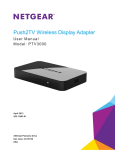
Push2TV HD TV Adapter for Intel® Wireless Display User Manual
Adapter Cable Connections
The power cord connects to the rear panel of the adapter. Plug the other end of the power
cord into an electrical outlet. The HDMI cable connects to the rear panel as shown:
HDMI
Power
Figure 2. Push2TV HD Wireless Adapter cable connections
Connect either the HDMI cable or the audio/video cable, not both. An HDMI cable will
produce higher quality images than an audio/video cable. An HDMI cable is provided in the
package with the Push2TV adapter. (Audio/video cables can be found at electronics stores.)
If you use an audio/video cable, match the connectors to the correct colors on the adapter
(yellow, white, and red). Connect each cord and cable into its correct input on the TV. (See
your TV owner’s manual if necessary.) Once the adapter is plugged in, make sure the cords
and cables are pushed all the way into their correct input positions.
Using the composite video cable (the yellow input on the audio/video cable) might cause the
TV image to be off-center. Consult the TV owner’s manual for image adjustment.
Adapter Label
The product label is located on the bottom of the Push2TV HD Wireless Adapter.
MAC address
Serial number
Restore Factory Settings button
Figure 3. Adapter label
6 | Chapter 1. Getting Started