1
d.
)NSTALLATION'UIDE
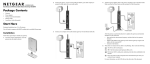
Then connect the other end into the Ethernet port of your computer. (point C in
the diagram)
54 Mbps Mobile Broadband Router MBR814
Start Here
Broadband card
in slot
Before proceeding, familiarize yourself with the contents of the product package,
especially the Reference Manual on the Resource CD and the animated tutorials on
configuring computers for networking.
C
B
A
Minimum Requirements
The MBR814 is designed for easy installation. Make sure that these minimum
requirements are met.
•
You must have an account for wireless broadband service, and you must be located in
an area with wireless broadband coverage. Check with your Internet service provider
if you are not sure.
LAN port 4
e.
3. THEN,
CONNECT TO THE INTERNET.
a.
Make sure that the blue light on the back of the broadband card is on.
b.
Check the Router Status page to make sure that wireless broadband coverage is
available.
c.
Verify connectivity to the Internet by opening a browser or verify access to
network resources such as files and printers.
d.
Make any needed configuration changes to fit your wireless local area network
(WLAN) such as setting up wireless security.
Note: For details about security settings, and wireless configuration, see the
Reference Manual on the Resource CD.
The MBR814 is now connected to the Internet and to your WLAN.
Internet
Plug in the power adapter to your router. Verify the following:
•
The power light is lit after applying power to the router.
•
The Status light comes on briefly and then goes off.
WLAN
•
Your computer must have an available Ethernet port to connect to the MBR814
during installation and setup.
•
Observe the guidelines for placement of wireless equipment as described in the
Reference Manual on the Resource CD.
a.
Turn on your computer, let the operating system boot up completely, and log in as
needed.
•
Your computer must have a wireless adapter or wireless card that is set up to run on
your network; and it must be configured with DHCP.
b.
The light on the router for the port connected to the computer lights up.
c.
From the Ethernet connected computer you just set up, open a browser such as
Internet Explorer or Netscape® Navigator.
Technical Support
d.
Connect to the router by typing http://192.168.0.1 in the address field of your
browser.
Please contact your Internet Service Provider for technical support.
1. FIRST,
2. NEXT,
INSTALL THE ROUTER.
a.
Turn off your computer.
b.
Check the router to make sure that the broadband card is securely inserted in the
slot as shown in point A in the diagram.
c.
Connect the Ethernet cable that came with your router into a LAN port on the
router such as LAN port 4 (point B in the diagram).
e.
CONNECT TO THE ROUTER.
By registering your product at http://www.NETGEAR.com/register, we can provide you
with timely expert technical support.
When prompted, enter admin for the user name and password for the password,
both in lower case letters. After logging in you will see the router menu.
© 2005 by NETGEAR, Inc. All rights reserved. NETGEAR is a registered trademark of NETGEAR, Inc. in the
United States and/or other countries. Other brand and product names are trademarks or registered trademarks of
their respective holders. Information is subject to change without notice.
July 2005