1
Basic Settings
Advanced Settings — In your Browser
Wi-Fi Passwords
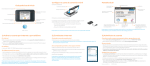
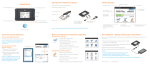
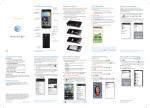
Change basic settings on the touchscreen, including:
Change advanced settings such as Wi-Fi network name and password, the
maximum number of devices, and more, via the Unite Manager web interface.
1 Connect a Wi-Fi device to your mobile hotspot.
2 Go to http://attunite in the connected device’s browser.
3 Login is attadmin.
Hide password
To hide the password on the touchscreen:
1 On the touchscreen, tap Settings > Screen.
2 Tap Wi-Fi Info on Homescreen.
3 Select Hide.
• Adjust screen timeout (Screen)
• Hide Wi-Fi network name and password (Screen)
• Update software (Software Update)
• Find hotspot’s wireless number (About)
• Set Wi-Fi range (Options)
• Enable Guest Wi-Fi (Guest Wi-Fi)
• View connected devices (Devices)
Menu
Login
Data usage
Account information
Change Wi-Fi network name and password
1 On your laptop (or other Wi-Fi device), go to http://attunite in the browser.
2 Log in as administrator. Default login is attadmin
3 Select Wi-Fi in the left-side menu.
4 In the Wi-Fi Info section, click Edit for the Wi-Fi details you want to change.
5 In the Credentials section, type your new Wi-Fi network name and password.
6 Click Save.
Note: If you change the network name or password, you may need to reconnect
your other devices to the Unite.
Advanced Connection Options
Advanced Connection Options (continued)
Network Indicators
Guest Wi-Fi
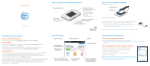
Connect WPS devices
Use Wi-Fi Protected Setup (WPS) to connect WPS-enabled devices without
entering the Wi-Fi password.
1 On the touchscreen, tap Wi-Fi > WPS.
2 Select pairing with your Main or Guest Wi-Fi network.
3 Press the WPS button on a device you want to connect to your mobile hotspot.
Your 4G LTE wireless device will display one of the following network indicators to let you know
which of AT&T’s wireless networks you are connected to.
You can give guests one-time access to your mobile
hotspot by setting up a Guest Wi-Fi network:
1 On the touchscreen, tap Wi-Fi > Guest Wi-Fi. The
current (default) guest Wi-Fi network name and
password appear.
2 Select On.
Guest users can now use this Wi-Fi network name and
password in their device’s Wi-Fi/network connection manager.
Block Device Access
To prevent a device from reconnecting to the mobile hotspot, add it to the
hotspot’s blocked list:
1 On the touchscreen, tap Wi-Fi > Devices.
2 Select the device you want to block (there could be more than one page of
connected devices).
3 Follow the displayed instructions to block the device.
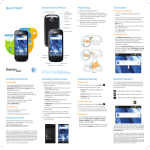
Connected to AT&T’s 4G LTE network.
Connected to AT&T’s HSPA+ network.
Connected to AT&T’s EDGE/2G network.
Limited 4G LTE availability in select markets. 4G speeds delivered by LTE, or HSPA+ with enhanced
backhaul, where available. Compatible data plan required. LTE is a trademark of ETSI. Learn more at
att.com/network.
A network indicator does not necessarily mean that you will experience any particular upload or
download data speeds. Actual upload and download data speeds depend upon a variety of factors,
including the device, network utilization, file characteristics, terrain, etc. Learn more at
wireless.att.com/learn/articlesresources/wireless-terms.jsp Your AT&T Wireless Customer
Agreement, Section 3.2 Where and How Does AT&T Service Work?
NETGEAR and the NETGEAR logo are registered trademarks of NETGEAR, Inc. LTE is a trademark of
ETSI. © 2013 AT&T Intellectual Property. All rights reserved. AT&T, the AT&T logo and all of the AT&T
marks contained herein are trademarks of AT&T Intellectual Property and /or AT&T affiliated
companies. All other marks contained herein are the property of their respective owners.