1
21| NEC MULTIPROFILER - USER’S GUIDE
About Digital Uniformity Correction
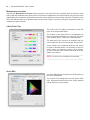
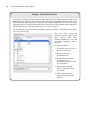
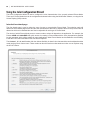
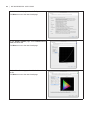
Every LCD panel will have some form of color and luminance non-uniformity across the screen. Even
though the panel used in the monitor has been carefully selected and sorted during production,
there will be some remaining non-uniformity. To reduce the impact of this, each monitor is individually measured and characterized during production to map areas of non-uniformity. This data is
then used to build an internal three-dimensional correction table and stored in the display. Screen
non-uniformity is significantly reduced when this correction is applied using the Digital Uniformity
Correction circuit.
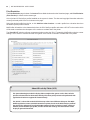
This circuit works by reducing the luminance levels of areas of the screen that are brighter than others. This is done for red, green, and blue so that uniform color as well as brightness is achieved. As a
consequence of this correction, the maximum brightness or luminance from the display is reduced
when this feature is used. The level of Digital Uniformity Correction that is applied to the display
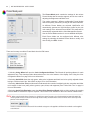
can be controlled using the Correction Level control and should be set to a level that gives the best
balance of uniformity versus brightness reduction.
The displays will intelligently adapt the level of Digital Uniformity Correction as the Brightness control is changed. If a Brightness level higher than that which can be achieved with the current Digital
Uniformity Correction level is selected, then the correction level will be reduced in order to best
achieve the selected Brightness. A warning icon will be shown next to the Brightness control in this
case to indicate that the level of Digital Uniformity Correction has been reduced due to the current
Brightness setting.
USB panel
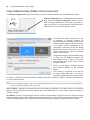
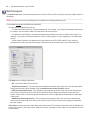
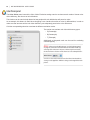
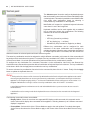
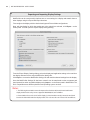
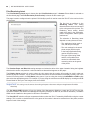
The USB panel controls the DisplaySync Pro settings.
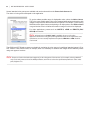
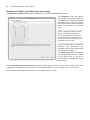
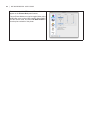
MultiProfiler allows the mapping relationship of the two upstream
(inputs) USB ports to the video inputs to be configured.
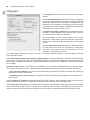
The current video input is indicated by a red arrow.
In the example shown on the left, the current video input, Display
Port 2, will select upstream port USB2. When the video input
is changed to the DVI 1 input, the upstream port USB1 will be
selected and all connected USB devices will be switched over.
Note: The USB upstream port assignment is not updated until
the current video input is changed. To immediately change the USB
upstream port, hold down the INPUT button on the front of the
monitor until the shortcut menu appears, then select the USB port.