1
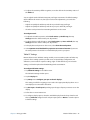
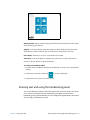
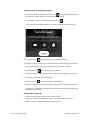
7. To adjust the sensitivity of flick recognition, move the slider in the Sensitivity section of
the Flicks tab.
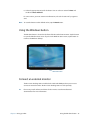
You can adjust how the Tablet PC interprets your finger movements. The default settings
will be sufficient for most users, but if you need to make adjustments, you can do the
following:
• Adjust how quickly the tablet responds when you double-tap your finger
• Adjust how quickly the tablet responds when you press and hold your finger
• Show the touch pointer when interacting with items on the screen
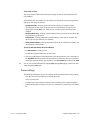
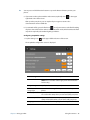
To configure touch:
1. To adjust the Double-tap action, under Touch action, tap Double-tap, then tap
Settings. Move the slider to make your adjustments.
2. To adjust the Press and hold action, under Touch action, tap Press and hold, then tap
Settings. Move the slider to make your adjustments.
3. To display the touch pointer on the screen, select Show the touch pointer.
4. Select Optimize visual feedback for projection to an external monitor if you want
the touch pointer to be visible on an external display such as a projector.
Tablet PC Settings
Motion Tablet Center’s Tablet PC settings enable you to customize your R12 to fit the way
you work. These settings provide you with access to input display configuration and
calibration; screen rotation sequence settings; right- or left-handed use; pen and touch
settings; and Touch Keyboard and Handwriting Panel customization.
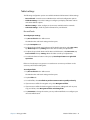
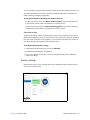
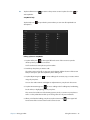
To configure Tablet PC settings:
1. Tap Tablet PC Settings in the Tablet screen.
The Tablet PC Settings window opens.
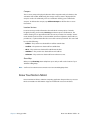
2. Tap the Display tab.
3. Tap Setup next to Configure your pen and touch displays.
This setting is useful for assigning pen or touch to the appropriate display when one or
more displays are connected to the tablet.
4. Tap Pen input or Touch input depending upon the type of input you want to use on the
display.
5. Follow the on-screen instructions.
6. To configure display options, select the available displays from the drop-down list and
then tap Calibrate configure touch and pen input options or Reset to reset the options
to default settings.
Chapter 2 Using your R12
Motion Tablet Center 22