1
About This User Guide
CAUTIONS,
WARNINGS AND
NOTICES
The following notices are found in this User Guide:
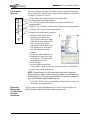
WARNING: Text set off in this way indicates that failure to follow
directions in the warning could result in bodily harm or loss of life.
CAUTION: Text set off in this way indicates that failure to follow
directions in the Caution could result in damage to the equipment or
loss of information.
IMPORTANT: Text set off in this way presents information or instructions that
should be followed or information of particular interest.
NOTE: Text set off in this way presents information or instructions.
MENU ITEMS,
BUTTONS,
ICONS
Menu items, icons, and instructions found in the procedures in this User
Guide are set apart by capitalizing them exactly as shown on screen. For
example, the Start menu, Dashboard, Tablet and Pen Settings icon,
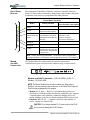
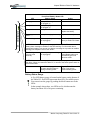
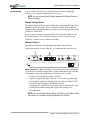
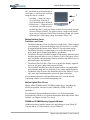
Apply, Reset, etc. Buttons on the chassis are identified through diagrams.
WRITING ON
THE DISPLAY
Writing on the Motion Tablet PC digitizer display in this User Guide
refers to any hand-written input using the specially-designed Motion
digitizer Pen, provided. The display responds only to this Motion Pen
and not to any other type of pen or to a stylus or other device such as
those used with personal digital assistants (PDAs). The display surface
may be damaged by ink pens or other pointed objects.
INK
Reference to ink in the documentation means text entered in handwritten
format and converted to an object that can be displayed exactly as you
write it.
REFERENCES
TO USING THE
PEN AND
PEN FUNCTION
BUTTON
Notations for using the Motion Digitizer Pen, which are found
throughout this User Guide, are described below:
• Tap — Tap the Pen on the Tablet PC display, without pressing the
function button on the Pen
• Double-tap — Double-tap the Pen on the display, without pressing the
function button on the Pen
• Right-click — Press the function button on the Pen and tap the Pen on
the display (equivalent to a mouse right-click)
• Press and hold — Press and hold the tip of the Pen to the display,
without pressing the function button on the Pen (equivalent to a mouse
right-click)
• Tap and drag — Tap and drag the Pen on the display
• Select/Highlight — Tap on the item on the Tablet PC display with the
Pen to activate the function
Motion Computing Tablet PC User Guide