1
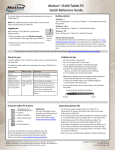
Getting Started with the Motion® J3500 Tablet PC
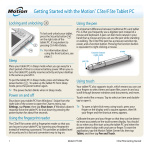
Locking and unlocking
Using the pen
To lock and unlock your tablet, press the Security button
on the right side of the tablet. It’s equivalent to pressing
Ctrl+Alt+Delete.
An important difference between traditional PCs and tablet
PCs is that you frequently use a digitizer pen instead of a
mouse and keyboard. A pen can feel more natural in your
hand than a mouse and you can use the pen while standing or walking. The J3500 pen has a pressure-sensitive tip,
eraser, and a function button. Pressing the function button
is equivalent to right-clicking a mouse.
Battery status light
Fingerprint reader
Security button
Power button
Sleep
Pen tip
Place your tablet in sleep mode when you go away for a short
period of time to conserve battery power. When you return,
the tablet quickly resumes activity and your desktop is the
same as you left it.
To put the tablet in sleep mode, press and release the power
button . To wake up the tablet from sleep mode, press the
power button again.
Tip The power button blinks when in sleep mode.
Power on and off
Shut down your tablet from Windows. Tap the Start menu
then tap Shut down. If Windows does not respond at all,
force the tablet to shut down pressing the power button
for about five seconds.
Using the fingerprint reader
The J3500 comes with a fingerprint reader so that you can
log on to your tablet PC by scanning your fingerprint instead
of entering a password. This not only provides an added level
of security for your tablet, but it is also a fast and convenient
way to log on.
1
function button
(right-click)
eraser
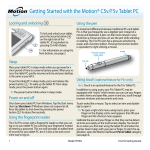
Using touch (optional)
Note: Touch is an optional feature for the J3500.
In addition to using a pen, your J3500 Tablet PC may be
equipped with “touch,”which means you can use your fingers
to select items and open files, zoom in and out, scroll through
browser windows and documents and more.
Touch works like a mouse. Tap to select an item and doubletap to open it.
TipTo open a right-click menu using touch, press your
finger on the display until a swirl appears, then lift your
finger and the shortcut menu appears.
Calibrate the pen and your finger so that they can be
detected more accurately on the touchscreen display. You
should do so when you first start using the tablet and when
the pointer doesn’t align with your pen or finger. To start
the application, open the Motion Dashboard Pen & Tablet
category (see page 3).
Model T008
J3500 Getting Started
Using the buttons on the front of the J3500
You can use the buttons on the front of the tablet PC to perform many functions without having to use the pen. Press a button to perform
certain actions. Press and hold a button to perform a different set of actions.
Press
microphone and ambient light sensor
Press and hold
Triggers built-in
Opens Windows photo
camera to take a photo gallery
Camera shutter
Motion QuickNav
Motion Dashboard
Escape
Starts Motion
QuickNav
Opens Motion QuickNav
Voice Recorder
Starts Motion
Dashboard
Opens Windows Journal™
Turns off the display
Cancels the current task
Equivalent to the Esc key
Directional pad
Customizing front panel buttons
Use to move the pointer or navigate through
documents. Equivalent to arrow keys on a keyboard. The center button is equivalent to Enter.
As you become more familiar with your J3500, you may want to
customize the buttons on the front panel. For example, you can
configure the buttons to start your favorite program, run a
command or enter a key combination.
Using speech recognition
You can use speech recognition to interact with your tablet
PC by voice. Say a voice command, for example, to select an
item, open a file, scroll, select, correct or delete a word and
much more.
Before you can use speech recognition, you must configure
the microphones and train the system for the characteristics
of your voice.
To train your computer to recognize your speech
1. In Control Panel, tap the Ease of Access category, then tap
Speech Recognition.
Also, take the Speech Tutorial to learn about all that you can
do with speech recognition.
To take the speech tutorial
1. In Control Panel, tap the Ease of Access category, then tap
Speech Recognition.
2. Tap Take Speech Tutorial.
For more information about speech recognition, search
Windows Help and Support for “speech recognition.”
2. Tap Train your computer to better understand you.
2
Model T008
J3500 Getting Started
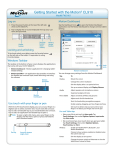
Windows Taskbar
Motion Dashboard
The taskbar at the bottom of your desktop displays applications that come with your J3500.
Tap
The the
Motion
Dashboard
Dashboard
iconprovides
to open
a convenient
the Motion
way
Dash
to change
board
common
application.
tablet-related
Use the
settings.
Motion Dashboard to
change
tablet settings.
To opencommon
Motion Dashboard
•• Motion Dashboard Motion application changing tabletrelated settings.
•• Motion QuickNav User interface designed for touch
devices. You can use this to access the web and
documentation cameras.
Motion
QuickNav
Motion
Dashboard
•• Press the Dashboard button
of the tablet PC.
located on the front
OR
•• From the Windows task bar, tap the Motion
Dashboard icon
.
The following table lists some of the tasks you can perform
using the Motion Dashboard.
Category
Task
Display
Rotate the display orientation
Adjust the brightness of the display
Windows taskbar
Set up an external display
Audio
Adjust speaker and microphone volume
Suppress background noise
Pen &
Tablet
Configure touch to use your finger only, pen
only or both your finger and a pen
Configure front panel buttons
Adjust touch to left-handed setting
Wireless
Enable and disable Wi-Fi, Bluetooth® and
mobile broadband
Choose to have wireless disabled when the
system starts up
Power
Motion Dashboard
Change what the power button does when
pressed: sleep, hibernate or shut down
help icon
Security
3
Dim the display to save power
Model T008
Set up the fingerprint reader
J3500 Getting Started
Set up wireless
The J3500 comes with built-in Wi-Fi and Bluetooth. Your tablet may also be equipped with mobile broadband for accessing the Internet. To set up available wireless networks, follow
the steps on this page:
Step 1. Enable wireless from Motion Dashboard
1. From the task bar, tap the Dashboard icon
.
2. Tap Wireless.
1. Start the Motion Connection Manager. From the Start menu,
select
All Programs > Motion Computing > MotionCM.
2. Tap the help icon
and follow the instructions
provided in the topic Setting up mobile broadband.
If you purchased the optional mobile broadband module,
your tablet PC has GPS capabilities. You can use GPS with
your preferred mapping applications to find your current
and destination locations.
3. Tap the check boxes next to all wireless networks you intend
to use:
•• Enable Bluetooth Internal Wireless
•• Enable 802.11 Internal Wireless
•• Enable Mobile Broadband with GPS*
To use GPS
•• From the notification area, tap the mobile broadband
icon then tap Start GPS.
Step 4. Set up Bluetooth
TipIf mobile broadband is not listed, your J3500 is
not configured with a mobile broadband module.
Step 2. Set up Wi-Fi
1. From the notification area tap the wireless network icon
.
2. Select a wireless network from the list of available networks.
Step 3. Set up Mobile Broadband with GPS (optional)
If you purchased your J3500 with the optional mobile broadband module, you can connect to high-speed cellular networks worldwide. With the mobile broadband module and a
data plan from one of several cellular network providers, you
have full Internet access.
Note: Before you can connect to a mobile broadband
network, you must have an active account with a cellular
network provider. Some providers require a SIM card for
mobile broadband access. If you are not sure whether
you need one, contact your mobile broadband provider.
4
To set up mobile broadband
The J3500 has a built-in Bluetooth adapter to connect to
other Bluetooth enabled devices.
To add a Bluetooth device
1. From the notification area, tap the Bluetooth icon
and select Add a Device.
2. Make sure the Bluetooth device is discoverable according
to the device manufacturer’s instructions. When a Bluetooth
device is discoverable, it is visible to other Bluetooth devices
within range.
3. Select the desired Bluetooth device from the list of devices.
4. Follow the on-screen instructions.
Tip To make the J3500 visible to other devices, tap the
Bluetooth icon then select Open settings. On the
Options tab, select Allow Bluetooth devices to
connect to this computer.
Model T008
J3500 Getting Started
Motion QuickNav
Using the documentation camera
Motion QuickNav is a user interface application designed
specifically for touch. You can useMotion QuickNav to:
Your tablet PC may have an integrated 3-megapixel autofocus camera. You can use the camera to take pictures and
save them on the tablet PC. The camera lens is on the back
of the unit and includes a light to illuminate the subject.
•• Take photos and insert them directly into your
documents or email
•• Add geographical information to photos if your tablet
has GPS which comes with the mobile broadband
module (see page 4)
•• Record video clips
•• Record or play back voice notes
To take a photograph
1. Open the Motion QuickNav tool bar then and tap the camera
icon
to open the camera viewfinder.
2. Make sure the folder icon
menu.
3. Tap the geotag icon
to add geographical information
and the time stamp icon
to add date and time information to your photos.
Starting Motion QuickNav
To start Motion QuickNav
1. Tap the Motion QuickNav icon
is selected under the Actions
4. Frame the subject of your photo in the viewfinder and tap
the shutter icon
to take the photo.
from the taskbar.
The Motion QuickNav keyboard appears at the bottom of
your desktop.
5. As you continue to take photos, they appear in the temporary folder located on the left of the viewfinder.
6. Select a photo on the left to display it in the edit window.
Tap an icon from the edit tool bar at the bottom of the edit
window to make changes. For example, tap the pencil icon
to write on or highlight the photo.
2. Tap the Motion QuickNav tool bar icon
located on the
bottom left of the keyboard to open the Motion QuickNav
tool bar.
3. Tap the QuickNav tool you want to use.
Tip You can hide the Motion QuickNav tool bar while it is
running. From the notification area, tap the Motion
QuickNav icon. Tap it again to reopen it.
7. When finished editing the photo, tap the camera icon
return the viewfinder.
to
Note Your edits are saved automatically.
8. By default, the photos are saved automatically in a folder
called New Pictures under the Documents\Camera folder.
9. When you’re done taking photos, tap the close icon
close the viewfinder.
to
10.To close Motion QuickNav, tap and hold the QuickNav icon
in the notification area and select Exit.
Windows notification area
5
TipMake sure you don’t cover the camera lens located on
the back of the tablet.
Model T008
J3500 Getting Started
Enter text with the input panel
You can enter text by either tapping characters on an onscreen keyboard or writing on a virtual note pad. When you
write on the writing pad, your handwriting converts to digital
ink. “Digital inking” is the process of converting your handwriting to text. In the writing pad below, someone started
writing Motion Computing and “Motion” has already been
converted into digital ink.
writing
pad icon
keyboard
icon
Video demonstrations
of writing tips
To open the input panel either
•• Tap at the place you want to enter text, such as
in a text box. Then tap the input pane icon
•• Tap the input panel tab on the left edge of the
screen
You can use the Home, Delete, Print Screen and other
special keys with the expanded keyboard. Tap Tools at the
top of the input panel and select Show expanded keyboard.
writing
pad
Tablet PC Input Panel Writing Pad
TipTap the icons at the top of the input panel to view
videos on making editing gestures. To hide the video
tips, tap the icon on the right.
To write numbers quickly, use the numbers pad. To open the
number pad, tap the Num key at the bottom of writing pad.
Tap the keyboard icon to open on-screen keyboard:
TipResize the keyboard panel by dragging the handle at
the bottom right of the keyboard.
6
TipUse the handwriting recognition application to train the
J3500 to recognize your handwriting style. To start the
application, open the Motion Dashboard Pen & Tablet
category (see page 3). Tap Pen & Input Devices then
the Handwriting tab.
Model T008
J3500 Getting Started
Using the battery
Battery tips
The J3500 includes two battery bays for high-capacity
Lithium-ion batteries. Under normal conditions, you can run
the tablet PC on battery power for about three hours with
one battery and about seven hours with two batteries
If a second battery is not installed, the second bay holds a
non-functioning battery cartridge.
•• Put your tablet in sleep mode when you are not using it.
•• Stop unnecessary background applications and processes.
•• When not in use, disable wireless adapters from the
Motion Dashboard Wireless page.
•• Set the brightness of the display to automatically dim
after a selected number of minutes of inactivity using the
Motion Dashboard Display page.
Checking battery power
You can check the remaining battery power from several
places.
•• Open the Motion Dashboard Power page and view the
value under Remaining charge.
•• From the notification area, tap the power indicator, which
appears differently depending on whether the tablet is
plugged in or running on battery.
– If the tablet is plugged in, tap the plug icon
.
– If the tablet is on battery power, tap the battery icon .
•• From the battery status light located on the right side of
the J3500 (see page 1).
Green indicates that the battery is fully charged.
Amber means that the battery is charging.
If the light is not on, the battery is not charging and the
tablet PC is running on battery power.
7
•• Use AC power when available. When the J3500 Tablet PC
is plugged in, the battery charges while using the tablet.
•• When using mobile broadband, reduce how often the
J3500 updates email and other Internet applications to,
perhaps, once every half-hour.
•• Disable mobile broadband where you know a signal is
unavailable.
•• Condition your battery once a month. To condition it, run
the tablet on battery power until the battery’s charge level
drops below 20 percent.
•• For long-term storage, the battery should be charged to a
level between 20% and 40% and removed from the tablet
PC.
For more power tips, see Motion Computing Tips and Tricks.
Pen and Touch tips
•• You can change from right- to left-handed use. From
Motion Dashboard Pen & Tablet category, tap Tablet PC
Settings, tap the Other tab, then tap Left-handed.
•• You can open items with one tap (instead of two) and
select an item by pointing to it. From the Control Panel,
tap Appearance and Personalization, Folder Options,
then tap Specify single- or double-click to open. Tap
Single-click to open an item (point to select).
Model T008
J3500 Getting Started
General tips
Learn more
•• Use only the J3500 pen or your finger on the display. The
tablet does not respond to any other type of pen or stylus.
•• Store the pen in the pen bay when not in use. To store the
pen in the pen bay, insert it into the bay and press it until
it clicks. To remove the pen, press it again. If you have the
pen tether attached, ensure that you have released the
pen before you pull it out using the tether.
•• When attaching the pen tether, slip one end of the tether
through the hole at the end of the pen and pull the pen
through the loop until it is tight. Then, slip the other end
of the tether through the attach point and pull the pen
through the loop until it is tight.
•• Clean fingerprints and smudges from the display surface
by wiping it with the display cloth provided. If needed,
use a cleaning solution recommended by Motion
Computing to clean the display. Spray the solution on the
cloth then wipe the display. See the recommended list of
tested solutions on our website.
The purpose of this Getting Started document is to introduce
you to your tablet’s features and provide you with tips for you
to become familiar with your tablet quickly:
The J3500 User’s Guide provides more information about the
features introduced here. You can view this and other J500
manuals at motioncomputing.com/docs.
In addition to our manuals, you can get information from our
website:
•• Motion Support
•• Motion Knowledge Base
•• Free online training videos
•• J3500 accessories
•• Software for the J3500 Tablet PC
•• You can find the serial number of the tablet PC in one of
the battery bays of the tablet PC.
Become a fan on Facebook
http://www.facebook.com/MotionComputing
Motion Computing and Motion are registered trademarks of Motion Computing, Inc. in the United States and other countries. All other trademarks are
properties of their respective owners. Microsoft, Windows, and Windows Journal are trademarks or registered trademarks of Microsoft Corporation in the
United States and/or other countries.
Copyright © 2011 Motion Computing, Inc. All rights reserved. PN 024-02-0150 Rev. A05
8
Model T008
J3500 Getting Started