1
Getting Started with the Motion® C5v/F5v Tablet PC
Locking and unlocking
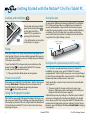
Using the pen
To lock and unlock your tablet,
press the Security button
on the right side of the
tablet PC. It’s equivalent to
pressing Ctrl+Alt+Delete.
An important difference between traditional PCs and tablet
PCs is that you frequently use a digitizer pen instead of a
mouse and keyboard. A pen can feel more natural in your
hand than a mouse and you can use the pen while standing
or walking. The C5v/F5v pen has a pressure-sensitive tip,
eraser, and a function button. Pressing the function button
is equivalent to right-clicking a mouse.
Tip: For information on using the
front buttons, see page 2.
function button
(right-click)
Sleep
Pen tip
Place your tablet PC in sleep mode when you go away for a
short period of time to conserve battery power. When you return, the tablet PC quickly resumes activity and your desktop
is the same as you left it.
To put the tablet PC in sleep mode, press and release the
power button
. To wake up the tablet PC from sleep
mode, press the power button again.
Tip The power button blinks when in sleep mode.
Power on and off
Shut down your tablet PC from Windows. Tap the Start menu
then tap Shut down. If Windows does not respond at all,
force the tablet to shut down by pressing the power
button
for about five seconds.
Using the fingerprint reader
The C5v/F5v comes with a fingerprint reader so that you can
log on to your tablet PC by scanning your fingerprint instead
of entering a password. This not only provides an added level
of security for your tablet PC, but it is also a fast and convenient way to log on.
1
eraser
Using touch (optional feature for F5v only)
Note: Touch is an optional feature for the F5v Tablet PC.
In addition to using a pen, your F5v Tablet PC may be
equipped with “touch,”which means you can use your fingers
to select items and open files, zoom in and out, scroll through
browser windows and documents and more.
Touch works like a mouse. Tap to select an item and doubletap to open it.
TipTo open a right-click menu using touch, press your
finger on the display until a swirl appears, then lift your
finger and the shortcut menu appears.
Calibrate the pen and your finger so that they can be detected more accurately on the touchscreen display. You should
do so when you first start using the tablet PC and when the
pointer doesn’t align with your pen or finger. To start the application, open the Motion Dashboard Pen & Tablet category
(see page 4).
Model CFT003
C5v/F5v Getting Started
Using the buttons on the front of the C5v/F5v
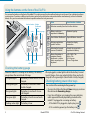
You can use the buttons on the front of the tablet PC to perform many functions without having to use the pen. Press a button to perform
certain actions. To perform a different set of actions, press the function button and another button simultaneously (as listed in the table
below). Also, you can customize the buttons to perform actions that suit your needs.
A
B
Press
function button Motion
Dashboard
button
enter
A button
Press function + button
Activates secondary function for other buttons
battery gauge
B button
directional pad
Makes a selection—
equivalent to Enter key
Windows logo key
Starts Motion Dashboard
Opens Windows Journal™
Performs applicationspecific function
Rotates the display
orientation
Activates the barcode
scanner (if installed)
Cancels the current task—
equivalent to Esc key
Moves the pointer or
navigates through
documents—equivalent to arrow keys on a
keyboard
Left = Shift + Tab
Right = Tab
Up = Page up
Down = Page down
Checking the battery gauge
When the tablet PC is running on the battery , the battery
gauge shows the current level of charge.
Four green lights
The battery is three-fourths to fully
charged.
Three green lights
The battery is one-half to threefourths charged.
Two green lights
The battery is one-fourth to onehalf charged.
One green light
The battery is less than one-fourth
charged.
Flashing amber light
The battery is low.
2
When plugged in, amber lights indicate the battery’s current
level of charge—from one amber light (less than one-fourth
charged) to four green lights (three-fourths to fully charged).
Checking battery power other ways
You can check the remaining battery power by:
•• Opening the Motion Dashboard Power category and view
the value under Remaining charge.
•• From the notification area, tapping the power indicator,
which appears differently depending on whether the
tablet PC is plugged in or running on battery.
– If the tablet PC is plugged in, tap the plug icon
– If it is on battery power, tap the battery icon
Model CFT003
C5v/F5v Getting Started
Using the documentation camera (optional)
Using the barcode scanner (optional)
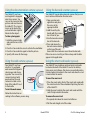
Your tablet PC may have
an integrated 3-megapixel
auto-focus camera. You
can use the camera to take
pictures and save them on
the tablet PC. The camera
lens is on the back of the
unit and includes a light to
illuminate the subject.
To take a photograph
1.Hold the camera steady
and point the lens at the
object.
2.Press the Camera button once to activate the viewfinder.
3.Press the Camera button again to take the picture.
4.Specify a file name for the image.
Your tablet PC may include a barcode scanner that you can
use to retrieve information from barcodes.
Using the web camera (optional)
Using the smart card reader (optional)
Your tablet PC may have
a built-in 1.3-megapixel
web camera that supports
color images and streaming video. You can use the
camera to interact with
people online. The web
camera is located on the
front of the tablet PC next
to the handle.
To start the web camera
Your tablet PC may include an optional smart card reader
located on the back of the tablet PC next to the battery.
Using smart card software, this device can read information
from and write information to the smart card when the card
is inserted into the reader.
A
B
Follow the instructions according to the software you are using.
1.Open your barcode
application and place
the cursor in the
appropriate field.
2.Hold the unit by the
handle with the scanner
lens in front of you.
3.Aim the barcode scanner
lens at the barcode.
4.Press and release the
barcode scanner button
on the top of the unit.
Ensure that the scan beam covers the entire barcode.
If the scan was successful, you’ll hear a beep and the data
appears in the application.
To insert the smart card
web camera
1.Place the smart card in front of the smart card reader with
the metal contacts of the embedded chip facing the back
of the tablet PC.
2.Slide the smart card into the smart card reader until the
card is firmly seated in the reader.
To remove the smart card
1.If required, shut down the smart card software.
2.Pull the card straight out of the reader.
3
Model CFT003
C5v/F5v Getting Started
Motion Dashboard
Motion Dashboard
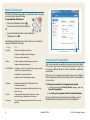
The Motion Dashboard provides a convenient way to change
common tablet-related settings.
To open Motion Dashboard
Tap the Dashboard icon
to open the Motion Dash
board application. Use the Motion Dashboard to change
common tablet settings.
•• Press the Dashboard button
located on the front of the tablet PC.
OR
•• From the Windows task bar, tap the Motion
Dashboard icon
.
The following table lists some of the tasks you can perform
using the Motion Dashboard.
Category
Task
Display
Rotate the display orientation
Motion Dashboard
help icon
Adjust the brightness of the display
Set up an external display
Audio
Using speech recognition
Adjust speaker and microphone volume
Suppress background noise
Pen & Tablet
Configure touch to use your finger only, pen only
or both your finger and a pen
Configure front panel buttons
Before you can use speech recognition, you must configure
the microphones and train the system for the characteristics
of your voice.
Adjust touch to left-handed setting
Wireless
Enable and disable Wi-Fi, Bluetooth® and
mobile broadband
Choose to have wireless disabled when the system starts up
Power
Change what the power button does when
pressed: sleep, hibernate or shut down
Security
Set up the fingerprint reader and other security
options
4
You can use speech recognition to interact with your tablet
PC by voice. Say a voice command, for example, to select an
item, open a file, scroll, select, correct or delete a word and
much more.
To train your computer to recognize your speech
1. In Control Panel, tap the Ease of Access category, then tap
Speech Recognition.
2. Tap Train your computer to better understand you.
For more information about speech recognition, search
Windows Help and Support for “speech recognition.”
Model CFT003
C5v/F5v Getting Started
Set up wireless
The C5v/F5v comes with built-in Wi-Fi and Bluetooth. Your
tablet PC may also be equipped with mobile broadband for
accessing the Internet. To set up available wireless networks,
follow the steps on this page:
Step 1. Enable wireless from Motion Dashboard
1. From the task bar, tap the Dashboard icon
.
2. Tap Wireless.
1. Start the Motion Connection Manager. From the Start menu,
select
All Programs > Motion Computing > MotionCM.
2. Tap the help icon
and follow the instructions
provided in the topic Setting up mobile broadband.
If you purchased the optional mobile broadband module,
your tablet PC has GPS capabilities. You can use GPS with
your preferred mapping applications to find your current
and destination locations.
3. Tap the check boxes next to all wireless networks you intend
to use:
•• Enable Bluetooth Internal Wireless
•• Enable 802.11 Internal Wireless
•• Enable Mobile Broadband with GPS*
To use GPS
•• From the notification area, tap the mobile broadband
icon then tap Start GPS.
Step 4. Set up Bluetooth
TipIf mobile broadband is not listed, your C5v/F5v is
not configured with a mobile broadband module.
Step 2. Set up Wi-Fi
1. From the notification area tap the wireless network icon
.
2. Select a wireless network from the list of available networks.
Step 3. Set up Mobile Broadband with GPS (optional)
If you purchased your C5v/F5v with the optional mobile
broadband module, you can connect to high-speed cellular
networks worldwide. With the mobile broadband module and
a data plan from one of several cellular network providers,
you have full Internet access.
Note: Before you can connect to a mobile broadband
network, you must have an active account with a cellular
network provider. Some providers require a SIM card for
mobile broadband access. If you are not sure whether
you need one, contact your mobile broadband provider.
5
To set up mobile broadband
The C5v/F5v has a built-in Bluetooth adapter to connect to
other Bluetooth enabled devices.
To add a Bluetooth device
1. From the notification area, tap the Bluetooth icon
and select Add a Device.
2. Make sure the Bluetooth device is discoverable according
to the device manufacturer’s instructions. When a Bluetooth
device is discoverable, it is visible to other Bluetooth devices
within range.
3. Select the desired Bluetooth device from the list of devices.
4. Follow the on-screen instructions.
Tip To make the C5v/F5v visible to other devices, tap
the Bluetooth icon then select Open settings. On
the Options tab, select Allow Bluetooth devices to
connect to this computer.
Model CFT003
C5v/F5v Getting Started
Enter text with the input panel
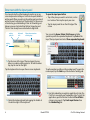
You can enter text by either tapping characters on an onscreen keyboard or writing on a virtual note pad (called the
writing pad). When you write on the writing pad, your handwriting converts to digital ink. “Digital inking” is the process
of converting your handwriting to text. In the writing pad
below, someone started writing Motion Computing and
“Motion” has already been converted into digital ink.
writing
pad icon
keyboard
icon
Video demonstrations
of writing tips
To open the input panel either
•• Tap at the place you want to enter text, such as
in a text box. Then tap the input pane icon
•• Tap the input panel tab on the left edge of the
screen
You can use the Home, Delete, Print Screen and other
special keys with the expanded keyboard. Tap Tools at the
top of the input panel and select Show expanded keyboard.
writing
pad
Tablet PC Input Panel Writing Pad
TipTap the icons at the top of the input panel to view
videos on making editing gestures. To hide the video
tips, tap the icon on the right.
To write numbers quickly, use the numbers pad. To open the
number pad, tap the Num key at the bottom of writing pad.
Tap the keyboard icon to open the on-screen keyboard:
TipResize the keyboard panel by dragging the handle at
the bottom right of the keyboard.
6
TipUse the handwriting recognition application to train the
C5v/F5v to recognize your handwriting style. To start the
application, open the Motion Dashboard Pen & Tablet
category (see page 4). Tap Pen & Input Devices then
the Handwriting tab.
Model CFT003
C5v/F5v Getting Started
Tips
General tips
Here are some tips for making the most of your tablet PC.
Pen and Touch tips
•• You can change from right- to left-handed use. From
Motion Dashboard Pen & Tablet category, tap Tablet PC
Settings, tap the Other tab, then tap Left-handed.
•• You can open items with one tap (instead of two) and
select an item by pointing to it. From the Control Panel,
tap Appearance and Personalization, Folder Options,
then tap Specify single- or double-click to open. Tap
Single-click to open an item (point to select).
Battery tips
•• Use AC power when available. When the C5v/F5v Tablet
PC is plugged in, the battery charges while in use.
•• Put your tablet in sleep mode when you are not using it.
•• Stop unnecessary background applications and processes.
•• When not in use, disable wireless adapters using the
Motion Dashboard Wireless category.
•• Set the brightness of the display to automatically dim
after a selected number of minutes of inactivity using the
Motion Dashboard Display category.
•• When using mobile broadband, reduce how often the
C5v/F5v updates email and other Internet applications to,
perhaps, once every half-hour.
•• Disable mobile broadband where you know a signal is
unavailable.
•• Use only the C5v/F5v pen or your finger on the display.
The tablet PC does not respond to any other type of pen
or stylus.
•• When attaching the pen tether, slip one end of the tether
through the hole at the end of the pen and pull the pen
through the loop until it is tight. Then, slip the other end
of the tether through the attach point and pull the pen
through the loop until it is tight.
•• Store the pen in the pen holder when not in use. To store
the pen, insert it into the pen holder and press until you
hear a click. To remove the pen, press it until it pops out. If
the tether is attached, press the pen before pulling it out
to ensure that you don’t pull it out by the tether.
•• Clean fingerprints and smudges from the display surface
by wiping it with the display cloth provided. If needed,
use a cleaning solution recommended by Motion
Computing to clean the display. Spray the solution on the
cloth then wipe the display. See the recommended list of
tested solutions on our website.
•• You can find the serial number of the tablet PC in the battery bay of the tablet PC.
Learn more
To get more detailed information on your tablet PC, go to the
C5v/F5v User’s Guide available at motioncomputing.com/docs.
In addition to our manuals, you can get information from our
website:
•• Motion Support
•• Condition your battery once a month. To condition it, run
the tablet PC on battery power until the battery’s charge
level drops below 20 percent.
•• Motion Knowledge Base
•• For long-term storage, have the battery’s charge level
between 20% and 40% then remove it from the tablet PC.
•• C5v/F5v accessories
•• Free online training videos
•• Software for the C5v/F5v Tablet PC
Motion Computing and Motion are registered trademarks of Motion Computing, Inc. in the United States and other countries. All other trademarks are properties of
their respective owners. Microsoft, Windows, and Windows Journal are trademarks or registered trademarks of Microsoft Corporation in the United States and/or other
countries. Copyright © 2011 Motion Computing, Inc. All rights reserved.
PN 024-02-0252 A01
7
Model CFT003
C5v/F5v Getting Started