1
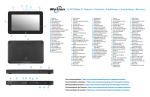
C5m/F5m Tablet PC Features
1
2
3
4
12
11
5
13
24
6
7
8
14
23
22
15
25
27
26
28
29
30
31
21
9
20
16
19
17
18
10
1 Web camera indicator light and web camera (optional)
2 Microphones
3 Function button
4 Motion Tablet Center button
5 Directional pad
6 Battery gauge
7 B button
8 A button
9 Touchscreen display
10 Dock connector
11
12
13
14
15
16
17
18
19
20
21
22
23
24
25
26
27
28
29
30
31
USB 3.0 port
Power adapter port
Windows® button
Security button
Fingerprint reader
Power button
Barcode scanner (optional)
Pen tether attach point
Volume buttons
Pen bay
Fan cover
Battery
Smart card reader (optional)
Micro-3FF SIM card slot (must remove battery)
Docking guide
Battery latch
Battery gauge button
Battery gauge light
Rear camera (optional)
Speaker
Rear camera light
User documentation: http://www.motioncomputing.com/us/support/userdocs
Documentation utilisateur : http://www.motioncomputing.com/fr/support/userdocs
Benutzerdokumentation: http://www.motioncomputing.com/de/support/userdocs
Documentación del usuario: http://www.motioncomputing.com/es/support/userdocs
Documentação do usuário: http://www.motioncomputing.com/pt/support/userdocs
Getting Started with the Motion® C5m/F5m Tablet PC
Power on and off
Using the pen
Checking battery power
Press the power button at the top right side of the
C5m/F5m Tablet PC.
An important difference between traditional PCs and
Tablet PCs is that you frequently use a digitizer pen
instead of a mouse and keyboard. The C5m/F5m pen
has a pressure-sensitive tip, eraser, and a function
button. Pressing the function button is equivalent to
right-clicking a mouse.
You can check the remaining battery power in your C5m/F5m by:
You can shut down your tablet from Windows . Tap
the Start menu then tap Shut down. If Windows doesn’t
respond, force the tablet to shut down by pressing the
power button for about five seconds.
®
Sleep
eraser
Place your C5m/F5m in Sleep mode when you go away
for a short period of time to conserve battery power.
When you return, the Tablet PC quickly resumes activity and your desktop is the same as you left it.
function button
(right-click)
To put the Tablet PC in Sleep mode, press and release
the power button. To wake up the tablet from Sleep
mode, press the power button again.
Note The power button blinks when the tablet is in Sleep mode.
pen tip
Locking and unlocking
To lock and unlock your C5m/F5m, press the Security
button on the right side of the Tablet PC.
OR
•• From the Windows Notification area, tap the power indicator, which changes appearance depending
on whether the Tablet PC is plugged in or running on battery.
– If the Tablet PC is plugged in, tap the plug icon.
– If it is on battery power, tap the battery icon.
When the tablet is plugged in, the lights on the gauge indicate the battery’s current level of charge—
from one amber light (less than 25% charged) to four green lights (between 75% and 100% charged).
Four green lights
The battery is between 75% and
100% charged.
Three green lights
The battery is between 50% and
75% charged.
Two green lights
The battery is between 25% and
50% charged.
One green light
The battery is less than 25%
charged.
Flashing amber light
The battery is low.
battery gauge
Using touch
Your C5m/F5m is equipped with 10-finger touch,
which means you can use your fingers to select items
and open files, zoom in and out, scroll through browser windows and documents, and more.
Battery tips
Touch works like a mouse. Tap to select an item and
double-tap to open it.
•• Stop unnecessary background applications and processes.
Tip
To open a right-click menu using touch, press your finger on the display until a circle appears, then lift your finger and the shortcut menu appears.
If you find that the touchscreen doesn’t respond as
you expect, or if the tablet starts to respond to unintentional touch input, you can fine-tune touch by
resetting the touch system to its optimal state. To start
the application, open Motion Dashboard, then tap Pen
& Tablet, and then tap Touch Settings.
C5m/F5m Quick Setup and Getting Started Guide
•• Opening Motion Dashboard, tapping Power, and viewing the value beside Remaining Charge.
Model CFT-004
•• Use AC power when available. When the C5m/F5m is plugged in, the battery charges while in use.
•• Put your Tablet PC in Sleep mode when you’re not using it.
•• When not in use, use Motion Dashboard to disable wireless adapters. Tap Wireless and clear the
checkbox beside the wireless device you want to disable.
•• Set the brightness of the display to automatically dim after a selected number of minutes of inactivity using the Motion Dashboard Display category. Tap Display and select the idle time from the
drop-down list beside To extend battery life, dim display after.
•• When using mobile broadband, reduce how often the C5m/F5m updates email and other Internet
applications to once every half hour or longer.
•• Disable mobile broadband when you know a signal is unavailable.
•• Condition your battery once a month. To condition it, run the Tablet PC on battery power until the
battery’s charge level drops below 20%.
2
Using the buttons on the front of the C5m/F5m
Setting up wireless
You can use the buttons on the front of the Tablet PC to perform many functions
without having to use the pen. Press a button to perform certain actions. To perform
a different set of actions, press the function button and another button simultaneously
(as listed in the table below). Also, you can customize the buttons to perform actions
that suit your needs.
The C5m/F5m includes built-in Wi-Fi® and Bluetooth®. Your Tablet PC may also be equipped with mobile broadband. To
connect to available wireless networks, follow these steps:
Step 1. Enable Wireless from Motion Dashboard
1. From the taskbar, tap the Dashboard icon.
Motion Dashboard button
function button
enter
2. Tap Wireless.
3. Enable the desired available wireless networks:
•• Bluetooth Internal Wireless
•• 802.11 Internal Wireless
•• Mobile Broadband with GPS
Tip If mobile broadband isn’t listed, your C5m/F5m
isn’t equipped with a mobile broadband module.
Step 2. Set up Bluetooth
Your C5m/F5m has a built-in Bluetooth adapter to connect
to other Bluetooth-enabled devices.
To add a Bluetooth device:
1. From the notification area, tap the Bluetooth icon
and select Add a Device.
A button
2. Make sure the Bluetooth device is discoverable
according to the device manufacturer’s instructions.
When a Bluetooth device is discoverable, it’s visible to
other Bluetooth devices within range.
B button
directional pad
Button
Press
Function
button
Activates secondary function for other buttons
Enter button
Makes a selection
(equivalent to Enter key)
Windows button (Opens the Windows
Start menu.)
Motion
Dashboard
button
Starts Motion Dashboard
Opens Windows Journal™
A button
Performs application-specific function
Rotates the display orientation
B button
Activates the barcode scanner (if
installed)
Cancels the current task
(equivalent to Esc key)
Directional
pad
Moves the pointer or navigates through
documents—equivalent to arrow keys
on a keyboard
Left = Shift + Tab
Right = Tab
Up = Page up
Down = Page down
C5m/F5m Quick Setup and Getting Started Guide
Press function + button
3. Select the desired Bluetooth device from the list of
devices.
Step 4. Set up Mobile Broadband with GPS
(optional)
If you purchased your C5m/F5m with the optional mobile
broadband module, you can connect to high-speed
cellular networks worldwide. With the mobile broadband
module and a data plan from one of several cellular network providers, you have full Internet access.
Note Before you can connect to a mobile broadband
network, you must have an active account
with a cellular network provider and obtain
a SIM card for mobile broadband access.
To set up mobile broadband:
1. Start Skylight. From the Start menu, select
All Programs > Sierra Wireless > Skylight >
Skylight.
2. Tap the connect button to connect to your
wireless networks.
Note If you purchased your C5m/F5m with the optional Mobile broadband with GPS module or the optional discrete GPS module, your tablet has GPS capabilities. You can use GPS with your preferred mapping application to find your current and destination locations. Please refer to the User’s Guide for additional information.
4. Follow the on-screen instructions.
Tip To make the C5m/F5m visible to other devices, tap the Bluetooth icon then select Open settings. On the Options tab, select Allow Bluetooth devices to connect to this computer.
Step 3. Set up Wi-Fi
1. From the Windows notification area, tap the
wireless network icon.
2. Select a wireless network from the list of
available networks.
Model CFT-004
3
Motion Dashboard
Motion Dashboard provides a convenient way to change common tablet-related settings.
To open Motion Dashboard:
•• Tap the Motion Dashboard icon in the Windows taskbar.
OR
•• Press the Motion Dashboard button on the front of the C5m/F5m.
The following table lists some of the tasks you can perform using Motion Dashboard.
Category
Task
Display
Rotate the display orientation
Adjust the brightness of the display
Set up an external display
Audio
Adjust speaker and microphone volume
Suppress background noise
Pen & Tablet
Configure touch to use your finger only, pen only, or both your finger and a pen
Configure front panel buttons
Configure tablet for left-handed use
Wireless
Enable and disable Wi-Fi® , Bluetooth®, and mobile broadband
Choose to have wireless disabled when the system starts up
Power
Change what the power button does when pressed: Sleep, Hibernate, or shut down
Security
Configure settings for Motion OmniPass, Windows Action Center, and Infineon TPM (if enabled)
C5m/F5m Quick Setup and Getting Started Guide
Model CFT-004
4
Entering text with the input panel or on-screen keyboard
Using the documentation camera
You can use different methods to enter text with your C5m/F5m to fit your needs. You can enter
text either by writing on a virtual note pad (called the writing pad) or by tapping characters
on the on-screen keyboard.
Your C5m/F5m is equipped with an integrated 8MP autofocus camera (image capture is limited to 3MP). You can
use the camera to take pictures and save them on the
Tablet PC. The camera lens is on the back of the unit.
To take a photograph:
1.Tap the camera icon
on the Windows taskbar to
activate Motion SnapWorks.
2.Hold the camera steady and point the lens at the object.
3.Press the camera icon
to take the picture.
To open the input panel, either:
•• Tap in the place where you want to enter text, such as in a text box. Then tap the input
pane icon.
OR
Documentation camera
indicator light
Documentation camera
•• Tap the input panel tab on the left edge of the screen.
writing
pad icon
keyboard
icon
Video demonstrations
of writing tips
writing
pad
Tip
Use the handwriting recognition application to train the C5m/F5m to recognize your handwriting style. To start the application, open Motion Dashboard, tap Pen & Tablet, tap Pen & Input Devices, and then tap the Handwriting tab.
Tap the keyboard icon on the input panel to open the on-screen keyboard.
Using the web camera
Web camera
indicator light
Web camera
Your C5m/F5m has a 2MP web camera that
supports color images and streaming video.
The web camera is located on the front of the
Tablet PC in the top center area.
If you’d like to use Skype™ with your web
camera, from the Start menu, select
All Programs > Skype > Skype.
Follow the on-screen instructions for using
Skype or the web camera software of your
choice.
Tip
You can resize the keyboard panel by dragging the handle at the
bottom right of the keyboard.
C5m/F5m Quick Setup and Getting Started Guide
Model CFT-004
5
Tips
Learn more
Make the most of your C5m/F5m by following these tips.
To get more detailed information on your Tablet PC, go to the
C5m/F5m User’s Guide, which is available here:
http://www.motioncomputing.com/us/support/userdocs.
Pen and Touch tips
•• You can change from right- to left-handed use. From
Motion Tablet Center, tap Tablet PC Settings, tap the
Other tab, then tap Left-handed.
Caution • Attention • Achtung • Precaución • Precaución
•• You can open items with one tap (instead of two) and
select an item by pointing to it. From the Control Panel,
tap Folder Options, then tap Single-click to open an
item (point to select).
General tips
•• Use only the C5m/F5m digitizer pen or your finger on the
display. The Tablet PC doesn’t respond to any other type
of pen or stylus.
•• When attaching the pen tether, slip one end of the tether
through the hole at the end of the pen and pull the pen
through the loop until it’s tight. Then slip the other end
of the tether through the attach point and pull the pen
through the loop until it’s tight.
In addition to our documentation, you can get the following
information from our website:
•• Read the Safety and Regulatory Guide before starting the
tablet.
•• Motion Support
•• Veuillez lire le Guide des conseils de sécurité et réglementations
avant de démarrer la tablette.
•• Free online training videos
•• Lesen Sie vor Inbetriebnahme des Tablet PC das Sicherheitsund Vorschriftshandbuch.
•• Motion Knowledge Base
•• C5m/F5m accessories
•• Software for the C5m/F5m Tablet PC
•• Lea la Guía de seguridad y normativa antes de empezar a utilizar
el tablet.
•• Leia o Guia Regulatório e de Segurança antes de ligar o tablet.
•• Store the pen in the pen storage bay when not in use. To
store the pen, press the pen release button and insert it
into the pen storage bay, tip down. To remove the pen,
press the pen release button and pull the pen upward
and out from the storage bay.
•• Clean fingerprints and smudges from the display surface
by wiping it with the display cloth provided.
•• You can find the serial number of the tablet PC in the
battery bay of the tablet PC.
For more accessories, go to http://www.motioncomputing.com/us/products/rugged-tablets/f5m#accessories
Pour davantage d’accessoires, rendez-vous sur http://www.motioncomputing.com/fr/products/rugged-tablets/f5m#accessories
Weitere Informationen zum Zubehör erhalten Sie hier http://www.motioncomputing.com/de/products/rugged-tablets/f5m#accessories
Para obtener más información sobre accesorios, visite http://www.motioncomputing.com/es/products/rugged-tablets/f5m#accessories
Para obter mais informações sobre acessórios, acesse http://www.motioncomputing.com/pt/products/rugged-tablets/f5m#accessories
Copyright © 2014 Motion Computing, Inc. All rights reserved. Motion Computing and Motion are registered trademarks of Motion Computing, Inc. in the United States and other countries.
All other trademarks are properties of their respective owners. Microsoft, Windows, and Windows Journal are trademarks or registered trademarks of Microsoft Corporation in the United
States and/or other countries.
PN 024-02-495-A00
C5m/F5m Quick Setup and Getting Started Guide
Model CFT-004
6