1
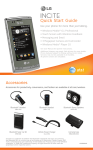
Getting to Know Your Phone
For more information, visit att.com/DeviceSupport.
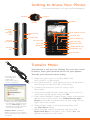
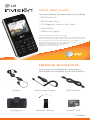
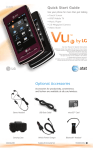
Camera
Speaker
(back)
Headset/
USB/
Charging
Port
Multitasking
Key
Camera Key
Volume
Up/Down
microSD™
Port
Left Soft Key
Earpiece
AT&T Mobile TV Key
OK/Web Key
Clear & Back Key
Right Soft Key
Send Key
Power/End Key
Voicemail
Key
Vibrate Mode Key
Navigation Key
Microphone
Transfer Music
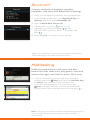
Your phone is not just for talking. You can also listen
to music from your favorite artists on your phone.
Transfer your favorite tunes today.
*microSD card
and USB data
cable sold
separately; go to
att.com/wireless.
1. Make sure your music is in MP3, WMA, AAC,
AAC+/eAAC+, or RA format.
2. Insert the microSD™ card* (gold contacts facing down)
into the port on the left side of the phone.
3. Connect the phone to your PC using a USB
data cable.*
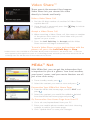
4. Once the Portable Device screen pops up on your PC,
select the second option and click OK.
**Steps may vary depending
on Windows Media Player
version. Warning! Do not
disconnect phone while file
transfer is in progress.
Requirement: Windows
Media® Player 10 or higher.
Not compatible with Mac OS
or iTunes.
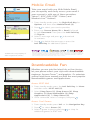
5. From within Windows Media Player, songs will populate
the left side of the screen. Your CB630 Music Sync
Player should be the destination for the songs on the
right side of the screen.
6. Check/drag** songs to be transferred, then click
the Start Sync button.
7. When finished, unlock the phone and press the
Right Soft Key to exit music sync. Select Yes, and
then disconnect the USB cable.