1
Connecting the Keyboard to the Single Port
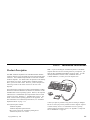
If your ThinkPad does not have a docking station or port replicator,
you must purchase an IBM Keyboard/Mouse Connector cable so that
you can attach the keyboard to the single port on your ThinkPad.
Then, connect your keyboard using the following steps:
1. Turn off your computer and all attached devices.
2. Disconnect any keyboard or mouse now attached to the computer.
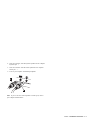
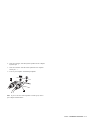
3. Attach the single connector end 1 of the Keyboard/Mouse
Connector cable to the ThinkPad mouse connector.
4. Look at the two connector ends of both the Keyboard/Mouse
Connector cable and the cable connected to the TrackPoint
keyboard. On each cable, one connector shows a symbol of a
keyboard and one shows a symbol of a mouse.
5. Attach the cables together, keyboard symbol to keyboard symbol
2 and mouse symbol to mouse symbol 3 .
6. Turn on your computer and attached peripherals.
1-6
TrackPoint Keyboard User’s Guide
For information on alternative keystrokes for the Function (Fn) keys
on your IBM ThinkPad computer, see your ThinkPad User’s Guide.