1
crystal.bk : cryst-3.fb4 Page 60 Monday, March 23, 1998 4:09 AM
3 Troubleshooting Your PC Workstation
If Your PC Workstation Does Not Start Properly
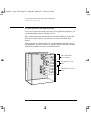
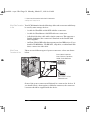
Check Internal Items
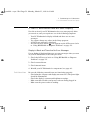
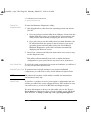
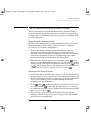
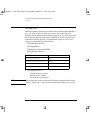
If the PC Workstation still does not start properly, follow this procedure
to check the internal items:
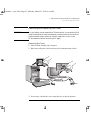
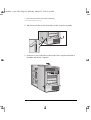
1 Turn off the display, the computer, and all external devices.
2 Unplug all power cords and cables, noting their positions. Disconnect
the PC Workstation from any telecommunications network.
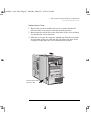
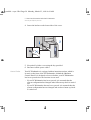
3 Remove the cover.
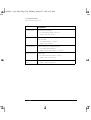
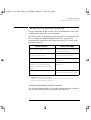
4 Check the following items:
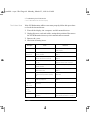
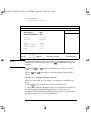
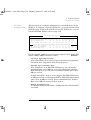
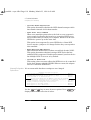
LCD Error
Messages
-
Action
Reference
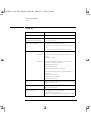
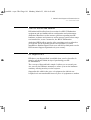
Check all internal cables.
Ensure they are correctly attached and
firmly in place.
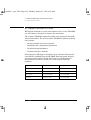
Power CPU 1
Power CPU 2
Check that the processor and VRM are
correctly installed.
Refer to “Installing a Processor”
page 53.
CPU Freq
Check that the processor speed
switches have been set correctly.
Refer to “System Board Switches”
page 99.
CPU error
Reset the PC Workstation or power-off
the LAN.
Refer to“Your PC Workstation’s
Hardware Control Panel” on page 9.
-
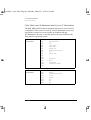
Check that the memory modules are
correctly installed.
Refer to “Installing Memory” page 31.
-
Check that accessory boards are firmly
seated in their slots.
Refer to “Installing Accessory Boards”
page 50.
-
Verify that any switches and jumpers
on the accessory boards are properly
set.
Refer to the manuals that came with
each board.
-
Check that the switches on the system
board are properly set.
Refer to “System Board Switches”
page 99.
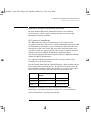
Temp disk
Temp CPU
Temp IO slot
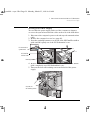
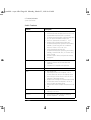
Check fans and that air flow guide is
not blocked.
Refer to the illustration on page 29.
Fan CPU
Fan disk
Fan IO slot
Check that fans are installed correctly.
Refer to the illustration on page 29.
Power supply
Check that power supply is properly
connected.
Refer to “Replacing the Power Supply
after Installing Accessories” on page 30
60 English