1
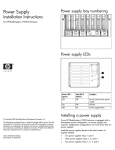
Fan bay numbering
HP Active Cool Fan
Installation Instructions
for HP BladeSystem c7000 Enclosures
Fan LEDs
LED color
Fan status
Solid green
The fan is working.
Solid amber
The fan has failed.
Flashing amber See the Insight Display screen.
NOTE: When installing a fan in a fan bay located on
the top row of the enclosure, the fan should be
oriented so the LED is in the lower right corner. When
installing a fan in a fan bay located on the bottom
row of the enclosure, the fan should be oriented so the
LED is in the upper left corner.
© Copyright 2006 Hewlett-Packard Development Company, L.P.
The information contained herein is subject to change without notice. The only
warranties for HP products and services are set forth in the express warranty
statements accompanying such products and services. Nothing herein should
be construed as constituting an additional warranty. HP shall not be liable for
technical or editorial errors or omissions contained herein.
March 2006 (First Edition)
Part Number 413968-001
Installing fans
The HP BladeSystem c7000 Enclosure is shipped with four HP
Active Cool Fans and supports up to 10 fans. Fans should be
installed in even-numbered groups. Install fans based on the
total number of fans ordered:
•
Four fans: Bays 3, 5, 8, and 10
•
Six fans: Bays 1, 3, 5, 6, 8, and 10
•
Eight fans: Bays 1, 3, 4, 5, 6, 8, 9, and 10
•
Ten fans: All bays
Install fan blanks in any unused fan bays.
To install a fan:
1.
Turn the fan blank handle counterclockwise to the unlock
position, and pull the fan blank from the enclosure.
2.
Position the fan so that the LED is near the interconnect
bay, and slide the fan into the enclosure until it locks into
place.
To remove a fan, turn the fan handle counterclockwise, and
pull the fan from the enclosure.
The installation is complete.