1
Chapter 1
Status light overview
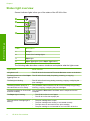
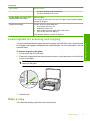
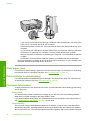
Several indicator lights inform you of the status of the HP All-in-One.
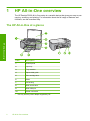
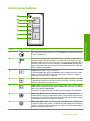
HP All-in-One overview
Label
Description
1
On light
2
Check Print Cartridge lights
3
Paper light
4
Paper Type lights (for the Paper Type button)
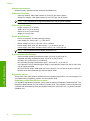
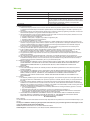
The following table describes common situations and explains what the lights mean.
Light status
What it means
All lights are off.
The HP All-in-One is turned off. Press the On button to turn on the device.
The On light and one of the Paper
Type lights are on.
The HP All-in-One is ready for printing, scanning, or copying.
The On light is blinking.
The HP All-in-One is busy printing, scanning, copying, or aligning the
print cartridges.
The On light blinks quickly for 3
seconds and then is on steady.
You pressed a button while the HP All-in-One is already busy printing,
scanning, copying, or aligning the print cartridges.
The On light blinks for 20 seconds
and then is steady.
You pressed the Scan button and there was no response from the
computer.
The Paper light is blinking.
•
•
The HP All-in-One is out of paper.
The HP All-in-One has a paper jam.
The Check Print Cartridge light is
blinking.
•
•
•
•
The print cartridge door is open.
The print cartridges are missing or not seated correctly.
The tape was not removed from the print cartridge.
The print cartridge is not intended for use in this HP All-in-One.
4
HP All-in-One overview