1
SECTION 4 – NAV/COM &
TRANSPONDER
4.7
ADF Radio (optional)
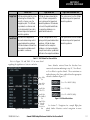
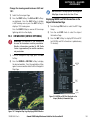
The G1000 does not support tuning of the ADF in
Nav III aircraft. ADF tuning is accomplished through the
Bendix/King KR 87 ADF Radio. ADF volume must also be
adjusted through the KR 87.
4.6
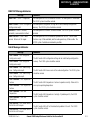
FREQUENCY AUTO-TUNING
TRANSPONDER
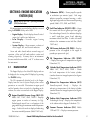
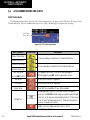
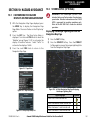
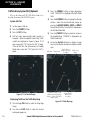
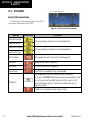
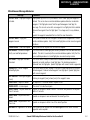
Mode Selection
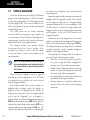
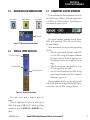
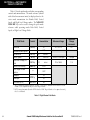
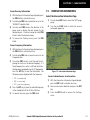
The STBY, ON, ALT, GND, VFR, CODE, and IDENT
Softkeys can be accessed by pressing the XPDR Softkey.
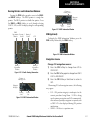
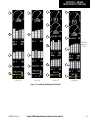
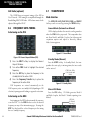
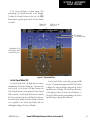
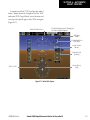
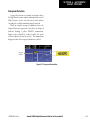
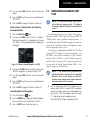
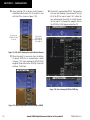
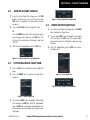
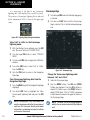
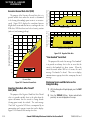
Ground Mode (Automatic or Manual)
GND is displayed when the aircraft is on the ground or
when the GND Softkey is pressed. The transponder does
not allow Mode A and Mode C replies, but it does permit
acquisition squitter and replies to discretely address
Mode S interrogations.
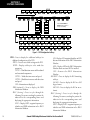
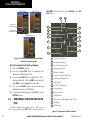
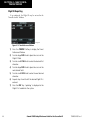
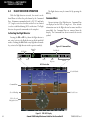
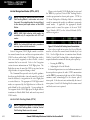
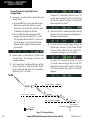
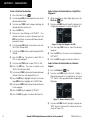
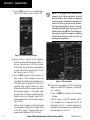
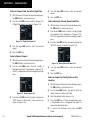
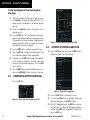
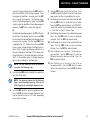
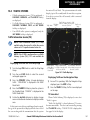
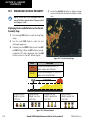
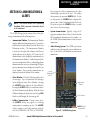
Auto-tuning on the PFD
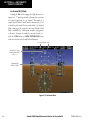
Figure 4-11 Ground Mode
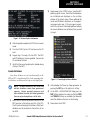
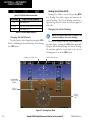
Figure 4-10 Nearest Airports Window (PFD)
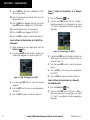
1) Press the NRST Softkey to display the Nearest
Airports Window.
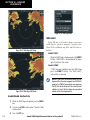
2) Turn either FMS Knob to highlight the desired
frequency.
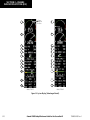
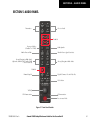
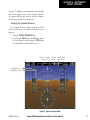
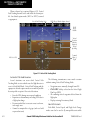
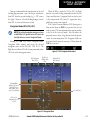
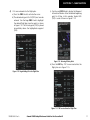
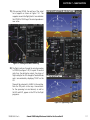
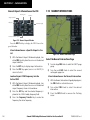
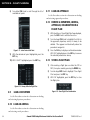
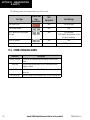
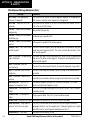
Standby Mode (Manual)
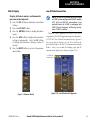
Press the STBY Softkey. In Standby Mode, the transponder does not reply to interrogations, but new codes
can be entered.
STBY Mode (White
Code Number and
Mode)
3) Press the ENT Key to place the frequency in the
standby field of the active COM.
4) Press the Frequency Transfer Key to place the
frequency in the active field.
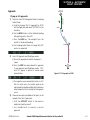
NAV frequencies are entered automatically in the
NAV frequency active or standby field (depending in CDI
selection) upon approach loading or approach activation.
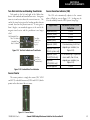
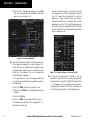
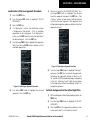
Auto-tuning on the MFD
Auto-tuning on the MFD is done in much the same way
as on the PFD. Use the FMS Knobs to select the desired
frequency on any of the information pages. Pressing the
ENT Key then loads the selected frequency in the tuning
box as a standby frequency.
4-4
Figure 4-12 Standby Mode
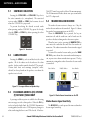
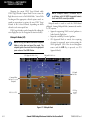
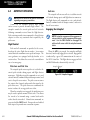
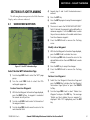
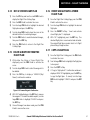
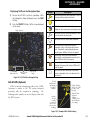
Manual ON Mode
Press the ON Softkey. ON Mode generates Mode A
and Mode S replies, but Mode C altitude reporting is inhibited.
ON Mode
(No Altitude
Reporting)
Figure 4-13 ON Mode
Garmin G1000 Cockpit Reference Guide for the Cessna Nav III
190-00384-08 Rev. A