1
P3PC-2722-01ENZ0
Operator's Guide
Introduction
Thank you for purchasing FUJITSU color image scanner, ScanSnap S1300 (hereinafter
referred to as "the ScanSnap").
This manual explains how to handle and operate the ScanSnap.
Be sure to read this guide, "Safety Precautions" and "Getting Started" thoroughly before
using the ScanSnap to ensure correct use.
If you are using a Microsoft® Windows® operating system, either Adobe® Acrobat® (7.0 or
later) or Adobe® Reader® (7.0 or later) is required to display or print this manual.
Trademarks
Microsoft, Windows, Windows Vista, PowerPoint, SharePoint, and Entourage are either
registered trademarks or trademarks of Microsoft Corporation in the United States and/or
other countries.
Word and Excel are the products of Microsoft Corporation in the United States.
Apple, the Apple logo, Mac, Mac OS, iPhoto and Rosetta are trademarks of Apple Inc.
Adobe, the Adobe logo, Acrobat, Adobe Reader, and Acrobat Reader are either registered
trademarks or tradenames of Adobe Systems Incorporated in the United States and/or other
countries.
Intel, Pentium and Intel Core are trademarks or registered trademarks of Intel Corporation in
the United States and other countries.
PowerPC is a trademark of International Business Machines Corporation in the United
States, other countries, or both.
Cardiris is a trademark of I.R.I.S.
ABBYY, FineReader are trademarks of ABBYY.
ScanSnap, the ScanSnap logo, CardMinder and Rack2-Filer are registered trademarks or
trademarks of PFU LIMITED in Japan.
Other company names and product names are the trademarks or registered trademarks of
the respective companies.
Manufacturer
PFU LIMITED
International Sales Dept., Imaging Business Division, Products Group
Solid Square East Tower
580 Horikawa-cho, Saiwai-ku, Kawasaki-shi, Kanagawa 212-8563, Japan
Phone: (81-44) 540-4538
All Rights Reserved, Copyright © PFU LIMITED 2009
2
Introduction
Disclaimer
zReproducibility of the scanned image data
Confirm that the image data scanned with the ScanSnap meets your requirements (e.g.
image reproducibility in size accuracy, information amount, fidelity, content and color).
zDisposing of the original document
Check the image data using the application where you transfered the image data to
make sure that there are no missing parts before disposing of the original document
scanned with the ScanSnap.
It is the responsibility of the customer to store and manage the scanned image data,
and dispose of the original document scanned with the ScanSnap.
Manuals
When using the ScanSnap, read the following manuals as needed:
Manual
Description
Reference Method
Safety Precautions
Read this manual for
information about the safe
use of the ScanSnap.
Make sure to read this
manual before using the
ScanSnap.
Included in the package.
ScanSnap S1300
Getting Started
Read this manual for how to
install and connect the
ScanSnap.
Included in the package.
ScanSnap S1300
Operator's Guide
(this manual)
Read this manual for
information about basic
operations of ScanSnap, the
scanning methods, various
settings, troubleshooting, and
handling of the ScanSnap.
3
Select the [Start] menu J [All Programs] J
[ScanSnap Manager] J [Scan Snap
Operator's Guide]
From the Finder, select [Applications] J
[ScanSnap] J [Manual] J [Operator's
Guide.pdf]
Introduction
Manual
ScanSnap Organizer
User's Guide
CardMinder User's
Guide
Description
Read these manuals when
using this product for the first
time, or when you need more
information on product
features, windows, operating
environment and functions.
Reference Method
Select the [Start] menu J [All Programs] J
[ScanSnap Organizer]J [Manual]
Select the [Start] menu J [All Programs] J
[CardMinder] J [Manual]
Cardiris GETTING
STARTED
From the Finder, select [Applications] J
[Cardiris 3.6 for ScanSnap] J [User's
Manual.pdf]
ABBYY FineReader for
ScanSnap User's
Guide
Select the [Start] menu J [All Programs] J
[ABBYY FineReader for ScanSnap(TM) 4.1]J
[User’s Guide]
Scan to Microsoft
SharePoint User Guide
Select the [Start] menu J [All Programs] J
[KnowledgeLake] J [Scan to Microsoft
SharePoint User Guide]
ScanSnap Manager
Help
Use this Help when questions
or problems regarding
operations (e.g when setting
items) arise.
This help provides an
explanation for every
operation, dialog box/window
and message.
Refer to this help manual by either of the
following methods:
Right-click the ScanSnap Manager taskbar
icon
or
, and then select [Help] J
[Help].
In Windows 7, the ScanSnap Manager icon
is displayed in the menu that appears when
you click
in the taskbar.
z Click the Help button (
) for ScanSnap
Manager.
z Press the [F1] key on the keyboard when a
dialog box is displayed.
z Click the [Help] button in each dialog box.
z
Click the ScanSnap Manager icon
or
in the Dock while pressing the [control]
key on the keyboard, and then select [Help]
J [Help].
z Click the Help button ( ) for ScanSnap
Manager.
z From the menu bar, select [Help] J
[ScanSnap Manager Help].
z
For details about how to start up help, refer to
the User's Guide for each product.
ScanSnap Organizer
Help
CardMinder Help
Cardiris Help
From the menu bar, select [Help] J [Cardiris
Help].
ABBYY FineReader for
ScanSnap Help
From the menu bar, select [Help] J
[FineReader for ScanSnap Help].
4
Introduction
■About This Manual
Structure of This Manual
This manual consists of the following:
ScanSnap Overview
This chapter explains the features, the names of parts and their functions, the
system requirements, and basic operations of the ScanSnap.
Installing the Software
This chapter provides a brief summary of the bundled software and
explanation on how to install them.
Using the ScanSnap (for Windows Users)/ Using the ScanSnap (for Mac OS
Users)
This chapter explains how to perform a scan with the ScanSnap, change or
save scan settings, and other various functions of the ScanSnap.
Troubleshooting
This chapter explains how to remove jammed documents and resolve other
problems.
Daily Care
This chapter explains how to clean the ScanSnap.
Consumables
This chapter explains how to replace pad assy or pick roller.
Appendix
This appendix explains how to update ScanSnap Manager and uninstall the
software, setting items, and the ScanSnap installation specifications.
Read this manual in order starting from "ScanSnap Overview" through "Using the
ScanSnap" for a better understanding of ScanSnap operations.
5
Introduction
Symbols Used in This Manual
The following indications are used in this manual to obviate any chance of accident or
damage to you and people near you, and your property. Warning labels indicate the warning
level and statements. The symbols indicating warning levels and their meanings are as
follows:
Indication
Description
WARNING
This indication alerts operators to an operation that, if not
strictly observed, may result in severe injury or death.
CAUTION
This indication alerts operators to an operation that, if not
strictly observed, may result in safety hazards to personnel
or damage the product.
Besides warning indicators, the following symbols are also used in this manual:
Symbol
Description
This symbol alerts operators to particularly important information.
Be sure to read this information.
This symbol alerts operators to helpful advice regarding operations.
This symbol indicates operations using Windows.
This symbol indicates operations using Mac OS.
Arrow Symbols in This Manual
Right-arrow symbols (J) are used to connect icons or menu options you should select in
succession.
Example: Select the [Start] menu J [Computer].
6
Introduction
Screen Examples in This Manual
zWindows screen
Screenshots in this manual are used according to guidelines provided by Microsoft
Corporation.
The screenshots used in this manual are of Windows Vista.
The actual windows and operations may differ depending on the operating system that you
are using.
zMac OS screen
The screenshots used in this manual are of Mac OS X v10.5.
The actual windows and operations may differ depending on the Mac OS that you are using.
The screen examples in this manual are subject to change without notice in the interest of
product improvement.
If the actual screen differs from the screen examples in this manual, operate by following the
actual displayed screen.
7
Introduction
Abbreviations Used in This Manual
The following abbreviations are used in this manual:
Windows 7
: Microsoft® Windows® 7 Starter operating system, English Version
Microsoft® Windows® 7 Home Premium operating system, English
Version
Microsoft® Windows® 7 Professional operating system, English Version
Microsoft® Windows® 7 Enterprise operating system, English Version
Microsoft® Windows® 7 Ultimate operating system, English Version
Windows Vista
: Microsoft® Windows Vista® Home Basic operating system, English
Version
Microsoft® Windows Vista® Home Premium operating system, English
Version
Microsoft® Windows Vista® Business operating system, English Version
Microsoft® Windows Vista® Enterprise operating system, English Version
Microsoft® Windows Vista® Ultimate operating system, English Version
Windows XP
: Microsoft® Windows® XP Professional operating system, English Version
Microsoft® Windows® XP Home Edition operating system, English Version
Windows 2000
: Microsoft® Windows® 2000 Professional operating system, English
Version
Windows
: Windows 7, Windows Vista, Windows XP and Windows 2000
Microsoft Office
: Microsoft® Office
Word
: Microsoft® Office Word
Excel
: Microsoft® Office Excel
PowerPoint
: Microsoft® Office PowerPoint®
SharePoint
: Microsoft® Office SharePoint® Server 2007, English Version
Microsoft® SharePoint® Portal Server 2003, English Version
Microsoft® Windows® SharePoint® Services 2.0/3.0, English Version
Office Live
: Microsoft® Office Live
Internet Explorer
: Windows® Internet Explorer®
Microsoft® Internet Explorer®
Microsoft Live Mail
: Microsoft® Live Mail
Microsoft Windows
Mail
: Microsoft® Windows® Mail
Microsoft Office Outlook : Microsoft® Office Outlook®
Microsoft Outlook
Express
: Microsoft® Outlook Express
.NET Framework
: Microsoft® .NET Framework
Microsoft Entourage
: Microsoft® Entourage®
Mac OS
: Mac OS X v10.6
Mac OS X v10.5
Mac OS X v10.4
8
Introduction
Adobe Acrobat
: Adobe® Acrobat®
Adobe Reader
: Adobe® Reader®
ABBYY FineReader for
ScanSnap
: ABBYY FineReader for ScanSnap™
All the descriptions in this manual assume the usage of ABBYY
FineReader for ScanSnap bundled with this product. Unless otherwise
specified, the term ABBYY FineReader for ScanSnap refers to the ABBYY
FineReader for ScanSnap bundled with this product.
Note that ABBYY FineReader for ScanSnap bundled with this product
may be upgraded without notice.
If the descriptions differ from the actual displayed screens, refer to ABBYY
FineReader for ScanSnap Help.
Cardiris
: Cardiris™ for ScanSnap
ScanSnap:
: ScanSnap S1300
9
Contents
Introduction ............................................................................. 2
About This Manual ........................................................................... 5
ScanSnap Overview.............................................................. 14
Features of the ScanSnap ...................................................................... 15
Parts and Functions ................................................................................ 18
Front................................................................................................................... 18
Back ................................................................................................................... 19
System Requirements ............................................................................ 20
Windows............................................................................................................. 20
Mac OS .............................................................................................................. 23
Turning the ScanSnap ON/OFF ............................................................. 25
Paper Sizes of Documents ..................................................................... 26
How to Load Documents ........................................................................ 28
Basic Flow of Operations ....................................................................... 31
Installing the Software.......................................................... 33
Bundled Software .................................................................................... 34
Installing Scan to Microsoft SharePoint .............................................. 35
Installing Trial Version of the Software ................................................ 37
Using the ScanSnap (for Windows Users) ......................... 39
ScanSnap Manager Icon and Operations ............................................. 40
Right-Click Menu................................................................................................ 41
Left-Click Menu .................................................................................................. 42
How to Perform a Scan ........................................................................... 43
Preparation......................................................................................................... 43
Using the Quick Menu........................................................................................ 44
Without Using the Quick Menu........................................................................... 49
Finishing ScanSnap Operation .......................................................................... 52
10
Contents
Setting the ScanSnap ............................................................................. 53
Changing the Scan Settings............................................................................... 53
Saving Scan Settings ......................................................................................... 56
Automatic Linkage with Applications.................................................................. 66
Showing the Scanning Progress Status............................................................. 69
About the ScanSnap's Communication Status................................................... 71
About Actions .......................................................................................... 73
Saving Data in a Specified Folder...................................................................... 74
Attaching Files to E-Mail .................................................................................... 82
Using the ScanSnap as a Copy Machine........................................................... 92
Saving Files to Picture Folder ............................................................................ 99
Converting into Word/Excel/PowerPoint Documents ....................................... 106
Scanning Business Cards ................................................................................ 113
Saving Data in SharePoint ............................................................................... 120
Saving to Rack2-Filer....................................................................................... 130
Using the ScanSnap in Various Ways ................................................. 136
Scanning Only One Side of a Document ......................................................... 136
Scanning Color Documents in Black & White or Gray Mode ........................... 138
Scanning Color Documents in High Compression Mode ................................. 140
Removing Blank Pages from the Scanned Image Data................................... 142
Correcting Skewed Character Strings.............................................................. 144
Correcting the Orientation of Scanned Images ................................................ 146
Scanning Documents of Different Widths or Lenghts at the Same Time ......... 148
Scanning Long Pages ...................................................................................... 152
Saving Scanned Images in Multiple PDF Files ................................................ 154
Creating Searchable PDF Files........................................................................ 156
Automatically Setting Keywords to PDF Files .................................................. 159
Setting Document Open Passwords for PDF Files .......................................... 164
Using the ScanSnap (for Mac OS Users).......................... 168
ScanSnap Manager Icon and Operations ........................................... 169
ScanSnap Manager Menu ............................................................................... 170
Profile Menu ..................................................................................................... 171
How to Perform a Scan ......................................................................... 172
Preparation....................................................................................................... 172
Using the Quick Menu...................................................................................... 173
Without Using the Quick Menu......................................................................... 177
Finishing ScanSnap Operation ........................................................................ 180
Setting the ScanSnap ........................................................................... 181
Changing the Scan Settings............................................................................. 181
11
Contents
Saving Scan Settings ....................................................................................... 183
Automatic Linkage with Applications................................................................ 194
Showing the Scanning Progress Status........................................................... 195
About Actions ........................................................................................ 197
Saving Data in a Specified Folder.................................................................... 198
Attaching Files to E-Mail .................................................................................. 205
Using the ScanSnap as a Copy Machine......................................................... 213
Converting into Word/Excel Documents .......................................................... 219
Scanning Business Cards ................................................................................ 226
Saving Data in iPhoto....................................................................................... 235
Using the ScanSnap in Various Ways ................................................. 240
Scanning Only One Side of a Document ......................................................... 240
Scanning Color Documents in Black & White or Gray Mode ........................... 242
Removing Blank Pages from the Scanned Image Data................................... 244
Correcting Skewed Character Strings.............................................................. 246
Correcting the Orientation of Scanned Images ................................................ 248
Scanning Documents of Different Widths or Lengths at the Same Time ......... 250
Scanning Long Pages ...................................................................................... 254
Saving Scanned Images in Multiple PDF Files ................................................ 256
Creating Searchable PDF Files........................................................................ 258
Automatically Setting Keywords to PDF Files .................................................. 261
Troubleshooting.................................................................. 266
Clearing Paper Jams ............................................................................. 267
Troubleshooting Checklist ................................................................... 269
Daily Care ............................................................................ 280
Cleaning Materials ................................................................................ 281
Cleaning the Exterior of ScanSnap ..................................................... 282
Cleaning the Inside of the ScanSnap .................................................. 283
Consumables ...................................................................... 286
Part Numbers and Replacement Cycle of Consumables .................. 287
Replacing the Pad Assy ....................................................................... 289
Replacing the Pick Roller ..................................................................... 293
12
Contents
Appendix.............................................................................. 300
Updating ScanSnap Manager .............................................................. 301
Updating on a Windows OS ............................................................................. 301
Updating on a Mac OS..................................................................................... 303
Uninstalling the Software ..................................................................... 305
Uninstalling on a Windows OS......................................................................... 305
Uninstalling on a Mac OS................................................................................. 307
Setting Items With/Without the Quick Menu ....................................... 311
Installation Specifications .................................................................... 315
About Maintenance............................................................. 316
INDEX ................................................................................... 317
13
ScanSnap Overview
This chapter explains the features, part names and functions, system requirements, and basic
operations of the ScanSnap.
Features of the ScanSnap. . . . . . . . . . . . . . . . . . . . . . . . . . . . . . . . . . . . . . . . . . . . . . . 15
Parts and Functions. . . . . . . . . . . . . . . . . . . . . . . . . . . . . . . . . . . . . . . . . . . . . . . . . . . . 18
System Requirements . . . . . . . . . . . . . . . . . . . . . . . . . . . . . . . . . . . . . . . . . . . . . . . . . . 20
Turning the ScanSnap ON/OFF . . . . . . . . . . . . . . . . . . . . . . . . . . . . . . . . . . . . . . . . . . 25
Paper Sizes of Documents . . . . . . . . . . . . . . . . . . . . . . . . . . . . . . . . . . . . . . . . . . . . . . 26
How to Load Documents . . . . . . . . . . . . . . . . . . . . . . . . . . . . . . . . . . . . . . . . . . . . . . . . 28
Basic Flow of Operations. . . . . . . . . . . . . . . . . . . . . . . . . . . . . . . . . . . . . . . . . . . . . . . . 31
14
Features of the ScanSnap
Features of the ScanSnap
The ScanSnap is a scanner that is capable of duplex (double-sided) monochrome and color
scanning.
The ScanSnap has the following features:
zTurn documents into digital data by just pressing the [Scan] button!
You can turn documents cluttering up your desk into PDF or JPEG files so that you can
conveniently view, edit, manage and archive them on your computer.
Digitized documents are easy to print and attach to e-mail messages.
In addition, the ScanSnap can automatically recognize the document type, whether it is
a color, gray or black & white document, so that you do not have to set the color mode
for each document.
zScan documents with speed and efficiency!
Double-sided color documents of A4 or letter size can be scanned as follows:
- Power cable connection: approx. 8 sheets per minute.
- USB bus power cable connection: approx. 4 sheets per minute.
Corresponding system requirements and scan settings are as follows:
z System requirements
Intel® Core™ 2 Duo 2.2 GHz or higher
Windows 7, Windows Vista and Windows XP operating systems
Intel® Core™ 2 Duo 2.4 GHz or higher
Mac OS X v10.6, Mac OS X v10.5 and Mac OS X v10.4 operating systems
z Scan setting (*)
When [Image quality] is set to [Normal], [Color mode] to [Auto Color Detection],
[Compression rate] to [3], and other settings are in default
* : - Scanning speed may become slower in [B&W] (black & white) mode depending on the
document.
Example: Scanning color brochures in [B&W] mode (converting a color image to a black &
white one)
- Scanning speed may become slower when [Correct skewed character strings automatically],
[Allow automatic image rotation] and/or [Convert to Searchable PDF] is enabled.
zSmall size saves desktop space!
Smaller than an A4 or letter size paper, the ScanSnap does not require much desktop
space.
15
Features of the ScanSnap
zCompact, lightweight and portable!
The ScanSnap is compact and lightweight, allowing you to carry it around together with
your laptop computer.
You also do not need to worry about finding an electrical outlet when you use the USB
bus power cable provided to connect the ScanSnap to your laptop computer.
zThe Quick Menu lets even first time users operate the ScanSnap with
ease!
The Quick Menu is simple enough to operate even for first time users. After you press
the [Scan] button to scan a document, the Quick Menu is displayed so that you can just
select the action you want to perform on the Quick Menu.
zAutomatically recognizes color and black & white documents! (Auto
Color Detection)
The ScanSnap determines the color modes of documents, outputs color documents in
color, black & white documents in black & white and black & white documents with
photos or illustrations in grayscale mode, and can optimize PDF file sizes with this
function.
zScan different size documents together! (Automatic Page Size
Detection)
Paper sizes are automatically recognized when a scan is performed, allowing
documents with a mixture of different paper sizes to be scanned all at once.
zResolution level is converted to match the paper size! (Automatic
Resolution Function)
The documents are scanned at 300 dpi. If the paper size is 148 mm or smaller, image
files are output at 300 dpi. Otherwise, image files are output at 200 dpi. You can scan
high resolution image data (for example business cards) without changing any settings
when the scanner is interacting with text recognition software.
zCreate searchable PDF files!
You can create searchable PDF files by performing automatic text recognition for PDF
files after scanning.
You can also perform text recognition only on sections defined by a highlight pen and
add these as keywords for the PDF file.
zE-mail or print a scanned image directly after scanning!
You can attach the scanned image to an e-mail without needing any additional
applications or print it out instead of using a copy machine.
zThe ScanSnap supports both Windows and Mac OS!
You can use the ScanSnap in a manner that best suits your office environment in either
Windows or Mac OS (*).
* : The following functions are not available for Mac OS:
• Color high compression
• Setting the document face-up
• Setting passwords for PDF files
16
Features of the ScanSnap
zConvert paper documents into Word/Excel/PowerPoint files!
Use ABBYY FineReader for ScanSnap bundled with the ScanSnap to convert the
scanned image data directly into a Word/Excel/PowerPoint file.
In Mac OS, only conversion to Word and Excel files is supported.
zArrange and manage image data by using the ScanSnap with ScanSnap
Organizer!
z Setting a keyword (Intelligent Indexing)
You can set a keyword using the following methods:
- Recognize a character string on a page (OCR) and set as a keyword (Zone OCR)
- Set any character string as a keyword
- Set a marked character string as a keyword (Marker Index)
- Drag and drop a keyword into the keyword list (Keyword Addition by Drag&Drop)
You can view set keywords in thumbnails. (Keyword Overlay)
z Distributing files by keyword (Automatic Keyword Sort)
Files can also be sorted into folders according to the keyword set for files as a sorting
condition.
z Search a variety of files (Search Engine Selection)
Files can be found quickly searched by file name, keyword, text, or date.
z Cropping marked sections (Intelligent Cropping)
Sections on a page that are marked with a highlight pen can be cut and pasted
elsewhere to create scrapbooks.
zFile business cards with ease!
Text recognition can be performed on business cards which then can be easily
converted into digital data with the provided business card application. With
CardMinder, you can create a database which facilitates data search of business cards
converted into digital data.
The bundled business card management application is as follows:
CardMinder
Cardiris
Note: The ScanSnap does not conform to TWAIN, ISIS and WIA standards.
17
Parts and Functions
Parts and Functions
This section explains names and functions of the ScanSnap parts.
■ Front
ADF paper chute (cover)
Open the cover to use the ScanSnap.
D Opening the cover turns on the ScanSnap.
ADF top section
(ADF: Automatic Document Feeder)
Open the cover to remove jammed documents,
replace pad assy and pick roller, and clean the inside
of the ScanSnap.
Extension
Pull this part up when scanning long documents.
ADF paper chute (cover)
You can load the documents here after opening it.
Side guide
Adjust the side guides to the width of documents to
prevent scanned images from getting skewed.
ADF release tab
Pull the ADF release tab towards you to open the
ADF top section.
[Scan] button
Press this button to start scanning.
It indicates the power status of the ScanSnap as
follows:
Blue (lit)
: Ready
Blue (flashing)
: Scanning
Orange (flashing) : Error
18
Parts and Functions
■ Back
Tape seal
Remove this tape seal after installing the
software.
Security cable slot
Insert a commercially available security cable
into this slot (anti-theft).
Power connector
USB connector
19
System Requirements
System Requirements
The system requirements for the ScanSnap are as follows:
■ Windows
zOperating system
-
Windows 7
Windows Vista
Windows XP
Windows 2000
Windows 7
Windows
Vista
Windows
XP
(*1)
Windows
2000
(*2)
ScanSnap Manager
OK
OK
OK
OK
ScanSnap Organizer
OK
OK
OK
OK
CardMinder
OK
OK
OK
OK
ABBYY FineReader for ScanSnap
OK
OK
OK
OK
Scan to Microsoft SharePoint
OK
OK
OK
OK
Bundled software
OK: Supported
*1 : Service Pack 2 or later required
*2 : Service Pack 4 or later required
zComputer
Recommended : Intel® Core™ 2 Duo
Minimum
:
Intel®
Pentium®
4
2.2 GHz or higher
1.8 GHz
zMemory
-
Windows 7 32 bit
1 GB or more
Windows 7 64 bit
2 GB or more
Windows Vista/Windows XP/Windows 2000
512 MB or more (1 GB or more recommended)
zDisplay resolution
800 × 600 or higher is required.
When the font size is large, some screens may not be displayed properly.
In that case, use a smaller font size.
20
System Requirements
zHard disk space
-
ScanSnap Manager
ScanSnap Organizer
CardMinder
ABBYY FineReader for ScanSnap
Scan to Microsoft SharePoint
480 MB
690 MB
280 MB
600 MB
147 MB
When installing ScanSnap Organizer or Scan to Microsoft SharePoint in Windows XP/Windows
2000, the following software is also installed:
For Windows XP:
If .NET Framework 3.0 (or later) is not installed, the following software is installed at the same
time when installing ScanSnap Organizer or Scan to Microsoft SharePoint:
z .NET Framework 3.0 (500 MB free disk space required)
For Windows 2000:
If .NET Framework 2.0 (or later) is not installed, the following software are installed at the same
time when installing Scan to Microsoft SharePoint:
z Windows Installer 3.1(15 MB free disk space required)
z .NET Framework 2.0 (280 MB free disk space required)
z Do not use the USB port on the keyboard or the monitor to connect the ScanSnap (it may not
function properly).
z Use a powered hub equipped with an AC adapter if you are using a commercially available
USB hub.
z It is required that the USB port and the USB hub comply with USB 2.0. to connect the
ScanSnap with USB 2.0. Also, the scanning speed slows down when the ScanSnap is
connected with USB 1.1. Therefore, use USB 2.0 port if your computer has one.
z If the CPU or the memory do not meet the required specifications, scanning speed will slow
down.
z The actual increase in disk space after installation and the required disk space for installation
may differ from each other depending on your Windows system disk management.
z A disk space approximately three times bigger than the resulting scanned file size is required
when scanning documents.
21
System Requirements
The following shows the standard image data size when scanning a color document in
simplex mode:
File format
Compression rate
PDF
3
Paper size
A4 (catalog)
Estimated image data size (KB)
Color mode
Auto
Normal
Better
Best
Color
415.4
268.7
410.6
838.4
3415.6
Gray
374.4
243.6
371.7
753.8
3015.0
B&W
172.3
115.8
173.0
347.3
2504.0
Color high compression
217.5
162.5
226.2
159.9
—
22
Excellent
System Requirements
■ Mac OS
zOperating system
-
Mac OS X v10.6
Mac OS X v10.5
Mac OS X v10.4
Bundled software
Mac OS X v10.6
(*1)
Mac OS X v10.5
(*1)
Mac OS X v10.4
(*1)
ScanSnap Manager
OK
OK
OK
Cardiris
OK (*2)
OK
OK
ABBYY FineReader for
ScanSnap
OK
OK
OK
OK : Supported
*1 : It is recommended to apply the latest updates to the Mac OS.
*2 : Rosetta must be installed to use Cardiris.
You can install Rosetta from the [Optional Installs] package on the Mac OS installation disk.
zComputer
Recommended : Intel® Core™ 2 Duo
Minimum
:
Intel®
Core™ Duo
PowerPC G5
2.4 GHz or higher
1.83 GHz
1.6 GHz
zMemory
-
Mac OS X v10.6
1 GB or more
Mac OS X v10.5/Mac OS v10.4
512 MB or more (1 GB or more recommended)
zDisplay resolution
1024 × 768 or higher is required.
zHard disk space
-
ScanSnap Manager
Cardiris
ABBYY FineReader for ScanSnap
23
600 MB
150 MB
570 MB
System Requirements
z It is recommended to apply the latest updates to Mac OS.
z Do not use the USB port on the keyboard or the monitor to connect the ScanSnap. (it may not
function properly.)
z Use a powered hub equipped with an AC adapter if you are using a commercially available
USB hub.
z It is required that the USB port and the USB hub comply with USB 2.0. to connect the
ScanSnap with USB 2.0. The scanning speed slows down when the ScanSnap is connected
with USB 1.1. Therefore, use USB 2.0 port if your computer has one.
z If the CPU or the memory do not meet the required specifications, scanning speed will slow
down.
z A disk space approximately three times bigger than the resulting scanned file size is required
when scanning documents.
The following shows the standard image data size when scanning a color document in
simplex mode:
File format
Compression rate
PDF
3
Paper size
A4 (catalog)
Estimated image data size (KB)
Color mode
Auto
Normal
Better
Best
Color
415.4
268.7
410.6
838.4
3415.6
Gray
374.4
243.6
371.7
753.8
3015.0
B&W
172.3
115.8
173.0
347.3
2504.0
24
Excellent
Turning the ScanSnap ON/OFF
Turning the ScanSnap ON/OFF
This section explains how to turn the ScanSnap ON/OFF.
The ScanSnap is turned ON/OFF in conjunction with the computer. Therefore, you do not
have to worry about turning the power ON/OFF as long as the ScanSnap is connected to a
computer.
zTurning the ScanSnap on
Open the ADF paper chute (cover) when the computer is turned on.
D The [Scan] button lights in blue, indicating that the ScanSnap is turned on.
With some computers, the initialization of the ScanSnap may be performed several
times when the computer is started up.
zTurning the ScanSnap off
Turn off the computer or close the ADF paper chute (cover).
z Close the ADF paper chute (cover) after storing the extension away.
z It may take two to three minutes until the light of the [Scan] button goes out after the
computer is turned off.
zScanSnap sleep mode
When the ScanSnap has not been in operation for one minute while the power is on, it
enters sleep (power saving) mode.
D The ScanSnap internal lamp switches off in sleep mode.
25
Paper Sizes of Documents
Paper Sizes of Documents
Paper sizes of documents are as follows:
Standard office paper, postcards, business cards
Paper type
Standard office paper, postcards, business cards
Weight
64 to 104.7 g/m2 (17 to 28 lb)
Size
Width: 50.8 to 216 mm (2 to 8.5 in.)
Length: 50.8 to 360 mm (2 to 14.17 in.)
Maximum long page scanning (*)
216 × 863 (mm) / 8.5 × 34 (in.)
*: Long page scanning is available only when the [Scan] button on the ScanSnap is pressed for three seconds
or longer.
z Documents handwritten in pencil may be smeared during the scan. Also, dirt accumulating on
the rollers may cause feeding errors. When you scan such documents, clean the rollers as
often as possible.
For details about cleaning, refer to "Cleaning the Inside of the ScanSnap" (page 283).
z Do not scan the following types of documents:
- Documents with paper clips or staples (remove clips and staples to scan these
documents)
- Documents with wet ink (scan documents after the ink dries completely)
- Documents larger than 216 × 863 (mm) / 8.5 × 34 (in.) (width × length)
- Materials other than paper such as fabric, metal foil, transparencies, or plastic cards
- Documents with photographs or sticky notes attached
z When you scan the following types of documents, they may be scanned incorrectly due to
documents getting damaged or paper jam:
- Documents smaller than 50.8 × 50.8 (mm) / 2 × 2 (in.) (width × length)
- Documents whose paper weight is less than 64 g/m2 (17 lb)
- Documents of non-uniform thickness (e.g. envelopes and paper sheets with attached
materials)
- Wrinkled or curled documents
- Folded or torn documents
- Tracing paper
- Coated paper
- Photographs (photographic paper)
- Perforated or punched documents
- Odd shaped documents (not square or rectangular)
- Carbon paper or thermal paper
z Carbonless paper may contain chemicals that can damage the pad assy or the rollers (such
as pick roller). Make sure to clean the ScanSnap regularly to maintain the scanner
performance when scanning carbonless paper. Depending on the type of carbonless paper,
the life span of the scanner may become shorter compared to scanners scanning only
standard office paper.
26
Paper Sizes of Documents
Picture postcards
You can scan picture postcards only when the ScanSnap is connected via the power cable.
Paper type
Picture postcard
Weight
64 to 326 g/m2 (17 to 87 lb)
Size
Width: 50.8 to 100 mm (2 to 3.9 in.)
Length: 50.8 to 148 mm (2 to 5.8 in.)
z Satisfy all conditions below when scanning picture postcards. Paper jams may occur if
conditions are not met:
- Power cable connection
- Room temperature: 5 to 35 °C (41 to 95 °F) / Normal humidity: 45 to 85%
- Place the picture postcard face-down in the ScanSnap
z Please be aware that picture side of the postcard may get damaged when you scan picture
postcards.
27
How to Load Documents
How to Load Documents
Load the documents in the ScanSnap as follows:
1. Check the number of sheets.
The maximum number of sheets that can be loaded in the ScanSnap is as follows:
For A4-size or smaller paper: A document stack of 1 mm or less
(Ten sheets at 80 g/m2 or at 20 lb)
If you try to scan more sheets than the maximum amount that can be loaded, the
following problems may occur:
z Paper jams may occur during scanning.
z Files may be improperly created due to the excessive file size.
2. Fan the documents to prevent paper jam.
1. Hold the documents with both hands and fan them out two or three times as shown
in the figure below.
2. Rotate the documents by 90 degrees and fan them in the same manner.
3. Straighten the edges of documents, and load them in the ScanSnap so
that the top edges of the papers form a step-like pattern.
Step-like
pattern
B
a
c
k
Feeding direction
If documents are scanned without their edges aligned, they may get jammed or
damaged.
28
How to Load Documents
4. Open the ADF paper chute (cover) of the ScanSnap.
ADF paper chute (cover)
5. Pull up the extension.
Extension
29
How to Load Documents
6. Load documents in the ADF paper chute (cover).
Load documents face-down (so that you have the back of the last page facing you) and
top-first in the ADF paper chute (cover). Do not load documents beyond the reference
marks within the side guides.
Side guide
Right-click the ScanSnap Manager taskbar icon
or
,
and select [Scan Button Settings]. In the ScanSnap setup
dialog box that appears, click the [Detail] button, select the
[Scanning] tab, and then click the [Option] button. In the
[Read mode option] dialog box, check whether the [Set the
document with its face up] check box is selected. If so, load
documents face-up and bottom edge first.
In Windows 7, the ScanSnap Manager icon is displayed in
the menu that appears when you click
in the taskbar.
7. Adjust the side guides to the width of documents.
Move the side guides so that there is no gap between the edges of the documents and
side guides on both sides.
Otherwise, documents may be scanned skewed.
Document
30
Basic Flow of Operations
Basic Flow of Operations
This section explains the flow of operations for scanning documents.
You can scan documents in two different ways. Choose either way depending on your
intended use.
z Using the Quick Menu
Select an action to be performed from the Quick Menu after scanning.
For Windows (J page 44)
For Mac(J page 173)
z Without Using the Quick Menu
Select a profile to be executed before scanning.
For Windows (J page 49)
For Mac (J page 177)
Specify whether or not to use the Quick Menu by selecting/clearing the [Use Quick Menu]
check box in the ScanSnap setup dialog box/window.
Open the ScanSnap setup dialog box/window by the following procedure:
Right-click the ScanSnap Manager icon
or
on the taskbar, and select [Scan Button
Settings].
In Windows 7, the ScanSnap Manager icon is displayed in the menu that appears when you
click
in the taskbar.
Click the ScanSnap Manager icon
the keyboard, and select [Settings].
or
31
in the Dock while pressing the [control] key on
Basic Flow of Operations
Using the Quick Menu
Without Using the Quick Menu
Select a profile
Press the [Scan] button
to scan the document
Select an action to be performed from
the Quick Menu
The selected item is performed. When the ScanSnap is interacting with an application,
the application dialog box/window appears.
Scan to E-mail
Scan to Folder/
Scan to Picture Folder (*)
* : Windows only
32
Scan to Print
Installing the Software
This chapter provides a brief summary of the bundled software and explanation on how to
install Scan to Microsoft SharePoint and trial version of the software.
Refer to "Getting Started" for information on how to install the other software from the
ScanSnap Setup DVD-ROM.
Bundled Software . . . . . . . . . . . . . . . . . . . . . . . . . . . . . . . . . . . . . . . . . . . . . . . . . . . . . 34
Installing Scan to Microsoft SharePoint . . . . . . . . . . . . . . . . . . . . . . . . . . . . . . . . . . . . . 35
Installing Trial Version of the Software . . . . . . . . . . . . . . . . . . . . . . . . . . . . . . . . . . . . . 37
33
Bundled Software
Bundled Software
This section gives an overview of each bundled software and their functions. You can edit,
manage and arrange scanned image data by using the following software:
zScanSnap Manager
This software is required to scan documents with the ScanSnap. The scanned image
data can be converted into a PDF or JPEG file to be saved.
zScanSnap Organizer
You can use this software to display image data (PDF or JPEG files) without opening
them, create folders and arrange files as you like.
zCardMinder
You can use this software to efficiently digitalize a large number of business cards.
Text recognition can be performed on business cards and you can create a database
to facilitate card data management and searches. The data in the database can be
printed or used with various applications.
zCardiris
You can use this software to efficiently digitalize a large number of business cards by
performing text recognition on them.
zABBYY FineReader for ScanSnap
This software can perform text recognition on the scanned image data using OCR
(Optical Character Recognition) and convert the data to Word, Excel or PowerPoint
files that can be edited.
In Mac OS, only conversion to Word and Excel files is supported.
zScan to Microsoft SharePoint
You can easily save files in SharePoint and Office Live using the ScanSnap.
zRack2-Filer V5.0 Trial Version
This document filing software provides integrated management of digitized paper
documents (electronic documents) and digital data created with computer, as if you
are filing paper documents in actual binders.
For information about the languages supported in Rack2-Filer, refer to the Rack2Filer "Readme".
34
Installing Scan to Microsoft SharePoint
Installing Scan to Microsoft SharePoint
Follow the procedure below to install Scan to Microsoft SharePoint.
Refer to "Readme" of Scan to Microsoft SharePoint for more details about system requirements. You can display the "Readme" by clicking the [Readme] button on the [Scan to
Microsoft SharePoint] dialog box.
1. Turn on the computer and log on as a user with Administrator privileges.
2. Insert the Setup DVD-ROM into the DVD-ROM drive.
D The [ScanSnap Setup] dialog box appears.
If the [ScanSnap Setup] dialog box does not appear, double-click "ScanSnap.exe" in the
DVD-ROM via [Explore] or [My Computer].
3. Click the [Scan to Microsoft SharePoint] button.
D The [Scan to Microsoft SharePoint] dialog box appears.
35
Installing Scan to Microsoft SharePoint
4. Click the [Install] button.
D Installation starts.
5. Follow the instructions on the screen to complete the installation.
z Refer to "Readme" of Scan to Microsoft SharePoint for more details about the installation. You can display the "Readme" by clicking the [Readme] button on the [Scan to
Microsoft SharePoint] dialog box.
z For information on how to use Scan to Microsoft SharePoint, refer to the Scan to
Microsoft SharePoint User Guide. You can display the Scan to Microsoft SharePoint
User Guide by clicking on the [Manual] button on the [Scan to Microsoft SharePoint]
dialog box.
6. Click the [Finish] button when the "InstallShield Wizard Complete" notification dialog box appears.
7. Remove the Setup DVD-ROM from the DVD-ROM drive.
36
Installing Trial Version of the Software
Installing Trial Version of the Software
Follow the procedure below to install the trial version of the software.
Refer to "Readme" of the trial version for more details about system requirements. You can
display the "Readme" by clicking the [Readme] button on the trial version setup dialog box.
1. Turn on the computer and log on as a user with Administrator privileges.
2. Insert the Setup DVD-ROM into the DVD-ROM drive.
D The [ScanSnap Setup] dialog box appears.
If the [ScanSnap Setup] dialog box does not appear, double-click "ScanSnap.exe" in the
DVD-ROM via [Explore] or [My Computer].
3. Click the [Trial Programs] button.
D The [Trials] dialog box appears.
37
Installing Trial Version of the Software
4. Click the button of the trial program you want to install.
D The Setup dialog box for the trial program that you want to install appears.
5. Click the [Install Products] button.
D Installation starts.
6. Follow the instructions on the screen to complete the installation.
z Refer to "Readme" of the trial version for more details about the installation. You can
display the "Readme" by clicking the [Readme] button on the trial version setup dialog
box.
z For information on how to use trial versions of the software, refer to the software
manual. You can display the software manuals by clicking the [Manual] button on the
trial version program setup dialog box.
7. Click the [Finish] button when the "InstallShield Wizard Complete" notification dialog box appears.
8. Remove the Setup DVD-ROM from the DVD-ROM drive.
38
Using the ScanSnap (for Windows Users)
This chapter explains how to perform a scan with the ScanSnap, change or save scan
settings, use the ScanSnap in various ways and each ScanSnap function.
ScanSnap Manager Icon and Operations . . . . . . . . . . . . . . . . . . . . . . . . . . . . . . . . . . . 40
How to Perform a Scan . . . . . . . . . . . . . . . . . . . . . . . . . . . . . . . . . . . . . . . . . . . . . . . . . 43
Setting the ScanSnap . . . . . . . . . . . . . . . . . . . . . . . . . . . . . . . . . . . . . . . . . . . . . . . . . . 53
About Actions . . . . . . . . . . . . . . . . . . . . . . . . . . . . . . . . . . . . . . . . . . . . . . . . . . . . . . . . 73
Using the ScanSnap in Various Ways . . . . . . . . . . . . . . . . . . . . . . . . . . . . . . . . . . . . . 136
39
ScanSnap Manager Icon and Operations (for Windows users)
ScanSnap Manager Icon and Operations
All operations on the ScanSnap are managed in ScanSnap Manager.
Normally, the ScanSnap Manager icon
is added to the taskbar in the lower right of the
Windows desktop. The icon automatically appears on the taskbar when Windows is started
up.
The ScanSnap Manager icon also indicates whether or not ScanSnap Manager is
successfully communicating with the ScanSnap. The appearance of the icon changes
according to the communication status as shown below.
This guide uses examples of power cable connection.
Status
Communicating
Icon on the Taskbar
Power cable connection:
USB bus power cable connection:
Not communicating
Click this icon to display the menu which you can use to start scanning, change scanning
settings, and check the consumables status.
In Windows 7, the ScanSnap Manager icon is displayed in the menu that appears when you
click
in the taskbar.
To have the ScanSnap Manager icon always displayed in the taskbar, drag the icon and drop it
onto the taskbar.
40
ScanSnap Manager Icon and Operations (for Windows users)
■ Right-Click Menu
This menu appears when you right-click the ScanSnap Manager icon
.
Right-click
Item
Function
Duplex scan
Scans both sides of the document. Follows [Scan Button Settings] for other
settings.
Simplex scan
Scans only one side of the document. Follows [Scan Button Settings] for
other settings.
Scan Button Settings
Displays the ScanSnap setup dialog box.
You can configure the scan settings in this dialog box when performing a
scan.
D "Changing the Scan Settings" (page 53)
Profile Management
Displays the [ScanSnap Manager - Profile Management] dialog box.
You cannot select [Profile Management] when the [Use Quick Menu] check
box is selected in the ScanSnap setup dialog box.
D "Saving Scan Settings" (page 56)
Show scanning results
After scanning is completed, a message appears to inform you of scan
results, whether blank pages are removed or the orientation is changed.
Check consumable
supplies
Displays the [ScanSnap Manager - Check consumable status] dialog box.
You can reset the consumable counters after replacing the consumables.
D "Consumables" (page 286)
Help
Displays the [Help], [Version Information], [Online Update] (page 301), and
[Preferences] dialog boxes.
Exit
Exits ScanSnap Manager.
D "Finishing ScanSnap Operation" (page 52)
41
ScanSnap Manager Icon and Operations (for Windows users)
■ Left-Click Menu
This menu appears when you click the ScanSnap Manager icon
.
Currently saved profiles are displayed in a list.
Left-click
Left-Click Menu example
You can switch to the previously saved scan settings by selecting a profile from the Left-Click
Menu.
If you are not using the Quick Menu, you can select a profile from the Left-Click Menu.
For details about how to save and manage profiles, refer to "Saving Scan Settings" (page 56).
z Clear the [Use Quick Menu] check box in the ScanSnap setup dialog box to display the LeftClick Menu. The Left-Click Menu does not appear when this check box is selected.
z If you use ScanSnap S1300 on the same computer previously used with ScanSnap models
listed below, saved profiles are carried over:
- ScanSnap S1500/S1500M
- ScanSnap S510
- ScanSnap S500
- ScanSnap S300
42
How to Perform a Scan (for Windows users)
How to Perform a Scan
This section explains how to perform scanning with the ScanSnap.
■ Preparation
1. Make sure that the power cable is connected to the ScanSnap properly.
2. Make sure that the ScanSnap is connected to your computer properly.
You can turn the computer on before connecting the ScanSnap.
There is no need to disconnect and reconnect the ScanSnap if it is already connected to
your computer.
3. Turn on the computer.
D The ScanSnap Manager icon
appears on the taskbar when Windows starts up.
In Windows 7, the ScanSnap Manager icon is displayed in the menu that appears when
you click
in the taskbar.
For information on how to display the ScanSnap Manager icon in the taskbar, refer to
"ScanSnap Manager Icon and Operations" (page 40).
4. Open the ADF paper chute (cover) of the ScanSnap.
ADF paper chute
(cover)
D The ScanSnap is turned on and the ScanSnap Manager icon changes from
.
There may be a slight delay before the ScanSnap Manager icon changes to
depending on your computer's performance, operating environment and load such as
when there are many programs running at the same time.
43
to
How to Perform a Scan (for Windows users)
■ Using the Quick Menu
The following explains the procedure for scanning by using the Quick Menu.
1. Check for the ScanSnap Manager icon
on the taskbar as shown
below.
z If the ScanSnap Manager icon
is not displayed, select [Start] menu J [All
Programs] J [ScanSnap Manager] J [ScanSnap Manager] to start up ScanSnap
Manager. Normally, ScanSnap Manager is registered under [Startup] when installed so
its icon is displayed on the taskbar when Windows starts.
When ScanSnap manager is not registered under [Startup], select [Start] menu J [All
Programs] J [ScanSnap Manager] J [Startup Register] to register ScanSnap Manager.
z In Windows 7, the ScanSnap Manager icon is displayed in the menu that appears when
you click
in the taskbar.
For information on how to display the ScanSnap Manager icon in the taskbar, refer to
"ScanSnap Manager Icon and Operations" (page 40)
2. Select [Scan Button Settings] from the Right-Click Menu.
Refer to "Right-Click Menu" (page 41) for more information about the Right-Click Menu.
D The ScanSnap setup dialog box is displayed.
3. Select the [Use Quick Menu] check box.
For details about scanning documents without using the Quick Menu, refer to "Without
Using the Quick Menu" (page 49).
44
How to Perform a Scan (for Windows users)
4. Click one of the profile buttons.
Profile Button
Description
[Recommended] button
Settings are [Auto] for [Image quality] in the [Scanning] tab in
the ScanSnap setup dialog box and default for other settings.
Use this button when you want to scan standard documents in
high quality and business cards in higher quality for better text
recognition.
[Small File] button
Settings are [Normal] (Color/Gray: 150 dpi, B&W: 300 dpi) for
[Image quality] in the [Scanning] tab in the ScanSnap setup
dialog box and default for other settings.
It is recommended to select this button when you want to
reduce the scanned file size.
[High Quality] button
Settings are [Best] (Color/Gray: 300 dpi, B&W: 600 dpi) for
[Image quality] in the [Scanning] tab in the ScanSnap setup
dialog box and default for other settings.
Use this button when you want to scan documents in high
quality.
[Customize] button
Default settings are the same as the [Recommended]
settings.
Settings can be changed at your choice.
z The [Small File] button is selected in default.
z You cannot change the settings for the [Recommended], [Small File], and [High Quality]
buttons. If you change any of these settings, it automatically switches to the
[Customize] button.
For information on how to change scan settings, refer to "Changing the Scan Settings"
(page 53).
5. Click the [OK] button to close the ScanSnap setup dialog box.
6. Load the document in the ScanSnap.
For information on how to load documents, refer to "How to Load Documents" (page
28).
7. Press the [Scan] button on the ScanSnap.
D Scanning starts.
45
How to Perform a Scan (for Windows users)
z By default, the [Scan] button setting is set to [Duplex Scan (Double-sided)].
Note that you can switch the [Scan] button setting to [Simplex Scan (Single-sided)] in
ScanSnap Manager. For more details, refer to "Changing the Scan Settings" (page 53).
z You can start scanning from the Right-Click Menu.
For more details, refer to "Right-Click Menu" (page 41).
z Do not connect and disconnect the ScanSnap and other USB devices during scanning.
z Do not close the ADF paper chute (cover) during scanning.
z Do not switch users during scanning. Doing so will cancel scanning.
D The [Scan] button on the ScanSnap flashes blue during scanning.
The following dialog box appears to show the scanning process.
D The Quick Menu appears when scanning is completed.
8. From the Quick Menu, click an icon for the item to be performed.
D The corresponding action of the selected item is performed.
Item
Scan to ScanSnap
Organizer (*1)
Description
ScanSnap Organizer displays the scan result, and PDF or
JPEG files are created from the scanned image data. The files
are saved in a folder (on your computer) specified in ScanSnap
Organizer.
For details about how to operate ScanSnap Organizer, refer to
the ScanSnap Organizer User's Guide.
46
How to Perform a Scan (for Windows users)
Item
*1
*2
*3
*4
*5
:
:
:
:
:
Description
Scan to CardMinder (*2)
Text recognition is performed on the scanned card image data
which is then managed in the card database.
For information on how to continue the process after you select
this item, refer to "Scanning Business Cards" (page 113).
Scan to Folder
PDF or JPEG files are created from the scanned image data
and saved in a specified folder (shared folder).
For information on how to continue the process after you select
this item, refer to "Saving Data in a Specified Folder" (page
74).
Scan to E-mail
PDF or JPEG files are created from the scanned image data,
and an e-mail program starts with the PDF or JPEG files
attached to an e-mail message.
For information on how to continue the process after you select
this item, refer to "Attaching Files to E-Mail" (page 82).
Scan to Print
Scanned image data is printed.
For information on how to continue the process after you select
this item, refer to "Using the ScanSnap as a Copy Machine"
(page 92).
Scan to Word (*3)
Text recognition is performed on the scanned image data which
is then converted to a Word file.
For information on how to continue the process after you select
this item, refer to "Converting into Word/Excel/PowerPoint
Documents" (page 106).
Scan to Excel (*3)
Text recognition is performed on the scanned image data which
is then converted to an Excel file.
For information on how to continue the process after you select
this item, refer to "Converting into Word/Excel/PowerPoint
Documents" (page 106).
Scan to PowerPoint(R)
(*3)
Text recognition is performed on the scanned image data which
is then converted to a PowerPoint file.
For information on how to continue the process after you select
this item, refer to "Converting into Word/Excel/PowerPoint
Documents" (page 106).
Scan to SharePoint (*4)
Scanned image data is saved in SharePoint or Office Live.
For information on how to continue the process after you select
this item, refer to "Saving Data in SharePoint" (page 120).
Scan to Rack2-Filer (*5)
Creates a PDF file from the scanned image data and saves the
file in a Rack2-Filer binder.
For information on how to continue the process after you select
this item, refer to "Saving to Rack2-Filer" (page 130).
Scan to Picture Folder
Scanned image data is saved in the pictures folder.
For information on how to continue the process after you select
this item, refer to "Saving Files to Picture Folder" (page 99).
Only displayed when ScanSnap Organizer is installed.
Only displayed when CardMinder is installed.
Only displayed when ABBYY FineReader for ScanSnap is installed.
Only displayed when Scan to Microsoft SharePoint is installed.
Only displayed when Rack2-Filer trial version (bundled with the ScanSnap) or Rack2-Filer
(V5.0 or later recommended) (bundled model or sold separately) is installed.
47
How to Perform a Scan (for Windows users)
z Before scanning documents of printed or handwritten text, select the [Scanning] tab J
[Option] button J [Setting for text only document] check box from the ScanSnap setup dialog
box. For information on how to change scan settings, refer to "Changing the Scan Settings"
(page 53).
z The output image may slightly differ from the original document in size.
z When either ScanSnap Organizer, CardMinder, Rack2-Filer trial version (bundled with the
ScanSnap), or Rack2-Filer (V5.0 or later recommended) (bundled model or sold separately)
starts up and becomes active, ScanSnap Manager automatically links with the active
application, the settings of which are used for scanning. Automatic linkage is disabled when
the application is not active or when you exit the application.
For information on automatic linkage, refer to "Automatic Linkage with Applications" (page
66).
z Scanning cannot be performed when the Quick Menu is displayed. Either select an item from
the Quick Menu and finish the process, or close the Quick Menu before you perform the next
scan.
z Do not move, delete, or rename the scanned image data in other applications while the Quick
Menu is displayed.
48
How to Perform a Scan (for Windows users)
■ Without Using the Quick Menu
The following explains the procedure for scanning without using the Quick Menu.
1. Check that the ScanSnap Manager icon
is on the taskbar.
z If the ScanSnap Manager icon
is not displayed, select [Start] menu J [All
Programs] J [ScanSnap Manager] J [ScanSnap Manager] to start up ScanSnap
Manager. Normally, ScanSnap Manager is registered under [Startup] when installed so
its icon is displayed on the taskbar when Windows starts.
If ScanSnap manager is not registered under [Startup], select [Start] menu J [All
Programs] J [ScanSnap Manager] J [Startup Register] to register ScanSnap Manager.
z In Windows 7, the ScanSnap Manager icon is displayed in the menu that appears when
you click
in the taskbar.
For information on how to display the ScanSnap Manager icon in the taskbar, refer to
"ScanSnap Manager Icon and Operations" (page 40).
2. Select [Scan Button Settings] from the Right-Click Menu.
Refer to "Right-Click Menu" (page 41) for more information about the Right-Click Menu.
D The ScanSnap setup dialog box is displayed.
3. Clear the [Use Quick Menu] check box.
When the [Use Quick Menu] check box is selected, you cannot specify an action to be
executed after scanning or an application to link with.
Refer to "Using the Quick Menu" (page 44) to select an action from the Quick Menu after
documents are scanned.
49
How to Perform a Scan (for Windows users)
4. Select a profile to be executed after scanning.
Select a profile by either of the following:
z [Profile] drop-down list in the ScanSnap setup dialog box.
z Left-Click menu
5. Load the document in the ScanSnap.
For information on how to load documents, refer to "How to Load Documents" (page
28).
50
How to Perform a Scan (for Windows users)
6. Press the [Scan] button on the ScanSnap.
D Scanning starts.
z By default, the [Scan] button setting is set to [Duplex Scan (Double-sided)].
Note that you can switch the [Scan] button setting to [Simplex Scan (Single-sided)] in
ScanSnap Manager. For more details, refer to "Changing the Scan Settings" (page 53).
z You can alo start the scanning from the Right-Click Menu.
For more details, refer to "Right-Click Menu" (page 41).
z Do not connect and disconnect the ScanSnap and other USB devices during scanning.
z Do not close the ADF paper chute (cover) during scanning.
z Do not switch users during scanning. Doing so will cancel scanning.
D The [Scan] button on the ScanSnap flashes blue during scanning.
The following dialog box appears to show the scanning progress.
D When scanning is completed, the corresponding action of the selected profile is
performed.
z By default, documents are scanned with the following settings: [Image quality: Normal],
[Color mode: Auto Color Detection], [Scanning side: Duplex Scan].
For information on how to change scan settings, refer to "Changing the Scan Settings"
(page 53).
z Before scanning documents of printed or handwritten text, select the [Scanning] tab J
[Option] button J [Setting for text only document] check box from the ScanSnap setup
dialog box.
z The application that starts after scanning varies depending on what is selected in the
[Application] tab in the ScanSnap setup dialog box. For details, refer to the ScanSnap
Manager Help.
z The output image may slightly differ from the original document in size.
z When either ScanSnap Organizer, CardMinder, Rack2-Filer trial version (bundled with
the ScanSnap) or Rack2-Filer (V5.0 or later recommended) (bundled model or sold
separately) starts up and becomes active, ScanSnap Manager automatically links with
the active application, the settings of which are used for scanning. Automatic linkage is
disabled when the application is not active or when you exit the application.
For information on automatic linkage, refer to "Automatic Linkage with Applications"
(page 66).
51
How to Perform a Scan (for Windows users)
■ Finishing ScanSnap Operation
Exiting ScanSnap Manager
Select [Exit] from the Right-Click Menu.
Normally, you do not have to exit ScanSnap Manager.
You cannot use the ScanSnap after exiting ScanSnap Manager.
Select [Start] menu J [All Programs] J [ScanSnap Manager] J [ScanSnap Manager] to
start up ScanSnap Manager when you want to use the ScanSnap.
Disconnecting the ScanSnap
1. Close the ADF paper chute (cover) to turn off the ScanSnap.
D The ScanSnap Manager icon on the taskbar changes from
to
.
2. Disconnect the USB cable from your computer.
3. Disconnect the power cable or the USB bus power cable from the AC
outlet or the computer.
The ScanSnap is turned on/off in conjunction with the computer or opening/closing of the
ADF paper chute (cover). Therefore, you do not have to worry about turning the power
on/off as long as the ScanSnap is connected to a computer.
52
Setting the ScanSnap (for Windows users)
Setting the ScanSnap
This section explains how to change and save scan settings, automatic linkage with
applications, and dialog boxes displayed during scanning.
■ Changing the Scan Settings
Use the Right-Click Menu to change scan settings for ScanSnap.
The following explains how to change the settings.
1. Open the ScanSnap setup dialog box.
Select [Scan Button Settings] from the Right-Click Menu.
Refer to "Right-Click Menu" (page 41) for more information about the Right-Click Menu.
D The ScanSnap setup dialog box is displayed.
You can display ScanSnap setup dialog box by the following ways:
z Double-click the ScanSnap Manager icon
.
z Press [Ctrl], [Shift], and [Space] keys simultaneously.
2. Click the [Detail] button to switch to the detail view mode.
Detail view
Outline view
The ScanSnap setup dialog box retains the display status from the last time the
ScanSnap was used. For example, if it was closed in detail view mode, the dialog box is
displayed in detail mode next time you open it.
53
Setting the ScanSnap (for Windows users)
3. Change the scan settings in each tab in the ScanSnap setup dialog box.
The following items can be changed in each tab:
For details, refer to the ScanSnap Manager Help.
z [Application] tab
- Application to be used with the ScanSnap
z [Save] tab
- Folder in which scanned image data is saved
- File name used for saving the scanned image data
z [Scanning] tab
- Scanning
(Which image quality to scan with, use color, gray or black & white, simplex or
duplex modes for scanning, enable or disable [Setting for text only document],
[Allow automatic blank page removal], [Correct skewed character strings
automatically], [Allow automatic image rotation], [Set the document with its face
up], and [Continue scanning after current scan is finished].)
z [File option] tab
- File format of the scanned image data (*.pdf, *.jpg)
- Whether to perform text recognition on a marked character string in the scanned
image data and set the character string as a keyword for the PDF file
(Whether to perform text recognition only on the first marked section or all marked
sections to be added as keywords, and in which language to perform text
recognition.)
- Whether to perform text recognition on character strings in the scanned image
data to convert the file to a searchable PDF file
(Whether to convert all pages or the first page only, and in which language to
perform text recognition.)
- Whether to include all scanned image data in a single PDF file, or create PDF
files, each of which including a preset number of pages
- Whether to password-protect the created PDF files
z [Paper] tab
- Paper size of documents
(paper size selection)
- Whether to detect multifeed
z [Compression] tab
- File size of the scanned image data (compression rate)
Scan settings vary depending on the scanning method.
For information on items that can be set, refer to "Setting Items With/Without the Quick
Menu" (page 311).
54
Setting the ScanSnap (for Windows users)
4. Click the [OK] or [Apply] button.
D Scan settings are changed.
If you press the [Scan] button on the ScanSnap while the ScanSnap setup dialog box is
displayed, the ScanSnap setup dialog box closes and scanning starts. Changes made up
to this point are saved and documents are scanned by these settings.
Note that when other dialog boxes are open, scanning does not start even if you press
the [Scan] button on the ScanSnap.
55
Setting the ScanSnap (for Windows users)
■ Saving Scan Settings
You can save up to 20 sets of pre-defined settings called profiles in the Left-Click Menu.
You can easily retrieve and use the saved profiles by simply clicking the ScanSnap Manager
icon
.
Left-Click menu
Once the frequently used scan settings are saved as profiles, you do not have to open the
ScanSnap setup dialog box to change settings every time you perform scanning. You can
easily switch to an appropriate profile you want by just clicking on it.
The description here applies only when the Quick Menu is not used.
Only one profile can be saved when scanning with the Quick Menu. For information on how to
change scan settings, refer to "Changing the Scan Settings" (page 53).
The procedure is as follows:
56
Setting the ScanSnap (for Windows users)
Saving Profiles
1. Select [Scan Button Settings] from the Right-Click Menu.
Refer to "Right-Click Menu" (page 41) for more information about the Right-Click Menu.
D The ScanSnap setup dialog box appears.
2. Clear the [Use Quick Menu] check box.
This function is not available when the [Use Quick Menu] check box is selected.
3. Change the scan settings in each tab in the ScanSnap setup dialog box.
For details about each tab, refer to the ScanSnap Manager Help.
57
Setting the ScanSnap (for Windows users)
4. Select [Add Profile] from the [Profile] drop-down list.
D The [Add new profile] dialog box appears.
5. Type in a new profile name and click the [OK] button.
D The new profile name appears in the [Profile] drop-down list.
58
Setting the ScanSnap (for Windows users)
6. Click the [OK] button to close the ScanSnap setup dialog box.
D The new profile is saved.
z Up to 20 profiles can be saved including the [Standard] profile.
z You can change the displayed order of profiles except for the [Standard] profile.
1. Select [Profile Management] from the [Profile] drop-down list in the ScanSnap setup
dialog box or from the Right-Click Menu.
D The [ScanSnap Manager-Profile Management] dialog box appears.
2. Select a profile from the list to arrange profiles in a different order.
3. Click the [Up] or [Down] button to move the profile.
4. Click the [Close] button.
59
Setting the ScanSnap (for Windows users)
Changing Settings for Saved Profiles
1. Select [Scan Button Settings] from the Right-Click Menu.
Refer to "Right-Click Menu" (page 41) for more information about the Right-Click Menu.
D The ScanSnap setup dialog box appears.
2. Clear the [Use Quick Menu] check box.
This function is not available when the [Use Quick Menu] check box is selected.
3. Select the profile you want to change from the [Profile] drop-down list.
4. Change the scan settings in each tab in the ScanSnap setup dialog box.
For details about each tab, refer to the ScanSnap Manager Help.
60
Setting the ScanSnap (for Windows users)
5. When you finish changing the settings for the selected profile, click the
[OK] button.
D A confirmation message appears asking if you want to overwrite the current profile
settings.
If you select another profile from the [Profile] drop-down list before clicking the [OK]
button, the following message appears.
When you click the [Yes] button, the modified settings are overwritten and the profile
switches to the one you selected from the [Profile] drop-down list.
When you click the [No] button, the modified settings are canceled and the profile
switches to the one you selected from the [Profile] drop-down list.
6. To overwrite the profile, click the [Yes] button. To save the settings as
"Standard", click the [No] button.
The confirmation message does not appear when the [Standard] profile is selected in Step
3.
61
Setting the ScanSnap (for Windows users)
Renaming Profiles
1. Select [Scan Button Settings] from the Right-Click Menu.
Refer to "Right-Click Menu" (page 41) for more information about the Right-Click Menu.
D The ScanSnap setup dialog box appears.
2. Clear the [Use Quick Menu] check box.
This function is not available when the [Use Quick Menu] check box is selected.
3. Select [Profile Management] from the [Profile] drop-down list.
D The [ScanSnap Manager - Profile Management] dialog box appears.
You can also display the [ScanSnap Manager - Profile Management] dialog box by
selecting [Profile Management] from the Right-Click Menu.
Refer to "Right-Click Menu" (page 41) for more information about the Right-Click Menu.
62
Setting the ScanSnap (for Windows users)
4. Select the profile you want to rename, and click the [Rename] button.
D The [Rename] dialog box appears.
5. Type in a new name, and click the [OK] button.
D The profile is renamed.
6. Click the [Close] button to close the [ScanSnap Manager- Profile
Management] dialog box.
63
Setting the ScanSnap (for Windows users)
Deleting Profiles
1. Select [Scan Button Settings] from the Right-Click Menu.
Refer to "Right-Click Menu" (page 41) for more information about the Right-Click Menu.
D The ScanSnap setup dialog box appears.
2. Clear the [Use Quick Menu] check box.
This function is not available when the [Use Quick Menu] check box is selected.
3. Select [Profile Management] from the [Profile] drop-down list.
You can also display the [ScanSnap Manager - Profile Management] dialog box by
selecting [Profile Management] from the Right-Click Menu.
Refer to "Right-Click Menu" (page 41) for more information about the Right-Click Menu.
D The [ScanSnap Manager - Profile Management] dialog box appears.
64
Setting the ScanSnap (for Windows users)
4. Select the profile you want to delete from the list and click the [Delete]
button.
The [Standard] profile cannot be deleted.
D The [Delete Profile] dialog box appears.
5. Click the [Yes] button.
D The selected profile is deleted.
6. Click the [Close] button to close the [ScanSnap Manager- Profile
Management] dialog box.
65
Setting the ScanSnap (for Windows users)
■ Automatic Linkage with Applications
ScanSnap Organizer, CardMinder, Rack2-Filer trial version (bundled with the ScanSnap), and
Rack2-Filer (V5.0 or later recommended) (bundled model or sold separately) automatically
link with the ScanSnap upon startup.
Automatic Linkage Mode
There are two modes for automatic linkage.
zLink when one of the above applications is active (recommended)
When ScanSnap Organizer, CardMinder or Rack2-Filer becomes active (with the
application’s dialog box brought to front and selected in taskbar), performing a scan by
pressing the [Scan] button automatically starts the linkage between ScanSnap Manager
and the active application in which the scan result is displayed.
Even when the ScanSnap is in Quick Menu mode, ScanSnap Manager automatically
links with the active application in which the scan result is displayed without the Quick
Menu appearing after scanning.
The interaction between the application and ScanSnap Manager ends once the
application is no longer active.
Not active
Active
The example above shows ScanSnap Manager automatically linking with CardMinder
when CardMinder dialog box is in front (active).
66
Setting the ScanSnap (for Windows users)
zAlways link when one of the above applications is running
When ScanSnap Organizer, CardMinder, or Rack2-Filer is started, the application
specified for [Application] in the ScanSnap dialog box automatically switches to the
running application. In this case, when you perform a scan by pressing the [Scan]
button, ScanSnap Manager automatically links with the active application in which the
scan result is displayed.
Even when the ScanSnap is in Quick Menu mode, ScanSnap Manager automatically
links with the active application in which the scan result is displayed without the Quick
Menu appearing after scanning.
The interaction continues until you exit the application.
When more than one application is running at the same time, priority will be given in the
following order: CardMinder, ScanSnap Organizer, and Rack2-Filer.
When the Quick Menu is disabled, the name of the interacting application on the LeftClick Menu is followed by "is interacting".
When ScanSnap Organizer is automatically interacting with ScanSnap
Manager
67
Setting the ScanSnap (for Windows users)
Changing Automatic Linkage Mode
Follow the procedure below to change automatic linkage mode options.
1. Select [Help] J [Preferences] from the Right-Click Menu.
Refer to "Right-Click Menu" (page 41) for more information about the Right-Click Menu.
D The [ScanSnap Manager - Preferences] dialog box appears.
2. In the [Automatic Linkage] tab, select the automatic linkage mode and
click the [OK] button.
zLink when one of the above applications is active (recommended)
When ScanSnap Organizer, CardMinder, or Rack2-Filer becomes active, with the
application’s dialog box brought to front and selected in taskbar, the active application
automatically starts interacting with ScanSnap Manager.
zAlways link when one of the above applications is running
When ScanSnap Organizer, CardMinder, or Rack2-Filer is running, the application
specified for [Application] in the ScanSnap dialog box automatically switches to the
running application.
68
Setting the ScanSnap (for Windows users)
■ Showing the Scanning Progress Status
When scanning starts, the [ScanSnap Manager - Image scanning and file saving] dialog box
appears on the computer screen.
This dialog box shows the current processing status, the number of pages that has been
saved to file, and summary of the current settings for scanning. Also, you can stop scanning
by clicking the [Stop] button.
The [ScanSnap Manager - Image scanning and file saving] dialog box automatically closes
after saving the image data of the last page scanned.
Hiding the Scanning Progress Status
You can change the settings to hide the [ScanSnap Manager - Image scanning and file
saving] dialog box by following the procedure below.
1. Select [Help] J [Preferences] from the Right-Click Menu.
Refer to "Right-Click Menu" (page 41) for more information about the Right-Click Menu.
D The [ScanSnap Manager - Preferences] dialog box appears.
69
Setting the ScanSnap (for Windows users)
2. In the [Status Display] tab, clear the [Show the scan progress status
(recommended)] check box and click the [OK] button.
D The [ScanSnap Manager - Image scanning and file saving] dialog box is hidden from
next scanning on.
When the scanning progress status dialog box is hidden, the ScanSnap Manager icon alternates between
(
for USB bus powered connection) and
70
.
Setting the ScanSnap (for Windows users)
■ About the ScanSnap's Communication Status
If you turn the ScanSnap ON/OFF when ScanSnap Manager is running, the pop-up balloon
appearing from the taskbar icon notifies you of the communication status of the ScanSnap.
zWhen the ScanSnap is on
Power cable connection
USB bus power cable connection
zWhen the ScanSnap is turned off
You can disable notifications of the ScanSnap‘s communication status by clicking the
pop-up balloon. For more information on how to disable the notifications, refer to Step 2.
of "Receiving or hiding the ScanSnap's communication status notifications" (page 71).
In Windows 2000, you cannot disable this notification by clicking the pop-up balloon.
Receiving or hiding the ScanSnap's communication status
notifications
You can specify whether or not to receive notifications of the ScanSnap’s communication
status with a pop-up balloon.
Configure the setting following the procedure below.
1. Select [Help] J [Preferences] from the Right-Click Menu.
Refer to "Right-Click Menu" (page 41) for more information about the Right-Click Menu.
D The [ScanSnap Manager - Preferences] dialog box appears.
71
Setting the ScanSnap (for Windows users)
2. In the [Status Display] tab, either select or clear the [Notify of the
communication status] check box and click the [OK] button.
D When you select the [Notify of the communication status] check box, you will be
notified of the communication status in conjunction with the ScanSnap being turned
ON/OFF.
D When you clear the [Notify of the communication status] check box, you will not be
notified of the communication status.
72
About Actions (for Windows users)
About Actions
The ScanSnap keeps the frequently-used functions available as Actions to help with your
office work.
Actions allow you to:
zShare the scanned document files with others.
You can save scanned image data directly in a shared folder on a network upon
scanning. In addition, you can inform others of the destination folder path by an e-mail
message automatically created with the path stated.
zSend document files to participants of a meeting via e-mail.
Simply press the [Scan] button to quickly send an e-mail message with the document
files attached.
zUse a printer rather than a copy machine to make copies of documents.
Simply press the [Scan] button to print the documents with a printer.
zConvert catalogs and pamphlets into digital data and save them.
Simply press the [Scan] button to save the catalogs and pamphlets converted into
digital data directly in pictures folder.
zQuote text from your paper documents when you do not want to type it.
Simply press the [Scan] button, and you can get the scanned image data text
recognized and converted into a Word, Excel, or PowerPoint document.
zFile and organize a large number of business cards.
Simply press the [Scan] button, and you can manage business cards with CardMinder.
zShare the scanned document files through linkage with SharePoint.
Simply press the [Scan] button, and you can save the scanned image data in
SharePoint and Office Live.
zConvert your paper documents into digital data to conveniently manage
and organize them.
Simply press the [Scan] button, and you can save the scanned data directly in Rack2Filer to manage and organize it.
The following are explanations on how to use Actions.
73
About Actions (for Windows users)
■ Saving Data in a Specified Folder
This section explains how to save the scanned image data in a shared folder. By using this
action, you can save the scanned image data in a folder on the network to share information
among others. In addition, you can inform others of the destination folder path by an e-mail
message automatically created with the path stated.
74
About Actions (for Windows users)
The application configured in Internet Explorer is used as the e-mail program.
The e-mail program may not properly link to the ScanSnap even it is the e-mail program set in
Internet Explorer. In this case, contact the manufacturer of the e-mail software.
Windows 7/Windows Vista
1. In Internet Explorer, select the [Tools] menu J [Internet Options] J the [Programs] tab J
the [Set programs] button J [Set your default programs].
D The [Set default programs] dialog box appears.
2. Select an e-mail program you want to use from [Programs].
3. Select [Set this program as default] and click the [OK] button.
Windows XP/Windows 2000
An e-mail program selected in Internet Explorer [Tools] menu J [Internet Options] J the
[Programs] tab J [E-mail] drop-down list is used.
If no e-mail program is selected, select an e-mail program you want to use in the [E-mail]
drop-down list. E-mail programs that cannot be selected here cannot be used.
Confirmed e-mail programs
- Windows Live Mail (Windows XP or later)
- Microsoft Windows Mail (for Windows Vista)
- Microsoft Office Outlook 2003 / 2007
- Microsoft Outlook Express V6.0
- Thunderbird version 2.0.0.16
75
About Actions (for Windows users)
Using the Quick Menu
To use the Quick Menu, you need to select the [Use Quick Menu] check box in the ScanSnap
setup dialog box.
Refer to "Using the Quick Menu" (page 44) for more details about how to perform scanning by
using the Quick Menu.
1. Load the document in the ScanSnap.
For details, refer to "Paper Sizes of Documents" (page 26) and "How to Load
Documents" (page 28).
2. Press the [Scan] button on the ScanSnap.
D Scanning starts.
D When scanning is completed, the Quick Menu appears.
3. Click the [Scan to Folder] icon.
D The [Scan to Folder] dialog box appears.
76
About Actions (for Windows users)
4. Check the scanned image in the [Scan to Folder] dialog box.
You can also change file names, destination folders, and specify whether to state a path
to a destination folder in an e-mail message to notify others.
For details about the [Scan to Folder] dialog box, refer to ScanSnap Manager Help.
Preview
77
About Actions (for Windows users)
5. Click the [Save] button.
D The scanned image data is saved in the specified folder.
D When you select the [State a path to a destination folder in an E-mail message]
check box in the [Scan to Folder] dialog box, an e-mail program starts, and an e-mail
message is created listing the destination folder path where the file is saved.
z After the Quick Menu is displayed and before the [Scan to Folder] dialog box is closed,
you cannot perform a scan with the ScanSnap even if you press the [Scan] button.
Close the [Scan to Folder] dialog box before scanning the next document.
z Do not move, delete, or rename scanned image data in other applications after the
Quick Menu is displayed and before the [Scan to Folder] dialog box is closed.
78
About Actions (for Windows users)
Without using the Quick Menu
To disable the Quick Menu, you need to clear the [Use Quick Menu] check box in the ScanSnap
setup dialog box.
Refer to "Without Using the Quick Menu" (page 49) for more details about how to perform
scanning without using the Quick Menu.
1. Select [Scan Button Settings] from the Right-Click Menu.
Refer to "Right-Click Menu" (page 41) for more information about the Right-Click Menu.
D The ScanSnap setup dialog box appears.
2. In the [Application] drop-down list in the [Application] tab, select [Scan
to Folder].
z You can also configure the profile by selecting [Scan to Folder] from the [Profile] dropdown list or from the Left-Click Menu.
z When you save the desired settings as profiles, they can be selected from the Left-Click
Menu next time you perform a scan.
For more details about how to save scan settings, refer to "Saving Scan Settings" (page
56).
3. Click the [OK] button to close the ScanSnap setup dialog box.
The ScanSnap setup dialog box also closes when you press the [Scan] button on the
ScanSnap.
79
About Actions (for Windows users)
4. Load the document in the ScanSnap.
For details, refer to "Paper Sizes of Documents" (page 26) and "How to Load
Documents" (page 28).
5. Press the [Scan] button on the ScanSnap.
D Scanning starts.
D When scanning is completed, the [Scan to Folder] dialog box appears.
6. Check the scanned image in the [Scan to Folder] dialog box.
You can also change file names, destination folders, and specify whether to state a path
to the destination folder in an e-mail message to notify others.
For details about the [Scan to Folder] dialog box, refer to ScanSnap Manager Help.
Preview
80
About Actions (for Windows users)
7. Click the [Save] button.
D The scanned image data is saved in the specified folder.
D When you select the [State a path to a destination folder in an E-mail message]
check box in the [Scan to Folder] dialog box, an e-mail program starts, and an e-mail
message is created listing the destination folder path where the file is saved.
z When the [Scan to Folder] dialog box is displayed, you cannot perform a scan with the
ScanSnap. Close the [Scan to Folder] dialog box before scanning the next document.
z Do not move, delete or rename the scanned image data in other applications when the
[Scan to Folder] dialog box is displayed.
81
About Actions (for Windows users)
■ Attaching Files to E-Mail
This section explains how to send the scanned image data by e-mail.
82
About Actions (for Windows users)
The application configured in Internet Explorer is used as the e-mail program.
The e-mail program may not properly link with the ScanSnap even it is the e-mail program set
in Internet Explorer. In this case, contact the manufacturer of the e-mail software.
Windows 7/Windows Vista
1. In Internet Explorer, select the [Tools] menu J [Internet Options] J the [Programs] tab J
the [Set programs] button J [Set your default programs].
D The [Set default programs] dialog box appears.
2. Select an e-mail program you want to use from [Programs].
3. Select [Set this program as default] and click the [OK] button.
Windows XP/Windows 2000
The e-mail program selected in Internet Explorer [Tools] menu J [Internet Options] J the
[Programs] tab J [E-mail] drop-down list is used.
If no e-mail program is selected, select an e-mail program you want to use in the [E-mail]
drop-down list. E-mail programs that cannot be selected here cannot be used.
Confirmed e-mail programs
- Windows Live Mail (Windows XP or later)
- Microsoft Windows Mail (for Windows Vista)
- Microsoft Office Outlook 2003 / 2007
- Microsoft Outlook Express V6.0
- Thunderbird version 2.0.0.16
83
About Actions (for Windows users)
Using the Quick Menu
To use the Quick Menu, you need to select the [Use Quick Menu] check box in the ScanSnap
setup dialog box.
Refer to "Using the Quick Menu" (page 44) for more details about how to perform scanning by
using the Quick Menu.
1. Load the document in the ScanSnap.
For details, refer to "Paper Sizes of Documents" (page 26) and "How to Load
Documents" (page 28).
Up to ten files can be attached to an e-mail message.
When you scan multiple sheets with the scanning settings shown below, multiple files
are created. Pay attention to the number sheets loaded:
z File format: JPEG (*.jpg)
z [Generate one PDF file per (n) page(s)] check box is selected
2. Press the [Scan] button on the ScanSnap.
D Scanning starts.
D When scanning is completed, the Quick Menu appears.
3. Change settings for the [Scan to E-mail] (If you do not want to change
any settings, go to Step 4.).
1. Move the mouse pointer to the
the [Settings] menu.
mark on the [Scan to E-mail] icon, and then select
DThe [Scan to E-mail - Options] dialog box appears.
84
About Actions (for Windows users)
2. Change the settings.
For details about the [Scan to E-mail - Options] dialog box, refer to ScanSnap
Manager Help.
3. Click the [OK] button to close the [Scan to E-mail - Options] dialog box.
4. Click the [Scan to E-mail] icon.
D The [Scan to E-mail] dialog box appears.
If you clear the [Show preview] check box in Step 3., an e-mail program starts, and
the files are directly attached to an e-mail message.
85
About Actions (for Windows users)
5. Check the scanned image in the [Scan to E-mail] dialog box.
You can also change file names, specify whether to set a "Document Open Password"
and save scanned files after sending them by e-mail.
For details about the [Scan to E-mail] dialog box, refer to ScanSnap Manager Help.
Preview
86
About Actions (for Windows users)
6. Click the [Attach] button.
D When the [Set a "Document Open password" for PDF files] check box is selected in
the [Scan to E-mail - Options] dialog box or the [Scan to E-mail] dialog box, the [Scan
to E-mail - Set a password] dialog box appears.
Enter a password, and then click the [OK] button.
D An e-mail program is started and the file is attached to an e-mail message.
z After the Quick Menu is displayed and before the [Scan to E-mail] dialog box is closed,
you cannot perform a scan with the ScanSnap. Close the [Scan to E-mail] dialog box
before scanning the next document.
z Do not move, delete, or rename scanned image data in other applications after the
Quick Menu is displayed and before the [Scan to E-mail] dialog box is closed.
87
About Actions (for Windows users)
Without using the Quick Menu
To disable the Quick Menu, you need to clear the [Use Quick Menu] check box in the ScanSnap
setup dialog box.
Refer to "Without Using the Quick Menu" (page 49) for more details about how to perform
scanning without using the Quick Menu.
1. Select [Scan Button Settings] from the Right-Click Menu.
Refer to "Right-Click Menu" (page 41) for more information about the Right-Click Menu.
D The ScanSnap setup dialog box appears.
2. In the [Application] drop-down list in the [Application] tab, select [Scan
to E-mail].
z You can also configure the profile by selecting [Scan to E-mail] from the [Profile] dropdown list or from the Left-Click Menu.
z When you save the desired settings as profiles, they can be selected from the Left-Click
Menu next time you perform a scan.
For more details about how to save scan settings, refer to "Saving Scan Settings" (page
56).
88
About Actions (for Windows users)
3. Change settings for the [Scan to E-mail] (If you do not want to change
any settings, go to Step 4.).
1. Click the [Application Settings] button.
DThe [Scan to E-mail - Options] dialog box appears.
2. Change the settings.
For details about the [Scan to E-mail - Options] dialog box, refer to ScanSnap
Manager Help.
3. Click the [OK] button to close the [Scan to E-mail - Options] dialog box.
4. Click the [OK] button to close the ScanSnap setup dialog box.
The ScanSnap setup dialog box also closes when you press the [Scan] button on the
ScanSnap.
89
About Actions (for Windows users)
5. Load the document in the ScanSnap.
For details, refer to "Paper Sizes of Documents" (page 26) and "How to Load
Documents" (page 28).
Up to ten files can be attached to an e-mail.
When you scan multiple sheets with the scan settings shown below, multiple files are
created. Pay attention to the number of document sheets loaded:
z File format: JPEG (*.jpg)
z [Generate one PDF file per (n) page(s)] check box is selected
6. Press the [Scan] button on the ScanSnap.
D Scanning starts.
D When scanning is completed, the [Scan to E-mail] dialog box appears.
When you clear the [Show preview] check box in Step 3., an e-mail program starts,
and the files are directly attached to an e-mail message.
7. Check the scanned image in the [Scan to E-mail] dialog box.
You can also change file names, specify whether to set a "Document Open Password"
and whether to save scanned files after sending them by e-mail.
For details about the [Scan to E-mail] dialog box, refer to ScanSnap Manager Help.
Preview
90
About Actions (for Windows users)
8. Click the [Attach] button.
D When the [Set a "Document Open password" for PDF files] check box is selected in
the [Scan to E-mail - Options] dialog box or the [Scan to E-mail] dialog box, the [Scan
to E-mail - Set a password] dialog box appears.
Enter a password, and then click the [OK] button.
D An e-mail program is started and the file is attached to an e-mail message.
z When the [Scan to E-mail] dialog box is displayed, scanning cannot be performed with
the ScanSnap. Close the [Scan to E-mail] dialog box before scanning the next
document.
z Do not move, delete, or rename the scanned image data in other applications when the
[Scan to E-mail] dialog box is displayed.
91
About Actions (for Windows users)
■ Using the ScanSnap as a Copy Machine
This section explains how to print scanned image data with a printer.
You can use the ScanSnap as a copy machine by printing scanned image data directly with a
printer.
z By default, the printer set in [Set as Default Printer] in Windows Control Panel is used. You
may change the settings and select another printer after scanning.
z Depending on the document condition and scanning method, the scanned image to be
printed may have shadows (appearing as lines) on its edges.
92
About Actions (for Windows users)
Using the Quick Menu
To use the Quick Menu, you need to select the [Use Quick Menu] check box in the ScanSnap
setup dialog box.
Refer to "Using the Quick Menu" (page 44) for more details about how to perform scanning
using the Quick Menu.
1. Load the document in the ScanSnap.
For details, refer to "Paper Sizes of Documents" (page 26) and "How to Load
Documents" (page 28).
2. Press the [Scan] button on the ScanSnap.
D Scanning starts.
D When scanning is completed, the Quick Menu appears.
3. Change settings for the [Scan to Print] (If you do not want to change any
settings, go to Step 4.).
1. Move the mouse pointer to the
the [Settings] menu.
mark on the [Scan to Print] icon, and then select
DThe [Scan to Print - Options] dialog box appears.
2. Change the settings.
For details about the [Scan to Print - Options] dialog box, refer to ScanSnap
Manager Help.
3. Click the [OK] button to close the [Scan to Print - Options] dialog box.
93
About Actions (for Windows users)
4. Click the [Scan to Print] icon.
D The [Scan to Print] dialog box appears.
If the [Show "Print" dialog] check box is cleared in Step 3., printing is immediately
performed.
5. Check the scanned image in the [Scan to Print] dialog box.
You can select the printer to be used and specify the number of copies and size of the
scanned image data to be printed.
For details about the [Scan to Print] dialog box, refer to ScanSnap Manager Help.
Preview
94
About Actions (for Windows users)
6. Click the [Print] button.
D Printing is performed.
z After the Quick Menu is displayed and before the [Scan to Print] dialog box is closed,
you cannot perform a scan with the ScanSnap. Close the [Scan to Print] dialog box
before scanning the next document.
z Do not move, delete, or rename scanned image data in other applications after the
Quick Menu is displayed and before the [Scan to Print] dialog box is closed.
95
About Actions (for Windows users)
Without using the Quick Menu
To disable the Quick Menu, you need to clear the [Use Quick Menu] check box in the ScanSnap
setup dialog box.
Refer to "Without Using the Quick Menu" (page 49) for more details about how to perform
scanning without using the Quick Menu.
1. Select [Scan Button Settings] from the Right-Click Menu.
Refer to "Right-Click Menu" (page 41) for more information about the Right-Click Menu.
D The ScanSnap setup dialog box appears.
2. In the [Application] drop-down list in the [Application] tab, select [Scan
to Print].
z You can also configure the profile by selecting [Scan to Print] from the [Profile] dropdown list or from the Left-Click Menu.
z When you save the desired settings as profiles, they can be selected from the Left-Click
Menu next time you perform a scan.
For more details about how to save scan settings, refer to "Saving Scan Settings" (page
56).
96
About Actions (for Windows users)
3. Change settings for the [Scan to Print] (If you do not want to change any
settings, go to Step 4.).
1. Click the [Application Settings] button.
DThe [Scan to Print - Options] dialog box appears.
2. Change the settings.
For details about the [Scan to Print - Options] dialog box, refer to ScanSnap
Manager Help.
3. Click the [OK] button to close the [Scan to Print - Options] dialog box.
4. Click the [OK] button to close the ScanSnap setup dialog box.
The ScanSnap setup dialog box also closes when you press the [Scan] button on the
ScanSnap.
5. Load the document in the ScanSnap.
For details, refer to "Paper Sizes of Documents" (page 26) and "How to Load
Documents" (page 28).
97
About Actions (for Windows users)
6. Press the [Scan] button on the ScanSnap.
D Scanning starts.
D When scanning is completed, the [Scan to Print] dialog box appears.
If the [Show "Print" dialog] check box is cleared in Step 3., printing is immediately
perfomed.
7. Check the scanned image in the [Scan to Print] dialog box.
You can select the printer to be used and specify the number of copies and size of the
scanned image data to be printed.
For details about the [Scan to Print] dialog box, refer to ScanSnap Manager Help.
Preview
8. Click the [Print] button.
D Printing is performed.
z Scanning cannot be performed when the [Scan to Print] dialog box is displayed. Close
the [Scan to Print] dialog box before scanning the next document.
z Do not move, delete, or rename the scanned image data in other applications when the
[Scan to Print] dialog box is displayed.
98
About Actions (for Windows users)
■ Saving Files to Picture Folder
This section explains how to save scanned image data in the pictures folder.
The following folder is set as the "Pictures folder" by default:
z Windows 7/Windows Vista
Drive name (such as C):\Users\<user name>\Pictures\ScanSnap
z Windows XP/Windows 2000
Drive name (such as C):\Documents and Settings\<user name>\My Documents\My
Pictures\ScanSnap
99
About Actions (for Windows users)
Using the Quick Menu
To use the Quick Menu, you need to select the [Use Quick Menu] check box in the ScanSnap
setup dialog box.
Refer to "Using the Quick Menu" (page 44) for more details about how to perform scanning by
using the Quick Menu.
1. Load the document in the ScanSnap.
For details, refer to "Paper Sizes of Documents" (page 26) and "How to Load
Documents" (page 28).
2. Press the [Scan] button on the ScanSnap.
D Scanning starts.
D When scanning is completed, the Quick Menu appears.
3. Change settings for the [Scan to Picture Folder] (If you do not want to
change settings, go to Step 4.).
1. Move the mouse pointer to the
then select the [Settings] menu.
mark on the [Scan to Picture Folder] icon, and
DThe [Scan to Picture Folder - Options] dialog box appears.
100
About Actions (for Windows users)
2. Change the settings.
For details about the [Scan to Picture Folder - Options] dialog box, refer to ScanSnap
Manager Help.
3. Click the [OK] button to close the [Scan to Picture Folder - Options] dialog box.
4. Click the [Scan to Picture Folder] icon.
D The [Scan to Picture Folder] dialog box appears.
If you clear the [Show preview] check box in Step 3., the scanned image data is
directly saved in the pictures folder.
101
About Actions (for Windows users)
5. Check the scanned image in the [Scan to Picture Folder] dialog box.
You can rename the file in this dialog box.
For details about the [Scan to Picture Folder] dialog box, refer to ScanSnap Manager
Help.
Preview
In [Specify destination folder], you can change the destination folder to a folder other than
the pictures folder.
6. Click the [Save] button.
D The scanned image data is saved in the pictures folder.
z After the Quick Menu is displayed and before the [Scan to Picture Folder] dialog box is
closed, you cannot perform a scan with the ScanSnap. Close the [Scan to Picture
Folder] dialog box before scanning the next document.
z Do not move, delete, or rename scanned image data in other applications after the
Quick Menu is displayed and before the [Scan to Picture Folder] dialog box is closed.
102
About Actions (for Windows users)
Without using the Quick Menu
To disable the Quick Menu, you need to clear the [Use Quick Menu] check box in the ScanSnap
setup dialog box.
Refer to "Without Using the Quick Menu" (page 49) for more details about how to perform
scanning without using the Quick Menu.
1. Select [Scan Button Settings] from the Right-Click Menu.
Refer to "Right-Click Menu" (page 41) for more information about the Right-Click Menu.
D The ScanSnap setup dialog box appears.
2. In the [Application] drop-down list in the [Application] tab, select [Scan
to Picture Folder].
When you save the desired settings as profiles, they can be selected from the Left-Click
Menu next time you perform a scan.
For information on how to save scan settings, refer to "Saving Scan Settings" (page 56).
103
About Actions (for Windows users)
3. Change settings for the [Scan to Picture Folder] (If you do not want to
change settings, go to Step 4.).
1. Click the [Application Settings] button.
DThe [Scan to Picture Folder - Options] dialog box appears.
2. Change the settings.
For details about the [Scan to Picture Folder - Options] dialog box, refer to ScanSnap
Manager Help.
3. Click the [OK] button to close the [Scan to Picture Folder - Options] dialog box.
4. Click the [OK] button to close the ScanSnap setup dialog box.
The ScanSnap setup dialog box also closes when you press the [Scan] button on the
ScanSnap.
5. Load the document in the ScanSnap.
For details, refer to "Paper Sizes of Documents" (page 26) and "How to Load
Documents" (page 28).
104
About Actions (for Windows users)
6. Press the [Scan] button on the ScanSnap.
D Scanning starts.
D When scanning is completed, the [Scan to Picture Folder] dialog box appears.
If you clear the [Show preview] check box in Step 3., the scanned image data is
directly saved in the pictures folder.
7. Check the scanned image in the [Scan to Picture Folder] dialog box.
You can rename the file in this dialog box.
For details about the [Scan to Picture Folder] dialog box, refer to ScanSnap Manager
Help.
Preview
In [Specify destination folder], you can change the destination folder to a folder other than
the pictures folder.
8. Click the [Save] button.
D The scanned image data is saved in the pictures folder.
z When the [Scan to Picture Folder] dialog box is displayed, you cannot perform a scan.
Close the [Scan to Picture Folder] dialog box before scanning the next document.
z Do not move, delete or rename the scanned image data in other applications when the
[Scan to Picture Folder] dialog box is displayed.
105
About Actions (for Windows users)
■ Converting into Word/Excel/PowerPoint Documents
This section explains how to convert the scanned image data into Word/Excel/PowerPoint
files using ABBYY FineReader for ScanSnap bundled with the ScanSnap.
...
ABCD
z ABBYY FineReader for ScanSnap must be installed in your computer in order to perform
text-recognition.
z Use this function in a computer environment where Word, Excel and PowerPoint are
installed. You cannot view the documents converted into Word, Excel or PowerPoint files
unless these programs are installed and you completed the user registration to use these
programs. Install these programs and complete the user registration to view the converted
documents on your computer.
Other than Word, Excel and PowerPoint, Visual Basic for Applications of Office Shared
Features is required (Visual Basic for Applications of Office Shared Features is installed at
the same time when you perform a standard installation of Microsoft Office.).
z ABBYY FineReader for ScanSnap can be used with the following versions of Word, Excel
and PowerPoint:
- Word: 2000/2002/2003/2007
- Excel: 2000/2002/2003/2007
- PowerPoint: 2002/2003/2007
z Do not use this function while you are working in Word, Excel or PowerPoint. In addition, do
not use Word, Excel or PowerPoint while this function is being executed. Otherwise, a
message such as "Call is rejected by callee" may appear and the conversion result may not
be displayed.
106
About Actions (for Windows users)
About the OCR function of ABBYY FineReader for ScanSnap
z ABBYY FineReader for ScanSnap is an application used exclusively with the ScanSnap. This
program can perform text recognition only for PDF files created by using the ScanSnap. It
cannot perform text recognition for PDF files created using Adobe Acrobat or other
applications.
z The optical character recognition has the following features. Before performing text
recognition, check whether the documents you want to convert are suitable for conversion
according to the following guidelines:
Scan to Word
- Suitable for conversion
Documents created by using simple page layout with one or two columns.
- Not suitable for conversion
Documents created by using complex page layout comprised of diagrams, tables and
letters, such as brochures, magazines or newspapers.
Scan to Excel
- Suitable for conversion
Simple tables in which every border connects to the outer frame.
- Not suitable for conversion
Documents with tables without borders, complex tables with too many borders, nested
tables containing sub-tables, diagrams, graphs and charts, photographs and characters
written vertically.
(Diagrams, graphs and charts, photographs and characters written vertically are not
reproduced.)
Scan to PowerPoint(R)
- Suitable for conversion
Documents consisting of only characters and simple graphs or tables with white or light
monocolor background.
- Not suitable for conversion
Documents with complex page layouts comprised of characters, diagrams and
illustrations, documents with characters on photographs or patterned background, and
documents with light colored characters on a deep colored background.
z The following parameters may not be reproduced as they are in the original document. It is
recommended that you check the conversion result in Word, Excel or PowerPoint and edit
the data if necessary:
- Character font and size
- Character and line spacing
- Underlined, bold and italic characters
- Superscript/subscript
z The following types of documents (characters) may not be recognized correctly.
Better results in text recognition may be achieved by changing the color mode or increasing
the resolution:
- Documents including handwritten characters
- Documents containing small characters (smaller than 10 points)
- Skewed documents
- Documents written in languages other than the specified language
- Documents with characters on an unevenly colored background
e.g. Shaded characters
- Documents with many decorated characters
e.g. Decorated characters (embossed/outlined)
- Documents with characters on a patterned background
e.g. Characters overlapping illustrations and diagrams
- Documents with many characters contacting underlines or borders
- Documents with a complex layout and documents with image noise
(It may take extra time to process text recognition for these documents.)
107
About Actions (for Windows users)
z The following message appears when you convert a long page document into a Word file,
and the conversion result may be divided into more than one page.
z When converting to Excel files, if the recognition result exceeds 65,536 lines, no more results
are output.
z When converting to Excel files, information about the layout of the entire document,
diagrams, and length/width of graphs and tables is not duplicated. Only tables and character
strings are reproduced.
z A converted PowerPoint document will not have the original background color and patterns.
z Documents upside down or in landscape orientation cannot be recognized properly. Select
the [Allow automatic image rotation] check box (page 147), or load documents face down in
portrait orientation.
z In the ScanSnap setup dialog box, even if the [Generate one PDF file per (n) page (s)] check
box is selected in the [File option] tab J[Option], the conversion result is saved as one file.
You can change the settings applied during conversion to Word, Excel or PowerPoint
documents in the ABBYY FineReader for ScanSnap setup dialog box.
Select the [Start] menu J [All Programs] J [ABBYY FineReader for ScanSnap (TM) 4.1]J
[ABBYY FineReader for ScanSnap (TM) 4.1] to display the following dialog box.
For details about how to configure settings, refer to ABBYY FineReader for ScanSnap User's
Guide.
108
About Actions (for Windows users)
Using the Quick Menu
To use the Quick Menu, you need to select the [Use Quick Menu] check box in the ScanSnap
setup dialog box.
Refer to "Using the Quick Menu" (page 44) for more details about how to perform scanning by
using the Quick Menu.
1. Select [Scan Button Settings] from the Right-Click Menu.
Refer to "Right-Click Menu" (page 41) for more information about the Right-Click Menu.
D The ScanSnap setup dialog box appears.
2. Select either [Recommended] or [High Quality] button.
It is recommended to select [Auto] or [Best] for [Image quality] in the [Scanning] tab in the
ScanSnap setup dialog box when you convert documents into Word, Excel or PowerPoint
files.
3. Click the [OK] button to close the ScanSnap setup dialog box.
The ScanSnap setup dialog box also closes when you press the [Scan] button on the
ScanSnap.
4. Load the document in the ScanSnap.
For details, refer to "Paper Sizes of Documents" (page 26) and "How to Load
Documents" (page 28).
5. Press the [Scan] button on the ScanSnap.
D Scanning starts.
D When scanning is completed, the Quick Menu appears.
109
About Actions (for Windows users)
6. Click the [Scan to Word], [Scan to Excel] or [Scan to PowerPoint(R)]
icon.
When [JPEG(*.jpg)] is selected for [File format] in the [File option] tab in the ScanSnap
setup dialog box, scanned data cannot be converted into a Word, Excel or PowerPoint
file.
D The following dialog box appears, and the image data conversion to Word, Excel or
PowerPoint files starts.
D When the conversion is completed, Word, Excel or PowerPoint starts up and the
conversion result is displayed.
z It is recommended to select [Better (Color/Gray: 200 dpi, B&W: 400 dpi)] or higher
resolution for [Image quality] in the [Scanning] tab in the ScanSnap setup dialog box.
z Word documents are saved in DOC format (.doc), Excel documents in XLS format (.xls)
and PowerPoint documents in PPT format (.ppt).
z You cannot perform a scan when the Quick Menu is displayed. Wait until the conversion
is over to scan another document.
z Do not move, delete, or rename the scanned image data in other applications while the
Quick Menu is displayed.
110
About Actions (for Windows users)
Without using the Quick Menu
To disable the Quick Menu, you need to clear the [Use Quick Menu] check box in the ScanSnap
setup dialog box.
Refer to "Without Using the Quick Menu" (page 49) for more details about how to perform
scanning without using the Quick Menu.
1. Select [Scan Button Settings] from the Right-Click Menu.
Refer to "Right-Click Menu" (page 41) for more information about the Right-Click Menu.
D The ScanSnap setup dialog box appears.
2. In the [Application] drop-down list in the [Application] tab, select
[ABBYY Scan to Word], [ABBYY Scan to Excel], or [ABBYY Scan to
PowerPoint(R)].
z It is recommended to select [Auto] or [Best] for [Image quality] in the [Scanning] tab in
the ScanSnap setup dialog box when you convert documents into Word, Excel or
PowerPoint files.
z You can also configure the profile by selecting [ABBYY Scan to Word], [ABBYY Scan to
Excel], or [ABBYY Scan to PowerPoint(R)] from the [Profile] drop-down list or from the
Left-Click Menu.
z When you save the desired settings as profiles, they can be selected from the Left-Click
Menu next time you perform a scan.
For more details about how to save scan settings, refer to "Saving Scan Settings" (page
56).
111
About Actions (for Windows users)
3. Click the [OK] button to close the ScanSnap setup dialog box.
The ScanSnap setup dialog box also closes when you press the [Scan] button on the
ScanSnap.
4. Load the document in the ScanSnap.
For details, refer to "Paper Sizes of Documents" (page 26) and "How to Load
Documents" (page 28).
5. Press the [Scan] button on the ScanSnap.
D Scanning starts.
D After the scanning is completed, the following dialog box appears, and the image
data conversion to Word, Excel or PowerPoint files starts.
D When the conversion is completed, Word, Excel or PowerPoint starts up and the
conversion result is displayed.
z It is recommended to select [Better (Color/Gray: 200 dpi, B&W: 400 dpi)] or higher
resolution for [Image quality] in the [Scanning] tab in the ScanSnap setup dialog box.
z Word documents are saved in DOC format (.doc), Excel documents in XLS format (.xls)
and PowerPoint documents in PPT format (.ppt).
112
About Actions (for Windows users)
■ Scanning Business Cards
This section explains how to manage image data of scanned business cards in CardMinder.
z Blank pages are not removed even if the [Allow automatic blank page removal] is selected
when the ScanSnap is interacting with CardMinder.
z Data of up to 500 sheets (1,000 pages), including blank pages, can be exported to
CardMinder at once.
113
About Actions (for Windows users)
Using the Quick Menu
To use the Quick Menu, you need to select the [Use Quick Menu] check box in the ScanSnap
setup dialog box.
Refer to "Using the Quick Menu" (page 44) for more details about how to perform scanning by
using the Quick Menu.
1. Select [Scan Button Settings] from the Right-Click Menu.
Refer to "Right-Click Menu" (page 41) for more information about the Right-Click Menu.
D The ScanSnap setup dialog box appears.
2. Select either [Recommended] or [High Quality] button.
It is recommended to select [Auto] or [Best] for [Image quality] in the [Scanning] tab in the
ScanSnap setup dialog box when you scan business cards. The ScanSnap cannot link
with CardMinder when [Image quality] is set to [Excellent].
3. Click the [OK] button to close the ScanSnap setup dialog box.
The ScanSnap setup dialog box also closes when you press the [Scan] button on the
ScanSnap.
114
About Actions (for Windows users)
4. Load a business card in the ScanSnap.
z Load the business card so that the front side faces the ADF paper chute (cover).
z To scan multiple business cards, load business cards in a pile.
z Move the side guides so that there is no gap between the edge of the business card
and the side guides on both sides.
5. Press the [Scan] button on the ScanSnap.
D Scanning of the business card starts.
D When scanning is completed, the Quick Menu appears.
6. Click the [Scan to CardMinder] icon.
D CardMinder starts up.
115
About Actions (for Windows users)
z You cannot perform a scan when the Quick Menu is displayed. Complete the interaction
with CardMinder before scanning another document.
z Do not move, delete, or rename the scanned image data in other applications when the
Quick Menu is displayed.
7. Check the scanned card image and the text recognition result.
For details about the functions of CardMinder and how to use it, refer to CardMinder
User's Guide and CardMinder Help.
116
About Actions (for Windows users)
Without using the Quick Menu
To disable the Quick Menu, you need to clear the [Use Quick Menu] check box in the ScanSnap
setup dialog box.
Refer to "Without Using the Quick Menu" (page 49) for more details about how to perform
scanning without using the Quick Menu.
1. Select [Scan Button Settings] from the Right-Click Menu.
Refer to "Right-Click Menu" (page 41) for more information about the Right-Click Menu.
D The ScanSnap setup dialog box appears.
2. In the [Application] drop-down list in the [Application] tab, select
[CardMinder].
It is recommended to select [Auto] or [Best] for [Image quality] in the [Scanning] tab in the
ScanSnap setup dialog box when you scan business cards. The ScanSnap cannot link
with CardMinder when [Image quality] is set to [Excellent].
z You can also configure the profile by selecting [CardMinder] from the [Profile] drop-down
list or from the Left-Click Menu.
z When you save the desired settings as profiles, they can be selected from the Left-Click
Menu next time you perform a scan.
For more details about how to save scan settings, refer to "Saving Scan Settings" (page
56).
117
About Actions (for Windows users)
3. Click the [OK] button to close the ScanSnap setup dialog box.
The ScanSnap setup dialog box also closes when you press the [Scan] button on the
ScanSnap.
4. Load a business card in the ScanSnap.
z Load the business card so that the front side faces the ADF paper chute (cover).
z To scan multiple business cards, load business cards in a pile.
z Move the side guides so that there is no gap between the edge of the business card
and the side guides on both sides.
5. Press the [Scan] button on the ScanSnap.
D Scanning of the business card starts.
D When scanning is completed, CardMinder starts up.
118
About Actions (for Windows users)
6. Check the scanned card image and the text recognition result.
For details about the functions of CardMinder and how to use it, refer to CardMinder
User's Guide and CardMinder Help.
119
About Actions (for Windows users)
■ Saving Data in SharePoint
This section explains how to easily save the scanned image data in SharePoint and Office
Live.
120
About Actions (for Windows users)
Using the Quick Menu
To use the Quick Menu, you need to select the [Use Quick Menu] check box in the ScanSnap
setup dialog box.
Refer to "Using the Quick Menu" (page 44) for more details about how to perform scanning by
using the Quick Menu.
1. Load the document in the ScanSnap.
For details, refer to "Paper Sizes of Documents" (page 26) and "How to Load
Documents" (page 28).
2. Press the [Scan] button on the ScanSnap.
D Scanning starts.
D When scanning is completed, the Quick Menu appears.
3. Change settings for the [Scan to SharePoint] (If you do not want to
change the settings, go to Step 4.).
1. Move the mouse pointer to the
select the [Settings] menu.
mark on the [Scan to SharePoint] icon, and then
DThe [Scan to SharePoint - Options] dialog box appears.
2. Change the setting.
For details about the [Scan to SharePoint - Options] dialog box, refer to ScanSnap
Manager help.
3. Click the [OK] button to close the [Scan to SharePoint - Options] dialog box.
121
About Actions (for Windows users)
4. Click the [Scan to SharePoint] icon.
D Scan to Microsoft SharePoint starts up.
z You cannot perform a scan when the Quick Menu is displayed. Complete the interaction
with Scan to Microsoft SharePoint before scanning another document.
z Do not move, delete, or rename the scanned image data in other applications while the
Quick Menu is displayed.
5. Save the scanned image data.
z To save a large file to SharePoint or Office Live, you may need to have the system
administrator change the SharePoint or Office Live setting.
z When you start up Scan to Microsoft SharePoint for the first time, you need to register a
SharePoint site. Once you register the SharePoint site, ScanSnap Manager
automatically connects to that site from the next startup.
For more details, refer to the Scan to Microsoft SharePoint User Guide.
122
About Actions (for Windows users)
zConnecting to SharePoint
1. Select a folder in which you want to save the scanned image data.
2. In the Scan to Microsoft SharePoint Index Pane, enter information, such as the title,
and click the [Accept] button.
DThe scanned image data is saved in the specified folder.
zConnecting to Office Live
Support for Office Live varies depending on the country. For more details, refer to the
Office Live Web site.
1. Select [Connect to Office Live] from the menu.
DThe Office Live logon dialog box appears.
123
About Actions (for Windows users)
2. Enter the ID and the password in the Office Live logon dialog box, and then click the
[Sign In] button.
D The [Scan to Microsoft SharePoint] dialog box appears after the ScanSnap is
connected to Office Live.
3. Select a folder in which you want to save the scanned image data.
4. In the Scan to Microsoft SharePoint Index Pane, enter information, such as the title,
and click the [Accept] button.
DThe scanned image data is saved in the specified folder.
For details, refer to the Scan to Microsoft SharePoint User Guide.
124
About Actions (for Windows users)
Without using the Quick Menu
To disable the Quick Menu, you need to clear the [Use Quick Menu] check box in the ScanSnap
setup dialog box.
Refer to "Without Using the Quick Menu" (page 49) for more details about how to perform
scanning without using the Quick Menu.
1. Select [Scan Button Settings] from the Right-Click Menu.
Refer to "Right-Click Menu" (page 41) for more information about the Right-Click Menu.
D The ScanSnap setup dialog box appears.
2. In the [Application] drop-down list in the [Application] tab, select [Scan
to SharePoint].
When you save the desired settings as profiles, they can be selected from the Left-Click
Menu next time you perform a scan.
For more details about how to save scan settings, refer to "Saving Scan Settings" (page
56).
125
About Actions (for Windows users)
3. Change settings for the [Scan to SharePoint] (If you do not want to
change the settings, go to Step 4.).
1. Click the [Application Settings] button.
DThe [Scan to SharePoint - Options] dialog box appears.
2. Change the setting.
For details about the [Scan to SharePoint - Options] dialog box, refer to ScanSnap
Manager help.
3. Click the [OK] button to close the [Scan to SharePoint - Options] dialog box.
4. Click the [OK] button to close the ScanSnap setup dialog box.
The ScanSnap setup dialog box also closes when you press the [Scan] button on the
ScanSnap.
5. Load the document in the ScanSnap.
For details, refer to "Paper Sizes of Documents" (page 26) and "How to Load
Documents" (page 28).
126
About Actions (for Windows users)
6. Press the [Scan] button on the ScanSnap.
D Scanning starts.
D When scanning is completed, Scan to Microsoft SharePoint starts up.
7. Save the scanned image data.
z To save a large file to SharePoint or Office Live, you may need to have the system
administrator change the SharePoint or Office Live setting.
z When you start up Scan to Microsoft SharePoint for the first time, you need to register a
SharePoint site. Once you register the SharePoint site,ScanSnap Manager
automatically connects to that site from the next startup.
For more details, refer to the Scan to Microsoft SharePoint User Guide.
zConnecting to SharePoint
1. Select a folder in which you want to save the scanned image data.
2. In the Scan to Microsoft SharePoint Index Pane, enter information, such as the title,
and click the [Accept] button.
D The scanned image data is saved in the specified folder.
127
About Actions (for Windows users)
zConnecting to Office Live
Support for Office Live varies depending on the country. For more details, refer to the
Office Live Web site.
1. Select [Connect to Office Live] from the menu.
DThe Office Live logon dialog box appears.
2. Enter the ID and the password in the Office Live logon dialog box, and then click the
[Sign In] button.
DThe [Scan to Microsoft SharePoint] dialog box appears after the ScanSnap is
connected to Office Live.
3. Select a folder in which you want to save the scanned image data.
128
About Actions (for Windows users)
4. In the Scan to Microsoft sharePoint Index Pane, enter information, such as the title,
and click the [Accept] button.
DThe scanned image data is saved in the specified folder.
For details, refer to the Scan to Microsoft SharePoint User Guide.
129
About Actions (for Windows users)
■ Saving to Rack2-Filer
This section explains how to save PDF files created with the ScanSnap in Rack2-Filer trial
version (bundled with the ScanSnap) or Rack2-Filer (V5.0 or later recommended) (bundled
model or sold separately).
z Rack2-Filer trial version (bundled with the ScanSnap) or Rack2-Filer (V5.0 or later
recommended) (bundled model or sold separately) is required to use this function.
Rack2-Filer is a software program that converts paper documents and electronic documents
into PDF files and manages them in a computer. You can manage the documents as if you
bind them, store them on a cabinet shelf, and browse them as if you flip through a book.
z The following settings in ScanSnap Manager are disabled when the scanned image data is
saved to Rack2-Filer:
- Rename file after scanning
- Color high compression
z For information on how to use Rack2-Filer, refer to the Rack2-Filer User's Guide.
130
About Actions (for Windows users)
Using the Quick Menu
To use the Quick Menu, you need to select the [Use Quick Menu] check box in the ScanSnap
setup dialog box.
Refer to "Using the Quick Menu" (page 44) for more details about how to perform scanning by
using the Quick Menu.
1. Load the document in the ScanSnap.
For details, refer to "Paper Sizes of Documents" (page 26) and "How to Load
Documents" (page 28).
2. Press the [Scan] button on the ScanSnap.
D Scanning starts.
D When scanning is completed, the Quick Menu appears.
3. Change settings for the [Scan to Rack2-Filer] (If you do not want to
change the settings, go to Step 4.).
1. Move the mouse pointer to the
select the [Settings] menu.
mark on the [Scan to Rack2-Filer] icon, and then
DThe [ScanSnap Manager -> Rack2] dialog box appears.
131
About Actions (for Windows users)
2. Change the settings.
In this dialog box, specify the destination to save the scanned image data.
For details about the [ScanSnap -> Rack2] dialog box, refer to Rack2-Filer Help.
Click the [Help] button in the [ScanSnap -> Rack2] dialog box to display Rack2-Filer
Help.
3. Click the [OK] button to close the [ScanSnap -> Rack2] dialog box.
4. Click the [Scan to Rack2-Filer] icon.
D Rack2-Filer starts up, and the PDF file created by the ScanSnap is saved in Rack2Filer in accordance with the settings specified in Step 3.
z When [JPEG(*.jpg)] is selected for [File format] in the [File option] tab in the ScanSnap
setup dialog box, you cannot save the image in Rack2-Filer.
z You cannot perform a scan when the Quick Menu is displayed. Complete the interaction
with Rack2-Filer before scanning another document.
z Do not move, delete, or rename the scanned image data in other applications while the
Quick Menu is displayed.
132
About Actions (for Windows users)
Without using the Quick Menu
To disable the Quick Menu, you need to clear the [Use Quick Menu] check box in the ScanSnap
setup dialog box.
Refer to "Without Using the Quick Menu" (page 49) for more details about how to perform
scanning without using the Quick Menu.
1. Select [Scan Button Settings] from the Right-Click Menu.
Refer to "Right-Click Menu" (page 41) for more information about the Right-Click Menu.
D The ScanSnap setup dialog box appears.
2. In the [Application] drop-down list in the [Application] tab, select [Rack2Filer].
z You can also configure the profile by selecting Rack2-Filer from the [Profile] drop-down
list or from the Left-Click Menu.
z When you save the desired settings as profiles, they can be selected from the Left-Click
Menu next time you perform a scan.
For more details about how to save scan settings, refer to "Saving Scan Settings" (page
56).
133
About Actions (for Windows users)
3. Change settings for the [Rack2-Filer] (If you do not want to change the
settings, go to Step 4.).
1. Click the [Application Settings] button.
DThe [ScanSnap -> Rack2] dialog box appears.
2. Change the settings.
In this dialog box, specify the destination to save the scanned image data.
For details about the [ScanSnap -> Rack2] dialog box, refer to Rack2-Filer Help.
Click the [Help] button in the [ScanSnap -> Rack2] dialog box to display Rack2-Filer
Help.
3. Click the [OK] button to close the [ScanSnap -> Rack2] dialog box.
4. Click the [OK] button to close the ScanSnap setup dialog box.
The ScanSnap setup dialog box also closes when you press the [Scan] button on the
ScanSnap.
134
About Actions (for Windows users)
5. Load the document in the ScanSnap.
For details, refer to "Paper Sizes of Documents" (page 26) and "How to Load
Documents" (page 28).
6. Press the [Scan] button on the ScanSnap.
D Scanning starts.
D Rack2-Filer starts up, and the PDF file created by the ScanSnap is saved in Rack2Filer in accordance with the settings specified in Step 3.
135
Using the ScanSnap in Various Ways (for Windows users)
Using the ScanSnap in Various Ways
This section explains how to use the ScanSnap in various ways.
■ Scanning Only One Side of a Document
By default, pressing the [Scan] button performs scanning in Duplex mode.
When you want to scan in Simplex mode, change the settings by following the procedure
below.
1. Select [Scan Button Settings] from the Right-Click Menu.
Refer to "Right-Click Menu" (page 41) for more information about the Right-Click Menu.
D The ScanSnap setup dialog box appears.
2. Select [Simplex Scan (Single-sided)] from the [Scanning side] drop-down
list in the [Scanning] tab.
3. Click the [OK] button to close the ScanSnap setup dialog box.
136
Using the ScanSnap in Various Ways (for Windows users)
4. Load the document in the ScanSnap.
For details, refer to "Paper Sizes of Documents" (page 26) and "How to Load
Documents" (page 28).
5. Press the [Scan] button on the ScanSnap.
When you select [Simplex scan] from the Right-Click Menu, the scan is performed in
Simplex mode even if [Duplex Scan (Double-sided) is set in [Scanning side] in the
[Scanning] tab.
D The document is scanned in Simplex mode.
137
Using the ScanSnap in Various Ways (for Windows users)
■ Scanning Color Documents in Black & White or Gray
Mode
By default, the ScanSnap automatically recognizes whether scanned documents are color,
gray or black & white, and outputs color documents in color mode, gray documents in gray
mode, and black & white documents in black & white mode.
If you want to scan color documents in gray or black & white mode, change the settings by
following the procedure below.
1. Select [Scan Button Settings] from the Right-Click Menu.
Refer to "Right-Click Menu" (page 41) for more information about the Right-Click Menu.
D The ScanSnap setup dialog box appears.
2. From the [Color mode] drop-down list in the [Scanning] tab, select [Gray]
or [B&W].
3. Click the [OK] button to close the ScanSnap setup dialog box.
138
Using the ScanSnap in Various Ways (for Windows users)
4. Load the document in the ScanSnap.
For details, refer to "Paper Sizes of Documents" (page 26) and "How to Load
Documents" (page 28).
5. Press the [Scan] button on the ScanSnap.
D Scanned image data is output in gray or black & white.
139
Using the ScanSnap in Various Ways (for Windows users)
■ Scanning Color Documents in High Compression
Mode
The ScanSnap can save image data of scanned color documents in high compression mode.
You can scan large quantities of documents in high compression mode and save them as a
compact PDF file.
To scan color documents in high compression mode, perform the following steps to change
the setting.
In [Color high compression] mode, different compression rates are applied to characters and
backgrounds. Therefore, the file size of a document with mostly text characters is reduced, while
the quality of the characters is kept high. However, high compression is applied to photographs
and figures since they are regarded as backgrounds, resulting in deteriorated image data. For
this reason, this mode is not appropriate for scanning photographs,images and such.
1. Select [Scan Button Settings] from the Right-Click Menu.
Refer to "Right-Click Menu" (page 41) for more information about the Right-Click Menu.
D The ScanSnap setup dialog box appears.
2. In the [Color mode] drop-down list in the [Scanning] tab, select [Color
high compression].
3. Click the [OK] button to close the ScanSnap setup dialog box.
140
Using the ScanSnap in Various Ways (for Windows users)
4. Load the document in the ScanSnap.
For details, refer to "Paper Sizes of Documents" (page 26) and "How to Load
Documents" (page 28).
5. Press the [Scan] button on the ScanSnap.
D The scanned document is output as highly compressed color image data.
141
Using the ScanSnap in Various Ways (for Windows users)
■ Removing Blank Pages from the Scanned Image Data
The ScanSnap is able to recognize and remove blank pages automatically from the scanned
image data. When you scan documents in Duplex mode with this function enabled, both sides
of the documents are scanned regardless of whether anything is printed on the back side or
not. When a blank side is scanned, it is recognized as "blank" and the image data is
automatically removed.
To remove blank pages, change the settings by following the procedure below.
z The following types of documents may be recognized as blank pages:
- Almost blank documents with only a few characters
- Documents of only one color (including black) and without any patterns, lines, or
characters
When you scan such documents, clear the [Allow automatic blank page removal] check box.
Also make sure to check the image data for accidentally removed pages when discarding the
scanned document.
z Blank pages are not removed when CardMinder is used.
1. Select [Scan Button Settings] from the Right-Click Menu.
Refer to "Right-Click Menu" (page 41) for more information about the Right-Click Menu.
D The ScanSnap setup dialog box appears.
2. Click the [Option] button in the [Scanning] tab.
D The [Read mode option] dialog box appears.
142
Using the ScanSnap in Various Ways (for Windows users)
3. Select the [Allow automatic blank page removal] check box.
4. Click the [OK] button to close all open dialog boxes.
5. Load the document in the ScanSnap.
For details, refer to "Paper Sizes of Documents" (page 26) and "How to Load
Documents" (page 28).
6. Press the [Scan] button on the ScanSnap.
D Image data is output without any blank pages.
143
Using the ScanSnap in Various Ways (for Windows users)
■ Correcting Skewed Character Strings
When documents with skewed character strings are scanned, the ScanSnap is able to detect
the skewed character strings and correct them.
To correct skewed character strings, change the settings by following the procedure below.
Up to +/-5 degrees of skew can be corrected.
This function corrects a skew based on the character string printed on the document, so the
following types of documents may get corrected by mistake even though they do not have any
skewed character strings:
z Documents on which pitches between lines or characters are extremely narrow, or characters
are overlapped
z Documents with many outlined or decorated characters
z Documents with many photographs or figures and few characters
z Documents with characters on a patterned background
e.g. Characters overlapping illustrations and diagrams
z Documents with characters printed in various directions such as drawings
z Documents with long diagonal lines
z Documents including handwritten characters
When you scan such documents, clear the [Correct skewed character strings automatically]
check box.
For documents skewed while being scanned, you do not have to enable [Correct skewed
character strings automatically] because the skewed image is always corrected in such cases.
1. Select [Scan Button Settings] from the Right-Click Menu.
Refer to "Right-Click Menu" (page 41) for more information about the Right-Click Menu.
D The ScanSnap setup dialog box appears.
2. Click the [Option] button in the [Scanning] tab.
D The [Read mode option] dialog box appears.
144
Using the ScanSnap in Various Ways (for Windows users)
3. Select the [Correct skewed character strings automatically] check box.
4. Click the [OK] button to close all open dialog boxes.
5. Load the document in the ScanSnap.
For details, refer to "Paper Sizes of Documents" (page 26) and "How to Load
Documents" (page 28).
6. Press the [Scan] button on the ScanSnap.
D Image data is output with skewed character strings corrected.
145
Using the ScanSnap in Various Ways (for Windows users)
■ Correcting the Orientation of Scanned Images
In an office environment, it is often the case that a single batch contains same size documents
of different page orientations. Moreover, the reverse sides of double-sided documents in
calendar style are printed upside down.
The ScanSnap is able to automatically rotate each page to its correct orientation for such
document batches.
To rotate document pages to their correct orientations, change the settings by following the
procedure below.
This function determines document orientation based on the characters printed on the
document so it may not work properly for the following document types:
z Documents with many extremely large or small characters
z Documents on which pitches between lines or characters are extremely narrow, or characters
are overlapped
z Documents with many characters contacting underlines or borders
z Documents with many photographs or figures and few characters
z Documents with characters on an unevenly colored background
e.g. Shaded characters
z Documents with many decorated characters
e.g. Decorated characters (embossed/outlined)
z Documents with characters on a patterned background
e.g. Characters overlapping illustrations and diagrams
z Documents with characters printed in various directions such as drawings
z Documents written using only capital characters
z Documents including handwritten characters
z Skewed documents
z Documents written in an unsupported language (Language other than Japanese/English/
French/German/Italian/Spanish/Chinese (simplified)/Chinese (traditional)/Korean/Russian/
Portuguese)
z Documents with complex layouts
z Documents with a large amount of image noise
z Documents with faint characters
z Documents with faded characters
When you scan such documents, clear the [Allow automatic image rotation] check box.
1. Select [Scan Button Settings] from the Right-Click Menu.
Refer to "Right-Click Menu" (page 41) for more information about the Right-Click Menu.
D The ScanSnap setup dialog box appears.
146
Using the ScanSnap in Various Ways (for Windows users)
2. Click the [Option] button in the [Scanning] tab.
D The [Read mode option] dialog box appears.
3. Select the [Allow automatic image rotation] check box.
4. Click the [OK] button to close all open dialog boxes.
5. Load the document in the ScanSnap.
For details, refer to "Paper Sizes of Documents" (page 26) and "How to Load
Documents" (page 28).
6. Press the [Scan] button on the ScanSnap.
D Image data is output in the correct orientation.
147
Using the ScanSnap in Various Ways (for Windows users)
■ Scanning Documents of Different Widths or Lenghts
at the Same Time
The ScanSnap is able to scan documents of different widths or lenghts in one batch.
To scan documents of different widths or lenghts in one batch, change the settings by
following the procedure below.
1. Select [Scan Button Settings] from the Right-Click Menu.
Refer to "Right-Click Menu" (page 41) for more information about the Right-Click Menu.
D The ScanSnap setup dialog box appears.
2. In the [Paper] tab, select [Automatic detection] in [Paper size].
148
Using the ScanSnap in Various Ways (for Windows users)
3. Select [None] in [Multifeed Detection].
Scanning documents of different widths or lenghts at the same time with [Check Length]
selected results in scan failure due to detection of these documents as multifeeds. Note
that scanning Letter and A4 size documents together at the same time does not result in
multifeed detection.
4. Click the [OK] button to close the ScanSnap setup dialog box.
5. Load documents in the ScanSnap.
1. Align the edges of the documents.
149
Using the ScanSnap in Various Ways (for Windows users)
2. Place the documents at the center of the ADF paper chute (cover).
z Place all documents over one another above the pick roller (center).
Documents that are not placed above the pick roller cannot be fed.
Width of the pick roller
z Adjust the side guides to the widest document to be scanned.
z Carefully load small documents that cannot reach the side guide straight into the ADF
paper chute (cover). If the documents are skewed during scanning, the quality of
scanned image data may be degraded (partly lost image data/slant lines produced) or
scanned image data may be output in a different size than the original. If you have
difficulties in scanning the documents straight, it is recommended to scan documents in
several batches, documents of the same width being in the same batch, and enable
continuous scanning.
z Note that documents that cannot be guided by the side guide may cause paper jams.
150
Using the ScanSnap in Various Ways (for Windows users)
6. Press the [Scan] button on the ScanSnap.
D The size of all output image conforms to the respective document sizes.
If the document is scanned skewed, the output image may be a different size than the
original document.
151
Using the ScanSnap in Various Ways (for Windows users)
■ Scanning Long Pages
Documents up to 863 mm (34 in.) in length can be scanned.
The following explains how to scan long pages.
1. Load the document in the ScanSnap.
For details about document types that can be loaded, refer to "Paper Sizes of
Documents" (page 26).
z Long page documents should be loaded one sheet at a time in the ADF paper chute
(cover).
z Take note of the following when scanning long page documents:
Loading
Hold the sheet with your hands to prevent it from falling
off the ADF paper chute (cover).
Removing
Make sure that there is enough
space where the sheet exits the
ScanSnap, and pick up the ejected
sheet with your hands so that it
does not fall off the unit where you
placed the ScanSnap.
152
Using the ScanSnap in Various Ways (for Windows users)
2. Press the [Scan] button on the ScanSnap for three seconds or longer
until it flashes in blue.
D Scanning starts.
When you scan the first page as a long page and continue scanning, the rest of the
pages is also scanned as long pages.
z When [Image quality: Excellent] is specified in the [Scanning] tab, the error message
shown below appears, indicating that Long page scanning cannot be performed.
z The current settings are ignored and the following settings are used when you perform
a long page scan:
- Multifeed Detection: None
- Paper size: Automatic detection
153
Using the ScanSnap in Various Ways (for Windows users)
■ Saving Scanned Images in Multiple PDF Files
The ScanSnap is able to save scanned image data in separate PDF files based on the
specified number of pages. For example, you can scan a batch of slips, and save each slip as
a PDF file.
To save image data in multiple PDF files, change the settings by following the procedure
below.
1. Select [Scan Button Settings] from the Right-Click Menu.
Refer to "Right-Click Menu" (page 41) for more information about the Right-Click Menu.
D The ScanSnap setup dialog box appears.
2. Click the [Option] button in the [File option] tab.
D The [PDF file format option] dialog box appears.
Check that [PDF (*.pdf)] is selected in the [File format] drop-down list.
154
Using the ScanSnap in Various Ways (for Windows users)
3. Select [Generate one PDF file per (n) page(s)] and enter a number.
One PDF file is created every time the number of pages specified here has been
scanned.
In Duplex mode, two pages (front/back) are created per document sheet.
When you select the [Allow automatic blank page removal] check box in the [Read mode
option] dialog box displayed by clicking the [Scanning] tab J [Option] button, blank pages
are removed from documents with blank pages so the number of pages of the original
documents and the scanned image data does not match. Clear this check box when you
want to keep the original page number order.
4. Click the [OK] button to close all open dialog boxes.
5. Load the document in the ScanSnap.
For details, refer to "Paper Sizes of Documents" (page 26) and "How to Load
Documents" (page 28).
6. Press the [Scan] button on the ScanSnap.
D One PDF file is created every time the number of pages specified in Step 3. has
been scanned.
155
Using the ScanSnap in Various Ways (for Windows users)
■ Creating Searchable PDF Files
The ScanSnap is able to perform text recognition on a scanned image data automatically and
create a searchable PDF file.
To create searchable PDF files, change the settings by following the procedure below.
1. Select [Scan Button Settings] from the Right-Click Menu.
Refer to "Right-Click Menu" (page 41) for more information about the Right-Click Menu.
D The ScanSnap setup dialog box appears.
2. In the [File format] drop-down list in the [File option] tab, select [PDF
(*.pdf)].
156
Using the ScanSnap in Various Ways (for Windows users)
3. Select the [Convert to Searchable PDF] check box.
D The following message appears.
D Click the [OK] button to close the dialog box.
z Language
Select the language. Japanese, English, French, German, Italian, Spanish, Chinese
(simplified), Chinese (traditional), Korean, Russian, and Portuguese can be selected.
z Target pages
Select [All pages] to perform text recognition for all pages and [First page] for just the
first page.
4. Click the [OK] button to close the ScanSnap setup dialog box.
5. Load the document in the ScanSnap.
For details, refer to "Paper Sizes of Documents" (page 26) and "How to Load
Documents" (page 28).
157
Using the ScanSnap in Various Ways (for Windows users)
6. Press the [Scan] button on the ScanSnap.
D Scanning starts.
Text recognition is performed on the image data which is then saved as a searchable
PDF file.
z It may take extra time to process text recognition when you enable this setting
depending on your computer system environment.
z The following types of documents (characters) may not be recognized correctly. Better
results in text recognition may be achieved by changing the color mode or increasing
the resolution:
- Documents including handwritten characters
- Documents with small characters scanned at a low resolution
- Skewed documents
- Documents written in languages other than the specified language
- Documents including texts written in italic characters
- Documents containing characters with superscripts/subscripts and complicated
mathematical expressions
- Documents with characters on an unevenly colored background
e.g. Shaded characters
- Documents with many decorated characters
e.g. Decorated characters (embossed/outlined)
- Documents with characters on a patterned background
e.g. Characters overlapping illustrations and diagrams
- Documents with many characters contacting underlines or borders
z It may take extra time to perform text recognition on documents with complex layouts or
smudged documents.
158
Using the ScanSnap in Various Ways (for Windows users)
■ Automatically Setting Keywords to PDF Files
Character strings such as titles of black & white documents can be set as keywords and used
for a PDF file search.
Mark a character string to be set as a keyword with a water based highlight pen so that the
character string is completely covered. When you perform a scan, the marked character
strings are recognized and set as keywords for the PDF file.
Hereinafter, a line drawn with a water-based highlight pen is referred to as a "marked section",
and a water-based highlight pen as a "highlight pen".
Searchable PDF file
Sets text as a keyword for
the PDF file
+
ScanSnap
Scan
Scan
ScanSnap
Scan
Keyword
Image
Converts a character
string in a marked
section into text
You can search for the file through
the set keyword.
Scan
Mark black & white documents in the following way:
z Any regular highlight pen can be used.
The following shows the colors and thickness recommended for highlight pens:
Pink
Yellow
Blue
z Mark a straight line.
z The supported range of a marked section is as follows:
Minimum: 3 mm (short side) × 10 mm (long side)
Maximum: 20 mm (short side) × 150 mm (long side)
z Use only one color per page for marking.
159
Green
Using the ScanSnap in Various Ways (for Windows users)
z Make sure to cover the entire character string when marking it.
Mark sections so that the entire section is evenly colored.
Good example:
Bad example 1:
(does not cover the
entire section)
Bad example 2:
(unevenly colored)
z Do not mark more than ten sections per page.
z When you use colors such as pink or yellow for marking, the marked sections may not be
recognized as keywords. In that case, try using a blue or a green highlight pen.
z Use a blue highlight pen for documents with dark background colors such as newspapers.
Marked sections may not be detected when a color other than blue is used.
z For the following document types, marked sections cannot be recognized and set as
keywords:
- Color documents such as catalogues or pamphlets
- Documents in which two or more colors are used for marking
- Documents containing colors other than for marking (pens other than highlight pens are
used or the document is stained)
- Documents with too many marked sections on a single page
z The following types of marked character strings cannot be set as keywords:
- The size of marked section is outside the supported range
- Character strings framed by a highlight pen
- The marking is irregular (e.g. skewed)
- Multiple marked sections are too close to each other
- The color of the highlight pen is too pale or the color has faded
z When you mark more than one character string, make sure to leave a gap of at least 5 mm
between the marked sections. Marked sections that are too close to each other may be
detected as one marked section.
z In the following case, character strings surrounding marked sections may be set as
keywords:
- Marked section overlaps the line above and below
z In the following cases, unmarked character strings may be set as keywords:
- Color documents such as catalogues or pamphlets
- Documents with color text, diagrams, pictures, tables and lines
- Documents containing sections framed by highlight pen
- Stained documents
z Increase the resolution when you have trouble setting the keywords correctly.
z Keywords set for a PDF file can be checked in the ScanSnap Organizer Main Window
(thumbnail view), or in [Document Properties] of Adobe Acrobat / Adobe Reader.
160
Using the ScanSnap in Various Ways (for Windows users)
Change the settings by following the procedure below to automatically set keywords to PDF
files.
1. Select [Scan Button Settings] from the Right-Click Menu.
Refer to "Right-Click Menu" (page 41) for more information about the Right-Click Menu.
D The ScanSnap setup dialog box appears.
2. In the [File format] drop-down list in the [File option] tab, select [PDF
(*.pdf)].
It is recommended to select [Better] or above for [Image quality] in the [Scanning] tab in
the ScanSnap setup dialog box.
161
Using the ScanSnap in Various Ways (for Windows users)
3. Select the [Set the marked text as a keyword for the PDF file] check box.
z Target marked sections
Select [First marked section] to perform text recognition only for the first marked
section and [All marked sections] for all marked sections.
The following explanation is for when you use [First marked section]:
z Select this button to set a character string such as a title of a document as a
keyword for the PDF file.
Example: When only the title of a document is marked, the marked character
string is set as a keyword for the PDF file, and the PDF file becomes searchable
by the title character string.
z When multiple marked sections exist in line, the marked character string closest to
the top of the document is set as a keyword.
Example: In the following case, the character string in marked section B, which is
higher than marked section A, is set as a keyword.
Marked section A
Marked section B
z Language
Select the language. Japanese, English, French, German, Italian, Spanish, Chinese
(simplified), Chinese (traditional), Korean, Russian, and Portuguese can be selected.
z Target pages
Select [All pages] to perform text recognition for all pages and [First page] for just the
first page.
4. Click the [OK] button to close the ScanSnap setup dialog box.
162
Using the ScanSnap in Various Ways (for Windows users)
5. Load the document in the ScanSnap.
For details, refer to "Paper Sizes of Documents" (page 26) and "How to Load
Documents" (page 28).
6. Press the [Scan] button on the ScanSnap.
D Scanning starts.
Text recognition is performed on marked character strings and the image data is
saved as a PDF file with keywords.
z It may take extra time to process text recognition depending on your computer system
environment when you enable this setting.
z The following types of documents (characters) may not be recognized correctly. Better
results in text recognition may be achieved by changing the color mode or increasing
the resolution:
- Documents including handwritten characters
- Documents with small characters scanned at a low resolution
- Skewed documents
- Documents written in languages other than the specified language
- Documents including texts written in italic characters
- Documents with superscript/subscript characters and complicated mathematical
expressions
- Documents with characters on an unevenly colored background
e.g. Shaded characters
- Documents with many decorated characters
e.g. Decorated characters (embossed/outlined)
- Documents with characters on a patterned background
e.g. Characters overlapping illustrations and diagrams
- Documents with many characters contacting underlines or borders
z It may take extra time to perform text recognition on documents with complex layouts or
smudged documents.
z If the same character string is marked several times in the document, the same keyword
is added multiple times in the PDF file.
z Total length of all the keywords can be up to 255 characters, including punctuation
marks in between keywords.
z When you check keywords in Adobe Acrobat or Adobe Reader, the added keywords
may be displayed with a set of quotation marks (e.g. "ABC").
163
Using the ScanSnap in Various Ways (for Windows users)
■ Setting Document Open Passwords for PDF Files
You can set Document Open passwords for the PDF files when saving the scanned image
data as PDF files.
The password-protected PDF files cannot be opened unless a Document Open password is
entered. You can protect important information by setting a password for private or
confidential documents.
To set passwords to PDF files, change the settings by following the procedure below.
When you use the Quick Menu, you cannot set passwords to scanned documents.
1. Select [Scan Button Settings] from the Right-Click Menu.
Refer to "Right-Click Menu" (page 41) for more information about the Right-Click Menu.
D The ScanSnap setup dialog box appears.
2. Click the [Option] button in the [File option] tab.
D The [PDF file format option] dialog box appears.
Confirm that [PDF (*.pdf)] is selected in the [File format] drop-down list.
164
Using the ScanSnap in Various Ways (for Windows users)
3. Select the [Set a password for PDF file] check box.
zTo set a different password per scan
Clear the [Use a fixed password] check box.
DYou can set a different password per scan.
165
Using the ScanSnap in Various Ways (for Windows users)
zTo use a preset password
1. Select the [Use a fixed password] check box.
DThe same password is used for all PDF files.
You do not have to type in a password every time a document is scanned.
2. Type in the same password in the [Password] and [Confirm] fields.
The following characters can be used to set passwords:
Up to 16 characters
Alphanumeric characters: A-Z, a-z, 0-9
Symbols:! " # $ % & ' ( ) * + , - . / : ; < = > ? @ [ \ ] ^ _ ` { | } ~
4. Click the [OK] button to close all open dialog boxes.
5. Load the document in the ScanSnap.
For details, refer to "Paper Sizes of Documents" (page 26) and "How to Load
Documents" (page 28).
166
Using the ScanSnap in Various Ways (for Windows users)
6. Press the [Scan] button on the ScanSnap.
D Scanning starts.
D When the [Use a fixed password] check box is cleared in Step 3., the following dialog
box appears.
In the [Password] and [Confirm] fields, type in the same password, and then click the
[OK] button.
z The following characters can be used to set passwords:
Up to 16 characters
Alphanumeric characters: A-Z, a-z, 0-9
Symbols: ! " # $ % & ' ( ) * + , - . / : ; < = > ? @ [ \ ] ^ _ ` { | } ~
z If you click the [Cancel] button, the PDF file is saved without a password.
D The scanned image data is saved as a password-protected PDF file.
If you forget its password, there is no way to open the PDF file.
167
Using the ScanSnap (for Mac OS Users)
This chapter explains how to perform a scan with the ScanSnap, change or save scan
settings, use the ScanSnap in various ways and each ScanSnap function.
ScanSnap Manager Icon and Operations . . . . . . . . . . . . . . . . . . . . . . . . . . . . . . . . . . 169
How to Perform a Scan . . . . . . . . . . . . . . . . . . . . . . . . . . . . . . . . . . . . . . . . . . . . . . . . 172
Setting the ScanSnap . . . . . . . . . . . . . . . . . . . . . . . . . . . . . . . . . . . . . . . . . . . . . . . . . 181
About Actions . . . . . . . . . . . . . . . . . . . . . . . . . . . . . . . . . . . . . . . . . . . . . . . . . . . . . . . 197
Using the ScanSnap in Various Ways . . . . . . . . . . . . . . . . . . . . . . . . . . . . . . . . . . . . . 240
168
ScanSnap Manager Icon and Operations (for Mac OS users)
ScanSnap Manager Icon and Operations
All operations on the ScanSnap are managed in ScanSnap Manager.
Normally, the ScanSnap Manager icon
is added in the Dock. The icon automatically
appears in the Dock when Mac OS is started up.
The ScanSnap Manager icon also indicates whether or not ScanSnap Manager is successfully communicating with the ScanSnap. The appearance of the icon changes according to the
communication status as shown below.
This guide uses examples of power cable connection.
Status
Icon in Dock
Communicating
Power cable connection:
USB bus power cable connection:
Not communicating
Click this icon while pressing the [control] key on the keyboard to display the menu where you
can start scanning, change the scan settings, or check the status of the consumables.
169
ScanSnap Manager Icon and Operations (for Mac OS users)
■ ScanSnap Manager Menu
This menu appears when you click the ScanSnap Manager icon
while pressing the
[control] key on the keyboard.
Click while pressing
the [control] key on the
keyboard
Item
Function
Duplex scan
Scans both sides of the document. Follows [Settings] for other settings.
Simplex scan
Scans only one side of the document. Follows [Settings] for other settings.
Settings
Displays the ScanSnap setup window.
Scan settings are configured in this window.
D "Changing the Scan Settings" (page 181)
Profile
Displays the Profile menu.
D "Profile Menu" (page 171)
Profile Management
Displays the [ScanSnap Manager - Profile Management] window.
You cannot select [Profile Management] when the [Use Quick Menu] checkbox
is selected in the ScanSnap setup window.
D "Saving Scan Settings" (page 183)
Check consumable
supplies
Displays the [ScanSnap Manager - Check consumable status] window.
You can reset the consumable counters after replacing the consumables.
D "Consumables" (page 286)
Help
Displays the [Help], [Version Information], [Online Update] (page 303), and
[Preferences] windows.
Keep in Dock (*)
Adds the ScanSnap Manager icon
Open at Login (*)
Automatically launches ScanSnap Manager when Mac OS is started up.
Show in the Finder (*)
Displays the contents of the [ScanSnap] folder by using the Finder.
Hide/Show
Hides or redisplays all windows of ScanSnap Manager that are being
displayed.
Quit
Exits ScanSnap Manager.
D "Finishing ScanSnap Operation" (page 180)
to the Dock.
* : In Mac OS X v10.6, select the [Options] sub-menu to display these items.
170
ScanSnap Manager Icon and Operations (for Mac OS users)
■ Profile Menu
This menu appears when you click the ScanSnap Manager icon
.
Currently saved profiles are displayed in a list.
Click
Profile menu example
You can switch to the previously saved scan settings by selecting a profile from the Profile
menu.
If you are not using the Quick Menu, you can select a profile from the Profile menu.
For details about how to save and manage profiles, refer to "Saving Scan Settings" (page
183).
z Clear the [Use Quick Menu] checkbox in the ScanSnap setup window to display the Profile
menu. The Profile menu does not appear when this checkbox is selected.
z You can also display the Profile menu by selecting [Profile] from ScanSnap Manager menu.
z If the current ScanSnap Manager overwrote its previous version when it was installed,
profiles saved in the previous version of ScanSnap Manager are carried over.
171
How to Perform a Scan (for Mac OS users)
How to Perform a Scan
This section explains how to perform a scan with the ScanSnap.
■ Preparation
1. Make sure that the power cable is connected to the ScanSnap properly.
2. Make sure that the ScanSnap is connected to your computer properly.
You can turn the computer on before connecting the ScanSnap.
There is no need to disconnect and reconnect the ScanSnap if it is already connected to
your computer.
3. Turn on the computer.
D The ScanSnap Manager icon
appears in the Dock when Mac OS is started up.
4. Open the ADF paper chute (cover) of the ScanSnap.
ADF paper chute (cover)
D The ScanSnap is turned on and the ScanSnap Manager icon changes from
.
There may be a slight delay before the ScanSnap Manager icon changes to
depending on your computer's performance, operating environment and load such as
when there are many programs running at the same time.
172
to
How to Perform a Scan (for Mac OS users)
■ Using the Quick Menu
The following explains the procedure for scanning by using the Quick Menu.
1. Check that the ScanSnap Manager icon
is displayed in the Dock.
If the ScanSnap Manager icon
is not displayed, from the Finder, select [Applications]
and double-click [ScanSnap] J [ScanSnap Manager] to start up ScanSnap Manager.
If the ScanSnap Manager does not appear in the Dock when Mac OS is started up, select
[Accounts] J [My Account] J [Login Items] J [+] J [ScanSnap Manager] in the [System
Preferences] window to add ScanSnap Manager.
2. Select [Settings] from the ScanSnap Manager menu.
Refer to "ScanSnap Manager Menu" (page 170) for more information about the
ScanSnap Manager menu.
D The ScanSnap setup window appears.
3. Select the [Use Quick Menu] checkbox.
For details about scanning documents without using the Quick Menu, refer to "Without
Using the Quick Menu" (page 177).
173
How to Perform a Scan (for Mac OS users)
4. Click one of the profile buttons.
Profile Button
Description
[Recommended] button
Settings are [Auto] for [Image quality] in the [Scanning] tab in the
ScanSnap setup window and default for other settings.
Use this button when you want to scan standard documents in high
quality and business cards in higher quality for better text recognition.
[Small File] button
Settings are [Normal] (Color/Gray: 150 dpi, B&W: 300 dpi) for [Image
quality] in the [Scanning] tab in the ScanSnap setup window and
default for other settings.
It is recommended to select this button when you want to reduce the
scanned file size.
[High Quality] button
Settings are [Best] (Color/Gray: 300 dpi, B&W: 600 dpi) for [Image
quality] in the [Scanning] tab in the ScanSnap setup window and
default for other settings.
Use this button when you want to scan documents in high quality.
[Customize] button
The default settings are the same as the [Recommended] settings.
You can customize settings according to your preferences.
z The [Small File] button is selected in default.
z You cannot change the settings for the [Recommended], [Small File], and [High
Quality] buttons. The profile automatically switches to [Customize] if you change the
scan settings.
For information on how to change scan settings, refer to "Changing the Scan Settings"
(page 181).
5. Click the [Apply] button in the ScanSnap setup window.
6. Click the [
] button in the upper left corner or press the [esc] key to
close the ScanSnap setup window.
7. Load the document in the ScanSnap.
For information on how to load documents, refer to "How to Load Documents" (page
28).
174
How to Perform a Scan (for Mac OS users)
8. Press the [Scan] button on the ScanSnap.
D Scanning starts.
z The [Scan] button setting is set to [Duplex Scan (Double-sided)] by default.
Note that you can switch the [Scan] button setting to [Simplex Scan (Single-sided)] in
ScanSnap Manager. For more details, refer to "Changing the Scan Settings" (page
181).
z Scanning can also be started from the ScanSnap Manager menu.
For more details, refer to "ScanSnap Manager Menu" (page 170).
z Do not connect and disconnect the ScanSnap and other USB devices during scanning.
z Do not close the ADF paper chute (cover) during scanning.
z Do not switch users during scanning.
D The [Scan] button on the ScanSnap flashes blue during scanning.
The following window appears to show the scanning progress.
D The Quick Menu appears when the scanning is completed.
9. From the Quick Menu, click an icon for the item to be performed.
D The corresponding action of the selected item is performed.
Item
Description
Scan to Folder
PDF or JPEG files are created from the scanned image data
and saved in a specified folder.
For information on how to continue the process after you select
this item, refer to "Saving Data in a Specified Folder" (page
198).
Scan to E-mail
PDF or JPEG files are created from the scanned image data,
and an e-mail program starts with the PDF or JPEG files
attached to an e-mail message.
For information on how to continue the process after you select
this item, refer to "Attaching Files to E-Mail" (page 205).
175
How to Perform a Scan (for Mac OS users)
Item
Description
Scan to Print
Scanned image data is printed.
For information on how to continue the process after you select
this item, refer to "Using the ScanSnap as a Copy Machine"
(page 213).
Scan to Word (*1)
Text recognition is performed on the scanned image data
which is then converted to a Word file.
For information on how to continue the process after you select
this item, refer to "Converting into Word/Excel Documents"
(page 219)
Scan to Excel(*1)
Text recognition is performed on the scanned image data
which is then converted to an Excel file.
For information on how to continue the process after you select
this item, refer to "Converting into Word/Excel Documents"
(page 219)
Cardiris (*2)
Saves the image data of scanned business cards in Cardiris.
For information on how to continue the process after you select
this item, refer to "Scanning Business Cards" (page 226).
iPhoto (*3)
Saves the scanned image in iPhoto.
For information on how to continue the process after you select
this item, refer to "Saving Data in iPhoto" (page 235).
*1 : Only displayed when ABBYY FineReader for ScanSnap is installed.
*2 : Only displayed when Cardiris is installed.
*3 : Only displayed when iPhoto 5 or later is installed.
z Before scanning documents of printed or handwritten text, select the [Scanning] tab J
[Option] button J [Setting for text only document] checkbox in the ScanSnap setup window.
For information on how to change scan settings, refer to "Changing the Scan Settings" (page
181).
z The output image may slightly differ from the original document in size.
z When Cardiris starts up and becomes active (Cardiris selected in the menu), ScanSnap
Manager automatically links with the active application, the settings of which are used for
scanning. Automatic linkage is disabled when the application is not active.
For information on automatic linkage, refer to "Automatic Linkage with Applications" (page
194).
z You cannot perform scanning when the Quick Menu is displayed. Either select an item from
the Quick Menu and finish the process, or close the Quick Menu before you perform the next
scan.
z Do not move, delete, or rename the scanned image data in other applications while the Quick
Menu is displayed.
176
How to Perform a Scan (for Mac OS users)
■ Without Using the Quick Menu
The following explains the procedure for scanning without using the Quick Menu.
1. Check that the ScanSnap Manager icon
is displayed in the Dock.
If the ScanSnap Manager icon
is not displayed, from the Finder, select [Applications]
and double-click [ScanSnap] J [ScanSnap Manager] to start up ScanSnap Manager.
If the ScanSnap Manager does not appear in the Dock when Mac OS is started up, select
[Accounts] J [My Account] J [Login Items] J [+] J [ScanSnap Manager] in the [System
Preferences] window to add ScanSnap Manager.
2. Select [Settings] from the ScanSnap Manager menu.
Refer to "ScanSnap Manager Menu" (page 170) for more information about the
ScanSnap Manager menu.
D The ScanSnap setup window appears.
3. Clear the [Use Quick Menu] checkbox.
When the [Use Quick Menu] checkbox is selected, you cannot specify an action to be
executed after scanning or an application to link with.
Refer to "Using the Quick Menu" (page 173) to select an action from the Quick Menu
after documents are scanned.
177
How to Perform a Scan (for Mac OS users)
4. Select a profile to be executed after scanning is completed.
Select a profile by either of the following:
z [Profile] pop-up menu in the ScanSnap setup window
z Profile menu
5. Load the document in the ScanSnap.
For information on how to load documents, refer to "How to Load Documents" (page
28).
178
How to Perform a Scan (for Mac OS users)
6. Press the [Scan] button on the ScanSnap.
D Scanning starts.
z The [Scan] button setting is set to [Duplex Scan (Double-sided)] by default.
Note that you can switch the [Scan] button setting to [Simplex Scan (Single-sided)] in
ScanSnap Manager. For more details, refer to "Changing the Scan Settings" (page
181).
z You can also start the scanning from the ScanSnap Manager menu.
For more details, refer to "ScanSnap Manager Menu" (page 170).
z Do not connect and disconnect the ScanSnap and other USB devices during scanning.
z Do not close the ADF paper chute (cover) during scanning.
z Do not switch users during scanning.
D The [Scan] button on the ScanSnap flashes blue during scanning.
The following window appears to show the scanning progress.
D When scanning is completed, the corresponding action of the selected profile is
performed.
z By default, documents are scanned by the following settings: [Image quality: Normal],
[Color mode: Auto Color Detection], [Scanning side: Duplex Scan].
For information on how to change scan settings, refer to "Changing the Scan Settings"
(page 181).
z Before scanning documents of printed or handwritten text, select the [Scanning] tab J
[Option] button J [Setting for text only document] checkbox in the ScanSnap setup
window.
z The application that starts after scanning varies depending on what is selected in the
[Application] tab in the ScanSnap setup window. For details, refer to the ScanSnap
Manager Help.
z The output image may slightly differ from the original document in size.
z When Cardiris is started and becomes active (Cardiris selected in the menu),
ScanSnap Manager automatically links with the active application, the settings of which
are used for scanning. Automatic linkage is disabled when the application is not active.
For information on automatic linkage, refer to "Automatic Linkage with Applications"
(page 194).
179
How to Perform a Scan (for Mac OS users)
■ Finishing ScanSnap Operation
Exiting ScanSnap Manager
Select [Quit] from the ScanSnap Manager menu.
Normally, you do not have to exit ScanSnap Manager.
You cannot use the ScanSnap after exiting ScanSnap Manager.
Select [Applications] J [ScanSnap] J [ScanSnap Manager] from the Finder to start up
ScanSnap Manager when you want to use the ScanSnap.
Disconnecting the ScanSnap
1. Close the ADF paper chute (cover) to turn off the ScanSnap.
D The ScanSnap Manager icon in the Dock changes from
to
.
2. Disconnect the USB cable from your computer.
3. Disconnect the power cable or the USB bus power cable from the AC
outlet or the computer.
The ScanSnap is turned on/off in conjunction with the computer or opening/closing of the
ADF paper chute (cover). Therefore, you do not have to worry about turning the power
on/off as long as the ScanSnap is connected to a computer.
180
Setting the ScanSnap (for Mac OS users)
Setting the ScanSnap
This section explains how to change and save scan settings, automatic linkage with applications, and windows displayed during scanning.
■ Changing the Scan Settings
Use the ScanSnap Manager menu to change scan settings for ScanSnap.
The following explains how to change the settings.
1. Select [Settings] from the ScanSnap Manager menu.
Refer to "ScanSnap Manager Menu" (page 170) for more information about the
ScanSnap Manager menu.
D The ScanSnap setup window appears.
You can also open the ScanSnap setup window by pressing simultaneously the
[command (
)] and [S] keys on the keyboard. This operation is only enabled when
ScanSnap Manager is active (when "ScanSnap Manager" is displayed in the top menu).
2. Click the [Detail] button to switch to the detail view mode.
Outline view
Detail view
The ScanSnap setup window retains the display status from the last time the ScanSnap
was used. For example, if it was closed in detail view mode, the window is displayed in
detail mode the next time you open it.
3. Change the scan settings in each tab in the ScanSnap setup window.
The following items can be changed in each tab:
For details, refer to the ScanSnap Manager Help.
181
Setting the ScanSnap (for Mac OS users)
z [Application] tab
- Application to be used with the ScanSnap
z [Save] tab
- Folder in which scanned image data is saved
- File name used for saving the scanned image data
z [Scanning] tab
- Scanning
(Which image quality to scan with, use color, gray or black & white, simplex or
duplex modes for scanning, enable or disable [Setting for text only document],
[Allow automatic blank page removal], [Correct skewed character strings
automatically], [Allow automatic image rotation], and [Continue scanning after
current scan is finished].)
z [File option] tab
- File format of the scanned image data (*.pdf, *.jpg)
- Whether to perform text recognition on a marked character string in the scanned
image data and set the character string as a keyword for the PDF file
(Whether to perform text recognition only on the first marked section or all marked
sections to be added as keywords, and in which language to perform text recognition.)
- Whether to perform text recognition on character strings in the scanned image
data to convert the file to a searchable PDF file
(Whether to convert all pages or the first page only, and in which language to
perform text recognition.)
- Whether to include all scanned image data in a single PDF file, or create PDF
files, each with a preset number of pages
z [Paper] tab
- Paper size of documents
(paper size detection)
- Whether to detect multifeed
z [Compression] tab
- File size of the scanned image data (compression rate)
Scan settings vary depending on the scanning method.
For information on items that can be set, refer to "Setting Items With/Without the Quick
Menu" (page 311).
4. Click the [Apply] button.
D Scan settings are changed.
When you press the [Scan] button on the ScanSnap while the ScanSnap setup window is
displayed, the ScanSnap setup window closes and scanning starts. Changes made up to
this point are saved and documents are scanned by these settings.
Note that when other windows are open, scanning does not start even if you press the
[Scan] button on the ScanSnap.
182
Setting the ScanSnap (for Mac OS users)
■ Saving Scan Settings
You can save up to 20 sets of pre-defined settings called profiles in the Profile Menu.
You can easily retrieve and use the saved profiles by simply clicking the ScanSnap Manager
icon
.
Click
Profile menu
Once the frequently used scan settings are saved as profiles, you do not have to open the
ScanSnap Manager window to change settings every time you perform a scan. You can easily
switch to the profile you want by just clicking on it.
The description here applies only when the Quick Menu is not used.
Only one profile can be saved when scanning using the Quick Menu. For information on how to
change scan settings, refer to "Changing the Scan Settings" (page 181).
The procedure is as follows:
183
Setting the ScanSnap (for Mac OS users)
Saving Profiles
1. Select [Settings] from the ScanSnap Manager menu.
Refer to "ScanSnap Manager Menu" (page 170) for more information about the
ScanSnap Manager menu.
D The ScanSnap setup window appears.
2. Clear the [Use Quick Menu] checkbox.
This function is not available when the [Use Quick Menu] checkbox is selected.
3. Change the scan settings in each tab in the ScanSnap setup window.
For details about each tab, refer to the ScanSnap Manager Help.
184
Setting the ScanSnap (for Mac OS users)
4. Select [Add Profile] from the [Profile] pop-up menu.
D The [Add new profile] window appears.
5. Type in a new profile name and click the [OK] button.
D The new profile appears in the [Profile] pop-up menu.
185
Setting the ScanSnap (for Mac OS users)
6. Click the [Apply] button.
D The new profile is saved.
z Up to 20 profiles can be saved including the [Standard] profile.
z You can change the displayed order of profiles except for the [Standard] profile.
1. Select [Profile Management] from the [Profile] pop-up menu in the ScanSnap setup
window or from the ScanSnap Manager menu.
D The [ScanSnap Manager - Profile Management] window appears.
2. Drag the profile you want to move to arrange profiles in a different order.
3. Click the [
] button in the upper left corner or press the [esc] key to close the
[ScanSnap Manager - Profile Management] window.
186
Setting the ScanSnap (for Mac OS users)
Changing Settings for Saved Profiles
1. Select [Settings] from the ScanSnap Manager menu.
Refer to "ScanSnap Manager Menu" (page 170) for more information about the
ScanSnap Manager menu.
D The ScanSnap setup window appears.
2. Clear the [Use Quick Menu] checkbox.
This function is not available when the [Use Quick Menu] checkbox is selected.
3. Select the profile you want to change from the [Profile] pop-up menu.
187
Setting the ScanSnap (for Mac OS users)
4. Change the scan settings in each tab in the ScanSnap setup window.
For details about each tab, refer to the ScanSnap Manager Help.
5. When you finish changing the settings for the selected profile, click the
[Apply] button.
D The scan settings are changed.
188
Setting the ScanSnap (for Mac OS users)
Renaming Profiles
1. Select [Settings] from the ScanSnap Manager menu.
Refer to "ScanSnap Manager Menu" (page 170) for more information about the
ScanSnap Manager menu.
D The ScanSnap setup window appears.
2. Clear the [Use Quick Menu] checkbox.
This function is not available when the [Use Quick Menu] checkbox is selected.
3. Select [Profile Management] from the [Profile] pop-up menu.
D The [ScanSnap Manager-Profile Management] window appears.
You can also display the [ScanSnap Manager - Profile Management] window by selecting [Profile Management] from the ScanSnap Manager menu.
Refer to "ScanSnap Manager Menu" (page 170) for more information about the
ScanSnap Manager menu.
189
Setting the ScanSnap (for Mac OS users)
4. Select the profile you want to rename, click the [
] button in the lower
left corner, and select [Rename].
D The name field of the profile becomes editable.
5. Type in a new name.
D The profile is renamed.
6. Click the [
] button in the upper left corner or press the [esc] key to
close the [ScanSnap Manager - Profile Management] window.
190
Setting the ScanSnap (for Mac OS users)
7. Click the [Apply] button in the ScanSnap setup window.
D The process is completed.
191
Setting the ScanSnap (for Mac OS users)
Deleting Profiles
1. Select [Settings] from the ScanSnap Manager menu.
Refer to "ScanSnap Manager Menu" (page 170) for more information about the
ScanSnap Manager menu.
D The ScanSnap setup window appears.
2. Clear the [Use Quick Menu] checkbox.
This function is not available when the [Use Quick Menu] checkbox is selected.
3. Select [Profile Management] from the [Profile] pop-up menu.
You can also display the [ScanSnap Manager - Profile Management] window by selecting [Profile Management] from the ScanSnap Manager menu.
Refer to "ScanSnap Manager Menu" (page 170) for more information about the
ScanSnap Manager menu.
D The [ScanSnap Manager - Profile Management] window appears.
192
Setting the ScanSnap (for Mac OS users)
4. Select the profile you want to delete from the list and click the [
]
button.
The [Standard] profile cannot be deleted.
D The selected profile is deleted.
5. Click the [
] button in the upper left corner or press the [esc] key to
close the [ScanSnap Manager - Profile Management] window.
6.
Click the [Apply] button in the ScanSnap setup window.
D The process is completed.
193
Setting the ScanSnap (for Mac OS users)
■ Automatic Linkage with Applications
Cardiris automatically links with ScanSnap Manager upon startup.
When you scan business cards by pressing the [Scan] button when Cardiris is active (when
the menu is Cardiris), ScanSnap Manager automatically links with Cardiris, in which the
scanned card image is displayed.
Even when the ScanSnap is in Quick Menu mode, ScanSnap Manager automatically links
with Cardiris in which the scanned card image is displayed without the Quick Menu appearing
after scanning.
The interaction between Cardiris and ScanSnap Manager ends once Cardiris is no longer
active.
Business cards are scanned with the current scan settings except when the following is set in
the [Scanning] tab:
- Image quality: Auto
194
Setting the ScanSnap (for Mac OS users)
■ Showing the Scanning Progress Status
When scanning starts, the [ScanSnap Manager - Image scanning and file saving] window
appears on the computer screen.
This window shows the current processing status, the number of pages that has been saved
to file, and summary of the current scan settings. Also, you can stop scanning by clicking the
[Stop] button.
The [ScanSnap Manager - Image scanning and file saving] window automatically closes after
saving the image data of the last page scanned.
Hiding the Scanning Progress Status
You can change the settings to hide the [ScanSnap Manager - Image scanning and file
saving] window by following the procedure below.
1. Select [Help] J [Preferences] from the ScanSnap Manager menu.
Refer to "ScanSnap Manager Menu" (page 170) for more information about the
ScanSnap Manager menu.
D The [ScanSnap Manager - Preferences] window appears.
2. Clear the [Show the scan progress status (recommended)] checkbox.
195
Setting the ScanSnap (for Mac OS users)
3. Click the [
] button in the upper left corner or press the [esc] key to
close the [ScanSnap Manager - Preferences] window.
D The [ScanSnap Manager - Image scanning and file saving] window is hidden from
next scanning on.
When the scanning progress status window is not displayed, the current number of
pages saved is indicated on the ScanSnap Manager icon
powered connection) in the Dock.
196
(
for USB bus
About Actions (for Mac OS users)
About Actions
The ScanSnap keeps the frequently-used functions available as Actions to help with your
office work.
Actions allow you to:
zShare the scanned document files with others.
You can save scanned image files directly in a shared folder on a network upon
scanning. In addition, you can inform others of the destination folder path by an e-mail
message automatically created with the path stated.
zSend document files to participants of a meeting via e-mail.
Simply press the [Scan] button to quickly send an e-mail message with the document
files attached.
zUse a printer rather than a copy machine to make copies of documents.
Simply press the [Scan] button to print the documents with a printer.
zQuote text from your paper documents when you do not want to type it.
Simply press the [Scan] button, and you can get the scanned image data text
recognized and converted into a Word or Excel document.
zFile and organize a large number of business cards.
Simply press the [Scan] button, and you can manage business cards with Cardiris.
zConvert catalogs and pamphlets into digital data and save them.
Simply press the [Scan] button to save, manage and browse the catalogs and
pamphlets converted into digital data directly in iPhoto.
The following are explanations on how to use Actions.
197
About Actions (for Mac OS users)
■ Saving Data in a Specified Folder
This section explains how to save the scanned image data in a shared folder. By using this
action, you can save the scanned image data in a folder on the network to share information
among others. In addition, you can inform others of the destination folder path by an e-mail
message automatically created with the path stated.
The application configured in Mail when you start up Mail and select [Mail] menu J [Preferences] J [General] button J [Default email reader] is used as the e-mail program.
The following e-mail programs are supported:
z Mail
z Microsoft Entourage 2004 for Mac
z Microsoft Entourage 2008 for Mac
198
About Actions (for Mac OS users)
Using the Quick Menu
To use the Quick Menu, you need to select the [Use Quick Menu] checkbox in the ScanSnap
setup window.
Refer to "Using the Quick Menu" (page 173) for more details about how to perform scanning by
using the Quick Menu.
1. Load the document in the ScanSnap.
For details, refer to "Paper Sizes of Documents" (page 26) and "How to Load
Documents" (page 28).
2. Press the [Scan] button on the ScanSnap.
D Scanning starts.
D When scanning is completed, the Quick Menu appears.
3. Click the [Scan to Folder] icon.
D The [Scan to Folder] window appears.
199
About Actions (for Mac OS users)
4. Check the scanned image in the [Scan to Folder] window.
You can also change file names, destination folders, and specify whether to state a path
to the destination folder in an e-mail message to notify others.
For details about the [Scan to Folder] window, refer to ScanSnap Manager Help.
Preview
200
About Actions (for Mac OS users)
5. Click the [Save] button.
D The scanned image data is saved in the specified folder.
D When you select the [State a path to a destination folder in an E-mail message]
checkbox in the [Scan to Folder] window, an e-mail program starts, and an e-mail
message is created showing the destination folder path where the file is saved.
z After the Quick Menu is displayed and before the [Scan to Folder] window is closed, you
cannot perform a scan with the ScanSnap. Close the [Scan to Folder] window before
scanning the next document.
z Do not move, delete, or rename scanned image data in other applications after the
Quick Menu is displayed and before the [Scan to Folder] window is closed.
201
About Actions (for Mac OS users)
Without using the Quick Menu
To disable the Quick Menu, you need to clear the [Use Quick Menu] checkbox in the ScanSnap
setup window.
Refer to "Without Using the Quick Menu" (page 177) for more details about how to perform
scanning without using the Quick Menu.
1. Select [Settings] from the ScanSnap Manager menu.
Refer to "ScanSnap Manager Menu" (page 170) for more information about the
ScanSnap Manager menu.
D The ScanSnap setup window appears.
2. In the [Application] pop-up menu in the [Application] tab, select [Scan to
Folder].
z You can also configure the profile by selecting [Scan to Folder] from the [Profile] pop-up
menu or the Profile menu.
z When you save the desired settings as profiles, they can be selected from the Profile
menu next time you perform a scan.
For more details about how to save scan settings, refer to "Saving Scan Settings" (page
183).
3. Click the [Apply] button.
202
About Actions (for Mac OS users)
4. Click the [
] button in the upper left corner or press the [esc] key to
close the ScanSnap setup window.
The ScanSnap setup window also closes when you press the [Scan] button on the
ScanSnap.
5. Load the document in the ScanSnap.
For details, refer to "Paper Sizes of Documents" (page 26) and "How to Load
Documents" (page 28).
6. Press the [Scan] button on the ScanSnap.
D Scanning starts.
D When scanning is completed, the [Scan to Folder] window appears.
7. Check the scanned image in the [Scan to Folder] window.
You can also change file names, destination folders, and specify whether to state a path
to the destination folder in an e-mail message to notify others.
For details about the [Scan to Folder] window, refer to ScanSnap Manager Help.
Preview
203
About Actions (for Mac OS users)
8. Click the [Save] button.
D The scanned image data is saved in the specified folder.
D When you select the [State a path to a destination folder in an E-mail message]
checkbox in the [Scan to Folder] window, an e-mail program starts, and an e-mail
message is created listing the destination folder path where the file is saved.
z When the [Scan to Folder] window is displayed, you cannot perform scanning with the
ScanSnap. Close the [Scan to Folder] window before scanning the next document.
z Do not move, delete or rename the scanned image data in other applications when the
[Scan to Folder] window is displayed.
204
About Actions (for Mac OS users)
■ Attaching Files to E-Mail
This section explains how to send the scanned image data by e-mail.
The application configured in Mail when you start up Mail and select [Mail] menu J [Preferences] J [General] button J [Default email reader] is used as the e-mail program.
The following e-mail programs are supported:
z Mail
z Microsoft Entourage 2004 for Mac
z Microsoft Entourage 2008 for Mac
205
About Actions (for Mac OS users)
Using the Quick Menu
To use the Quick Menu, you need to select the [Use Quick Menu] checkbox in the ScanSnap
setup window.
Refer to "Using the Quick Menu" (page 173) for more details about how to perform scanning by
using the Quick Menu.
1. Load the document in the ScanSnap.
For details, refer to "Paper Sizes of Documents" (page 26) and "How to Load
Documents" (page 28).
Up to ten files can be attached to an e-mail message.
Scanning multiple sheets with the scan settings shown below creates multiple files. Pay
attention to the number of sheets loaded:
z File format: JPEG (*.jpg)
z [Generate one PDF file per (n) page(s)] checkbox is selected
2. Press the [Scan] button on the ScanSnap.
D Scanning starts.
D When scanning is completed, the Quick Menu appears.
3. Change settings for [Scan to E-mail] (If you do not want to change any
settings, go to Step 4.).
1. Click [Settings] under the [Scan to E-mail] icon.
DThe [Scan to E-mail - Options] window appears.
2. Change the settings.
For details about the [Scan to E-mail - Options] window refer to ScanSnap Manager
Help.
3. Click the [OK] button to close the [Scan to E-mail - Options] window.
206
About Actions (for Mac OS users)
4. Click the [Scan to E-mail] icon.
D The [Scan to E-mail] window appears.
If you clear the [Show preview] checkbox in Step 3., an e-mail program starts, and
the files are attached to an e-mail message.
5. Check the scanned image in the [Scan to E-mail] window.
You can also change file names and specify whether to save scanned files after
sending them by e-mail.
For details about the [Scan to E-mail] window, refer to ScanSnap Manager Help.
Preview
207
About Actions (for Mac OS users)
6. Click the [Attach to E-mail] button.
D An e-mail program is started and the files are attached to an e-mail message.
z After the Quick Menu is displayed and before the [Scan to E-mail] window is closed, you
cannot perform a scan with the ScanSnap. Close the [Scan to E-mail] window before
scanning the next document.
z Do not move, delete, or rename scanned image data in other applications after the
Quick Menu is displayed and before the [Scan to E-mail] window is closed.
208
About Actions (for Mac OS users)
Without using the Quick Menu
To disable the Quick Menu, you need to clear the [Use Quick Menu] checkbox in the ScanSnap
setup window.
Refer to "Without Using the Quick Menu" (page 177) for more details about how to perform
scanning without using the Quick Menu.
1. Select [Settings] from the ScanSnap Manager menu.
Refer to "ScanSnap Manager Menu" (page 170) for more information about the
ScanSnap Manager menu.
D The ScanSnap setup window appears.
2. In the [Application] pop-up menu in the [Application] tab, select [Scan to
E-mail].
z You can also configure the profile by selecting [Scan to E-mail] from the [Profile] pop-up
menu or the Profile menu.
z When you save the desired settings as profiles, they can be selected from the Profile
menu next time you perform a scan.
For more details about how to save scan settings, refer to "Saving Scan Settings" (page
183).
209
About Actions (for Mac OS users)
3. Change settings for the [Scan to E-mail] (If you do not want to change
any settings, go to Step 4.).
1. Click the [Application Setting] button.
DThe [Scan to E-mail - Options] window appears.
2. Change the settings.
For details about the [Scan to E-mail - Options] window, refer to ScanSnap Manager
Help.
3. Click the [OK] button to close the [Scan to E-mail - Options] window.
4. Click the [Apply] button in the ScanSnap setup window.
5. Click the [
] button in the upper left corner or press the [esc] key to
close the ScanSnap setup window.
The ScanSnap setup window also closes when you press the [Scan] button on the
ScanSnap.
210
About Actions (for Mac OS users)
6. Load the document in the ScanSnap.
For details, refer to "Paper Sizes of Documents" (page 26) and "How to Load
Documents" (page 28).
Up to ten files can be attached to an e-mail.
Scanning a document with multiple sheets with the scan settings shown below creates
multiple files. Pay attention to the number of document sheets loaded:
z File format: JPEG (*.jpg)
z [Generate one PDF file per (n) page(s)] checkbox is selected
7. Press the [Scan] button on the ScanSnap.
D Scanning starts.
D When scanning is completed, the [Scan to E-mail] window appears.
If you clear the [Show preview] checkbox in Step 3., an e-mail program starts, and
the files are attached to an e-mail message.
8. Check the scanned image in the [Scan to E-mail] window.
You can also change file names and specify whether to save scanned files after
sending them by e-mail.
For details about the [Scan to E-mail] window, refer to ScanSnap Manager Help.
Preview
211
About Actions (for Mac OS users)
9. Click the [Attach to E-mail] button.
D An e-mail program is started and the file is attached to an e-mail message.
z When the [Scan to E-mail] window is displayed, you cannot perform scanning with the
ScanSnap. Close the [Scan to E-mail] window before scanning the next document.
z Do not move, delete, or rename the scanned image data in other applications when the
[Scan to E-mail] window is displayed.
212
About Actions (for Mac OS users)
■ Using the ScanSnap as a Copy Machine
This section explains how to print scanned image data with a printer.
You can use the ScanSnap as a copy machine by printing scanned image data directly with a
printer.
z By default, the printer set as [Default Printer] in the Mac OS is used. You may change the
settings and select another printer after scanning.
z Depending on the document condition and scan settings, the scanned image to be printed
may have shadows (appearing as lines) on its edges.
z To print out the image data of a document that has no margins, save the image data to file
first, and then print it by using Preview, Adobe Acrobat or Adobe Reader.
213
About Actions (for Mac OS users)
Using the Quick Menu
To use the Quick Menu, you need to select the [Use Quick Menu] checkbox in the ScanSnap
setup window.
Refer to "Using the Quick Menu" (page 173) for more details about how to perform scanning by
using the Quick Menu.
1. Load the document in the ScanSnap.
For details, refer to "Paper Sizes of Documents" (page 26) and "How to Load
Documents" (page 28).
2. Press the [Scan] button on the ScanSnap.
D Scanning starts.
D When scanning is completed, the Quick Menu appears.
3. Change settings for the [Scan to Print] (If you do not want to change any
settings, go to Step 4.).
1. Click [Settings] under the [Scan to Print] icon.
DThe [Scan to Print - Options] window appears.
2. Change the settings.
For details about the [Scan to Print - Options] window, refer to ScanSnap Manager
Help.
3. Click the [OK] button to close the [Scan to Print - Options] window.
214
About Actions (for Mac OS users)
4. Click the [Scan to Print] icon.
D The [Print] window appears.
5. Configure print setup options in the [Print] window.
You can select the printer to be used and specify the number of copies and size of the
scanned image data to be printed.
For details about [Print] window, refer to the ScanSnap Manager Help.
6. Click the [Print] button.
D Printing is performed.
z After the Quick Menu is displayed and before the [Print] window is closed, you cannot
perform a scan with the ScanSnap. Close the [Print] window before scanning the next
document.
z Do not move, delete, or rename scanned image data in other applications after the
Quick Menu is displayed and before the [Print] window is closed.
215
About Actions (for Mac OS users)
Without using the Quick Menu
To disable the Quick Menu, you need to clear the [Use Quick Menu] checkbox in the ScanSnap
setup window.
Refer to "Without Using the Quick Menu" (page 177) for more details about how to perform
scanning without using the Quick Menu.
1. Select [Settings] from the ScanSnap Manager menu.
Refer to "ScanSnap Manager Menu" (page 170) for more information about the
ScanSnap Manager menu.
D The ScanSnap setup window appears.
2. From the [Application] pop-up menu in the [Application] tab, select [Scan
to Print].
z You can also configure the profile by selecting [Scan to Print] from the [Profile] pop-up
menu or the Profile menu.
z When you save the desired settings as profiles, they can be selected from the Profile
menu next time you perform a scan.
For more details about how to save scan settings, refer to "Saving Scan Settings" (page
183).
216
About Actions (for Mac OS users)
3. Change settings for the [Scan to Print] (If you do not want to change any
settings, go to Step 4.).
1. Click the [Application Setting] button.
DThe [Scan to Print - Options] window appears.
2. Change the settings.
For details about the [Scan to Print - Options] window, refer to ScanSnap Manager
Help.
3. Click the [OK] button to close the [Scan to Print - Options] window.
4. Click the [Apply] button in the ScanSnap setup window.
5. Click the [
] button in the upper left corner or press the [esc] key to
close the ScanSnap setup window.
The ScanSnap setup window also closes when you press the [Scan] button on the
ScanSnap.
217
About Actions (for Mac OS users)
6. Load the document in the ScanSnap.
For details, refer to "Paper Sizes of Documents" (page 26) and "How to Load
Documents" (page 28).
7. Press the [Scan] button on the ScanSnap.
D Scanning starts.
D When scanning is completed, the [Print] window appears.
8. Configure print setup options in the [Print] window.
You can select the printer to be used and specify the number of copies and size of the
scanned image data to be printed.
For details about [Print] window, refer to the ScanSnap Manager Help.
9. Click the [Print] button.
D Printing is performed.
z You cannot perform scanning when the [Print] window is displayed. Close the [Print]
window before scanning the next document.
z Do not move, delete, or rename the scanned image data in other applications while the
[Print] window is displayed.
218
About Actions (for Mac OS users)
■ Converting into Word/Excel Documents
This section explains how to convert the scanned image data into Word/Excel files using
ABBYY FineReader for ScanSnap bundled with the ScanSnap.
z ABBYY FineReader for ScanSnap must be installed in your computer in order to perform
text-recognition.
z Use this function in a computer environment where Word and Excel are installed.
If Word is not installed in your computer, text-only results of converted documents to Word
will be displayed in TextEdit. If Excel is not installed in your computer, you cannot view
documents converted to Excel. Install these programs to view the converted documents on
your computer.
z ABBYY FineReader for ScanSnap can be used with the following versions of Word and
Excel:
- Word: 2004 / 2008
- Excel: 2004 / 2008
z Do not use this function while you are working in Word or Excel. In addition, do not use Word
or Excel while this function is being executed. If you use either Word or Excel together with
this function, the conversion result is saved to a file, but the conversion result may not be
displayed even if the [Open file after recognition] checkbox is selected on the [FineReader for
ScanSnap Preferences] window.
219
About Actions (for Mac OS users)
About the OCR function of ABBYY FineReader for ScanSnap
z ABBYY FineReader for ScanSnap is an application used exclusively with the ScanSnap. This
program can perform text recognition only for PDF files created by using the ScanSnap. It
cannot perform text recognition for files created using Adobe Acrobat or other applications.
z The optical character recognition has the following features. Before performing text recognition, check whether the documents you want to convert are suitable for conversion according
to the following guidelines:
Scan to Word
- Suitable for conversion
Documents created by using simple page layout with one or two columns.
- Not suitable for conversion
Documents created by using complex page layout comprised of diagrams, tables and
letters, such as brochures, magazines or newspapers.
Scan to Excel
- Suitable for conversion
Simple tables in which every border connects to the outer frame.
- Not suitable for conversion
Documents with table without borders, complex tables with too many borders, nested
tables containing sub-tables, diagrams, graphs and charts, photographs and characters
written vertically.
(Diagrams, graphs and charts, photographs and characters written vertically are not
reproduced.)
z The following parameters may not be reproduced as they are in the original document. It is
recommended that the converted documents be opened with Word or Excel to correct or edit
misrecognized characters:
- Character font and size
- Character and line spacing
- Underlined, bold and italic characters
- Superscript/subscript
z The following types of documents (characters) may not be recognized correctly.
Better results in text recognition may be achieved by changing the color mode or increasing
the resolution:
- Documents including handwritten characters
- Documents containing small characters (smaller than 10 points)
- Skewed documents
- Documents written in languages other than the specified language
- Documents with characters on an unevenly colored background
e.g. Shaded characters
- Documents with many decorated characters
e.g. Decorated characters (embossed/outlined)
- Documents with characters on a patterned background
e.g. Characters overlapping illustrations and diagrams
- Documents with many characters contacting underlines or borders
- Documents of complex layouts as well as documents including unreadable characters
(It may take extra time to process text recognition for these documents.)
z When converting to Excel files, if the recognition result exceeds 65,536 lines, no more results
are output.
z When converting to Excel files, information about the layout of the entire document,
diagrams, and length/width of graphs and tables is not duplicated. Only tables and character
strings are reproduced.
z Documents upside down or in landscape orientation cannot be recognized properly. Select
the [Allow automatic image rotation] checkbox (page 249), or load documents face down in
portrait orientation.
z In the ScanSnap setup window, even if the [Generate one PDF file per (n) page (s)] checkbox
is selected in the [File option] tab J[Option], the conversion result is saved as separate files.
220
About Actions (for Mac OS users)
You can change the scan settings applied during conversion to Word or Excel documents in the
ABBYY FineReader for ScanSnap setup window.
Select the [Applications] J [ABBYY FineReader for ScanSnap] J [FineReader for ScanSnap
Preferences]. Then, select [FineReader for ScanSnap] menu J [Preferences] to display the
following window.
For details about how to configure settings, refer to the ABBYY FineReader for ScanSnap Help.
221
About Actions (for Mac OS users)
Using the Quick Menu
To use the Quick Menu, you need to select the [Use Quick Menu] checkbox in the ScanSnap
setup window.
Refer to "Using the Quick Menu" (page 173) for more details about how to perform scanning by
using the Quick Menu.
1. Select [Settings] from the ScanSnap Manager Menu.
Refer to "ScanSnap Manager Menu" (page 170) for more information about the
ScanSnap Manager menu.
D The ScanSnap setup dialog box appears.
2. Select either [Recommended] or [High Quality] button.
It is recommended to select [Auto] or [Best] for [Image quality] in the [Scanning] tab in the
ScanSnap setup window when you convert documents into Word or Excel files.
3. Click the [Apply] button in the ScanSnap setup window.
4. Click the [
] button in the upper left corner or press the [esc] key to
close the ScanSnap setup window.
The ScanSnap setup window also closes when you press the [Scan] button on the
ScanSnap.
5. Load the document into the ScanSnap.
For details, refer to "Paper Sizes of Documents" (page 26) and "How to Load
Documents" (page 28).
6. Press the [Scan] button on the ScanSnap.
D Scanning starts.
D When scanning is complete, the Quick Menu appears.
222
About Actions (for Mac OS users)
7. Click the [Scan to Word] or [Scan to Excel] icon.
When [JPEG(*.jpg)] is selected for [File format] in the [File option] tab in the ScanSnap
setup window, scanned data cannot be converted into a Word or Excel file. If you click
either of these icons, an error message will appear.
D The following window appears and conversion is started.
D When the conversion is completed, Word or Excel starts up, displaying the converted
document in the applicable format.
z It is recommended to select [Better (Color/Gray: 200 dpi, B&W: 400 dpi)] or higher
resolution for [Image quality] in the [Scanning] tab in the ScanSnap setup window.
z Word documents are saved in RTF format (.rtf) and Excel documents, in XLS format
(.xls).
z You cannot perform scanning when the Quick Menu is displayed. Wait until the conversion is over to scan another document.
z Do not move, delete, or rename the scanned image data in other applications while the
Quick Menu is displayed.
223
About Actions (for Mac OS users)
Without using the Quick Menu
To disable the Quick Menu, you need to clear the [Use Quick Menu] checkbox in the ScanSnap
setup window.
Refer to "Without Using the Quick Menu" (page 177) for more details about how to perform
scanning without using the Quick Menu.
1. Select [Settings] from the ScanSnap Manager menu.
Refer to "ScanSnap Manager Menu" (page 170) for more information about the
ScanSnap Manager menu.
D The ScanSnap setup window appears.
2. In the [Application] pop-up menu in the [Application] tab, select [Scan to
Word] or [Scan to Excel].
z It is recommended to select [Auto] or [Best] for [Image quality] in the [Scanning] tab in
the ScanSnap setup window when you convert documents into Word or Excel files.
z You can also set the profile by selecting [Scan to Word] or [Scan to Excel] from the
[Profile] pop-up menu or from the Profile menu.
z When you save the desired settings as profiles, they can be selected from the Profile
menu next time you perform a scan.
For more details about how to save scan settings, refer to "Saving Scan Settings" (page
183).
224
About Actions (for Mac OS users)
3. Click the [Apply] button in the ScanSnap setup window.
4. Click the [
] button in the upper left corner or press the [esc] key to
close the ScanSnap setup window.
The ScanSnap setup window also closes when you press the [Scan] button on the
ScanSnap.
5. Load the document into the ScanSnap.
For details, refer to "Paper Sizes of Documents" (page 26) and "How to Load
Documents" (page 28).
6. Press the [Scan] button on the ScanSnap.
D Scanning starts.
D The following window appears and conversion is started.
D When the conversion is completed, Word or Excel starts up, displaying the converted
document in the applicable format.
z It is recommended to select [Better (Color/Gray: 200 dpi, B&W: 400 dpi)] or higher
resolution for [Image quality] in the [Scanning] tab in the ScanSnap setup window.
z Word documents are saved in RTF format (.rtf) and Excel documents in XLS format
(.xls).
225
About Actions (for Mac OS users)
■ Scanning Business Cards
This section explains how to manage image data of scanned business cards in Cardiris.
226
About Actions (for Mac OS users)
Using the Quick Menu
To use the Quick Menu, you need to select the [Use Quick Menu] checkbox in the ScanSnap
setup window.
Refer to "Using the Quick Menu" (page 173) for more details about how to perform scanning by
using the Quick Menu.
1. Select [Settings] from the ScanSnap Manager menu.
Refer to "ScanSnap Manager Menu" (page 170) for more information about the
ScanSnap Manager menu.
D The ScanSnap setup window appears.
2. Select either [Recommended] or [High Quality] button.
It is recommended to select [Auto] or [Best] for [Image quality] in the [Scanning] tab in the
ScanSnap setup window when you scan business cards.
3. Click the [Apply] button in the ScanSnap setup window.
4. Click the [
] button in the upper left corner or press the [esc] key to
close the ScanSnap setup window.
The ScanSnap setup window also closes when you press the [Scan] button on the
ScanSnap.
227
About Actions (for Mac OS users)
5. Load a business card in the ScanSnap.
z Load the business card so that the front side faces the ADF paper chute (cover).
z To scan multiple business cards, load business cards in a pile.
z Move the side guides so that there is no gap between the edge of the business card
and the side guides on both sides.
6. Press the [Scan] button on the ScanSnap.
D Scanning starts.
D When scanning is completed, the Quick Menu appears.
7. Click the [Cardiris] icon.
D The Cardiris window appears.
z You cannot perform scanning when the Quick Menu is displayed. Complete the interaction with Cardiris before scanning another document.
z Do not move, delete, or rename the scanned image data in other applications when the
Quick Menu is displayed.
228
About Actions (for Mac OS users)
8. Check the scanned card image and the text recognition result.
[Card Style]
button
Card image
[Send] button
[Format] button
Recognition
result
Card toolbar
The current card image is displayed on the top-right.
A list of already scanned business cards is displayed in the card toolbar.
The recognition result is displayed under the card image.
Do not exit Cardiris while setup or message window is open.
z To recognize a business card of a different language from the one currently set in
Cardiris, click the [Card Style] button and change the country setting.
z For details about the functions of Cardiris and how to use it, refer to Cardiris GETTING
STARTED and Cardiris Help.
229
About Actions (for Mac OS users)
Without using the Quick Menu
To disable the Quick Menu, you need to clear the [Use Quick Menu] checkbox in the ScanSnap
setup window.
Refer to "Without Using the Quick Menu" (page 177) for more details about how to perform
scanning without using the Quick Menu.
1. Select [Settings] from the ScanSnap Manager menu.
Refer to "ScanSnap Manager Menu" (page 170) for more information about the
ScanSnap Manager menu.
D The ScanSnap setup window appears.
2. From the [Application] pop-up menu in the [Application] tab, select
[Cardiris].
It is recommended to select [Auto] or [Best] for [Image quality] in the [Scanning] tab in the
ScanSnap setup window when you scan business cards.
z You can also configure the profile by selecting [Cardiris] from the [Profile] pop-up menu
or the Profile menu.
z When you save the desired settings as profiles, they can be selected from the Profile
menu next time you perform a scan.
For more details about how to save scan settings, refer to "Saving Scan Settings" (page
183).
230
About Actions (for Mac OS users)
3. Click the [Apply] button in the ScanSnap setup window.
4. Click the [
] button in the upper left corner or press the [esc] key to
close the ScanSnap setup window.
The ScanSnap setup window also closes when you press the [Scan] button on the
ScanSnap.
5. Load a business card in the ScanSnap.
z Load the business card so that the front side faces the ADF paper chute (cover).
z To scan multiple business cards, load business cards in a pile.
z Move the side guides so that there is no gap between the edge of the business card
and the side guides on both sides.
6. Press the [Scan] button on the ScanSnap.
D Scanning starts.
D When scanning is completed, the Cardiris window appears.
231
About Actions (for Mac OS users)
7. Check the scanned card image and the text recognition result.
[Card Style]
button
Card image
[Send] button
[Format] button
Recognition
result
Card toolbar
The current card image is displayed on the top-right.
A list of already scanned business cards is displayed in the card toolbar.
The recognition result is displayed under the card image .
Do not exit Cardiris while setup or message window is open.
z To recognize a business card of a different language from the one currently set in
Cardiris, click the [Card Style] button and change the country setting.
z For details about functions of Cardiris and how to use it, refer to Cardiris GETTING
STARTED and Cardiris Help.
232
About Actions (for Mac OS users)
Using the Address Book in Cardiris
To register the recognized characters of a scanned business card in the Address Book,
perform the following procedure.
Do not exit Cardiris when setup or message window is open.
1. Click the [Format] button or select [Settings] J [Output Format] on the
menu bar.
D The following window appears.
2. Select [Address Book] in the [Format] pop-up menu.
3. Click the [OK] button.
233
About Actions (for Mac OS users)
4. Click the [Send] button or select [Process] J [Send] on the menu bar.
D The Address Book window appears, and the recognized characters of all scanned
business cards in the card toolbar are registered in the Address Book.
5. Select [Cardiris] J [Quit Cardiris] on the menu bar to quit Cardiris.
z The recognition result of scanned business cards can be output in text or vCard format.
z For more details, refer to Cardiris GETTING STARTED and Cardiris Help.
234
About Actions (for Mac OS users)
■ Saving Data in iPhoto
This section explains how to save scanned image data in iPhoto.
235
About Actions (for Mac OS users)
Using the Quick Menu
To use the Quick Menu, you need to select the [Use Quick Menu] checkbox in the ScanSnap
setup window.
Refer to "Using the Quick Menu" (page 173) for more details about how to perform scanning by
using the Quick Menu.
1. Load the document in the ScanSnap.
For details, refer to "Paper Sizes of Documents" (page 26) and "How to Load
Documents" (page 28).
2. Press the [Scan] button on the ScanSnap.
D Scanning starts.
D When scanning is completed, the Quick Menu appears.
3. Click the [iPhoto] icon.
D iPhoto starts up.
z You cannot perform scanning when the Quick Menu is displayed. Complete the interaction with iPhoto before scanning another document.
z Do not move, delete, or rename the scanned image data in other applications while the
Quick Menu is displayed.
236
About Actions (for Mac OS users)
4. Check the scanned image data.
237
About Actions (for Mac OS users)
Without using the Quick Menu
To disable the Quick Menu, you need to clear the [Use Quick Menu] checkbox in the ScanSnap
setup window.
Refer to "Without Using the Quick Menu" (page 177) for more details about how to perform
scanning without using the Quick Menu.
1. Select [Settings] from the ScanSnap Manager menu.
Refer to "ScanSnap Manager Menu" (page 170) for more information about the
ScanSnap Manager menu.
D The ScanSnap setup window appears.
2. From the [Application] pop-up menu in the [Application] tab, select
[iPhoto].
z You can also configure the profile by selecting [iPhoto] from the [Profile] pop-up menu or
the Profile menu.
z When you save the desired settings as profiles, they can be selected from the Profile
menu next time you perform a scan.
For more details about how to save scan settings, refer to "Saving Scan Settings" (page
183).
3. Click the [Apply] button in the ScanSnap setup window.
238
About Actions (for Mac OS users)
4. Click the [
] button in the upper left corner or press the [esc] key to
close the ScanSnap setup window.
The ScanSnap setup window also closes when you press the [Scan] button on the
ScanSnap.
5. Load the document in the ScanSnap.
For details, refer to "Paper Sizes of Documents" (page 26) and "How to Load
Documents" (page 28).
6. Press the [Scan] button on the ScanSnap.
D Scanning starts.
D When scanning is completed, iPhoto starts up.
7. Check the scanned image data.
239
Using the ScanSnap in Various Ways (for Mac OS users)
Using the ScanSnap in Various Ways
This section explains how to use the ScanSnap in various ways.
■ Scanning Only One Side of a Document
By default, pressing the [Scan] button performs scanning in Duplex mode.
When you want to scan in Simplex mode, change the settings by following the procedure
below.
1. Select [Settings] from the ScanSnap Manager menu.
Refer to "ScanSnap Manager Menu" (page 170) for more information about the
ScanSnap Manager menu.
D The ScanSnap setup window appears.
2. Select [Simplex Scan (Single-sided)] from the [Scanning side] pop-up
menu in the [Scanning] tab.
3. Click the [Apply] button in the ScanSnap setup window.
240
Using the ScanSnap in Various Ways (for Mac OS users)
4. Click the [
] button in the upper left corner or press the [esc] key to
close the ScanSnap setup window.
5. Load the document in the ScanSnap.
For details, refer to "Paper Sizes of Documents" (page 26) and "How to Load
Documents" (page 28).
6. Press the [Scan] button on the ScanSnap.
When you select [Simplex scan] from the ScanSnap Manager menu, the scan is
performed in Simplex mode even if [Duplex Scan (Double-sided) is set in [Scanning side]
in the [Scanning] tab.
D The document is scanned in Simplex mode.
241
Using the ScanSnap in Various Ways (for Mac OS users)
■ Scanning Color Documents in Black & White or Gray
Mode
By default, the ScanSnap automatically recognizes whether scanned documents are color,
gray or black & white, and outputs color documents in color mode, gray documents in gray
mode, and black & white documents in black & white mode.
If you want to scan color documents in gray or black & white mode, change the settings by
following the procedure below.
1. Select [Settings] from the ScanSnap Manager menu.
Refer to "ScanSnap Manager Menu" (page 170) for more information about the
ScanSnap Manager menu.
D The ScanSnap setup window appears.
2. From the [Color mode] pop-up menu in the [Scanning] tab, select [Gray]
or [B&W].
3. Click the [Apply] button in the ScanSnap setup window.
4. Click the [
] button in the upper left corner or press the [esc] key to
close the ScanSnap setup window.
242
Using the ScanSnap in Various Ways (for Mac OS users)
5. Load the document in the ScanSnap.
For details, refer to "Paper Sizes of Documents" (page 26) and "How to Load
Documents" (page 28).
6. Press the [Scan] button on the ScanSnap.
D Scanned image data is output in gray or black & white.
243
Using the ScanSnap in Various Ways (for Mac OS users)
■ Removing Blank Pages from the Scanned Image Data
The ScanSnap is able to recognize and remove blank pages automatically from the scanned
image data. When you scan documents in Duplex mode with this function enabled, both sides
of the documents are scanned regardless of whether anything is printed on the back side or
not. If a blank side is scanned, it is recognized as "blank" and the image data is automatically
removed.
To remove blank pages, change the settings by following the procedure below.
z The following types of documents may be recognized as blank pages:
- Almost blank documents with only a few characters
- Documents of only one color (including black) and without any patterns, lines or
characters
z When you scan such documents, clear the [Allow automatic blank page removal] checkbox.
Also make sure to check the image data for accidentally removed pages when discarding the
scanned document.
1. Select [Settings] from the ScanSnap Manager menu.
Refer to "ScanSnap Manager Menu" (page 170) for more information about the
ScanSnap Manager menu.
D The ScanSnap setup window appears.
2. Click the [Option] button in the [Scanning] tab.
D The [Read mode option] window appears.
244
Using the ScanSnap in Various Ways (for Mac OS users)
3. Select the [Allow automatic blank page removal] checkbox.
4. Click the [OK] button to close all open windows.
5. Click the [Apply] button in the ScanSnap setup window.
6. Click the [
] button in the upper left corner or press the [esc] key to
close the ScanSnap setup window.
7. Load the document in the ScanSnap.
For details, refer to "Paper Sizes of Documents" (page 26) and "How to Load
Documents" (page 28).
8. Press the [Scan] button on the ScanSnap.
D Image data is output without any blank pages.
245
Using the ScanSnap in Various Ways (for Mac OS users)
■ Correcting Skewed Character Strings
When documents with skewed character strings are scanned, the ScanSnap is able to detect
the skewed character strings and correct them.
To correct skewed character strings, change the settings by following the procedure below.
Up to +/-5 degrees of skew can be corrected.
This function corrects a skew based on the character string printed on the document, so the
following types of documents may get corrected by mistake even though they do not have any
skewed character strings:
z Documents on which pitches between lines or characters are extremely narrow, or characters
are overlapped
z Documents with many outlined or decorated characters
z Documents with many photographs or figures and few characters
z Documents with characters on a patterned background
e.g. Characters overlapping illustrations and diagrams
z Documents with characters printed in various directions such as drawings
z Documents with long diagonal lines
z Documents including handwritten characters
When you scan such documents, clear the [Correct skewed character strings automatically]
checkbox.
For documents skewed while being scanned, you do not have to enable [Correct skewed
character strings automatically] because the skewed image is always corrected in such cases.
1. Select [Settings] from the ScanSnap Manager menu.
Refer to "ScanSnap Manager Menu" (page 170) for more information about the
ScanSnap Manager menu.
D The ScanSnap setup window appears.
2. Click the [Option] button in the [Scanning] tab.
D The [Read mode option] window appears.
246
Using the ScanSnap in Various Ways (for Mac OS users)
3. Select the [Correct skewed character strings automatically] checkbox.
4. Click the [OK] button to close all open windows.
5. Click the [Apply] button in the ScanSnap setup window.
6. Click the [
] button in the upper left corner or press the [esc] key to
close the ScanSnap setup window.
7. Load the document in the ScanSnap.
For details, refer to "Paper Sizes of Documents" (page 26) and "How to Load
Documents" (page 28).
8. Press the [Scan] button on the ScanSnap.
D Image data is output with skewed character strings corrected.
247
Using the ScanSnap in Various Ways (for Mac OS users)
■ Correcting the Orientation of Scanned Images
In an office environment, it is often the case that a single batch contains same size documents
of different page orientations. Moreover, the reverse sides of double-sided documents in
calendar style are printed upside down.
The ScanSnap is able to automatically rotate each page to its correct orientation for such
document batches.
To rotate document pages to their correct orientations, change the settings by following the
procedure below.
This function determines document orientation based on the characters printed on the
documents so it may not work properly for the following document types:
z Documents with many extremely large or small characters
z Documents on which pitches between lines or characters are extremely narrow, or characters are overlapped
z Documents with many characters contacting underlines or borders
z Documents with many photographs or figures and few characters
z Documents with characters on an unevenly colored background
e.g. Shaded characters
z Documents with many decorated characters
e.g. Decorated characters (embossed/outlined)
z Documents with characters on a patterned background
e.g. Characters overlapping illustrations and diagrams
z Documents with characters printed in various directions such as drawings
z Documents written using only capital characters
z Documents including handwritten characters
z Skewed documents
z Documents written in an unsupported language (a language other than English/French/
German/Italian/Spanish/Russian/Portuguese)
z Documents with complex layouts
z Documents with a large amount of image noise
z Documents with faint characters
z Documents with faded characters
When you scan such documents, clear the [Allow automatic image rotation] checkbox.
1. Select [Settings] from the ScanSnap Manager menu.
Refer to "ScanSnap Manager Menu" (page 170) for more information about the
ScanSnap Manager menu.
D The ScanSnap setup window appears.
248
Using the ScanSnap in Various Ways (for Mac OS users)
2. Click the [Option] button in the [Scanning] tab.
D The [Read mode option] window appears.
3. Select the [Allow automatic image rotation] checkbox.
4. Click the [OK] button to close all open windows.
5. Click the [Apply] button in the ScanSnap setup window.
6. Click the [
] button in the upper left corner or press the [esc] key to
close the ScanSnap setup window.
7. Load the document in the ScanSnap.
For details, refer to "Paper Sizes of Documents" (page 26) and "How to Load
Documents" (page 28).
8. Press the [Scan] button on the ScanSnap.
D Image data is output in the correct orientation.
249
Using the ScanSnap in Various Ways (for Mac OS users)
■ Scanning Documents of Different Widths or Lengths
at the Same Time
The ScanSnap is able to scan documents of different widths or lengths in one batch.
To scan documents of different widths or lenghts in one batch, change the settings by following the procedure below.
1. Select [Settings] from the ScanSnap Manager menu.
Refer to "ScanSnap Manager Menu" (page 170) for more information about the
ScanSnap Manager menu.
D The ScanSnap setup window appears.
2. In the [Paper] tab, select [Automatic detection] in [Paper size].
250
Using the ScanSnap in Various Ways (for Mac OS users)
3. Select [None] in [Multifeed Detection] pop-up menu.
Scanning documents of different widths or lengths at the same time with [Check Length]
selected results in scan failure due to detection of these documents as multifeeds. Note
that scanning Letter and A4 size documents together at the same time does not result in
multifeed detection.
4. Click the [Apply] button in the ScanSnap setup window.
5. Click the [
] button in the upper left corner or press the [esc] key to
close the ScanSnap setup window.
6. Load documents in the ScanSnap.
1. Align the edges of documents.
251
Using the ScanSnap in Various Ways (for Mac OS users)
2. Place documents at the center of the ADF paper chute (cover).
z Place all documents over one another above the pick roller (center).
Documents that are not placed above the pick roller cannot be fed.
Width of the pick roller
z Adjust the side guides to the widest document to be scanned.
z Carefully load small documents that cannot reach the side guide straight into the ADF
paper chute (cover). If the documents are skewed during a scan, the quality of scanned
image data may be degraded (partly lost image data/slant lines produced) or scanned
image data may be output in a different size than the original. If you have difficulties in
scanning the documents straight, it is recommended to scan documents in several
batches, documents of the same width being in the same batch, and enable continuous
scanning.
z Note that documents that cannot be guided by the side guide may cause paper jams.
252
Using the ScanSnap in Various Ways (for Mac OS users)
7. Press the [Scan] button on the ScanSnap.
D The size of all output image conforms to the respective document sizes.
If the document is scanned skewed, the output image data may be a different size than
the original document.
253
Using the ScanSnap in Various Ways (for Mac OS users)
■ Scanning Long Pages
Documents up to 863 mm (34 in.) in length can be scanned.
The following explains how to scan long pages.
1. Load the document in the ScanSnap.
For details about document types that can be loaded, refer to "Paper Sizes of
Documents" (page 26).
z Long page documents should be loaded one sheet at a time the ADF paper chute
(cover).
z Take note of the following when scanning long page documents:
Loading
Hold the sheet with your hands to prevent it from falling
off the ADF paper chute (cover).
Removing
Make sure that there is enough
space where the sheet exits the
ScanSnap, and pick up the
ejected sheet with your hands so
that it does not fall off the unit
where you placed the ScanSnap.
254
Using the ScanSnap in Various Ways (for Mac OS users)
2. Press the [Scan] button on the ScanSnap for three seconds or longer
until it flashes in blue.
D Scanning starts.
When you scan the first page as a long page and continue scanning, the rest of the
pages is also scanned as long pages.
z When [Image quality: Excellent] is specified in the [Scanning] tab, the error message
shown below appears, indicating that Long page scanning cannot be performed.
z The current settings are ignored and the following settings are used when you perform
a long page scanning:
- Multifeed Detection: None
- Paper size: Automatic detection
255
Using the ScanSnap in Various Ways (for Mac OS users)
■ Saving Scanned Images in Multiple PDF Files
The ScanSnap is able to save scanned image data in separate PDF files based on the
specified number of pages. For example, you can scan a batch of slips, and save each slip as
a PDF file.
To save image data in multiple PDF files, change the settings by following the procedure
below.
1. Select [Settings] from the ScanSnap Manager menu.
Refer to "ScanSnap Manager Menu" (page 170) for more information about the
ScanSnap Manager menu.
D The ScanSnap setup window appears.
2. Click the [Option] button in the [File option] tab.
D The [PDF file format option] window appears.
Check that [PDF (*.pdf)] is selected in the [File format] pop-up menu.
256
Using the ScanSnap in Various Ways (for Mac OS users)
3. Select [Generate one PDF file per (n) page(s)] and enter a number.
One PDF file is created every time the number of pages specified here has been
scanned.
In Duplex mode, two pages (front/back) are created per document sheet.
When you select the [Allow automatic blank page removal] checkbox in the [Read mode
option] window displayed by clicking the [Scanning] tab J[Option] button, blank pages are
removed from documents with blank pages so the number of pages of the original
documents and the scanned image data does not match. Clear this checkbox when you
want to keep the original page number order.
4. Click the [OK] button to close the [PDF file format option] window.
5. Click the [Apply] button in the ScanSnap setup window.
6. Click the [
] button in the upper left corner or press the [esc] key to
close the ScanSnap setup window.
7. Load the document in the ScanSnap.
For details, refer to "Paper Sizes of Documents" (page 26) and "How to Load
Documents" (page 28).
8. Press the [Scan] button on the ScanSnap.
D One PDF file is created every time the number of pages specified in Step 3. has
been scanned.
257
Using the ScanSnap in Various Ways (for Mac OS users)
■ Creating Searchable PDF Files
The ScanSnap is able to perform text recognition on a scanned image data automatically and
create a searchable PDF file.
To create searchable PDF files, change the settings by following the procedure below.
1. Select [Settings] from the ScanSnap Manager menu.
Refer to "ScanSnap Manager Menu" (page 170) for more information about the
ScanSnap Manager menu.
D The ScanSnap setup window appears.
2. From the [File format] pop-up menu in the [File option] tab, select [PDF
(*.pdf)].
258
Using the ScanSnap in Various Ways (for Mac OS users)
3. Select the [Convert to Searchable PDF] checkbox.
D The following message appears.
D Click the [OK] button to close the window.
z Language
Select the language. English, French, German, Italian, Spanish, Russian, and
Portuguese can be selected.
z Target pages
Select [All pages] to perform text recognition for all pages and [First page] for just the
first page.
4. Click the [Apply] button in the ScanSnap setup window.
5. Click the [
] button in the upper left corner or press the [esc] key to
close the ScanSnap setup window.
259
Using the ScanSnap in Various Ways (for Mac OS users)
6. Load the document in the ScanSnap.
For details, refer to "Paper Sizes of Documents" (page 26) and "How to Load
Documents" (page 28).
7. Press the [Scan] button on the ScanSnap.
D Scanning starts.
Text recognition is performed on the image data, and the image data is saved as a
searchable PDF file.
z It may take extra time to process text recognition when you enable this setting depending on your computer system environment.
z The following types of documents (characters) may not be recognized correctly. Better
results in text recognition may be achieved by changing the color mode or increasing
the resolution:
- Documents including handwritten characters
- Documents with small characters scanned at a low resolution
- Skewed documents
- Documents written in languages other than the specified language
- Documents including texts written in italic characters
- Documents containing characters with superscripts/subscripts and complicated
mathematical expressions
- Documents with characters on an unevenly colored background
e.g. Shaded characters
- Documents with many decorated characters
e.g. Decorated characters (embossed/outlined)
- Documents with characters on a patterned background
e.g. Characters overlapping illustrations and diagrams
- Documents with many characters contacting underlines or borders
z It may take extra time to perform text recognition on documents with complex layouts or
smudged documents.
260
Using the ScanSnap in Various Ways (for Mac OS users)
■ Automatically Setting Keywords to PDF Files
Character strings such as titles of black & white documents can be set as keywords and used
for a PDF file search.
Mark a character string to be set as a keyword with a water based highlight pen so that the
character string is completely covered. When you perform a scan, the marked character
strings are recognized and set as keywords for the PDF file.
Hereinafter, a line drawn with a water-based highlight pen is referred to as a "marked section",
and a water-based highlight pen as a "highlight pen".
Searchable PDF file
Sets text as a keyword for
the PDF file
+
ScanSnap
Scan
Scan
ScanSnap
Scan
Keyword
Image
Converts a character
string in a marked
section into text
You can search for the file through
the set keyword.
Scan
Mark black & white documents in the following way:
z Any regular highlight pen can be used.
The following shows the colors and thickness recommended for highlight pens:
Pink
Yellow
Blue
z Mark a straight line.
z The supported range of a marked section is as follows:
Minimum: 3 mm (short side) × 10 mm (long side)
Maximum: 20 mm (short side) × 150 mm (long side)
z Use only one color per page for marking.
261
Green
Using the ScanSnap in Various Ways (for Mac OS users)
z Make sure to cover the entire character string when marking it.
Mark sections so that the entire section is evenly colored.
Good example:
Bad example 1:
(does not cover
entire section)
Bad example 2:
(unevenly colored)
z Do not mark more than ten sections per page.
z When you use colors such as pink or yellow for marking, the marked sections may not be
recognized as keywords. In that case, try using a blue or a green highlight pen.
z Use a blue highlight pen for documents with dark background colors such as newspapers.
Marked sections may not be detected when a color other than blue is used.
z For the following document types, marked sections cannot be recognized and set as
keywords:
- Color documents such as catalogues or pamphlets
- Documents in which two or more colors are used for marking
- Documents containing colors other than for marking (pens other than highlight pens are
used or the document is stained)
- Documents with too many marked sections on a single page
z The following types of marked character strings cannot be set as keywords:
- The size of marked section is outside the supported range
- Character strings framed by highlight pen
- The marking is irregular (e.g. skewed)
- Multiple marked sections are too close to each other
- The color of the highlight pen is too pale or the color has faded
z When you mark more than one character string, make sure to leave a gap of at least 5 mm
between the marked sections. Marked sections that are too close to each other may be
detected as one marked section.
z In the following case, character strings surrounding marked sections may be set as
keywords:
- Marked section overlaps the line above and below
z In the following cases, unmarked character strings may be set as keywords:
- Color documents such as catalogues or pamphlets
- Documents with color text, diagrams, pictures, tables and lines
- Documents containing sections framed by highlight pen
- Stained documents
z Increase the resolution when you have trouble setting the keywords correctly.
z Keywords set for a PDF file can be checked in [Document Properties] of Adobe Acrobat /
Adobe Reader or Preview [Inspector].
262
Using the ScanSnap in Various Ways (for Mac OS users)
To automatically set keywords to PDF files, change the settings by following the procedure
below.
1. Select [Settings] from the ScanSnap Manager menu.
Refer to "ScanSnap Manager Menu" (page 170) for more information about the
ScanSnap Manager menu.
D The ScanSnap setup window appears.
2. From the [File format] pop-up menu in the [File option] tab, select [PDF
(*.pdf)].
It is recommended to select [Better] or above for [Image quality] in the [Scanning] tab in
the ScanSnap setup window.
263
Using the ScanSnap in Various Ways (for Mac OS users)
3. Select the [Set the marked text as a keyword for the PDF file] checkbox.
z Target marked sections
Select [First marked section] to perform text recognition only for the first marked
section and [All marked sections] for all marked sections.
The following explanation is for when you select [First marked section]:
z Select this button to set a character string such as a title of a document as a
keyword for the PDF file.
Example: When only the title of a document is marked, the marked character
string is set as a keyword for the PDF file, and the PDF file becomes searchable
by the title character setting.
z When multiple marked sections exist in line, the marked character string closest to
the top of the documents is set as a keyword.
Example: In the following case, the character string in marked section B, which is
higher than marked section A, is set as a keyword.
Marked section A
Marked section B
z Language
Select the language. English, French, German, Italian, Spanish, Russian, and
Portuguese can be selected.
z Target pages
Select [All pages] to perform text recognition for all pages and [First page] for just the
first page.
4. Click the [Apply] button in the ScanSnap setup window.
264
Using the ScanSnap in Various Ways (for Mac OS users)
5. Click the [
] button in the upper left corner or press the [esc] key to
close the ScanSnap setup window.
6. Load the document in the ScanSnap.
For details, refer to "Paper Sizes of Documents" (page 26) and "How to Load
Documents" (page 28).
7. Press the [Scan] button on the ScanSnap.
D Scanning starts.
Text recognition is performed on marked character strings and the image data is
saved as a PDF file with keywords.
z It may take extra time to process text recognition when you enable this setting depending on your computer system environment.
z The following types of documents (characters) may not be recognized correctly. Better
results in text recognition may be achieved by changing the color mode or increasing
the resolution:
- Documents including handwritten characters
- Documents with small characters scanned at a low resolution
- Skewed documents
- Documents written in languages other than the specified language
- Documents including texts written in italic characters
- Documents containing superscript/subscript characters and complicated mathematical expressions
- Documents with characters on an unevenly colored background
e.g. Shaded characters
- Documents with many decorated characters
e.g. Decorated characters (embossed/outlined)
- Documents with characters on a patterned background
e.g. Characters overlapping illustrations and diagrams
- Documents with many characters contacting underlines or borders
z It may take extra time to perform text recognition on documents with complex layouts or
smudged documents.
z If the same character string is marked several times in the document, the same keyword
is added multiple times in the PDF file.
z Total length of all the keywords can be up to 255 characters.
z When you check keywords in Adobe Acrobat or Adobe Reader, the added keywords
may be displayed with a set of quotation marks (e.g. "ABC").
z For Mac OS X v10.4, keywords cannot be set for PDF files that are 512 MB or larger.
265
Troubleshooting
This chapter explains how to remove jammed documents and resolve other problems.
Clearing Paper Jams . . . . . . . . . . . . . . . . . . . . . . . . . . . . . . . . . . . . . . . . . . . . . . . . . . 267
Troubleshooting Checklist . . . . . . . . . . . . . . . . . . . . . . . . . . . . . . . . . . . . . . . . . . . . . . 269
266
Clearing Paper Jams
Clearing Paper Jams
If a paper jam occurs during scanning, follow the procedure below to remove the jammed
document.
CAUTION
z Open the ADF top section and remove the jammed document smoothly.
z Be careful not to touch any sharp parts when removing the jammed document.
Doing so may result in injuries.
z Be careful not to get your accessories (ties, necklaces etc.) or hair caught inside the
ScanSnap when removing jammed documents.
z Be careful of burns as the surface of the scan glass gets hot when the ScanSnap is used.
Clean the inside of the ScanSnap by following the guidelines in "Cleaning the Inside of the
ScanSnap" (page 283).
1. Remove the document from the ADF paper chute (cover).
2. Pull the ADF release tab to open the ADF top section.
ADF paper
chute (cover)
ADF top section
ADF release tab
267
Clearing Paper Jams
3. Remove the jammed document.
4. Close the ADF top section.
ADF paper chute
(cover)
ADF top section
D You should hear the ADF top section click when it returns to its original position.
Make sure that the ADF top section is completely closed. Otherwise, paper jams or
other feeding errors may occur.
268
Troubleshooting Checklist
Troubleshooting Checklist
This section explains the problems that may occur while using the scanner and how to resolve
them.
Please check the following items before you request a repair.
If the problem persists after going through these items, contact the dealer where you
purchased the scanner or an authorized FUJITSU scanner service provider.
269
Troubleshooting Checklist
Symptom
The ScanSnap cannot
be turned on.
Check this
Resolution
Are the power cable/USB bus
power cable and USB cable
connected correctly?
Check that the power cable/USB bus power cable
and USB cable are connected correctly.
When using a USB hub, check the hub's power
supply.
When a USB bus power cable is used, use a
powered hub equipped with an AC adapter. The
ScanSnap does not work properly if you connect it
to a non-powered USB hub.
Disconnect and then reconnect the power cable or
USB bus power cable.
(Note: Wait at least five seconds before
reconnecting the power cable or USB bus power
cable)
Scanning does not
start.
Is the ADF paper chute
(cover) closed?
Opening/closing of the ADF
paper chute (cover)
automatically turns the
ScanSnap on/off.
Open the ADF paper chute (cover).
Is the computer running?
The power of the computer
automatically turns the
ScanSnap on/off.
Wait until the computer starts up completely.
The [Scan] button may switch off when the
computer is starting up or is in hibernation mode.
Is ScanSnap Manager
bundled with the ScanSnap
installed in your computer?
Install ScanSnap Manager.
For information on how to install the software, refer
to "Getting Started".
Does the [Scan] button
flash continuously?
Disconnect and then reconnect the power cable or
USB bus power cable.
(Note: Wait at least five seconds before
reconnecting the power cable or USB bus power
cable)
Is the USB cable connected
properly?
Connect the USB cable properly.
When using a USB hub, check the hub's power
supply.
If a USB hub is used, it should be a powered hub
equipped with an AC adapter. The ScanSnap does
not work properly if you connect it to a non-powered
USB hub.
Did you start up ScanSnap
Manager?
If ScanSnap Manager is not started, do the
following:
If ScanSnap Manager is
started up successfully,
the ScanSnap Manager
icon
appears on the
taskbar.
Select [Start] menu J [All Programs] J [ScanSnap
Manager] J [ScanSnap Manager] to start up
ScanSnap Manager.
Select [Applications] J [ScanSnap] J [ScanSnap
Manager] from the Finder to start up ScanSnap
Manager.
If ScanSnap Manager is
started up successfully,
the ScanSnap Manager
icon
appears in the
Dock.
270
Troubleshooting Checklist
Symptom
Scanning does not
start.
Check this
Resolution
Do the following:
Is ScanSnap Manager
running properly?
If ScanSnap Manager is
not running properly, the
ScanSnap Manager icon in
the taskbar is displayed as
.
1. Update the ScanSnap Manager driver.
Select [Start] menu J [Control Panel] J [System
and Maintenance] J [Device Manager].
In the [Device Manager], select [Imaging
devices], right-click [ScanSnap S1300] and
select [Update Driver Software] from the
displayed menu. If this does not improve the
situation, perform Step 2.
2. Turn the ScanSnap off and on again. Wait at least
five seconds before turning the scanner on.
If this does not improve the situation, perform
Step 3.
3. When using a USB hub, directly connect the
ScanSnap to your computer. If this does not
improve the situation, perform Step 4.
4. Restart your computer.
If none of the above solutions resolves the problem,
uninstall and re-install ScanSnap Manager.
For information on how to uninstall ScanSnap
Manager, refer to "Uninstalling on a Windows OS"
(page 305).
If ScanSnap Manager is
not running properly, the
ScanSnap Manager icon in
the Dock is displayed as
.
If the ScanSnap is in sleep
mode before turning the
power off, the ScanSnap
may not be recognized by
the computer when the
power is turned on again.
Did you resume the
computer from hibernation
mode?
Did you resume the
computer from sleep mode?
271
1. Turn the ScanSnap off and on again. Wait at least
five seconds before turning the scanner on.
If this does not improve the situation, perform
Step 2.
2. When using a USB hub, directly connect the
ScanSnap to your computer. If this does not
improve the situation, perform Step 3.
3. Restart your computer.
If none of the above solutions resolves the problem,
uninstall and re-install ScanSnap Manager.
For information on how to uninstall ScanSnap
Manager, refer to "Uninstalling on a Mac OS" (page
307).
When you want to perform a scan after resuming
the computer from hibernation mode, move the
mouse or press any key before performing a scan.
When you want to perform a scan after resuming
the computer from sleep mode, move the mouse or
press any key before performing a scan.
Troubleshooting Checklist
Symptom
Check this
Resolution
Is the ScanSnap being used
by another user?
Restart ScanSnap Manager after the scan by the
other user is completed.
Has the ScanSnap been
turned on/off, or have the
cables been connected/
disconnected repeatedly?
Make sure to leave at least five seconds between
turning the power on/off or unplugging/plugging the
cable.
Vertical lines appear in
the scanned image
data.
Is the inside of the
ScanSnap dirty?
Clean the inside of the ScanSnap if dirty.
For information on how to clean the inside of the
ScanSnap, refer to "Cleaning the Inside of the
ScanSnap" (page 283).
Moire (striped pattern)
stands out in the
scanned image data.
Have you tried scanning
after changing the setting
for [Image quality] in the
[Scanning] tab in the
ScanSnap setup dialog box/
window?
If moire (striped pattern) stands out, select the
[Scanning] tab from the ScanSnap setup dialog
box/window and change the setting for [Image
quality], then retry scanning.
Example: Change from [Normal] to [Best].
The scanned image
data is out of alignment
or distorted.
Are documents loaded
correctly?
Load documents correctly.
For information on how to load documents, refer to
"How to Load Documents" (page 28).
The scanned image
data is too light or too
dark.
Is the [Brightness (Black
and White scanning only)]
setting in [Option] in the
[Scanning] tab set to the
maximum value for Light or
Dark?
Select the [Scanning] tab J [Option] in the
ScanSnap setup dialog box/window and adjust
[Brightness (Black and White scanning only)].
Lines on the document
are blurred.
Example: Ruled lines
on a table cannot be
seen.
Are you scanning
documents including
handwritten or typed text,
tables or frames with ruled
lines in color mode?
From the ScanSnap setup dialog box/window,
select the [Scanning] tab J [Option] and select the
[Setting for text only document] check box.
If the problem still persists, change [Image quality]
setting.
The following message
appears:
ScanSnap is being
used by another user or
program.
Could not use
ScanSnap. Make sure
that ScanSnap is not
being used by any other
user or program.
272
Troubleshooting Checklist
Symptom
The scanning speed is
very slow.
Multifeed errors occur
frequently.
(Note: "Multifeed" error
is an error that occurs
when two or more
sheets are fed
simultaneously into the
scanner)
Check this
Resolution
Does your computer meet
the recommended system
requirements?
Confirm the system requirements.
For details about system requirements, refer to
"System Requirements" (page 20).
Scanning speed will be slower whenever the
recommended CPU and memory requirements are
not met. If this is the case, disable the settings (clear
the check boxes) of the following in the ScanSnap setup
dialog box/window to increase the scanning speed:
z [Scanning] tab J [Option] button
- [Correct skewed character strings
automatically] check box
- [Allow automatic image rotation] check box
z [File option] Tab
- [Set the marked text as a keyword for the
PDF file] check box
- [Convert to Searchable PDF] check box
Is the ScanSnap connected
via USB 1.1 port?
(Note: If USB 1.1 port is
used, scanning speed may
be very slow when a large
amount of data is
transferred)
Connect the ScanSnap to USB 2.0 port if your
computer has one.
USB hub must also support USB 2.0 interfaces if
you are using USB hub.(*1)
Are you trying to perform a
scan right after the startup
of your computer or login
when the computer has not
completely started up?
Wait for the computer to completely start up, and
perform the scan.
Is the pad assy dirty?
Clean the pad assy.
For information on how to clean the pad assy, refer
to "Cleaning the Inside of the ScanSnap" (page 283).
Is the pad assy worn out?
Replace the pad assy.
For information on how to replace the pad assy,
refer to "Replacing the Pad Assy" (page 289).
Is the document stack
thicker than 1 mm?
Keep the thickness of sheets you are loading under
1 mm.
273
Troubleshooting Checklist
Symptom
Paper is not fed. It
stops midway.
The ScanSnap is not
recognized even when
ScanSnap Manager is
installed.
Check this
Resolution
Is the pick roller dirty?
Clean the pick roller.
For information on how to clean the pick roller, refer
to "Cleaning the Inside of the ScanSnap" (page 283).
Is the pick roller worn out?
Replace the pick roller.
For information on how to replace the pick roller,
refer to "Replacing the Pick Roller" (page 293).
Is there any debris in the
document feeding path?
Remove any debris from the document feeding
path.
For information on how to resolve such a problem,
refer to "Clearing Paper Jams" (page 267).
Are you scanning thick
documents such as
business cards or
postcards?
If so, in rare cases they may
not pass smoothly through
the ADF.
Do the following:
z Slightly push through the first sheet of documents
with you finger at the start of scanning.
z Change the feeding direction of documents.
Are you scanning
documents of a different
size than the setting
configured in [Paper size]?
Select the [Paper] tab J [Paper size] in the
ScanSnap setup dialog box/window, and specify the
correct paper size for scanning.
Did you load any thin, torn,
or bent paper?
When scanning documents that are hard to feed,
load them sheet by sheet.
Did you connect the
ScanSnap to your computer
before installing ScanSnap
Manager?
Is the ScanSnap registered
as [Other Device] or
[Unknown Device] in
[Device Manager]?
Select the [Start] menu J [Control Panel] J
[System and Maintenance] J [Device Manager].
Delete the device name such as USB device (which
differs depending on the operating system) under
[Other Device] selection in the [Device Manager],
and restart your computer.
The file size of a
scanned black & white
document is the same
as that of a scanned
color document.
Is the black & white
document scanned in color
or gray mode?
Select the [Scanning] tab from the ScanSnap setup
dialog box/window and change the setting for [Color
mode] to [B&W].
Color documents are
not scanned as color.
Documents in dark colors
close to black, such as dark
green, may be scanned as
black & white or gray.
Select the [Scanning] tab from the ScanSnap setup
dialog box/window and change the setting for [Color
mode] to [Color].
Images on the backside
of the document overlay
on the scanned image
when scanning a
double-sided document
(bleed through).
Is the [Setting for text only
document] check box
cleared in [Option] in the
[Scanning] tab of the
ScanSnap setup dialog box/
window?
Select the [Setting for text only document] check
box.
274
Troubleshooting Checklist
Symptom
Check this
Resolution
Scanned image data is
lost (when [Allow
automatic blank page
removal] is enabled).
When the [Allow automatic
blank page removal] check
box is selected, almost blank
documents with only a few
characters may be
accidentally recognized as
blank pages and removed
from scanned image data.
From the ScanSnap setup dialog box/ window,
select the [Scanning] tab J [Option] and clear the
[Allow automatic blank page removal] check box.
Scanned image data is
skewed.
Are the documents fed into
the ADF with a skew of
more than +/-5 degrees?
The [Correct skewed character strings
automatically] function can correct skewed images
up to +/-5 degrees.
Neatly align the document edges with the side
guides so that the document skew does not exceed
this limit.
For information on how to load documents, refer to
"How to Load Documents" (page 28).
For details about the [Correct skewed character
strings automatically] check box, refer to the
ScanSnap Manager Help.
Is there a problem with the
document?
Depending on the contents
of the document, the
[Correct skewed character
strings automatically]
function may not work
properly.
For details about [Correct skewed character strings
automatically] check box, refer to the ScanSnap
Manager Help.
The scanned image
data is not displayed in
correct orientation
(when [Allow automatic
image rotation] is
enabled).
Is there a problem with the
document?
Depending on the contents
of document, the automatic
image rotation may not
work properly.
For details about the [Allow automatic image
rotation] check box, refer to the ScanSnap Manager
Help.
The scanned image
data cannot be read.
Have you scanned
documents written in small
letters?
When small letters are squashed, select [Best] or
[Excellent] for [Image quality] in the [Scanning] tab,
and scan again.
It takes longer to scan image data in [Excellent]
mode as it enlarges the size of image data.
The current settings
cannot be saved as a
new profile.
Are you using Quick Menu
for scanning?
When the Quick Menu is
used, the changed settings
for [Profile] cannot be
saved.
To create a profile with the settings you want to use,
clear [Use Quick Menu] check box in the ScanSnap
setup dialog box/window.
For information on how to save scan settings, refer
to the following:
"Saving Scan Settings" (page 56)
"Saving Scan Settings" (page 183)
275
Troubleshooting Checklist
Symptom
Check this
Resolution
Are you scanning
documents with [Paper size]
set to [Automatic
detection]?
In this case, the image data
is trimmed and output in the
same size as the original
document by detecting the
edges of the document.
Therefore, failure to
correctly detect document
edges may result in output
of the image with the
maximum width.
z If you want to customize the size of the scanned
image, use applications like ScanSnap Organizer
Viewer (Windows only) and Adobe Acrobat to
perform trimming and cut the scanned image
data.
z If you want to rescan the document, set the
predefined or custom size before scanning it
again.
Is the inside of the
ScanSnap dirty?
Clean the inside of the ScanSnap if dirty.
For information on how to clean the inside of the
ScanSnap, refer to "Cleaning the Inside of the
ScanSnap" (page 283).
There are black traces
on the scanned
document.
Are you scanning a
document written in pencil?
When you scan documents written in pencil, there
may be black traces left on them. The dirt
accumulating on the rollers may also cause black
traces. When you scan such documents, clean the
rollers as often as possible.
For information on how to clean the rollers, refer to
"Cleaning the Inside of the ScanSnap" (page 283).
A part of the scanned
image data is lost/ Slant
lines are produced on
the scanned image
data/ The output image
is wider than the
original one.
Was the document skewed
when scanned with
[Automatic detection]
selected in the [Paper size]
drop-down list/pop-up
menu?
Was the document scanned
with the edges of document
sheets aligned with the side
guides?
z Neatly align the edges of document sheets with
the side guides.
For information on how to load documents, refer
to "How to Load Documents" (page 28).
z If you are scanning documents of mixed paper
sizes, load smaller documents carefully so that
they can be fed straight.
If you have difficulties in feeding documents
straight, it is recommended to scan documents in
several batches, documents of the same width
being in the same batch, and enable continuous
scanning.
For information on how to load documents, refer
to the following:
The output image data
is wider than the
original document.
"Scanning Documents of Different Widths or
Lenghts at the Same Time" (page 148)
"Scanning Documents of Different Widths or
Lengths at the Same Time" (page 250)
276
Troubleshooting Checklist
Symptom
The Quick Menu is
hidden.
Check this
Resolution
Is the [Use Quick Menu]
check box cleared?
Select the [Use Quick Menu] check box in the
ScanSnap setup dialog box/window.
Is ScanSnap Organizer,
CardMinder, or Rack2-filer
running?
Is Cardiris running?
If one of these applications is active, the application
automatically interacts with ScanSnap Manager and
is used for scanning. Therefore, the Quick Menu is
not displayed. Exit these applications to display the
Quick Menu.
For information on automatic linkage, refer to the
following:
"Automatic Linkage with Applications" (page 66)
"Automatic Linkage with Applications" (page 194)
Are you using the Quick
Menu?
Is the Quick Menu
displayed after scanning?
Clear the [Use Quick Menu] check box in the
ScanSnap setup dialog box/window.
Is ScanSnap setup dialog
box/window open?
Close the ScanSnap setup dialog box/window.
Applications cannot be
selected in the
ScanSnap setup dialog
box/window.
Are you using the Quick
Menu?
When using the Quick
Menu, you can select an
application in the Quick
Menu after scanning.
If you want to select an application in advance
before performing a scan, clear the [Use Quick
Menu] check box in the ScanSnap setup dialog box/
window.
Saved files of scanned
image data cannot be
opened with the target
application.
Is the folder specified as the
image saving folder in
another computer or a hard
disk on the network?
For those who answered
[Yes] to the above question:
Did an error occur while
scanned image data was
being saved (e.g. a LAN
cable came off)?
If such network-related
errors occur, files may not
be saved properly, and
corrupted files may stay in
the folder.
Check the location of the folder where you save the
files, and then delete corrupted files, if any. After
that, retry scanning.
The Left-Click Menu is
hidden.
The Profile menu is
hidden.
Example: An error
occurs when you try to
open a PDF file.
277
Troubleshooting Checklist
Symptom
The text recognition
accuracy decreases
significantly when
"Scan to Word/Excel/
PowerPoint(R)" is used.
The text recognition
accuracy decreases
significantly when
"Scan to Word/Excel" is
used.
Check this
Resolution
Have you scanned
documents written in small
letters?
Have you scanned lowquality documents with
smeared or unclear
characters?
The optimum scan settings
vary depending on the
document type. Change the
scan settings by referring to
the resolution column on
the right.
From the ScanSnap setup dialog box/ window,
select the [Scanning] tab and set [Image quality] to
[Better], [Best] or [Excellent]. Then, rescan the
document.
It takes longer to scan image data in [Excellent]
mode as it enlarges the size of image data.
From the ScanSnap setup dialog box/window,
select the [Scanning] tab, change the setting for
[Color mode] and rescan the document.
From the ScanSnap setup dialog box/ window,
select the [Compression] tab, slide the
[Compression rate] control toward [Compression
(Low)], and rescan the document.
Even after trying the methods above, the scanned
results may not be as expected, or the characters
may not be correctly recognized depending on the
document type.
For more information, refer to the ABBYY
FineReader for ScanSnap User's Guide.
For more information, refer to the ABBYY
FineReader for ScanSnap Help.
Is the document skewed?
Do the language of the
scanned document and the
recognition language set in
ABBYY FineReader for
ScanSnap match?
The more skewed the document is, the greater the
possibility of character misrecognition is.
Neatly align the edges of document sheets with the
side guides and perform a scan again.
From [Start] menu J[ABBYY FineReader for
ScanSnap (TM) 4.1] J [ABBYY FineReader for
ScanSnap (TM) 4.1], select [General Options] tab
and set the same language as the scanned
document in [Recognition languages].
Select [Applications] J [ABBYY FineReader for
ScanSnap] J [FineReader for ScanSnap
Preferences] from the Finder, select [General] tab in
the window that appears and set the same language
as the scanned document in [Recognition
languages].
278
Troubleshooting Checklist
Symptom
Check this
The text recognition
accuracy decreases
significantly when
"Scan to Word/Excel/
PowerPoint(R)" is used.
Is the [Allow automatic
image rotation] check box
cleared in [Option] in the
[Scanning] tab of the
ScanSnap setup dialog box/
window?
The text recognition
accuracy decreases
significantly when
"Scan to Word/Excel" is
used.
Resolution
Select the [Allow automatic image rotation] check
box.
If text recognition is inaccurate even when the
[Allow automatic image rotation] check box is
selected, check the rotation of the scanned image
data in ScanSnap Organizer. If there are still pages
with the wrong page orientation, rotate pages with
the wrong orientation to their correct orientation in
ScanSnap Organizer Viewer, then convert the
image data to a Word/Excel/PowerPoint file. For
details, refer to ScanSnap Organizer User’s Guide.
If text recognition is inaccurate even when the
[Allow automatic image rotation] checkbox is
selected, check the rotation of the scanned image
data in Preview. If there are still pages with the
wrong page orientation, rotate pages with the wrong
orientation to their correct orientation in Preview,
then convert the image data to a Word or Excel file.
Computer batteries run
out fast even though the
computer is hibernating
when the ScanSnap is
powered through USB bus
power cable connection.
Is the [Scan] button on the
ScanSnap lit even though
the computer is
hibernating?
In some computers, power may not be cut off even
in hibernation mode.
When you are not using the ScanSnap, close the
ADF paper chute (cover) of the ScanSnap, or
unplug the USB bus power cable.
Computer batteries run
out fast even though the
computer is in sleep mode
when the ScanSnap is
powered through USB bus
power cable connection.
Is the [Scan] button on the
ScanSnap lit even though
the computer is in sleep
mode?
In some computers, power may not be cut off even
in sleep mode.
When you are not using the ScanSnap, close the
ADF paper chute (cover) of the ScanSnap, or
unplug the USB bus power cable.
*1 : If you are not sure which USB port the ScanSnap is connected to (USB1.1 or USB2.0), check USB Port
information following the procedure below:
From the Right-Click Menu, select [Help] J [About ScanSnap Manager]. Then, in the [ScanSnap
Manager - Version Information] dialog box, click the [Detail] button to open the [ScanSnap Manager Scanner and driver information] dialog box. Check [USB type] under [Scanner Information].
From the ScanSnap Manager menu, select [Help] J [About ScanSnap Manager]. Then, in the
[ScanSnap Manager - Version Information] window, click the [Detail] button to open the [ScanSnap
Manager - Scanner and driver information] window. Check the [USB type] under [Scanner Information].
Other useful information is posted in the FAQ section of our website.
Please visit our website (http://scansnap.fujitsu.com/) for further reference.
279
Daily Care
This chapter explains how to clean the ScanSnap.
WARNING
z Turn the ScanSnap off, and unplug the power cable from the AC outlet or the USB bus
power cable from the computer before you clean the ScanSnap. Failure to do so may result
in fire or electric shock.
z To avoid injuries, do not place internal parts of the scanner such as pad assy and pick roller
anywhere within reach of small children.
z Do not use aerosol spray or spray that contains alcohol to clean the scanner. Dust blown
up by strong air from the spray may enter inside of the scanner which may cause scanner
failure or malfunction. Also note that sparks generated by static electricity may cause a fire.
The bottom part of the ScanSnap may become hot when the ScanSnap is used but this does
not affect ScanSnap operation or cause any physical harm. Be careful not to drop the
ScanSnap when carrying it.
Cleaning Materials . . . . . . . . . . . . . . . . . . . . . . . . . . . . . . . . . . . . . . . . . . . . . . . . . . . . 281
Cleaning the Exterior of ScanSnap . . . . . . . . . . . . . . . . . . . . . . . . . . . . . . . . . . . . . . . 282
Cleaning the Inside of the ScanSnap . . . . . . . . . . . . . . . . . . . . . . . . . . . . . . . . . . . . . 283
280
Cleaning Materials
Cleaning Materials
Cleaning materials and their part numbers are as below:
Product Name
Part No.
Unit
Note
Cleaner F1
PA03950-0352
1 bottle
Size: 100 ml
Cleaning Wipe (*1)
PA03950-0419
1 pack
Contains 24 sheets
Commercially
available
-
-
PFU LIMITED
Lint-free dry cloth (*2)
*1 : Cleaning Wipes are wet sheets pre-moistened with Cleaner F1 which can be used instead of
cloths moistened with Cleaner F1.
*2 : Any lint-free cloth can be used.
To obtain these materials, contact your FUJITSU dealer or an authorized FUJITSU scanner
service provider.
281
Cleaning the Exterior of ScanSnap
Cleaning the Exterior of ScanSnap
Clean the exterior of the ScanSnap with a dry cloth, or a cloth moistened with a small amount
of Cleaner F1 or any mild detergent.
z Never use paint thinner or any other organic solvents.
z Be careful not to get any moisture or water inside the scanner during cleaning.
z It may take a long time for Cleaner F1 to dry if an excessive amount is used. Moisten the
cloth with moderate quantity. Wipe off the cleaner completely to leave no residue on the
cleaned parts.
Mild detergent or
Cleaner F1
Cloth
Thinner
282
Cleaning the Inside of the ScanSnap
Cleaning the Inside of the ScanSnap
Clean the inside of the ScanSnap with a cloth moistened with Cleaner F1.
Scanning continuously may cause dust and paper dust to accumulate inside the ScanSnap
and result in scanning error.
As a guideline, clean the inside of the ScanSnap every 200 sheets scanned. Note that this
guideline varies depending on the types of documents you scan. For instance, it may be
necessary to clean the scanner more frequently when you scan documents on which the toner
is not sufficiently fused.
Clean the inside of the ScanSnap following the procedure below.
WARNING
The glasses inside the scanner become very hot when the ScanSnap is used.
Before you start cleaning the inside of the scanner, make sure to turn off the power, unplug
the power cable from the AC outlet or the USB bus power cable from the computer, and
wait at least 15 minutes for the scanner to cool down.
CAUTION
When you perform cleaning, make sure that the inside of the ScanSnap is free of any
foreign object, and be careful not to get your hand or the cloth caught on the pick spring
(metal part) as a deformed pick spring (metal part) may cause injury.
Do not use water or mild detergent to clean the inside of the ScanSnap.
1. Pull the ADF release tab to open the ADF top section.
ADF paper chute (cover)
ADF top section
ADF release tab
283
Cleaning the Inside of the ScanSnap
2. Clean the following locations with a cloth lightly moistened with Cleaner
F1.
Idler roller ( × 4)
Eject roller ( × 2)
Feed roller ( × 2)
Pad assy
Pick spring (metal part)
Pick roller
White backing strip ( × 2)
(Including the one on the ADF
top section.)
Glass ( × 2)
(Including the one on the ADF
top section.)
It may take a long time for Cleaner F1 to dry if an excessive amount is used. Moisten the
cloth with a moderate quantity. Make sure to wipe off the cleaner completely with a soft
lint-free cloth to leave no residue on the cleaned parts.
Turn off the ScanSnap before cleaning the following parts:
z Pad assy (× 1)
Wipe the pad assy downwards. When cleaning the pad assy, be careful not to get
your hand or the cloth caught on the pick spring (metal part).
z Glass (× 2, located on the ADF top section and its opposite side)
Clean the glass surface lightly with a soft cloth.
z White backing strip (× 2, located on the ADF top section and its opposite side)
White strips along the edge of the glass. Clean the surface lightly with a soft cloth.
z Pick roller (× 1)
Clean the roller lightly while rotating it with your finger downwards. Be careful not to
damage the surface of the rollers. Take particular care in cleaning the rollers since
foreign substances left on the rollers negatively affect the feed performance.
z Idler roller (× 4, located on the ADF top section)
Clean the rollers lightly while rotating them with your fingers. Be careful not to
damage the surface of the rollers. Take particular care in cleaning the rollers since
foreign substances left on the rollers negatively affect the feed performance.
284
Cleaning the Inside of the ScanSnap
Turn on the ScanSnap before cleaning the following rollers by rotating them:
z Feed roller (× 2)
Clean lightly taking care not to damage the surface of the rollers. Take particular care
in cleaning the rollers since foreign substances left on the rollers negatively affect the
feed performance.
z Eject roller (× 2)
Clean lightly taking care not to damage the surface of the rollers. Take particular care
in cleaning the rollers since foreign substances left on the rollers negatively affect the
feed performance.
Press the [Scan] button for three seconds with the ADF top section open to activate the
cleaning mode. In this mode, pressing the [Scan] button seven times rotate the feed and
eject rollers one full turn.
Connect the power cable or USB bus power cable only when cleaning the feed rollers
and eject rollers.
3. Close the ADF top section.
ADF paper chute (cover)
ADF top section
D You should hear the ADF top section click when it returns to its original position.
Make sure that the ADF top section is completely closed. Otherwise, paper jams or
other feeding errors may occur.
285
Consumables
This chapter explains how to replace consumables.
WARNING
z Turn the ScanSnap off, and unplug the power cable from the AC outlet or the USB bus
power cable from the computer before you replace any consumables. Failure to do so may
result in fire or electric shock.
z To avoid injuries, do not place internal parts of the scanner such as pad assy and pick roller
anywhere within reach of small children.
The bottom part of the ScanSnap may become hot when the ScanSnap is used but this does
not affect ScanSnap operation or cause any physical harm. Be careful not to drop the
ScanSnap when carrying it.
Part Numbers and Replacement Cycle of Consumables . . . . . . . . . . . . . . . . . . . . . . 287
Replacing the Pad Assy . . . . . . . . . . . . . . . . . . . . . . . . . . . . . . . . . . . . . . . . . . . . . . . 289
Replacing the Pick Roller . . . . . . . . . . . . . . . . . . . . . . . . . . . . . . . . . . . . . . . . . . . . . . 293
286
Part Numbers and Replacement Cycle of Consumables
Part Numbers and Replacement Cycle of
Consumables
The following table lists the part numbers and the standard replacement cycle of
consumables:
No.
Part Name
Part No.
Standard Replacement Cycle
1
PAD ASSY
PA03541-0002
10,000 sheets or every year
2
PICK ROLLER
PA03541-0001
100,000 sheets or every year
Note that the suggested replacement cycles are guidelines when using A4/Letter wood-free
paper (80 g/m2 [20.0lb]) as the cycle varies according to the paper type used.
Use only consumables specified by PFU LIMITED.
To obtain these parts, contact your FUJITSU dealer or an authorized FUJITSU scanner
service provider.
287
Part Numbers and Replacement Cycle of Consumables
You can check how many times consumables have been used by following the procedure
below.
1. Select [Check consumable supplies] from the Right-Click Menu.
Refer to "Right-Click Menu" (page 41) for more information about the Right-Click Menu.
D The [ScanSnap Manager - Check consumable status] dialog box appears.
2. Check how many times consumables have been used.
D Replace the consumables referring to [Target value to change supplies] as a
guideline.
1. Select [Check consumable supplies] from the ScanSnap Manager menu.
Refer to "ScanSnap Manager Menu" (page 170) for more information about the
ScanSnap Manager menu.
D The [ScanSnap Manager - Check consumable status] window appears.
2. Check how many times consumables have been used.
D Replace the consumables referring to [Target value to change supplies] as a
guideline.
288
Replacing the Pad Assy
Replacing the Pad Assy
Replace the pad assy following the procedure below.
1. Turn off the ScanSnap.
2. Remove the documents from the ADF paper chute (cover).
3. Pull the ADF release tab to open the ADF top section.
ADF paper chute (cover)
ADF top section
ADF release tab
4. Remove the pad assy.
Pull out the pad assy in the direction of the arrow by pinching both ends of the pad assy.
Pad assy
ADF top section
289
Replacing the Pad Assy
5. Attach the new pad assy while pushing the pad plate down.
Pad assy
ADF top section
Pad plate
Make sure that you attach the pad assy with its
front side on top. If it is attached the other way
around, paper jams or other feeding errors may
occur.
Front
Back
6. Make sure that the pad assy is completely locked into the retaining
hooks.
Make sure that the pad assy is completely attached. Otherwise, paper jams or other
feeding errors may occur.
7. Close the ADF top section.
ADF paper chute (cover)
ADF top section
D You should hear the ADF top section click when it returns to its original position.
8. Turn on the ScanSnap.
290
Replacing the Pad Assy
9. Reset the consumable counter.
1. Select [Check consumable supplies] from the Right-Click Menu.
Refer to "Right-Click Menu" (page 41) for more information about the RightClickMenu.
DThe [ScanSnap Manager - Check consumable status] dialog box appears.
2. Click the [Reset] button for the [PAD ASSY Count].
DA confirmation message appears.
DClick the [Yes] button to reset the [PAD ASSY Count] to "0".
291
Replacing the Pad Assy
1. Select [Check consumable supplies] from the ScanSnap Manager menu.
Refer to "ScanSnap Manager Menu" (page 170) for more information about the
ScanSnap Manager menu.
DThe [ScanSnap Manager - Check consumable status] window appears.
2. Click the [Reset] button for the [PAD ASSY Count].
DA confirmation message appears.
DClick the [Yes] button to reset the [PAD ASSY Count] to "0".
292
Replacing the Pick Roller
Replacing the Pick Roller
Replace the pick roller following the procedure below.
1. Turn off the ScanSnap.
2. Remove the documents from the ADF paper chute (cover).
3. Pull the ADF release tab to open the ADF top section.
ADF paper chute (cover)
ADF top section
ADF release tab
4. Remove the sheet guide.
Hold the squeeze clips on the right of the sheet guide with your fingers, and then pull the
sheet guide up to remove it.
Squeeze clip
Sheet guide
Squeeze clip
293
Replacing the Pick Roller
5. Rotate the bushing (left).
Bushing
Pick roller shaft
Pick roller
6. Remove the pick roller shaft.
Slightly pull up the left part of the pick roller shaft (about 5 mm), move it towards the left
side, and then pull it up to remove it from the ScanSnap.
Pick roller shaft
Pick roller
The area around the pick roller may get dirty due to paper dust, and cause scan errors.
Remove the dirt using a dry cloth moistened with Cleaner F1 in order to prevent such
errors.
Do not use any water, mild detergent or air spray.
294
Replacing the Pick Roller
7. Remove the pick roller from the pick roller shaft.
D Pull out the shaft from the pick roller lifting up the retaining clip.
Retaining clip
Pick roller shaft
Pick roller
Lifting the retaining clip with your fingernail may hurt or damage your fingernail.
If you cannot lift it successfully, use a paper clip.
8. Attach the new pick roller to the shaft.
Insert the pick roller shaft aligning the drive pin with the groove on the new pick roller.
Drive pin
Pick roller
Pick roller shaft
295
Replacing the Pick Roller
9. Install the pick roller shaft in the ScanSnap.
Insert the right end of the shaft into the bushing (right), and set the shaft into the slot
gradually by lowering it.
Pick roller shaft
Pick roller
10.Secure the bushing (left) by rotating it in the direction of the arrow.
Bushing
Pick roller shaft
Pick roller
Confirm that the pick roller shaft is attached properly. Otherwise, paper jams or other
feeding errors may occur.
296
Replacing the Pick Roller
11.Attach the sheet guide to the ScanSnap.
Hold the squeeze clips on the right of the sheet guide between your fingers, and attach
the sheet guide.
Squeeze clip
Sheet guide
Squeeze clip
D The sheet guide makes a clicking sound when the squeeze clips fix into position.
Make sure that the sheet guide is completely locked in. Otherwise, paper jams or other
feeding errors may occur.
12.Close the ADF top section.
ADF paper chute (cover)
ADF top section
D You should hear the ADF top section click when it returns to its original position.
13.Turn on the ScanSnap.
297
Replacing the Pick Roller
14.Reset the consumable counter.
1. Select [Check consumable supplies] from the Right-Click Menu.
Refer to "Right-Click Menu" (page 41) for more information about the Right-Click
Menu.
DThe [ScanSnap Manager - Check consumable status] dialog box appears.
2. Click the [Reset] button for the [PICK ROLLER Count].
DA confirmation message appears.
DClick the [Yes] button to reset the [PICK ROLLER Count] to "0".
298
Replacing the Pick Roller
1. Select [Check consumable supplies] from the ScanSnap Manager menu.
Refer to "ScanSnap Manager Menu" (page 170) for more information about the
ScanSnap Manager menu.
DThe [ScanSnap Manager - Check consumable status] window appears.
2. Click the [Reset] button for the [PICK ROLLER Count].
DA confirmation message appears.
DClick the [Yes] button to reset the [PICK ROLLER Count] to "0".
299
Appendix
This appendix explains how to update ScanSnap Manager and uninstall the software, the
setting items and the ScanSnap installation specifications.
Updating ScanSnap Manager . . . . . . . . . . . . . . . . . . . . . . . . . . . . . . . . . . . . . . . . . . . 301
Uninstalling the Software . . . . . . . . . . . . . . . . . . . . . . . . . . . . . . . . . . . . . . . . . . . . . . . 305
Setting Items With/Without the Quick Menu . . . . . . . . . . . . . . . . . . . . . . . . . . . . . . . . 311
Installation Specifications . . . . . . . . . . . . . . . . . . . . . . . . . . . . . . . . . . . . . . . . . . . . . . 315
300
Updating ScanSnap Manager
Updating ScanSnap Manager
Software updates are released regularly in an effort to improve the usability and functionality
of ScanSnap Manager.
This section explains how to update ScanSnap Manager.
■ Updating on a Windows OS
ScanSnap Manager can check whether the latest update pack is available and update the
software when you select [Help] J [Online Update] from the Right-click menu.
z You can also perform the update by selecting [Start] menu J [All programs] J [ScanSnap
Manager] J [Online Update].
z Update Packs are made available without notice. We recommend that you update your
program regularly.
Follow the instructions below when updating ScanSnap Manager.
z It is necessary to have Internet Explorer installed in a computer system with Internet access.
z Always log on as a user with Administrator privileges.
1. Select [Help] J [Online Update] from the Right-Click Menu.
Refer to Right-Click Menu (page 41) for more information about the Right-Click Menu.
D A confirmation message appears.
2. Click the [Yes] button.
D If the latest update pack is available, a message confirming the download and
installation of the software appears.
301
Updating ScanSnap Manager
If the latest version of the software is already installed, the message below appears.
Click the [OK] button to close the message.
3. Click the [Yes] button.
D The update pack is downloaded, and a confirmation message to start the installation
appears.
4. Click the [Install] button.
When you click the [Information] button, Internet Explorer opens, displaying information
about the latest update for ScanSnap Manager.
D Installation starts, and the [Welcome to InstallShield Wizard for ScanSnap Manager]
dialog box appears.
Follow the instructions on the screen to continue with installation.
302
Updating ScanSnap Manager
■ Updating on a Mac OS
ScanSnap Manager can check whether the latest update pack is available and update the
software when you select [Help] J [Online Update] from the ScanSnap Manager menu.
z You can also update by selecting:
- [Help] J [Online Update] from the menu bar.
- [Applications] J [ScanSnap] and double-click [Online Update] from the Finder.
z Update Packs are made available without notice. We recommend that you update your
program regularly.
Follow the instructions below when updating ScanSnap Manager.
It is necessary to have a browser with Internet access to perform the update.
1. Select [Help] J [Online Update] from the ScanSnap Manager menu.
Refer to ScanSnap Manager Menu (page 170) for more information about the
ScanSnap Manager menu.
D A confirmation message appears.
2. Click the [Yes] button.
D If the latest update pack is available, a message confirming the update appears.
If the latest version of the software is already installed, the message below appears.
Click the [OK] button to close the message.
303
Updating ScanSnap Manager
3. Click the [Yes] button.
D The update pack is downloaded, and a confirmation message to start the installation
appears.
4. Exit the ScanSnap Manager. (Select [Quit] from the ScanSnap Manager
menu.)
5. Click the [Install] button.
When you click the [Information] button, the browser opens, displaying information about
the latest update for ScanSnap Manager.
D The ScanSnap Manager installer starts.
Follow the instructions on the screen to continue with installation.
304
Uninstalling the Software
Uninstalling the Software
This section explains how to uninstall the software bundled with the ScanSnap.
For information on how to install the software, refer to "Installing the Software" section in
ScanSnap S1300 Getting Started.
■ Uninstalling on a Windows OS
Follow the procedure below to uninstall ScanSnap Manager, ScanSnap Organizer,
CardMinder, ABBYY FineReader for ScanSnap, and Scan to Microsoft SharePoint.
1. Start your computer.
Always log on as a user with Administrator privileges.
2. Exit all running programs.
3. Select [Start] menu J [Control Panel] J [Programs] J [Programs and
Features].
D The [Uninstall or change a program] dialog box appears with a list of the currently
installed applications.
4. Select the application to uninstall.
z When uninstalling ScanSnap Manager
Select [ScanSnap Manager].
z When uninstalling ScanSnap Organizer
Select [ScanSnap Organizer].
z When uninstalling CardMinder
Select [CardMinder].
z When uninstalling ABBYY FineReader for ScanSnap
Select [ABBYY FineReader for ScanSnap (TM) 4.1].
z When uninstalling Scan to Microsoft SharePoint
Select [Scan to Microsoft SharePoint].
5. Click the [Uninstall] button.
D A confirmation message appears.
305
Uninstalling the Software
6. Click the [Yes] button.
D The program is uninstalled.
Screen displays may vary slightly depending on the operating system of your computer.
Follow the on-screen instructions of your operating system.
Example:
z [Change/Remove] button
For Windows XP: [Add or Remove Programs]
For Windows 2000: [Add/Remove Programs]
z [Uninstall] button
For Windows XP: [Change/Remove] button
For Windows 2000: [Add/Remove] button
306
Uninstalling the Software
■ Uninstalling on a Mac OS
Follow the procedure below to uninstall ScanSnap Manager, ABBYY FineReader for
ScanSnap and Cardiris.
When uninstalling ScanSnap Manager
1. Start your computer.
2. Exit ScanSnap Manager if it is running. (Select [Quit] from the ScanSnap
Manager menu.)
3. If the ScanSnap Manager icon
ScanSnap Manager icon
still remains in the Dock, drag the
into the Trash.
4. Select [System Preferences] from the Apple (
) menu.
D The [System Preferences] window appears.
5. Select [Accounts] in the [System Preferences] window.
D The [Accounts] window appears.
6. Select the currently logged in user from the [My Account] pane in the
[Accounts] window.
7. Click [Login Items] in the [Accounts] window.
D In the [Login Items] pane, a list of all applications that automatically start at login is
displayed.
8. Select [ScanSnap Manager] from the [Login Items] list.
9. Click the [—] button.
D [ScanSnap Manager] is deleted from the [Login Items] list.
10.Close the [Accounts] window.
307
Uninstalling the Software
11.In a multi-user environment, every user must perform Steps 2 to 10.
12.Log in as a user with Administrator privileges. From the Finder, select
[Applications] J [ScanSnap], and drag the [ScanSnap] folder into the
Trash.
13.From the Finder, select [volume_name] J [Library] J [Receipts], and
drag [ScanSnap Manager.pkg] into the Trash.
Skip this step in Mac OS X v10.6.
14.Empty the Trash.
D ScanSnap Manager is uninstalled.
When Uninstalling ABBYY FineReader for ScanSnap
1. Start your computer.
2. Exit ABBYY FineReader for ScanSnap if it is running. (Select [Quit] from
the ABBYY FineReader for ScanSnap menu.)
3. Log in as a user with Administrator privileges. From the Finder, select
the folder in which ABBYY FineReader for ScanSnap is installed
(generally, you can find [ABBYY FineReader for ScanSnap] in the
[Applications] window), and drag it into the Trash.
4. From the Finder, select [volume_name] J [Library] J [Receipts], and
drag [ABBYY FineReader.pkg] into the Trash.
Skip this step in Mac OS X v10.6.
5. Empty the Trash.
D ABBYY FineReader for ScanSnap is uninstalled.
308
Uninstalling the Software
When uninstalling Cardiris
1. Start your computer, and log in as a user with Administrator privileges.
2. Exit Cardiris if it is running. (Select [Quit] from the Cardiris menu.)
3. Insert the Setup DVD-ROM into the DVD-ROM drive.
D The [ScanSnap] window appears.
4. Scroll down and double-click the [Tool] folder, then [Cardiris 3.6 for
ScanSnap].
D The [Cardiris 3.6 for ScanSnap] window appears.
5. Scroll down and read the “License” all the way through and click the
[Continue] button.
D A confirmation message window appears.
6. Click the [Agree] button.
D The [Select Destination] window appears.
7. Select the destination where “Cardiris” is installed and click the
[Continue] button.
D The [Installation Type] window appears.
8. Select [Uninstall] from the pop-up menu, and click the [Uninstall] button.
D A confirmation message appears.
9. Click the [Continue] button.
D The uninstallation is started.
D The [Finish Up] window appears.
10.Click the [Quit] button.
11.Close the [ScanSnap] window.
309
Uninstalling the Software
12.From the Finder, select [volume_name] J [Library] J [Receipts], and
drag [Cardiris.pkg] into the Trash.
Skip this step in Mac OS X v10.6.
13.Empty the Trash.
D Cardiris is uninstalled.
14.Remove the Setup DVD-ROM from the DVD-ROM drive.
310
Setting Items With/Without the Quick Menu
Setting Items With/Without the Quick Menu
Setting items that you can configure in the ScanSnap setup dialog box/window differ
depending on whether you are using the Quick Menu. You can select whether or not to use
the Quick Menu according to your preferences.
For details about setting items and default settings, refer to the ScanSnap Manager Help.
(OK: Available, NA: Not available)
Setting Items With/Without the Quick Menu
Using the Quick
Menu
Without Using the
Quick Menu
Select a profile
NA
OK
Add Profile
NA
OK
Profile Management
NA
OK
NA(*)
OK
NA
OK
NA
OK
Adobe(R) Acrobat(R)
NA
OK
Adobe(R) Acrobat(R) Reader(TM)
Adobe(R) Reader(R)
NA
OK
Scan to E-mail
NA
OK
NA
OK
NA
OK
NA
OK
NA
OK
NA
OK
NA
OK
NA
OK
NA
OK
NA
OK
Setting Item
Profile
Application
Application
Scan to File
ScanSnap Organizer
Scan to CardMinder
Scan to Folder
Scan to Picture Folder
Scan to Print
ABBYY Scan to Excel
Scan to Excel
ABBYY Scan to Word
Scan to Word
ABBYY Scan to PowerPoint(R)
ABBYY Scan to Searchable PDF
Scan to Searchable PDF
Rack2-Filer
311
Setting Items With/Without the Quick Menu
Setting Items With/Without the Quick Menu
Setting Item
Application
Scan to SharePoint
Cardiris
iPhoto
Save
Without Using the
Quick Menu
NA
OK
NA
OK
NA
OK
Image saving folder
OK
File name format
OK
NA
Rename file after scanning
Scanning
Using the Quick
Menu
Image quality
OK
OK
Auto
OK
Normal (Color/Gray: 150 dpi, B&W: 300dpi)
OK
Better (Color/Gray: 200 dpi, B&W: 400dpi)
OK
Best (Color/Gray: 300 dpi, B&W: 600dpi)
OK
Excellent (Color/Gray: 600 dpi, B&W: 1200dpi)
OK
Color mode
OK
Auto Color Detection
OK
Color
OK
Gray
OK
B&W
OK
NA
Color high compression
Scanning side
OK
OK
Duplex scan
OK
Simplex scan
OK
Continue scanning after current scan is finished
OK
Option
OK
Brightness (Black and White scanning only)
OK
Setting for text only document
OK
Allow automatic blank page removal
OK
Correct skewed character strings automatically
OK
Allow automatic image rotation
OK
OK
Set the document with its face up
312
Setting Items With/Without the Quick Menu
Setting Items With/Without the Quick Menu
Using the Quick
Menu
Setting Item
File option
File format
OK
PDF(*.pdf)
OK
JPEG (*.jpg)
OK
Set the marked text as a keyword for the PDF file
OK
First marked section
OK
All marked sections
OK
Convert to Searchable PDF
OK
Language
OK
Target pages
OK
First page
OK
All pages
OK
Option
OK
Multipage PDF (whole batch in one PDF)
OK
Generate one PDF file per (n) page(s)
OK
NA
Set a password for PDF file
Paper
Without Using the
Quick Menu
Paper size
OK
OK
Automatic detection
OK
Letter
(8.5 × 11 in. (216 × 279.4 mm))
OK
Legal
(8.5 × 14 in. (216 × 355.6 mm))
OK
A4 (210 × 297 mm)
OK
A5 (148 × 210 mm)
OK
A6 (105 × 148 mm)
OK
B5 (JIS) (182 × 257mm)
OK
B6 (JIS) (128 × 182mm)
OK
Post card (100 × 148 mm)
OK
Business card (90 × 55 mm, 55 × 90 mm)
OK
Custom
OK
Multifeed
OK
None
OK
Check Length
OK
313
Setting Items With/Without the Quick Menu
Setting Items With/Without the Quick Menu
Using the Quick
Menu
Setting Item
Compression Compression rate
Without Using the
Quick Menu
OK
1
OK
2
OK
3
OK
4
OK
5
OK
*
: When using the Quick Menu, you can start an application by selecting its action from the
Quick Menu after scanning. Therefore, the [Application] tab is not displayed.
314
Installation Specifications
Installation Specifications
The following table summarizes the installation specifications of the ScanSnap:
Item
Specification
Dimensions (Width × Depth × Height)
Minimum: 284 × 99 × 77 (mm) / 11.2 × 3.9 × 3.1
(in.)
(when ADF paper chute (cover) is closed)
Maximum: 284 × 231 × 240 (mm) / 11.2 × 9.1 × 9.4
(in.)
(when ADF paper chute cover is open and the
extension is extended)
Weight
1.4 kg (approx. 3.08 lb.)
Input power
Voltage
100 - 240 V (varies regionally)
USB bus power cable
connection
5 V (the computer must have two USB ports: one
for power connection and the other one for USB
cable connection)
Number of phases
Single phase
Frequency
50/60 Hz
Power consumption
Temperature
/humidity
allowable
ranges
Power cable
connection
Power cable
connection
During operation: 9.0 W or less
During standby: 3.2 W or less
USB bus power cable
connection
During operation: 5.0 W or less
During standby: 2.0 W or less
Temperature
During operation: 5 to 35 °C / 41 to 95 °F
During standby: -20 to 60 °C / -4 to 140 °F
During storage/transportation: -20 to 60 °C / -4 to
140 °F
Humidity
During operation: 20 to 80%
During standby: 8 to 95%
During storage/transportation: 8 to 95%
240 mm
(9.4 in.)
284 mm (11.2 in.)
231 mm (9.1 in.)
315
About Maintenance
Contact your FUJITSU scanner dealer or an authorized FUJITSU scanner service provider for
repairs to this product.
Do not perform repairs on this scanner.
316
INDEX
A
copy
ABBYY FineReader for ScanSnap
Windows ............................................ 92
......... 34
Mac OS ............................................ 213
actions
Windows ............................................ 73
correct skewed character strings
Mac OS
automatically
........................................... 197
ADF paper chute (cover) ......................... 18
Windows .......................................... 145
ADF release tab ...................................... 18
Mac OS ............................................ 247
ADF top section
...................................... 18
D
allow automatic image rotation
Windows .......................................... 147
daily care ............................................... 280
Mac OS
deleting profiles
........................................... 249
Windows ............................................ 64
automatic linkage
Mac OS ............................................ 192
Windows ............................................ 66
Mac OS
........................................... 194
E
B
basic flow of operations
exiting ScanSnap Manager
Windows ............................................ 52
.......................... 31
Mac OS ............................................ 180
C
extension ................................................. 18
Cardiris ............................................ 34, 228
G
Address Book .................................. 233
CardMinder
generate one PDF file per (n) page(s)
............................................. 34
Check ................................................ 86, 90
Windows .......................................... 154
Cleaner F1
Mac OS ............................................ 256
............................................ 281
Cleaning Wipe ....................................... 281
H
clearing paper jams ............................... 267
color high compression ......................... 140
how to perform a scan
consumables ......................................... 287
Windows ............................................ 43
Mac OS ............................................ 172
317
INDEX
I
Q
installing .................................................. 33
Quick Menu
iPhoto .................................................... 236
Windows ............................................ 46
Mac OS ............................................ 175
L
Left-Click Menu ....................................... 42
R
loading documents .................................. 28
Rack2-Filer ............................................ 130
Rack2-Filer V5.0 trial version
M
multifeed
.................. 34
removing blank pages
Windows .......................................... 142
............................................... 273
Mac OS ............................................ 244
renaming profiles
O
Windows ............................................ 62
online update
Mac OS ............................................ 189
Windows .......................................... 301
Mac OS
replacing
........................................... 303
operating system
Windows ............................................ 20
Mac OS
pad assy
.......................................... 289
pick roller
......................................... 293
Right-Click Menu ..................................... 41
............................................. 23
S
P
saving profiles
PAD ASSY ............................................ 287
paper sizes of documents ....................... 26
Windows ............................................ 57
PICK ROLLER
Mac OS ............................................ 184
power connector
...................................... 287
scan
..................................... 19
Windows ...................................... 44, 49
print
Mac OS .................................... 173, 177
Windows ............................................ 92
Mac OS
[Scan] button
........................................... 213
........................................... 18
Scan to E-mail
profile
Windows ............................................ 56
Windows ............................................ 84
Mac OS
........................................... 183
Mac OS ............................................ 207
profile menu
.......................................... 171
Scan to Excel
Windows .......................................... 110
Mac OS ............................................ 223
318
INDEX
Scan to Folder
shared folder
Windows ...................................... 76, 80
Windows ............................................ 74
Mac OS
Mac OS ............................................ 198
................................... 199, 203
Scan to Microsoft SharePoint
................. 34
showing the scanning progress status
Scan to Picture Folder
.......................... 101
Windows ............................................ 69
Scan to PowerPoint(R)
......................... 110
Mac .................................................. 195
Scan to Print
side guide ................................................ 18
Windows ............................................ 94
Mac OS
simplex scan
........................................... 215
Scan to Rack2-Filer
Windows .......................................... 136
.............................. 132
Mac OS ............................................ 240
Scan to SharePoint ............................... 122
sleep mode .............................................. 25
Scan to Word
system requirements
Windows .......................................... 110
Windows ............................................ 20
Mac OS
Mac OS .............................................. 23
........................................... 223
scanning color document in black & white
T
or gray mode
Windows .......................................... 138
tape seal .................................................. 19
Mac OS
turning ON/OFF
........................................... 242
ScanSnap features
................................. 15
ScanSnap Manager
................................ 34
ScanSnap .......................................... 25
Windows ............................................ 40
Mac OS
U
........................................... 169
ScanSnap Manager menu
uninstalling
.................... 170
Windows .......................................... 305
ScanSnap Organizer ............................... 34
Mac OS ............................................ 307
ScanSnap setup dialog box
.............. 53, 54
updating
ScanSnap setup window ....................... 181
Windows .......................................... 301
ScanSnap’s communication status ......... 71
Mac OS ............................................ 303
security cable slot
................................... 19
USB connector
send by e-mail
Windows ............................................ 82
Mac OS
........................................... 205
setting the ScanSnap
Windows ............................................ 53
Mac OS
........................................... 181
319
........................................ 19
ScanSnap S1300
Operator's Guide
P3PC-2722-01ENZ0
Issue date December 2009
Issued by PFU LIMITED
The contents of this manual are subject to change without notice.
PFU LIMITED assumes no liability for incidental or consequential damages arising
from the use of this Product, and any claims by a third party.
z Copying of the contents of this manual, in whole or in part, as well as the scanner
applications is prohibited under the copyright law.
z
z

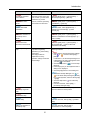


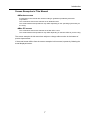
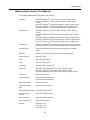

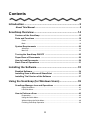




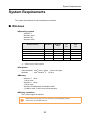

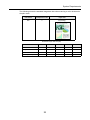
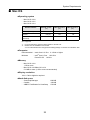
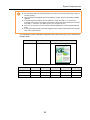




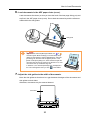
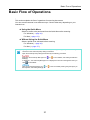
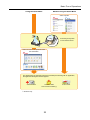


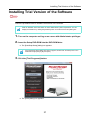
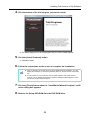


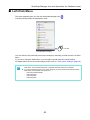
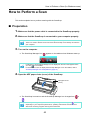
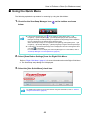

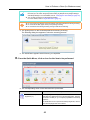
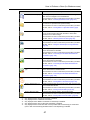
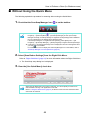
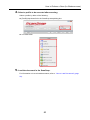

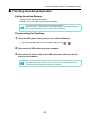
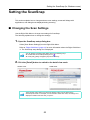
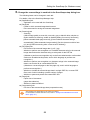


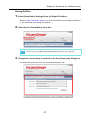
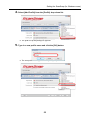
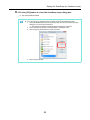
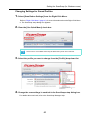

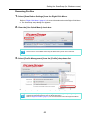

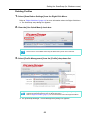

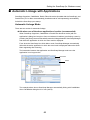
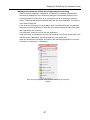
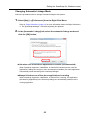
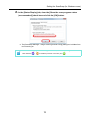
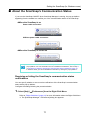



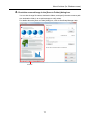
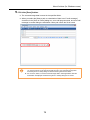
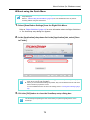

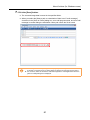


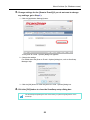
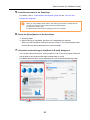


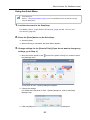
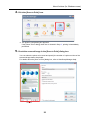

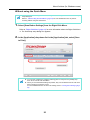

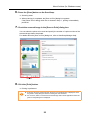

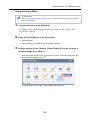
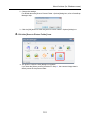
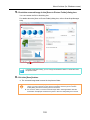
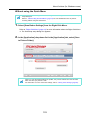
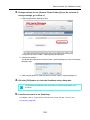
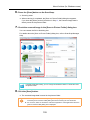
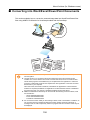
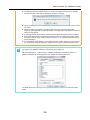

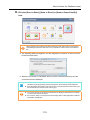
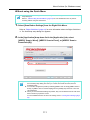

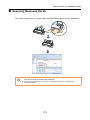


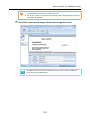
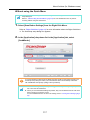
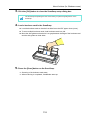

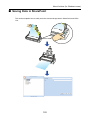

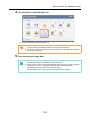
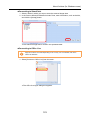

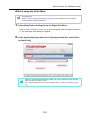
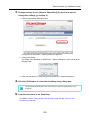
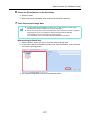


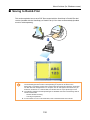
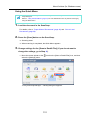

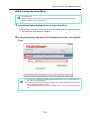
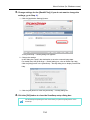





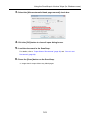


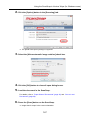
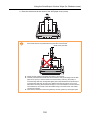
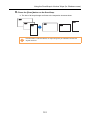


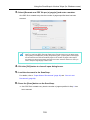

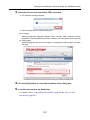
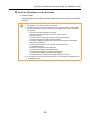
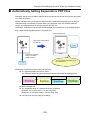
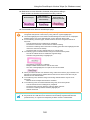


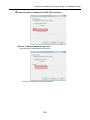
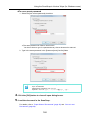
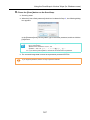

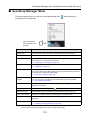
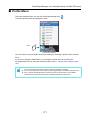
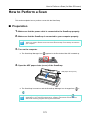
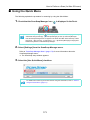


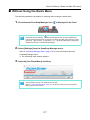
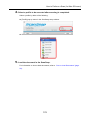
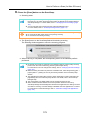

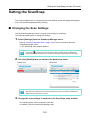


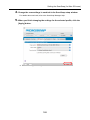
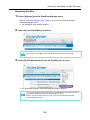
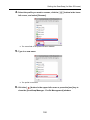
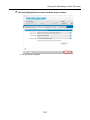

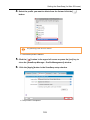
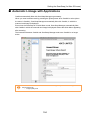


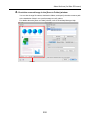

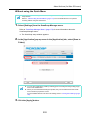
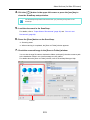
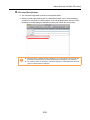
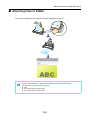
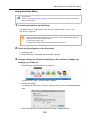
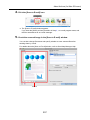
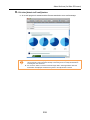


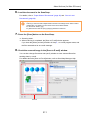

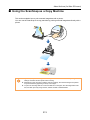
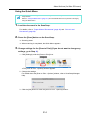
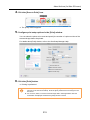
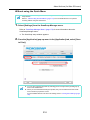
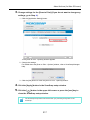
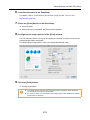

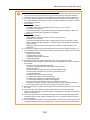


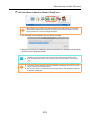
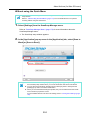
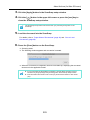

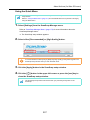


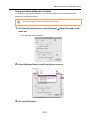
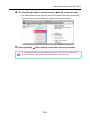


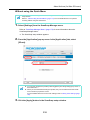


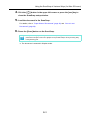
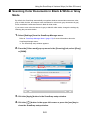


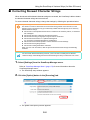


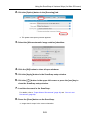
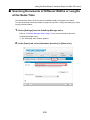
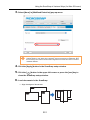


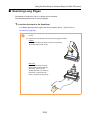
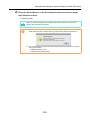
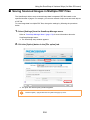
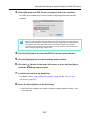
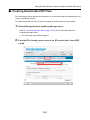


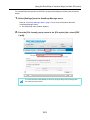

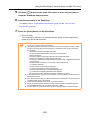

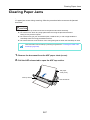


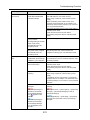
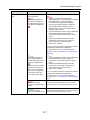


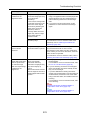


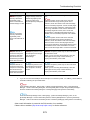
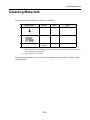


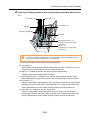
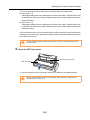

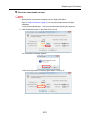

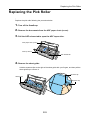
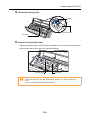
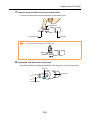

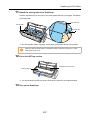

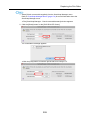


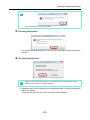
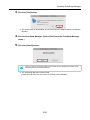
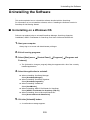
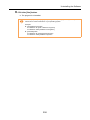
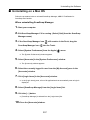
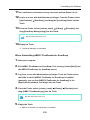



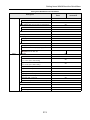



![6.Premere il tasto [Scan] di ScanSnap.](http://vs1.manualzilla.com/store/data/006124509_1-c373424b04faf23db72c3ba5efd11184-150x150.png)