1
VS400
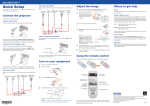
Quick Setup
Video Device
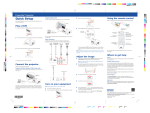
Connect up to 3 video devices and use the remote control to switch
between them.
Before using the projector, make sure you read the safety instructions in the
User’s Guide on your projector CD.
RCA video cable
(composite video)
(optional)
S-Video
cable
(optional)
Computer
cable
(included)
Component
video to
VGA cable
(optional)
Connect the projector
Adjust the image
Troubleshooting
1
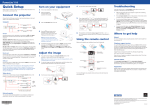
If you see a blank screen or the No signal message after turning on your
computer, check the following:
If you don’t see an image, press the Source Search button on the
projector or remote control to select the image source.
NOTE: If you still see a blank screen or have other display problems, see
the troubleshooting tips on the right.
2
To raise the image, press the foot release button and lift the front of the
projector. Release the button to lock the foot in position.
•Make sure the power light on the projector is green and not flashing,
and the A/V Mute slide is open.
•Press the Source Search button on the projector or the remote control
to select the computer as the image source.
Choose from the following connections:
•If you’re using a Windows notebook, press the function key on your
Computer Monitor Port
keyboard that lets you display on an external monitor. It may be labelled
CRT/LCD or have an icon such as
. You may have to hold down the
Fn key while pressing it (such as Fn + F7).
Connect a computer using the VGA cable that came with the projector.
•On a Macintosh®, select the Mirror Displays setting in the System
Preferences Displays utility.
3
Turn on your equipment
1
Turn on your computer or video source.
2
Plug in the projector.
Focus ring
Where to get help
Zoom ring
Manual
For more information about using the projector, install the User’s Guide from
your projector CD.
Telephone Support Services
Connect one end to the projector’s Computer port, and the other end to
your computer’s
monitor port. If you are using a notebook, switch it to
external display.
4
If your image looks like
or
, you’ve placed the projector off to
one side of the screen at an angle. Place it directly in front of the center
of the screen, facing the screen squarely.
5
If your image looks like
projector to correct it.
Computer USB Port
Connect a computer (Windows® 2000 or later, 32-bit only) to the projector
using a USB cable.
Connect the square end of the USB cable to the projector’s USB
TypeB
port. Connect the flat end of the cable to any USB port on your computer.
Turn the focus ring to sharpen the image, and the zoom ring to enlarge
or reduce it.
The power light on the projector turns orange.
3
Open the A/V Mute slide all the way.
or
, press the
or
buttons on the
To use the Epson PrivateLine® Support service, call (800) 637-7661 and enter
the PIN on the Epson PrivateLine Support card included with your projector.
This service is available 6 AM to 6 PM, Pacific Time, Monday through Friday, for
the duration of your warranty period. You may also speak with a projector
support specialist by dialing:
(562) 276-4394 (US), or (905) 709-3839 (Canada), 6
Monday through Friday.
AM
to 6
PM,
Pacific Time,
Using the remote control
Days and hours of support are subject to change without notice. Toll or long
distance charges may apply.
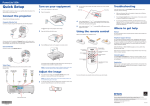
Make sure the batteries are installed as shown.
Internet Support
Visit www.epson.com/support for solutions to common problems. You can
download utilities and documentation, get FAQs and troubleshooting advice,
or e-mail Epson.
Registration
4
Press the
power button on the projector or remote control.
Turn projector
on and off
After turning on the projector, follow the on-screen instructions to install the
Epson USB Display software. (You need to install the software only the first
time you connect.) Then press the USB button on the remote control to select
the image source.
Choose which
source to display
Register today to get product updates, special promotions and customer-only
offers. You can use the CD included with your projector, or register online at
www.epson.com/webreg. Turn off projector
display
Get solutions to
common problems
Access projector
menus
The projector beeps, the power light flashes green, and then stays on.
Navigate projector
menus
NOTE: To shut down the projector, press the
power button twice, then
unplug it. You don’t have to wait for the projector to cool down.
For more information on using the remote control, see your User’s Guide.
Epson is a registered trademark and Epson Exceed Your Vision is a registered logomark of Seiko Epson
Corporation. PrivateLine is a registered trademark of Epson America, Inc.
*411913800*
*411913800*
General Notice: Other product names used herein are for identification purposes only and may be trademarks of
their respective owners. Epson disclaims any and all rights in those marks.
This information is subject to change without notice.
© 2010 Epson America, Inc. 4/10
Printed in XXXXXX
CPD-28020