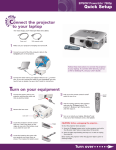
1
Quick Setup
Epson PowerLite 821p
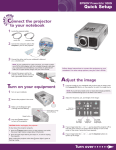
Using the remote control
1
2
If this is your first time using the
remote, press the tab in to release
the cover. Then remove the cover.
Troubleshooting
If you see a blank screen...
If you see a blank screen or the No signal message after turning on
your notebook, check the following:
Insert the batteries as shown and
replace the battery cover.
Zoom in on part of
the projected image
Turn the projector
on and off
Navigate projector
menus and control
pointer
Display pointer
Turn off projector
display and sound
Choose which
source to display
Search for the
correct source
Make sure the
Power light on the projector is green
and not flashing, and the lens cap is off.
Press the Comp 1 button on the remote control
to select Computer 1 as the image source.
If you’re using a Windows® notebook, press the function key on
your keyboard that lets you display on an external monitor. It may
be labelled CRT/LCD or have an icon such as
. You may have
to hold down the Fn key while pressing it. Allow a few seconds
for the projector to sync up after changing the setting.
If the projector and notebook
don’t display the same image...
If your image displays either on the projector or notebook, but not on
both, check the following:
Freeze the projector display
(presentation and sound
continue unless stopped)
Windows
Display projector
menus
Try using the CRT/LCD or
key as described above. On most systems,
this key lets you toggle between the LCD screen and the projector,
or display on both at the same time.
Control projector
volume
If that doesn’t work, check your monitor settings to make sure both the
LCD screen and the external monitor port are enabled.
With the USB cable included with the projector, you can use the remote as
a wireless mouse. For more information on the wireless mouse function
and on general use of the remote control, see your User’s Guide.
1.
From the Windows Control Panel, open the Display utility.
2.
In the Display Properties dialog box, click the
Settings tab, then click Advanced.
3.
The method for adjusting the setting varies;
you may have to click a Monitor tab, then
make sure the external Monitor port is set
as your primary display and/or enabled.
See your notebook’s manual or online help
for details.
NOTE: Put your remote in a safe place. You’ll need it if you use a
password with the projector. See the User’s Guide for details.
W here to get help
Telephone Support Services
®
To use the Epson PrivateLine Support service, call (800) 637-7661
and enter the PIN on the Epson PrivateLine Support card included
with your projector. This service is available 6 AM to 6 PM, Pacific Time,
Monday through Friday, for the duration of your warranty period.
You may also speak with a projector support specialist by dialing
one of these numbers:
U.S.:
(562) 276-4394, 6 AM to 6 PM, Pacific Time,
Monday through Friday
Canada: (905) 709-3839, 6 AM to 6 PM, Pacific Time,
Monday through Friday
Toll or long distance charges may apply.
Electronic Support Services
Epson provides technical assistance through electronic support
services 24 hours a day at http://support.epson.com. For tips,
templates, and training for developing successful presentations
go to http://www.presentersonline.com.
Epson is a registered trademark of Seiko Epson Corporation. PowerLite and PrivateLine are registered trademarks of Epson America, Inc.
General Notice: Other product names used herein are for identification purposes only and may be trademarks of their respective owners.
Epson disclaims any and all rights in those marks. © 2004 Epson America, Inc. 7/04
Printed in XXX
Macintosh® OS X
1.
From the Apple® menu, select System
Preferences, then select Displays.
2.
Select the Color LCD dialog box.
3.
Click the Arrangement (or Arrange) tab
and click Mirror Displays.
Macintosh OS 9.x or earlier
1.
From the Apple menu, select Control
Panels, then click Monitors or
Monitors and Sound.
2.
Click the Arrange icon.
3.
Drag one monitor icon
on top of the other.
If the Arrange option isn’t available, click the
Monitor icon and select a Simulscan resolution.
CPD-18614