1
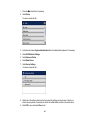
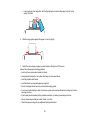
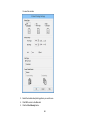
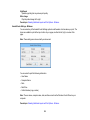
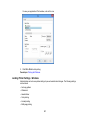
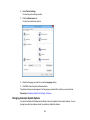
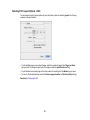
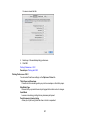
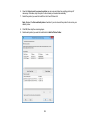
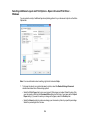
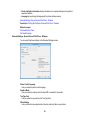
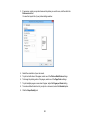
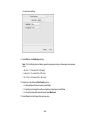
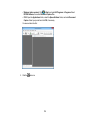
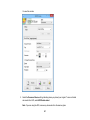
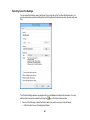
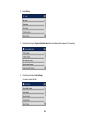
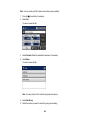
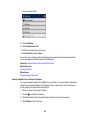
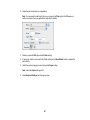
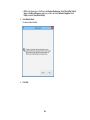
• Select Custom and click the Advanced button to manually adjust the color correction settings or
turn off color management in your printer software.
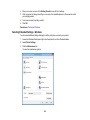
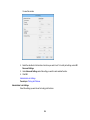
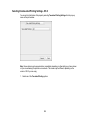
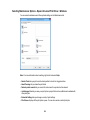
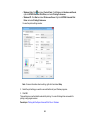
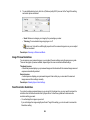
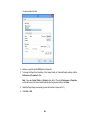
• Select Image Options to access additional settings for improving printed images.
Note: You can also select Color Universal Print settings.
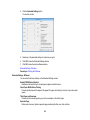
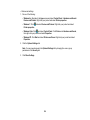
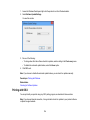
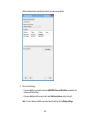
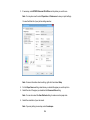
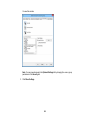
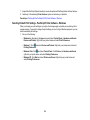
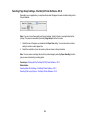
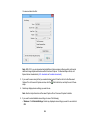
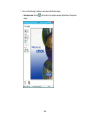
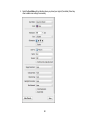
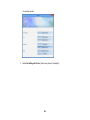
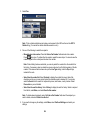
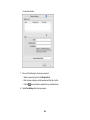
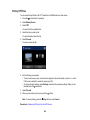
3. To add the following features, click the Watermark Features button:
• Anti-Copy Pattern: adds a watermark that only appears when your printout is copied.
• Watermark: adds a visible watermark to your printout.
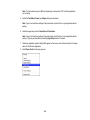
Note: Click the Add/Delete button to create your own watermark, and click the Settings button to
customize the watermark.
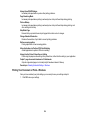
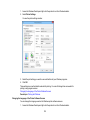
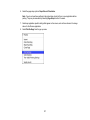
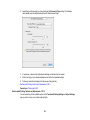
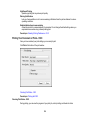
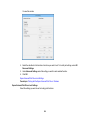
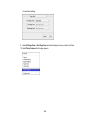
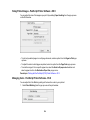
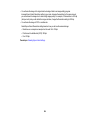
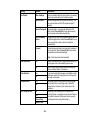
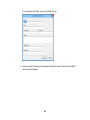
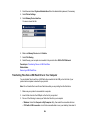
• Header/Footer: adds information such as the date and time to the top or bottom of your printout.
Note: Click the Settings button to customize the text and location of the header or footer.
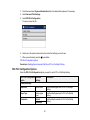
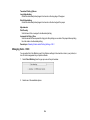
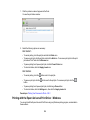
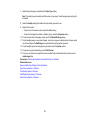
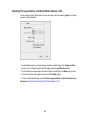
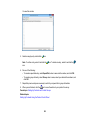
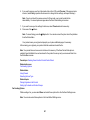
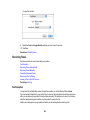
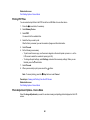
4. To add a password to your print job, select the Confidential Job checkbox, then enter a password.
Confidential jobs are stored in the product's memory without being printed. To print the job, enter the
password for the confidential job on the product's control panel.
Note: Confidential print jobs are cleared from the product's memory after printing.
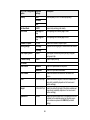
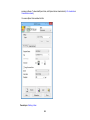
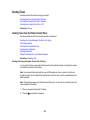
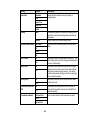
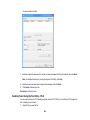
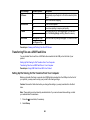
5. Select any of the Additional Settings options to customize your print.
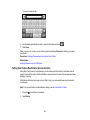
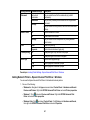
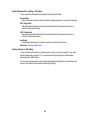
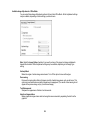
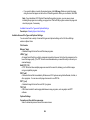
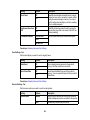
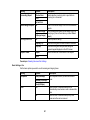
Custom Color Correction Options - Windows
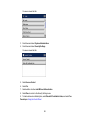
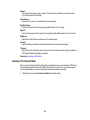
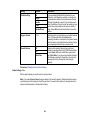
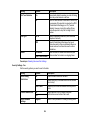
Image Options and Additional Settings - Windows
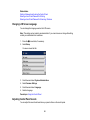
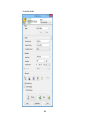
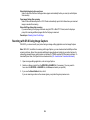
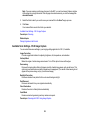
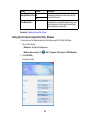
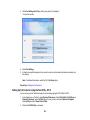
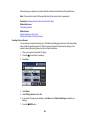
Header/Footer Settings - Windows
Parent topic: Printing with Windows
Related tasks
Printing Your Document or Photo - Windows
99