1
D10-200 CHAPTER 3-ENG_01
3
8/9/04
10:03 AM
Page 42
3
CHAPTER 3
Watching TV
CHAPTER 3
Watching TV
Changing channels
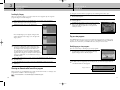
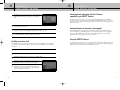
The Full Channel Banner
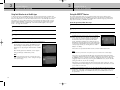
All available channels from any of these sources will appear in the Guide, and can be
tuned in using the CHAN …/† buttons and the 0 - 9 number buttons on your remote
control. The Channel Banners that appear on the screen as you change channels (or when
you press the INFO button) indicate the signal type for the program you are watching.
Satellite indicates the program on the current channel is being received through your
satellite dish.
The Channel Banner provides quick information as you button channels on your DIRECTV®
Receiver. If you want to see information about the channel you are currently watching,
simply press the INFO button on your DIRECTV® Receiver’s remote control. Pressing the
INFO button displays the Full Channel Banner.
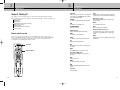
To change the channel you are watching:
1
2
Press the CHAN … button on the remote control to tune to a higher channel number. Press the
CHAN † button to tune to a lower channel number.
Enter a channel number directly with the 0 - 9 number buttons. After entering a number,
press the SELECT button or wait a few seconds for the system to tune to the new channel.
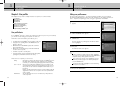
The Full Channel Banner displays all the
information in the Channel Banner, plus
more details about the program.
For example, the Full Channel Banner for
a movie might display the category for the
movie (drama, comedy, action/adventure,
etc.), the cast, the year it was released, and
a short description of the plot. You can clear
the Full Channel Banner from your screen by
pressing the EXIT button on your remote
control.
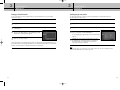
Adjusting the volume
To adjust the volume while watching DIRECTV programming, you simply press the VOL +
button on the remote control to increase the volume or the VOL - button to decrease the
volume. In order for the DIRECTV® Receiver’s remote control to adjust your TV’s volume
setting, you will have to program the remote control to operate your TV. (See Chapter 7:
Programming the remote control.)
Getting information on the TV program you are watching
Your DIRECTV® Receiver provides several layers of information about the TV programs
you watch.
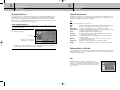
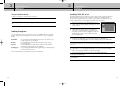
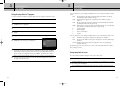
Information icons
In addition to the basic channel and program information contained in the Channel
Banners (program title, channel name, rating, etc.), there are a set of information icons.
These icons tell you more about the program you are watching and about the status of
your DIRECTV® Receiver. Here are descriptions of each icon:
Multi-language
This icon appears when additional audio tracks are available.
Locked
This icon appears when the system is locked.
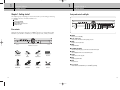
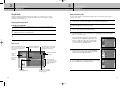
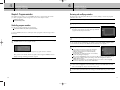
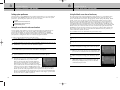
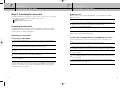
The Channel Banner
Unlocked
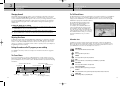
As you change channels you will see a Channel Banner on each channel you tune to.
After a few seconds, the Channel Banner disappears. If you want to clear it right away,
press the EXIT button on your remote control. The Channel Banner provides the following
information:
Channel number and name
Program title
Current time and date
Signal type and
Current user profile
audio format
This icon appears when the system is temporarily unlocked.
Mail
This icon appears when there are unread mail messages from DIRECTV in your system mailbox.
Music channel
This icon appears when the channel is a music-only channel.
Pay per view program
This icon appears when the program is a pay per view program.
Letterbox
This icon indicates that the current program is being broadcast using the letterbox widescreen video format.
Channel logo
42
Program start
and end times
Program rating Information icons
(See next page for details.)
All Day Ticket
This icon will appear when you purchase All Day Ticket.
43