1
To exit without saving the changes, click
.
Managing Servers With iKVM
The iKVM is an analog switch matrix supporting up to 16 servers. The iKVM switch uses the OSCAR user interface to
select and configure the servers. In addition, the iKVM includes a system input to establish a CMC command line
console connection to CMC.
If you have an active console redirection session and a lower resolution monitor is connected to the iKVM, the server
console resolution may reset if the server is selected on the local console. If the server is running a Linux operating
system, an X11 console may not be viewable on the local monitor. Pressing <Ctrl><Alt><F1> at the iKVM switches Linux
to a text console.
Related Links
Peripherals Compatibility and Support
Viewing and Selecting Servers
Peripherals Compatibility and Support
The iKVM is compatible with the following peripherals:
•
Standard PC USB keyboards with QWERTY, QWERTZ, AZERTY, and Japanese 109 layouts.
•
VGA monitors with DDC support.
•
Standard USB pointing devices.
•
Self-powered USB 1.1 hubs connected to the local USB port on the iKVM.
•
Powered USB 2.0 hubs connected to the Dell M1000e chassis’ front panel console.
NOTE: You can use multiple keyboards and mice on the iKVM local USB port. The iKVM aggregates the input
signals. If there are simultaneous input signals from multiple USB keyboards or mice, it may have unpredictable
results.
NOTE: The USB connections are solely for supported keyboard, mouse, and USB hubs. iKVM does not support data
transmitted from other USB peripherals.
Viewing and Selecting Servers
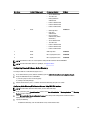
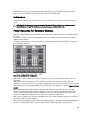
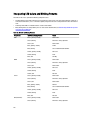
When you launch OSCAR, the Main dialog box appears. Use the Main dialog box to view, configure, and manage servers
through the iKVM. You can view the servers by name or by slot. The slot number is the chassis slot number the server
occupies. The Slot column indicates the slot number in which a server is installed.
NOTE: The Dell CMC command line occupies Slot 17. Selecting this slot displays the CMC command line, where
you can execute RACADM commands or connect to the serial console of server or I/O modules.
NOTE: Server names and slot numbers are assigned by CMC.
Related Links
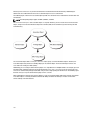
Soft Switching
Viewing Server Status
Selecting Servers
190