1
Downloading the App
To download the App, enter
the Android™ Market on your
Android™ SmartPhone, search
for “Cobra iRadar” and follow
the onscreen instructions.
Once the app is launched,
the phone will attempt to
communicate with the iRadar
detector unit. This connection
may take up to 30 seconds.
Once the connection is made
the LED on the front of the
detector unit will turn blue and
an icon on the App’s
home screen will say
“connected”.
Now you’re ready to enjoy
using Cobra iRadar!
iRADR_QSG_ANDROID.indd 2
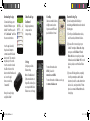
Cobra iRadar App
Dashboard
Displays speedometer,
compass and car
battery voltage.
View Map
Shows user-marked locations,
red light camera locations
in your area and GPS-based
speed & direction of travel.
Settings
Configure your Cobra
iRadar settings.
Note: All radar/laser/red
light camera detector settings will be inactive if you
are not paired with Cobra
iRadar or are out of range.
For more information about
AURA™, please visit:
www.cobra.com/AURA.
For more information on iRadar accessories, go
to: www.cobrairadar.com.
Bluetooth Pairing Tips
If you are having trouble initializing or
maintaining your Bluetooth connection take the
following steps:
1) Turn off your Cobra iRadar detector device,
wait 30 seconds, and then turn it back on.
2) If you are still not connected, go to your
Android™ smartphone’s Bluetooth settings
menu, press and hold iRadar 105 under
Bluetooth devices to unpair it, press Scan
for devices and select iRadar 105. Once the
device is paired, re-enter the Cobra iRadar
App.
3) If you are still having problems, completely
shut off your smartphone and the iRadar
detector unit, wait 30 seconds and turn them
back on. Also, consult your Android™ Smartphone’s user manual for Bluetooth troubleshooting tips.
2/11/11 3:36 PM