1
Clickfree C2N Home Backup Drive User Guide
Restoring My Content (HD)
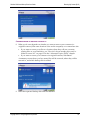
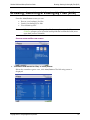
CHOOSING THE COMPUTER TO RESTORE FROM
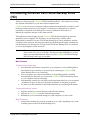
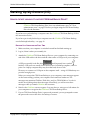
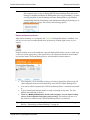
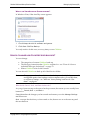
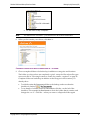
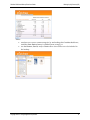
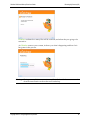
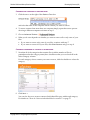
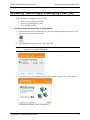
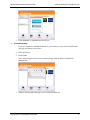
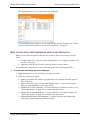
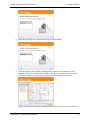
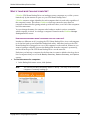
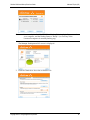
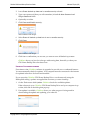
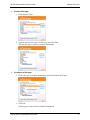
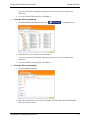
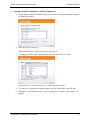
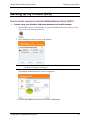
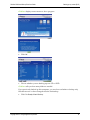
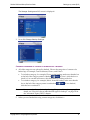
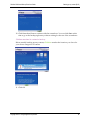
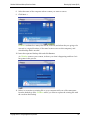
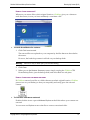
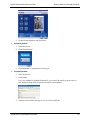
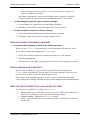
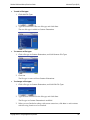
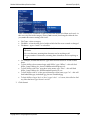
3. Click the arrow at the right of the Restore From box:
and select the name of the computer whose content you want to restore.
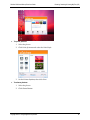
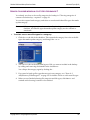
4. To restore content from more than one computer simply repeat the restore process
choosing a different computer each time in step 3.
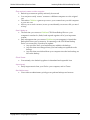
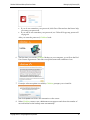
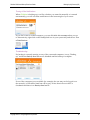
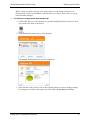
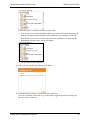
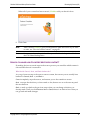
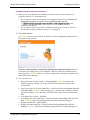
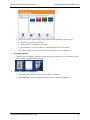
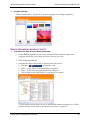
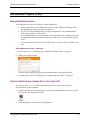
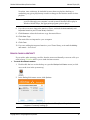
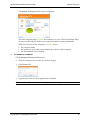
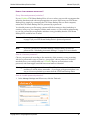
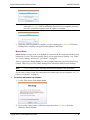
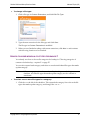
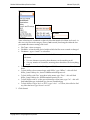
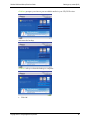
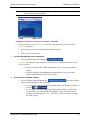
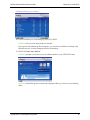
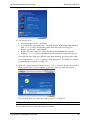
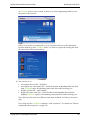
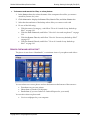
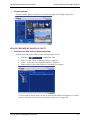
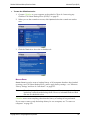
5. Choose Advanced Restore
.
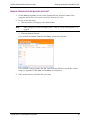
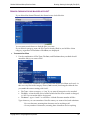
6. What you do next depends on whether you want to restore all or only some of your
files.
•
•
If you want to restore only some of your files, continue with step 7.
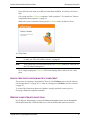
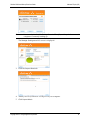
If you want to restore all of your files, click Start Restore and go to step 8.
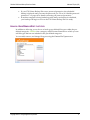
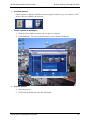
CHOOSING CATEGORIES OF CONTENT TO BE RESTORED
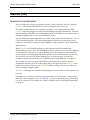
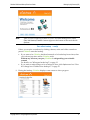
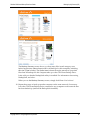
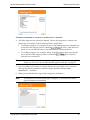
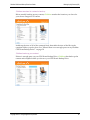
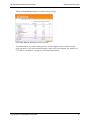
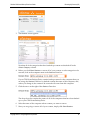
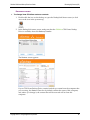
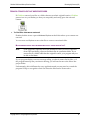
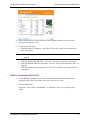
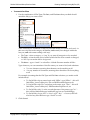
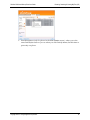
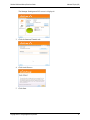
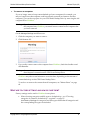
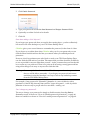
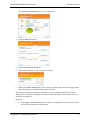
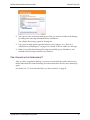
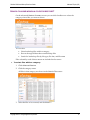
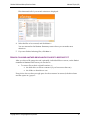
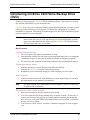
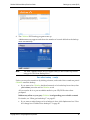
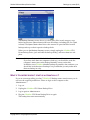
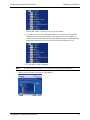
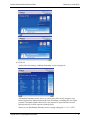
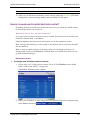
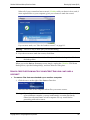
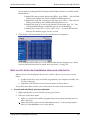
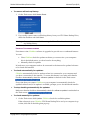
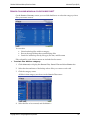
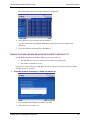
7. Note that all of the categories that contain files (with the number of files in
parentheses after the category name) have checkboxes that you can check off in the
Select Category column.
For each category whose content you want to restore, click the checkbox to select the
category.
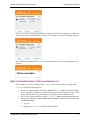
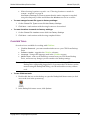
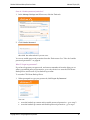
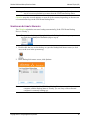
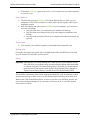
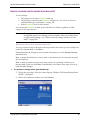
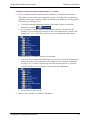
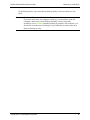
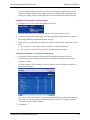
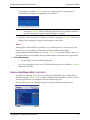
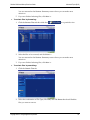
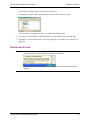
8. Click Next >.
You can also choose to restore content of individual file types within each category.
For details see “How do I choose individual files for restore?” on page 75.
Copyright © 2010 Storage Appliance Corporation.
39