1
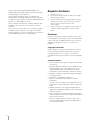
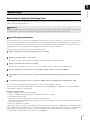
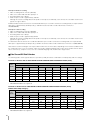
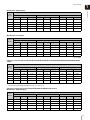
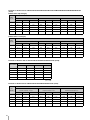
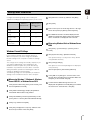
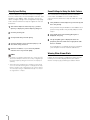
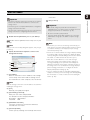
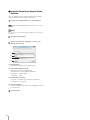
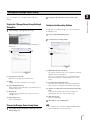
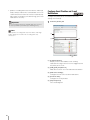
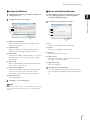
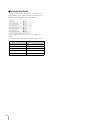
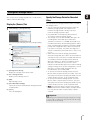
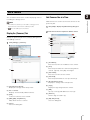
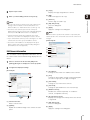
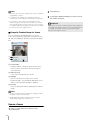
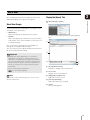
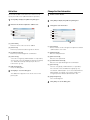
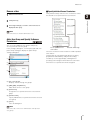
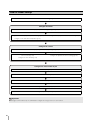
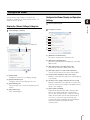
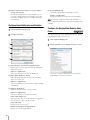
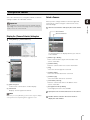
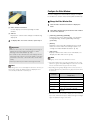
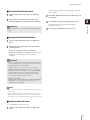
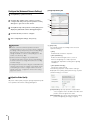
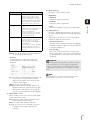
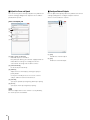
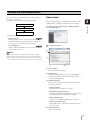
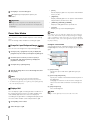
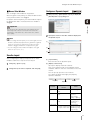
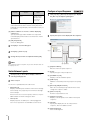
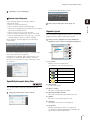
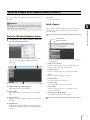
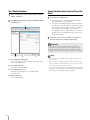
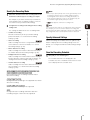
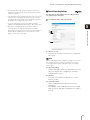
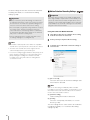
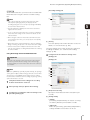
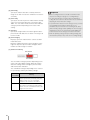
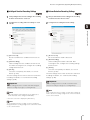
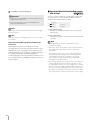
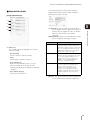
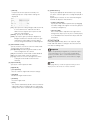
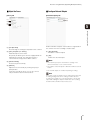
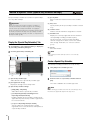
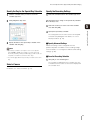
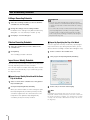
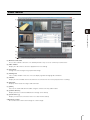
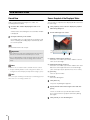
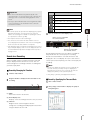
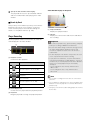
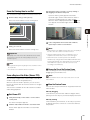
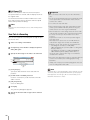
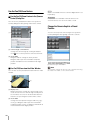
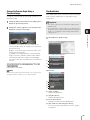
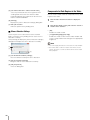
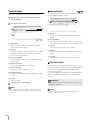
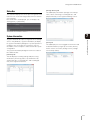
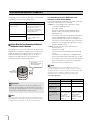
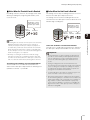
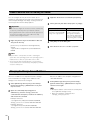
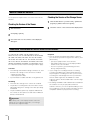
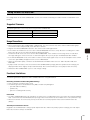
3 Specify the date and time and click [OK]. Video Window Display for Playback (1) The playhead moves to the specified date and time and the recorded video starts playing in the video window. Search by Event Click [Search] on the toolbar or [Search] on the timeline toolbar to search for an event. Click the event in the search results to play the associated recording. For details, see “Play Back an Event” (p. 108). (2) (1) Playback indicator Displays the playback status. (2) Title bar Displays the camera name and the time and date of the recording. Play a Recording Use the playback controls on the timeline to control the video displayed in the video window. Important • You cannot use [Fast Reverse], [Previous Frame], and [Next Frame] for recordings in MPEG-4 or H.264 format. (1) • Because video data is being sent from the Storage Server to the Viewer during playback, playback response and smoothness depends on factors such as the amount of network traffic. (2) (3) • The time displayed on the timeline corresponds to the clock on the computer where the Viewer is running. (1) Playback controls Controls for video playback. Button Description Jump to previous event Fast reverse (each click changes the speed in sequence: 1x, 2x, 5x, 10x) • To play back a recorded video, set a time earlier than the current time that will allow recording 10 frames*. If you try to simultaneously record and play back video before 10 frames have been recorded, playback may be momentarily interrupted. * At a recording frame rate of 0.1 fps, 10 frames takes 100 seconds. At a recording frame rate of 1 fps, 10 frames takes 10 seconds. Go to previous frame / Play/pause Go to next frame Fast forward (each click changes the speed in sequence: 2x, 5x, 10x) Jump to next event (2) Event display area Click to move the playhead to the playback position. (3) Playhead Drag the playhead to change the playback position. 100 Note • You can play recordings from more than one camera at the same time. • You can display recordings from one camera in multiple video windows. You can also play video recorded at different times simultaneously. • Click [Live] on the timeline toolbar during playback to return to the live video.