1
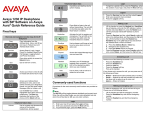
SIP Firmware for IP Phone 1140E Quick Reference
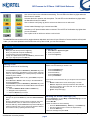
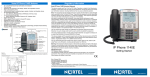
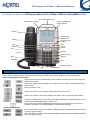
Use mute to listen to the call without transmitting. The red LED on the Mute key lights when the
Mute feature is enabled.
Activates the built in speaker and microphone. The red LED on the Handsfree key lights when
the Handsfree feature is enabled.
Use to release a call (hang up) and to exit a menu when not on an active call.
Access Instant Message log to view and send IMs.
Activates your IP phone headset when connected. The red LED of the Headset key lights when
you use a headset.
Use to place a call on hold or to retrieve a call on hold.
The abc/123 Context-sensitive soft key toggles between alphabetic and numeric input. When the Context-sensitive soft key label
is abc, you can enter alphabetic text and when the soft ley label is 123, you can enter numbers.
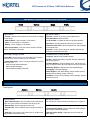
Login/Logout
Logging in
Logging out
1.
2.
3.
1.
2.
3.
Enter your User ID and press the Login key.
Enter your password and press the Next key.
To permanently login press the Next key.
To login for a period of time press the Timed key, enter the duration of your login and press the Next key.
Press Servcs > System >Logout.
Enter your password.
Press the Logout key.
Call related functions
Making a call
To make a call do one of the following:
•
•
•
•
Lift the Handset or press the Headset key, Handsfree key or the
Line key and enter the SIP address or phone number and press
send. Or, press the Redial key to call the previously entered SIP
address or phone number.
Press View > Friends, select an entry, press Status, and press
the Call key.
Press Services > Search to find an entry in the Address Book
and press the Call key.
Lift the Handset or press the Headset key, Handsfree key or the
Line feature key and dial from the Address Book or Inbox/Outbox
as follows:
– 1. Press the Address Book or Inbox or Outbox key.
– 2. Navigate to the required entry.
– 3. Press the Select key to connect.
Answering a call
Perform one of the following to answer a call:
•
•
•
•
•
Press the Handsfree key
Press the Headset key
Press the Line key
Press the Answer key
Pick up the Handset.
If you choose not to answer the call, you can press one of the following keys:
– Redrct—Redirects the call to another party or number.
– Decline—Rejects the call and provides the caller with fast
busy and no option to go to voice mail. You can provide a reason for declining the call.
– Ignore—Stops call ringing.
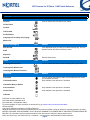
Initiating a conference call
Sending an instant message (IM)
1.
Press the Expand key or press Msgs > Instant Messaging to access
the Instant Messaging menu.
1. Press New IM.
2. Enter the address or do the following:
– Press the Address Book key, Inbox key, or the Outbox key.
– Use the navigation keys to scroll to the required entry.
– Press the Select key.
3. Enter the message and press Send.
2.
3.
During a call, press the Action key and select New Call/Conference.
Enter the SIP address or phone number or select an entry from
the Address Book, Inbox, or Outbox and complete the call.
Press the Join key, select Conference and press the OK key to
create a conference call. You can continue to add more callers to
the conference call by repeating the above steps.
Attention: Not all features are available. To determine which features are available or to activate a feature contact your system
administrator or service provider.
page 2