1
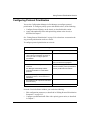
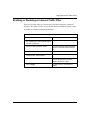
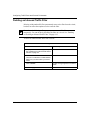
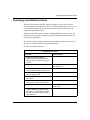
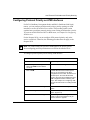
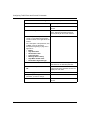
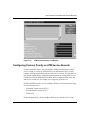
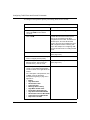
Configuring Traffic Filters and Protocol Prioritization
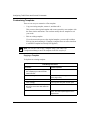
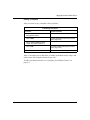
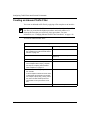
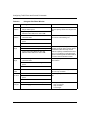
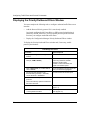
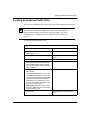
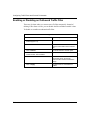
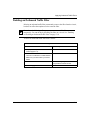
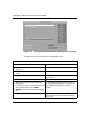
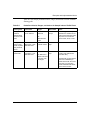
To create an inbound IP traffic filter that prevents access to a network through
TCP and UDP ports:
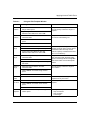
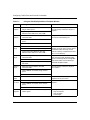
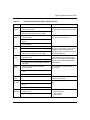
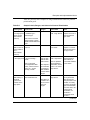
Site Manager Procedure
You do this
System responds
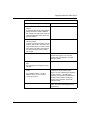
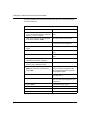
1. In the Site Manager main window, choose The Configuration Manager window
Tools > Configuration Manager > Remote | opens.
Dynamic | Local > config file
2. Click on the connector for the configured
IP circuit (for example, COM2).
The Edit Connector window opens.
3. Click on Edit Circuit.
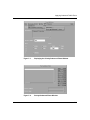
The Circuit Definition window opens; the
circuit you selected is highlighted.
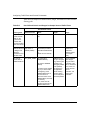
4. Choose Protocols > Edit IP > Traffic
Filters.
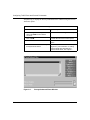
The IP Filters window opens.
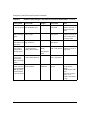
5. Click on Template.
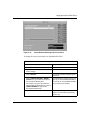
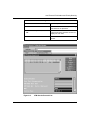
The Filter Template Management window
opens.
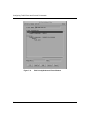
6. Click on Create.
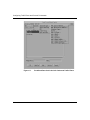
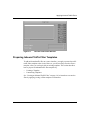
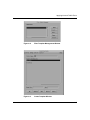
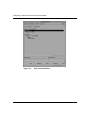
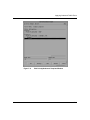
The Create IP Filter Template window
opens.
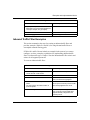
7. Specify a descriptive name in the Filter
Name field (for example, accepted).
8. Choose Criteria > Add > TCP or UDP
Frame > TCP or UDP Source Port.
The Add Range window opens.
9. Type 0 in the Minimum value field and
9999 in the Maximum value field, then
click on OK.
The Add Range window closes. The
criterion and range now appear in the
Filter Information field of the Create IP
Filter Template window.
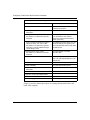
10. Choose Action > Add > Accept.
The action now appears in the Filter
Information field.
11. Click on OK.
The Filter Template Management window
opens. The new template appears in the
templates list.
12. Click on Done.
The IP Filters window opens.
13. Click on Create.
The Create Filters window opens.
14. Select a template in the Templates field.
15. Select a circuit in the Interfaces field.
(continued)
B-2
308645-15.0 Rev 00