1
Chapter 1: Welcome to PowerPoint 2007
blank, but the top part of the screen is chock-full of little icons and buttons
and doohickies. What is all that stuff?
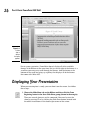
Figure 1-1 shows the basic PowerPoint screen in all its cluttered glory. The
following list points out the more important parts of the PowerPoint screen:
Office button (a.k.a. the File menu)
Quick Access toolbar
Slides and Outline tabs
The Ribbon
Figure 1-1:
PowerPoint’s
cluttered
screen.
Status bar
Current slide
The Ribbon: Across the top of the screen, just below the Microsoft
PowerPoint title, is PowerPoint’s main user-interface gadget, called the
Ribbon. If you’ve worked with previous versions of PowerPoint, you
were probably expecting to see a menu followed by one or more toolbars in this general vicinity. After meticulous research, Microsoft gurus
decided that menus and toolbars are hard to use. So they replaced the
menus and toolbars with the Ribbon, which combines the functions of
both. The Ribbon takes some getting used to, but after you figure it out,
15