1
QuickBooks in a Multi-User Environment
467
The image in the Clipboard is larger than the bitmap.
Would you like the bitmap enlarged? Click Yes. Save the screen
shot using File➪Save As. (This is the same basic technique that I use, for
example, to show you pictures of the QuickBooks window in the pages
of this book.) You may want to capture a screen shot image in this way
in order to record the user access and rights for employees.
Changing user rights
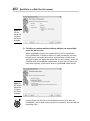
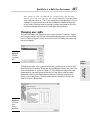
You can also modify the rights that you assign to a user. To do this, choose
the Company menu’s Set Up Users command to display the User List dialog
box, as shown in Figure 1-8. This is the same User List dialog box shown earlier in the chapter.
Figure 1-8:
The User
List dialog
box.
Book VII
Chapter 1
Figure 1-9:
The View
User
Access
dialog box.
Administering
QuickBooks
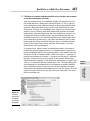
To look at the rights that a particular user has, click the user in the list and
then the View User button. When you do, QuickBooks displays the View User
Access dialog box, as shown in Figure 1-9. This dialog box shows the same
information as the final version of the Set Up User Access and Password
dialog box, which is the dialog box that you use to initially specify what
rights a user should have. Click the Leave button, obviously, to close the
View User Access dialog box.