1
Publishing and Sharing
251
Exporting as image
Especially if you're exporting web bitmap images, you can take advantage of the
Export Optimizer, which will greatly help you in reducing file sizes and
download times as far as possible while maintaining image quality. The Export
Optimizer lets you export the whole page, just a selected object(s) or a userdefined region. You can also see how your image will look (and how much space
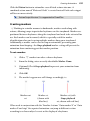
it will take up) before you save it! For visual comparison, its multi-window
display provides side-by-side WYSIWYG previews to compare different image
formats, or the same format at differing bit depths.
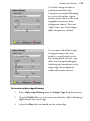
To export via the Export Optimizer:
1.
Choose Export>Export as Image... from the File menu.
2.
(Optional) From the Export Area section, you can scale the image to a
new size if desired (change pixels), or adjust the dpi (dots per inch)
setting. For graphics to be used on-screen, it's best to leave these values
intact. The export can be based on the whole Page, Selected Area (see
Defining a region for export), or Selected Objects.
3.
From the Properties section, select the intended graphics file format
from the Format drop-down menu. The remaining box area will