1
74
FileMaker Pro Tutorial
About exchanging data
You can exchange information between FileMaker Pro and other applications by importing and exporting
data. You can:
1
1
1
1
import data into an existing FileMaker Pro file, either into a new table or into an existing table
share data with and import data from ODBC data sources
convert data from other applications to new FileMaker Pro files
export data for use in other applications
Saving and sending data
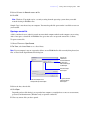
You can save FileMaker Pro data as a Microsoft Excel file or a PDF file, allowing you to give data to users
who don’t have FileMaker Pro. FileMaker Pro lets you email the Excel file or PDF file when you save it.
You can also create scripts to save/send records as Excel or PDF.
FileMaker Pro can send email messages to one or more recipients. You can manually enter recipients, the
message subject, and so on, or you can use values from fields or calculations.You can also create scripts to
send email.
Supported import/export file formats
Most applications store data in their own file format, but most can also exchange information using
intermediary formats. For example, FileMaker Pro can import and/or export files in Microsoft Excel,
tab-separated text (tab), comma-separated values (csv), and XML, as well as other formats.
If you want to exchange data with another program, check the documentation that came with that program
to determine a common intermediary file format that both FileMaker Pro and the other program support.
Note Most file formats do not import or export formatting such as font, size, style, and color.
About importing data
There are several ways to import data into an existing file. You can:
1 add new records to an existing table
1 create a new table from imported data
1 update existing records in an existing table
1 update matching records in an existing table
Important Certain import operations that update existing records and update matching records overwrite
existing data during the import process, which cannot be undone. To safeguard your data, always choose
File menu > Save a Copy As to make a backup of the file before you perform an import that updates records.
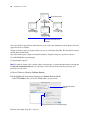
The file you import records from is the source. The file you import records to is the target.
Import data into the sample file
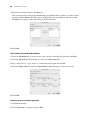
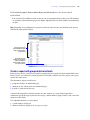
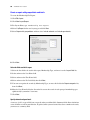
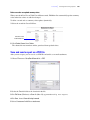
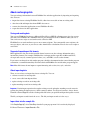
1. In Sample Copy.fp7, select Data Entry from the Layout pop-up menu if it is not already displayed.
2. Choose File menu > Import Records > File.