1
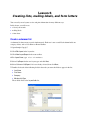
Lesson 10
|
Making databases relational
69
Display a list of related records
Relationships are bidirectional. The relationship you made between the Members and Companies tables
displays data (company addresses) from the Companies table. Next, you will use the same relationship to
display data (member names) from the Members table.
Create a portal to display matching records
You can add a portal on a layout to display data from related fields.
1. Choose the Companies layout from the Layout pop-up menu.
A relationship must always be defined before you can display data from related records. Now you will
use the relationship to the Members table you defined earlier in this lesson, but the relationship must be
edited to allow the creation of related records.
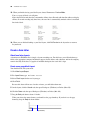
2. Choose File menu > Manage > Database, and click the Relationships tab, if it isn’t already selected.
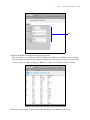
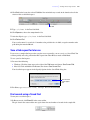
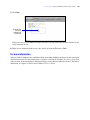
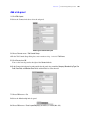
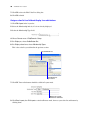
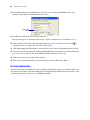
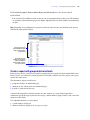
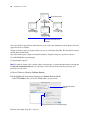
3. In the relationships graph, double-click the relational operator
box.
to display the Edit Relationship dialog
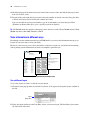
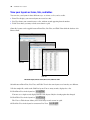
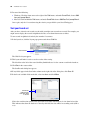
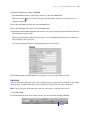
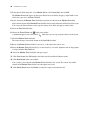
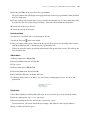
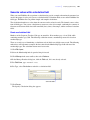
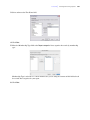
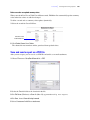
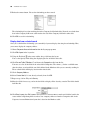
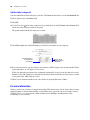
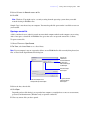
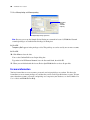
4. At the bottom of the dialog box under Members, select Allow creation of records in this table via this
relationship. This lets you add a name to the Members list.
Select this
checkbox
5. Click OK, then click OK again to close the Manage Database dialog box.
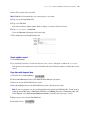
6. Use the book or slider in the status toolbar to move to the first company record (ABC Company).
7. Click Edit layout.
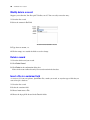
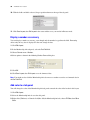
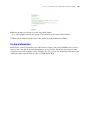
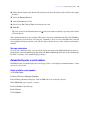
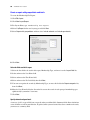
8. Select the Portal tool
in the status toolbar and draw a box on the layout to hold the list of names.
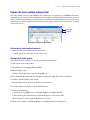
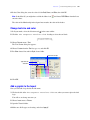
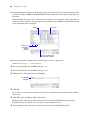
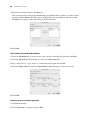
9. In the Portal Setup dialog box, choose the Members table in Show related records from.
10. Select Show vertical scroll bar.
11. Leave the Initial row value at 1. Change the Number of rows value to 7.
12. Click OK.